What Is The Fastest SSD: Speed Guide
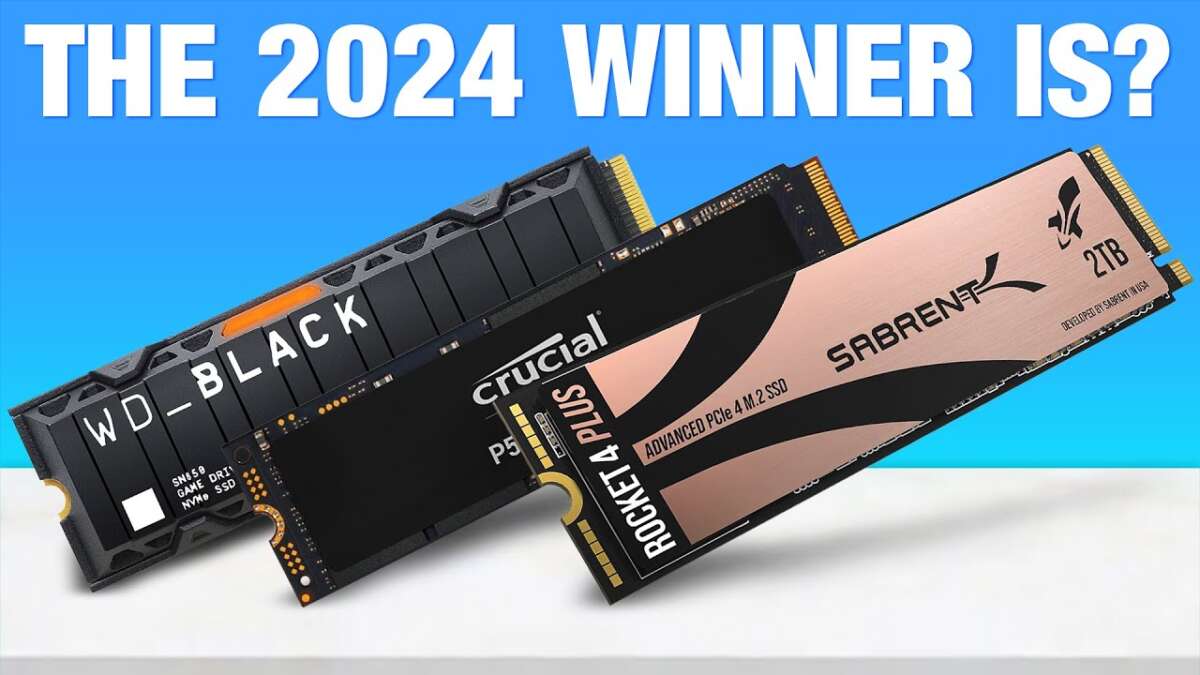
The fastest consumer SSD in the United States is usually a PCIe 5.0 NVMe SSD. Among current high-end models, drives such as the WD_BLACK SN8100, Samsung 9100 Pro, and Crucial T705 claim top sequential speeds of about 14,500 to 14,900 MB/s.
For most people, however, the fastest SSD on a spec sheet is not always the best buy. A PCIe 4.0 SSD can feel nearly as fast in games and daily work, while using less power and producing less heat.

Quick answer: Which SSD is the fastest?
The WD_BLACK SN8100 and Samsung 9100 Pro are among the fastest consumer M.2 SSDs by published sequential-read speed. Both reach roughly 14,800 to 14,900 MB/s, depending on capacity and test conditions.
The Crucial T705 is also a top-tier PCIe 5.0 drive. It reaches up to about 14,500 MB/s read speed and 12,700 MB/s write speed in its highest-capacity versions.


| SSD | Interface | Published maximum read speed | Published maximum write speed | Best fit |
|---|---|---|---|---|
| WD_BLACK SN8100 | PCIe 5.0 x4 | Up to 14,900 MB/s | Up to 14,000 MB/s | Maximum headline speed |
| Samsung 9100 Pro | PCIe 5.0 x4 | Up to 14,800 MB/s | Up to 13,400 MB/s | High-end PCs and workstations |
| Crucial T705 | PCIe 5.0 x4 | Up to 14,500 MB/s | Up to 12,700 MB/s | Heavy file work and gaming PCs |
| Typical PCIe 4.0 SSD | PCIe 4.0 x4 | About 7,000–7,500 MB/s | About 5,000–7,000 MB/s | Better value and lower heat |
These are manufacturer-rated peak figures. Your results may be lower because of the SSD capacity, motherboard, cooling, workload, operating system, and test software.
The short recommendation is simple:
- Choose the WD_BLACK SN8100 or Samsung 9100 Pro if you want the highest advertised consumer SSD speed.
- Choose the Crucial T705 if its price and cooling bundle are better for your build.
- Choose a good PCIe 4.0 SSD if you mainly play games, browse, edit photos, or use office apps.
What makes an SSD fast?
An SSD’s speed comes from several parts working together. The interface sets the traffic limit, while the controller, NAND flash, cache, firmware, and cooling affect how well the drive uses that limit.
PCIe generation
PCIe is the connection between the SSD and the computer. Each new generation provides more bandwidth.
A PCIe 5.0 x4 SSD has about twice the interface bandwidth of a PCIe 4.0 x4 SSD. In simple terms, PCIe 5.0 gives high-end drives enough room to pass data at around 14,000 MB/s or more.
Your computer must support PCIe 5.0 for a PCIe 5.0 SSD to reach its full speed. If you install that drive in a PCIe 4.0 slot, it will normally operate at PCIe 4.0 speed.
Sequential speed
Sequential speed measures large, orderly transfers. It is useful when you:
- Copy a large video file
- Move a disk image
- Load a large project
- Read or write a long stream of data
- Work with high-resolution video
Sequential speed is the number most often used in SSD advertisements. It is helpful, but it does not describe every type of storage work.
Random speed and access time
Random performance measures many small files placed in different parts of the drive. It matters more for:


- Starting Windows
- Opening apps
- Loading game files
- Compiling code
- Running databases
- Handling many tasks at once
Random performance is often shown as IOPS, or input/output operations per second. Low access time also matters. A drive with a lower peak sequential speed may feel just as quick in ordinary use if it has strong random performance and good firmware.
NAND type
Most modern consumer SSDs use 3D TLC NAND. TLC stores three bits in each memory cell and usually offers a good balance of speed, endurance, and cost.
Some lower-cost SSDs use QLC NAND. QLC can reduce price, but sustained write speed may fall after the drive’s fast cache fills. That difference matters when writing hundreds of gigabytes at once.
Cooling
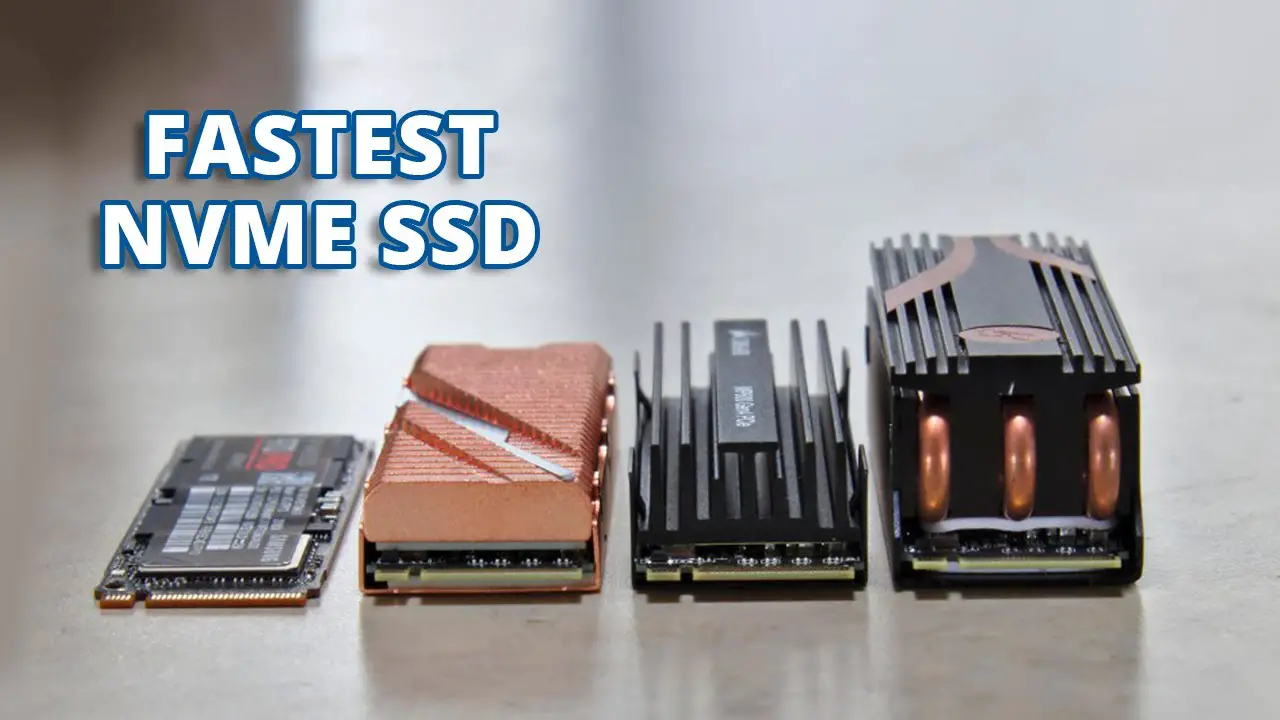
Fast PCIe 5.0 SSDs can produce much more heat than older PCIe 3.0 and PCIe 4.0 drives. When an SSD gets too hot, it may throttle. Throttling lowers speed to protect the hardware.
A motherboard heatsink may be enough for light work. Heavy transfers often benefit from a larger heatsink or an active cooler. Follow the SSD maker’s installation instructions and keep the heatsink pad aligned with the drive.

The fastest SSDs compared
The best way to compare top SSDs is to separate published peak speed from sustained real-world performance.
WD_BLACK SN8100
The WD_BLACK SN8100 is a PCIe 5.0 NVMe SSD aimed at high-end desktops and workstations. Its largest versions advertise read speeds near 14,900 MB/s and write speeds near 14,000 MB/s.
It is a strong choice when large file transfers and demanding creative work matter. It still needs a compatible PCIe 5.0 slot and suitable cooling.
Samsung 9100 Pro
The Samsung 9100 Pro is another high-end PCIe 5.0 drive. Samsung lists read speeds up to about 14,800 MB/s and write speeds up to about 13,400 MB/s, depending on the model.
Samsung’s SSD software can help with firmware updates and drive monitoring. As with any PCIe 5.0 SSD, the drive’s results depend on the host system and thermal conditions.
Crucial T705
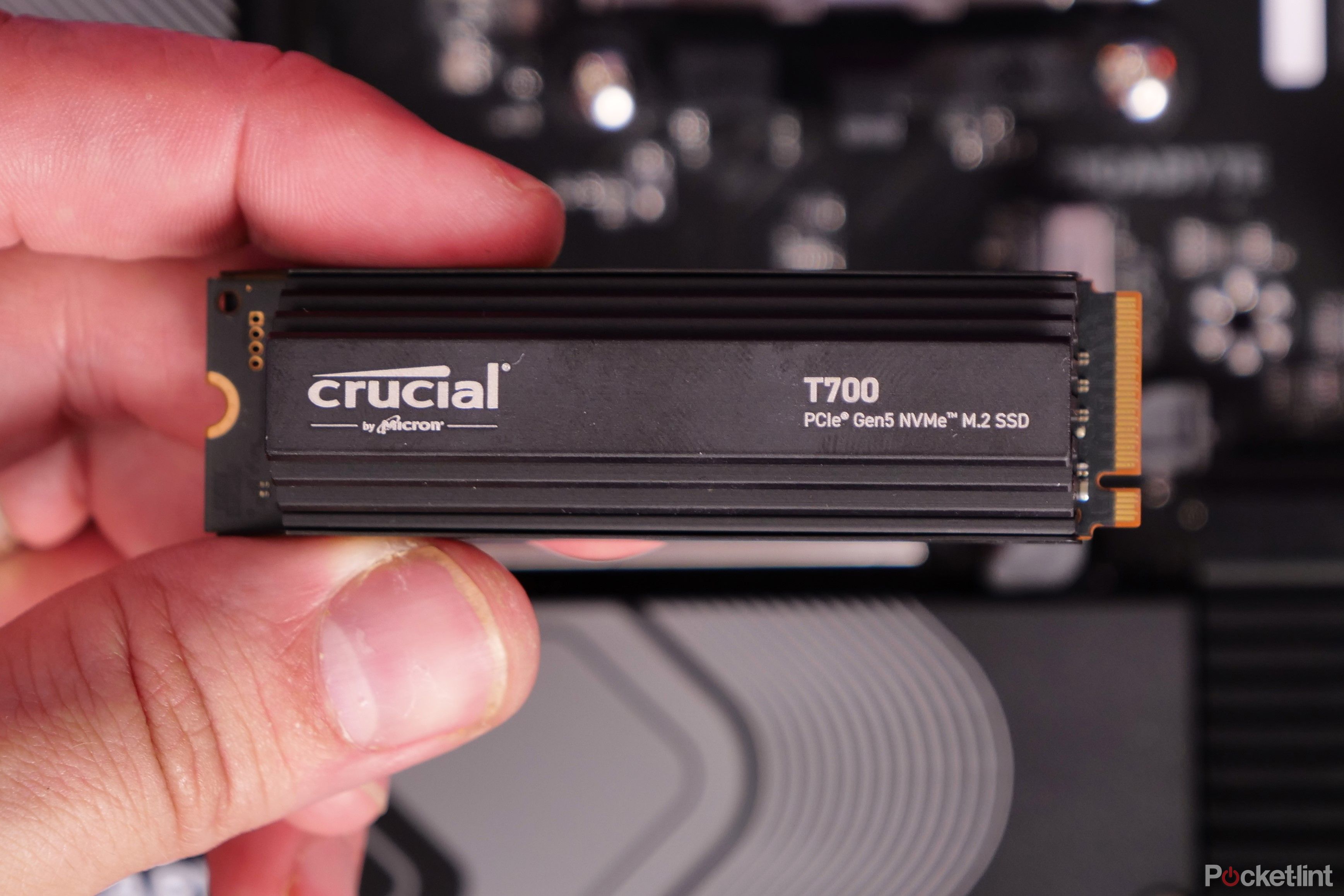
The Crucial T705 is one of the better-known early PCIe 5.0 consumer drives. Its top capacity reaches approximately 14,500 MB/s read speed and 12,700 MB/s write speed.
The T705 can be a sensible pick when it is discounted or sold with a suitable heatsink. It may not be the fastest in every benchmark, but its performance is close to the top group.
PCIe 4.0 alternatives
A quality PCIe 4.0 drive can reach about 7,000 MB/s read speed. That is roughly half the headline speed of a top PCIe 5.0 drive, yet it remains very fast for most home PCs.
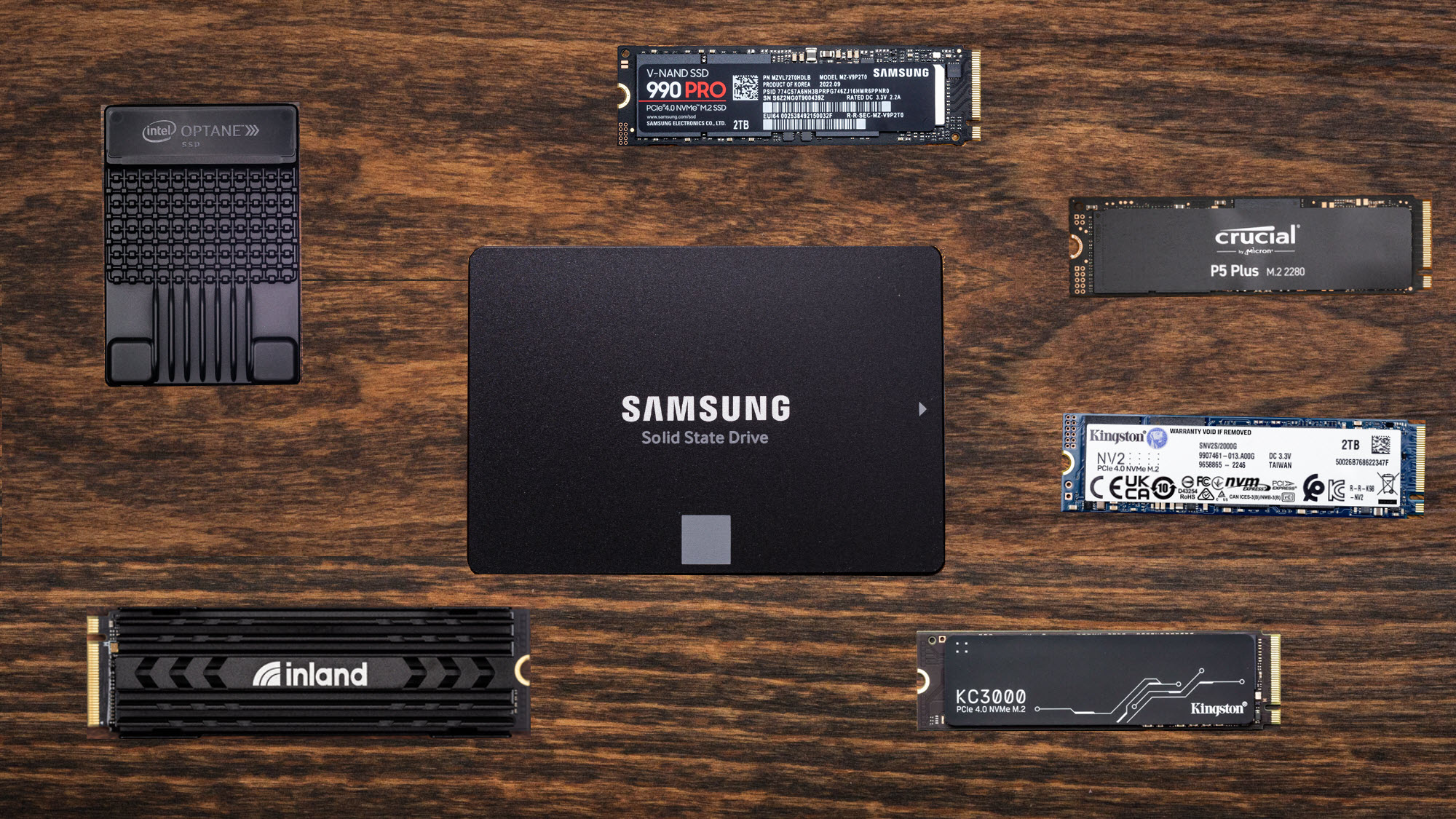
Common examples include the Samsung 990 Pro, WD_BLACK SN850X, Solidigm P44 Pro, and SK hynix Platinum P41. Exact performance varies by capacity and firmware.


The key point is value. A PCIe 4.0 SSD may cost less, need less cooling, and deliver nearly the same game load times as a PCIe 5.0 SSD.
Is PCIe 5.0 really faster for gaming?
PCIe 5.0 is faster for large data transfers, but it does not always make games load twice as fast. Game loading depends on more than the SSD. The game engine, file layout, processor, memory, decompression system, and operating system all play a role.
A PCIe 5.0 SSD can help with large installs, texture files, and some newer storage-heavy workloads. The improvement from a PCIe 4.0 SSD may be small during normal game loading.
For a gaming PC, consider PCIe 5.0 when:
- You are building a new high-end system
- The price gap is small
- You also move large files
- You want room for future storage features
- Your motherboard has a well-cooled PCIe 5.0 M.2 slot
A PCIe 4.0 SSD is often the better choice when gaming is your main use. Spend the savings on more capacity, memory, or a faster graphics card if those parts limit your system.
What is the fastest SSD for video editing?
For video editing, the fastest SSD depends on the work. A PCIe 5.0 SSD can help when you move large source files, create cache files, or export to a fast storage target.
A single SSD may not remove every bottleneck. Video editing can also depend on the processor, graphics card, codec, memory, and software settings.
For professional work, use separate drives when possible:
- Use one drive for the operating system and applications.
- Use a fast SSD for active project files.
- Use another drive for cache or scratch files.
- Keep backups on a separate device or service.
Do not treat an SSD as a backup. SSDs can fail, be damaged, or be erased by mistake. Keep at least one backup that is not always connected to the computer.
How to choose the fastest SSD for your PC
The correct choice starts with compatibility, not the advertised speed.
1. Check the M.2 slot
Look at your motherboard manual. Confirm the slot supports:
- M.2 NVMe drives
- The required physical size, usually 2280
- PCIe 4.0 or PCIe 5.0
- The desired number of PCIe lanes
Some M.2 slots share bandwidth with SATA ports or expansion slots. The manual explains those limits.


2. Confirm the CPU and chipset
A motherboard may include a PCIe 5.0 M.2 slot, but its speed can depend on the processor and chipset. Check the specifications for your exact CPU and motherboard model.
Do not assume that every M.2 slot on a board runs at the same speed.
3. Plan for heat
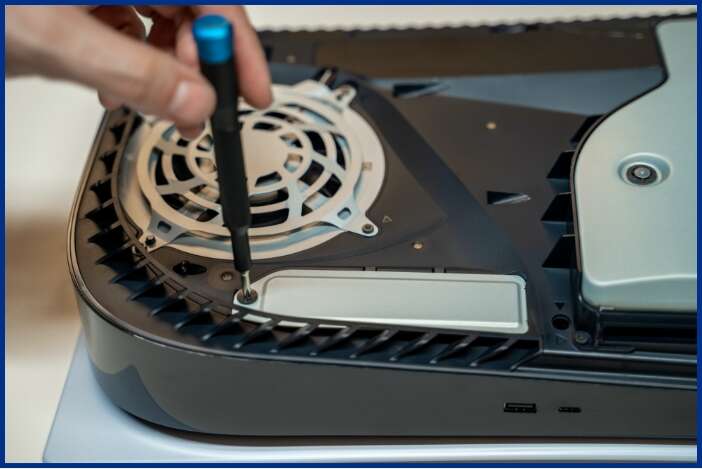
Install the SSD under the motherboard heatsink when the board provides one. Remove the protective film from the thermal pad before installation.
For heavy work, consider a larger heatsink or the SSD maker’s active cooling option. Keep airflow moving across the motherboard area.
4. Select the right capacity
SSD performance can vary by capacity. Larger versions often have more NAND channels available and may offer higher rated speeds.
A practical rule is to buy enough space for your files without filling the drive completely. Keeping some free space helps the SSD manage background tasks. The exact amount depends on the drive maker and workload, so do not treat a single percentage as universal.
5. Update firmware
Install the manufacturer’s storage utility only from its official website. Use it to check firmware, health data, and temperature.
Back up important files before a firmware update. Do not shut down the computer during the update unless the utility tells you to do so.
Fastest SSD buying guide by user
| Your main use | Best type | Why |
|---|---|---|
| Windows and office work | PCIe 4.0 NVMe | Fast, affordable, and usually cool |
| PC gaming | PCIe 4.0 NVMe or PCIe 5.0 | PCIe 4.0 is often enough; PCIe 5.0 helps large transfers |
| 4K video editing | High-end PCIe 4.0 or PCIe 5.0 | Sustained writes and capacity matter |
| 8K video and large project files | PCIe 5.0 | Higher transfer speed can reduce file movement time |
| 3D work and large datasets | PCIe 5.0 | Useful for repeated large reads and writes |
| Laptop upgrade | Drive listed by the laptop maker | Heat, power, and single-sided design may matter |
| Budget desktop | PCIe 4.0 TLC SSD | Usually the best balance |
If your system has only a PCIe 3.0 slot, buying a PCIe 5.0 SSD does not create PCIe 5.0 speed. It may work, but the platform will limit it.
Why advertised SSD speed may not match your result
Manufacturer speed ratings come from controlled tests. Your computer may produce different numbers for several reasons:
- The SSD is a smaller capacity.
- The drive is nearly full.
- The test uses a different queue depth.
- The SSD is hot.
- The test file is too small or too large.
- The motherboard slot has fewer lanes.
- Another device shares the connection.
- The drive is writing after its fast cache is full.
- The operating system is running background tasks.
Use the same test settings when comparing two drives. CrystalDiskMark is widely used for basic Windows testing, but one benchmark does not define overall drive quality.
For a useful check, test a new drive before and after a large transfer. Watch its temperature and compare sequential and random results. Do not use a benchmark as proof that your data is safe or that the SSD will last for a specific number of years.

Common mistakes to avoid
Buying by read speed alone
Write speed, random performance, endurance, warranty terms, and sustained behavior can matter more than a small difference in peak read speed.
Ignoring the heatsink
A PCIe 5.0 SSD without enough cooling may slow down under long workloads. Check temperatures during a sustained transfer, not only during a short benchmark.


Installing the drive in the wrong slot
Use the fastest M.2 slot listed in the motherboard manual. Some secondary slots may run at a lower PCIe generation or share lanes with other hardware.
Filling the drive completely
A nearly full SSD may have less room for background management. Leave practical free space and monitor the drive’s health.
Using an SSD as the only backup
Keep important files in more than one place. A second internal partition is not a complete backup because the same PC can suffer one failure that affects both.
FAQs about the fastest SSD
What is the fastest SSD available for consumers?
The fastest consumer NVMe SSDs are current PCIe 5.0 models such as the WD_BLACK SN8100, Samsung 9100 Pro, and Crucial T705. Their published peak speeds are close, so benchmark conditions and system cooling decide the winner.
Is PCIe 5.0 twice as fast as PCIe 4.0?
The PCIe 5.0 interface offers about twice the bandwidth of PCIe 4.0. Real SSD performance is not always exactly double because the controller, NAND, firmware, temperature, and workload also affect results.
Does a faster SSD improve FPS?
Usually, an SSD has little effect on average FPS. It can reduce game load times and may help with asset streaming in some games, but the graphics card and processor usually control frame rate.
Can I use a PCIe 5.0 SSD in a PCIe 4.0 motherboard?
Usually, yes, if the slot supports the same M.2 NVMe form factor. The SSD will operate at the lower PCIe 4.0 speed. Check the motherboard and SSD manuals before buying.
Is a heatsink required for a PCIe 5.0 SSD?
A heatsink is strongly recommended for sustained PCIe 5.0 workloads. Light use may not need a large cooler, but heat can reduce speed during long transfers.
Key takeaways
- The fastest consumer SSDs are PCIe 5.0 NVMe models.
- The WD_BLACK SN8100, Samsung 9100 Pro, and Crucial T705 are among the top high-speed options.
- Peak speed does not equal real-world speed in every task.
- PCIe 4.0 SSDs remain excellent for gaming and general use.
- Check your motherboard slot, CPU support, drive capacity, and cooling before you buy.
- Never rely on an SSD as your only copy of important data.
Conclusion
If you want the fastest SSD for a high-end U.S. desktop, start with the WD_BLACK SN8100 or Samsung 9100 Pro. The Crucial T705 is also a strong PCIe 5.0 option when its price and cooling setup make more sense.
For most buyers, a reliable PCIe 4.0 TLC SSD is the smarter choice. It costs less, runs cooler, and is already fast enough for Windows, gaming, school, office work, and many creative tasks. Before choosing, check the exact M.2 slot in your PC and decide whether your workload moves large files often enough to justify PCIe 5.0.