How To Connect Headphones To PS4: Easy Setup Guide
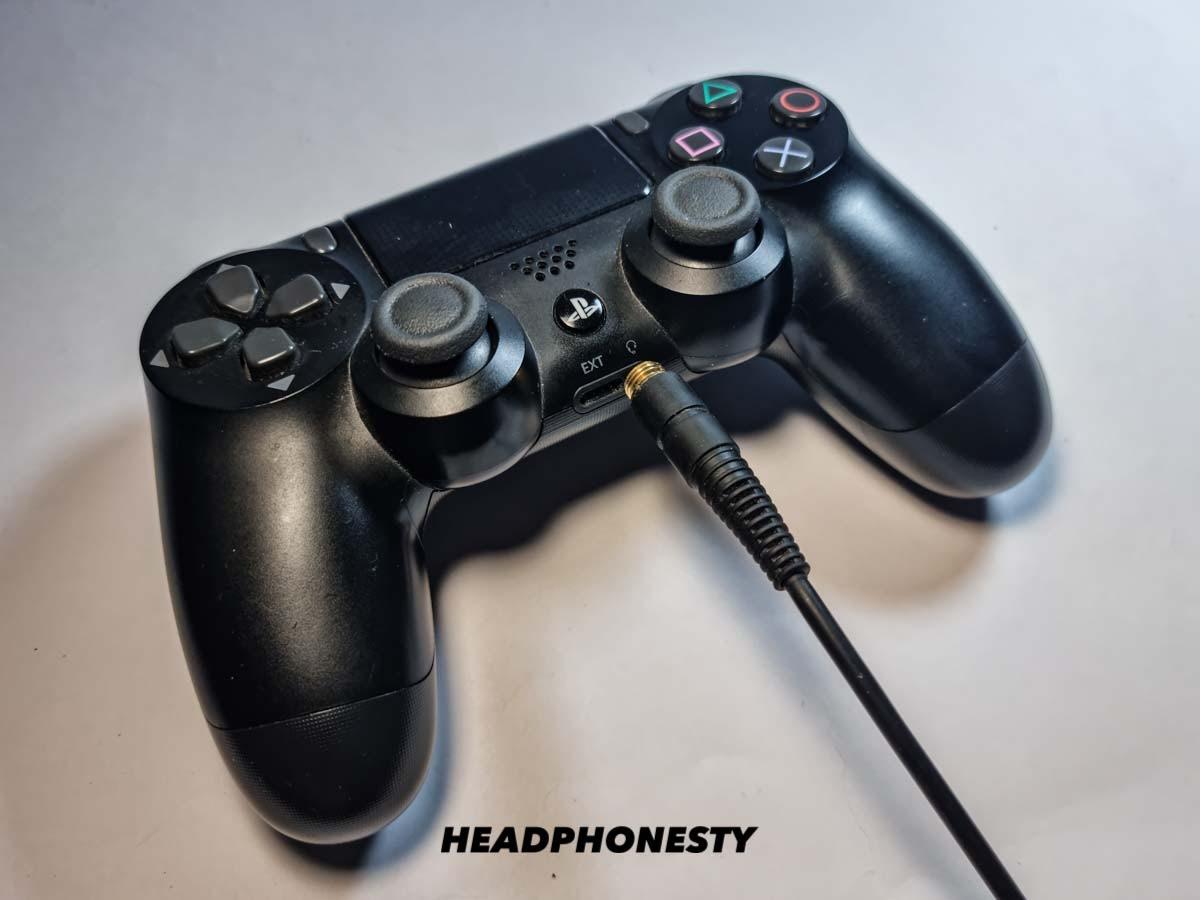
The easiest way to connect headphones to a PS4 is to plug a compatible 3.5 mm headset into the DualShock 4 controller. Then open Settings > Devices > Audio Devices, set Output Device to Headset connected to Controller, and choose All Audio under Output to Headphones.
This method works with most wired headphones and gaming headsets in the United States. You can also use a compatible USB headset, while standard Bluetooth headphones usually do not connect directly to a PS4 for game sound.
Introduction
Your PS4 supports several audio connections, but each one has different limits. A wired headset connected to the controller is usually the fastest setup. A USB headset can also work, but it must support the PS4. Bluetooth headphones are less reliable because the PS4 does not support many standard Bluetooth audio profiles.


This guide explains each option, how to turn on the microphone, how to adjust chat and game volume, and what to check if you hear no sound.

What You Need Before You Start
Choose your connection method before changing settings:
| Headphone type | Where it connects | Game sound | Voice chat | Main limit |
|---|---|---|---|---|
| Wired 3.5 mm headset | DualShock 4 controller | Yes | Usually yes | Cable reaches the controller |
| USB headset | PS4 USB port | Yes, if supported | Usually yes | Must be PS4-compatible |
| Wireless headset with USB adapter | PS4 USB port | Yes, if supported | Usually yes | Requires a compatible adapter |
| Standard Bluetooth headphones | Directly to PS4 | Usually no | Usually no | Many models are not supported |
| TV-connected headphones | TV headphone jack or Bluetooth | Depends on the TV | Usually limited | The PS4 may not receive the mic |
A headset with a four-pole 3.5 mm plug, often called a TRRS plug, is the best choice for chat through the controller. It carries both stereo sound and microphone signals through one plug.
Before you begin, check these points:
- Your PS4 is powered on.
- Your controller has enough battery power.
- The headset plug is fully inserted.
- The headset has a mute switch or volume wheel you can check.
- The headset is compatible with the PS4 if it uses USB or wireless audio.
- Your game supports voice chat if you want to speak with other players.
Sony’s official PS4 audio settings are described in its PS4 user guide. Menus can vary slightly by system software version.
How to Connect Wired Headphones to a PS4 Controller
Connecting headphones to the DualShock 4 controller is the simplest method.
- Turn on the PS4 and sign in to your profile.
- Plug the headset into the 3.5 mm jack on the bottom of the controller.
- Press and hold the PS button.
- Select Adjust Devices.
- Set Output to Headphones to All Audio.
- Select Volume Control (Headphones) and raise the volume.
- If the headset has a microphone, check that the microphone is not muted.
You can also reach the same settings from the main menu:
- Open Settings.
- Select Devices.
- Choose Audio Devices.
- Set Input Device to Headset Connected to Controller.
- Set Output Device to Headset Connected to Controller.
- Set Output to Headphones to All Audio.
- Adjust Volume Control (Headphones).
The All Audio option sends both game sound and chat to the headset. If you choose Chat Audio, you may hear only voice chat while game sound continues through the TV.


How to test the microphone
Open Settings > Devices > Audio Devices and look at the Adjust Microphone Level option. Speak into the microphone and watch the level meter.
A good level usually moves into the normal range when you speak. If the meter does not move:
- Check the headset’s mute switch.
- Push the plug in again.
- Try another controller.
- Test another headset.
- Confirm that Input Device says Headset Connected to Controller.
The microphone test checks whether the PS4 receives your voice. It does not guarantee that a particular game’s voice chat is enabled.

How to Connect a USB Headset to a PS4
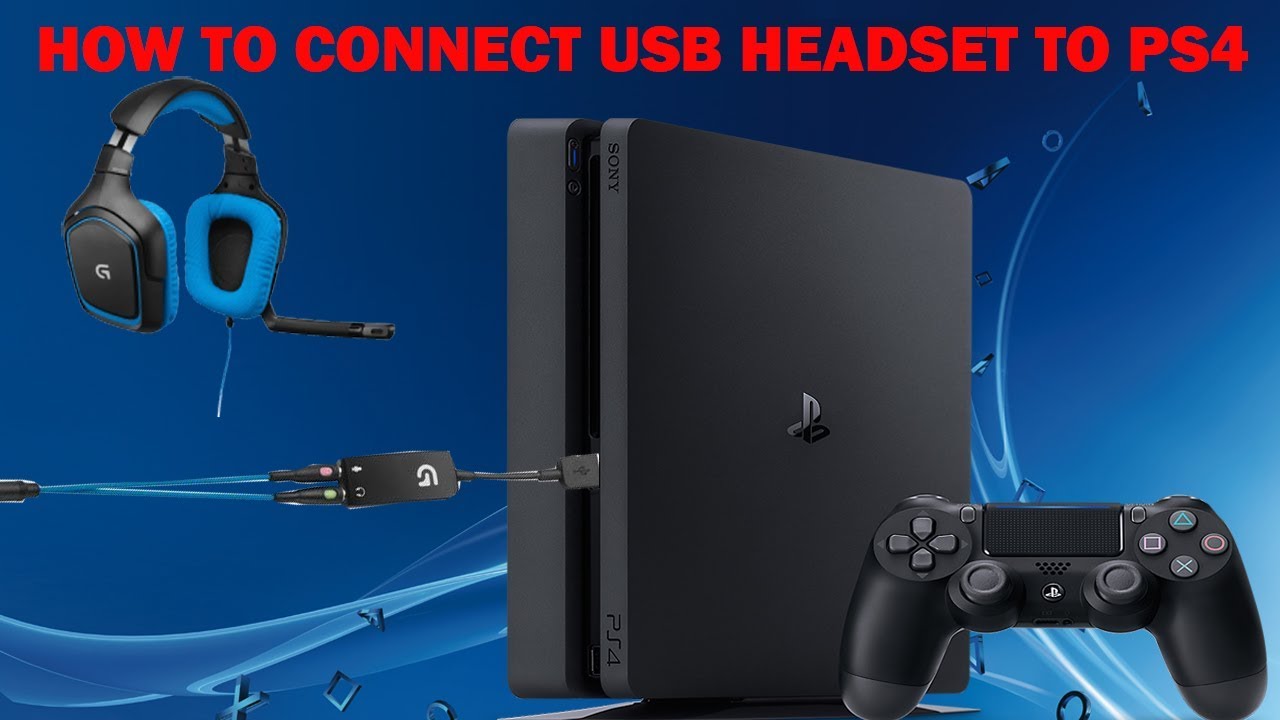
A USB headset connects to one of the PS4’s USB ports. This method is useful when your headset has a USB plug instead of a 3.5 mm plug.
- Turn on the PS4.
- Insert the headset’s USB plug into a PS4 USB port.
- Wait a few seconds for the console to detect it.
- Go to Settings > Devices > Audio Devices.
- Set Input Device to the USB headset if it is not selected automatically.
- Set Output Device to the USB headset.
- Set Output to Headphones to All Audio.
- Adjust the headphone volume.
Some USB headsets use a wireless receiver. Plug the receiver into the PS4, turn on the headset, and follow the same audio steps.
The PS4 may show the device as USB Headset, USB Audio Device, or by its model name. If the headset does not appear, it may need a driver, a special app, or a connection method that the PS4 does not support.
Avoid assuming that every USB headset will work. A headset made only for a Windows PC, Mac, phone, or Xbox may not be compatible with the PS4.

How to Connect Wireless Headphones to a PS4
The most dependable wireless method is a headset made for PS4 that includes a USB wireless adapter. The adapter handles the wireless link between the PS4 and the headset.
- Insert the wireless adapter into a PS4 USB port.
- Turn on the headset.
- Put the headset and adapter into pairing mode if required.
- Open Settings > Devices > Audio Devices.
- Select the headset or USB device as the Input Device and Output Device.
- Choose All Audio under Output to Headphones.
Some wireless headsets also use an optical cable. If your headset includes one, follow the instructions for that exact model. The original PS4 and PS4 Pro include an optical audio port. The PS4 Slim does not include an optical port, so a headset designed around optical audio may need a different setup or an HDMI audio extractor.
Can you connect regular Bluetooth headphones to PS4?
Usually, no. The PS4 can detect some Bluetooth devices, but many ordinary Bluetooth headphones will not work for game audio. The console may display a message that the Bluetooth device is not supported.
This limit exists because Bluetooth audio can use profiles and delay levels that do not match the PS4’s supported audio connection. A Bluetooth transmitter connected to the TV or controller may send sound to the headphones, but it may not carry the PS4 microphone signal. It can also add a delay between the picture and sound.


For wireless game audio and chat, use a headset that lists PS4 compatibility and includes a compatible USB receiver.
How to Send All PS4 Sound to Headphones
If you hear only chat, change the output setting.
- Open Settings.
- Select Devices.
- Choose Audio Devices.
- Select Output to Headphones.
- Choose All Audio.
The two main choices have different results:
- Chat Audio: Sends voice chat to the headset. Game sound may remain on the TV.
- All Audio: Sends game sound and voice chat to the headset.
You can also adjust the balance between game audio and chat audio. Press and hold the PS button, choose Sound/Devices, and look for Chat Balance if the option is available. Move the control toward game audio or chat audio as needed.
If the TV still plays sound after you select All Audio, check the TV volume and the PS4’s audio output settings. Some games and apps handle audio in their own way.

How to Adjust PS4 Headphone Volume and Microphone Settings
Use the quick menu for basic changes:
- Press and hold the PS button.
- Select Sound/Devices.
- Move the Volume Control (Headphones) slider.
- Adjust Chat Balance if needed.
- Check that Mute All Microphones is not selected.
You can make more detailed changes through Settings > Devices > Audio Devices.
If other players say your voice is too quiet, move the microphone closer to your mouth, raise the microphone level, and check for a physical mute switch. If your voice sounds distorted, lower the microphone level rather than raising it.
Your headset may also have its own volume control. Check both controls. A low setting on either one can make the headset seem broken.
How to Fix PS4 Headphones With No Sound
Start with the quickest checks. Most problems come from an incorrect output setting, a loose plug, a muted headset, or an unsupported device.
If the headset is not detected
Try these steps in order:
- Unplug and reconnect the headset.
- Restart the PS4.
- Try a different controller or USB port.
- Open Settings > Devices > Audio Devices.
- Confirm the correct input and output device.
- Test the headset with another device.
- Test a known-working headset with the PS4.


A 3.5 mm plug that is not fully inserted may provide sound in only one ear or fail to provide microphone input.
If you hear chat but not game sound
Set Output to Headphones to All Audio. Then raise Volume Control (Headphones).
Also check the game’s own audio menu. Some games have separate sliders for master volume, effects, music, and voice chat.
If you hear game sound but cannot use the microphone
Check Input Device and select the headset. Then open Adjust Microphone Level and speak.
If the level meter does not respond, the problem may be:
- The headset is muted.
- The headset uses a different plug standard.
- The controller’s audio jack is damaged.
- The USB headset is not supported.
- The game’s voice chat is disabled.
- Your PlayStation Network account has communication restrictions.
If the sound is quiet or distorted
Lower the game or TV volume first, then raise the PS4 headphone volume in small steps. Inspect the cable for damage and keep the plug firmly seated.
Do not force a connector into the controller or console. A damaged port can make future headsets fail as well.
If only one ear works
Remove and reinsert the plug. Then test the headset on another device. If one ear still fails, the headset cable or speaker may be damaged. If another headset works normally on the controller, the first headset is likely the problem.
PS4 Headphone Connection Options Compared
The right option depends on whether you value ease, wireless freedom, or microphone support.
| Option | Setup difficulty | Game audio | PS4 voice chat | Best for |
|---|---|---|---|---|
| 3.5 mm headset in controller | Low | Yes | Usually yes | Most players |
| USB headset | Low to medium | Yes, if supported | Usually yes | Desk setups and USB headsets |
| PS4 wireless headset with USB adapter | Medium | Yes, if supported | Usually yes | Cable-free gaming |
| TV headphone connection | Low | Usually yes | Usually no | Listening without chat |
| Standard Bluetooth headphones | Medium to high | Often unavailable | Usually no | Devices with a confirmed workaround |
For most people, a wired headset connected to the controller offers the fewest problems. Choose a USB or wireless headset when the headset’s compatibility information clearly lists PS4 support.

Common Mistakes to Avoid
- Choosing Chat Audio instead of All Audio: This can leave game sound on the TV.
- Plugging the headset into the TV and expecting PS4 chat: TV audio output usually does not send microphone input back to the console.
- Using unsupported Bluetooth headphones: A phone-compatible Bluetooth headset is not automatically PS4-compatible.
- Ignoring the mute switch: Many headsets have a mute button on the cable or ear cup.
- Testing only one game: The console and game may have separate voice chat settings.
- Using a headset with the wrong connector: Some headsets use separate microphone and headphone plugs and need an adapter.
- Assuming USB means universal compatibility: USB headsets may require console-specific support.
- Raising volume too high: Start at a low level and increase it gradually to protect your hearing.
The PS4 does not need an internet connection to send game sound to headphones. You do need internet access, a PlayStation Network connection, and a game with online chat when you want to speak with other players online.

Key Takeaways
- The easiest method is a 3.5 mm wired headset connected to the DualShock 4 controller.
- Set Output to Headphones to All Audio for both game sound and chat.
- Use Settings > Devices > Audio Devices to select the microphone and output device.
- A PS4-compatible USB or wireless headset can also work.
- Standard Bluetooth headphones often do not connect directly to the PS4.
- If there is no sound, check the plug, mute switch, selected device, and volume settings first.
Frequently Asked Questions
Can I use AirPods with a PS4?
AirPods usually do not connect directly to a PS4 for normal game audio and voice chat. A compatible Bluetooth transmitter may send audio, but microphone support and sound delay can vary. A PS4-compatible wireless headset is more reliable.


Can I use any headphones with a PS4 controller?
Most wired headphones with a standard 3.5 mm plug can play audio. Voice chat works best with a four-pole headset plug that includes a microphone. Headphones with separate microphone and audio plugs may need a compatible adapter.
Why does my PS4 headset work but the microphone does not?
The headset may be muted, the wrong input device may be selected, or the plug may not support microphone signals. Go to Settings > Devices > Audio Devices > Adjust Microphone Level and watch the input meter while speaking.
How do I make PS4 sound come through both headphones and the TV?
The PS4’s All Audio setting normally directs audio to the connected headset. If you want sound from both the headset and TV, the result depends on the headset type, television, and PS4 audio setup. The console does not provide the same flexible mixing controls as a computer.
Can I connect headphones to a PS4 without a controller?
Yes, if the headphones use a supported USB connection or a compatible wireless USB adapter. A standard wired headset needs the controller’s 3.5 mm jack unless you use another supported audio device.
Conclusion
For a quick PS4 headphone setup, plug a wired headset into the DualShock 4 controller and select All Audio under Output to Headphones. If you prefer wireless sound, use a headset with a USB receiver that clearly supports PS4.
If the headset fails, check the selected input and output devices, microphone mute switch, volume level, and headset compatibility. These checks solve most PS4 headphone problems without extra hardware.