How To Turn On Bose QuietComfort Ultra Headphones: Guide
For users in the United States, turning on Bose QuietComfort Ultra headphones takes only a few seconds. Find the Power/Bluetooth button on the right earcup, then press and release it once. The headphones should play a tone and show a status light.
If nothing happens, charge the headphones first. A low battery, a cable that is not supplying power, or a button press that is too short can make the headphones seem unresponsive.
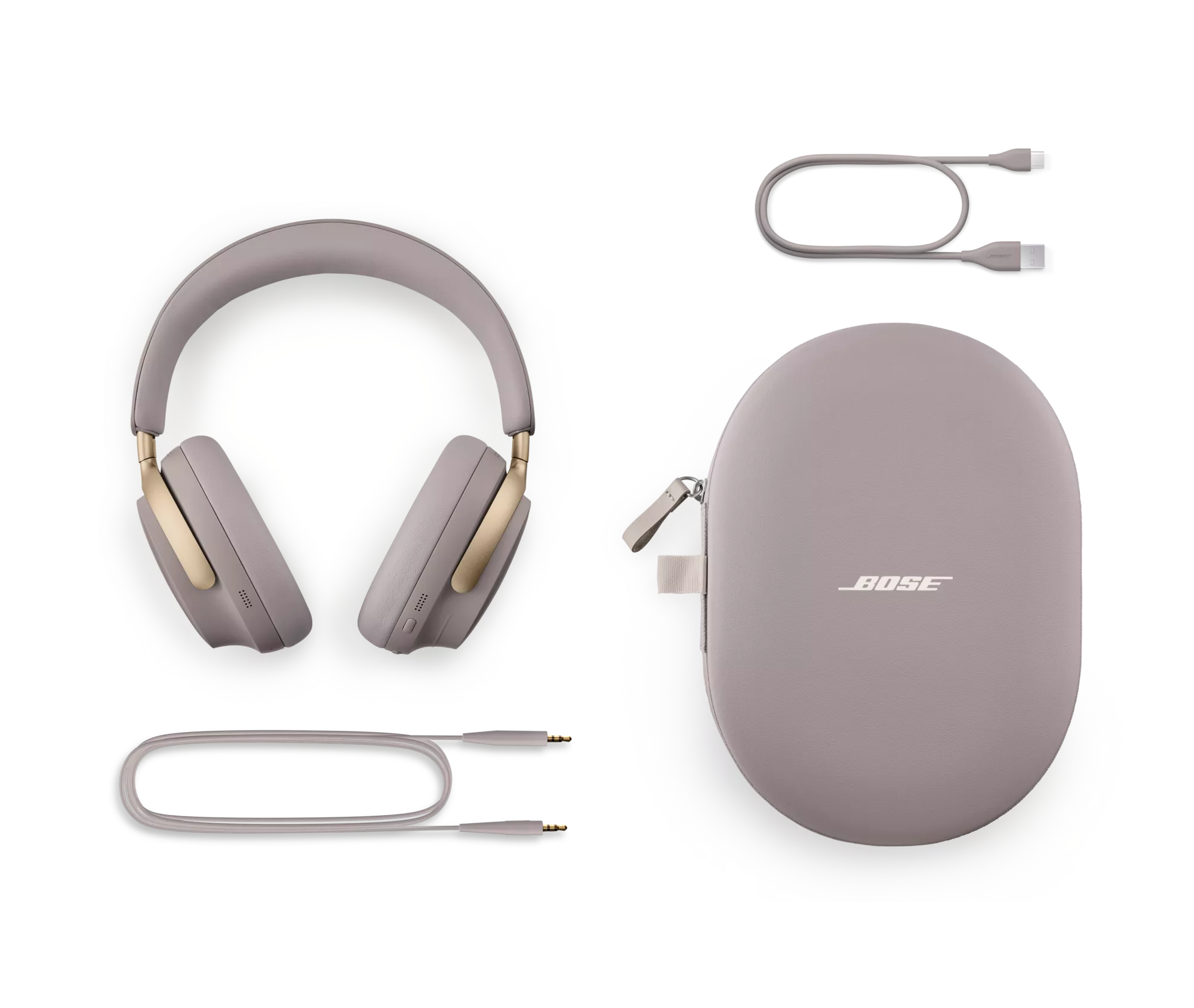
How to Turn On Bose QuietComfort Ultra Headphones
Follow these steps:
- Remove the headphones from their case or storage area.
- Find the Power/Bluetooth button on the right earcup.
- Press and release the button once.
- Wait for the startup tone or voice prompt.
- Check the Bluetooth list on your phone, tablet, or computer if you want to connect them.


The headphones are on when the status light responds and the headphones give a sound or voice prompt. If they were already paired with a nearby device, they may connect to it automatically.
Do not hold the button down for several seconds unless you want to enter Bluetooth pairing mode or turn the headphones off.
Where Is the Power Button on Bose QuietComfort Ultra Headphones?
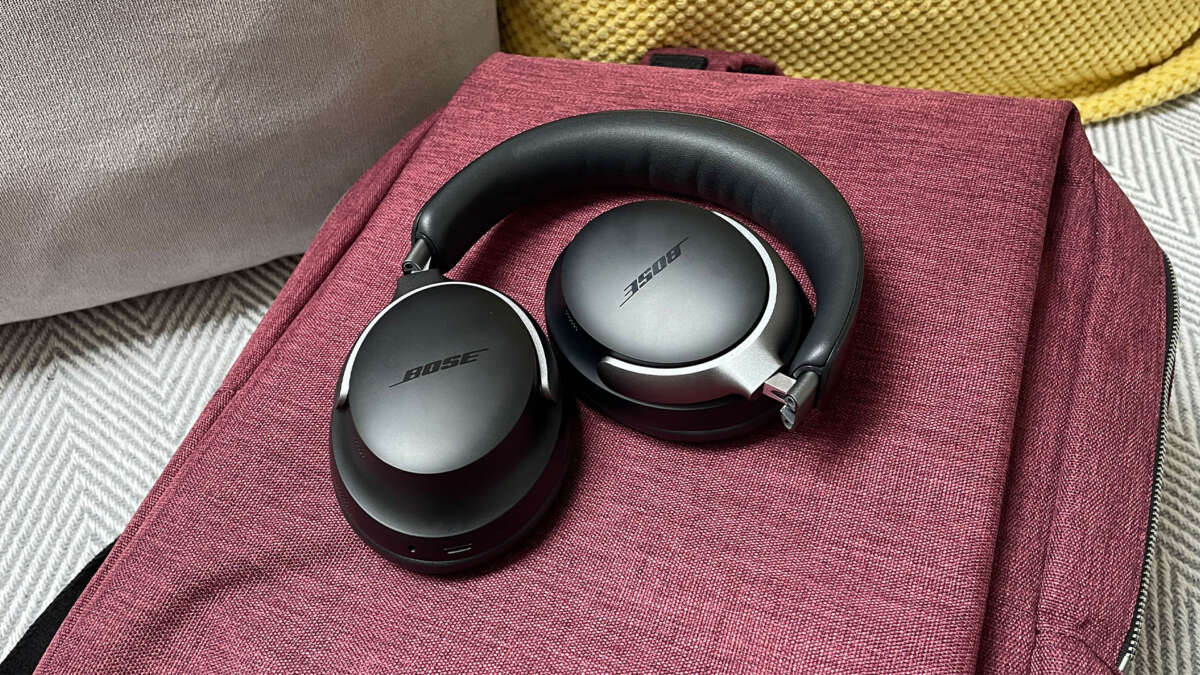
The Power/Bluetooth button is on the right earcup. It is separate from the USB-C charging port and the wired audio connection.
The button has two main uses:
- Press and release: Turns the headphones on.
- Press and hold: Turns the headphones off or starts Bluetooth pairing, depending on how long you hold it and the current headphone state.
The exact feel can be hard to identify when the headphones are folded or in a dark room. Run a finger along the outside edge of the right earcup until you find the small physical button.

How to Connect Bose QuietComfort Ultra Headphones After Turning Them On
Turning the headphones on does not always mean they are ready to pair with a new device. If you are connecting them to a phone or computer for the first time, use pairing mode.
Pair with an iPhone or Android phone
- Turn on the headphones with one quick press of the Power/Bluetooth button.
- Press and hold the same button until the voice prompt says the headphones are ready to connect, or until the Bluetooth light begins to blink.
- Open Settings on your phone.
- Select Bluetooth.
- Choose Bose QuietComfort Ultra Headphones from the device list.
- Wait for the connection message or confirmation tone.
If the headphones have connected to another nearby device, temporarily turn Bluetooth off on that device. This can prevent the Ultra headphones from connecting to the wrong product.
Pair with a Windows PC or Mac
- Turn on the headphones.
- Hold the Power/Bluetooth button until pairing mode starts.
- Open the Bluetooth settings on your computer.
- Select Bose QuietComfort Ultra Headphones.
- Approve the connection if your computer asks for confirmation.
The Bose app can also help with setup, firmware updates, connection management, and control settings. Use the current Bose app from the official Apple App Store or Google Play Store rather than an unofficial download.
How to Know Whether the Headphones Are On
Several signs can confirm that Bose QuietComfort Ultra Headphones are powered on:


- You hear a startup tone.
- A voice prompt reports the battery level or connection status.
- The status light responds.
- Your phone or computer shows the headphones as connected.
- Noise cancellation or Immersive Audio controls respond.
The Bluetooth name alone is not always proof that the headphones are on. Some devices keep an old Bluetooth entry visible even when the headphones are powered off.
If the headphones turn on but do not connect, the problem is usually pairing or Bluetooth selection rather than power.
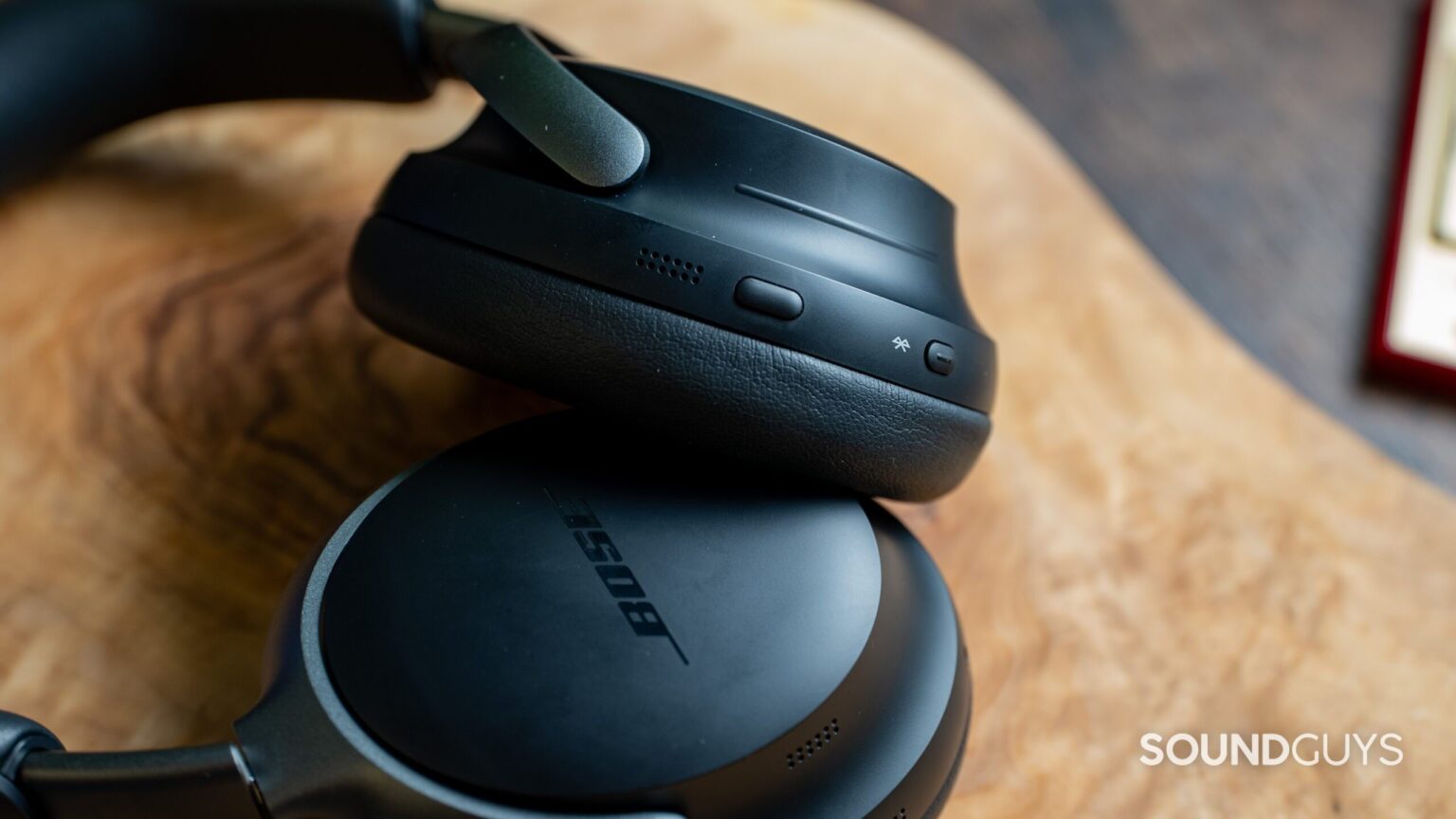
What to Do If Bose QuietComfort Ultra Headphones Will Not Turn On
Work through these checks in order. Start with power and charging before trying resets or removing Bluetooth connections.
1. Charge the headphones
Connect the USB-C charging cable to the headphones and a working wall charger or USB power source. Let them charge for a while, then press and release the Power/Bluetooth button again.
Check that:
- The USB-C plug is fully inserted.
- The charging light responds.
- The cable is not damaged.
- The charger or USB port works with another device.
- Dirt or debris is not blocking the charging port.
A computer USB port may charge the headphones more slowly than a wall adapter. Do not force the cable into the port.
2. Press the button once
Use a deliberate, short press. A very brief touch may not register, while holding the button can start a different function.
Press and release the button, then wait several seconds for the startup tone or status light.
3. Disconnect the charging cable
Some headphones may not respond as expected while connected to a charger. Unplug the USB-C cable, wait a few seconds, and try the power button again.
4. Check for physical damage
Stop using the headphones if you see a swollen battery, a cracked earcup, liquid inside the charging port, unusual heat, or a burning smell. Do not open the headphones or attempt to replace the internal battery yourself.
Contact Bose support or an authorized repair provider for service.
5. Restart or reset only when needed
If the headphones have power but behave incorrectly, follow the reset instructions in the official Bose QuietComfort Ultra Headphones Owner’s Guide. A reset can clear temporary software or connection problems, but it may also remove stored device connections.
Use the exact instructions for your model. Do not substitute reset steps from a different Bose QuietComfort product.
What the Bose QuietComfort Ultra Status Light Means
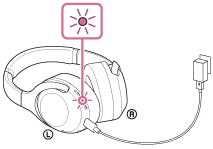
The status light provides a quick clue about power, charging, and Bluetooth activity. Its color and pattern can vary by function.


Common indications include:
| Light behavior | Likely meaning |
|---|---|
| White light or startup response | The headphones are powering on or operating |
| Blue blinking light | Bluetooth pairing mode |
| Charging light | The battery is charging |
| No light or response | The headphones may be off, discharged, or not receiving power |
The voice prompt is often more useful than the light alone. If you hear a battery percentage or a connection announcement, the headphones have powered on.
For the exact light pattern, check the owner’s guide for your specific Bose QuietComfort Ultra model and software version.

How to Turn Off Bose QuietComfort Ultra Headphones
To turn off the headphones:
- Press and hold the Power/Bluetooth button on the right earcup.
- Keep holding it until you hear the power-off tone or voice prompt.
- Release the button.
Do not confuse powering off with disconnecting Bluetooth. Disconnecting only ends the wireless link; it does not necessarily shut down the headphones.
You can also review automatic power settings in the Bose app. Auto-off behavior may depend on the headphone software and settings selected in the app.
Can You Turn On Bose QuietComfort Ultra Headphones While Charging?
You should not rely on the headphones operating normally while they charge. The safest routine is to let them charge, disconnect the cable, and then turn them on.
If the headphones do not respond while connected to USB-C, unplug the cable and try again. This also helps you determine whether the issue is related to charging, the battery, or the power button.
The USB-C connection is for charging and other supported functions. It is not the same as turning on the headphones through the Power/Bluetooth button.
Do Bose QuietComfort Ultra Headphones Turn On Automatically?
Bose QuietComfort Ultra Headphones do not normally turn on simply because you put them on. The main method is still to press the Power/Bluetooth button.
The headphones may reconnect automatically after they are turned on if Bluetooth is enabled on a previously paired device. That automatic connection can make it seem as though the headphones switched on by themselves, but connection and power are separate actions.
Wearing detection may affect playback or other controls, depending on the settings. It should not be treated as the primary power control.
Common Mistakes When Turning Them On
These mistakes are easy to make:
- Pressing the wrong side: The power control is on the right earcup.
- Holding the button too long: A long press can start pairing or power-off behavior.
- Assuming a Bluetooth listing proves they are on: Your device may display a saved entry even when the headphones are off.
- Ignoring the battery: A completely drained battery may show no immediate response.
- Using the wrong Bose instructions: Bose has several QuietComfort models with different button layouts.
- Removing the device too soon: Forgetting and re-pairing Bluetooth should not be the first step if the headphones will not power on.
The best order is simple: charge, press once, check the light or voice prompt, then troubleshoot Bluetooth.


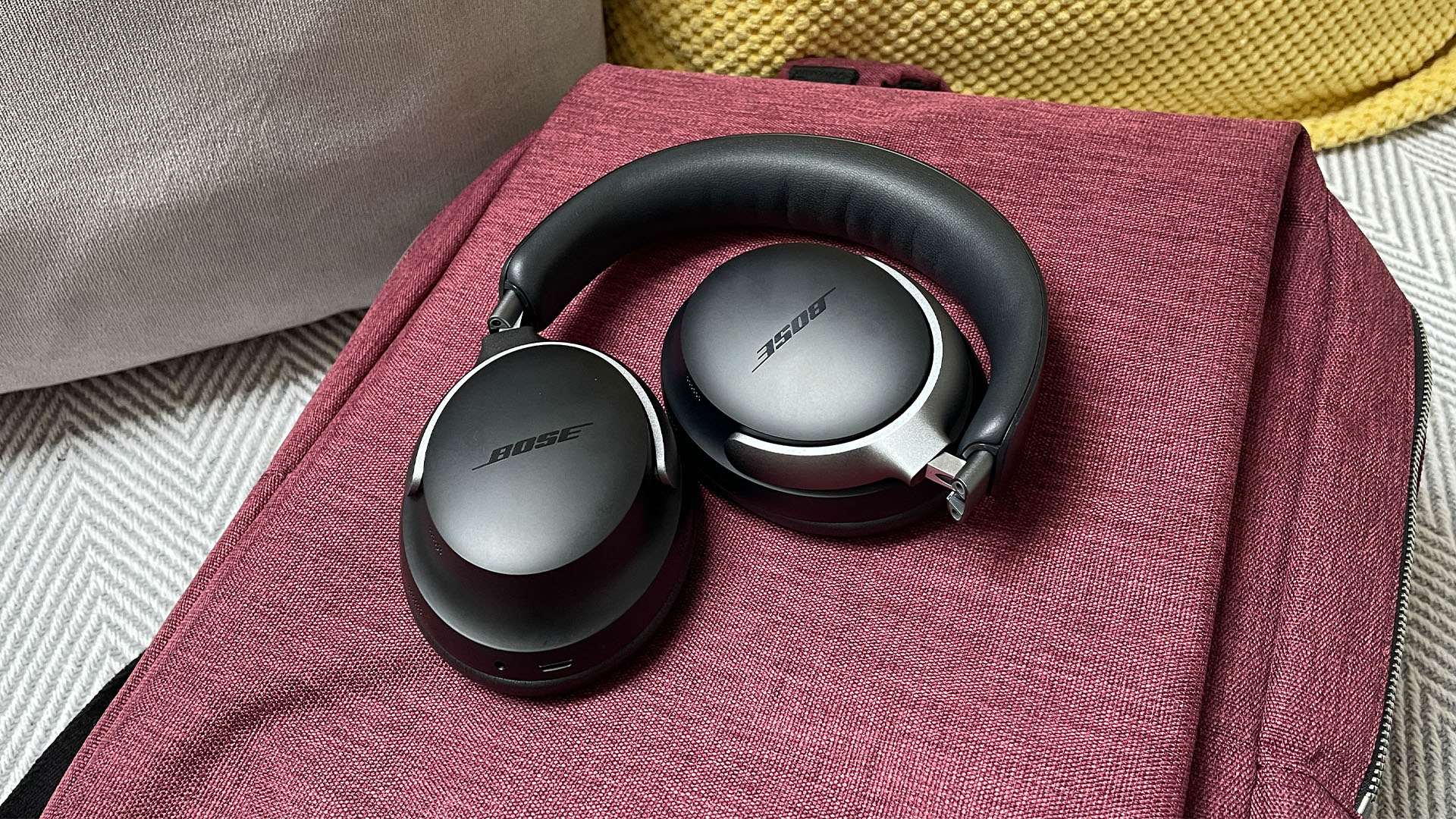
Bose QuietComfort Ultra Headphones: Quick Troubleshooting Table
| Problem | Most likely cause | What to try first |
|---|---|---|
| No light or sound | Empty battery or charging issue | Charge with a working USB-C cable and power source |
| Light appears but no connection | Bluetooth pairing issue | Enter pairing mode and select the Bose headphones |
| Headphones connect to the wrong device | Another paired device is nearby | Turn off Bluetooth on the unwanted device |
| Button does not seem to work | Press is too short, too long, or button damage | Press and release once; check for physical damage |
| Headphones work only when connected to power | Battery or charging fault | Try another cable and charger; contact Bose if it continues |
| Headphones turn off during use | Low battery, auto-off setting, or software issue | Charge them and check Bose app settings |
Frequently Asked Questions
How long should I press the Bose QuietComfort Ultra power button?
Press and release the button once to turn the headphones on. Hold it only when you need to turn the headphones off or enter Bluetooth pairing mode.
Why are my Bose QuietComfort Ultra Headphones not showing on Bluetooth?
First, make sure the headphones are on. Then hold the Power/Bluetooth button until pairing mode begins. If they still do not appear, turn Bluetooth off and on again on your phone or computer, or move away from other previously paired devices.
How do I turn on noise cancellation?
Turn on the headphones, then use the Bose app or the headphone controls to select an available noise-control mode. Noise cancellation is a listening feature, not a separate power function.
Can I use Bose QuietComfort Ultra Headphones with a cable?
The headphones support wired listening through the compatible audio connection. Some features may require the headphones to be powered on, and Bluetooth features will not work through a simple wired connection when the headphones are off.
What should I do if the power button still does not work?
Charge the headphones with a known-good cable and charger, unplug the cable, and try the button again. If there is still no light, sound, or response, use the official Bose support process. Stop using the headphones if they are hot, swollen, wet inside, or physically damaged.
Final Answer
To turn on Bose QuietComfort Ultra Headphones, press and release the Power/Bluetooth button on the right earcup once. Listen for a startup tone or voice prompt, then select the headphones in your device’s Bluetooth settings if they do not connect automatically.
If they remain unresponsive, charge them, try another USB-C cable or power source, and then follow the model-specific Bose troubleshooting instructions.