

Most PS4s block standard bluetooth audio, so use a compatible USB adapter, headset, or controller connection.
Learning how to connect Bluetooth headphones to PS4 can feel confusing because the console may find your headphones but still refuse to use them. The issue is usually not your headphones. The PS4 limits many third-party Bluetooth audio devices because of latency, voice chat, and wireless profile support. This guide explains the reliable methods, the settings to use, common mistakes, and the best fix for your setup.
:max_bytes(150000):strip_icc()/004_how-to-connect-bluetooth-headphones-ps4-4588084-a81da2310eb64bdbb0f4678f8b51cde7-8a080424ee5946a69be61fa7d1b36553.jpg)
Can you connect Bluetooth headphones to PS4?
Yes, but not every Bluetooth headset will work directly with a PS4. The console supports some licensed wireless headsets, but many regular Bluetooth headphones are rejected with a message such as “Bluetooth audio devices are not supported.”
This happens because the PS4 does not support every Bluetooth audio profile used by modern headphones. Even when a connection works, audio delay or poor microphone support may make gaming frustrating.
The most dependable ways to connect Bluetooth headphones to PS4 are:
• Use a PS4-compatible USB Bluetooth audio adapter.
• Connect wired headphones to the DualShock 4 controller.
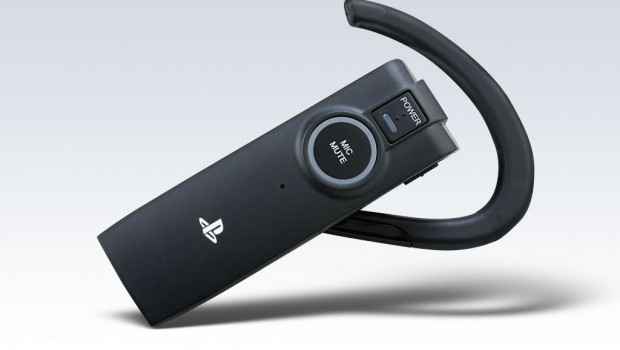
• Use a PlayStation-compatible wireless headset with a USB receiver.
• Connect through a compatible television, sound system, or optical audio adapter.
The right choice depends on whether you need game audio, microphone chat, wireless freedom, or the lowest possible delay.

How to connect Bluetooth headphones to PS4 directly
Before trying direct pairing, check whether your headphones are officially compatible with PS4. Some gaming headsets use Bluetooth for phones but require a USB dongle for PlayStation audio. Others use a special wireless signal and do not pair through the PS4 Bluetooth menu.
To try direct pairing, follow these steps:
Turn on your PS4 and sign in to your profile.
Put your Bluetooth headphones into pairing mode. This often requires holding the power or Bluetooth button for several seconds.
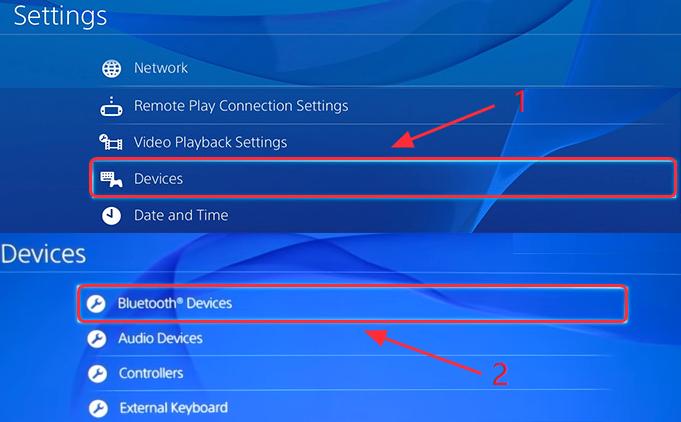
Open Settings from the PS4 home screen.
Select Devices.
Choose Bluetooth Devices.
Wait for your headphones to appear in the device list.
Select the headphones and follow the on-screen instructions.
If the PS4 connects to the headphones, go to Settings, Devices, Audio Devices. Set Output Device to your headphones. Then choose Output to Headphones and select All Audio if you want game sound and chat audio.
You may also need to adjust the volume under Volume Control (Headphones). If your headphones have a microphone, test it under Adjust Microphone Level.
In many cases, the headphones will appear but will not connect. This does not mean you followed the steps incorrectly. It usually means the headset does not use a Bluetooth profile supported by the PS4.
:max_bytes(150000):strip_icc()/005_how-to-connect-bluetooth-headphones-ps4-4588084-cae28d21cda5489399b4b81f1e450ce0-b62e37e5f84c48329f4b1d72f0582bd5.jpg)
How to connect Bluetooth headphones to PS4 with a USB adapter
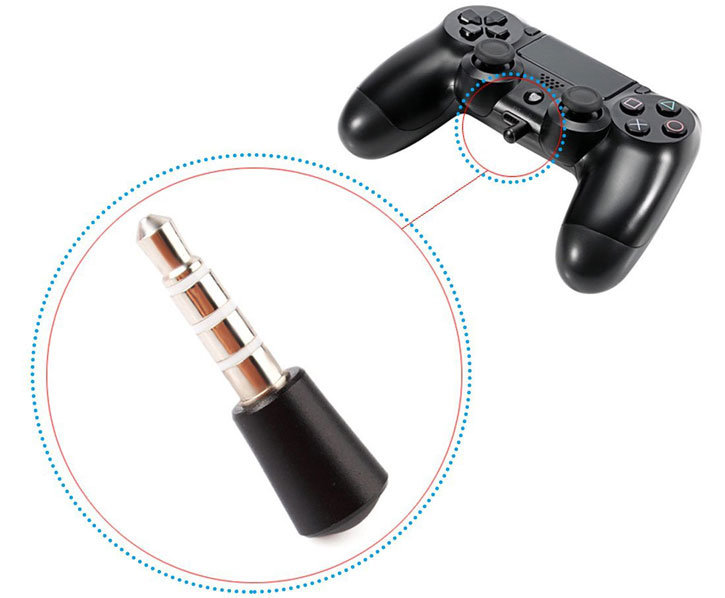
A USB Bluetooth audio transmitter is often the easiest wireless solution. The adapter plugs into the PS4 and sends game audio to your headphones. Look for a model that clearly states PS4, PS5, or PlayStation support.
Avoid buying a basic Bluetooth receiver. A receiver takes audio from another device and sends it to wired headphones. You need a transmitter that sends PS4 audio to Bluetooth headphones.
Setup steps for a USB Bluetooth transmitter
Turn off your PS4 or leave it on the home screen.
Plug the Bluetooth transmitter into a USB port on the PS4.
Put the transmitter into pairing mode.
Put your Bluetooth headphones into pairing mode.
Wait for both devices to connect.
Open Settings, then Devices, then Audio Devices.
Set Input Device to USB Headset or the name of the adapter.
Set Output Device to USB Headset or the adapter.
Select Output to Headphones.
Choose All Audio.
Adjust the volume and microphone settings.
Some USB adapters have separate buttons for pairing and chat. Others include a small microphone that plugs into the controller. Read the adapter instructions because the pairing process differs between brands.
A USB transmitter may introduce a small delay. This is less noticeable with many gaming adapters, but cheap Bluetooth models can make action games, rhythm games, and online shooters feel slightly out of sync.

How to connect Bluetooth headphones to PS4 using the controller
The simplest method is to plug your headphones into the DualShock 4 controller. This works with almost any headset that uses a standard 3.5 mm plug.
This method does not use Bluetooth, but it is useful when you already own wireless headphones with a wired mode. Connect the headphone cable to the port at the bottom of the controller.
Then change the PS4 audio settings:
Open Settings.
Select Devices.
Select Audio Devices.
Set Output Device to Headset Connected to Controller.
Choose Output to Headphones.
Select All Audio.
Adjust Volume Control (Headphones).
If you want to use voice chat, set Input Device to Headset Connected to Controller. Speak normally and check the microphone level. If the microphone sounds too quiet, move the mic closer to your mouth or raise the input level.
This method is often better than Bluetooth for chat because it avoids wireless pairing problems. The main drawback is that the cable runs from the controller to your head, which may feel less convenient during long gaming sessions.
:max_bytes(150000):strip_icc()/001_how-to-connect-bluetooth-headphones-ps4-4588084-b143304efc3a43828fa2d71f5f2dfa50-7cfaddd471c846e4af68b73f515ce342.jpg)
How to connect Bluetooth headphones to PS4 with a PlayStation wireless headset
Many gaming headsets marketed for PS4 do not pair through the Bluetooth Devices menu. Instead, they come with a USB wireless receiver. The receiver handles the wireless connection and usually provides better game audio and voice chat support.
To use one:
Insert the headset’s USB receiver into the PS4.
Turn on the headset.
Wait for the headset and receiver to pair.
Open Settings.
Select Devices.
Select Audio Devices.
Set Input Device and Output Device to the USB headset.
Set Output to Headphones to All Audio.
Test the microphone and volume.
Some headsets include a switch for PS4, PC, or mobile mode. Set it to PS4 before connecting the receiver. If the headset has separate game and chat volume controls, adjust both until voices and game sound are balanced.
This setup is usually the best choice for gaming. It offers stable wireless audio, fewer compatibility problems, and better microphone support than ordinary Bluetooth headphones.
How to connect Bluetooth headphones to PS4 through a television
If your television supports Bluetooth audio, you may be able to connect your headphones to the TV instead of the PS4. The PS4 sends sound to the television through HDMI, and the TV sends that sound to your headphones.
The general process is:
Connect the PS4 to the television with HDMI.
Open the TV’s Bluetooth or Sound settings.
Put your headphones into pairing mode.
Select the headphones on the TV.
Confirm the connection.
This method is convenient, but it has limitations. Some televisions add audio delay, and many do not send PS4 voice chat to Bluetooth headphones. Your headphones may play game sound while the headset microphone remains unavailable.
TV menus also vary by brand. Look for options named Bluetooth Audio, Sound Output, Wireless Speaker, or Bluetooth Device List.
:max_bytes(150000):strip_icc()/ps4-audio-devices-settings-8174ef48c6414b5eaa7e593f1253e366-84001f5be1b94de283e0205d18eb9db5.jpg)
How to fix Bluetooth headphones that do not connect
When learning how to connect Bluetooth headphones to PS4, the most common mistake is assuming that every Bluetooth headset should pair directly. Start by checking compatibility, then work through the basic fixes below.
Restart both devices
Turn off the PS4 and headphones. Wait about 30 seconds, then turn them on again. This clears many temporary pairing errors.
Remove old Bluetooth connections
Your headphones may already be connected to a phone, tablet, laptop, or smart TV. Turn Bluetooth off on nearby devices or disconnect the headphones before trying again.
Charge the headphones
Low battery power can cause pairing failures, random disconnections, or weak sound. Charge the headphones fully before testing them with the PS4.
Check the PS4 audio output
Go to Settings, Devices, and Audio Devices. Confirm that Output Device is set to the correct headset, adapter, or controller connection. Then check that Output to Headphones is set to All Audio.
Update the PS4 system software
Sony system updates can improve device support and fix bugs. Open Settings, select System Software Update, and install any available update.
Move closer to the console
Keep the headphones or adapter close to the PS4 during pairing. Large objects, Wi-Fi equipment, and other wireless devices can interfere with the signal.
Reset the headphones
Some headphones have a factory reset process. Check the instruction manual for the correct button combination. A reset can remove old pairing data that prevents a new connection.
Try a different method
If direct Bluetooth pairing fails, use a USB transmitter or the controller’s 3.5 mm port. In practice, changing the connection method often solves the problem faster than repeating the same pairing steps.
PS4 Bluetooth audio limitations to know
The PS4’s Bluetooth support is more limited than that of a phone or computer. A phone is designed to pair with many Bluetooth speakers and headphones. The PS4 focuses more on approved gaming accessories, voice chat, and low-latency connections.
Here are the main limitations:
• Standard Bluetooth headphones may show an unsupported device message.
• Some headphones connect for audio but do not support the microphone.
• Bluetooth audio may have noticeable sound delay.
• A headset can be paired with the PS4 but still need manual audio-output changes.
• Certain wireless headsets work only with their USB receiver.
• Connecting headphones through a television may prevent PS4 voice chat.
• Bluetooth adapters can have different levels of game and microphone support.
The DualShock 4 controller also has a useful audio feature. When headphones are connected to the controller, the PS4 can send all system audio through that port. This is often the safest fallback when wireless options become unreliable.
How to choose the best PS4 headphone connection
The best connection depends on what matters most to you.
Choose a USB adapter if you want wireless sound
A compatible USB Bluetooth transmitter lets you use existing wireless headphones. Confirm that it supports PS4 audio and, if needed, microphone chat before buying.
Choose the controller port for simple setup
A wired connection is affordable, quick, and reliable. It is a good choice for single-player games, casual chat, and anyone who does not want to troubleshoot wireless pairing.
Choose a PlayStation headset for online gaming
A headset with a USB receiver is usually the strongest option for competitive games. It normally gives you stable sound, better chat support, and controls designed for console use.
Choose the television connection for convenience
TV Bluetooth is useful when you only need game audio. It may not be suitable for multiplayer chat or games where timing matters.
When I help people troubleshoot this setup, I usually recommend starting with the controller port. It quickly confirms that the headphones and PS4 audio settings work. After that, move to a USB transmitter if wireless use is important.
How to improve PS4 Bluetooth sound and chat quality
Once you know how to connect Bluetooth headphones to PS4, a few small changes can improve the experience.
Keep the transmitter in an open USB port. Do not hide it behind a metal entertainment unit if you can avoid it. Physical barriers can weaken wireless performance.
Use a headset with a low-latency mode when possible. Some headphones offer gaming modes that reduce processing delay. These modes may slightly change the sound, but they can make footsteps and on-screen action feel more natural.
Balance game and chat audio from the PS4 party menu. If voices are too quiet, lower the game volume rather than increasing the headset volume too much. This can make conversations clearer and reduce listening fatigue.
Test the setup in a quiet area before joining a ranked match. Listen for delay, crackling, dropped sound, and microphone problems. Finding an issue in the settings menu is much easier than finding it during a team game.
Common mistakes to avoid
Many connection problems come from choosing the wrong accessory or missing one PS4 setting.
• Do not buy a Bluetooth receiver when you need a Bluetooth transmitter.
• Do not assume that Bluetooth headphones made for phones will support PS4 chat.
• Do not leave the headphones connected to your phone during PS4 pairing.
• Do not stop after pairing; set Output to Headphones to All Audio.
• Do not use a cheap adapter without checking PS4 compatibility.
• Do not expect every TV Bluetooth connection to carry microphone chat.
• Do not ignore audio delay when playing competitive or rhythm games.
• Do not raise the volume too high to solve a poor connection.
The most reliable setup is one that matches the device to the console. A PlayStation-compatible USB headset is usually more predictable than trying to force a general-purpose Bluetooth model to work.
Frequently Asked Questions
Can any Bluetooth headphones connect to PS4?
No. The PS4 does not support every Bluetooth audio device, and many standard headphones are rejected. A PS4-compatible USB transmitter or a headset made for PlayStation is usually required.
Why does my PS4 say Bluetooth audio devices are not supported?
The headphones may use an unsupported Bluetooth audio profile, or the PS4 may block the device because of latency and microphone limits. Use a compatible USB adapter or connect the headphones to the DualShock 4 controller.
Can I use Bluetooth headphones for PS4 voice chat?
You can use them for voice chat when the headset or USB adapter supports microphone input. Direct pairing and TV Bluetooth often provide game sound without reliable microphone support.
How do I get all PS4 audio through my headphones?
Open Settings, select Devices, and choose Audio Devices. Set Output to Headphones to All Audio, then adjust Volume Control (Headphones) as needed.
Can I connect AirPods to a PS4?
AirPods usually do not connect directly to a PS4 for full game audio and chat. You may use a compatible Bluetooth transmitter, but microphone support and audio delay can vary.
Is Bluetooth or wired audio better for PS4 gaming?
Wired audio through the controller is usually more stable and has little delay. Wireless audio is more comfortable, but it works best with a PS4-compatible USB receiver or gaming headset.
Why is there a delay in my PS4 Bluetooth headphones?
Bluetooth processing can add latency between the game and the sound. A low-latency headset or gaming transmitter can reduce the delay, while a wired controller connection usually avoids it.
Conclusion
Learning how to connect Bluetooth headphones to PS4 starts with understanding the console’s limits. Direct pairing may work with approved devices, but a compatible USB transmitter, PlayStation wireless headset, or controller connection is often more reliable.
Check the audio settings after every connection, select All Audio, and test the microphone before gaming online. If direct pairing fails, do not waste time repeating the same steps; switch to a supported connection method instead. Choose the option that fits your need for comfort, chat, sound quality, and low delay, then enjoy a cleaner and more private gaming setup.
