How To Disconnect Bluetooth Headphones Without Phone: Tips
If you are in the United States and need to stop Bluetooth headphones from playing sound without using your iPhone or Android phone, the quickest fix is to turn off the headphones, place true wireless earbuds in their charging case, or switch them to another audio source. Most headphones do not have a universal “disconnect” button, so the exact steps depend on the model.
Quick answer
Try these methods in order:
- Turn off the headphones. Hold the power button until the status light goes out.
- Put wireless earbuds in their charging case and close the lid.
- Press the Bluetooth or pairing button if the headphones have one.
- Connect the headphones to another device, such as a laptop or tablet.
- Turn off Bluetooth on the device currently connected, if you can access that device.
- Move far enough away from the connected device for the connection to drop. This is less reliable than powering off the headphones.
The most dependable method is to power down the headphones. Turning off the headphones ends the active Bluetooth link and prevents them from reconnecting until you turn them on again.


What “disconnect” means
Disconnecting stops the current Bluetooth audio link. It does not always erase the headphones from the phone or remove the saved pairing.
These terms have different effects:
- Disconnect: Stops the current connection but keeps the device saved.
- Unpair or forget: Removes the saved Bluetooth relationship from a phone, tablet, or computer.
- Turn off Bluetooth: Stops Bluetooth connections on the device where Bluetooth is disabled.
- Power off headphones: Ends the connection from the headphone side.
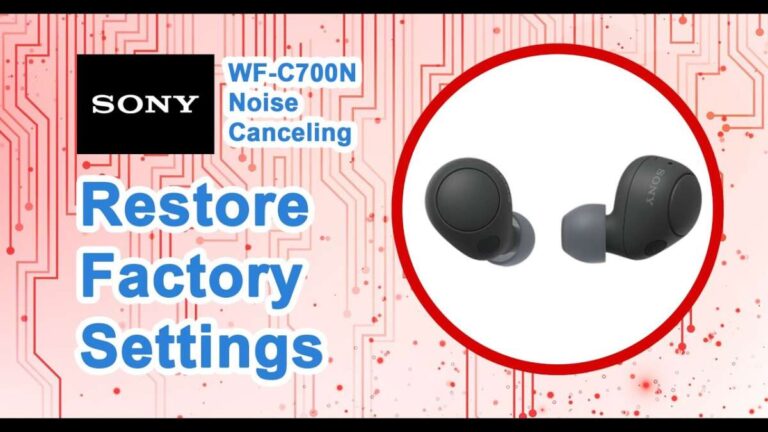
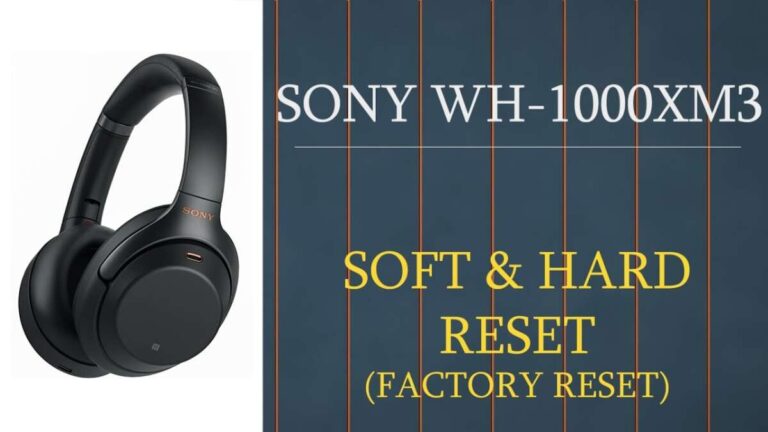
- Reset headphones: Erases stored pairings on some models and restores factory settings.
If you do not have the phone, you usually cannot choose Disconnect, Forget, or Unpair from that phone’s settings. You can still end the connection by controlling the headphones themselves.
Method 1: Turn off the Bluetooth headphones
Powering off the headphones is the simplest option for most over-ear and on-ear models.
- Find the power button.
- Press and hold it for about two to five seconds.
- Release it when the headphones announce that they are turning off or when the status light goes dark.
- Wait a few seconds.
- Turn the headphones on again only when you want to reconnect.
Some models use a short press. Others need a longer press. Check the quick-start guide if the headphones do not respond.
How to know it worked
You should see one or more of these signs:
- The power light turns off.
- A voice prompt says “Power off.”
- Music stops.
- The headphones no longer appear as connected on another device.
- The device that was playing audio switches back to its speaker or another output.
A blinking light does not always mean the same thing on every model. Use the manual for your exact headphones if the light pattern is unclear.
Method 2: Put true wireless earbuds in the charging case
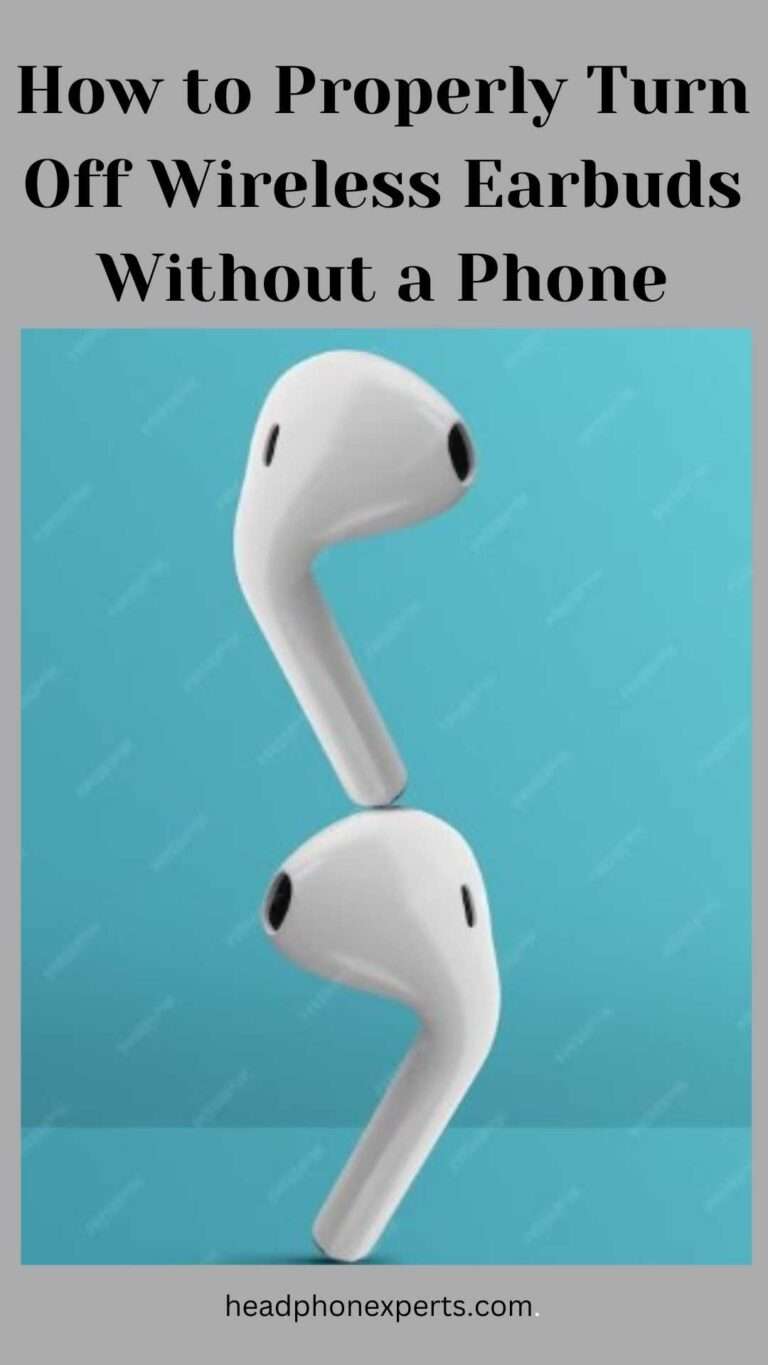
For AirPods, Galaxy Buds, Pixel Buds, and many other true wireless earbuds, the charging case acts as a physical disconnect.


- Put both earbuds into the case.
- Make sure each earbud sits correctly on its charging contacts.
- Close the lid.
- Wait several seconds.
Many earbuds disconnect when they detect that they are seated in the case. Some models may stay connected if the case battery is empty, an earbud is not seated properly, or the lid is not fully closed.
If the earbuds remain connected
Try these checks:
- Clean dirt from the earbud charging contacts.
- Confirm that both earbuds are inside the case.
- Charge the case.
- Close the lid firmly.
- Hold the case’s pairing or setup button only if the manual says it controls connection behavior.
Do not press a reset button unless you want to clear the stored pairing information. A reset can require you to set up the earbuds again.
Method 3: Use the headphones’ Bluetooth or pairing button
Some headphones have a dedicated Bluetooth button. This button may let you enter pairing mode, switch devices, or control multipoint connections.
The result varies by model:
- A short press may start pairing mode.
- A long press may clear or change the active connection.
- A double press may switch between two connected devices.
- On some models, the button does not disconnect the current device at all.
If the headphones start flashing blue or white, they may have entered pairing mode rather than fully disconnected. This often makes them visible to nearby devices.
To end the connection with certainty, power the headphones off after using the button.
Method 4: Connect the headphones to another device
Some Bluetooth headphones allow only one active connection. Connecting them to a laptop, tablet, or another phone can replace the old connection.
- Turn on Bluetooth on the second device.
- Put the headphones into pairing mode.
- Select the headphones from the Bluetooth list.
- Wait for the new connection to complete.
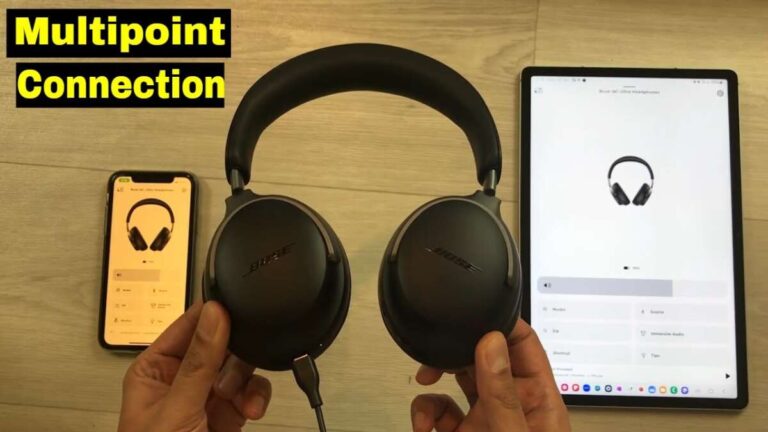
This method works best with headphones that do not support multipoint Bluetooth. Multipoint allows headphones to stay connected to two devices at the same time. With multipoint, connecting a second device may not disconnect the first one.
If both devices remain connected, turn off audio on the second device or use the headphones’ device-switch control.
Method 5: Turn off Bluetooth on the connected device
If you can reach the laptop, tablet, TV, or other device that is connected to the headphones, disabling Bluetooth will usually end the link.
On a Windows PC
- Open Settings.
- Select Bluetooth & devices.
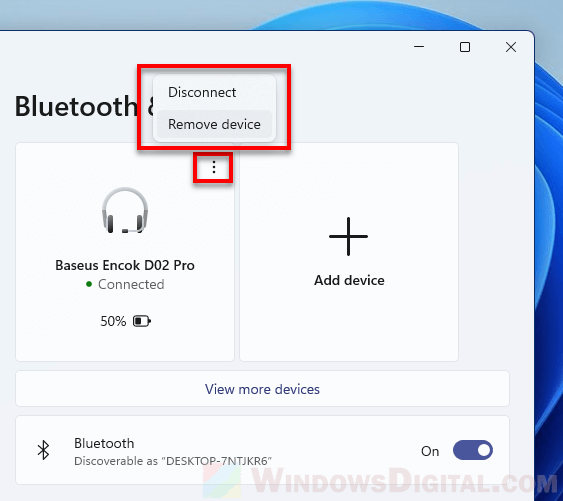
- Turn Bluetooth off, or select the headphones and choose Disconnect.


The names can vary by Windows version.
On a Mac
- Open the Apple menu.
- Select System Settings.
- Choose Bluetooth.
- Turn Bluetooth off or disconnect the headphones from the device list.
On an iPad or another tablet
Open the device’s Bluetooth settings and tap the connected headphones. Choose Disconnect, or switch Bluetooth off.
This method requires access to the connected device. You cannot normally control a phone’s Bluetooth connection from the headphones alone unless the headphone model supports a special control feature.

Method 6: Use the headphone app on another device
Some headphones use a companion app for connection controls. Examples include apps made for noise-canceling headphones, gaming headsets, and smart earbuds.
If the headphones are already paired with another tablet or phone, the app may show:
- Connected devices
- Multipoint settings
- Auto-connect controls
- Bluetooth connection history
- A device-switch option
App features differ by model and software version. Avoid changing firmware or resetting the headphones just to disconnect them. A normal power-off action is safer and faster.
What if the headphones are connected to someone else’s phone?
You usually cannot force a normal disconnect from another person’s phone without access to that phone. Bluetooth does not generally provide a universal remote-disconnect command from the headphones.
You can still try these actions:
- Power off the headphones.
- Put earbuds in their case.
- Reset the headphones if you own them and accept that stored pairings may be erased.
- Move the headphones out of range, then power them off.
- Connect them to your own device if the model supports it.
A factory reset may be useful if the headphones keep reconnecting to an old phone. Follow the manufacturer’s instructions because the reset sequence differs between models.
How to disconnect headphones from a phone you no longer have
If the phone is lost, replaced, or unavailable, use the headphones rather than trying to manage the old phone remotely.
For standard wireless headphones
- Turn the headphones off.
- Turn them back on.
- Enter pairing mode.
- Connect them to your new device.
For true wireless earbuds
- Place both earbuds in the case.
- Open the lid.
- Hold the setup or pairing button until the status light enters pairing mode.
- Select the earbuds on the new device.
If the earbuds still connect to the old phone when it is nearby, disable Bluetooth on the old phone or remove the earbuds from its Bluetooth settings when you regain access.


For headphones linked to an account
Some earbuds and headphones connect with an account-based ecosystem. In that case, removing the product from the account may be separate from Bluetooth pairing. Use the manufacturer’s account or device-management page when you need to stop tracking, sharing, or automatic setup.
Why headphones reconnect after you disconnect them
Automatic reconnection is a normal Bluetooth feature. It lets headphones reconnect to a device they recognize when both devices are nearby.
Common causes include:
- Bluetooth remains on for the old phone.
- The headphones are set to auto-connect.
- The headphones support multipoint.
- The headphones were only disconnected, not forgotten.
- The earbuds were not fully seated in their case.
- The old phone is still playing or sending audio.
- The headphones restarted after a low-battery shutdown.
- The device is within Bluetooth range.
To stop repeated reconnection, use one of these options:
- Power off the headphones when finished.
- Turn off Bluetooth on the old device.
- Forget the headphones on the old device.
- Disable auto-connect in the headphone app.
- Reset the headphones if you own them and no other method works.
For most people, powering off the headphones is enough.
Troubleshooting: the headphones will not disconnect
Work through these checks from least disruptive to most disruptive.
The power button does nothing
Charge the headphones first. A low battery can cause unusual behavior, and a completely empty battery may prevent lights or prompts from working.
If charging does not help, hold the power button for a longer period. Some models use a 10-second or longer hold for a forced restart. Use the model’s manual rather than guessing if possible.
The earbuds stay connected in the case
Check whether both earbuds are making contact with the case. Remove any ear tips or debris that block the contacts. Then charge the case and close the lid.
If one earbud remains active, the case may not detect it correctly.
Music keeps playing
The headphones may still be connected, or a different Bluetooth device may be playing audio. Check the nearby laptop, tablet, TV, or smart speaker.
If the headphones have multipoint, pause audio on every connected device. Then power the headphones off.
The headphones reconnect as soon as they turn on
The old device is likely within range and has automatic connection enabled. Turn off Bluetooth on that device, remove the headphones from its saved devices, or disable auto-connect in the headphone app.
You cannot enter pairing mode
Turn the headphones off first. Then hold the pairing button while powering them on, if the manufacturer’s instructions use that sequence.


Pairing mode is not the same as a factory reset. Do not hold buttons for an extended time unless you know what that action does.

Common mistakes to avoid
Do not confuse pairing mode with disconnecting
A flashing light often means the headphones are ready to pair. It does not always mean that all previous connections are gone.
Do not reset headphones too soon
A factory reset may delete saved devices, custom settings, equalizer settings, and app preferences. Try powering off the headphones first.
Do not rely only on distance
Bluetooth range changes with walls, metal objects, body position, and the device design. Walking away may break the connection, but the headphones can reconnect when you return.
Do not assume the case always cuts power
Most true wireless earbuds disconnect in their case, but this depends on the case battery, lid sensor, and charging contacts. Check that the case has power.
Do not remove a saved device when you only need a temporary break
Choose Disconnect for a temporary stop. Choose Forget or Unpair only when you want to remove the saved relationship.
Quick decision table
| Situation | Best first step | Why |
|---|---|---|
| Over-ear headphones are nearby | Hold the power button | Ends the link from the headphone side |
| True wireless earbuds are nearby | Put them in the charged case | Most cases stop the active connection |
| Headphones are connected to a laptop | Disconnect them in Bluetooth settings | Gives direct control of the connected device |
| Headphones keep reconnecting | Disable auto-connect or forget the device | Stops repeated automatic pairing |
| You do not know which device is connected | Power off the headphones | Works without identifying the source |
| You want to use a new phone | Enter pairing mode, then pair the new phone | Creates a new Bluetooth connection |
| You want to erase old pairings | Follow the model’s reset steps | Clears stored device data |

Key takeaways
- Powering off the headphones is the most reliable way to disconnect them without a phone.
- Put true wireless earbuds in a charged case and close the lid.
- A Bluetooth button may enter pairing mode rather than disconnect the current device.
- Connecting another device can replace the old connection on some headphones.
- You cannot usually manage Bluetooth settings on an unavailable phone from a distance.
- Use a factory reset only when you accept the loss of saved pairings and settings.
FAQs
Can I disconnect Bluetooth headphones without turning off Bluetooth on my phone?
Yes. Turn off the headphones or place the earbuds in their charging case. This ends the connection from the headphone side while Bluetooth can remain on.
How do I disconnect headphones from a phone I cannot access?
Power off the headphones, place earbuds in their case, or reset the headphones if you own them. You normally cannot send a remote disconnect command through the headphones.
Will forgetting the headphones disconnect them?
Forgetting or unpairing the headphones removes the saved Bluetooth relationship from the device. It may also end the active connection, but you need access to that device to use the option.
Can I disconnect Bluetooth headphones by walking away?
Sometimes, but it is not dependable. Distance, walls, and nearby radio signals affect Bluetooth range. The headphones may reconnect when you come back into range.
Why do my headphones connect to the old phone instead of the new one?
The old phone may still have Bluetooth enabled and may have priority in the headphones’ saved-device list. Turn off Bluetooth on the old phone, forget the headphones there, or use the manufacturer’s app to change auto-connect settings.
Does turning off the headphones erase their Bluetooth pairing?
Usually, no. Turning them off normally ends the current connection but keeps saved devices. A factory reset is the action that commonly erases stored pairings.
Conclusion
To disconnect Bluetooth headphones without a phone, start with the simplest action: turn the headphones off. For true wireless earbuds, place both earbuds in a charged case and close the lid. If the headphones keep reconnecting, control Bluetooth on the old device, disable auto-connect, or perform a model-specific reset as a last resort.


The next step is to identify your headphone type—over-ear, on-ear, or true wireless earbuds—and use the matching method above.