What Is The Best SSD For Gaming: Best Gaming SSD Guide
Introduction
For most gamers in the United States, the WD_BLACK SN850X is the best overall SSD for gaming. It offers excellent PCIe 4.0 speed, strong game-loading performance, broad PC support, and versions with or without a heatsink. The Samsung 990 Pro is a close alternative, while the Crucial T500 is a strong pick when its price is lower.
The best SSD for you still depends on your system. A desktop with a PCIe 5.0 M.2 slot can use a newer Gen 5 drive, but most gaming PCs and the PlayStation 5 gain more from good capacity and sustained performance than from the highest benchmark number.
This guide compares the key choices for U.S. PC and console gamers. It also explains capacity, heat, PCIe generations, installation, and common buying mistakes.

Quick answer: Which SSD is best for gaming?
The WD_BLACK SN850X 1TB or 2TB is the best all-around choice for most PC gamers. It has high sequential speeds, low game-load latency, and enough performance for modern gaming without requiring a PCIe 5.0 motherboard.
Choose a different drive in these cases:
- Best alternative for PC: Samsung 990 Pro
- Best value when discounted: Crucial T500
- Best for a newer PCIe 5.0 PC: Crucial T705 or another well-reviewed Gen 5 model with a suitable heatsink
- Best for PS5: WD_BLACK SN850X with heatsink, Samsung 990 Pro with heatsink, or another Sony-compatible M.2 NVMe SSD
- Best budget approach: A reputable PCIe 4.0 TLC NVMe SSD, such as the WD Blue SN580, if you mainly want more space and faster load times than a hard drive
For most buyers, 2TB is the sweet spot. A 1TB SSD can fill quickly after installing several large games, Windows, launchers, and updates.
What makes an SSD good for gaming?
A gaming SSD should offer fast random access, stable performance, enough endurance, and a capacity that matches your library. Peak sequential speed matters, but it is not the only factor.
NVMe matters more than the biggest speed number
Modern gaming SSDs usually use the NVMe protocol and connect through an M.2 slot. NVMe drives communicate over PCI Express, also called PCIe.
A SATA SSD is still much faster than a mechanical hard drive. However, a PCIe 4.0 NVMe SSD usually offers much higher bandwidth and is now the normal choice for a new gaming PC.
The main categories are:
| SSD type | Typical interface | Best use |
|---|---|---|
| SATA SSD | SATA III | Older PCs and low-cost storage upgrades |
| PCIe 3.0 NVMe | PCIe 3.0 | Older gaming systems |
| PCIe 4.0 NVMe | PCIe 4.0 | Best balance for most modern gaming PCs |
| PCIe 5.0 NVMe | PCIe 5.0 | New enthusiast PCs and heavy file work |
A PCIe 4.0 drive can work in some PCIe 3.0 systems, but it will run at the slower connection speed. Always check your motherboard manual before buying.
Random performance affects game loading
Game files are spread across many locations on a drive. Random read performance helps the system find and open those files.
Manufacturers often advertise sequential speeds in megabytes per second. These numbers are useful for large file transfers, but they do not directly predict every game’s load time. Two high-end SSDs can produce very similar gaming results even when one has a higher rated peak speed.
TLC NAND is usually the safer long-term choice
TLC NAND stores three bits per memory cell. QLC stores four. QLC SSDs can offer more capacity at a lower price, but they may slow down more during very large writes.
For a main gaming drive, a good TLC SSD is the simpler choice. QLC can still make sense for a large secondary game library when the price difference is substantial.
A heatsink can prevent heat-related slowdowns
Fast NVMe SSDs produce heat, especially during large installs, file transfers, and demanding workloads. Some motherboards include an M.2 heatsink. If yours does not, buy a version with a heatsink or add a compatible one.
Do not use a thick aftermarket heatsink if it could block your graphics card or prevent the M.2 cover from closing.
The best gaming SSDs for PC
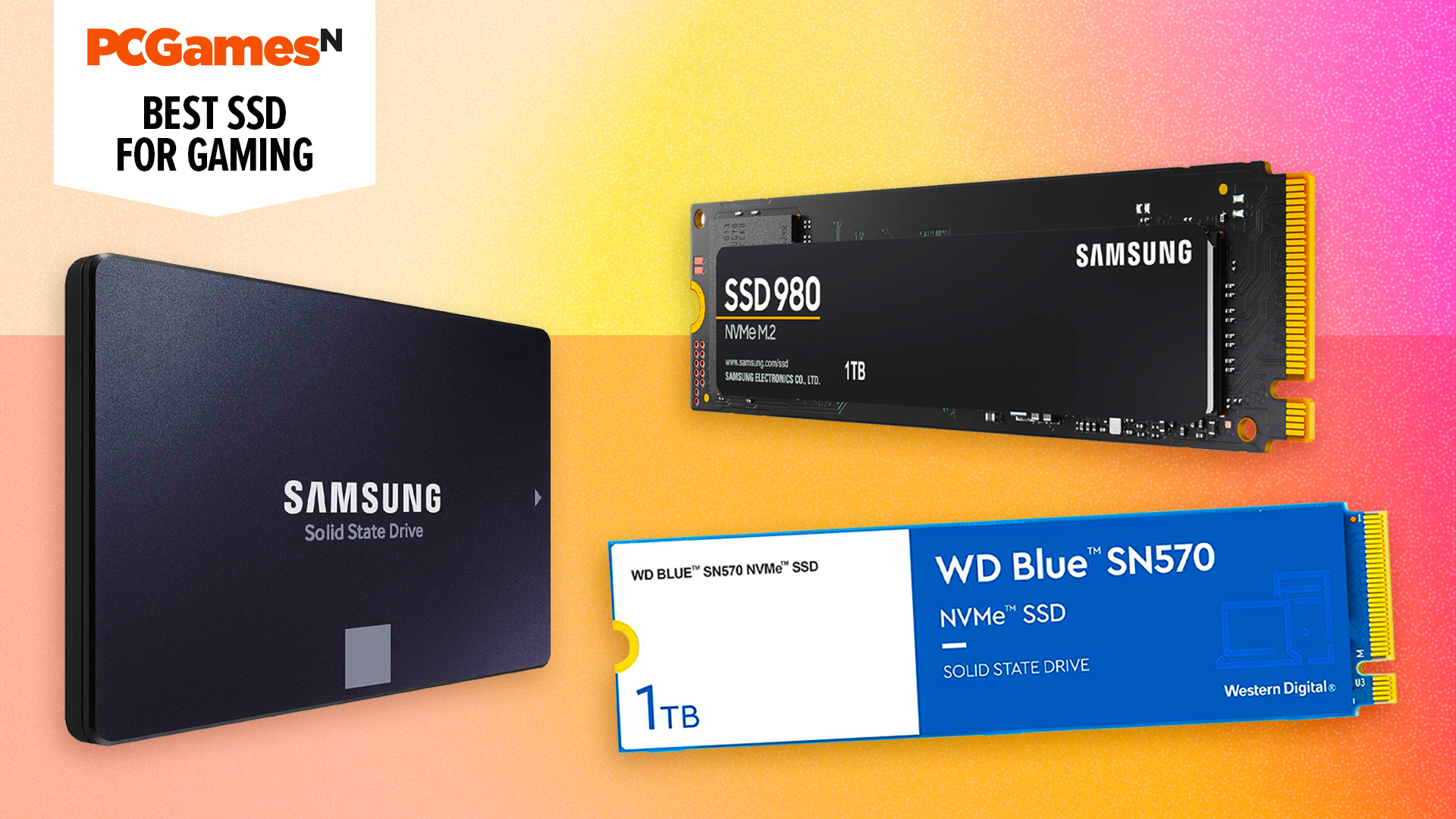
The following drives fit different needs. These are recommendations based on published specifications, platform compatibility, product features, and the practical limits of game storage. They are not claims from hands-on testing in this article.
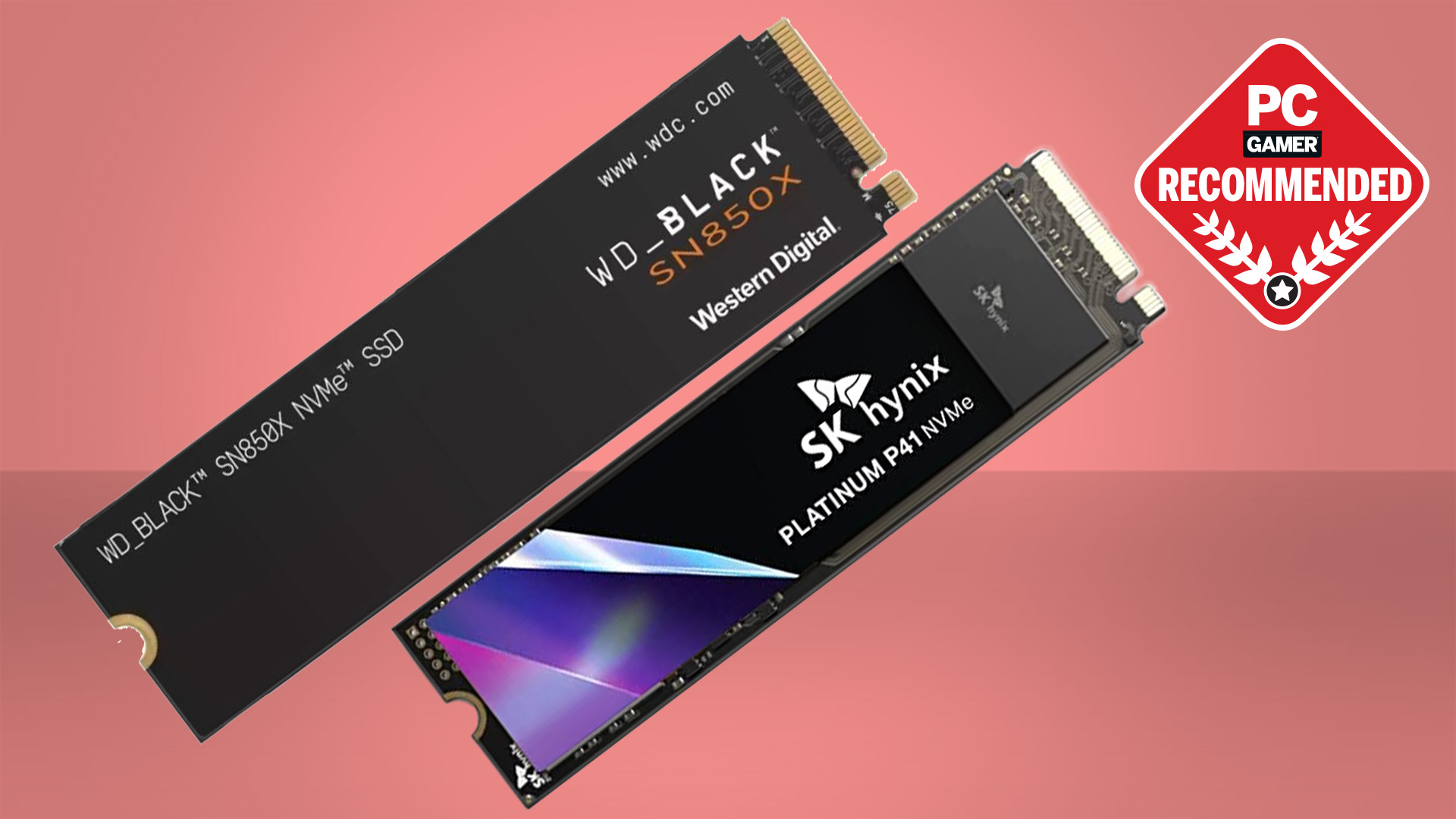
1. WD_BLACK SN850X: best overall
The WD_BLACK SN850X is a strong choice for most gaming PCs. Its PCIe 4.0 interface provides speeds that are near the practical high end of Gen 4 storage, and it is available in several capacities.
Why it stands out:
- Strong game and desktop performance
- 1TB, 2TB, and larger options
- Versions with an integrated heatsink
- Compatible with modern AMD and Intel gaming platforms
- Available for desktops and, with the right version, PS5 expansion
The main limit is its interface. It is not a PCIe 5.0 drive, so it will not provide Gen 5 benchmark results. That is not a meaningful problem for most games.
Buy the heatsink version if your motherboard lacks a suitable M.2 cooler. For a PS5, choose a model that fits Sony’s size and heatsink requirements.
2. Samsung 990 Pro: best premium PCIe 4.0 alternative
The Samsung 990 Pro is another excellent high-end PCIe 4.0 SSD. It offers strong rated read and write speeds, Samsung Magician software, and versions with a built-in heatsink.
It fits gamers who want:
- A premium PCIe 4.0 drive
- Strong performance for games and large file transfers
- Drive health monitoring and firmware tools
- A well-known software support package
The 990 Pro is not automatically faster in games than every competing Gen 4 SSD. If it costs much more than the SN850X or Crucial T500, the extra money may be better spent on more capacity.
Samsung previously addressed firmware-related health reporting concerns for some 990 Pro drives through firmware updates. Check the drive’s firmware with Samsung Magician after installation.
3. Crucial T500: best value among high-end Gen 4 drives
The Crucial T500 delivers high PCIe 4.0 performance and can be a good value when priced below competing flagship drives. It is available in versions with and without a heatsink.
It is a good fit for:
- New PC builds
- Gamers who also move large files
- Buyers who want high-end Gen 4 performance
- Systems with a free PCIe 4.0 M.2 slot
As with any SSD, compare the exact capacity and heatsink version. Performance can vary by capacity, and a bare drive may need additional cooling.
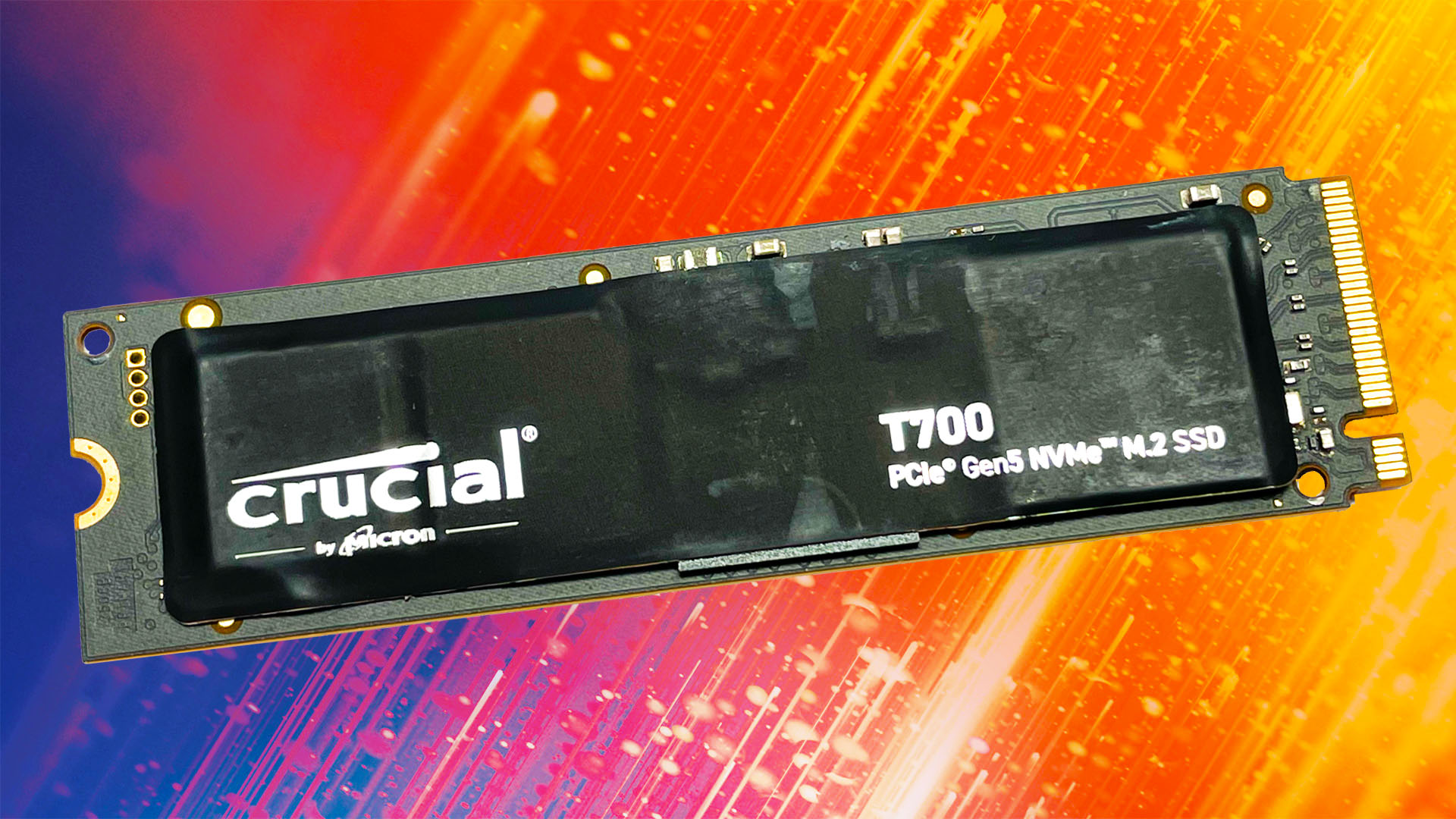
4. Crucial T705: best for a PCIe 5.0 enthusiast PC
The Crucial T705 is designed for PCIe 5.0 systems. It can reach much higher sequential speeds than Gen 4 drives when paired with a compatible motherboard and processor.
It makes sense when:
- Your motherboard supports PCIe 5.0 M.2 storage
- You frequently move large video or project files
- You want a high-end system and accept extra heat
- The price fits your budget
For gaming alone, a Gen 5 SSD is rarely necessary. It can improve some storage tasks, but game loading often depends on the game engine, CPU, decompression, and other system limits.
A PCIe 5.0 SSD also needs careful cooling. Use the motherboard’s recommended M.2 heatsink or the drive’s compatible cooler.
5. WD Blue SN580: best sensible budget choice
The WD Blue SN580 is a lower-cost PCIe 4.0 SSD for gamers who need more space without paying flagship prices. It is not designed to beat high-end drives in every benchmark, but it can provide a large improvement over a hard drive.
It is a sensible choice for:
- A secondary game library
- A mid-range gaming PC
- A budget upgrade
- Users who value capacity over peak speed
Use a reputable budget SSD for game storage, but avoid unknown brands with unclear warranty terms, NAND type, or support history.
Best SSD for PS5 gaming
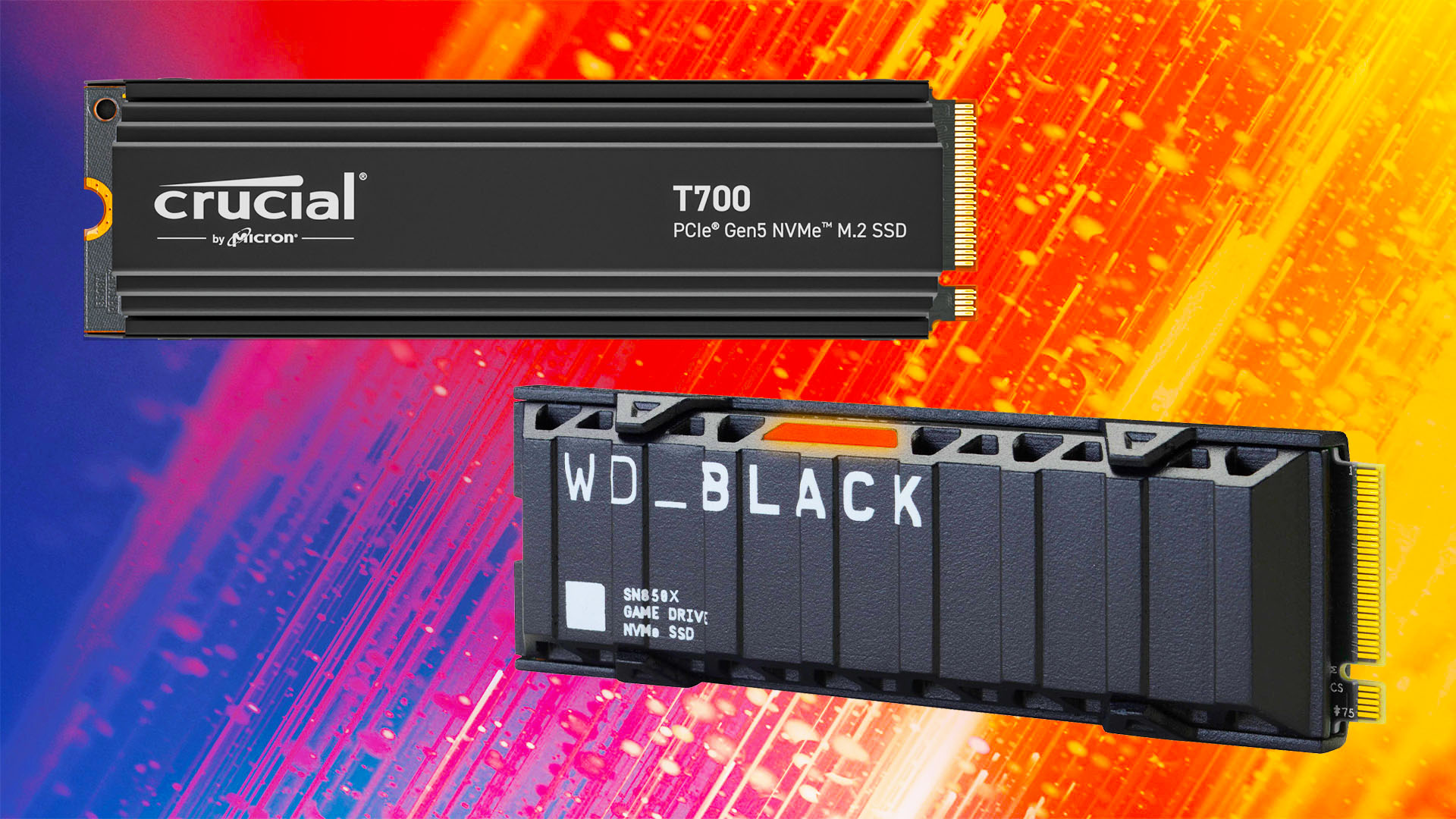
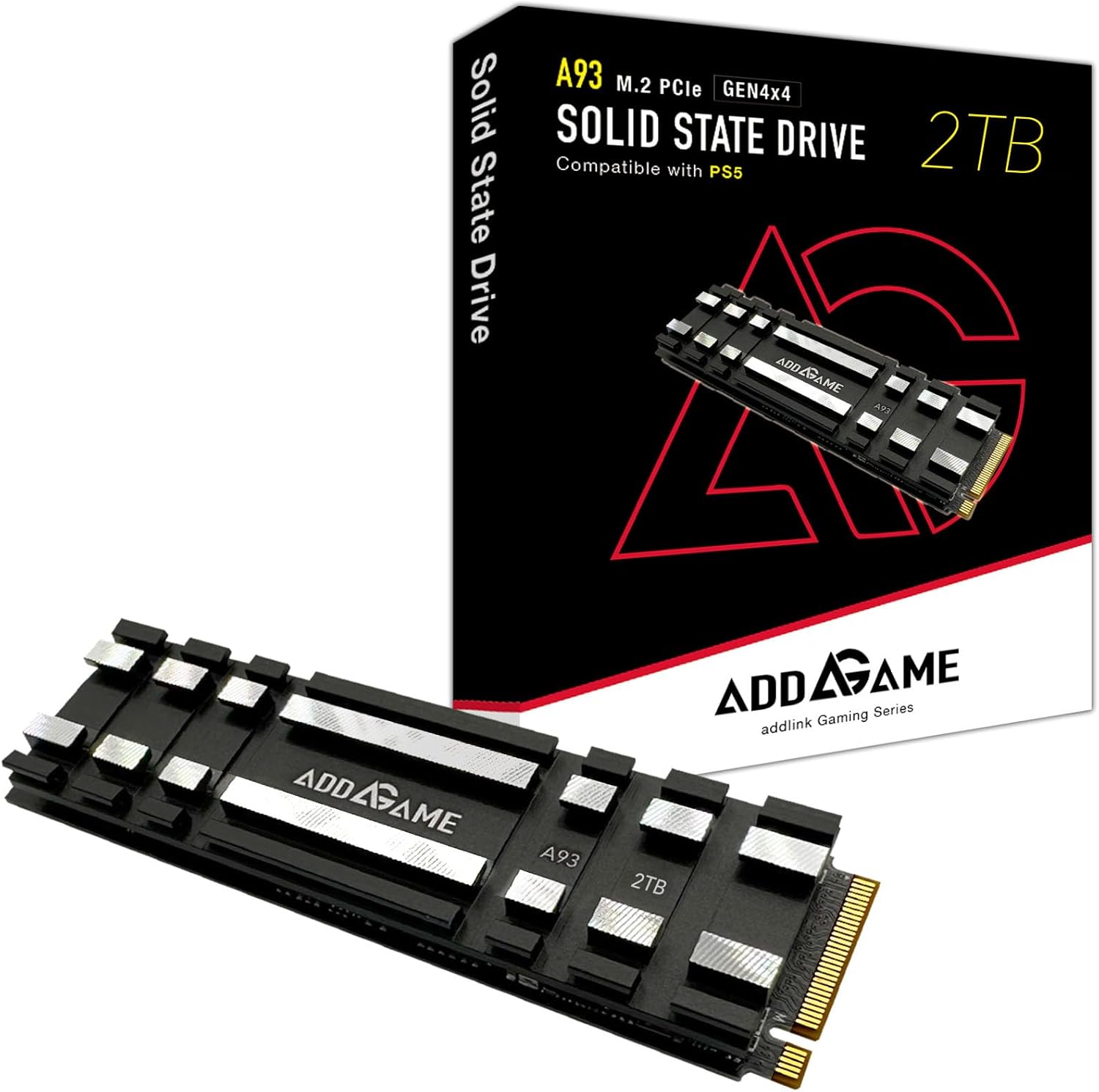
The best PS5 SSD is a compatible PCIe 4.0 NVMe M.2 drive with a heatsink. Sony’s official support guidance requires an M.2 SSD that meets specific size, interface, speed, and cooling requirements.
Sony lists these key requirements for PS5-compatible M.2 storage:
- PCIe Gen 4 x4 NVMe interface
- Capacity from 250GB to 8TB
- A recommended read speed of 5,500 MB/s or faster
- A compatible heatsink or heat-dissipation structure
- Physical dimensions that fit the PS5 expansion bay
Sony’s requirements can change by console software or model documentation, so check the current PlayStation M.2 SSD support page before buying.
Good options often include:
- WD_BLACK SN850X with heatsink
- Samsung 990 Pro with heatsink
- Crucial T500 with a compatible heatsink
Do not assume that every M.2 SSD fits the PS5. A drive may have the right speed but still fail because it lacks a heatsink or exceeds the allowed thickness.
The PS5 formats the drive during installation. Back up important data and follow Sony’s installation instructions. After the console recognizes the drive, you can move or install supported games there.
How much SSD storage do you need for gaming?
For most U.S. gamers, 2TB offers the best balance between price and convenience. Modern PC games can take more than 100GB, and large updates may require additional free space.
Use this guide:
- 500GB: Basic system drive or a small game collection
- 1TB: Good for Windows and several large games
- 2TB: Best fit for most gamers
- 4TB: Useful for a large library or frequent game installs
- 8TB: Best for very large libraries, but usually expensive
A simple planning method is:
Required capacity = operating system space + installed games + applications + free working space
For example, a hypothetical 1TB drive may provide roughly 931GB of usable capacity after decimal-to-binary conversion and formatting. Windows, launchers, and several games can use much of that space quickly.
Keep free space available. An SSD can continue working when nearly full, but leaving room helps with updates, temporary files, and sustained write performance. A practical target is to avoid filling the drive completely.

PCIe 4.0 vs. PCIe 5.0 for gaming
PCIe 5.0 is faster on paper, but PCIe 4.0 is usually the better gaming value. The interface can double theoretical bandwidth, yet game loading does not always scale in the same way.
A Gen 5 SSD is worth considering if:
- You are building a new high-end PC
- Your motherboard supports PCIe 5.0 M.2 storage
- You perform large file transfers or content creation
- You want a long-term enthusiast platform
A Gen 4 SSD is better if:
- You already own a PCIe 4.0 gaming PC
- You want lower cost and lower heat
- Your main task is launching and playing games
- You would benefit more from buying 2TB instead of 1TB
Games that use Microsoft DirectStorage may use fast storage features more effectively, but DirectStorage does not make every game load at the same speed. The game must support the technology, and the full system must be balanced.
What to check before buying a gaming SSD
Check compatibility before comparing speed ratings. A fast SSD is not useful if it does not fit your system or lacks proper cooling.
Check the M.2 slot
Read your motherboard manual and confirm:
- The slot supports NVMe, not only SATA M.2 drives
- The slot supports the SSD’s PCIe generation
- The M.2 length is supported, usually 2280
- Installing the drive will not disable a SATA port or expansion slot
- The motherboard includes an M.2 heatsink
Some systems share PCIe lanes between the M.2 slot and graphics card slot. The manual explains how the slots behave.
Check operating system support
Windows 10 and Windows 11 support modern NVMe SSDs. Your motherboard may still need a BIOS update for a newer PCIe 5.0 drive or high-capacity model.
For a secondary game drive, format it with the file system recommended by your operating system and game launcher. Do not format a drive that contains needed files.
Check the warranty and endurance rating
SSD endurance is often listed in terabytes written, or TBW. TBW is a useful comparison, but it does not predict the exact lifespan of every drive.
A typical gaming workload writes far less data than a professional video-editing or database workload. Still, buy from a manufacturer with a clear warranty and support process. Keep backups of important files because no SSD should be treated as a permanent backup.

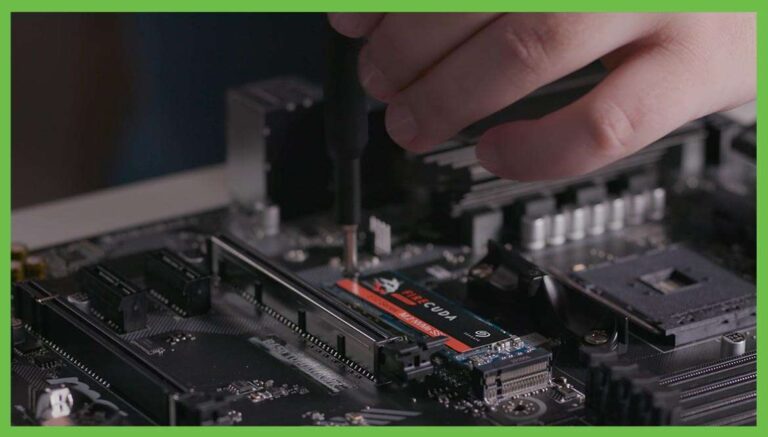
How to install an M.2 gaming SSD
Installing an M.2 SSD is usually simple, but power safety matters.
- Shut down the PC completely.
- Turn off the power supply and unplug the power cable.
- Press the power button for a few seconds to discharge the system.
- Open the case and locate the correct M.2 slot.
- Remove the M.2 heatsink or retaining screw.
- Insert the SSD at a slight angle.
- Press it down gently and secure it with the correct screw or latch.
- Replace the heatsink if the drive uses one.
- Start the PC and check BIOS or Windows Disk Management.
- Initialize and format the drive only if it is new and empty.
- Install games through Steam, Epic Games Store, Xbox, or another launcher.
Do not force the connector. If the screw does not line up, confirm that the SSD is seated correctly and that the motherboard standoff is in the 2280 position.
Signs of a successful installation include detection in BIOS, detection in Windows, normal temperature readings, and the ability to create a partition or install a game.
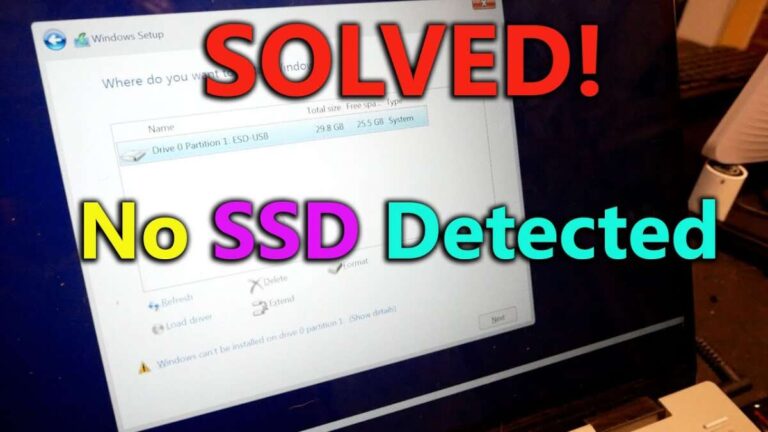
If the drive does not appear, power down and check the slot, BIOS settings, firmware, and motherboard manual. Test another M.2 slot if one is available.
Common SSD buying mistakes
The most common mistake is paying for a speed number that the system cannot use. A PCIe 5.0 SSD in a PCIe 4.0 slot will not operate at Gen 5 speed.
Other mistakes include:
- Buying an M.2 SATA drive for an NVMe-only slot
- Choosing a bare SSD without checking cooling needs
- Buying 1TB when a 2TB model costs only modestly more
- Ignoring the exact capacity’s performance rating
- Using an SSD with unclear warranty or support
- Treating an SSD as a backup
- Installing the drive without checking motherboard lane sharing
- Assuming every SSD works in a PS5
- Comparing sequential benchmark numbers as if they equal game-load times
A lower-priced PCIe 4.0 SSD from a known manufacturer can be a better purchase than a flagship drive with too little capacity.

Frequently asked questions
Does an SSD increase gaming FPS?
Usually, no. An SSD mainly improves game startup, level loading, texture streaming, installation, and system responsiveness. Graphics performance still depends mostly on the GPU, CPU, game settings, and resolution.
Is 1TB enough for gaming?
It can be enough for a small library. A 1TB SSD is a reasonable starting point, but 2TB is more comfortable if you play several large games or share the PC with other users.
Is an SSD better than an HDD for gaming?
Yes. An SSD usually provides much faster game loading and a more responsive system. A hard drive can still work as cheap archival storage, but it is a poor choice for modern games when an SSD is available.
Is a heatsink required for a gaming SSD?
Not always. Many PCIe 4.0 SSDs work without a large heatsink in light use, but cooling can help maintain performance during long transfers. PCIe 5.0 drives generally need more careful cooling.
Can I use a Gen 4 SSD in a Gen 5 slot?
Usually, yes. PCIe is backward compatible, so a Gen 4 SSD can operate in a Gen 5 slot at Gen 4 speed. Confirm the motherboard’s manual because slot behavior differs by system.
Can an Xbox Series X or Series S use a regular M.2 SSD?
No. Xbox Series X and Series S consoles use an officially licensed expansion card format rather than a standard internal M.2 installation. Do not buy a PC M.2 SSD for the Xbox expansion slot.
Final recommendation
For most American PC gamers, buy the WD_BLACK SN850X 2TB if the price is competitive. It delivers the right mix of speed, capacity, compatibility, and cooling options.
Choose the Samsung 990 Pro or Crucial T500 when either model offers a better price or suits your software and heatsink needs. Choose a PCIe 5.0 SSD only when your system supports it and you have a reason beyond ordinary game loading.
For a PS5, select a compatible PCIe 4.0 NVMe SSD with a heatsink and verify its dimensions against Sony’s current requirements. In every case, prioritize capacity, confirmed compatibility, cooling, warranty support, and a reputable brand over the largest number on the box.