How To Make Wireless Headphones Wired: Easy Guide
Introduction
In the United States, most wireless headphones use Bluetooth, but many also include a 3.5 mm audio jack for wired listening. If your headphones have that jack, you can usually make them wired with the right cable. If they do not, the process may require a USB audio connection, a Bluetooth receiver, or a complex hardware modification.
The key is to check what type of audio input your headphones support. A charging port does not always carry sound, and a USB-C port may work only for power. This guide explains how to check your headphones, connect them by wire, fix common problems, and understand when a modification is not practical.
Can Wireless Headphones Be Used as Wired Headphones?
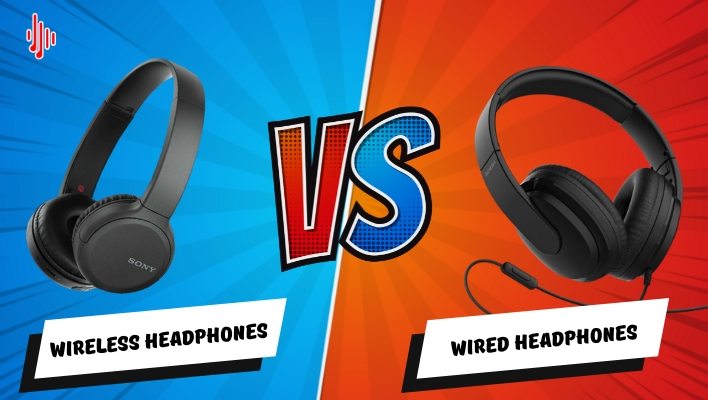
Yes, but only if the headphones support a wired audio input. The most common option is a 3.5 mm headphone jack. Some newer models support digital audio through USB-C, while others have a USB-C port used only for charging.
A wireless headset with a wired mode does not become a completely different device. Instead, the audio signal travels through a cable rather than through Bluetooth.


There are three common situations:
| Headphone type | Can it work with a wire? | What you need |
|---|---|---|
| Headphones with a 3.5 mm jack | Usually yes | 3.5 mm audio cable |
| Headphones with USB-C audio support | Sometimes | Compatible USB-C cable and source |
| Headphones with no audio input | Usually no | Bluetooth receiver or hardware modification |
| True wireless earbuds | Rarely | Special charging case or replacement system |
| Headset with a detachable boom mic | Often yes | Compatible headset cable |
A 3.5 mm jack is the easiest and most reliable method. It carries analog audio from a phone, laptop, game console, tablet, or other source.
A USB-C port is less predictable. USB-C describes the shape of the connector, not the functions supported by the port. One pair of headphones may accept digital audio through USB-C, while another may use the same port only for charging.

What You Need Before You Start
You need a compatible cable, a device with an audio output, and headphones that accept wired sound. Check the headphone manual or the labels near the ports before connecting anything.
For a 3.5 mm connection
You may need:
- A 3.5 mm male-to-male audio cable
- A USB-C-to-3.5 mm adapter if your source has no headphone jack
- A Lightning-to-3.5 mm adapter for some older iPhones
- An airline or gaming adapter if the source uses a special connector
Use a cable with the correct plug size. Most consumer headphones use a standard 3.5 mm plug. Some professional headphones use a 6.35 mm connector, and some older or specialized headsets use a 2.5 mm connector.
Do not force a plug into the port. A connector that looks close but has the wrong size can damage the jack.
For a USB-C connection
You need:
- Headphones that support USB audio
- A USB-C cable that carries data, not just power
- A source device that supports USB audio output
- Any required software or device settings
a cable sold only for charging may not transmit audio. If the headphones do not appear as an audio device after connection, consult the manual before buying more cables.
Check the headphone controls
Look for one of these signs:
- A labeled “AUX” port
- A headphone icon
- A “wired mode” setting in the manual
- A detachable audio cable included in the box
- A USB audio mode listed in the specifications


If the manual says the USB-C port is “charging only,” it cannot be used as a wired audio connection without modifying the headphones.
Method 1: Use a 3.5 mm Audio Cable
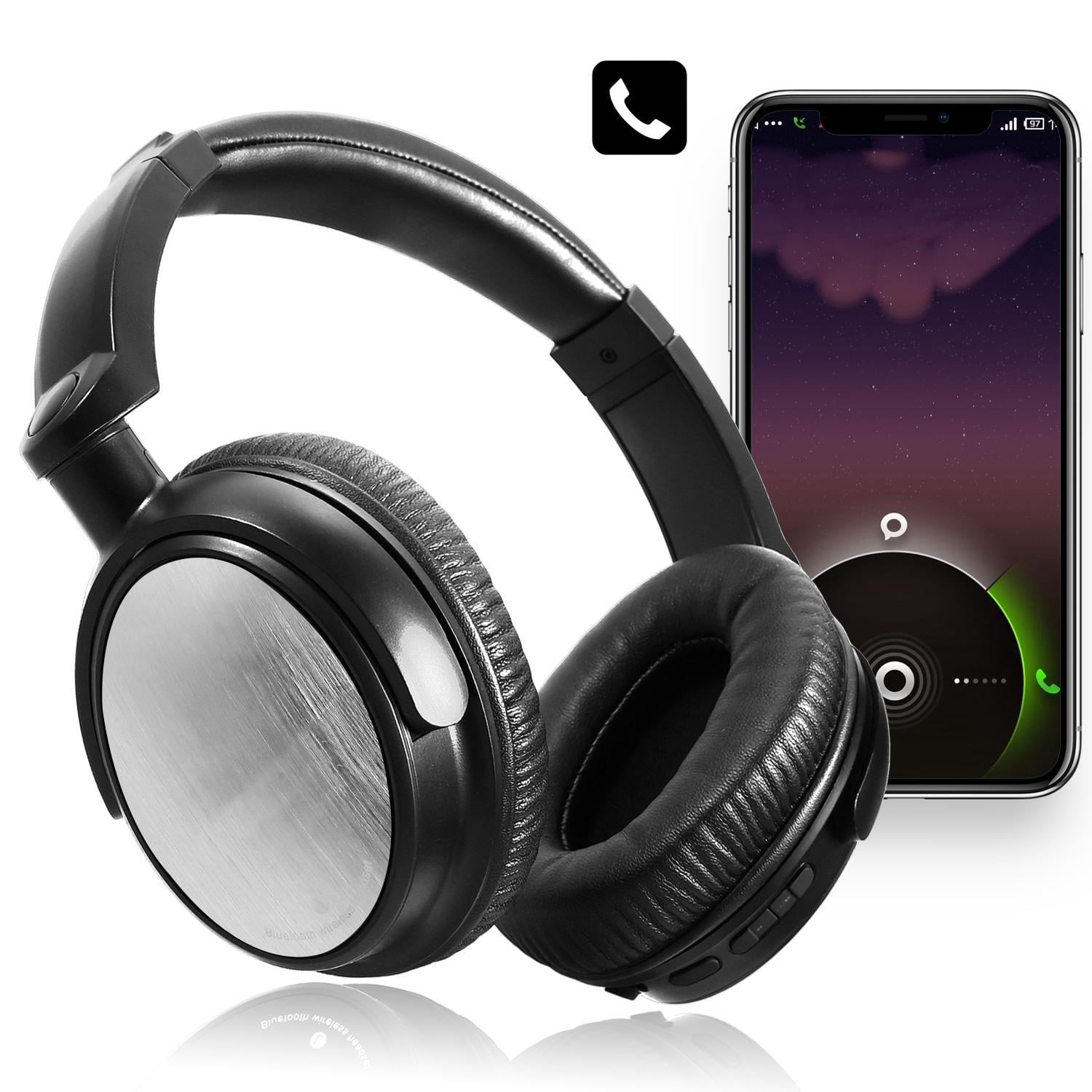
This is the simplest way to make compatible wireless headphones wired. It usually works with phones, computers, tablets, handheld game systems, TVs, and many game controllers.
Step-by-step instructions
-
Turn the headphone volume down.
Lower the volume on both the headphones and the source device to protect your hearing. -
Turn off Bluetooth on the source if needed.
This prevents the phone or computer from sending sound to another Bluetooth device. -
Plug one end of the cable into the headphones.
Insert the plug fully into the AUX or audio jack. -
Plug the other end into the source device.
Connect it to the laptop, phone adapter, controller, television, or other audio output. -
Start playing audio at a low level.
Raise the volume slowly until it reaches a comfortable level. -
Test both sides of the headphones.
Play music or a spoken recording and confirm that the left and right channels work. -
Secure the cable.
Keep it away from chair wheels, door hinges, and sharp edges. Avoid pulling the cable from the cord itself.
Some headphones switch to wired mode as soon as you insert the cable. Others require the power button to remain on.
Do wireless headphones need to be powered on when wired?
It depends on the model.
Passive wired mode works without battery power. In this mode, the cable sends audio directly to the headphone drivers. Bluetooth, buttons, microphones, and active noise cancellation may stop working.
Other headphones need power for their electronics. This is common when the wired connection passes through a digital signal processor, active noise cancellation system, or built-in amplifier.
Try both options:
- Connect the cable with the headphones off.
- If there is no sound, turn the headphones on and try again.
- Check whether noise cancellation or transparency mode requires battery power.
Do not assume that turning the headphones off saves all battery power while using a cable. Some models still need power for active features.

Method 2: Use USB-C for Wired Audio
USB-C wired audio can work, but compatibility varies more than it does with a 3.5 mm cable.
When USB-C audio works, the source device sends digital audio to the headphones. The headphones then convert that signal into sound. This differs from a 3.5 mm connection, which normally sends an analog signal.
How to test USB-C audio
- Check the headphone manual for “USB audio,” “USB DAC,” or “audio over USB.”
- Connect the headphones to a computer or compatible mobile device with a data-capable USB-C cable.
- Open the computer’s sound settings.
- Select the headphones as the output device.
- Play a short audio file at low volume.
- Check whether the headphone controls and microphone work.
On a Windows PC, the headphones may appear under the sound output list. On a Mac, check System Settings > Sound. On Android, the result depends on the phone, operating system, and headphone design.
Some headphones support USB audio only while charging. Others may charge and play audio at the same time. The manual is the best source for the exact behavior.
Why a USB-C charging cable may not work
A USB-C cable may lack the wires needed for data. Even a full data cable may not work if the headphones do not support USB audio.


A failed USB-C connection can have several causes:
- The headphone port supports charging only.
- The cable carries power but not data.
- The source device does not recognize the headphones.
- The headphones need to be powered on.
- The device selected a different audio output.
- A company-specific app or driver is required.
Do not buy a USB-C cable based only on its connector shape. Confirm that both the headphones and the source support USB audio.

Method 3: Connect Wireless Headphones to Devices Without Bluetooth
If your headphones do not have a wired input, you can sometimes use a Bluetooth transmitter. This does not make the headphones wired. Instead, it lets a device without Bluetooth send sound wirelessly to the headphones.
For example, a Bluetooth transmitter can connect to:
- A television’s 3.5 mm output
- An airplane entertainment system
- A game console with an audio output
- An older stereo receiver
- A desktop computer without Bluetooth
This method is useful when the source needs Bluetooth capability. It does not create a wired connection between the headphones and the source.
Basic setup
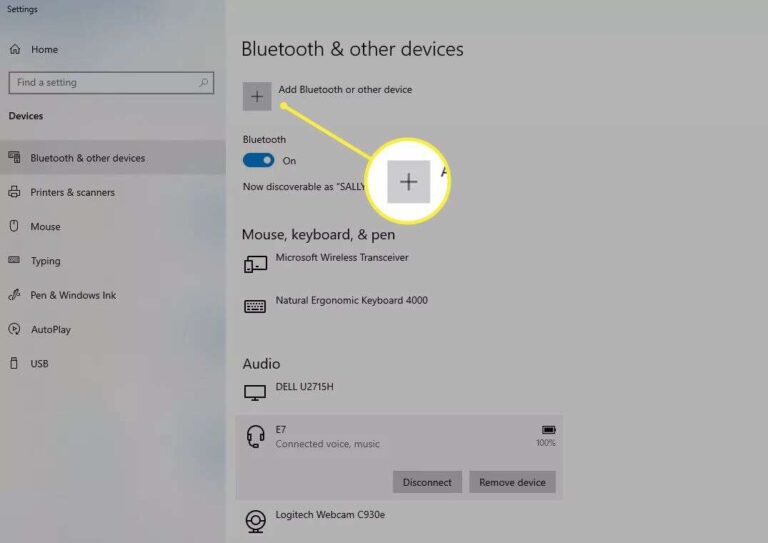
- Connect the transmitter to the source’s audio output.
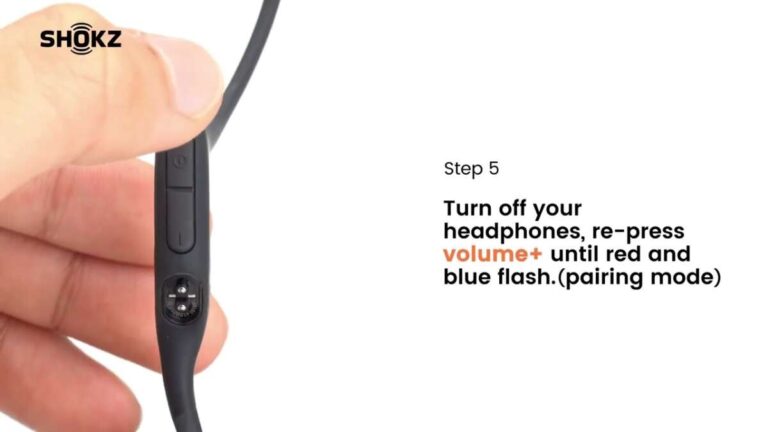
- Put the transmitter into pairing mode.
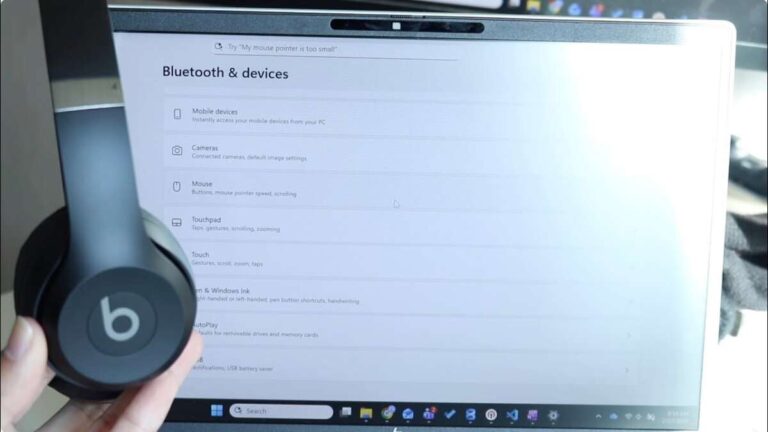
- Put the headphones into pairing mode.
- Wait for the devices to connect.
- Select the correct audio output on the source.
- Test the volume and delay.
Bluetooth transmitters can add audio delay. That may be noticeable when watching video or playing games. A transmitter with a low-latency mode may reduce the delay, but both the transmitter and headphones must support the same low-latency format.
This option also requires battery power for the transmitter and headphones. It is not a substitute for a passive headphone cable.

Can You Modify Headphones Without a Wired Input?
You can sometimes add a wired input by modifying the internal wiring, but this is not a simple beginner repair.
A hardware modification may involve:
- Opening the ear cup
- Finding the left, right, and ground audio wires
- Adding a 3.5 mm socket
- Routing the socket through a switch or circuit
- Soldering very small connections
- Preventing the new port from interfering with the battery or control board
This work can permanently damage the headphones. It may also expose a lithium-ion battery, which can be dangerous if punctured, shorted, bent, or overheated.
Why internal modifications often fail
Wireless headphones may use more than one audio path. The Bluetooth circuit, microphone, noise cancellation system, amplifier, and speaker drivers may be connected in a way that does not accept a simple cable splice.


A modification may cause:
- Sound in only one ear
- Low volume
- Electrical noise
- A reversed left and right channel
- Loss of microphone function
- Loss of noise cancellation
- Battery damage
- A short circuit
- Permanent damage to the headphone board
If the headphones are expensive, under warranty, or contain a tightly packed battery, a professional repair shop is the safer choice. For many models, buying headphones with a factory wired mode costs less and works better than adding one.
Never connect an unknown wire directly to a battery. Audio wires and power wires serve different purposes.
How to Troubleshoot Wired Headphones
Start with the cable and source before assuming the headphones are broken.
No sound
Try these checks in order:
- Confirm that the plug is fully inserted.
- Increase the source volume slightly.
- Select the correct audio output.
- Try another audio file or app.
- Test another cable.
- Test the headphones with another source.
- Turn the headphones on if the model needs power.
- Check whether the headphone jack has dust or damage.
If another pair of wired headphones also fails on the source, the problem may be the phone, computer, adapter, or output jack.
Sound comes from only one side
One-sided sound often points to a damaged cable, loose plug, dirty jack, or incorrect connector.
Try a different cable first. If moving the cable near the plug makes the sound cut in and out, the cable may have an internal break.
A headset cable with extra contacts may also behave differently from a normal stereo cable. This can happen when a headset uses a combined microphone and audio connector.
The sound is quiet
Low volume may result from:
- A source volume limit
- A poor-quality or damaged adapter
- Headphones that need power
- A cable that is not fully inserted
- A source with a weak headphone output
- A mismatch between the connector and the device
Raise the source volume only after checking the connection. If the sound remains very quiet, test the headphones with a different device.
Noise cancellation does not work
Many headphones disable active noise cancellation in passive wired mode. Some models let you keep noise cancellation on only when the battery has charge and the power is switched on.
This is often normal behavior rather than a fault. Check the manual for the model’s wired-mode limits.
The microphone does not work
A basic stereo cable may carry only left and right audio. A headset cable with a microphone needs the correct contact arrangement and compatible source.


If the microphone is important, use the cable supplied with the headphones or one specifically made for headset audio. Test the microphone in the computer or phone’s input settings.

Wired Mode Compared With Bluetooth
Wired listening and Bluetooth each have useful strengths.
| Feature | Wired connection | Bluetooth connection |
|---|---|---|
| Battery use | Often lower, but depends on the model | Uses headphone battery |
| Audio delay | Usually very low | May be noticeable |
| Range | Limited by cable length | Limited by wireless range |
| Compatibility | Depends on the port and adapter | Depends on Bluetooth support |
| Controls | May be limited | Usually available |
| Active noise cancellation | Model-dependent | Usually available while powered |
| Audio compression | Depends on source and connection | Depends on Bluetooth codec |
| Cable convenience | Cable can snag | No cable at the headphones |
A wired connection is often useful for long flights, gaming, computers, or situations where battery life matters. Bluetooth is more convenient for walking, exercise, and devices that lack a headphone output.
The best choice depends on the device and the features you need. A wired mode may save battery but can disable the microphone, noise control, or headphone buttons.

Common Mistakes to Avoid
Assuming every USB-C port carries audio
USB-C is a connector standard, not a guarantee of audio support. Confirm the function of the port in the manual.
Using a charging-only cable
Some USB-C cables provide power but do not carry data. Use a cable rated for data if the headphones support USB audio.
Buying the wrong 3.5 mm cable
A stereo cable, headset cable, and balanced audio cable may not be wired the same way. Use the cable recommended by the headphone maker when possible.
Pulling the cable by the cord
Pulling can loosen the headphone jack or break the cable near the plug. Hold the plug housing when disconnecting it.
Opening the ear cups without checking the battery
A lithium-ion battery may sit close to the plastic housing. Do not puncture, bend, crush, or heat it.
Expecting wired mode to support every feature
A cable may provide sound but not Bluetooth controls, microphone input, noise cancellation, or app features.
Ignoring hearing safety
Start at a low volume. Long exposure to loud sound can harm hearing, whether the connection is wired or wireless.
Quick Takeaways
- A 3.5 mm audio jack is the easiest way to use wireless headphones with a cable.
- A USB-C port works for audio only if the headphones support USB audio.
- Charging-only ports cannot provide wired sound without a hardware modification.
- Some headphones must remain powered on for wired listening.
- Wired mode may disable the microphone, buttons, Bluetooth, or noise cancellation.
- A Bluetooth transmitter helps devices send wireless audio, but it does not make the headphones wired.
- Do not modify headphones near a lithium-ion battery unless you have the right repair skills and equipment.
FAQs
Can I use wireless headphones with a 3.5 mm cable when they are turned off?
Often, yes. This is called passive wired mode. Some models still need power for the amplifier, active noise cancellation, or other internal electronics.
Can I make Bluetooth earbuds wired?
Usually not. True wireless earbuds generally have no audio input, and their charging contacts are not designed to accept an analog audio signal. A Bluetooth transmitter is the practical alternative.
Does a USB-C-to-3.5 mm adapter make any wireless headphones wired?
No. The headphones must have an audio input. An adapter can convert the source device’s audio output, but it cannot add a missing input to the headphones.


Can I use wireless headphones with a TV through a cable?
Yes, if the headphones have a compatible wired input and the TV has an audio output. You may need a 3.5 mm cable, an optical-to-analog converter, or another adapter based on the TV’s ports.
Why do my headphones work with Bluetooth but not with a cable?
The model may require power in wired mode, the cable may be faulty, the source may use the wrong output, or the port may not support audio. Test another cable and source, then check the manual for wired-mode requirements.
Is wired audio better than Bluetooth?
Neither is always better. Wired audio can reduce delay and avoid headphone battery use, while Bluetooth removes the cable and may support more controls. The result depends on the headphone design, source device, and features in use.
Conclusion
To make wireless headphones wired, connect them to an audio source through a supported 3.5 mm jack or USB-C audio port. Check the manual first, because a charging port does not automatically support sound.
If the headphones have no audio input, do not force a cable into a charging socket or open the device without repair experience. Use a Bluetooth transmitter for compatible sources, or choose headphones designed for both wireless and wired listening. Start with a known-good cable, keep the volume low during testing, and verify which features remain available in wired mode.