How To Clear Space On SSD: Easy Storage Fixes
If your Windows PC or Mac in the United States is running low on SSD space, start with large files, unused apps, temporary data, and old backups. Use built-in tools before deleting system folders. Aim to keep at least 10% to 20% of the SSD free when possible, because a nearly full drive may slow down and leave little room for updates.
This guide shows how to clear space on an SSD without deleting files you still need. It covers Windows 10 and 11, macOS, external SSDs, and common storage problems.

Check What Is Using Space First
Before deleting anything, check which folders and files use the most storage. This prevents guesswork and helps you avoid removing small files while missing one large video folder or backup.
Check storage on Windows
- Open Settings.
- Select System.
- Choose Storage.
- Open each category to see its contents.


Windows groups storage into areas such as:
- Installed apps
- Temporary files
- Documents
- Pictures
- Videos
- Music
- Other
- System and reserved files
- Cloud files
Select a category to see more detail. Do not delete files from System and reserved unless Windows gives you a clear cleanup option.
You can also open File Explorer and check the size of these folders:
DownloadsDesktopDocumentsVideosPicturesOneDrive- Game libraries
To find large files, open File Explorer, select This PC, and search for:
size:>1GB
You can change the value to size:>5GB or size:>10GB.
Check storage on a Mac
- Open the Apple menu.
- Select System Settings.
- Choose General.
- Select Storage.
On older versions of macOS, choose About This Mac > Storage.
macOS may show categories such as:
- Applications
- Documents
- Photos
- iOS files
- Messages
- System Data
- macOS
- Trash
Select the information button beside a category when available. You can also use Finder to check common storage locations, including Downloads, Movies, and old device backups.


Apple’s storage categories can take time to update. A large System Data value does not always mean that one folder is safe to delete manually.
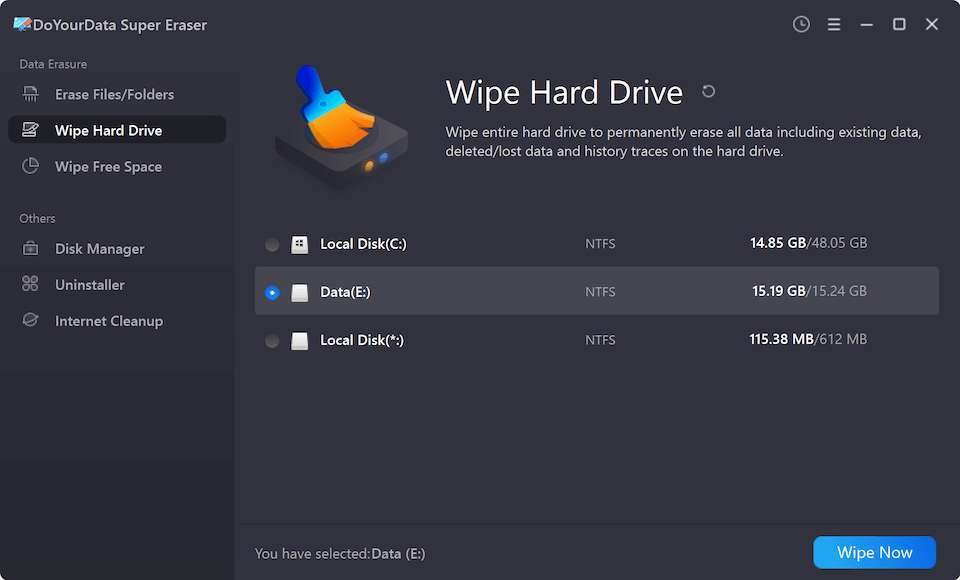
Use a disk analyzer carefully
A disk analyzer can show a visual map of storage use. Examples include TreeSize Free or WinDirStat for Windows and DaisyDisk for macOS.
Use these tools to locate files, not to delete system files blindly. If a folder has an unfamiliar name or sits inside a system directory, research it first.
Delete Temporary Files and System Junk
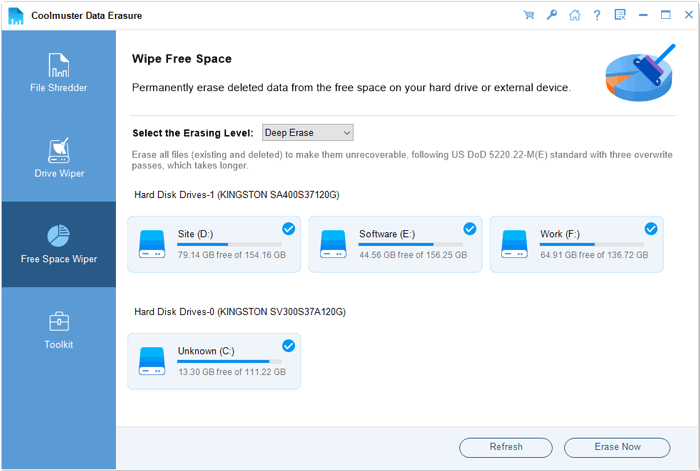
Temporary files are often the safest place to begin. They may include update files, crash reports, cached data, thumbnails, and old installation files.
Remove temporary files in Windows
Windows has a built-in cleanup page:
- Open Settings.
- Select System > Storage.
- Choose Temporary files.
- Review each item.
- Select Remove files.
Common items include:
- Temporary files
- Delivery Optimization Files
- DirectX Shader Cache
- Windows error reports
- Thumbnails
- Recycle Bin contents
- Previous Windows installation files
Review Downloads before selecting it. Windows may remove files from that folder, including files you still need.
The Previous Windows installation option can free a large amount of space. However, deleting it removes the normal rollback option for returning to the prior Windows version.
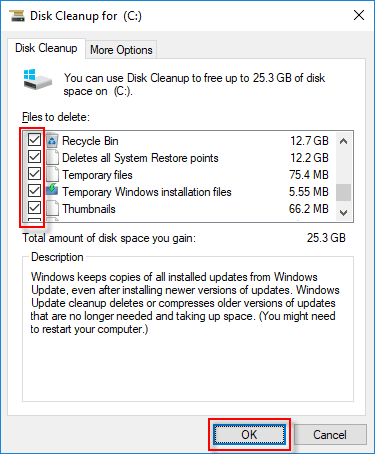
You can also run Disk Cleanup:
- Search for Disk Cleanup.
- Select the system drive, often
C:. - Choose Clean up system files.
- Select only items you understand.
- Confirm the cleanup.
Remove temporary files in macOS
macOS manages many caches and temporary files on its own. Start with the built-in storage recommendations rather than deleting random folders.
Useful steps include:
- Empty the Trash.
- Delete unwanted files from Downloads.
- Remove old iPhone or iPad backups.
- Delete large Mail attachments if you no longer need them.
- Remove old installer files.
- Restart the Mac after clearing large temporary data.
Do not manually delete files from /System, /Library, or hidden system folders unless you know exactly what the file does. A cache may be rebuilt, but deleting the wrong system data can cause app or startup problems.
What you should not delete
Avoid deleting these items manually:
- The Windows
WinSxSfolder - The Windows
System32folder - macOS system folders
- Unknown files inside application support folders
- Device drivers that you may need
- Files inside a backup set
- Files that belong to an active virtual machine


Use the operating system’s cleanup tools when possible. They understand which files are safe to remove.
Uninstall Apps, Games, and Programs You Do Not Use
Large apps and games often use more space than documents. Removing one unused game may free more space than deleting thousands of small files.
Uninstall apps in Windows
- Open Settings.
- Select Apps.
- Choose Installed apps.
- Sort the list by Size.
- Select an app.
- Choose Uninstall.
Some programs do not show a reliable size. Check the program’s own launcher when needed. Game launchers such as Steam, Epic Games, and Xbox may manage installations separately.
Before uninstalling an app, check whether it stores saved files locally. Many games sync saves through a cloud service, but not all do.
Uninstall apps on a Mac
- Open Finder.
- Select Applications.
- Move an unwanted app to the Trash.
- Empty the Trash.
Some apps include their own uninstall tool. Use it when provided, especially for antivirus software, VPN tools, drivers, and system extensions.
Removing an app may not remove all support files. Most leftover files are small, but some creative apps, games, and development tools leave large libraries behind. Check the developer’s support instructions before removing related files from ~/Library.
Review unused games and creative tools
Look closely at:
- Game libraries
- Video editing projects
- Audio sample libraries
- Adobe application caches
- Virtual machines
- Android emulators
- Developer software development kits
- Offline map data
- Downloaded streaming content
Keep the app if you use it often. If you rarely use it, uninstalling it may be the fastest way to clear SSD space.
Move Large Personal Files to Another Location
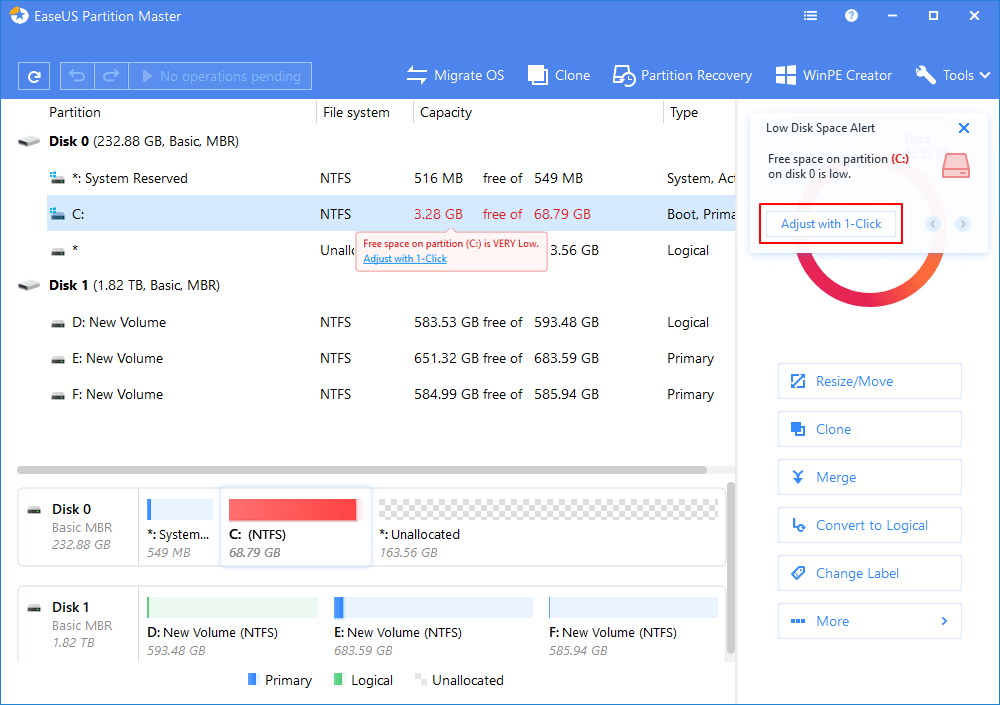
After removing temporary data and unused apps, move files you still want to keep. A second internal drive, external SSD, network drive, or trusted cloud service can help.
Large files often include:
- 4K and 8K videos
- Photo libraries
- Music projects
- ISO files
- Game installers
- Virtual machines
- Old tax records
- Local backups
- Duplicate downloads
Use an external SSD
An external SSD is usually faster and more durable than a traditional hard drive, but it still needs a backup. Do not treat one external drive as the only copy of important files.
A safe process is:
- Connect the external drive.
- Create a clear folder structure.
- Copy the files.
- Open several copied files to confirm they work.
- Compare the folder size or file count.
- Delete the original files only after verification.


Keep the original files until you confirm the copy works. For valuable files, keep another backup in a separate place.
Use cloud storage
Cloud services can reduce local storage when they support online-only files. OneDrive Files On-Demand and iCloud storage optimization are examples.
Be aware of the difference between:
- A file stored only on your computer
- A file stored both locally and in the cloud
- A file stored in the cloud but available on demand
An online-only file still needs an internet connection before you can open it. Check the service’s settings before removing local copies.
Compress files when useful
Compression can help with documents and old project folders. It often saves less space with files that are already compressed, such as:
- JPEG images
- MP4 videos
- MP3 audio
- ZIP archives
- Many game files
Compression is useful for storage and organization, but it is not a strong solution for a drive filled with videos or games.
Reduce Backup and Restore Data Carefully
Backups can use a large amount of SSD space. They are also important, so do not delete them without knowing what protection they provide.
Windows restore points
Windows restore points can use part of the system drive. To review the setting:
- Search for Create a restore point.
- Open the result.
- Select the system drive.
- Choose Configure.
- Review the maximum disk space.
You can reduce the limit or delete existing restore points. Doing so may remove your ability to roll back system changes through System Protection.
Restore points are not full personal-file backups. They should not replace a backup of documents, photos, and other important files.
File History and Windows backups
File History may store older versions of personal files. Review its backup drive and retention settings rather than deleting individual backup folders manually.
If you use a third-party backup app, manage storage through that app. It may use a backup catalog, deduplication, or version system that can break if you delete files by hand.


Time Machine on a Mac
Time Machine may use local snapshots when the backup disk is not connected. macOS normally manages these snapshots and removes them when space is needed.
If storage remains low, connect the Time Machine backup disk and allow a backup to finish. Avoid deleting Time Machine data directly from Finder.
Apple also recommends reviewing old iPhone and iPad backups in the Mac’s storage settings. Remove only backups for devices or dates you no longer need.
Manage Cloud Sync, Downloads, and Duplicate Files
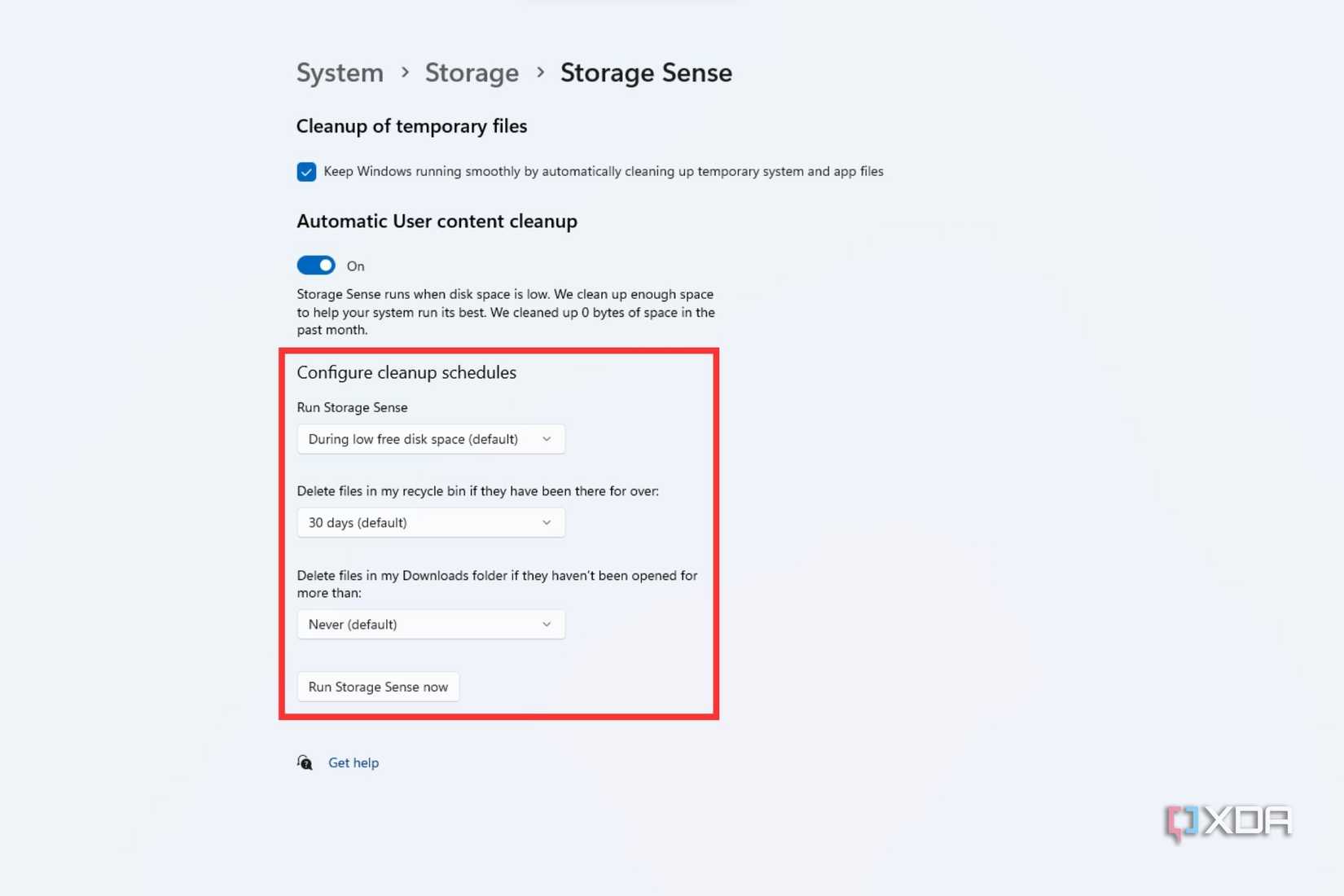
Cloud sync folders can use more local space than expected. A file may appear to be “in the cloud” while a full local copy remains on the SSD.
Make synced files online-only
On Windows, OneDrive usually lets you right-click a file or folder and select Free up space. The file stays visible but downloads when you open it.
On a Mac, iCloud Drive can use storage optimization when enabled. The system may remove local copies when space is needed, while keeping the files available in iCloud.
Check the service settings before using this option. If you delete a synced file instead of removing its local copy, the deletion may apply to every synchronized device.
Clean the Downloads folder
Downloads often contain:
- Duplicate installers
- PDF manuals
- Large email attachments
- Old ZIP files
- Browser downloads
- Temporary exports
- Software update packages
Sort the folder by size and date. Open files before deleting them if the name is unclear.
Find duplicate files
Duplicate photos, videos, and project files can consume substantial space. Use built-in duplicate detection in supported photo apps or a trusted duplicate finder.
Do not delete files just because they have similar names. Two files may have different edits, metadata, or creation dates. Review them before removal.

Handle SSD-Specific Settings Correctly
An SSD does not need the same care as an older mechanical hard drive. Some traditional cleanup advice can reduce performance or add unnecessary wear.
Do not defragment an SSD manually
Windows identifies SSDs and normally uses the correct optimization process. In Windows, the tool may show this as Optimize Drives, but the operation for an SSD is generally related to TRIM rather than classic disk defragmentation.
TRIM helps the SSD manage blocks that no longer contain useful data. Leave scheduled optimization enabled unless you have a specific reason to change it.


macOS also manages storage maintenance automatically. Do not run old “defrag” utilities on a modern Mac unless the manufacturer specifically supports them.
Do not fill the drive to its limit
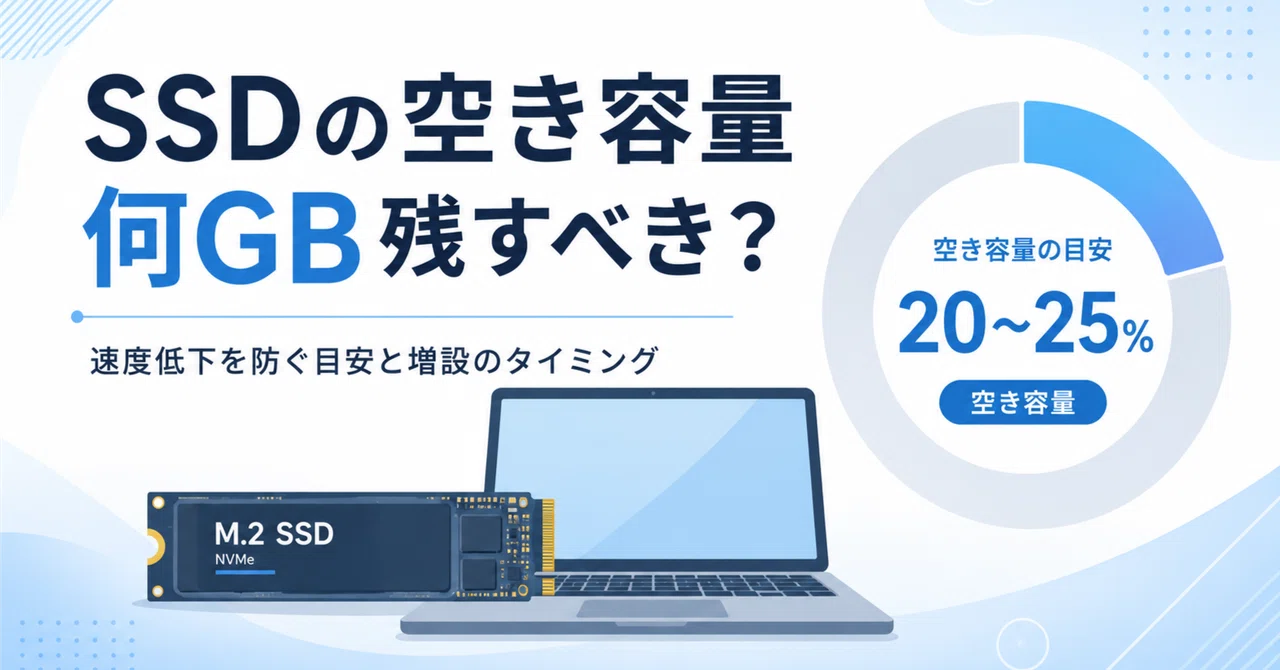
An SSD needs free space for temporary files, updates, wear management, and file operations. There is no single free-space percentage that applies to every SSD, but keeping about 10% to 20% free is a practical target.
For example:
| SSD capacity | 10% free | 20% free |
|---|---|---|
| 256 GB | About 26 GB | About 51 GB |
| 512 GB | About 51 GB | About 102 GB |
| 1 TB | About 100 GB | About 200 GB |
| 2 TB | About 200 GB | About 400 GB |
These are simple capacity estimates. The space shown by an operating system may differ because manufacturers and software use different units.
Do not use secure erase for normal cleanup
Secure erase is designed for specific privacy, resale, or drive-management situations. It is not a routine way to free space.
Deleting files normally does not guarantee that the old data is unrecoverable. If you need to dispose of sensitive data or sell the SSD, follow the drive maker’s secure erase guidance and create a backup first.
What to Do When the SSD Is Still Full
If you removed large files but the free-space number did not change, check the Recycle Bin or Trash first. Deleted files may still occupy the drive until you empty it.
Then check these causes:
A file is still open
An app may hold a deleted file until you close the app or restart the computer. This can happen with video editors, browsers, virtual machines, and backup tools.
Cloud storage has not finished syncing
A sync app may be downloading or indexing files. Check its status and wait for it to finish before judging the available space.
Storage data has not refreshed
Restart the computer and check the storage page again. Some storage categories take time to recalculate.
A hidden backup or snapshot is using space
Review:
- Windows restore points
- File History
- Time Machine
- Third-party backup tools
- Virtual machine snapshots
- Cloud sync folders
The drive may have a file-system problem
If the reported space looks impossible, the computer crashes, or files disappear, stop deleting files and back up important data. Run the operating system’s supported disk check tools. Replace the drive if it shows health warnings or repeated errors.
Do not keep using a failing SSD as the only place for important files.
A Safe SSD Cleanup Order
Use this order when you need space quickly:
- Empty the Recycle Bin or Trash after reviewing it.
- Delete unneeded files from Downloads.
- Remove temporary files with Windows Storage or macOS storage tools.
- Uninstall unused apps and games.
- Move large videos, photos, and projects to another verified location.
- Make cloud-synced files online-only when appropriate.
- Review old backups and restore data.
- Check for duplicate files and virtual machine images.
- Restart the computer and confirm the free space.
- Set a reminder to review storage again in a few weeks.
This order starts with common, low-risk actions and leaves backup changes for later.

Common Mistakes to Avoid
- Deleting system folders: The space gain is rarely worth the risk.
- Removing the Downloads folder without checking it: It may contain needed files.
- Deleting cloud files instead of local copies: Sync services may remove them everywhere.
- Deleting backup folders by hand: The backup program may stop working.
- Using a disk cleaner that makes broad promises: Review every item before removal.
- Keeping only one copy of important files: A moved file is not a backup.
- Ignoring a failing-drive warning: Freeing space will not repair damaged hardware.
- Running a defragmenter on an SSD: Use the operating system’s built-in optimization.
- Filling the SSD again after cleanup: Move large files or replace the drive if your normal workload exceeds its capacity.
FAQs About Clearing SSD Space
How much free space should I leave on an SSD?
Try to keep about 10% to 20% free when possible. The exact amount depends on the SSD, operating system, workload, and update needs. A drive with only a few gigabytes left may cause installation and performance problems.
Does deleting files improve SSD speed?
It can help when the drive is nearly full. Free space gives the operating system and SSD more room for temporary data and maintenance. Deleting a few small files from a drive that already has plenty of free space may not produce a noticeable speed change.
Is it safe to delete Windows temporary files?
Usually, yes, when you remove them through Settings > System > Storage > Temporary files or Disk Cleanup. Review the list first, especially Downloads and Previous Windows installation files.
Why does my Mac show a large System Data category?
System Data may include caches, logs, local snapshots, application support files, and other items that do not fit neatly into another category. Use macOS storage recommendations first. Avoid deleting unknown files from system folders manually.
Can I move apps from my SSD to an external drive?
Some apps and games can run from an external drive, but compatibility varies. Game launchers often support moving installations. System apps, drivers, and some professional software may need to stay on the internal drive.
What should I do if my SSD is full and Windows will not update?
Free space from Downloads, temporary files, unused apps, and large personal files first. If Windows cannot start or cannot complete an update, back up important files and use Windows recovery tools. Do not delete system folders to force an update.
Conclusion
The safest way to clear space on an SSD is to measure storage use first, remove temporary files, uninstall unused apps, and move large personal files. Review backups and cloud folders with care, because they may protect important data or sync deletions to other devices.
Start with your computer’s built-in storage tools. After cleanup, confirm that the files you moved still open and keep a separate backup of anything important.