How To Pair Headphones To Roku TV: Easy Guide
If you watch TV in the United States and want private sound, you can pair headphones to a Roku TV in one of three ways: connect Bluetooth headphones to the TV, use the Roku mobile app’s Private Listening feature, or plug wired headphones into a compatible Roku remote. The best method depends on your Roku TV model, Roku OS version, and the headphones you own.
Start with the direct Bluetooth method. If your Roku TV does not show a wireless headphone option, use the Roku mobile app instead.

Check whether your Roku TV supports headphones
Roku TVs do not all handle headphones in the same way. Some models can pair with Bluetooth headphones directly. Others need the Roku mobile app or a compatible Roku remote with a headphone jack.
Before you begin, check these items:


- Your Roku TV is connected to power and turned on.
- The TV has an active internet connection.
- Your headphones have enough charge.
- Your headphones are close to the TV during setup.
- Your Roku TV software is up to date.
- The Roku mobile app is installed on your iPhone or Android phone if you plan to use Private Listening.
To check for direct Bluetooth support, open:
Home > Settings > Remotes & devices
Look for an option such as:
- Wireless headphones
- Bluetooth devices
- Pair a new device
Menu names can vary by Roku TV brand, model, and software version. In the U.S., Roku TV sets are sold by brands such as TCL, Hisense, onn., Philips, and Roku. The same Roku software may look slightly different on each television.
A Roku Streaming Stick or Roku box may use different headphone options than a Roku TV with Roku software built into the television. Check the device shown under Settings > System > About before troubleshooting.
What you need for each method
| Method | What you need | Main benefit | Main limit |
|---|---|---|---|
| Direct Bluetooth pairing | A Roku TV with wireless headphone support and Bluetooth headphones | No phone is needed after setup | Not available on every Roku TV |
| Roku mobile app | A compatible iPhone or Android phone and the Roku app | Works with many Roku devices | Your phone must stay nearby and charged |
| Roku remote headphone jack | A compatible Roku remote and wired headphones | Simple and usually stable | Requires a specific remote and wired headphones |
| TV headphone output | A TV with a 3.5-millimeter or optical audio output | Works with some wired or wireless transmitters | Depends on the TV’s audio ports and settings |
Roku’s official support pages are the best place to confirm current compatibility for your exact model. Features may change with software updates, and a menu shown in an older video may not appear on your TV.
How to pair Bluetooth headphones directly to a Roku TV
If your Roku TV has a Wireless headphones or similar option, you can pair headphones from the TV’s settings.
Step 1: Put the headphones in pairing mode
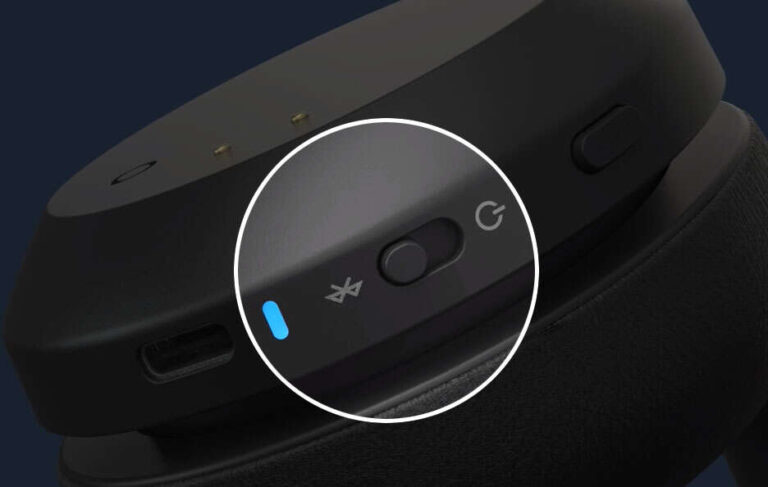
Turn on your Bluetooth headphones and place them in pairing mode.
The exact action depends on the headphones. Common steps include:
- Turn the headphones off.
- Press and hold the power or Bluetooth button.
- Keep holding it until the status light flashes or you hear a pairing message.


If the headphones are already connected to a phone, tablet, or computer, disconnect them from that device first. Many headphones connect to only one source at a time.
Step 2: Open the Roku pairing menu
Using the Roku remote:
- Press the Home button.
- Select Settings.
- Choose Remotes & devices.
- Select Wireless headphones or Bluetooth devices.
- Choose Add a new wireless headphone or the closest matching option.
The Roku TV should scan for nearby Bluetooth devices.
Step 3: Select your headphones
Choose your headphones from the list. The name may be the brand and model, such as “Sony WH-1000XM5” or “JBL Tune 760NC.”
Wait for the pairing message. Once connected, start a TV show or movie and confirm that sound plays through the headphones.
Step 4: Adjust the volume
Use the headphone volume controls first. Some Roku remotes may also control the TV volume, but this depends on the headphone connection and the TV model.
If other people in the room need to hear the TV, check whether your Roku TV supports both the headphones and its speakers at the same time. Some TVs mute the speakers when headphones connect. Others may offer a separate audio setting.
Signs that pairing worked
You should see one or more of these signs:
- The headphones show as connected in the Roku menu.
- TV sound stops coming from the built-in speakers.
- Sound plays clearly through both headphone sides.
- The headphones reconnect after you turn them off and on again.
Direct Bluetooth pairing may introduce a small delay between the picture and sound. If voices do not match lip movement, look for an audio delay, lip-sync, or Bluetooth latency setting on the TV or headphones. Not every Roku TV includes one.

How to use the Roku app for Private Listening
The Roku mobile app can send TV audio to headphones connected to your phone. Roku calls this feature Private Listening.
This method is useful when your Roku TV does not support direct Bluetooth headphones. It can also work with wired headphones plugged into your phone, although newer phones may need a USB-C or Lightning headphone adapter.
Step 1: Install the official Roku app
Download the official Roku mobile app from the Apple App Store or Google Play Store. Avoid unofficial remote apps unless you understand their privacy and subscription terms.
Your phone and Roku TV must be on the same local Wi-Fi network. A phone using cellular data, a guest Wi-Fi network, or a different home network may not find the TV.


Step 2: Connect the app to your Roku TV
Open the Roku app and allow it to search for nearby Roku devices.
Select your Roku TV from the list. If more than one Roku device appears, use the device name or room name to choose the correct one.
If the TV does not appear:
- Confirm that the phone and TV use the same Wi-Fi name.
- Turn off a VPN on the phone temporarily.
- Restart the Roku app.
- Restart the TV and phone.
- Check that the TV is not on a guest network.
- Update the Roku app.
Step 3: Connect headphones to your phone
Pair your Bluetooth headphones with the phone through the phone’s Bluetooth settings. You can also connect wired headphones to the phone if it has a compatible jack or adapter.
Then return to the Roku app.
Step 4: Turn on Private Listening
In the Roku app:
- Select the Remote tab.
- Look for the headphone icon.
- Tap the icon to turn on Private Listening.
- Start playing content on the Roku TV.
You should hear the TV audio through the headphones. The app may display a Private Listening indicator while the feature is active.
Keep the Roku app open while listening. If the app closes, loses its connection, or the phone changes Wi-Fi networks, Private Listening may stop.
What to do if Private Listening has a delay
Private Listening sends audio through your home network and phone, so it may have more delay than a direct connection. Try these steps:
- Move the phone closer to the Wi-Fi router.
- Close other apps that use heavy network traffic.
- Turn Bluetooth off and on again.
- Restart the Roku app.
- Use wired headphones with the phone.
- Check for updates to the Roku app and Roku TV.
Private Listening may also use extra phone battery. Plug the phone into a charger if you plan to watch for several hours.

How to use a Roku remote with wired headphones
Some Roku remotes include a 3.5-millimeter headphone jack. With this type of remote, you can plug in wired headphones and listen privately without pairing Bluetooth headphones to the TV.
Setup steps
- Find the headphone jack on the side of the Roku remote.
- Plug in your wired headphones.
- Start a show or movie.
- Adjust the volume with the remote buttons.
If the remote has no headphone jack, this method will not work. Do not force a plug into another port.
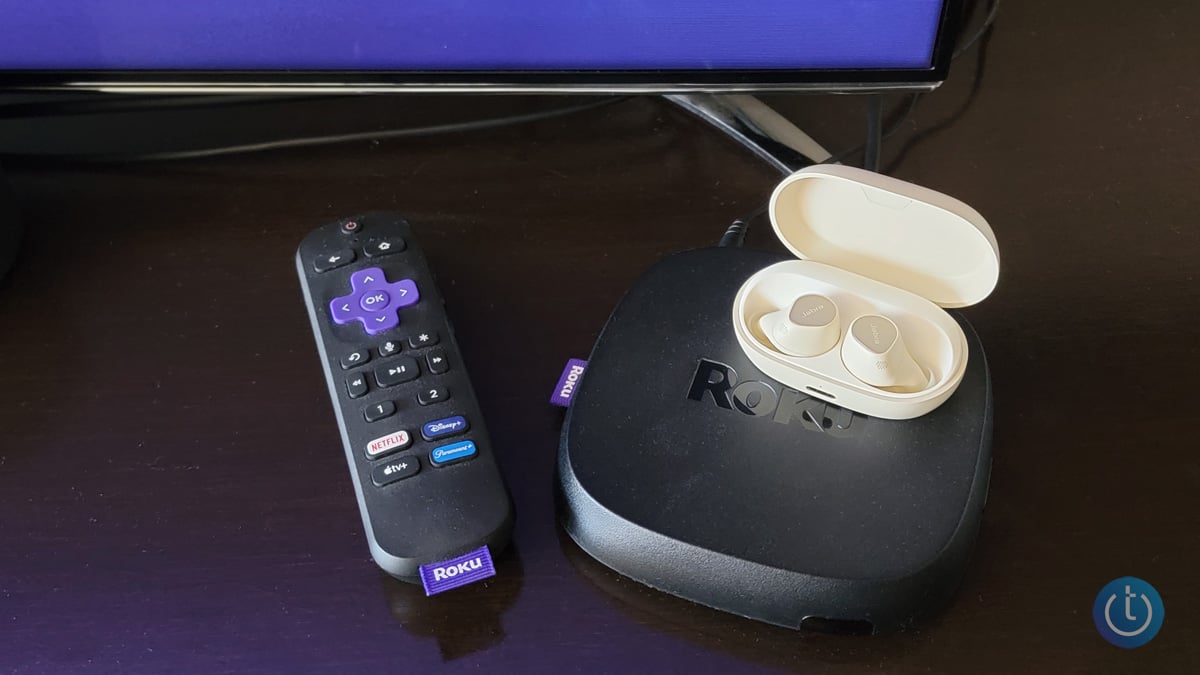
A compatible remote may have a headphone symbol near the port. Roku remote models differ, so check the remote’s product information if you are unsure.


If the remote headphones do not work
Check these common causes:
- The plug is not fully inserted.
- The headphones or cable is damaged.
- The remote batteries are weak.
- The headphones have an inline microphone or unusual wiring standard.
- The remote is not paired with the Roku TV.
- The TV is using another audio output mode.
Test the headphones with a phone or another device. Then test a different pair of headphones with the remote. This helps show whether the fault is in the headphones, cable, remote, or TV.
A remote headphone connection can be convenient, but it limits your movement. The remote must stay near you, and the headphone cable can catch on furniture.

How to fix Roku TV headphone pairing problems
Most Roku headphone problems come from an unsupported connection method, an incorrect pairing state, or a network issue with Private Listening. Work through the checks below in order.
The Roku TV cannot find the headphones
Try these steps:
- Charge the headphones.
- Turn off Bluetooth on nearby phones, tablets, and computers.
- Put the headphones back into pairing mode.
- Move the headphones within a few feet of the TV.
- Restart the headphones.
- Restart the Roku TV.
- Check Settings > Remotes & devices again.
If the TV still does not show a headphone pairing option, the model may not support direct Bluetooth headphones. Use the Roku app or a compatible remote instead.
The headphones connect but no sound plays
Check the volume on both the headphones and the TV. Then pause and restart the program.
Next, disconnect other Bluetooth audio devices. A Roku TV may send sound to another connected device or keep an earlier connection active.
You can also restart the connection:
- Open the Roku Bluetooth or wireless headphone menu.
- Disconnect the headphones.
- Turn the headphones off.
- Turn them on and enter pairing mode.
- Pair them again.
The sound cuts out
Short dropouts often result from distance, obstacles, wireless interference, or a weak headphone battery.
Keep the headphones near the TV or phone. Move away from crowded wireless areas, such as a router, game console, or USB 3.0 hub. If you use Private Listening, keep the phone on the same Wi-Fi network and avoid switching between Wi-Fi and cellular data.
The audio and video do not match
A delay can come from the headphones, Bluetooth connection, TV processing, or the Roku app.


Try the following:
- Restart the TV and headphones.
- Test direct Bluetooth instead of the Roku app, if available.
- Test wired headphones.
- Disable sound processing modes temporarily.
- Look for an audio delay or lip-sync control.
- Update the Roku TV software and headphone firmware.
If wired headphones work but Bluetooth headphones do not, the issue is likely related to wireless processing or headphone latency.
Other people cannot hear the TV
Many headphone connections mute the TV speakers. This is normal.
If your Roku TV offers a setting for simultaneous speakers and headphones, enable it. If it does not, use a separate audio setup, such as a soundbar with its own headphone output, only if the TV and soundbar support that arrangement.
Do not use a headphone splitter with a digital optical port or HDMI port. Those ports need the correct audio hardware.

Which Roku headphone method should you use?
Choose the method that matches your equipment and the result you want.
- Use direct Bluetooth if your Roku TV shows a wireless headphone pairing option.
- Use the Roku app if your TV lacks direct Bluetooth support or you already watch with your phone nearby.
- Use a Roku remote headphone jack if you have compatible wired headphones and want a simple connection.
- Use a TV audio output or Bluetooth transmitter only when the first three options are unavailable and your TV has a compatible audio port.
A Bluetooth transmitter may connect to a TV’s 3.5-millimeter, optical, or RCA output. However, the transmitter must match the port and may need separate power. Optical audio may also require a change to the TV’s digital audio output setting.
For most U.S. Roku TV owners, the quickest decision is simple: check Settings > Remotes & devices first. If wireless headphones are listed, pair them there. If not, install the Roku app and use Private Listening.

Common mistakes to avoid
Avoid these mistakes when pairing headphones to a Roku TV:
- Pairing headphones to the phone instead of the Roku TV: Direct Bluetooth pairing must happen in the Roku TV settings.
- Leaving headphones connected to another device: A phone or laptop may capture the connection.
- Using different Wi-Fi networks: Private Listening requires the phone and Roku TV to communicate on the same local network.
- Following steps for a different Roku model: Roku TV, Roku Streaming Stick, and Roku Ultra features can differ.
- Assuming every Bluetooth device works: A Roku TV may support certain Bluetooth audio features but not every Bluetooth accessory.
- Ignoring software updates: Menu options and compatibility can depend on the Roku OS version.
- Using an unofficial mobile app: The official Roku app is the safer choice for account and device access.
- Expecting all headphones to have no delay: Bluetooth and app-based audio can have more latency than wired audio.
Do not change advanced network or audio settings unless you know what they control. A factory reset should be a last resort because it removes accounts, apps, and saved settings.

Frequently asked questions
Can I connect AirPods to a Roku TV?
Sometimes. If your Roku TV supports direct Bluetooth headphones, put the AirPods in pairing mode and select them from Settings > Remotes & devices. If the TV does not support direct Bluetooth audio, connect the AirPods to your phone and use the Roku app’s Private Listening feature.
Can two people use headphones with one Roku TV?
It depends on the connection method. The Roku mobile app may support more than one listening device in some setups, but support can vary by Roku app version and phone. Direct Roku TV Bluetooth pairing may support only one headphone connection. Check the options shown on your TV and in the app.


Can I connect Bluetooth headphones to a Roku Streaming Stick?
The answer depends on the Streaming Stick model and Roku software. Some Roku devices rely on the Roku app for Private Listening rather than direct Bluetooth pairing. Check Settings > Remotes & devices on the specific Roku device.
Why does Roku say my headphones are connected but the TV speakers still play?
The TV may be using a separate audio output, or the connection may be active without being selected for playback. Restart the program, check the TV’s audio settings, and disconnect other audio devices. Some Roku models mute the speakers automatically, while others may not.
Can I use wired headphones without a Roku remote headphone jack?
Yes, if the TV has a compatible headphone output. You can also use wired headphones with the Roku mobile app by plugging them into your phone. A digital optical port requires a compatible digital-to-analog converter or headphone transmitter.
Final answer
To pair headphones to a Roku TV, open Home > Settings > Remotes & devices and look for Wireless headphones or Bluetooth devices. Put the headphones in pairing mode, select them, and test the sound.
If that menu is missing, use the official Roku mobile app with Private Listening, or plug wired headphones into a compatible Roku remote. Start with the method your TV supports, then check distance, pairing mode, Wi-Fi, volume, and software updates if the connection fails.