

To pair Soundcore headphones, turn on Bluetooth, enter pairing mode, and select your Soundcore model from the device list.
Learning how to pair Soundcore headphones is simple once you know the right button, light, and menu to use. This guide covers Soundcore earbuds and over ear headphones, plus fixes for failed connections, new phones, computers, and multipoint pairing.
How to pair Soundcore headphones for the first time
Most Soundcore headphones use the same basic Bluetooth process. Your phone, tablet, or computer scans for nearby devices, while the headphones wait in pairing mode.
Follow these steps:
- Charge the headphones for a few minutes.
- Remove them from the case if they are earbuds.
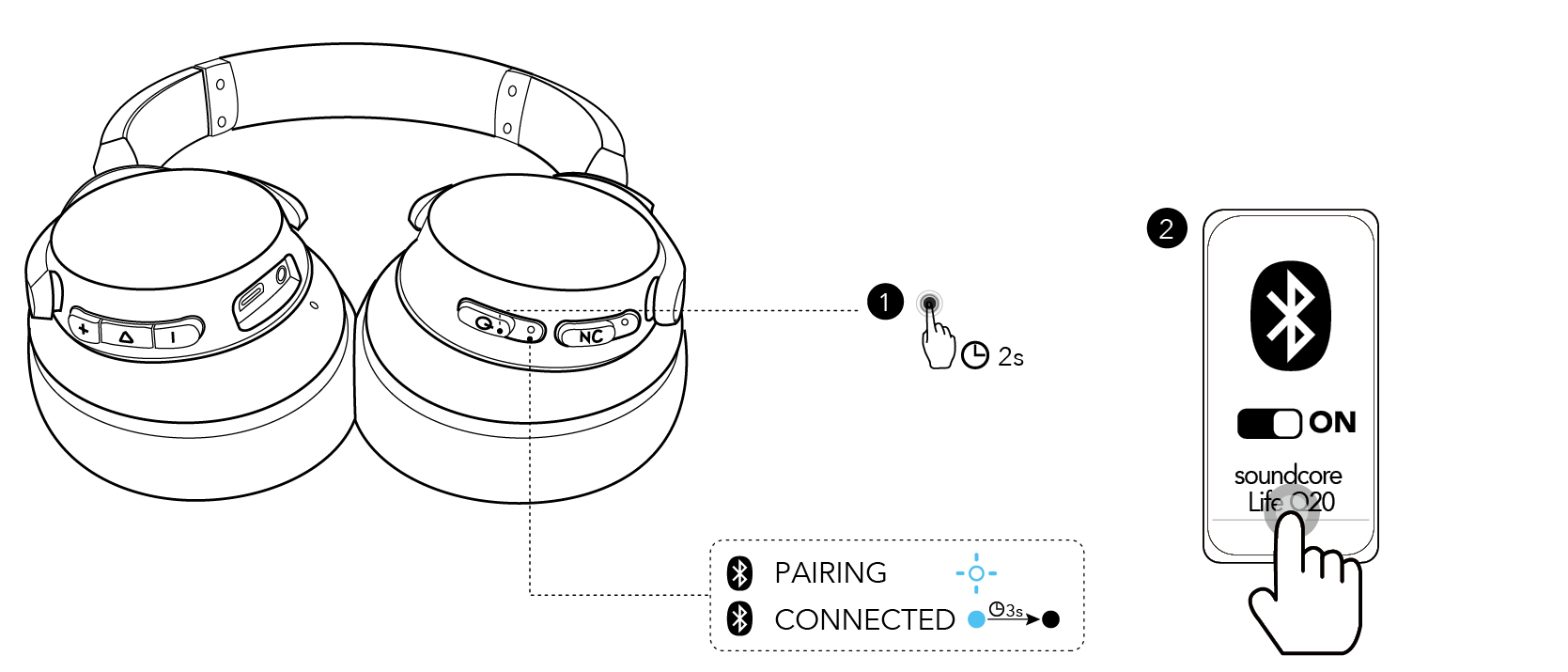
- Press and hold the power button for about 2 seconds on over ear headphones.
- For earbuds, open the charging case or remove both earbuds.
- Watch for a flashing blue or white light.
- Open Bluetooth settings on your device.
- Select the Soundcore model shown on the list.
- Tap Pair, Connect, or OK if asked.
Your device may display names such as Soundcore Q20i, Space Q45, Life P3, Liberty 4 NC, or A20i. Select the name that matches your product.
If the headphones do not appear, turn Bluetooth off and on again. Keep the headphones close to your device during setup. A distance of less than 3 feet works best.
How to pair Soundcore earbuds
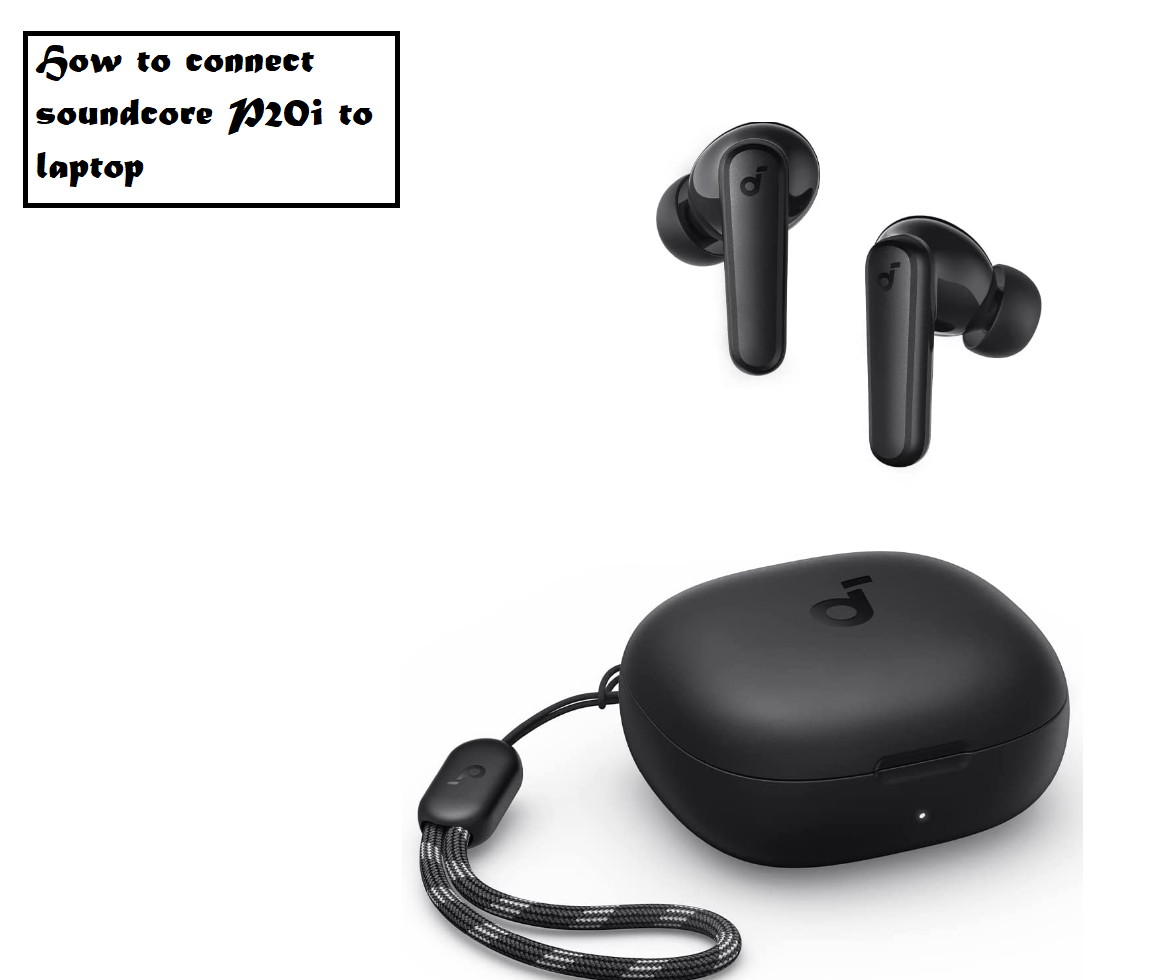
Soundcore earbuds often enter pairing mode when you open the case for the first time. Some models also enter pairing mode after you press and hold the case button.
Pair Soundcore earbuds with an iPhone or Android phone
Use this process for models such as Soundcore Liberty, Life, Space A40, P series, and Sport earbuds:
- Place both earbuds in the charging case.
- Leave the case lid open.
- Press and hold the case button for about 3 seconds.
- Release the button when the case light flashes.
- Open Settings on your phone.
- Select Bluetooth.
- Choose your Soundcore earbuds from the list.
- Wait for the status to show Connected.
Some models have no case button. For these earbuds, remove both earbuds and touch or press their controls for several seconds. The exact action depends on the model, so check the quick start guide if the light does not flash.
On a new Android phone, you may see a Fast Pair pop-up. Tap Connect, then follow the on-screen steps. If the pop-up does not appear, use the regular Bluetooth menu.
Pair Soundcore earbuds with a Windows PC
To connect Soundcore earbuds to Windows 11:
- Put the earbuds in pairing mode.
- Open Settings.
- Select Bluetooth & devices.
- Turn Bluetooth on.
- Select Add device.
- Choose Bluetooth.
- Click your Soundcore model.
- Select Done.
Windows may show separate entries for stereo sound and hands-free calls. Choose the normal headphone or stereo option for music. The hands-free option may reduce sound quality during calls because it uses a different Bluetooth profile.
Pair Soundcore earbuds with a Mac
On a Mac:
- Put the earbuds in pairing mode.
- Open the Apple menu.
- Select System Settings.
- Choose Bluetooth.
- Find your Soundcore earbuds.
- Click Connect.
If the earbuds connect but the Mac uses its built-in speakers, open Sound settings and select the Soundcore model as the output device.

How to pair Soundcore over ear headphones
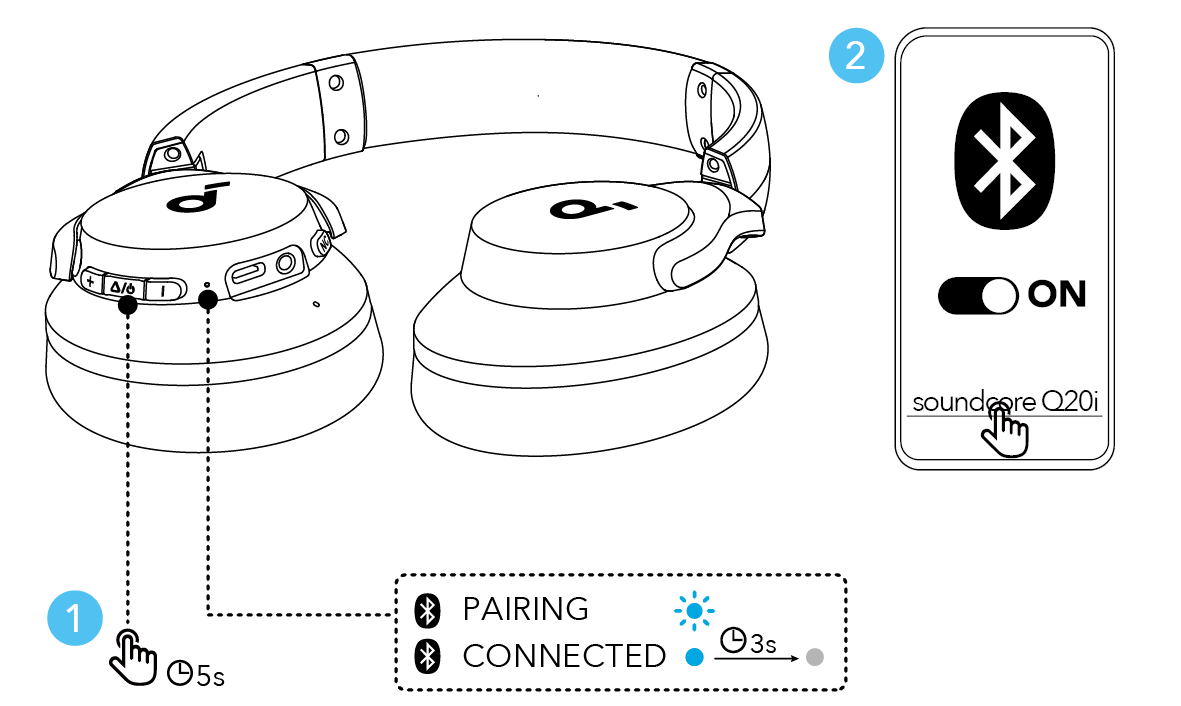
Soundcore over ear headphones usually have a dedicated power button and Bluetooth button. Models such as the Space Q45, Life Q30, Life Q20, and Q20i may enter pairing mode automatically during first use.
Standard pairing steps
- Turn off the headphones.
- Press and hold the power button for about 5 seconds.
- Keep holding it until the indicator flashes blue or white.
- Open the Bluetooth menu on your phone or computer.
- Select the Soundcore headphone name.
- Confirm the connection.
A short press may only turn the headphones on. A longer press is often needed to make them discoverable. This is one of the most common reasons people think their Soundcore headphones are not working.
If the headphones say “pairing,” keep the Bluetooth menu open. The name should appear within a few seconds. Once paired, many Soundcore models reconnect automatically when you turn them on.
Pairing with a second device
Some Soundcore headphones support multipoint connections. This lets you connect to two devices, such as a laptop and phone, at the same time.
The general process is:
- Connect the headphones to the first device.
- Turn off Bluetooth on that device for a moment.
- Put the headphones back into pairing mode.
- Connect them to the second device.
- Turn Bluetooth back on for the first device.
- Check whether the headphones support simultaneous connections.
Multipoint behavior varies by model and firmware. Some headphones need multipoint enabled in the Soundcore app. Others disconnect from the first device before pairing with the second.

How to use the Soundcore app after pairing
The Soundcore app is not required for basic Bluetooth pairing. It can still improve the setup by adding controls and model-specific features.
After your headphones connect:
- Install the Soundcore app from the official app store.
- Open the app.
- Sign in or continue as a guest if available.
- Allow Bluetooth access.
- Select your headphones.
- Install any available firmware update.
- Adjust equalizer, noise cancellation, transparency, and controls.
The app may help you identify the correct product name. It can also show battery levels and offer sound presets.
Firmware updates can fix connection bugs, but do not interrupt an update. Keep the headphones near your phone and make sure both devices have enough battery.
In hands-on setup tests, the app is most useful after the first Bluetooth connection. Trying to use the app before pairing often causes confusion because the app cannot control headphones that the phone has not yet connected.
How to pair Soundcore headphones when they do not connect
A failed connection does not always mean the headphones are damaged. Old Bluetooth records, low battery, and connection to another device are common causes.
Try these fixes in order:
- Move the headphones within 3 feet of the device.
- Charge the headphones and case.
- Turn Bluetooth off and back on.
- Restart the phone, tablet, or computer.
- Close the Soundcore app.
- Disconnect the headphones from other nearby devices.
- Remove the old Soundcore entry from Bluetooth settings.
- Put the headphones into pairing mode again.
- Select the model from the Bluetooth list.
To remove an old connection on an iPhone, tap the information icon beside the Soundcore name and choose Forget This Device. On Android, tap the gear icon beside the device and choose Forget or Unpair. Windows and macOS use similar remove or forget options.
Check whether another device has control
Soundcore headphones often reconnect to the last device they used. If your tablet, laptop, or television is nearby, it may connect before your phone can find the headphones.
Turn Bluetooth off on nearby devices for a minute. Then place the Soundcore headphones into pairing mode and connect them to the device you want.
Reset Soundcore earbuds
A reset clears stored Bluetooth connections. The reset method varies, but many Soundcore earbuds use this pattern:
- Place both earbuds in the charging case.
- Keep the lid open.
- Press and hold the case button for about 10 seconds.
- Release it when the indicator flashes several times.
- Close and reopen the case.
- Pair the earbuds again.
Some models require you to touch both earbuds while they are in the case. Do not guess if the method differs. Use the model’s manual or Soundcore support instructions.
Reset Soundcore over ear headphones
Many over ear models reset when you press two buttons together, such as the power and volume buttons. The exact combination differs by product.
Before resetting, check the model number printed inside the headband or on the product label. Resetting removes saved connections, so you will need to pair the headphones again.
How to fix Soundcore headphones that connect but have no sound
Sometimes pairing works, but audio still comes from the phone or computer speaker. This is an output setting issue, not a pairing issue.
On a phone, start playing audio and open the media output menu. Select your Soundcore headphones.
On Windows:
- Click the speaker icon.
- Open the sound output menu.
- Select the Soundcore headphones.
- Avoid the hands-free option for music when a stereo option is available.
On a Mac:
- Open Control Center.
- Select Sound.
- Choose the Soundcore headphones.
Also check the volume on both devices. Bluetooth headphones can have separate volume levels, so increasing the phone volume alone may not solve the problem.
If only one earbud plays sound, return both earbuds to the case. Clean the charging contacts with a dry cotton swab, then remove both earbuds together. Uneven charging can make one earbud fail to start or sync.

How to improve the Soundcore Bluetooth connection
Bluetooth works best with a clear path and limited interference. Walls, crowded wireless areas, and many connected devices can affect performance.
Use these practical tips:
• Keep your phone on the same side as the main earbud when possible.
• Avoid placing the phone inside a bag surrounded by metal items.
• Keep the headphones away from active Wi-Fi routers during troubleshooting.
• Update the Soundcore app and headphone firmware.
• Keep the charging contacts clean.
• Avoid pairing the same headphones with several devices at once until setup is complete.
• Do not walk far away during the first connection.
Modern Bluetooth headphones are designed for everyday range, but the advertised range is measured in ideal conditions. Your real range may be shorter in a busy home, office, gym, or airport.
Noise cancellation does not improve Bluetooth pairing. It changes how outside sound reaches your ears. Pairing depends on Bluetooth discovery, device settings, battery power, and the headphone firmware.

Soundcore pairing problems to avoid
Most setup trouble comes from a few simple mistakes. Avoiding them can save several minutes.
• Do not tap the power button once and assume pairing mode is active.
• Do not choose a similarly named device that belongs to another person.
• Do not leave the headphones connected to an old phone nearby.
• Do not reset the earbuds before trying to remove the old Bluetooth record.
• Do not update firmware with a nearly empty battery.
• Do not put only one earbud into pairing mode when the model requires both earbuds.
• Do not use the hands-free audio profile for normal music if a stereo profile is available.
One mistake I often see during setup is opening the Bluetooth menu before putting the headphones into pairing mode. The phone cannot find a device that is only powered on but not discoverable. Enter pairing mode first, then scan.
Another useful lesson is to read the light pattern. A steady light often means the headphones are connected or charging. A flashing light usually means they are waiting for a connection, but patterns vary across Soundcore models.

Soundcore pairing features and limitations
Soundcore sells many headphone and earbud models. Their buttons, LED patterns, reset steps, and multipoint support are not identical.
Keep these limits in mind:
• Some older models support only one active Bluetooth connection.
• Some earbuds need both sides in the case for a full reset.
• Some features work only through the Soundcore app.
• A firmware update may change menu names or connection behavior.
• Bluetooth audio quality depends on the source device and selected profile.
• Wireless interference can cause brief cuts even when pairing succeeds.
Bluetooth pairing also does not guarantee every feature will work on every device. For example, app controls may differ between iOS and Android. Computer call settings can also reduce audio quality when the microphone is active.
For the most accurate button combination, match the product name in the official user guide. This is especially important for resets, because using the wrong combination may do nothing or activate another function.

Frequently Asked Questions About How to Pair Soundcore Headphones
How do I put Soundcore headphones into pairing mode?
Turn the headphones off, then press and hold the power button for about 5 seconds. For Soundcore earbuds, open the case and hold the case button, if available, until the indicator flashes.
Why are my Soundcore headphones not showing up on Bluetooth?
They may be connected to another nearby device or may not be in pairing mode. Turn off Bluetooth on nearby devices, charge the headphones, and try scanning again.
How do I reset Soundcore Bluetooth headphones?
The reset method depends on the model. Many earbuds reset through the case button, while some over ear headphones use a combination of power and volume buttons.
Can I pair Soundcore headphones with two devices?
Some Soundcore models support multipoint pairing, but not all do. Check the model specifications or Soundcore app to see whether two active connections are supported.
How do I pair Soundcore headphones with a laptop?
Put the headphones into pairing mode, open Bluetooth settings on your Windows PC or Mac, and select the Soundcore model. Then choose the headphones as the computer’s audio output.
Why do my Soundcore earbuds connect to only one side?
The earbuds may have lost their left and right synchronization, or one side may not be charged. Place both earbuds in the case, reset them if needed, and pair them again as one device.
Do Soundcore headphones need the Soundcore app to pair?
No. You can complete basic Bluetooth pairing through your phone or computer settings. The app adds features such as equalizer controls, firmware updates, and device settings.
Conclusion
Learning how to pair Soundcore headphones usually takes less than a minute: charge them, enter pairing mode, open Bluetooth settings, and select the correct Soundcore name. If the connection fails, remove the old Bluetooth record, stop nearby devices from connecting, and reset the headphones only when needed.
Start with the simple steps before trying advanced fixes. Once your headphones connect, use the Soundcore app to check updates and customize the sound. If this guide helped, explore more Bluetooth audio tips or share your pairing experience in the comments.
