How To Check If SSD Supports PCIe Gen 4: Quick Guide
Check the SSD model, motherboard slot, BIOS, and link speed to confirm PCIe Gen 4 support.
Knowing how to check if SSD supports PCIe Gen 4 can save you money and prevent a slow upgrade. The SSD, M.2 slot, CPU, and BIOS must all support PCIe 4.0 for the drive to reach Gen 4 speeds. This guide explains each reliable check, shows useful Windows and Linux tools, and helps you avoid common mistakes.
What PCIe Gen 4 means for an SSD
PCIe Gen 4, also called PCIe 4.0, is a data connection standard. It links an SSD to the computer’s processor or chipset. Each PCIe generation increases the speed available to compatible devices.
A typical NVMe SSD using PCIe 4.0 x4 can reach about 7,000 MB/s in ideal sequential reads. Real results vary by drive model, workload, temperature, and system design. PCIe Gen 4 is roughly twice as fast as PCIe Gen 3 at the same lane width.


The “x4” matters. It means the drive uses four PCIe lanes. A PCIe 4.0 x4 SSD can work in a PCIe 3.0 x4 slot, but it will run at the lower Gen 3 speed. Think of PCIe generations as road speed limits and lanes as the number of roads available.
When people ask how to check if SSD supports PCIe Gen 4, they often check only the brand name. That is not enough. You must confirm four parts:
• The SSD must support PCIe 4.0.
• The M.2 slot must support PCIe 4.0.
• The processor and chipset must provide Gen 4 lanes.
• The BIOS and system configuration must allow the correct link speed.

Check the SSD model and product specifications
The fastest way to learn how to check if SSD supports PCIe Gen 4 is to identify the exact SSD model. Do not rely only on storage size or appearance. A 1TB SSD may come in both PCIe Gen 3 and PCIe Gen 4 versions.
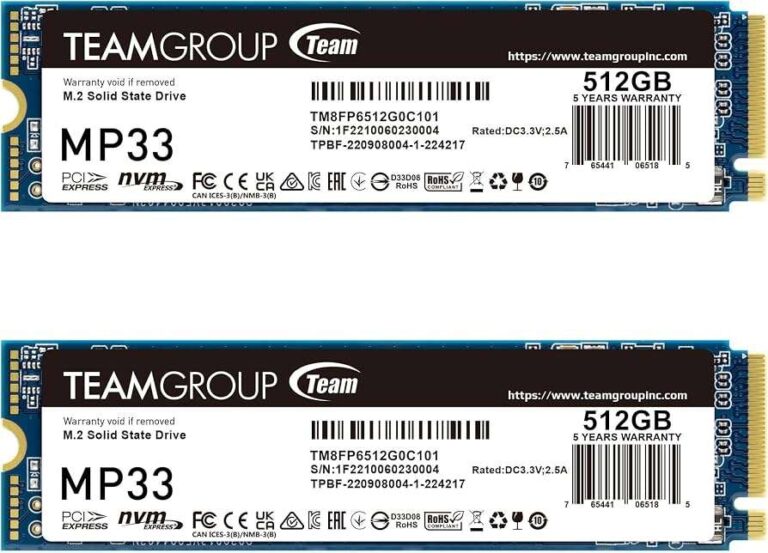
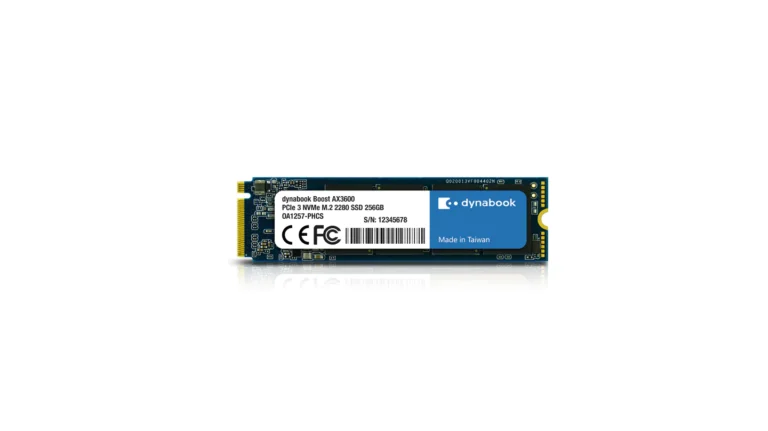
Look at the label on the drive, its retail box, or the original purchase record. You may see a model number such as “Samsung 990 PRO,” “WD_BLACK SN850X,” or another exact product code. Copy the full model name into the manufacturer’s product page.
Look for specifications such as:
• Interface: PCIe 4.0 x4, PCIe Gen 4 x4, or NVMe PCIe 4.0
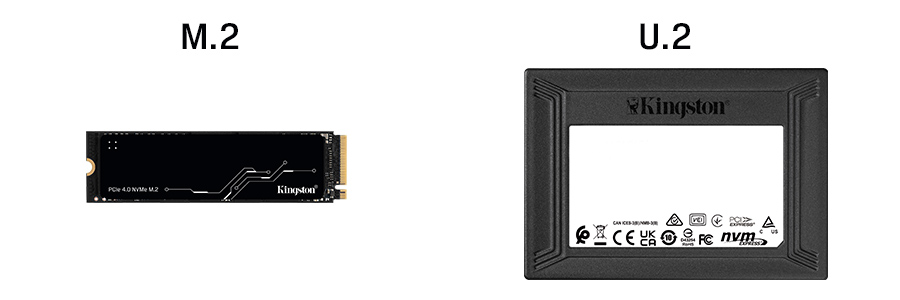
• Form factor: M.2 2280, M.2 2230, or another size
• Protocol: NVMe
• Sequential read speed: Often between 5,000 and 7,400 MB/s for high-end Gen 4 models
• Sequential write speed: Commonly between 4,000 and 7,000 MB/s


The interface line is the most important detail. A listed speed alone does not prove Gen 4 support. Some older PCIe Gen 3 SSDs advertise speeds near 3,500 MB/s, while some Gen 4 drives may run at lower speeds because of a slower controller or thermal limits.
Also check the manufacturer’s technical data sheet. Retail listings can contain errors or combine details from several versions of a product. The exact model page is usually more reliable.
Use the label carefully
An SSD may show “NVMe” on its label, but NVMe does not automatically mean PCIe Gen 4. NVMe is the storage protocol. PCIe 3.0, PCIe 4.0, and PCIe 5.0 drives can all use NVMe.
This is one of the most common errors I see during PC upgrades. A buyer sees “NVMe” and assumes the drive is Gen 4. The correct question is whether the specification says PCIe 4.0 or PCIe Gen 4.
Check your motherboard’s M.2 slot
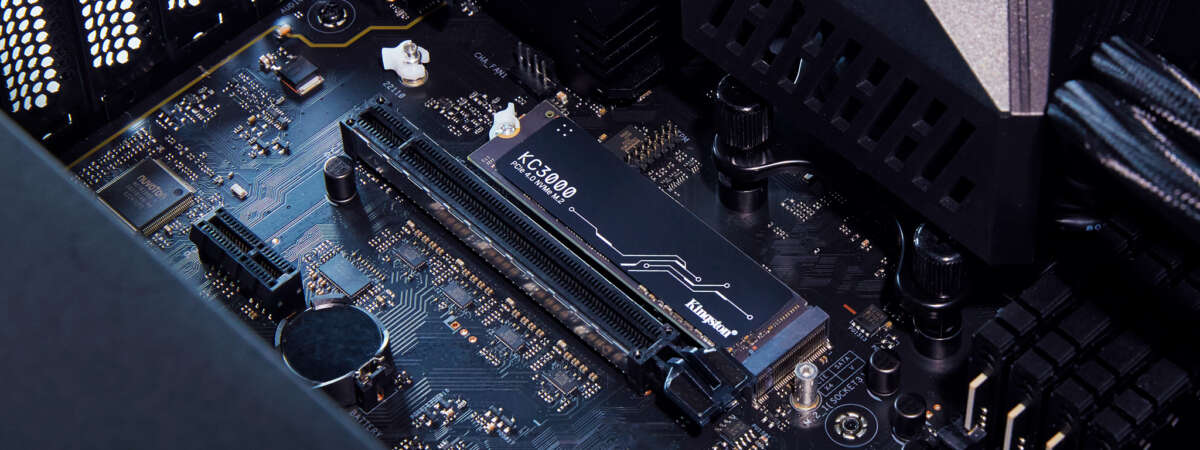
Learning how to check if SSD supports PCIe Gen 4 also requires checking the M.2 slot. A Gen 4 SSD cannot operate at Gen 4 speed if it is installed in a Gen 3 slot.
Find your motherboard model first. On a desktop, the model name may be printed between the PCIe slots or near the memory sockets. You can also check the original box, system invoice, BIOS screen, or a system information tool.
Open the motherboard manual and find the storage section. Look for terms such as:
• M.2 PCIe 4.0 x4
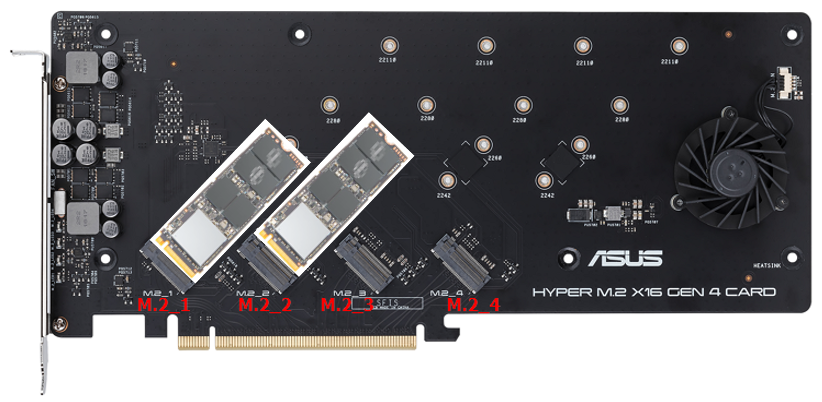
• Hyper M.2
• Gen 4 M.2 socket
• CPU-connected M.2 slot
• Chipset-connected M.2 slot
Many motherboards have more than one M.2 slot. One may support PCIe 4.0, while another supports only PCIe 3.0 or SATA. The slot may also share bandwidth with SATA ports or expansion slots.
For example, a motherboard may have:
• M2_1: PCIe 4.0 x4 from the CPU
• M2_2: PCIe 3.0 x4 from the chipset
• M2_3: SATA-only support
Installing a Gen 4 SSD into M2_2 may make it appear to work normally, but it will operate at Gen 3 speed. The drive is not faulty. It is simply using a slower connection.
Check laptop specifications
Laptops can be harder to inspect. Search the exact laptop model and submodel on the manufacturer’s support page. A product family may include several versions with different processors and storage interfaces.
The service manual may list the M.2 slot as:


• PCIe Gen 3 x4
• PCIe Gen 4 x4
• PCIe x4, generation not stated
If the generation is not listed, look for the laptop’s maintenance guide or BIOS information. You can also contact the manufacturer with the full model and serial details.

Check the CPU and chipset
The SSD and M.2 slot are only part of the connection. The CPU and chipset control the available PCIe lanes. This is why checking the motherboard alone may not give the full answer.
Modern processors from several Intel and AMD families support PCIe 4.0, but support varies by generation and platform. Some entry-level CPUs provide fewer Gen 4 lanes than higher-end models. Older processors may also force a motherboard slot to run at PCIe 3.0.
Check the processor model on the manufacturer’s specification page. Search for “PCI Express revision” or “PCIe revision.” You should also check the motherboard CPU support list because a board can support multiple processor generations.
This matters when upgrading a prebuilt computer. A motherboard may physically have a Gen 4-capable slot, but the installed processor may limit that slot to Gen 3. The hardware looks compatible, yet the connection speed remains lower.
CPU lanes versus chipset lanes
Some M.2 slots connect directly to the CPU. Others connect through the chipset. CPU-connected slots often provide the best performance and lowest path complexity.
Chipset-connected slots can still support PCIe Gen 4, but their bandwidth may be shared with USB ports, SATA ports, Wi-Fi, or other devices. This usually does not stop the SSD from working, but it may affect peak performance in heavy workloads.
For the most reliable result, use the primary M.2 slot listed in the motherboard manual. It is often the slot closest to the CPU socket, but do not assume that every board follows this layout.

Check PCIe link speed in Windows
If you already installed the drive, software can show the current connection. This is useful because it tells you how the SSD is running right now, not only what it supports on paper.
A practical way to check how to check if SSD supports PCIe Gen 4 in Windows is to use a trusted hardware information tool. Applications such as CrystalDiskInfo or HWiNFO may display the current and maximum link modes.
Look for information similar to:
• Transfer Mode: PCIe 4.0 x4 | PCIe 4.0 x4
• Current Link Speed: PCIe 4.0
• Maximum Link Speed: PCIe 4.0 x4
The first value may show the current mode, while the second may show the maximum supported mode. The exact labels vary by program, so read the tool’s legend carefully.
You can also use CrystalDiskMark as a performance check. A capable Gen 4 x4 SSD often produces sequential read speeds above 5,000 MB/s when the system is configured correctly. However, a benchmark is supporting evidence, not final proof.


A low result may come from:
• A Gen 3 M.2 slot
• A thermal throttle
• A nearly full SSD
• A low-end Gen 4 drive
• Background tasks
• A power-saving mode
• An outdated storage driver or BIOS
• A benchmark queue setting that does not suit the drive
I have seen drives with a Gen 4 label score below 4,000 MB/s because the laptop was thin, hot, and power-limited. The drive still supported Gen 4. Its cooling system simply could not maintain peak performance.
Check Device Manager
Windows Device Manager can identify the storage controller and drive name, but it usually does not clearly show the active PCIe generation. Use it to confirm the exact model, then check the model’s technical specifications.
Follow these steps:
-
Right-click the Start button.
-
Select Device Manager.
-
Expand Disk drives.
-
Copy the full SSD model name.
-
Search the manufacturer’s specification page.
Do not treat “Standard NVM Express Controller” as proof of PCIe Gen 4. That entry identifies the Windows controller driver, not the PCIe generation.
Check PCIe link speed in Linux
Linux offers several useful commands for checking the current PCIe connection. First, identify the NVMe drive with:
lsblk
You can then inspect PCIe devices with:
sudo lspci -vv
Find the NVMe controller in the output. Look for lines like:
LnkCap: Port #0, Speed 16GT/s, Width x4
LnkSta: Speed 16GT/s, Width x4
A speed of 16 GT/s per lane indicates PCIe 4.0. PCIe 3.0 normally shows 8 GT/s per lane, while PCIe 5.0 shows 32 GT/s per lane.
The LnkCap line shows the link’s capability. The LnkSta line shows the current negotiated state. For example:
LnkCap: Speed 16GT/s, Width x4
LnkSta: Speed 8GT/s, Width x4
This means the hardware can support Gen 4, but it is currently operating at Gen 3. The cause may be the slot, processor, BIOS setting, firmware, or power state.


Linux users can also inspect NVMe details with:
sudo nvme list
The nvme-cli package may need to be installed first. This command helps identify the drive, but lspci -vv is usually more useful for checking the PCIe link state.

Check BIOS and UEFI settings
The BIOS or UEFI can sometimes control the M.2 slot’s PCIe mode. Restart the computer and enter firmware setup by pressing a key such as Delete, F2, F10, or Esc. The correct key depends on the motherboard or laptop.
Search menus such as:
• Advanced
• Onboard Devices
• PCIe Configuration
• M.2 Configuration
• AMD CBS
• Intel Platform Configuration
• Storage Configuration
Some firmware versions offer settings such as Auto, Gen 3, Gen 4, or Gen 5. Set the slot to Auto or Gen 4 if the system is stable and the manual supports that option.
Do not change several advanced settings at once. If the computer fails to boot, return the setting to Auto. Also update the BIOS only by following the manufacturer’s instructions. A BIOS update can improve compatibility, but interrupting the update can damage the motherboard.
A useful troubleshooting step is to load optimized defaults, save, and reboot. Then check the link speed again. This can fix a manually forced Gen 3 setting, but it will not turn a Gen 3-only slot into a Gen 4 slot.
Use benchmark results the right way
Benchmark results can help answer how to check if SSD supports PCIe Gen 4, but they should not be your only test. A benchmark measures performance. It does not always identify the PCIe generation directly.
For a high-end PCIe 4.0 x4 SSD, sequential read speeds around 5,000 to 7,400 MB/s are common. Random performance is more important for many daily tasks, but sequential speed is easier to compare with the manufacturer’s claims.
Before testing:
• Leave at least 10% to 20% free space.
• Close large downloads and other heavy programs.
• Allow the SSD to cool.
• Use the manufacturer’s recommended power mode.
• Run the test more than once.
• Compare the result with the official specification.


A Gen 4 SSD in a Gen 3 slot often reaches around 3,000 to 3,500 MB/s in sequential reads. That result strongly suggests a Gen 3 connection, but it is not absolute proof. Some drives have lower performance ratings, and some systems limit speed for heat or power reasons.
Avoid comparing a laptop SSD with a desktop SSD as if they were identical. Laptop cooling, firmware, battery settings, and CPU lane design can produce very different results.
Common reasons a Gen 4 SSD runs at Gen 3 speed
Understanding the cause helps you solve the problem without buying another drive. A Gen 4 SSD can run at Gen 3 speed by design, and that does not mean it is defective.
The most common causes include:
• The M.2 slot supports only PCIe 3.0.
• The installed CPU supports only PCIe 3.0.
• The drive is installed in the wrong M.2 slot.
• The BIOS is set to Gen 3.
• The motherboard shares lanes with another device.
• The drive is too hot and is throttling.
• The SSD firmware needs an update.
• The system is using a low-power mode.
• The product listing described the slot incorrectly.
One mistake I recommend avoiding is checking only the slot’s physical shape. M.2 describes a physical form factor, not a speed level. Two M.2 slots can look identical while supporting different interfaces.
Another mistake is confusing SATA M.2 with NVMe M.2. A SATA M.2 drive may fit the same general slot shape but uses the SATA interface and has much lower speeds. Always confirm both the key type and the supported protocol.
A simple step-by-step verification method
If you want a clear process for how to check if SSD supports PCIe Gen 4, use these steps in order:
-
Identify the exact SSD model from the label or operating system.
-
Open the manufacturer’s specification page.
-
Confirm that the SSD interface says PCIe 4.0 x4 or Gen 4 x4.
-
Identify the motherboard or laptop model.
-
Read the manual to confirm that the exact M.2 slot supports PCIe 4.0.
-
Check the installed CPU’s PCIe generation and lane support.
-
Install the SSD in the recommended primary M.2 slot.
-
Check the current link speed with HWiNFO, CrystalDiskInfo, or Linux
lspci. -
Run a benchmark only after confirming the link mode.
-
Check temperatures if performance falls during longer tests.
The strongest confirmation comes from matching the product specifications with the live link state. For example, the SSD specification says PCIe 4.0 x4, the motherboard manual lists the slot as PCIe 4.0 x4, and the monitoring tool reports PCIe 4.0 x4. That is a reliable result.
PCIe Gen 4 benefits and limitations
A PCIe Gen 4 SSD can reduce file transfer times, improve large project workflows, and speed up tasks that read or write a lot of data. Video editing, game installation, virtual machines, software development, and large backups can benefit the most.
For everyday browsing, email, and office work, the difference between a good Gen 3 and Gen 4 SSD may feel small. System startup and app loading depend on many factors, including CPU performance, memory, software design, and random access latency.
There are also practical limits:
• Gen 4 SSDs can cost more than Gen 3 models.
• High-end drives may need a heatsink.
• Laptops may reduce speed to control heat.
• Some motherboards share PCIe lanes between M.2 slots and other devices.
• A Gen 4 SSD does not improve a Gen 3-only system to Gen 4 speed.
• Sequential benchmark gains may not appear in simple daily tasks.
The best upgrade is one that matches your workload. If you move large video files every day, Gen 4 may be worthwhile. If you mainly browse the web, a reliable Gen 3 SSD may offer better value.
Frequently Asked Questions
How can I tell if my SSD is PCIe Gen 4?
Find the exact model number and check the manufacturer’s interface specification. It should say PCIe 4.0 x4, PCIe Gen 4 x4, or a similar term.
Does NVMe mean PCIe Gen 4?
No. NVMe describes the storage protocol, not the PCIe generation. NVMe SSDs can use PCIe Gen 3, Gen 4, or Gen 5 interfaces.
Can a PCIe Gen 4 SSD work in a Gen 3 slot?
Yes. PCIe is backward compatible, so the SSD should work in a Gen 3 slot. It will operate at the lower Gen 3 speed rather than its full Gen 4 performance.
How do I check the current PCIe speed in Windows?
Use a hardware information tool such as HWiNFO or CrystalDiskInfo and look for the current and maximum transfer mode. A result showing PCIe 4.0 x4 confirms that the drive is currently connected at Gen 4 x4.
Does an M.2 slot always support PCIe Gen 4?
No. M.2 describes the connector and drive shape. An M.2 slot may support SATA, PCIe Gen 3, PCIe Gen 4, or another interface, so check the motherboard or laptop manual.
Why is my Gen 4 SSD slower than expected?
The drive may be in a Gen 3 slot, installed in the wrong M.2 socket, limited by the CPU, or affected by heat and power settings. Check the live link speed before judging the SSD’s performance.
Is a PCIe Gen 4 SSD worth buying for an older computer?
It can be useful if the system supports PCIe Gen 4 or if you plan to move the drive into a newer computer. For an older Gen 3-only system, a less expensive Gen 3 SSD may provide better value.
Conclusion
The reliable way to check if SSD supports PCIe Gen 4 is to verify the SSD model, M.2 slot, processor, BIOS settings, and current link speed. The drive must support PCIe 4.0, but the rest of the system must support it too.
Start with the manufacturer’s specifications, then confirm the slot in the motherboard or laptop manual. Finally, use a hardware information tool or Linux command to see whether the drive is running at PCIe 4.0 x4. This method avoids guesswork and explains why a fast SSD may sometimes perform like a slower one.
Check your exact model today, confirm the live link mode, and share your results or questions in the comments.