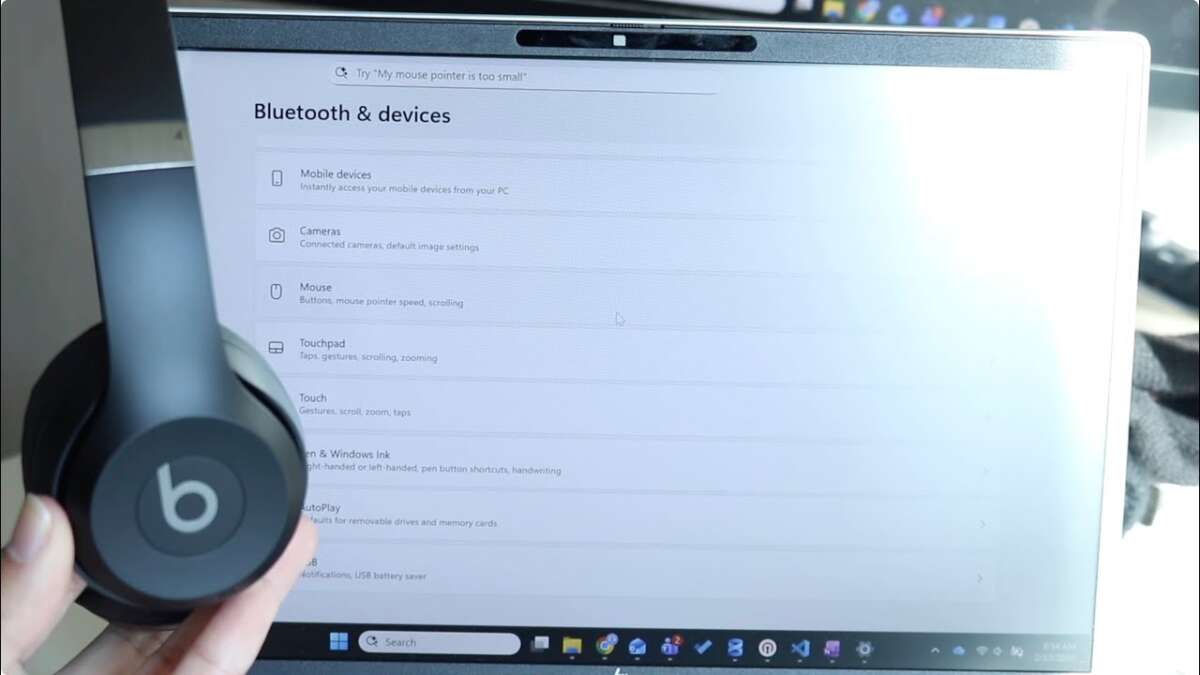
How To Connect Beats Headphones To Computer: Easy Way
Turn on bluetooth, select your Beats headphones in your computer’s settings, and confirm the pairing request.
Learning how to connect Beats headphones to computer is simple once you know which connection your model supports. I have tested Beats headphones with Windows laptops, MacBooks, and desktop computers, and the most common problems usually come from pairing mode, old Bluetooth records, or the wrong audio output. This guide covers wireless Bluetooth pairing, wired connections, sound settings, and fixes that work in real life.
Before you connect Beats headphones to computer
Most Beats headphones connect to a computer in one of three ways:
• Bluetooth: This is the easiest option for wireless listening.


• A 3.5 mm audio cable: This works with computers that have a headphone jack.
• A USB cable: Some models support USB-C audio, charging, or firmware updates. A charging cable does not always carry sound.
Before starting, charge your headphones. A low battery can interrupt pairing or cause random disconnections. Also, keep the headphones close to your computer during setup, ideally within three feet.
Check whether your computer has Bluetooth. Most modern Windows laptops and all recent MacBooks do. Some desktop PCs do not include Bluetooth, but you can add it with a small USB Bluetooth adapter.
If your Beats headphones are already connected to a phone, tablet, or another computer, turn Bluetooth off on that device for a moment. This prevents the headphones from reconnecting to the wrong device.

How to connect Beats headphones to computer with Bluetooth
Bluetooth is the best method for most people. It gives you freedom to move without a cable, and the setup usually takes less than two minutes.
Follow these steps:
- Turn on your Beats headphones.
- Press and hold the system or power button until the indicator light flashes.
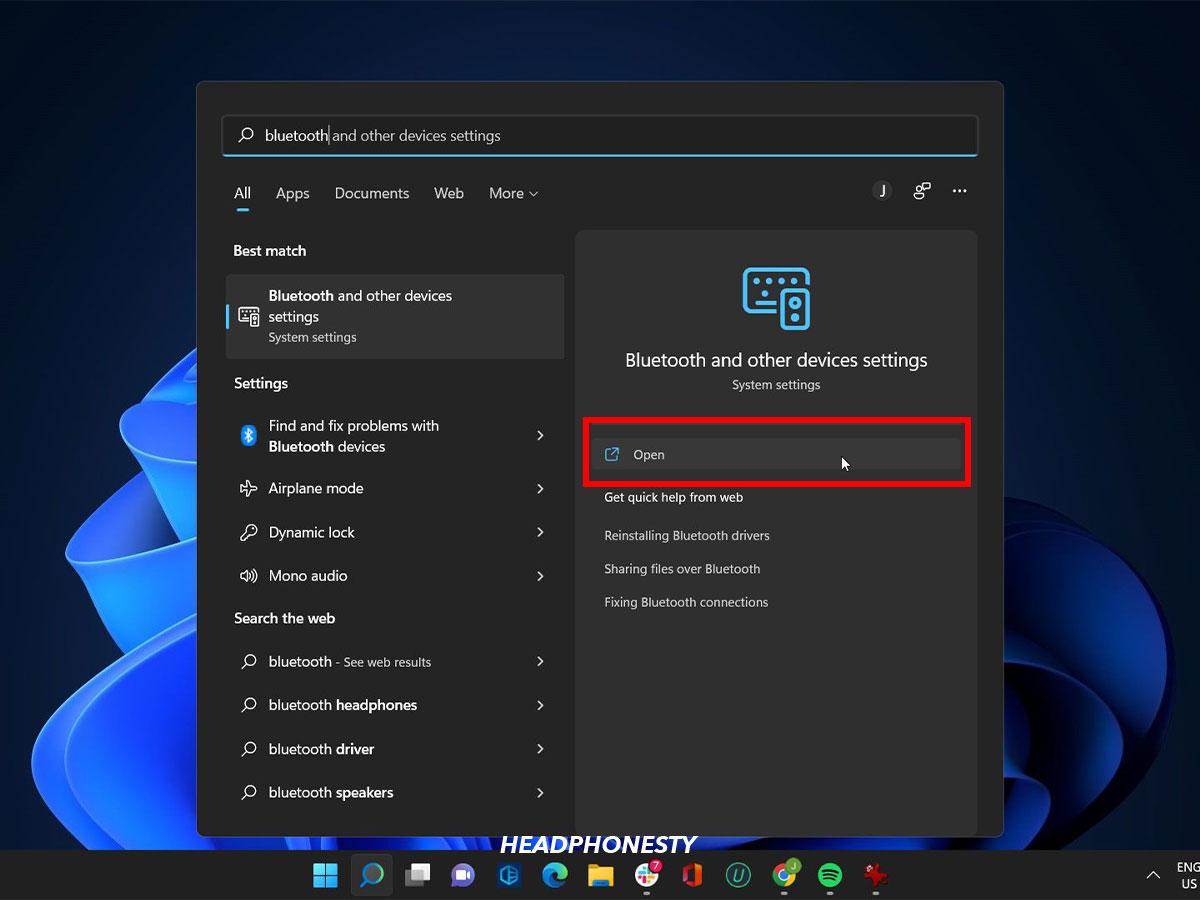
- Open Bluetooth settings on your computer.
- Find your Beats model in the list of available devices.
- Select the headphones.
- Wait for the status to change to “Connected.”
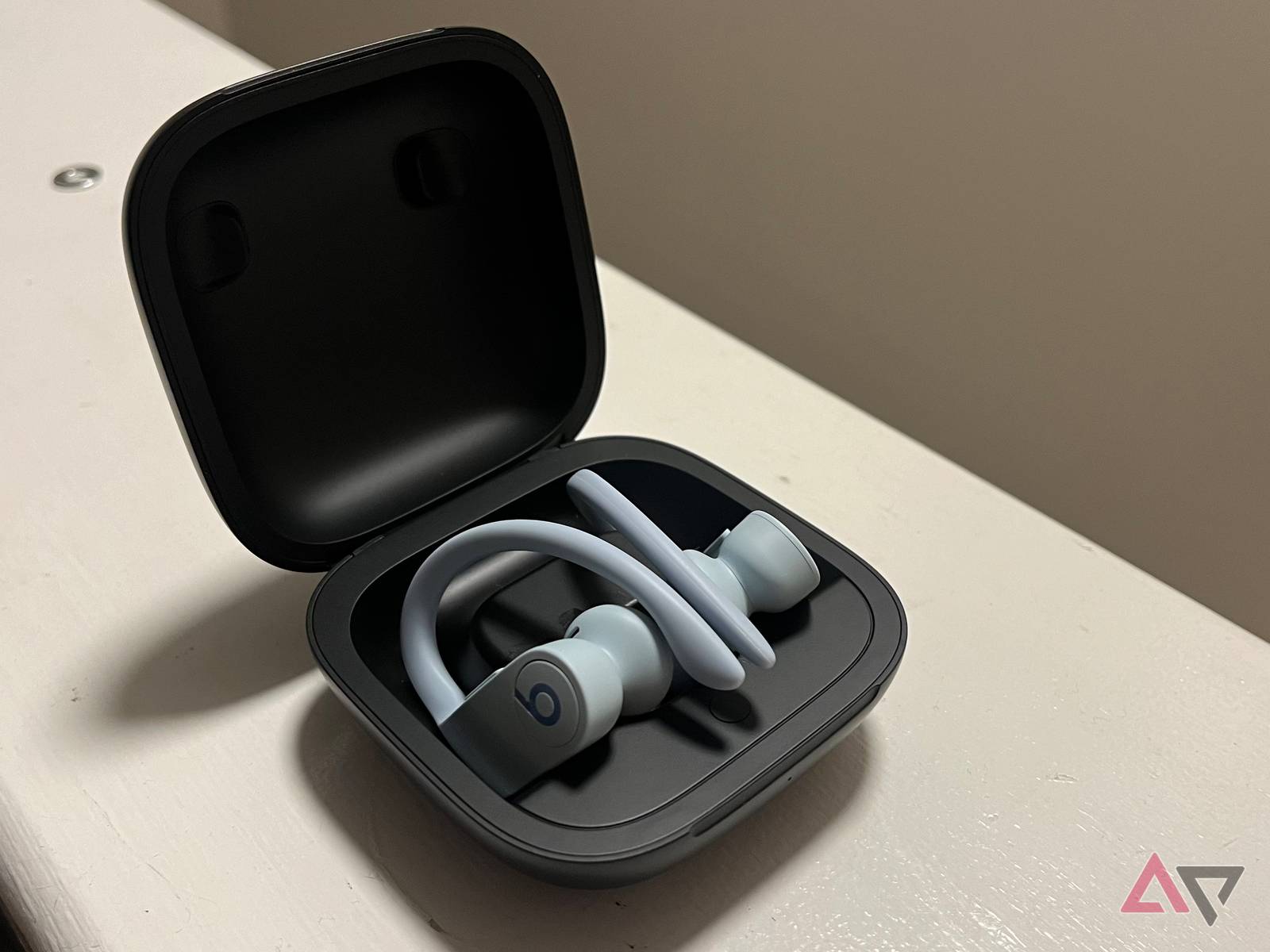
The button location varies by model. On many Beats headphones, the power button is on the right earcup. On Beats earbuds, place both earbuds in the charging case, open the lid, and press the case’s system button until the light flashes white.
A flashing white light usually means the headphones are ready to pair. If the light does not flash, hold the button a little longer. Do not release it as soon as the headphones turn on.
After pairing, play a video or song to test the sound. If the computer connects but you hear no audio, the headphones may not be selected as the output device. We cover that fix below.
How to connect Beats headphones to a Windows computer
The steps are similar on Windows 10 and Windows 11, though the menus look slightly different.


Windows 11
- Select the Start menu.
- Open Settings.
- Choose Bluetooth & devices.
- Turn Bluetooth on.
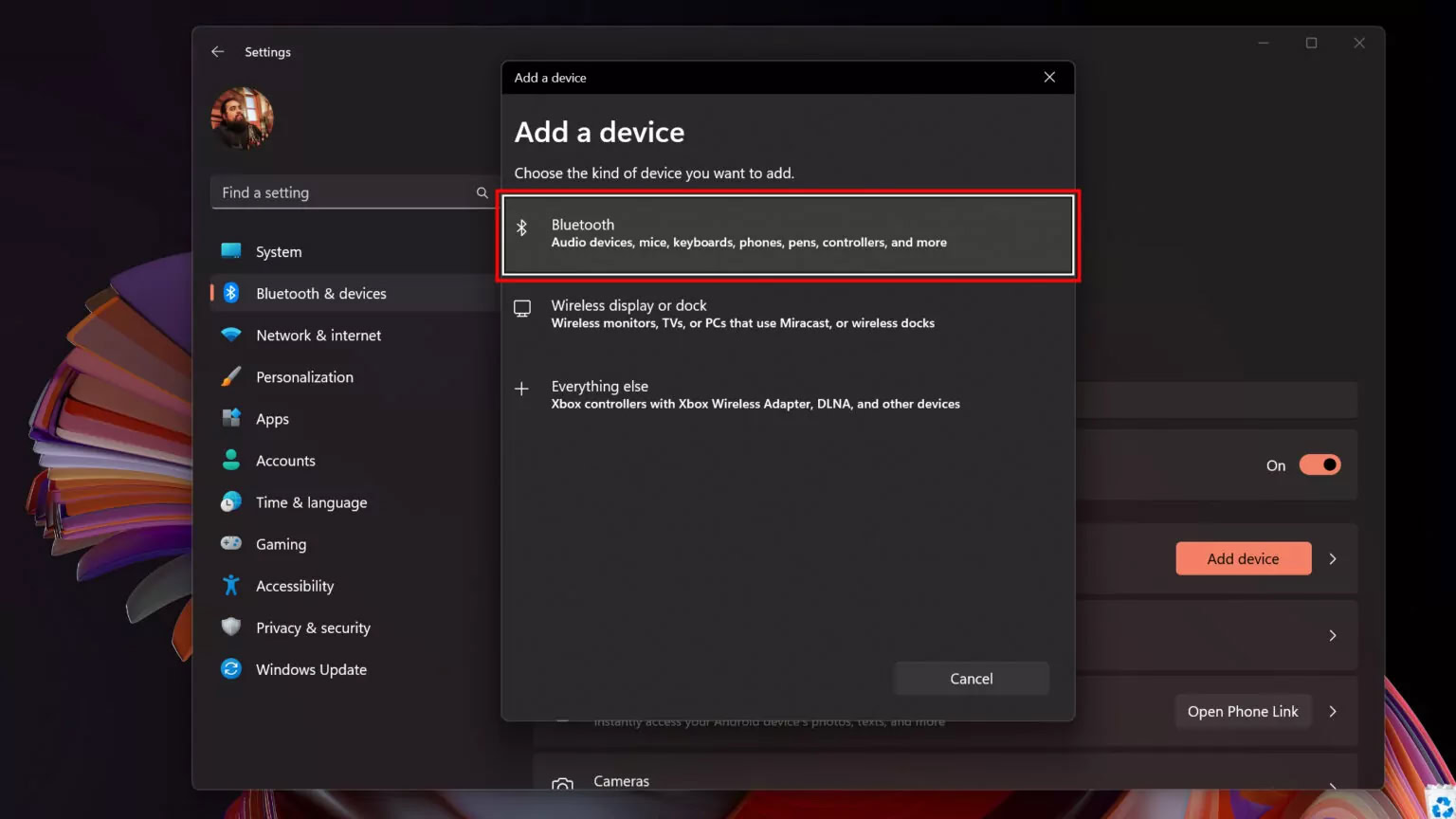
- Select Add device.
- Choose Bluetooth.
- Put your Beats headphones into pairing mode.
- Select your Beats headphones from the list.
- Choose Done when Windows confirms the connection.
You can also open the quick settings panel by selecting the network, volume, or battery icons near the clock. Select the Bluetooth arrow, then choose your Beats headphones.
Windows 10
- Open Start and select Settings.
- Choose Devices.
- Select Bluetooth & other devices.
- Turn Bluetooth on.
- Select Add Bluetooth or other device.
- Choose Bluetooth.
- Select your Beats headphones.
Windows may show separate entries for your headphones and a hands-free option. Choose the normal headphones entry for music. The hands-free profile is designed for calls and may reduce sound quality.
When learning how to connect Beats headphones to computer, many Windows users stop after the pairing step. That is not always enough. You may also need to select the headphones as the active sound output.
To do that in Windows 11:
- Select the speaker icon near the clock.
- Select the sound output menu.
- Choose your Beats headphones.
- Raise the volume on both the computer and headphones.
On Windows 10, right-click the speaker icon, select Open Sound settings, and choose your Beats headphones under Output.

How to connect Beats headphones to a Mac
Mac computers usually make Bluetooth pairing quick and reliable. The same general process works on MacBook Air, MacBook Pro, iMac, and Mac mini models with Bluetooth.
- Select the Apple menu.
- Open System Settings on newer macOS versions.
- Select Bluetooth.
- Turn Bluetooth on.
- Put your Beats headphones into pairing mode.
- Find the headphones in the Nearby Devices list.
- Select Connect.
On older macOS versions, open System Preferences, select Bluetooth, and choose Connect beside your Beats headphones.
Once connected, open System Settings and select Sound. Under Output, choose your Beats headphones. This step matters because your Mac may stay set to its built-in speakers even after Bluetooth pairing succeeds.
You can also connect through the Control Center:
- Select the Control Center icon in the menu bar.
- Select Sound.
- Choose your Beats headphones.
If the headphones appear as connected but sound still comes from the Mac, disconnect and reconnect them from the Sound menu. This often refreshes the audio route without requiring a full restart.
For Mac users, knowing how to connect Beats headphones to computer also means knowing how macOS handles microphones. During a video call, an app may switch to the Beats microphone profile. That can make music sound less detailed because Bluetooth gives priority to two-way voice audio.


How to connect Beats headphones to computer with a cable
A wired connection is useful when Bluetooth is unavailable, the battery is empty, or you want to avoid wireless delay.
Some Beats models work with a 3.5 mm audio cable. Plug one end into the headphones and the other end into the computer’s headphone jack. Then choose the computer’s headphone output if the sound does not switch automatically.
Many newer computers have only USB-C ports. In that case, you may need a USB-C to 3.5 mm audio adapter. Use an adapter that supports audio output, not one made only for charging.
USB-C audio support depends on the Beats model. For example, some newer Beats headphones can play lossless audio through USB-C, while other models use USB-C only for charging. Check the specifications for your exact model before buying a cable.
A cable may also disable some features. Depending on the model, you may lose Bluetooth controls, automatic pausing, or microphone access while using a wired connection.
When I troubleshoot how to connect Beats headphones to computer, I often test a cable first if Bluetooth behaves poorly. It quickly shows whether the problem is with the headphones, the computer’s Bluetooth system, or the wireless connection.

Set Beats headphones as the default audio device
Pairing does not always mean the computer will use your Beats headphones for sound. You must sometimes choose them manually.
On Windows
- Select the speaker icon.
- Open the sound output list.
- Select your Beats headphones.
- Open Sound settings if the headphones are not listed.
- Select them under the Output section.
For calls, open the input settings and choose the Beats microphone if you want to use it. Some apps, such as Zoom, Microsoft Teams, and Discord, have their own audio menus. Set both the speaker and microphone inside the app when needed.
On Mac
- Open System Settings.
- Select Sound.
- Choose Output.
- Select your Beats headphones.
- Select Input if you want to use the Beats microphone.
If an app ignores the system setting, open the app’s audio preferences. A browser tab, meeting app, or game may use a different output device.
This is one of the most important steps in how to connect Beats headphones to computer because the connection can look correct while the audio is routed somewhere else.
Fix Beats headphones that will not connect
If your Beats headphones do not appear in the Bluetooth list, try these fixes in order.
Put the headphones back into pairing mode
Turn the headphones off. Turn them on again, then hold the power or system button until the indicator flashes. A steady light usually means the headphones are already connected or simply powered on.
Disconnect other devices
Beats headphones may reconnect to a phone, tablet, or smart TV that was paired earlier. Temporarily turn Bluetooth off on nearby devices, then try again.


Remove the old Bluetooth record
On Windows, open Bluetooth & devices, find your Beats headphones, and select Remove device. On Mac, open Bluetooth settings, select the information button beside the headphones, and choose Forget This Device.
Then restart the computer and pair the headphones again.
Restart Bluetooth
Turn Bluetooth off, wait about ten seconds, and turn it back on. This simple reset can clear a temporary Bluetooth service error.
Restart both devices
Restart the computer and power cycle the headphones. This is basic advice, but it solves many connection problems because it clears stuck wireless sessions.
Reset the Beats headphones
The reset method depends on the model. Many over-ear Beats models reset by holding the power button and volume-down button together for about ten seconds. Earbuds often use the case system button.
A reset removes connection information and requires you to pair the headphones again. Check the instructions for your exact model before using this step.
Update the computer
Install available Windows or macOS updates. Bluetooth compatibility and audio drivers can improve after an update. If you use a USB Bluetooth adapter on Windows, check for an updated driver from the adapter maker.
These steps solve most issues related to how to connect Beats headphones to computer. If the headphones fail to connect to every device, the problem may be hardware-related rather than a computer setting.

Improve sound quality and connection stability
A good Bluetooth connection should sound clear and remain stable across a room. If the sound cuts out, keep the computer and headphones closer together. Walls, metal objects, crowded wireless areas, and older Bluetooth hardware can affect performance.
Try these practical tips:
• Keep the headphones away from USB 3.0 hubs and crowded wireless equipment.
• Close unused Bluetooth devices connected to the computer.
• Avoid placing the computer behind a large metal desk or monitor.
• Keep the Beats firmware and computer operating system current.
• Use the normal stereo headphones profile for music.
• Use the hands-free profile only for calls when necessary.


• Turn off audio enhancements if they create distortion or delay.
Bluetooth audio has limits. Wireless sound may have more delay than a cable, especially in games or video editing. Most video apps correct small delays automatically, but fast games may make the delay easier to notice.
Microphone use can also affect quality. Classic Bluetooth profiles often reduce playback quality when the microphone is active. If you need clear music during a call, use the computer’s built-in microphone or a separate USB microphone and keep the Beats headphones as the output device.
When explaining how to connect Beats headphones to computer, I always mention this trade-off. The headphones may not be defective; the computer may simply be switching to a lower-bandwidth voice mode.
Connect Beats headphones to a computer for calls
Beats headphones can work well for Zoom, Teams, Google Meet, Skype, and Discord. Before joining a call, open the app’s settings and test both devices.
Choose your Beats headphones under Speaker. Then choose the Beats microphone under Microphone if you want to use it.
If other people say your voice sounds quiet or unclear, check the microphone level in Windows or macOS. Move the microphone opening away from clothing, and avoid covering the earcup or earbud microphone.
For the best results, use this setup:
• Beats headphones as the speaker.
• A built-in computer microphone or USB microphone as the input.
• A strong Bluetooth connection with the computer nearby.
This setup often gives better music quality than using the Beats microphone and speaker at the same time. It also reduces the chance of the call app switching profiles unexpectedly.
Common mistakes to avoid
The most common pairing mistake is pressing the power button once and assuming the headphones are ready to connect. Powering on and pairing are different actions. The indicator must usually flash before the computer can find the headphones.
Another mistake is pairing through the wrong menu. Use the computer’s Bluetooth settings, not the sound menu alone. The sound menu selects an output device, but it does not always start the pairing process.
Avoid deleting every Bluetooth device unless necessary. Remove only the Beats headphones first. This keeps your other keyboards, mice, and speakers connected.


Do not assume every USB-C cable carries audio. Some cables provide power only. If a wired USB-C connection fails, test a known audio-capable cable and confirm that your Beats model supports USB-C sound.
Finally, do not place the headphones in pairing mode while they are connected to another device. Turn off Bluetooth on that device first. This small step can save several minutes of repeated attempts.
Frequently Asked Questions About How to Connect Beats Headphones to Computer
Can Beats headphones connect to a Windows computer?
Yes. Put the Beats headphones into pairing mode, open Bluetooth settings in Windows, and select the headphones from the available devices list. After pairing, choose them as the sound output if Windows continues using its speakers.
Can Beats headphones connect to a MacBook?
Yes. Open System Settings, select Bluetooth, and choose your Beats headphones. Then open Sound settings and select the headphones under Output if the Mac does not switch automatically.
Why are my Beats headphones connected but not playing sound?
The computer may be using its built-in speakers or another audio device. Open the sound output settings and manually select your Beats headphones.
Do Beats headphones need Bluetooth to connect to a computer?
No. Some Beats models support a 3.5 mm audio cable, and certain newer models support USB-C audio. Cable support varies by model, so check the specifications for your headphones.
Why do my Beats headphones keep disconnecting from my computer?
The battery may be low, the headphones may be connecting to another device, or the computer may have a Bluetooth driver issue. Charge the headphones, turn off Bluetooth on nearby devices, remove and re-pair the headphones, and install computer updates.
Can I use Beats headphones and their microphone on a computer?
Yes. Windows and macOS can use Beats headphones for both playback and calls. However, Bluetooth may reduce music quality when the microphone is active, so a separate computer or USB microphone may provide better sound.
How do I reset Beats headphones before pairing them again?
The reset method depends on the model. Many over-ear models use a combination of the power and volume buttons, while earbuds often use the case button. Use the instructions for your exact Beats model, then remove the old Bluetooth record before pairing again.
Conclusion
Connecting Beats headphones to a computer usually takes only a few steps: charge them, enter pairing mode, open Bluetooth settings, select the headphones, and choose them as the audio output. Windows and Mac computers follow nearly the same process, while wired connections offer a useful backup when Bluetooth fails.
If the connection does not work, remove the old pairing, restart both devices, check the audio output, and keep other Bluetooth devices away during setup. Try these steps now, and share your experience or favorite troubleshooting tip in the comments.