How To Disable Built In Mic On Headphones: Easy Guide
If you want to disable the built-in mic on your headphones, the easiest method is to choose a different input device in your device’s sound settings. On a Windows PC, you can also block microphone access or disable the headset microphone. On a Mac, iPhone, iPad, or Android phone, select another microphone or turn off microphone access for the app.
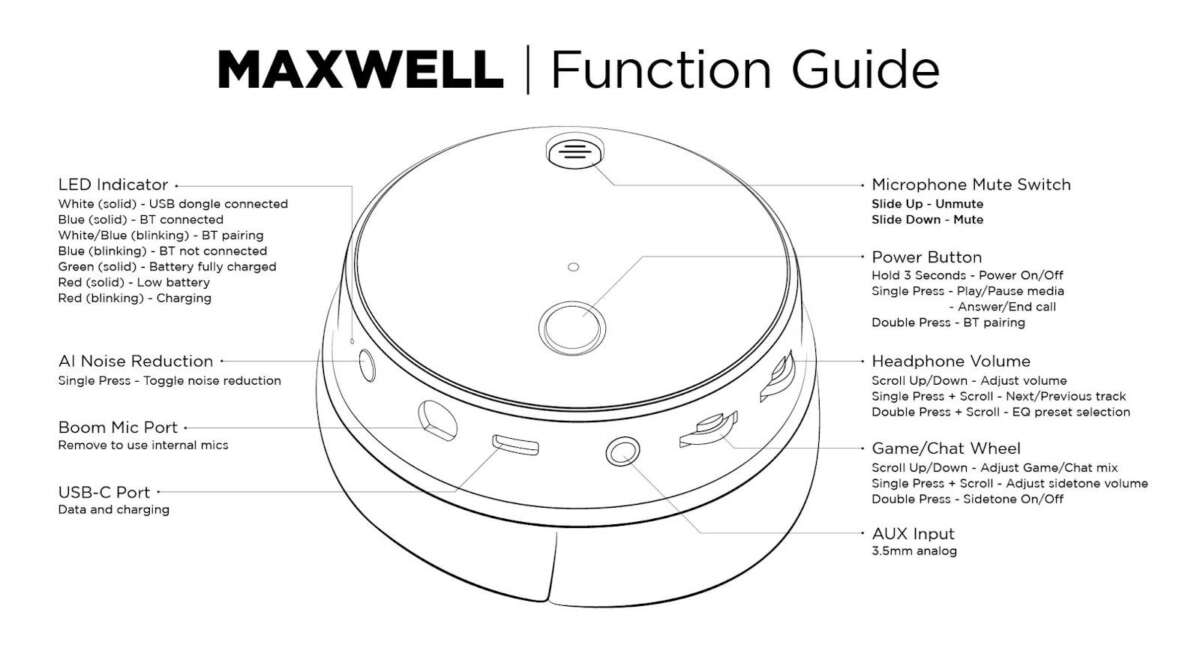
The exact steps depend on whether your headphones use Bluetooth, USB, or a 3.5 mm plug. A headset mute button may also work, but it does not always disable the microphone at the operating-system level.

What “disable the built-in mic” means
A headset microphone is a small input device built into the earcups, cable, or control module. Your computer or phone may list it as a separate input, such as:
- Headset microphone
- Headphones microphone
- Bluetooth headset
- Hands-Free AG Audio
- USB headset
- External microphone
- AirPods microphone
- Wireless headphones


There are three main ways to stop it from working:
-
Choose another microphone.
The headset mic remains available, but your device uses a different mic. -
Block microphone access.
Apps cannot use the mic, but the device may still show it as connected. -
Disable the microphone device.
The operating system stops using that input until you enable it again.
These options are not the same. Muting the mic in Zoom, Discord, or a headset app usually affects only that app. Selecting another input affects calls and recordings across the system. Disabling the device is the strongest software option.
How to disable a headphone mic on Windows 11
Windows 11 lets you select another input, block app access, or disable a detected microphone.
Option 1: Select a different microphone
Use this method when you still want to speak through your laptop mic, webcam mic, USB mic, or another input.
- Right-click the speaker icon on the Windows taskbar.
- Select Sound settings.
- Scroll to Input.
- Select the microphone you want to use.
- If available, open the headset microphone and choose Don’t allow or disable its input access.
You can also open Settings > System > Sound > Input and choose the preferred microphone. Run a short test in the same panel to confirm that Windows receives sound from the correct device.
Option 2: Block microphone access for all apps
Use this option when you do not want Windows apps to access any microphone.
- Open Settings.
- Select Privacy & security.
- Choose Microphone.
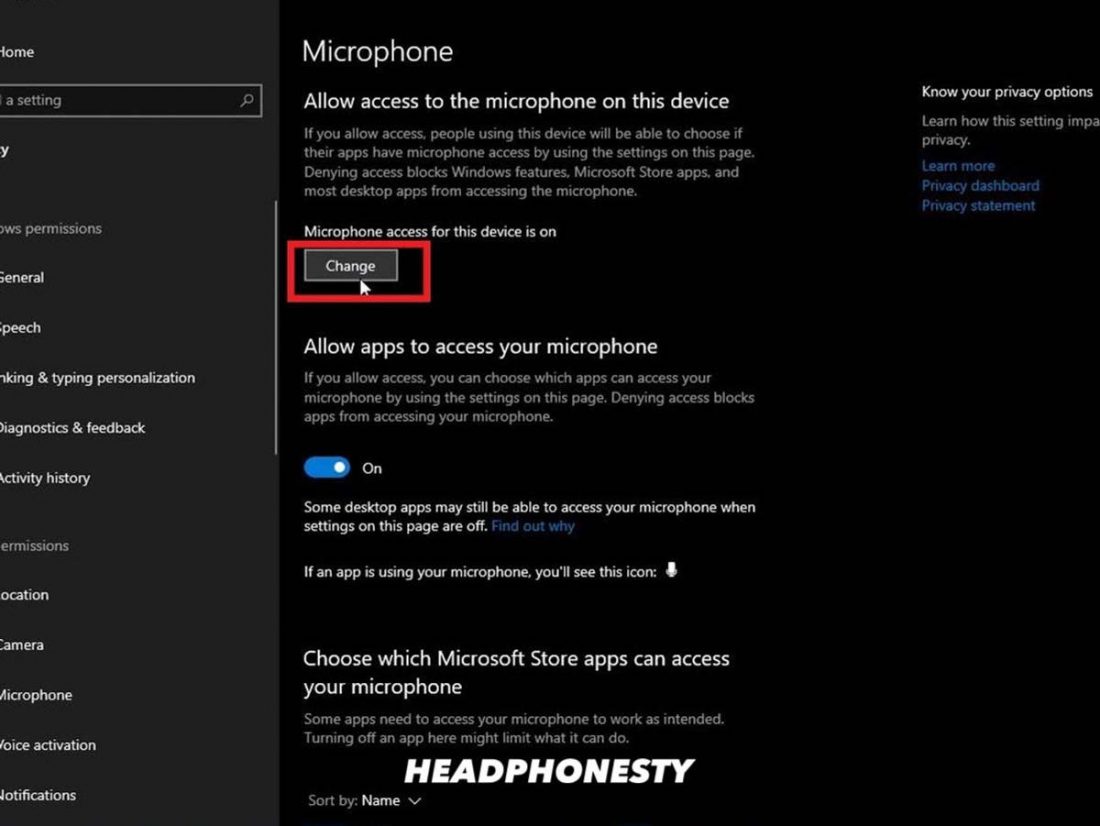
- Turn off Microphone access.
You can also leave general microphone access on and turn off access for individual apps. For example, you could block Discord while allowing Teams to use your laptop microphone.


This setting controls software access. It does not physically disconnect or remove the microphone from the headset.
Option 3: Disable the headset microphone in Sound settings
On some Windows 11 builds, you can disable an input device directly:
- Open Settings > System > Sound.
- Under Input, select the headset microphone.
- Open its properties.
- Choose Don’t allow if Windows shows that option.
- Confirm the change.
The wording may vary by Windows version and audio driver. microsoft documents microphone privacy controls in its Windows microphone access guidance.

How to disable a headphone mic on Windows 10
Windows 10 uses a different layout, but you can still select another input or disable the headset microphone.
Change the default input
- Right-click the speaker icon in the taskbar.
- Select Open Sound settings.
- Under Input, choose a different microphone.
- Close Settings.
For more control:
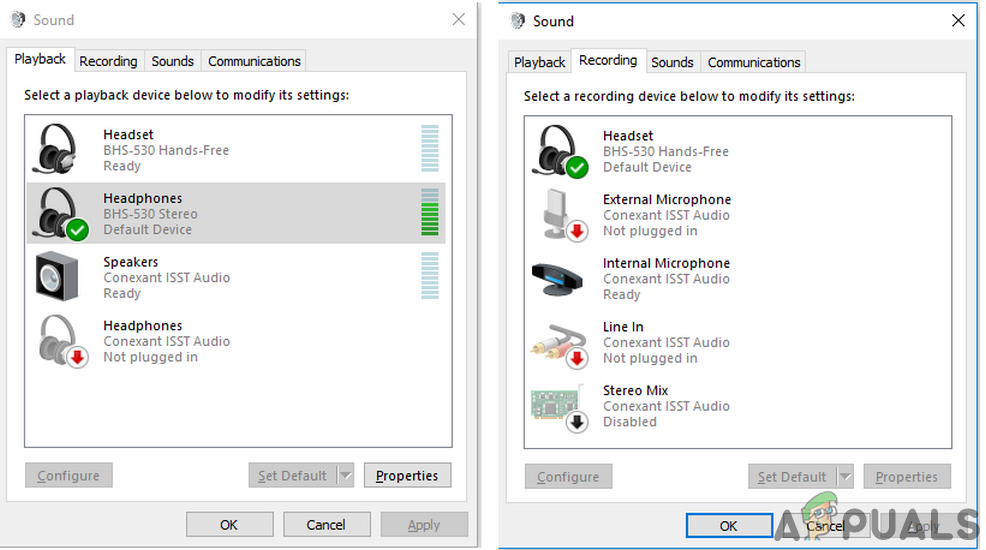
- Open Control Panel.
- Select Hardware and Sound.
- Choose Sound.
- Open the Recording tab.
- Right-click the headset microphone.
- Select Disable.
The headset may remain available for audio playback after you disable its recording input. If playback stops too, re-enable the device and use the privacy method instead.
Block microphone access
- Open Settings.
- Select Privacy.
- Select Microphone.
- Turn off Allow apps to access your microphone.
You can also control access for individual Microsoft Store apps. Desktop programs may use separate permissions or their own microphone settings.
How to disable a headphone mic on a Mac
macOS does not always provide a simple “disable this one microphone” button for every headset. The most reliable approach is to select another input device or remove microphone permission from a specific app.
Select another input device
- Open the Apple menu.
- Select System Settings.
- Choose Sound.
- Select Input.
- Choose your Mac’s built-in microphone, a USB microphone, or another input.
On older macOS versions, open System Preferences > Sound > Input instead.
The headset mic should no longer handle calls or recordings once another input is selected. Some apps, such as video meeting tools, can override the system choice, so check the app’s own audio settings too.
Block access for a specific Mac app
- Open System Settings.
- Select Privacy & Security.
- Choose Microphone.
- Turn off access for the app you do not want to use the headset mic.


macOS may ask you to quit and reopen the app. Apple explains these controls in its macOS microphone privacy settings.
Use a hardware mute switch
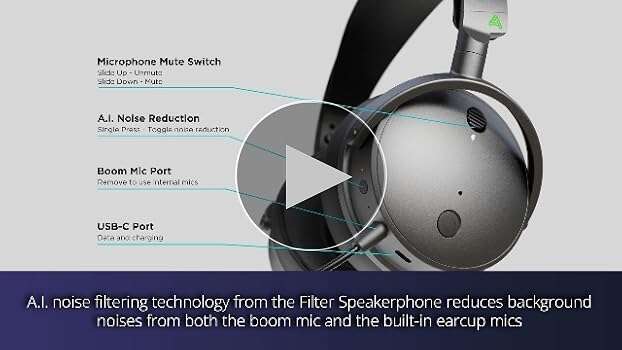
Some USB headsets and wireless headphones include a physical mute button. A light or tone may show when mute is active. Treat this as a convenience feature, not proof that the microphone is disabled in every app. Test it in System Settings > Sound > Input or in a recording app.

How to disable the mic on Bluetooth headphones
Bluetooth headphones can expose two separate audio modes:
- Stereo or A2DP mode: better playback quality, usually with no active headset mic.
- Hands-Free or Headset mode: supports two-way calls, but often reduces playback quality.
On Windows, the microphone may appear as Headset (Hands-Free AG Audio). Choosing a separate microphone can prevent Windows from using the hands-free input.
Windows Bluetooth steps
- Connect the Bluetooth headphones.
- Open Settings > System > Sound.
- Under Input, choose your laptop mic, webcam mic, or USB mic.
- Open the call or recording app.
- Check that the same microphone is selected there.
If Windows keeps switching to the headset mic during calls, open the app’s audio settings and select the preferred input manually. You may also see separate playback entries for the headset and headphones. Selecting the stereo output can improve music playback, but it may prevent headset call features from working.
Mac Bluetooth steps
- Open System Settings > Sound.
- Under Input, choose a microphone other than the Bluetooth headset.
- Check the audio input in the meeting or chat app.
- Test a call before relying on the change.
The Bluetooth connection may still show the headset as an available input. That is normal. Selecting another input stops it from being the active recording source.

How to disable the mic on USB headphones
USB headphones usually appear as a separate sound device. You can disable the input while keeping headphone playback active.
On Windows
- Connect the USB headset.
- Open Settings > System > Sound.
- Find the USB headset under Input.
- Select another microphone.
- If offered, select Don’t allow for the USB headset input.
If the microphone returns after reconnecting, check the Recording tab in the classic Sound control panel. Right-click the USB headset microphone and choose Disable.
On macOS
- Connect the USB headset.
- Open System Settings > Sound.
- Select another input device.
- Test the microphone in the app you use.
USB headset controls may mute the mic without changing the selected system input. If you need stronger control, remove microphone permission from the relevant app.


How to disable the mic on 3.5 mm headphones
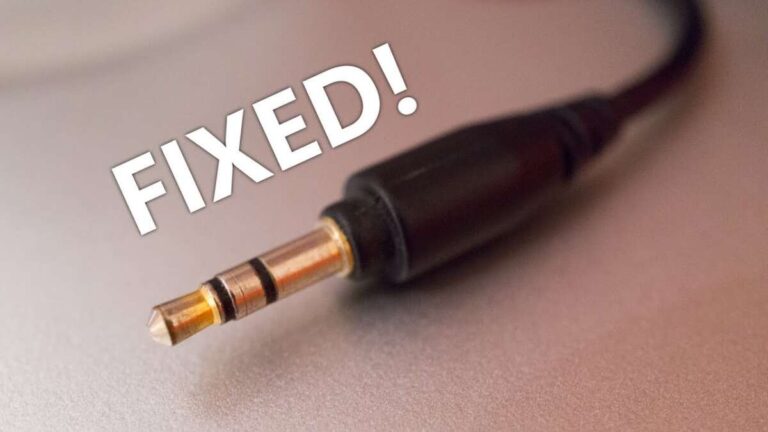
A standard 3.5 mm headphone plug may carry audio only or both audio and microphone signals.
- A plug with three contact bands is commonly stereo audio only.
- A plug with four contact bands commonly supports stereo audio plus a microphone.
This is a general guide, not a guarantee. Headphone wiring standards and adapters can differ.
If your headphones have a four-contact plug, your device may detect the cable mic automatically. To stop using it:
- Plug in the headphones.
- Open the device’s sound settings.
- Select the built-in mic or another microphone as the input.
- Test the new input in a recording or call app.
A passive 3.5 mm headset usually has no separate power switch for its microphone. You normally cannot disable the mic inside the headset without muting it, unplugging it, using a compatible adapter, or physically modifying the cable. Do not cut or alter the cable while it is connected to a computer or phone.
How to disable a headphone mic on an iPhone or iPad
iOS and iPadOS may automatically use a connected headset microphone during a call or recording. The available controls depend on the app and accessory.
Choose another microphone during a call
During a supported call:
- Open Control Center.
- Tap the app’s audio controls, such as Phone Controls or FaceTime Controls.
- Look for Audio Input.
- Select the iPhone or iPad microphone, if it is listed.
Not every app provides the same control. If the app does not let you choose an input, disconnect the headset or use headphones without a microphone.
Block microphone access for an app
- Open Settings.
- Tap Privacy & Security.
- Tap Microphone.
- Turn off access for the selected app.
This blocks the app from using any microphone. It does not disable only the headphone microphone while allowing the same app to use the phone’s built-in mic.
Apple provides current privacy instructions in its iPhone microphone access guide.

How to disable a headphone mic on Android
Android menus vary by phone maker and Android version. A Samsung phone, Google Pixel phone, and Motorola phone may use different names.
Select another input during a call
Some Android phones show an audio-output button during calls. That control often changes the speaker or headphone output, not the microphone input. If the phone offers an Audio input option, choose the phone microphone.


If no input selector appears, try these steps:
- Disconnect the headphones.
- Start the call or recording.
- Reconnect the headphones if you need them for listening.
- Check whether the app continues to use the phone microphone.
This workaround does not work with every headset or app.
Block microphone access
- Open Settings.
- Tap Privacy or Security and privacy.
- Tap Permission manager.
- Choose Microphone.
- Select the app.
- Choose Don’t allow.
You can also check Settings > Apps > [app name] > Permissions > Microphone. The labels differ by Android version. Google describes the general permission process in its Android app permissions guidance.
Blocking permission stops the app from using both the phone mic and the headphone mic. Use it when privacy matters more than keeping voice input available.
Which method should you use?
The best method depends on your goal. Use this table to choose the least disruptive option.
| Goal | Best method | What changes |
|---|---|---|
| Use the laptop or phone mic instead | Select another input | Headphone audio remains available |
| Stop one app from recording | Remove that app’s mic permission | That app cannot use any microphone |
| Stop Windows from using the headset mic | Disable or block the headset input | The headset mic becomes unavailable |
| Mute yourself briefly | Use the headset or app mute button | May apply only to the current call |
| Prevent a wired mic from being detected | Use audio-only headphones or a compatible adapter | May affect button controls |
| Keep music playback quality on Bluetooth | Use stereo output and another microphone | Hands-free calling may not work |
The main trade-off is convenience. Selecting another input is easy to reverse and usually keeps all headphone features working. Disabling the device gives stronger control but may affect calls, voice commands, or app detection.

How to confirm that the headphone mic is disabled
Do not rely only on an icon. Test the input directly.
- Open your operating system’s sound settings.
- Speak near the headset microphone.
- Watch the input meter.
- Speak near the laptop, phone, or chosen external microphone.
- Confirm that the selected microphone responds.
- Make a short test recording.
- Check the microphone setting inside your main call app.
If the headset mic is still active, the app may have its own input setting. Zoom, Microsoft Teams, Discord, Google Meet, OBS Studio, and many games can use a microphone different from the system default.
On Windows, check Settings > System > Sound and the app’s audio settings. On macOS, check System Settings > Sound > Input and the app’s microphone permission.

What to do if the headphone mic keeps turning back on
A headset microphone may return after a restart, reconnect, driver update, or app launch. Try these checks in order.
1. Check the app’s microphone choice
Open the audio settings in the app. Select the laptop mic, webcam mic, or USB mic instead of the headset mic. This is often the cause when Windows or macOS appears to use the correct input but the call still captures headset audio.
2. Check Bluetooth hands-free mode
Windows may switch to the hands-free profile when an app starts a call. Select a different input before joining the call. If you do not need Bluetooth call audio, use stereo headphones for output and another microphone for input.


3. Check headset software
Apps from headset makers may control mute, sidetone, input routing, and device profiles. Look for settings named:
- Microphone
- Mic monitoring
- Sidetone
- Auto-switch
- Call mode
- Voice input
- Default device
Turning off sidetone only stops hearing your own voice. It does not disable the microphone.
4. Restart the app after changing permissions
Many apps read microphone permissions only when they start. Quit the app fully, reopen it, and test again.
5. Recheck the default device after reconnecting
Some systems make a newly connected headset the default input. Select your preferred microphone again, then test it in the app.
Common mistakes and limitations
Muting is not the same as disabling
A mute button may send a mute signal to the computer, but its behavior depends on the headset, driver, and app. Some mute buttons affect only the call application. A disabled input or revoked permission provides a clearer system-level result.
Disabling the input can affect headset controls
Some Bluetooth headsets use the hands-free profile for call controls, voice commands, and microphone access. Disabling that input may also stop those features.
A privacy setting may block every microphone
If you turn off microphone access for the operating system or app, the laptop mic and external mic may stop working too. Use an individual app permission when you want a narrower change.
Hardware changes are usually permanent or inconvenient
A wired headset microphone often cannot be switched off separately from the cable. Cutting wires, opening earcups, or changing connectors can damage the headset and may create a short circuit. Use software controls or a purpose-built audio adapter instead.
Some workplaces manage these settings
A company computer may use administrator policies that prevent users from changing audio devices or privacy permissions. Contact your IT administrator rather than installing unknown driver tools.
Frequently asked questions
Can I disable only the headphone mic but still hear sound?
Usually, yes. Select another input microphone while keeping the headphones selected as the output device. This works best with USB and Bluetooth devices. Some wired headsets and Bluetooth call profiles may link input and output features.
Does turning off microphone permission disable the physical mic?
No. It blocks software access. The microphone remains part of the headset, but the selected app or operating system cannot use it.
Why does my Bluetooth headset sound worse when the mic is on?
Many Bluetooth devices switch from stereo playback to a hands-free profile when the microphone is active. That profile supports two-way voice but may use lower-quality audio. Using another microphone can allow stereo playback to remain active.
Can I disable the mic in Zoom or Discord only?
Yes. Open the app’s audio settings and select another input, or remove the app’s microphone permission. Changing the app setting is usually better when you still want other programs to use the headset mic.
How do I know which microphone is active?
Speak while watching the input meter in your system sound settings or app audio panel. The meter that responds identifies the active input. Make a short recording if the labels are unclear.
Conclusion
To disable a built-in headphone mic, select another microphone in your device’s sound settings. For stronger control, block microphone access for the app or disable the headset input on Windows. On macOS, iPhone, iPad, and Android, selecting another input or changing app permissions is usually the practical option.
After making the change, test the input in both the operating system and the app you use most. If the mic returns during calls, check Bluetooth hands-free mode and the app’s own audio settings.