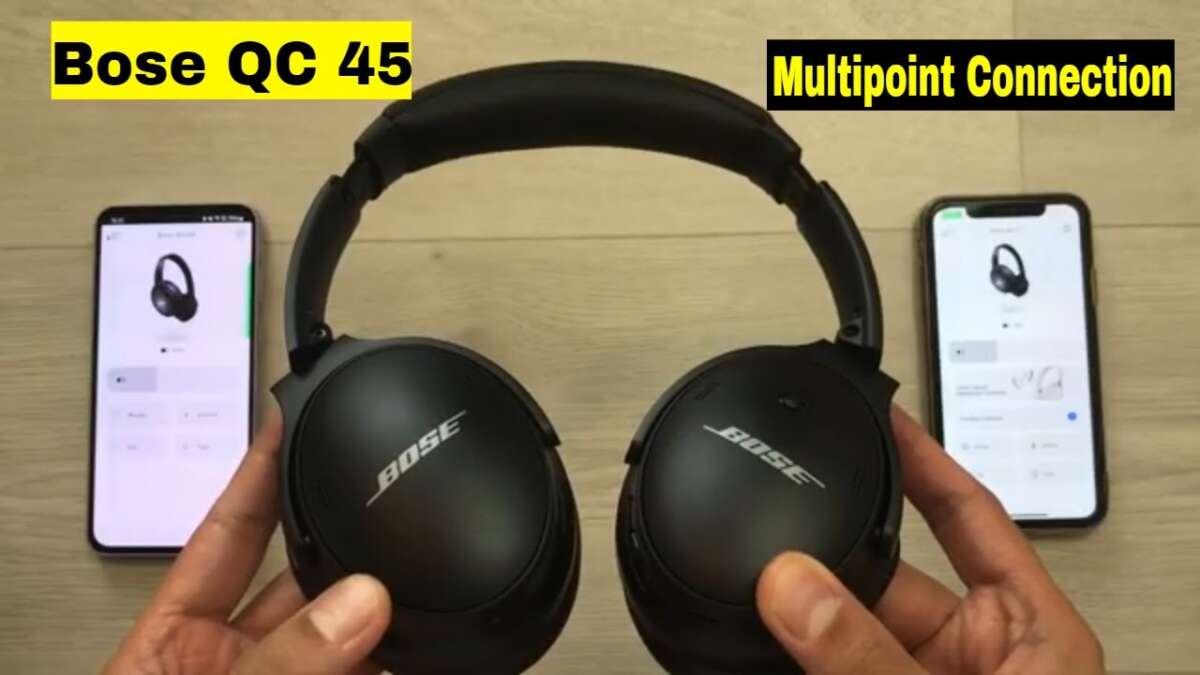
How To Pair Bose QC45 Headphones: Easy Guide
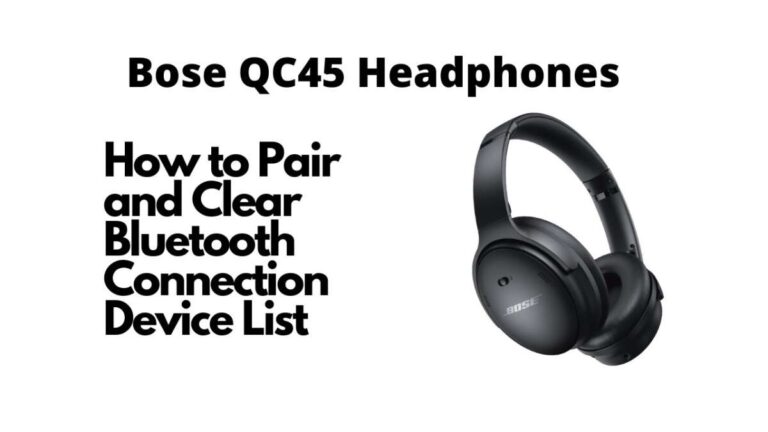
To pair Bose QC45 headphones, turn on bluetooth pairing, select them on your device, and confirm the connection.
Learning how to pair Bose QC45 headphones takes less than a minute once you know which switch to use. This guide explains the first-time setup, pairing with phones and computers, Bose Music app tips, multipoint connections, and fixes for common Bluetooth problems. The steps are simple, but small details—such as clearing old devices or placing the headphones close to your phone—can make the process much smoother.

How to pair Bose QC45 headphones for the first time
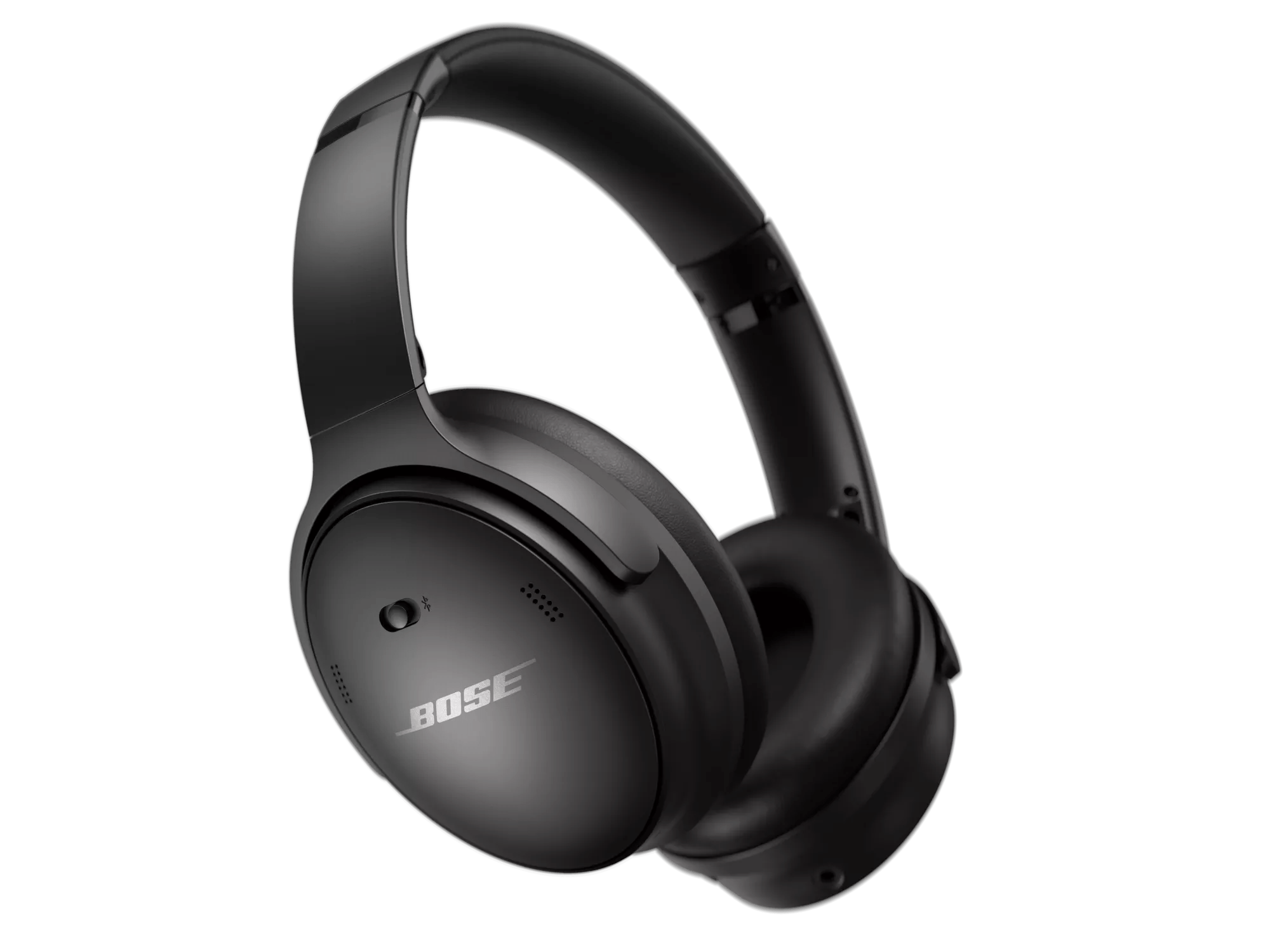
The Bose QuietComfort 45 uses Bluetooth for wireless audio. Its power and Bluetooth switch sits on the right earcup. Sliding and holding this switch puts the headphones into pairing mode.
Follow these steps:
- Turn on your Bose QC45 headphones by sliding the power/Bluetooth switch toward the Bluetooth symbol.
- Keep holding the switch for about three seconds.
- Release it when you hear “Ready to connect” or see the Bluetooth light blink blue.
- Open the Bluetooth settings on your phone, tablet, or computer.
- Look for “QuietComfort 45” in the list of available devices.
- Tap or click “QuietComfort 45.”
- Wait for the connected message or confirmation tone.


Your headphones should now play sound from the selected device. You usually need to pair them only once. After that, the QC45 should reconnect when Bluetooth is turned on and the headphones are powered up.
Keep the headphones within a few feet of the device during setup. A short distance reduces interference and helps the first connection happen faster.
How to pair Bose QC45 headphones with an iPhone or Android phone
The steps are almost the same on iPhone and Android. The main difference is where each phone places its Bluetooth menu.
Pair Bose QC45 with an iPhone
- Open the Settings app.
- Tap Bluetooth.
- Turn Bluetooth on.
- Slide and hold the QC45 power/Bluetooth switch for about three seconds.
- Select “QuietComfort 45” under Other Devices.
- Wait until the status changes to Connected.
If the headphones do not appear, turn Bluetooth off and on again. Then place the QC45 back into pairing mode.
Pair Bose QC45 with an Android phone
- Open Settings.
- Tap Connected devices, Connections, or Bluetooth. The name can vary by phone brand.
- Turn Bluetooth on.
- Tap Pair new device if needed.
- Hold the QC45 Bluetooth switch until the blue light blinks.
- Select “QuietComfort 45.”
- Approve the pairing request if one appears.
Some Android phones show a Fast Pair card. If it appears, tap Connect and follow the on-screen instructions.
A useful lesson from repeated Bluetooth setup tests is to avoid tapping the device name too early. Wait until the headphones are clearly in pairing mode. Otherwise, your phone may keep searching for a device that is not advertising its signal yet.
How to pair Bose QC45 headphones with a Windows PC
Windows computers can connect to the QC45 for music, video, and calls. The exact menu may look different in Windows 10 and Windows 11, but the process is nearly identical.
- Put the Bose QC45 into pairing mode.
- On your PC, open Settings.
- Select Bluetooth & devices.
- Turn Bluetooth on.
- Click Add device.
- Choose Bluetooth.
- Select “QuietComfort 45.”
- Click Done after the connection completes.
Windows may show two audio choices after pairing:


• Headphones: Best for music and general listening.
• Headset: Uses the built-in microphone for calls but may reduce audio quality.
This quality change is normal. Windows often limits Bluetooth audio when an app uses the headset microphone. For the best music sound, use the Headphones output when you do not need voice chat.
If your computer has no Bluetooth option, it may need a compatible USB Bluetooth adapter. Install the adapter’s driver if Windows does not recognize it automatically.
How to pair Bose QC45 headphones with a Mac
Pairing Bose QC45 headphones with a Mac is quick and does not require a cable.
- Slide and hold the QC45 power/Bluetooth switch for three seconds.
- Open the Apple menu.
- Select System Settings or System Preferences.
- Click Bluetooth.
- Find “QuietComfort 45” in the nearby devices list.
- Click Connect.
On newer Macs, you can also choose the headphones from the Sound menu in Control Center. If the QC45 connects but the Mac speakers still play sound, open Sound settings and select QuietComfort 45 as the output device.
For video calls, choose QuietComfort 45 as both the speaker and microphone in the meeting app. Apps such as Zoom, Microsoft Teams, and Google Meet may have their own audio settings.

How to pair Bose QC45 headphones using the Bose Music app
The Bose Music app can guide setup and help manage settings. It is available for iPhone and Android devices.
To use the app:
- Download and open the Bose Music app.
- Sign in or create an account if the app asks you to do so.
- Choose the option to add a product.
- Select the QuietComfort 45.
- Follow the pairing instructions.
- Install any available firmware update.
The app can help you check the battery level, change noise cancellation settings, manage connections, and access product controls. It may also make it easier to switch between saved devices.
An app is not required for basic Bluetooth pairing. You can connect the QC45 directly through your phone or computer settings. The app is useful, but it should not be the first troubleshooting step if your only goal is to hear audio.

How to connect Bose QC45 headphones to a second device
Bose QC45 headphones support multipoint connections. This means they can stay connected to two devices at the same time, such as a phone and a laptop.
For example, you can listen to music from your laptop and answer a call from your phone. The headphones pause the laptop audio when the phone receives a call, then return to the laptop after the call ends.
To connect a second device:
- Connect the QC45 to the first device.
- Put the headphones into Bluetooth pairing mode again.
- Select “QuietComfort 45” on the second device.
- Wait for the second connection to finish.


The headphones may remember several previously paired devices, but they normally maintain active connections with up to two devices. If more than two devices compete for control, pause audio on the device you are not using.
Multipoint is convenient, but it can sometimes cause confusion. A phone may reconnect in the background and interrupt computer audio. Turning off Bluetooth on unused devices is often the fastest fix.
How to switch between paired Bose QC45 devices
The QC45 does not use a traditional screen to show every active connection. Instead, it manages connections through Bluetooth behavior and the Bose Music app.
Try these methods:
• Pause audio on the current device before starting playback on the other device.
• Turn Bluetooth off on the device you do not want to use.
• Open the Bluetooth menu on the preferred device and select QuietComfort 45.
• Use the Bose Music app to review or manage connected products.
If sound comes from the wrong device, check the audio output menu. Your headphones may be connected correctly, while the device is still sending sound to built-in speakers.

How to pair Bose QC45 headphones after clearing the device list
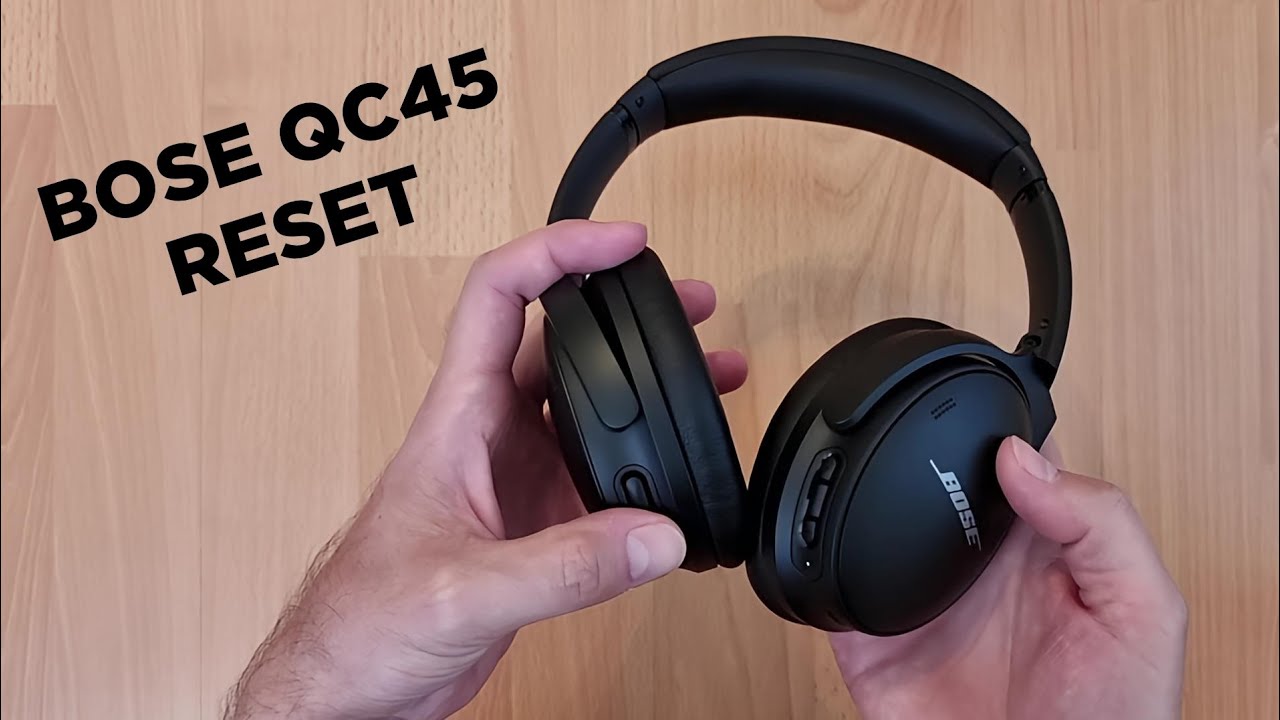
Clearing the Bluetooth list removes saved connections from the headphones. This can solve pairing loops, repeated connection failures, and conflicts with old phones or computers.
To clear the saved list:
- Turn on the QC45.
- Slide the power/Bluetooth switch toward the Bluetooth symbol.
- Hold it there for about 10 seconds.
- Release it after you hear a voice prompt that confirms the Bluetooth device list was cleared.
Afterward, remove “QuietComfort 45” from your phone or computer’s Bluetooth list as well. Then restart Bluetooth and pair the headphones again as if they were new.
This step is stronger than simply turning the headphones off and on. Use it when the QC45 appears in a device list but refuses to connect, connects briefly, or keeps returning to an old device.
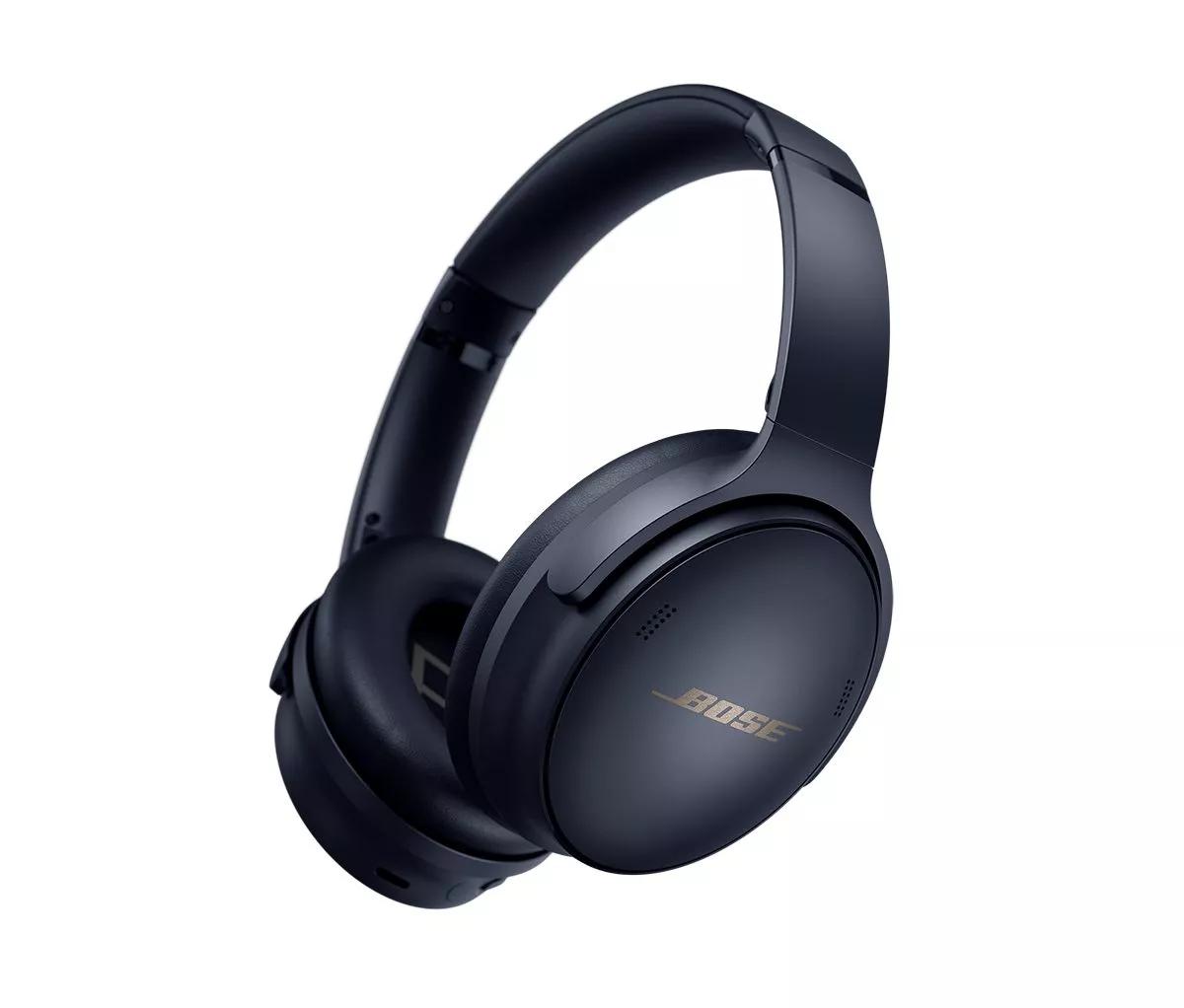
Bose QC45 pairing problems and practical fixes
Even reliable Bluetooth headphones can have trouble connecting. Most issues come from an old saved connection, weak Bluetooth state, low battery, or a device trying to connect in the background.
Try these fixes in order:
- Charge the headphones for at least a few minutes.
- Move the headphones close to the phone or computer.
- Turn Bluetooth off, wait several seconds, and turn it on again.
- Restart both the headphones and the source device.
- Remove QuietComfort 45 from the source device’s Bluetooth list.
- Clear the QC45 saved device list.
- Pair the headphones again.
- Install available phone, computer, app, or headphone updates.
Keep away from crowded wireless areas when testing. Wi-Fi routers, wireless accessories, and many nearby Bluetooth devices can create interference, especially in busy offices, airports, and gyms.


If the headphones connect but produce no sound, check three settings: the selected audio output, the media volume, and the app’s own volume. A Bluetooth connection alone does not guarantee that the correct output is selected.
What to do when Bose QC45 headphones do not appear
If “QuietComfort 45” is missing from the Bluetooth list, the headphones may not be in pairing mode. Hold the power/Bluetooth switch toward the Bluetooth symbol until the blue light flashes or the voice prompt confirms readiness.
Also check whether the QC45 is already connected to another device. Turn off Bluetooth on nearby phones, tablets, and computers, then try again. This prevents an old device from taking the connection before your new device can find it.
If the headphones still do not appear, clear the Bluetooth device list and restart the source device. These steps refresh the connection process without changing the headphones’ physical controls.
How to improve the Bose QC45 Bluetooth connection
A strong connection depends on more than pairing. These habits can improve daily performance:
• Keep the source device within roughly 30 feet in open space, although walls and furniture can reduce this range.
• Keep your phone on the same side as the headphones when walking through areas with interference.
• Avoid covering the phone with a metal case or placing it deep inside a bag.
• Keep the headphones updated through the Bose Music app.
• Disconnect unused Bluetooth devices when multipoint causes interruptions.
• Use the wired audio cable when wireless interference becomes severe.
Bluetooth range is not fixed. The advertised range is measured in favorable conditions. Your results may vary based on walls, radio traffic, device design, and software.
Wired alternatives when Bluetooth pairing fails
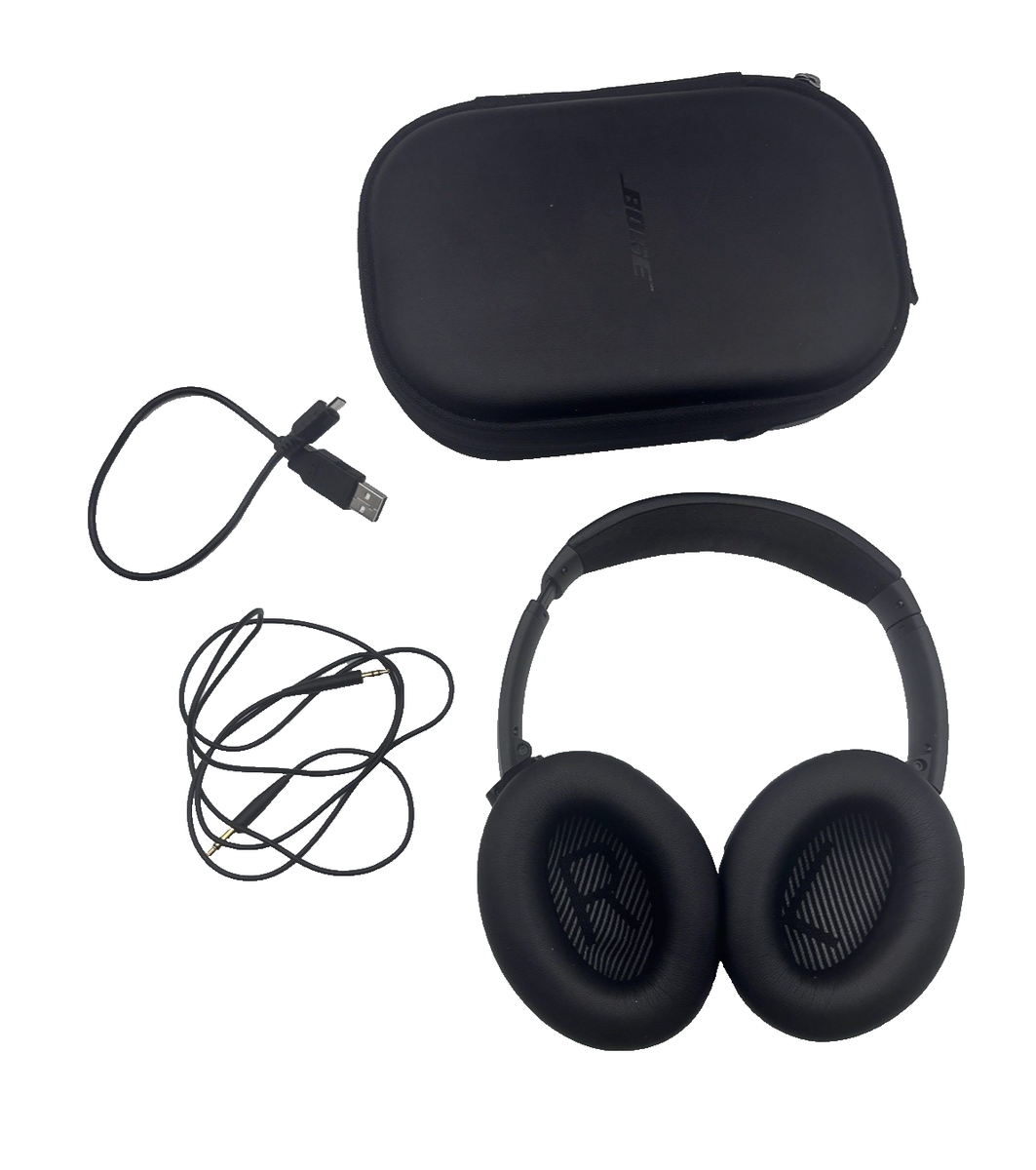
The Bose QC45 includes a 3.5 mm audio cable. This lets you listen without pairing the headphones over Bluetooth.
Connect one end of the cable to the QC45 and the other end to the phone, computer, airplane entertainment system, or other audio source. Some newer phones need a USB-C or Lightning audio adapter.
Wired listening is helpful during flights or when wireless connections are restricted. Active noise cancellation can still work while using the cable, but the headphones need battery power for their electronic features.


The USB-C port is mainly for charging. It should not be treated as a standard USB audio connection for every computer or phone.
Tips for safer and better headphone use
Good pairing is only part of a comfortable listening setup. Keep the volume at a level that lets you remain aware of important sounds when needed.
Noise cancellation can make music feel clearer at a lower volume, but it does not remove the need for safe listening habits. If your ears ring or feel tired, lower the volume and take a break.
Also keep the QC45 firmware and companion app current. Updates may improve stability or add refinements, although they cannot fix every Bluetooth problem. If an update causes unexpected behavior, restart both devices before changing more settings.
Frequently Asked Questions About How to Pair Bose QC45 Headphones
How do I put Bose QC45 headphones into pairing mode?
Slide the power/Bluetooth switch toward the Bluetooth symbol and hold it for about three seconds. Release it when the blue light flashes or the headphones say they are ready to connect.
Why are my Bose QC45 headphones not showing up on Bluetooth?
They may not be in pairing mode, or they may already be connected to another device. Restart Bluetooth, turn off nearby devices, and clear the QC45 saved device list if the problem continues.
Can Bose QC45 headphones connect to two devices at once?
Yes. The QC45 supports multipoint connections with two devices, such as a phone and a laptop. Audio may switch when one device receives a call or begins playback.
How do I reset the Bluetooth list on Bose QC45 headphones?
Slide and hold the power/Bluetooth switch toward the Bluetooth symbol for about 10 seconds. A voice prompt should confirm that the saved Bluetooth device list has been cleared.
Do I need the Bose Music app to pair QC45 headphones?
No. You can pair them through your phone, tablet, Windows PC, or Mac Bluetooth settings. The Bose Music app is useful for updates, settings, battery information, and connection management.
Can I use Bose QC45 headphones without Bluetooth?
Yes. Connect the included 3.5 mm audio cable to use wired audio. The headphones still need battery power for features such as active noise cancellation.
How do I make my computer use Bose QC45 headphones for sound?
After pairing, open the computer’s sound settings and select QuietComfort 45 as the output device. For calls, select it as both the speaker and microphone inside the meeting app.
Conclusion
Pairing Bose QC45 headphones is simple: turn on Bluetooth mode, select QuietComfort 45 on your device, and confirm the connection. For stubborn problems, restart Bluetooth, remove old connections, clear the headphone device list, and pair again from a short distance.
Once the first setup works, the QC45 should reconnect with little effort. Try these steps with your phone, computer, or tablet, and explore the Bose Music app for updates and extra control. If this guide helped, share it with someone who is setting up their QC45 headphones or leave a comment with your pairing experience.