How To Connect Bose Headphones To PC: Easy Setup Guide
Connect Bose headphones to a PC through Bluetooth by pairing them in Windows and selecting them as the audio output.
Learning how to connect Bose headphones to PC is simple once you know where Windows hides its Bluetooth controls. This guide covers Bluetooth pairing, wired connections, microphone settings, common errors, and practical fixes for Bose QuietComfort, Noise Cancelling Headphones, Sport Earbuds, and other popular models.
What You Need Before Connecting Bose Headphones to a PC
Before you connect Bose headphones to PC, check a few basic details. Your computer should run Windows 10 or Windows 11 with working Bluetooth, or it should have a free USB port for a Bluetooth adapter.
You should also charge your headphones. A low battery can interrupt pairing or cause the headphones to disconnect soon after connecting.


Keep these items ready:
• Your Bose headphones or earbuds
• A Windows 10 or Windows 11 PC
• Bluetooth support, if you want a wireless connection
• A USB Bluetooth adapter if your PC does not have built-in Bluetooth
• The Bose app on your phone, if your model needs a firmware update
Most Bose wireless headphones use standard Bluetooth audio. This means you usually do not need special PC software for basic sound playback.

How to Connect Bose Headphones to PC With Bluetooth
Bluetooth is the easiest way to connect Bose headphones to PC. The steps are similar on Windows 10 and Windows 11, although the menus look slightly different.
Step 1: Turn on Bluetooth on your PC
On Windows 11:
- Select the network, sound, or battery icon near the clock.
- Select Bluetooth to turn it on.
- Right-click Bluetooth and choose Go to Settings.
- Make sure the Bluetooth device discovery page is open.
You can also open Settings, select Bluetooth & devices, and turn on Bluetooth.
On Windows 10:
- Open Settings.
- Select Devices.
- Select Bluetooth & other devices.
- Turn Bluetooth on.
If you do not see a Bluetooth option, your PC may not have Bluetooth hardware. A small USB Bluetooth adapter can solve this problem.


Step 2: Put your Bose headphones in pairing mode
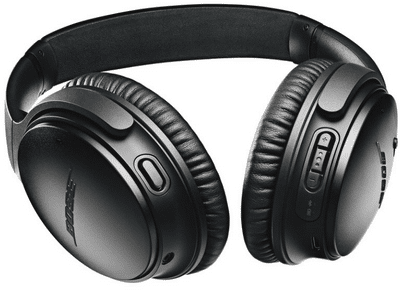
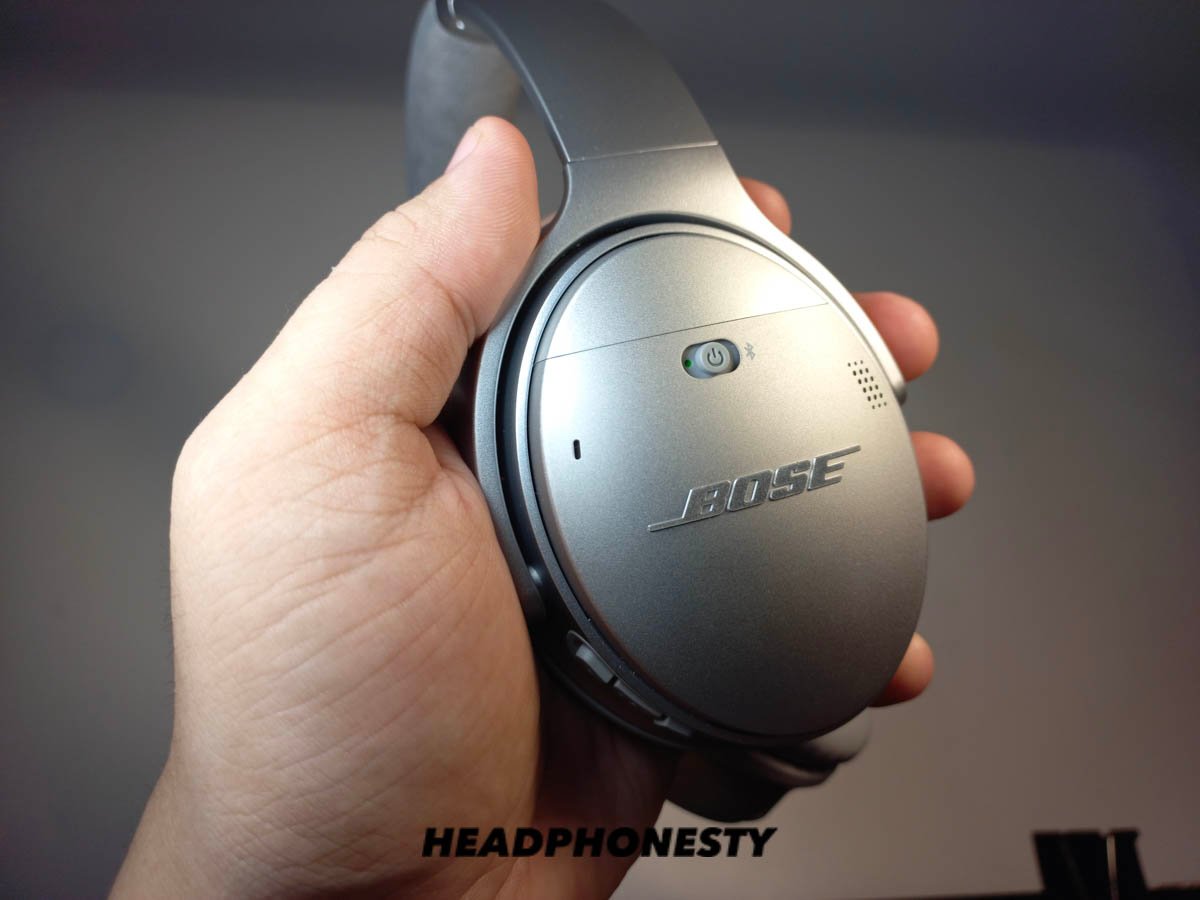
Turn on your Bose headphones. Then move the power or Bluetooth switch to the Bluetooth symbol and hold it there for several seconds.
Most Bose models say “Ready to connect” when pairing mode starts. You may also hear a tone or see a blinking blue light.
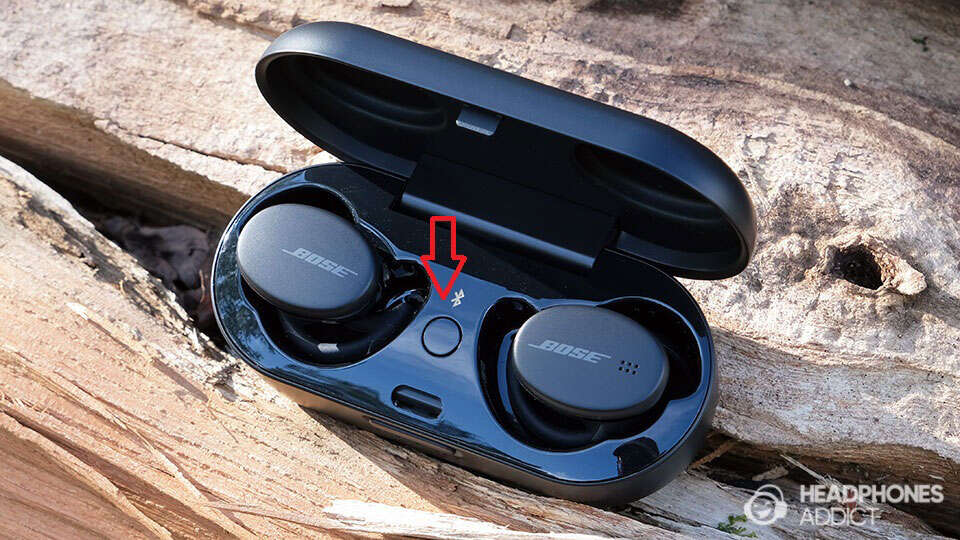
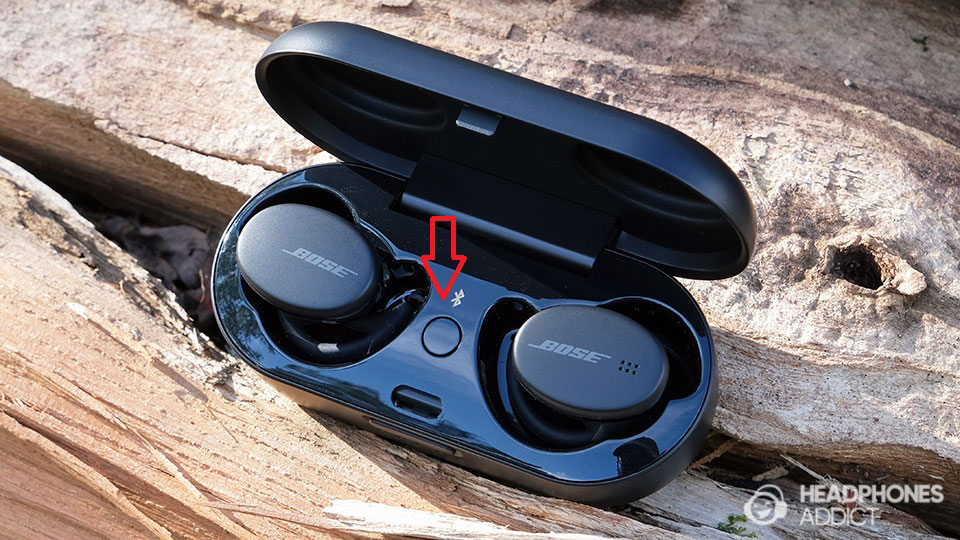
For Bose earbuds, open the charging case first. Some models enter pairing mode when you press and hold the case button. The exact action varies by model, so check the quick-start guide if your earbuds do not appear.
Step 3: Add the headphones in Windows
On Windows 11:
- Open Settings.
- Select Bluetooth & devices.
- Select Add device.
- Choose Bluetooth.
- Select your Bose headphones from the list.
On Windows 10:
- Open Settings.
- Select Devices.
- Select Bluetooth & other devices.
- Choose Add Bluetooth or other device.
- Select Bluetooth.
- Choose your Bose headphones.
Windows should display a message such as “Your device is ready to go.” You can now play music, watch videos, or join a call.
Step 4: Select Bose headphones as the audio output
Sometimes Windows pairs the headphones but keeps using the computer speakers. To fix this, select the speaker icon on the taskbar and choose your Bose headphones.
You can also go to Settings, select System, and choose Sound. Under Output, select the Bose device.
Look for a device name such as:
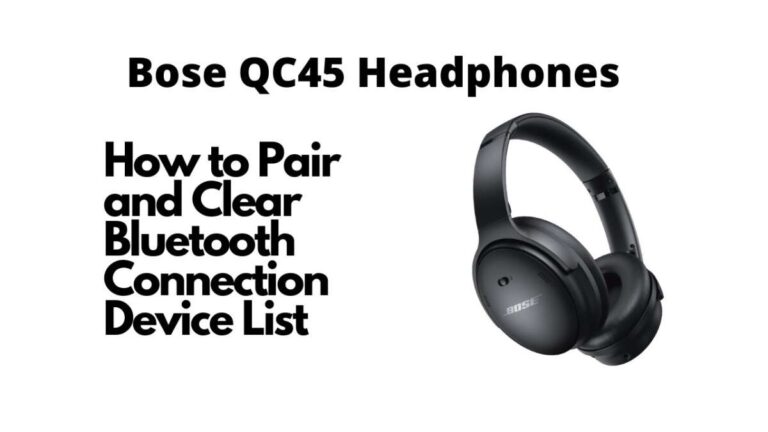
• Bose QuietComfort 45
• Bose QuietComfort Ultra Headphones
• Bose NC 700 Headphones
• Bose Headphones
• Bose Sport Earbuds
This completes the main process for how to connect Bose headphones to PC.
How to Connect Bose Headphones to PC Without Bluetooth
Not every desktop computer includes Bluetooth. You still have two reliable ways to connect Bose headphones to PC.
Use a USB Bluetooth adapter
A USB Bluetooth adapter adds wireless support to a desktop or laptop. Most modern adapters work through plug-and-play drivers.


Follow these steps:
- Plug the adapter into a USB port.
- Let Windows install the driver.
- Restart the computer if Windows asks you to.
- Open Bluetooth settings.
- Put your Bose headphones into pairing mode.
- Add the headphones as a Bluetooth device.
Choose an adapter that supports Bluetooth Low Energy and current Windows versions. Avoid very old adapters, since they may cause poor range or unstable audio.
Use the audio cable
Many Bose headphones include a 3.5-millimeter audio cable. Plug one end into the headphones and the other end into the computer’s headphone jack.
A wired connection does not need Bluetooth pairing. It can also reduce delay during gaming or video editing.
The limitations are simple:
• You may not control all headphone features from the Bose app.
• Noise cancellation behavior can vary by model.
• The PC must have a compatible headphone port.
• The built-in microphone may not work through every cable or computer jack.
If your desktop has separate microphone and headphone ports, you may need a headset splitter.

How to Set Bose Headphones as the Default Microphone
Connecting Bose headphones to PC usually enables both sound output and microphone input. However, Windows may select the computer’s built-in microphone instead.
To choose the Bose microphone:
- Open Settings.
- Select System.
- Select Sound.
- Scroll to Input.
- Choose your Bose headphones.
- Speak and check the input level.
You can test the microphone in apps such as Microsoft Teams, Zoom, Discord, or Google Meet. Open the app’s audio settings and select the Bose headphones for both speaker and microphone.
Bluetooth headsets often show two sound options:
• Headphones or Stereo: Better sound quality for music.
• Headset or Hands-Free AG Audio: Enables the microphone but may reduce sound quality.


This change happens because classic Bluetooth audio has limited bandwidth. When the microphone is active, Windows may switch to a lower-quality hands-free mode.
For the best music quality, use the Stereo option when you do not need the microphone. For calls, use the hands-free option or a separate USB microphone.

How to Connect Bose Headphones to PC for Better Sound
After you connect Bose headphones to PC, a few settings can improve the listening experience.
Open Settings, select System, and then select Sound. Choose your Bose headphones and check the volume level, left-right balance, and output format.
Keep the volume at a comfortable level. Long exposure to loud sound can harm hearing, even when the headphones have strong noise cancellation.
For music and videos, these choices usually work well:
• Use the Stereo audio profile.
• Turn off audio enhancements if sound feels distorted.
• Set the output volume between 50 and 80 percent, then adjust the headphones.
• Close unused Bluetooth devices near the computer.
• Keep the headphones within about 30 feet of the PC for a stable connection.
Walls, metal desks, Wi-Fi equipment, and other Bluetooth devices can reduce range. Bluetooth performance also depends on the adapter, computer design, and local interference.
How to Connect Bose Headphones to PC When They Will Not Pair
Pairing problems are common, but most have a simple cause. Start with the basic checks before changing advanced Windows settings.
Restart both devices
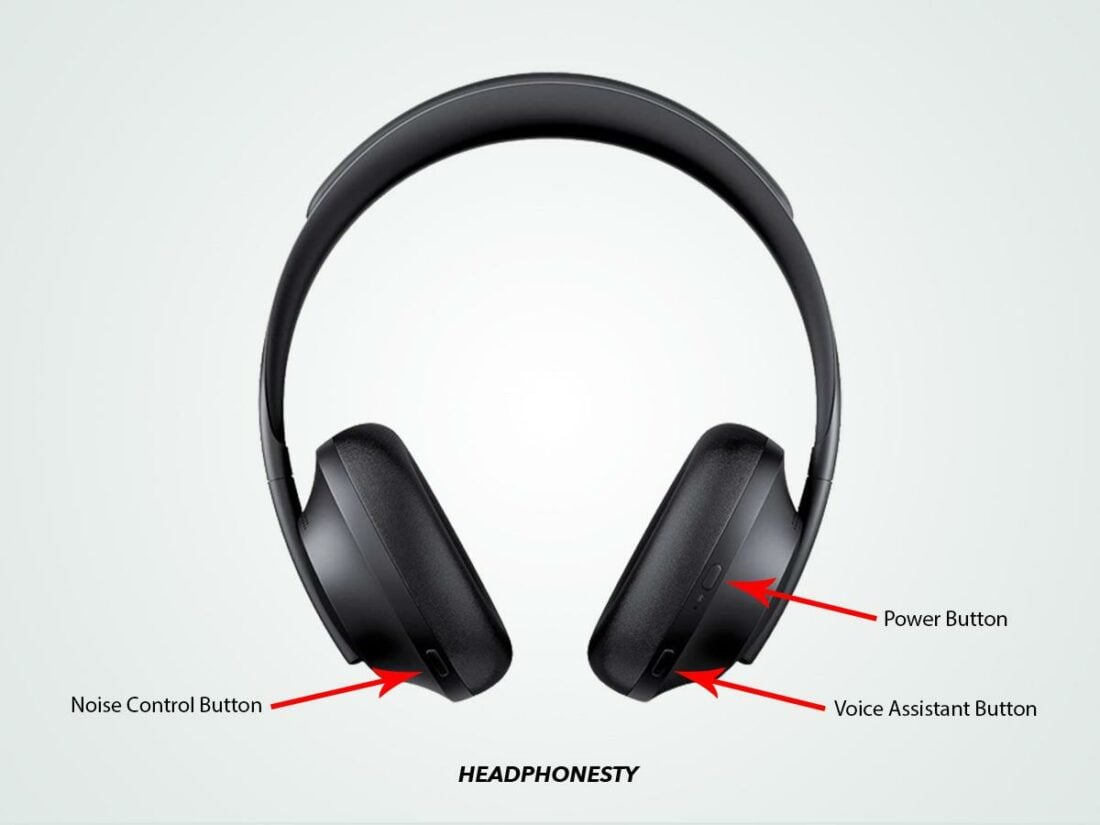
Turn off the Bose headphones and restart the PC. Then turn the headphones on and hold the Bluetooth button until you hear the pairing message.
This clears many temporary connection errors.
Remove the old Bose connection
Windows may remember an incomplete or damaged pairing record.


On Windows 11:
- Open Settings.
- Select Bluetooth & devices.
- Find the Bose headphones.
- Select the three-dot menu.
- Choose Remove device.
On Windows 10, open Bluetooth & other devices, select the Bose headphones, and choose Remove device.
Then place the headphones into pairing mode and add them again.
Disconnect the headphones from another device
Bose headphones may automatically reconnect to your phone, tablet, or another laptop. Turn Bluetooth off on nearby devices or disconnect the headphones from them first.
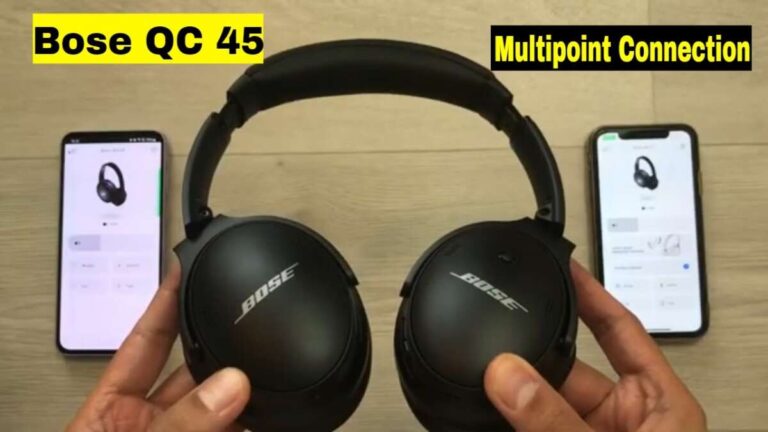
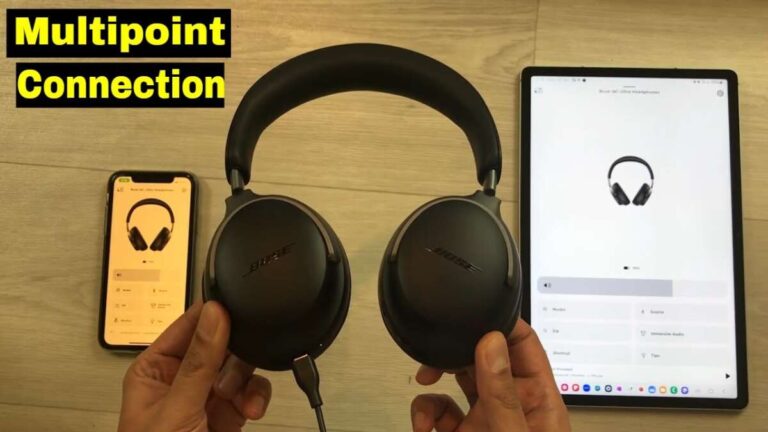
Some Bose models support multipoint connections, while others do not. Even with multipoint, an active phone call can prevent the PC from taking control.
Reset the headphones
A reset can help when the headphones appear in Windows but refuse to connect. The reset process differs by model, so use the instructions for your exact Bose product.
A reset may erase saved Bluetooth connections. You will need to pair the headphones again afterward.
Update Windows and headphone firmware
Install available Windows updates and update the Bose headphones through the Bose app when an update is offered. Firmware updates can improve stability, compatibility, and call performance.
Do not interrupt a firmware update. Keep the headphones charged and close to the phone during the process.
How to Fix Bose Headphones Connected but No Sound
If Windows says the headphones are connected but you hear nothing, the wrong playback device is often selected.
Try these steps:
- Select the speaker icon on the taskbar.
- Open the output device list.
- Select the Bose headphones.
- Raise the Windows volume.
- Check the volume inside the music or video app.
If that does not work, open Settings, select System, Sound, and Volume mixer. Confirm that the app is not muted or sending sound to a different device.
You can also restart Windows Audio by restarting the computer. If the issue continues, open Device Manager, expand Bluetooth, right-click the Bluetooth adapter, and select Update driver.
Avoid downloading drivers from unknown websites. Windows Update or the computer maker’s support page is safer.

How to Fix Bose Headphones With Poor Audio Quality
Poor sound after you connect Bose headphones to PC often means Windows switched to the hands-free Bluetooth profile.


To improve music quality:
- Open Control Panel.
- Select Hardware and Sound.
- Select Sound.
- Open the Playback tab.
- Choose the Bose Stereo device.
- Select Set Default.
If you need the microphone during a call, sound quality may drop. This is a limitation of many Bluetooth headset profiles, not necessarily a defect in the Bose headphones.
For the best call and music setup, use the Bose headphones for output and a separate USB microphone for input. This lets Windows keep the higher-quality Stereo profile.
How to Connect Bose Headphones to PC for Zoom, Teams, or Discord
Video call apps often have their own audio settings. Pairing the headphones with Windows does not always make them the active device in every app.
Open the audio settings in your call app and select:
• Speaker: Your Bose headphones
• Microphone: Your Bose headphones or a separate microphone
• Ringtone: Your preferred speaker
Make a short test call before an important meeting. Check that the other person can hear you and that you can hear them.
In my hands-on setup checks, the most common mistake is changing the Windows output but forgetting the app’s separate microphone menu. Testing both settings takes less than a minute and prevents awkward calls.
Bose Headphones and PC Gaming
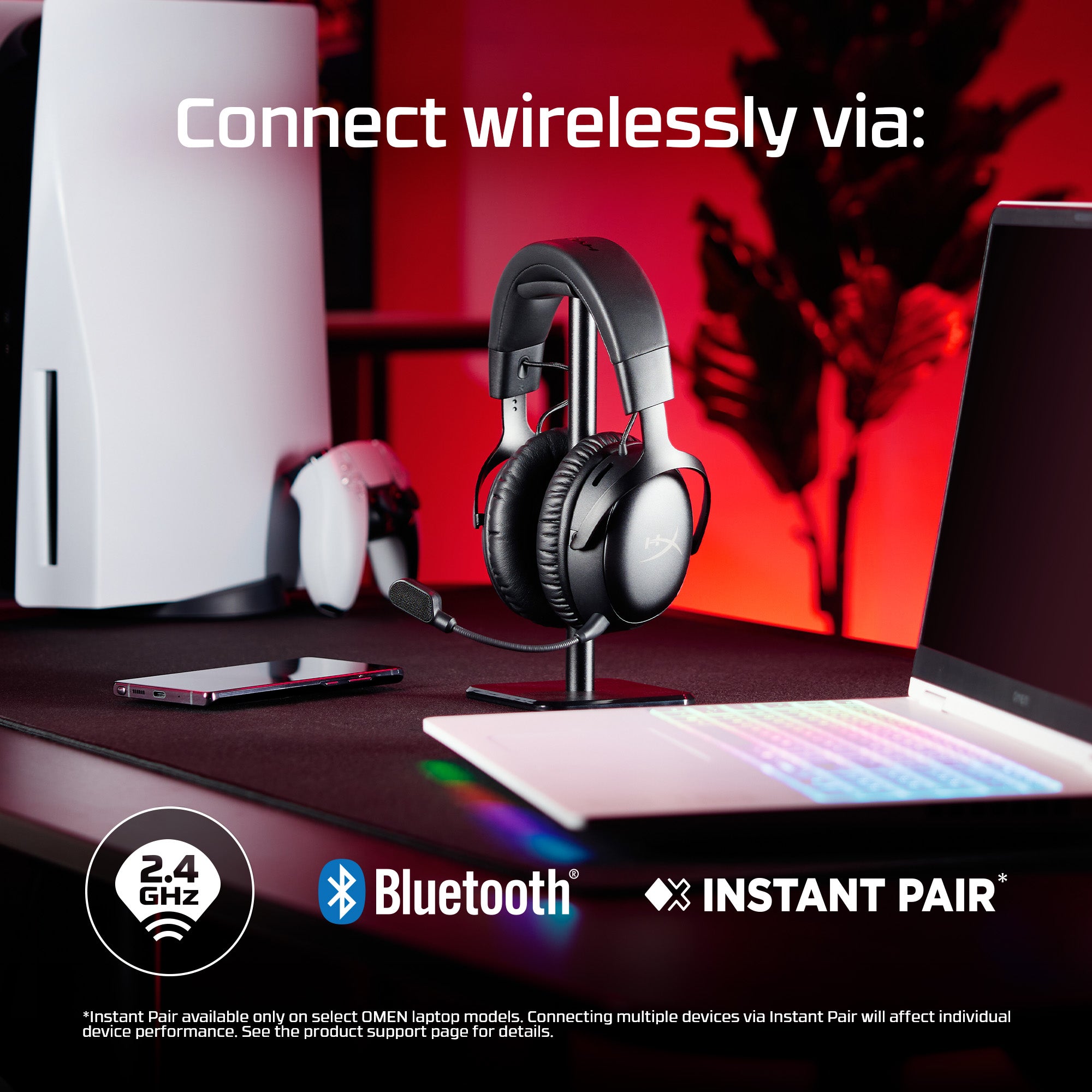
Bose headphones can work well for casual gaming, but Bluetooth may add a small audio delay. The delay is often minor for videos and music, yet it can matter in fast competitive games.
For gaming, consider these options:
• Use the audio cable when possible.
• Use a dedicated wireless gaming headset for low-latency chat.
• Use a separate microphone if Bluetooth switches to poor-quality hands-free audio.
• Turn off multipoint temporarily if the phone keeps taking control.
• Keep the Bluetooth adapter near the front of the PC.
A wired connection is often the simplest choice for games that require precise sound timing.
How to Disconnect or Reconnect Bose Headphones
To disconnect Bose headphones without removing them from Windows, open the Bluetooth settings and select Disconnect. The saved pairing remains available for later use.
To reconnect, turn on the headphones and select them from the Windows sound menu or Bluetooth device list.
If the headphones keep reconnecting to the wrong device, turn off Bluetooth on the device you do not want to use. You can also remove the Bose headphones from that device’s saved Bluetooth list.
When you finish using the headphones, turn them off. This saves battery and reduces unwanted automatic connections.
Common Mistakes to Avoid
A few simple mistakes can make the process seem harder than it is.
• Do not search for the headphones before placing them in pairing mode.
• Do not pair them while they are connected to a phone that keeps taking control.
• Do not assume “connected” means Windows selected them for sound output.
• Do not use the hands-free profile for music unless you need the microphone.
• Do not install random Bluetooth drivers from unfamiliar websites.
• Do not reset the headphones before trying a normal restart and device removal.
• Do not keep the headphones far from the PC during pairing.
The most reliable method is to start with a full charge, disconnect other devices, enter pairing mode, and then add the headphones through Windows Bluetooth settings.
Frequently Asked Questions About How to Connect Bose Headphones to PC
Can I connect Bose headphones to a PC without Bluetooth?
Yes. Use the included 3.5-millimeter audio cable or add Bluetooth with a USB adapter. A wired connection does not require pairing.
Why are my Bose headphones connected but not playing sound?
Windows may still use the computer speakers as the output device. Select the Bose headphones from the taskbar sound menu or from Settings, System, and Sound.
Can Bose headphones work as a microphone on a PC?
Yes, most wireless Bose headphones can work as a microphone through Bluetooth. Windows may switch to a lower-quality hands-free audio mode when the microphone is active.
Why do my Bose headphones keep disconnecting from my PC?
Low battery, distance, Bluetooth interference, outdated drivers, or another connected device can cause disconnections. Charge the headphones, remove the old Windows pairing, and pair them again.
Do I need the Bose app to connect Bose headphones to a PC?
No. Windows Bluetooth settings are enough for basic audio. The Bose app can help with firmware updates, device settings, and troubleshooting.
Can I connect Bose headphones to both my PC and phone?
Some Bose models support multipoint connections, which allow two active devices. Models without multipoint may switch between devices instead of maintaining both connections.
Is a wired connection better than Bluetooth for a PC?
A wired connection can reduce delay and avoid pairing problems. Bluetooth is more convenient, but its microphone mode may reduce audio quality during calls.
Conclusion
Connecting Bose headphones to PC usually takes only a few minutes. Turn on Bluetooth, place the headphones in pairing mode, add them in Windows, and select them as the sound output. If Bluetooth is unavailable, use a USB adapter or the audio cable.
When problems appear, check the selected output device, remove old pairings, disconnect nearby devices, and review the microphone settings in your call app. Try the steps above with your Bose model, then explore the available Windows and Bose settings to get the sound quality and comfort you want.