How To Reset Bose QC Ultra Headphones: Quick Guide
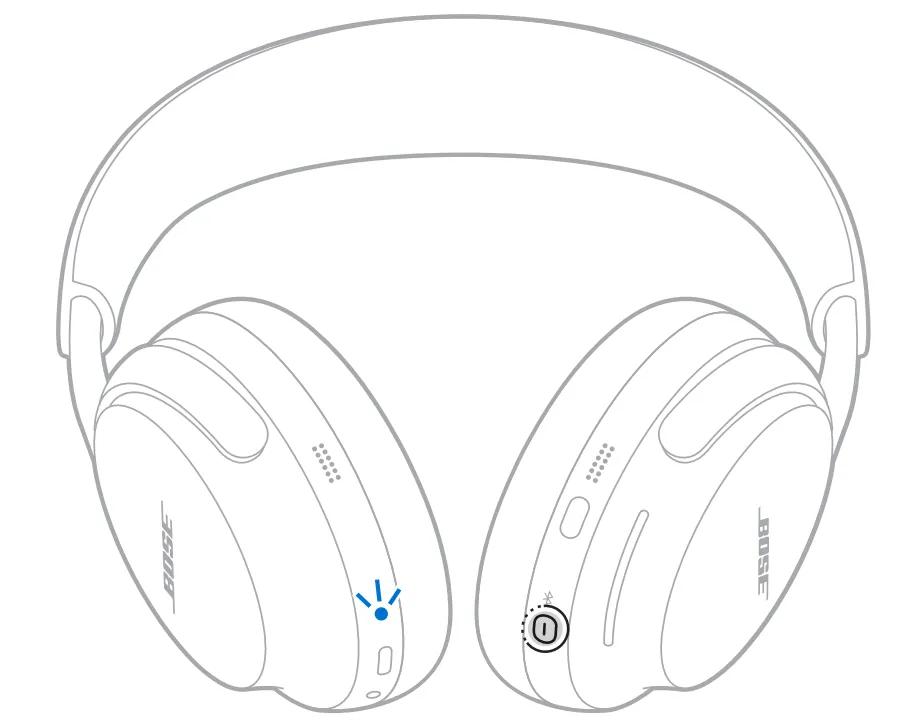
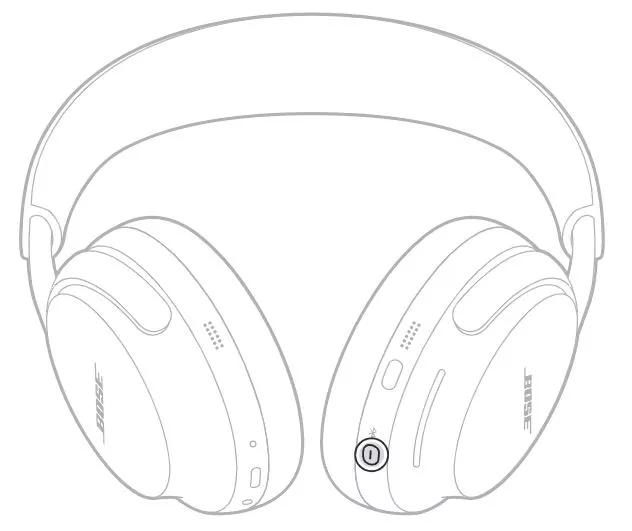
To reset Bose QC Ultra headphones, hold the Bluetooth/power button for 30 seconds while connected to USB power.
When your Bose QuietComfort Ultra headphones fail to connect, freeze, or behave oddly, a reset can often restore normal operation. The correct method depends on whether you need a quick restart, a Bluetooth memory clear, or a full factory reset. This guide explains how to reset Bose QC Ultra headphones safely, what each reset does, and what to try if the first method does not work.
What a reset does on Bose QC Ultra headphones
A reset restarts the headphone system and can clear temporary software errors. It may fix problems such as failed Bluetooth pairing, missing audio, unresponsive controls, or unusual noise cancellation behavior.
A reset is not always the same as a factory reset. Bose headphones have several troubleshooting levels:


• A restart refreshes the internal system without removing saved devices.
• Clearing the Bluetooth list removes saved phones, tablets, and computers.
• A factory reset returns the headphones to a fresh setup state and removes stored settings.
Knowing the difference can save time. If your headphones simply stopped responding, start with a restart. If they connect to the wrong device, clear the Bluetooth memory. Use a factory reset only when other steps fail.
How to reset Bose QC Ultra headphones
The standard reset method uses the USB-C charging cable and the Bluetooth/power button. Follow these steps in order.
-
Disconnect the headphones from any charger or USB device.
-
Turn the headphones off if they respond normally.
-
Connect the USB-C cable to the headphones and a powered USB charger or computer.
-
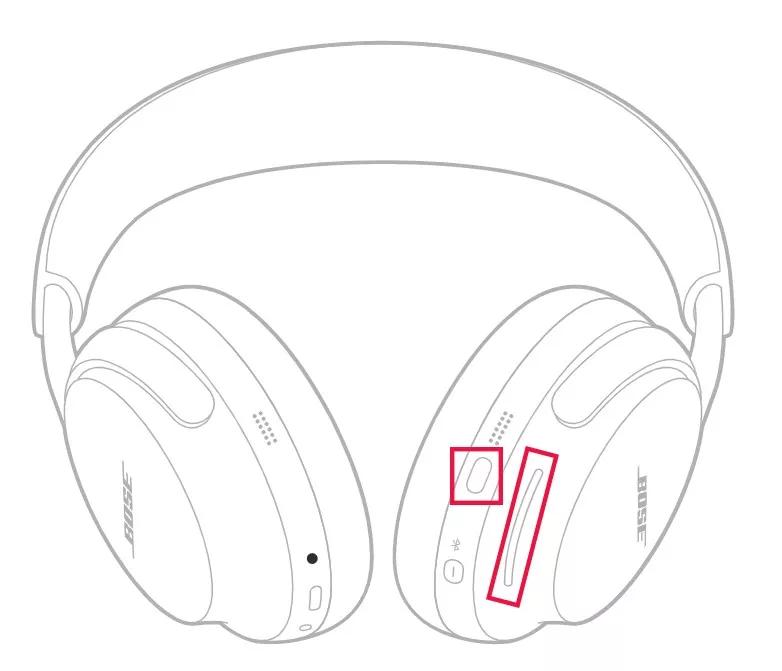
Press and hold the Bluetooth/power button for about 30 seconds.
-
Release the button after 30 seconds.
-
Wait a few seconds for the headphones to restart.
-
Turn the headphones on and test the connection.
This process should not erase the firmware installed on your headphones. It is designed to restart the product and correct temporary system faults.
If the headphones do not respond at once, do not press the button repeatedly. Keep the cable connected, hold the button steadily, and complete the full 30-second count. In practical troubleshooting, stopping after five or ten seconds is one of the most common mistakes.
How to clear the Bluetooth memory
If your Bose QC Ultra headphones remember too many devices or connect to the wrong phone, clear the Bluetooth device list. This is different from a basic reset.
-
Turn on the headphones.
-
Press and hold the Bluetooth/power button for about 15 seconds.
-
Listen for a voice prompt or tone confirming that the Bluetooth list has been cleared.
-
Open the Bluetooth settings on your phone or computer.
-
Remove or forget the Bose QC Ultra headphones from the device list.
-
Restart Bluetooth on your phone.
-
Pair the headphones again through the Bose app or your device settings.
Clearing the list removes saved Bluetooth connections. It does not normally remove the Bose Music app from your phone, and it does not downgrade the headphone software.


Before pairing again, keep other nearby devices from trying to connect. A laptop, tablet, or smart TV may reconnect first and make the reset seem unsuccessful.
How to factory reset Bose QC Ultra headphones
A factory reset is useful when the headphones continue to malfunction after a restart and Bluetooth reset. It can also help before giving the headphones to another person.
The exact menu names may change as the Bose app receives updates. In most versions of the Bose Music app, the process works like this:
-
Open the Bose app on your phone.
-
Select your QuietComfort Ultra headphones.
-
Open Settings.
-
Look for Product Settings, Support, or Reset.
-
Choose the factory reset or restore option.
-
Follow the instructions shown in the app.
-
Remove the headphones from your phone’s Bluetooth menu.
-
Pair the headphones again as if they were new.
If the app cannot detect the headphones, use the button reset first. Then charge the headphones and try opening the app again.
A factory reset may remove product settings, immersive audio preferences, equalizer choices, and saved connections. It should not remove the Bose app from your phone. After the reset, you may need to sign in again and adjust your preferred settings.

When should you reset Bose QC Ultra headphones?
A reset is worth trying when a simple power cycle does not solve the issue. Common signs include:
• The headphones will not enter pairing mode.
• Bluetooth shows the headphones as connected, but no sound plays.
• Audio cuts out even when the phone is nearby.
• The Bose app cannot find the headphones.
• The touch controls or physical buttons stop responding.
• Noise cancellation or Aware Mode behaves incorrectly.
• The headphones restart or shut down without warning.
• Immersive Audio will not turn on or save its settings.


A reset will not repair physical damage, a failed battery, water damage, or a broken USB-C port. If the headset has been dropped or exposed to liquid, software troubleshooting may not be enough.
What to try before resetting
Resetting Bose QC Ultra headphones is safe in most cases, but a few basic checks may solve the problem faster.
Check the battery
Connect the headphones to a reliable USB charger. Let them charge for at least 15 minutes before troubleshooting. A very low battery can cause slow startup, failed pairing, or sudden shutdowns.
Try another USB-C cable if the charging light does not respond. Some cables are made only for charging, while others can also transfer data. For basic charging, use a known working cable and power adapter.
Restart your phone
Bluetooth problems often come from the phone rather than the headphones. Turn Bluetooth off, wait ten seconds, and turn it on again. If that fails, restart the phone before resetting the headphones.
Update the Bose app
Use the latest version of the Bose app available for your phone. An old app may show incorrect product status or fail to complete setup.
Keep the headphones close to the phone during an update. Do not power them off or disconnect the charger if the app is installing firmware.
Check for interference
Move away from busy wireless areas, USB hubs, Wi-Fi routers, and other active Bluetooth devices. Bluetooth range is often reduced by walls, metal objects, and crowded public spaces.
During testing, place the headphones within a few feet of the phone. This simple step removes distance as a possible cause.

How to pair Bose QC Ultra headphones after a reset
After you reset Bose QC Ultra headphones, pair them again as a new device.
-
Turn on the headphones.
-
Press and hold the Bluetooth/power button until the pairing prompt begins.
-
Open Bluetooth settings on your phone.
-
Select Bose QC Ultra Headphones from the list.
-
Confirm the connection.
-
Open the Bose app and complete setup if requested.
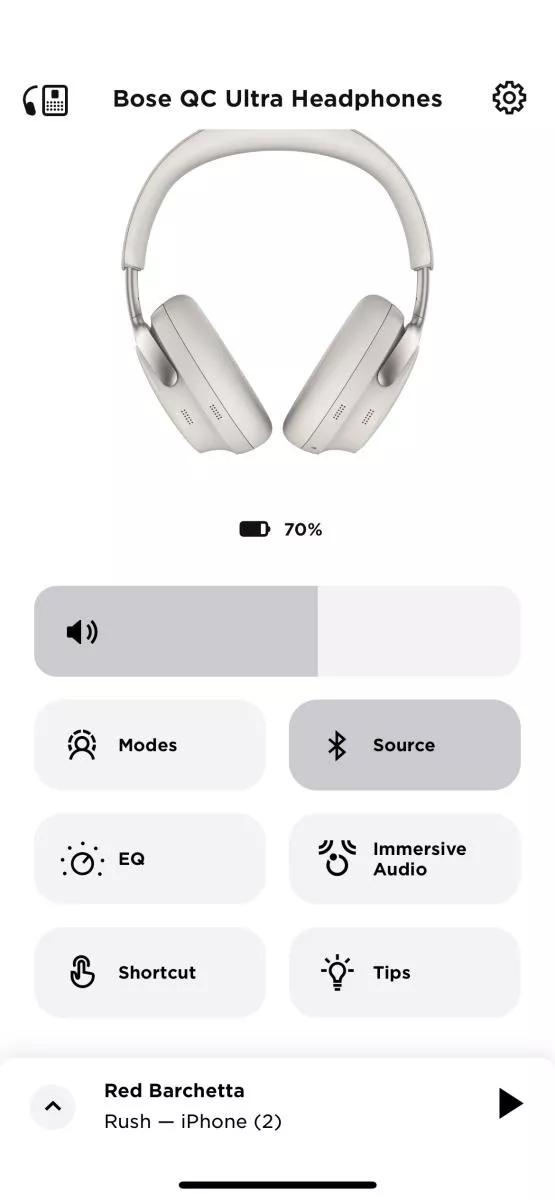
The Bose app can provide access to firmware updates, noise control, Immersive Audio, shortcuts, and equalizer settings. Give the headphones a few moments to finish setup before testing music or calls.
If the headphones appear twice in the Bluetooth list, choose the newer entry after clearing the old one. Keeping several old entries can cause connection loops.
Reset problems and their solutions
Sometimes the reset process appears to fail. The following fixes cover the most common situations.
The headphones do not turn on
Charge the headphones for at least 15 minutes. Then hold the Bluetooth/power button for 30 seconds while connected to USB power.


If there is still no response, try a different charger, cable, and wall outlet. A damaged cable or charging port can prevent the reset from starting.
The app cannot find the headphones
Clear the Bluetooth list, restart the phone, and reopen the Bose app. Make sure the app has permission to use Bluetooth and nearby devices.
On an iPhone, check Bluetooth permissions under Settings. On Android, the exact menu can vary by phone brand and operating system.
The headphones connect but produce no sound
Check the active audio output on your phone or computer. The device may show the headphones as connected while sending sound to its built-in speakers.
Also pause audio on other paired devices. Multipoint connections can make it appear that the headphones are not working when another device has control of the audio stream.
The reset button method does nothing
Make sure the headphones are connected to USB power and that you hold the correct Bluetooth/power button. Count slowly to 30 rather than releasing early.
If the reset still fails, use the Bose app’s product support options. Bose may recommend a service inspection or a specific recovery process based on the headphone firmware.
Mistakes to avoid when resetting Bose QC Ultra headphones
A few habits can make the process harder than it needs to be.
• Do not release the button too soon. The reset requires a sustained press.
• Do not reset while the headphones are wet or visibly damaged.
• Do not use an untested cable when the headphones will not charge.
• Do not delete only the phone’s Bluetooth entry and assume the headphone memory is clear.
• Do not pair the headphones with several devices during the reset.
• Do not interrupt a firmware update.
• Do not perform a factory reset when a simple restart will solve the problem.


One useful lesson from hands-on device support is to change only one thing at a time. If you restart, clear Bluetooth, update the app, and change phone settings all at once, it becomes difficult to know what fixed the issue.
Resetting Bose QC Ultra headphones on a computer
Windows and Mac computers can hold old Bluetooth profiles that interfere with pairing. After resetting Bose QC Ultra headphones, remove the old profile from the computer.
On Windows:
-
Open Settings.
-
Select Bluetooth & devices.
-
Find the Bose headphones.
-
Choose Remove device.
-
Turn Bluetooth off and back on.
-
Add the headphones again.
On Mac:
-
Open System Settings.
-
Select Bluetooth.
-
Find the Bose headphones.
-
Choose Forget or remove the device.
-
Turn Bluetooth off and back on.
-
Pair the headphones again.
Test the headphones with a phone before pairing them with a computer. If they work on the phone, the issue likely comes from the computer’s Bluetooth settings, audio output, or driver.
Safety and support notes
The Bose product guide is the best reference for the exact button sequence on your firmware version. App menus can change over time, so the wording in the Bose Music app may not match older instructions.
Avoid opening the earcups or attempting a battery repair. The headphones contain a rechargeable lithium-ion battery, and internal repairs should be handled by an authorized service provider.
Contact Bose support if the headphones will not charge, become unusually hot, show physical damage, or remain unresponsive after a reset. Keep your purchase details and serial number available, as support may ask for them.
Frequently Asked Questions About How to Reset Bose QC Ultra Headphones
How do I reset Bose QC Ultra headphones?
Connect the headphones to USB power, then press and hold the Bluetooth/power button for about 30 seconds. Release it and wait for the headphones to restart.
Will resetting Bose QC Ultra headphones delete Bluetooth connections?
A standard reset may not remove every saved connection. To clear Bluetooth memory, hold the Bluetooth/power button for about 15 seconds and then pair the headphones again.
How do I factory reset Bose QC Ultra headphones?
Open the Bose app, select the headphones, and look for the reset or factory reset option under product settings or support. Follow the app instructions and pair the headphones again afterward.
Why will my Bose QC Ultra headphones not reset?
The battery may be too low, the USB cable may be faulty, or the button may not be held long enough. Use a working charger, keep the cable connected, and hold the button for the full 30 seconds.
Do I need the Bose app to reset Bose QC Ultra headphones?
No. You can perform the basic button reset without the app. The app is useful for factory reset options, firmware updates, product settings, and support.
Will a reset fix Bose QC Ultra headphones with no sound?
It may fix software, Bluetooth, or audio routing problems. It will not fix a damaged speaker, failed battery, water damage, or a hardware fault.
Conclusion
Resetting Bose QC Ultra headphones usually takes less than a minute. Start with the 30-second USB-powered button reset, clear the Bluetooth memory if pairing remains unreliable, and use a factory reset only when simpler steps fail.


Charge the headphones, remove old Bluetooth entries, and pair them again after the reset. If the headset remains unresponsive or shows physical damage, contact Bose support rather than attempting an internal repair. Try these steps now, and share your experience or explore more Bose troubleshooting guides for help with future problems.