How To Connect Earbuds To Laptop: Easy Setup Guide
Turn on Bluetooth, put your earbuds in pairing mode, select them on your laptop, and confirm the connection.
Learning how to connect earbuds to laptop devices is usually simple, but small details can cause trouble. The steps vary slightly between Windows, Mac, Chromebook, Bluetooth, and wired earbuds. This guide explains each method, shows how to fix common connection problems, and shares practical tips for getting clear sound and a working microphone.
How to connect Bluetooth earbuds to a Windows laptop
Most wireless earbuds use Bluetooth. Windows 10 and Windows 11 both include built-in Bluetooth settings, so you do not need extra software in most cases.
Before you begin, charge the earbuds and place them near your laptop. Keep other nearby devices from connecting to the earbuds during setup.


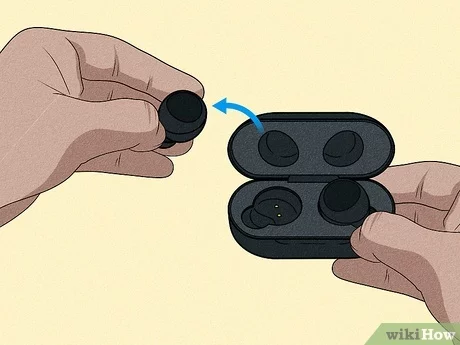
- Put both earbuds in their charging case.
- Open the case lid.
- Press and hold the pairing button on the case.
- Release the button when the light starts flashing.
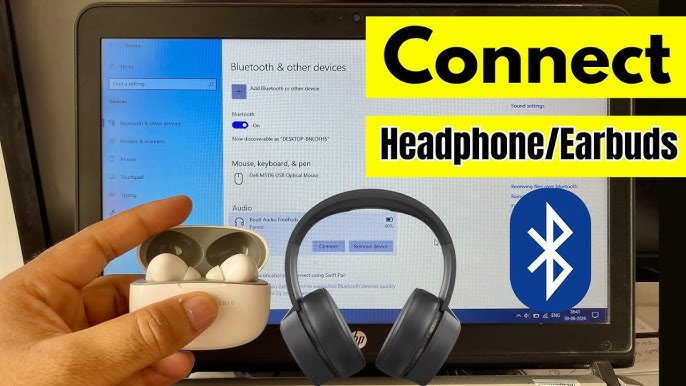
- On your laptop, open the Start menu.
- Select Settings.
- Choose Bluetooth & devices.
- Turn on Bluetooth.
- Click Add device.
- Select Bluetooth.
- Choose your earbuds from the list.
- Click Connect or Pair.
Your earbuds should now appear as connected. Play a short video or song to test the sound.
Some earbuds enter pairing mode through touch controls instead of a case button. In that case, take them out of the case and hold both touch panels for a few seconds. The exact method depends on the earbud model, so check the included guide if the light does not flash.
Select your earbuds as the sound output
Sometimes Windows connects the earbuds but keeps playing sound through the laptop speakers. This is an output setting, not a pairing failure.
- Click the speaker icon on the taskbar.
- Select the sound output menu.
- Choose your earbuds.
- Adjust the volume.
You can also open Settings, select System, choose Sound, and set the earbuds as the output device. If your earbuds include a microphone, select them under the Input section as well.
How to connect earbuds to a MacBook
MacBooks connect to Bluetooth earbuds through System Settings. The process is similar on recent versions of macOS, although the names may vary slightly on older systems.
- Put the earbuds into pairing mode.
- Click the Apple menu in the top-left corner.
- Open System Settings.
- Select Bluetooth.
- Turn Bluetooth on.
- Find your earbuds under Nearby Devices.
- Click Connect.
Once connected, a Connected label should appear beside the earbuds. Open Control Center from the menu bar, select Sound, and confirm that your earbuds are selected for audio.
If you use AirPods with a MacBook signed in to the same Apple Account, they may connect automatically. If they do not, place them in pairing mode and connect them manually through Bluetooth settings.
Choose the microphone on a Mac
To use the earbud microphone during a video call:


- Open System Settings.
- Select Sound.
- Choose the Input tab.
- Select your earbuds.
- Speak and watch the input level.
Test the microphone in the app you plan to use. Zoom, Microsoft Teams, Google Meet, and Discord may have their own microphone settings, which can override the system choice.
How to connect earbuds to a Chromebook
Chromebooks use a quick Bluetooth menu. This makes connecting earbuds fast, especially when you use them for school, travel, or casual listening.
- Put the earbuds in pairing mode.
- Click the time in the bottom-right corner.
- Select Bluetooth.
- Turn Bluetooth on.
- Choose your earbuds under Unpaired devices.
- Confirm the connection if prompted.
After pairing, click the time again and select the audio controls. Make sure the earbuds are selected instead of the Chromebook speakers.
If you do not see Bluetooth, your Chromebook may have Bluetooth turned off or may need a system update. Open Settings and search for Bluetooth. You can also restart the Chromebook and try again.

How to connect wired earbuds to a laptop
Wired earbuds are often easier to connect because they do not need pairing. Find the correct audio port on your laptop and insert the plug fully.
Many laptops have a single 3.5-millimeter port for both headphones and a microphone. Some newer laptops have no headphone port at all. In that case, you need USB-C earbuds or a USB-C audio adapter.
Follow these steps:
- Find the headphone port or USB port.
- Insert the earbud plug firmly.
- Wait a few seconds for the laptop to detect it.
- Play audio to test the connection.
- Select the earbuds in the sound settings if needed.
If your wired earbuds have a microphone, use a headset-compatible port or adapter. Older laptops may have separate headphone and microphone ports, while newer models often combine both functions into one port.
A loose plug is a common cause of one-sided sound. Push the connector in until it sits firmly, but never force it into the port.
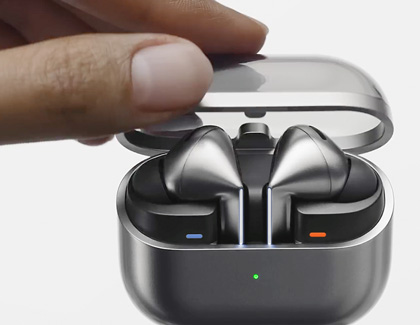
How to put earbuds into pairing mode
Pairing mode allows your laptop to discover the earbuds. Without it, the earbuds may stay connected to your phone or remain invisible in the Bluetooth list.
Common pairing methods include:
• Press and hold the button on the charging case for several seconds.


• Hold the touch controls on both earbuds until the status light flashes.
• Remove the earbuds from the case and hold the power button on one earbud.
• Open the Bluetooth menu on a previously connected device and disconnect the earbuds.
A flashing blue, white, or red-and-blue light often signals pairing mode. The color differs by brand, so the user guide is the best source for your specific model.
If the earbuds connect to your phone first, turn off Bluetooth on the phone for a moment. This prevents the phone from taking the connection before your laptop can complete setup.
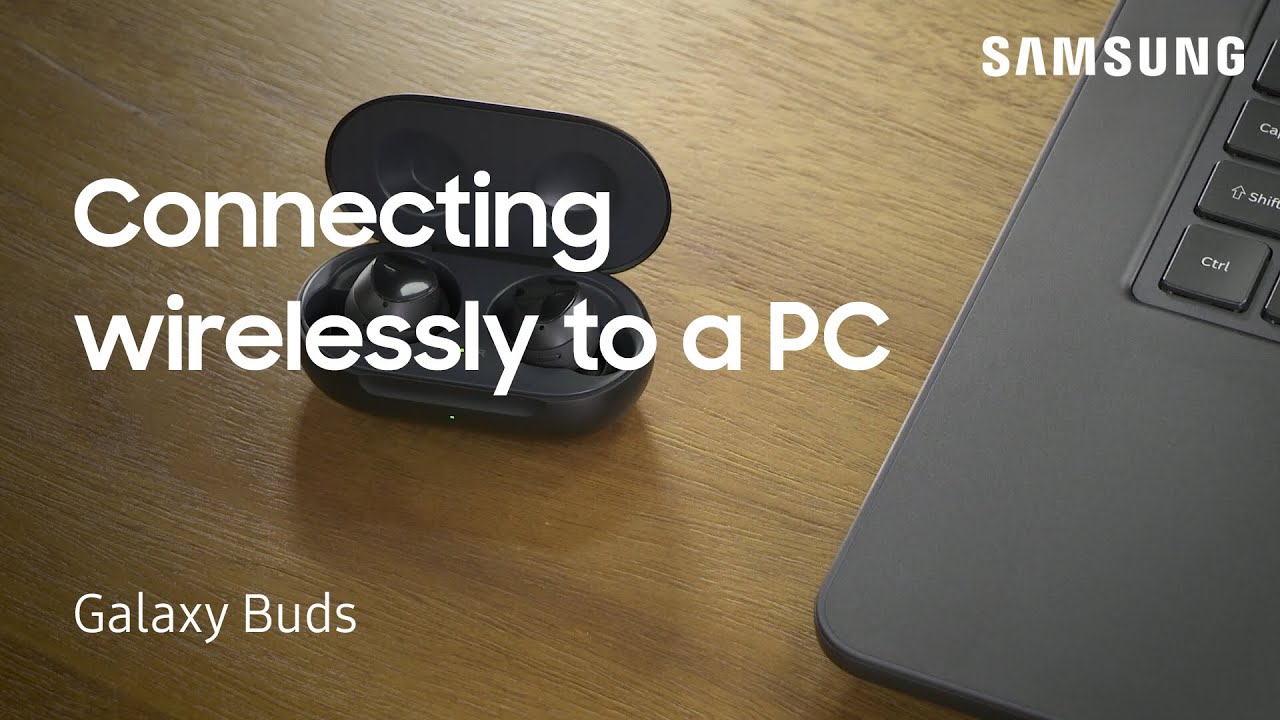
How to connect earbuds to laptop when they do not appear
If your earbuds do not appear in the Bluetooth list, start with the simple checks. Keep the earbuds within a few feet of the laptop, charge them, and confirm that the case light shows pairing mode.
Try these steps:
- Turn Bluetooth off on the laptop.
- Wait about 10 seconds.
- Turn Bluetooth on again.
- Put the earbuds back into pairing mode.
- Search for available devices.
- Restart the laptop if the earbuds remain missing.
On Windows, open Settings, select Bluetooth & devices, and remove an old entry for the earbuds. Then pair them again as a new device. On a Mac, open Bluetooth settings, click the information button beside the earbuds, and choose Forget This Device before reconnecting.
The earbuds may also be connected to another laptop, phone, tablet, or smart TV. Disconnect them from that device first. Bluetooth earbuds generally work with one active audio source at a time, even when they support multipoint connections.

How to fix earbuds that connect but have no sound
A successful Bluetooth connection does not always mean the earbuds are the active audio output. Your laptop may still use its built-in speakers.
Check the output device first:
• On Windows, click the speaker icon and select the earbuds.
• On Mac, open Control Center, select Sound, and choose the earbuds.
• On Chromebook, click the time, open the audio controls, and select the earbuds.
Then check the volume on both the laptop and the earbuds. Some models have independent volume controls, so raising the laptop volume may not be enough.


If you hear sound but it cuts out, move away from wireless routers, USB 3.0 hubs, and crowded Bluetooth areas. Bluetooth uses the 2.4 GHz radio band, which can become busy in some environments. A short distance and a clear path between the laptop and earbuds often improve stability.
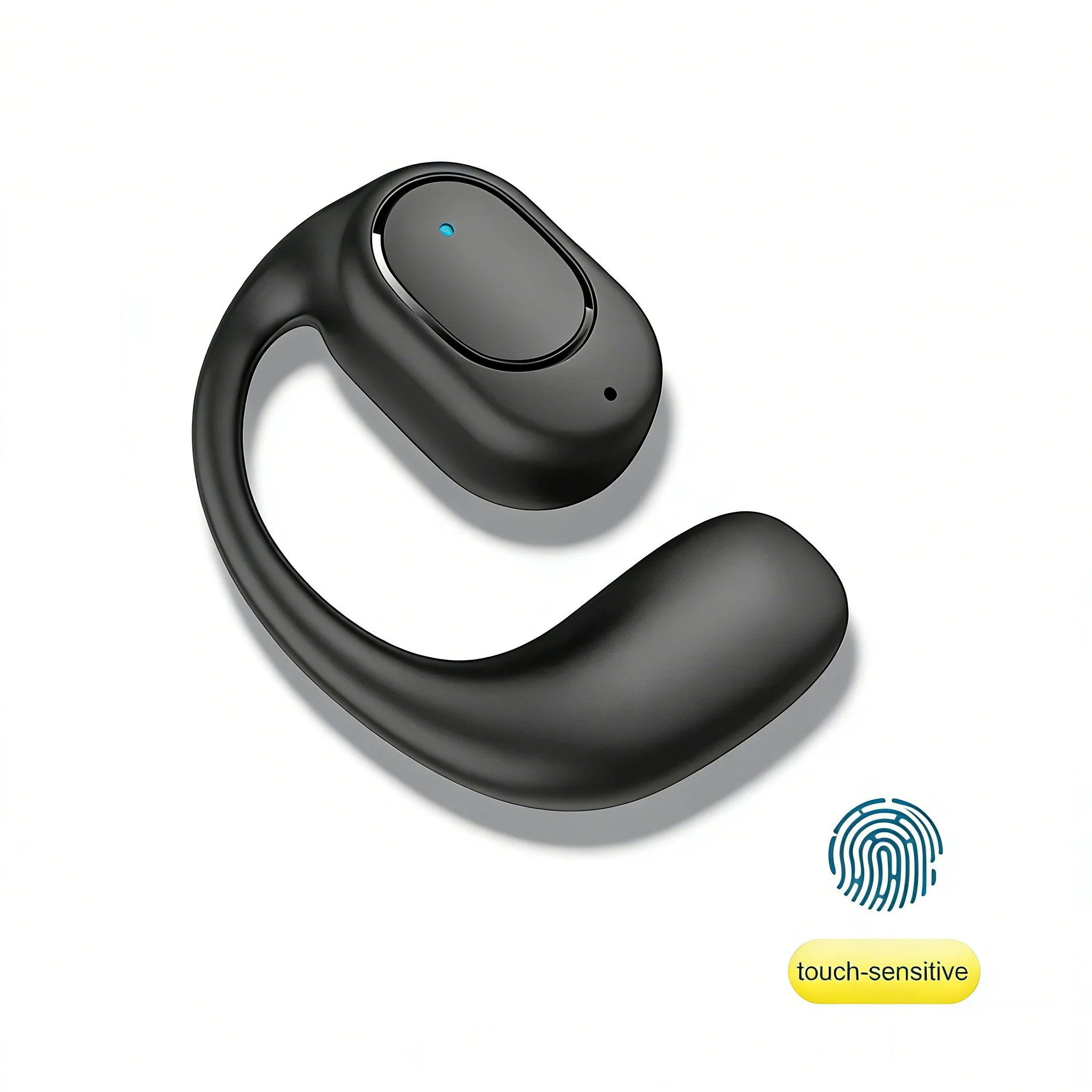
How to fix a poor earbud microphone on a laptop
Earbud microphones are convenient, but their sound quality can change when they are used for calls. Bluetooth headsets may switch from a high-quality music mode to a two-way call mode. This can reduce music quality while the microphone is active.
To improve call audio:
- Select the earbuds as the microphone in your laptop settings.
- Select the same earbuds as the speaker.
- Check the microphone permissions for your calling app.
- Close other apps that may be using the microphone.
- Test the microphone before joining an important call.
On Windows, some Bluetooth devices show separate entries for stereo audio and hands-free audio. The stereo option usually sounds better for music, while the hands-free option enables the microphone.
This is a Bluetooth limitation rather than a defect in every earbud. For the best music and voice quality at the same time, use a wired headset, a USB headset, or earbuds that support newer Bluetooth audio features on compatible hardware.
How to reconnect earbuds automatically
After the first successful pairing, most earbuds reconnect automatically when you open the case near the laptop. The laptop must have Bluetooth enabled, and the earbuds must not already be connected to another device.
If automatic reconnection fails, check these settings:
• Confirm that Bluetooth is turned on.
• Make sure the earbuds have enough battery.
• Keep the earbuds close to the laptop.
• Remove duplicate earbud entries.
• Disconnect the earbuds from your phone.
• Restart Bluetooth on the laptop.
During device testing, one common mistake is pairing the left and right earbuds separately. If two similar names appear, remove both entries and reset the earbuds. Then pair the complete set as one device.


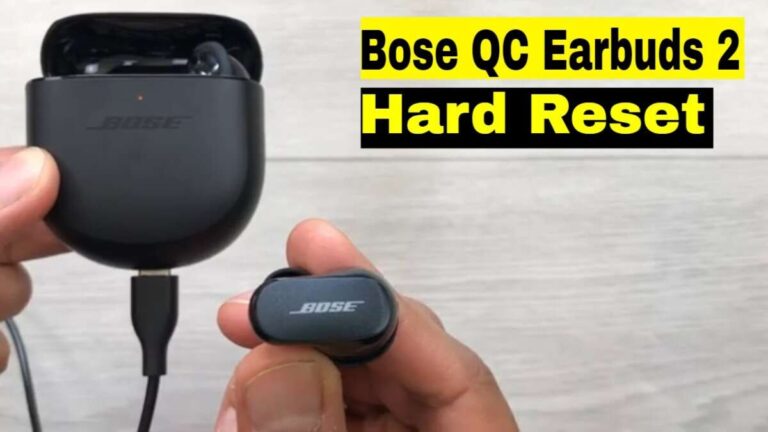
You can usually reset earbuds by placing them in the case and holding the case button for 10 to 15 seconds. The timing varies, and a reset removes saved connections, so use it only after basic troubleshooting.
How to improve Bluetooth earbud connection quality
A strong connection depends on more than distance. Laptop placement, radio interference, battery level, and software can all affect performance.
Use these practical tips:
• Keep the laptop and earbuds within the recommended range.
• Update Windows, macOS, or ChromeOS when updates are available.
• Install Bluetooth driver updates on Windows laptops.
• Keep the earbud case charged.
• Avoid placing the laptop behind metal objects.
• Disconnect unused Bluetooth devices.
• Keep your laptop away from busy wireless equipment when possible.
Bluetooth performance differs between laptops because manufacturers use different wireless chips and antennas. If earbuds work well with a phone but not a laptop, the laptop’s Bluetooth driver or hardware may be the cause.
For older laptops without reliable Bluetooth, a USB Bluetooth adapter can help. Choose one that supports your operating system and the Bluetooth version required by your earbuds.
How to remove and pair earbuds again
Removing the saved connection often fixes failed pairing, repeated disconnects, and incorrect audio routing. It gives the laptop a clean start.
On Windows:
- Open Settings.
- Select Bluetooth & devices.
- Find the earbuds.
- Click the three-dot menu.
- Select Remove device.
- Put the earbuds into pairing mode.
- Click Add device and pair again.
On a Mac:
- Open System Settings.
- Select Bluetooth.
- Find the earbuds.
- Click the information button.
- Choose Forget This Device.
- Pair the earbuds again.
On a Chromebook, open Bluetooth settings, select the earbuds, and choose Forget. Then repeat the normal pairing process.
I recommend this step when a laptop shows “connected” but refuses to play sound. It solved several cases where an old saved profile had become corrupted or pointed to the wrong audio mode.


Common mistakes when connecting earbuds to a laptop
Most connection problems come from a few small oversights. Knowing them can save time.
• The earbuds are not in pairing mode. Turning on Bluetooth alone is not enough.
• The earbuds are connected to a phone. Disable Bluetooth on nearby devices during setup.
• The laptop is using its speakers. Select the earbuds as the output device.
• The earbud case battery is empty. Charge both the case and earbuds.
• The laptop has an outdated Bluetooth driver. Check for updates through the laptop manufacturer or operating system.
• The earbuds are too far away. Keep them close during the first pairing.
• The wrong microphone is selected. Set the earbuds as the input device inside the calling app.
• The earbuds were paired separately. Forget the old entries and reset the complete set.
Avoid repeatedly clicking Connect without checking these causes. Bluetooth pairing is like introducing two people at a crowded event: both must be ready, close enough, and free to talk.
Frequently Asked Questions About How to Connect Earbuds to Laptop
Can I connect Bluetooth earbuds to any laptop?
You can connect them to most modern laptops with built-in Bluetooth. If your laptop does not support Bluetooth, use a compatible USB Bluetooth adapter.
Why are my earbuds not showing up on my laptop?
They may not be in pairing mode, may be connected to another device, or may have a low battery. Turn off Bluetooth on nearby devices, reset pairing mode, and search again.
Can I connect earbuds to a laptop without Bluetooth?
Yes. Use wired earbuds with a headphone port, USB earbuds, or a USB Bluetooth adapter. The correct option depends on the ports available on your laptop.
Why do my earbuds connect but still play sound through the laptop?
The earbuds may be paired but not selected as the active output. Open your laptop’s sound settings and choose the earbuds as the speaker device.
Can I use earbud microphones for Zoom or Teams?
Yes, if the earbuds and laptop support microphone input. Select the earbuds as both the speaker and microphone in the video app’s audio settings.
Why do my Bluetooth earbuds keep disconnecting?
Low battery, distance, wireless interference, outdated drivers, or a second connected device can cause disconnections. Charge the earbuds, move them closer, update the laptop, and remove old Bluetooth profiles.
How do I connect earbuds to a laptop after using them with my phone?
Disconnect the earbuds from your phone or temporarily turn off the phone’s Bluetooth. Then put the earbuds into pairing mode and select them from your laptop’s Bluetooth menu.
Conclusion
Connecting earbuds to a laptop usually takes only a few minutes. Put Bluetooth earbuds into pairing mode, select them in Windows, macOS, or ChromeOS, and confirm that they are the active sound and microphone devices. For wired earbuds, plug them into the correct audio or USB port and check the output settings.
If the connection fails, forget the old device, restart Bluetooth, charge the earbuds, and try again near the laptop. Use these steps now, and share your laptop model or earbud brand in the comments if you need help with a specific setup.