How To Use Raycon Earbuds: Easy Setup Guide
If you use Raycon earbuds with an iPhone, Android phone, Windows PC, Mac, or tablet in the United States, setup usually takes only a few minutes. Charge the earbuds and case, place the earbuds in pairing mode, select them in your device’s Bluetooth menu, and test the sound.
Raycon sells several earbud lines, including The Everyday Earbuds, Fitness Earbuds, Impact Earbuds, and other model-specific versions. Button layouts, touch controls, and reset steps can vary. Use this guide for the common setup process, then check the manual for your exact Raycon model when a step differs.
What You Need Before You Start
You need three things to use Raycon earbuds:
- The earbuds and charging case
- A compatible device with Bluetooth
- Enough charge in the earbuds and case


Bluetooth is the wireless link between the earbuds and your device. Raycon earbuds do not need Wi-Fi for normal listening. They do need Bluetooth turned on.
Before pairing, remove any small protective film from the charging contacts. Then place both earbuds in the case and charge them. A low battery can cause pairing failures, one-earbud problems, or sudden shutoffs.
Keep the earbuds close to the device during setup. A distance of a few feet is best. Turn off Bluetooth on nearby phones, tablets, or computers that have used the earbuds before. The earbuds may try to reconnect to the wrong device.
Check your device
Raycon earbuds can generally work with:
- iPhone and iPad
- Android phones and tablets
- Windows PCs
- Mac computers
- Many smart TVs and other Bluetooth audio devices
Some features may not work on every device. For example, voice assistant support, battery display, app features, and touch controls can depend on the model and operating system.
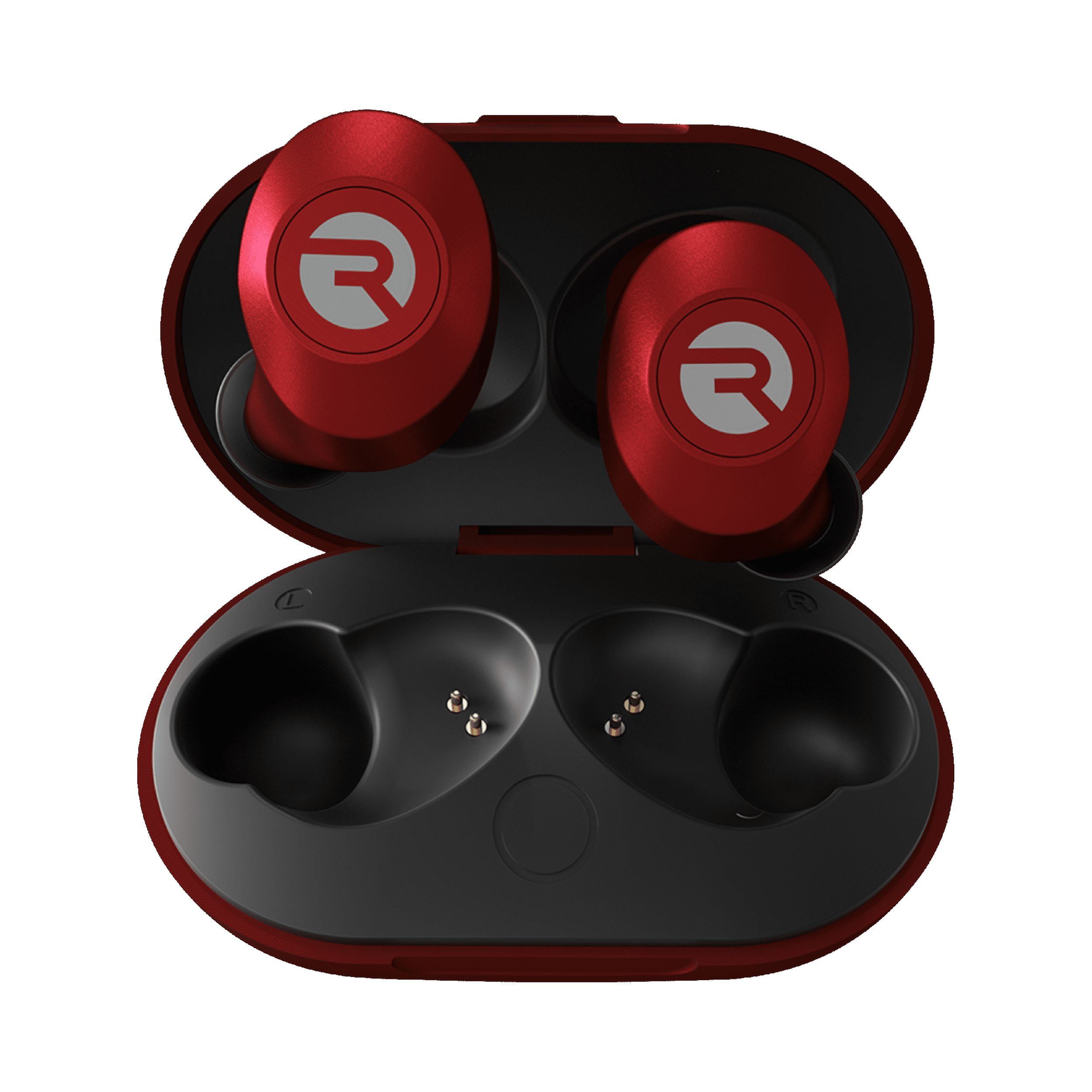
How to Pair Raycon Earbuds With an iPhone or Android Phone
Pairing Raycon earbuds with a phone involves turning on Bluetooth, selecting the earbuds, and accepting the connection.
Step 1: Charge the earbuds
Put both earbuds into the charging case. Close the lid, then charge the case with the supplied USB cable or a compatible charging method supported by your model.
If the case has indicator lights, they may show the charging state. Light patterns vary by model, so do not assume that one color means the same thing across all Raycon products.
Step 2: Open the Bluetooth menu
On an iPhone:
- Open Settings.
- Tap Bluetooth.
- Turn Bluetooth on.
- Stay on this screen while pairing.


On most Android phones:
- Open Settings.
- Tap Connected devices, Connections, or Bluetooth.
- Turn Bluetooth on.
- Tap Pair new device if needed.
The exact menu name can differ between Samsung, Google Pixel, Motorola, OnePlus, and other Android phones.
Step 3: Put the earbuds into pairing mode
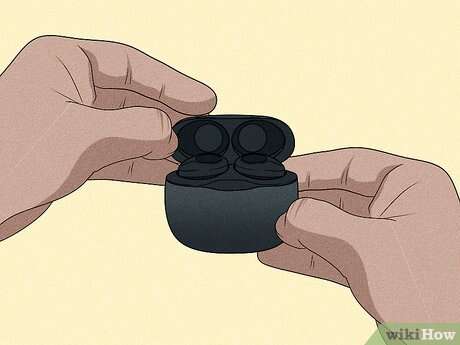
Remove both earbuds from the charging case. Many Raycon models enter pairing mode automatically the first time you remove them.
Look for a blinking light or a voice prompt. The earbuds may appear under a name such as:
- Raycon Earbuds
- The Everyday Earbuds
- The Fitness Earbuds
- A model-specific name
If no name appears, place the earbuds back in the case, close the lid, wait a few seconds, and try again. If your model has a button or touch surface, follow its manual for manual pairing mode.
Step 4: Select the Raycon earbuds
tap the Raycon name in your phone’s Bluetooth list. Wait for the status to change to Connected or Paired.
Play music or a video to test the connection. Start with a low volume. If sound comes from the phone speaker, open the audio output menu and select the Raycon earbuds.
Step 5: Allow useful permissions
Your phone may request access to contacts, notifications, or nearby devices. You do not always need to grant every permission for basic music playback.
Call and voice features may need microphone access. If you use a Raycon app, the app may need Bluetooth or nearby-device permission to find the earbuds.

How to Connect Raycon Earbuds to a Windows PC
To connect Raycon earbuds to a Windows 11 or Windows 10 computer, add them through the Bluetooth settings.
- Put the Raycon earbuds into pairing mode.
- Open Settings on the Windows PC.
- Select Bluetooth & devices in Windows 11 or Devices in Windows 10.
- Turn Bluetooth on.
- Select Add device.
- Choose Bluetooth.
- Select the Raycon earbuds.
- Wait for Windows to confirm the connection.
After pairing, select the speaker icon on the Windows taskbar. Choose the Raycon earbuds as the audio output.
For calls, open the meeting app’s audio settings. Select the Raycon earbuds for both the speaker and microphone if Windows lists separate options.
If Windows connects but plays no sound
Check these settings:


- Confirm the Raycon earbuds are the selected output device.
- Raise the volume in both Windows and the app.
- Close music or video apps on your phone.
- Disconnect and reconnect the earbuds.
- Restart Bluetooth on the computer.
- Remove the earbuds from Windows and pair them again.
Windows may show separate stereo and hands-free profiles. The stereo profile usually provides better music sound. The hands-free profile may be used during calls because it activates the microphone.

How to Connect Raycon Earbuds to a Mac
Raycon earbuds connect to a Mac through the macOS Bluetooth menu.
- Put the earbuds into pairing mode.
- Open the Apple menu.
- Select System Settings on newer macOS versions.
- Choose Bluetooth.
- Find the Raycon earbuds.
- Click Connect.
On older macOS versions, open System Preferences, then select Bluetooth.
If the Mac connects but uses its built-in speakers, open Control Center, select Sound, and choose the Raycon earbuds. You can also open System Settings > Sound and select them under output.
For video calls, choose the earbuds under both the speaker and microphone settings in the calling app. Bluetooth earbuds can sound different during a call because the computer may switch to a two-way communication mode.

How to Use Raycon Earbud Controls
Raycon controls vary by model. Some earbuds use physical buttons. Others use touch surfaces. A short tap, double tap, or long press may perform different actions.
Common controls include:
- Play or pause audio
- Answer or end a call
- Skip to the next track
- Return to the previous track
- Adjust volume
- Activate a voice assistant
- Reject a call
- Change listening modes on supported models
The safest way to learn the controls is to check the guide for your model. Do not press hard on a touch surface. A light tap is usually enough.
Why controls may not work
Controls can fail when:
- The earbud is not fully connected
- The touch area is covered by moisture
- The earbud battery is low
- The wrong earbud is being tapped
- Another device has taken control of the connection
- The model uses a different tap pattern
Test one control at a time. Pause the audio first, then try the control again. If the earbud responds with a tone or voice prompt, the command worked.

How to Charge Raycon Earbuds
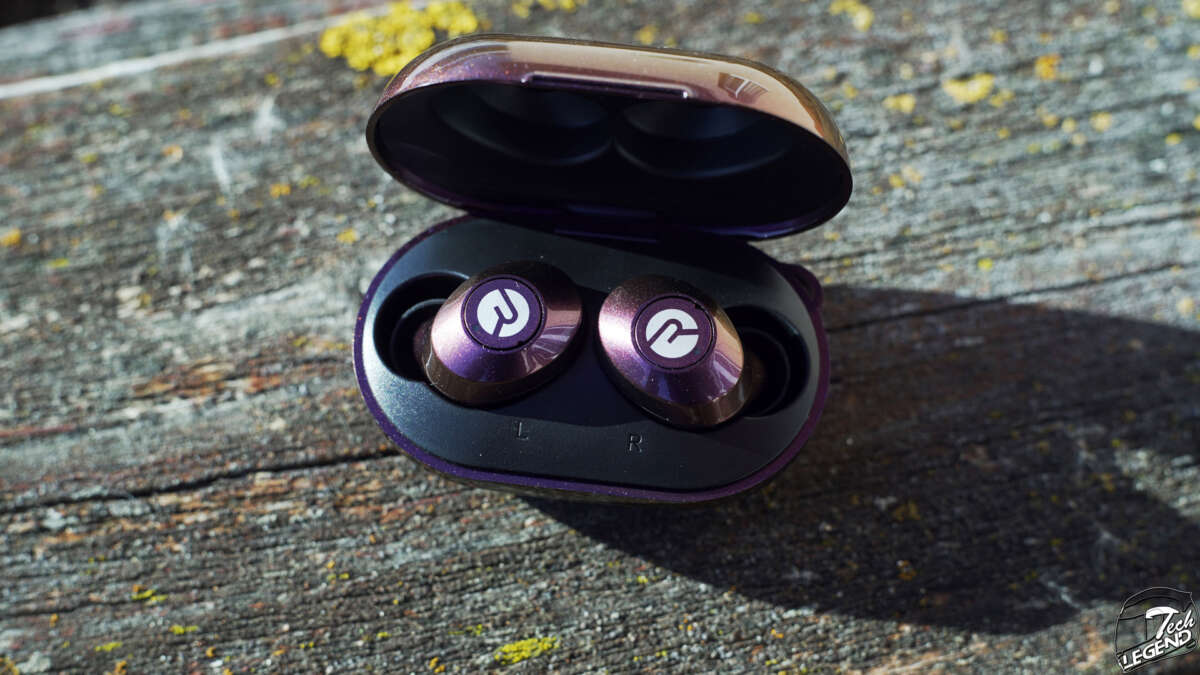
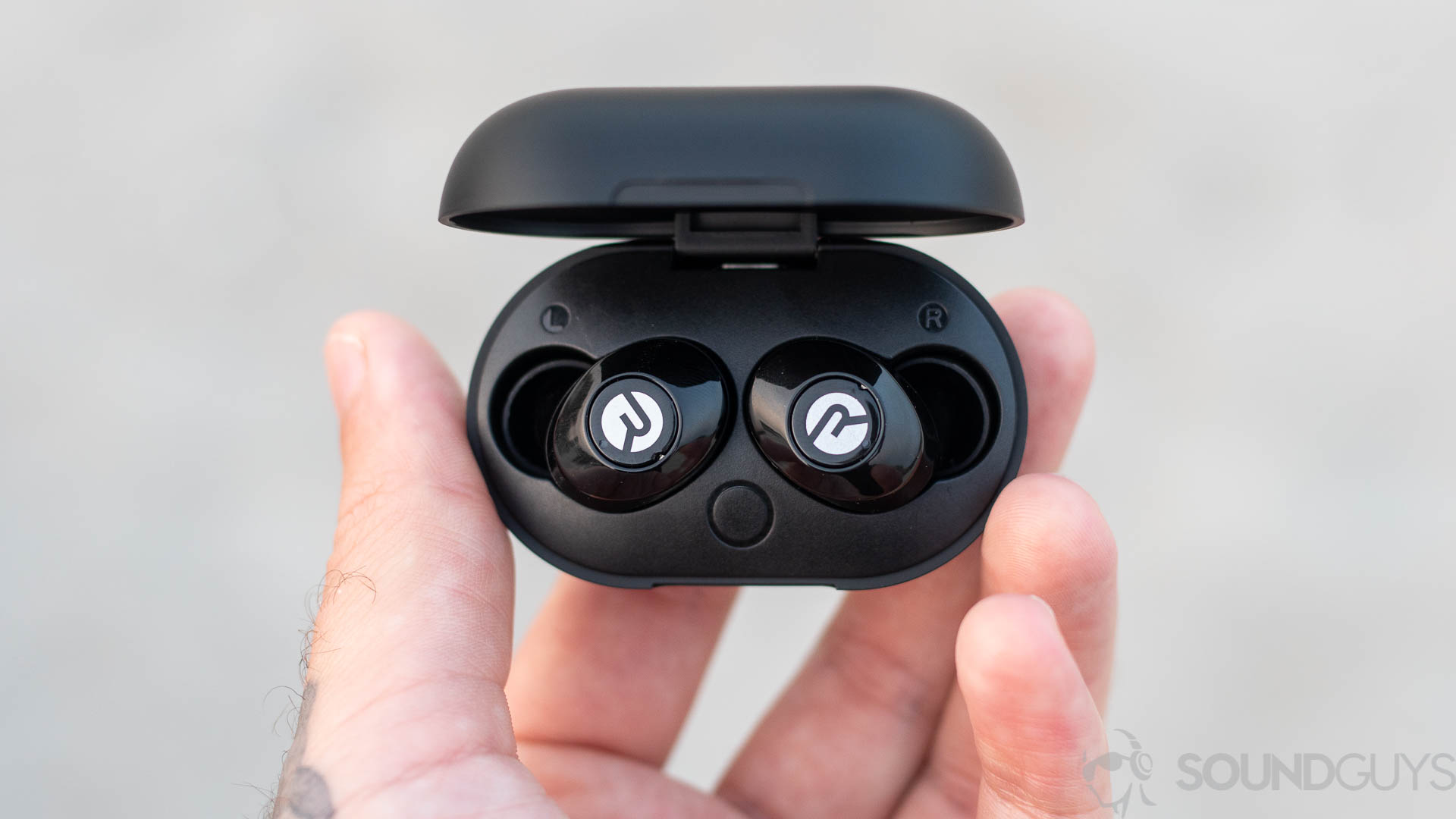
Place each earbud into the matching slot in the charging case. The charging contacts must touch the metal contacts on the earbuds.
If an earbud does not charge:
- Remove it from the case.
- Check for dust, skin oil, or moisture on the contacts.
- Wipe the contacts with a clean, dry, soft cloth.
- Confirm that the earbud sits fully in the slot.
- Charge the case.
- Test the earbud again.


Do not use water, metal tools, or harsh cleaners on the charging contacts. Do not charge wet earbuds. Let them dry fully before placing them in the case.
The case also needs power. If its battery is empty, it cannot recharge the earbuds even when the earbuds are seated correctly.
How to check battery levels
Depending on the model and device, you may see battery information:
- In the phone’s Bluetooth menu
- In an iPhone battery widget
- In an Android Bluetooth panel
- In the Raycon app, if supported
- Through indicator lights on the case or earbuds
Battery readings are estimates. A reading may differ between the left and right earbud if one earbud handles more calls or controls.

How to Use Only One Raycon Earbud
Many true wireless earbuds support single-earbud use, but the exact behavior depends on the Raycon model.
To try it:
- Leave one earbud in the charging case.
- Remove the other earbud.
- Connect the earbuds to your phone or computer.
- Play audio.
If the single earbud does not connect, place both earbuds in the case and start the pairing process again. Some models expect both earbuds to connect as a pair before they support separate use.
Single-earbud use can help you hear nearby sounds or extend listening time. Keep the volume low enough to remain aware of traffic, alarms, and people around you.

How to Reset Raycon Earbuds
A reset can help when the earbuds will not pair, only one earbud works, or the earbuds connect to the wrong device. The reset process differs among Raycon models.
A safe general sequence is:
- Open your phone or computer’s Bluetooth settings.
- Select the Raycon earbuds.
- Choose Forget This Device, Remove device, or Unpair.
- Turn Bluetooth off.
- Place both earbuds in the charging case.
- Follow the model-specific reset instructions in the Raycon manual.
- Turn Bluetooth back on.
- Pair the earbuds again as a new device.
Some Raycon models reset through a button or touch sequence. Others use the charging case. Do not guess a long-press pattern if the manual gives a different method.
A reset removes the existing Bluetooth link. It does not repair physical damage, a dead battery, blocked charging contacts, or water damage.

Raycon Earbuds Troubleshooting
Start with the simplest checks. Most connection problems come from low power, an old Bluetooth record, or a second device taking the connection.
| Problem | Likely cause | What to try |
|---|---|---|
| Earbuds do not appear | Pairing mode is not active | Return them to the case and try pairing mode again |
| Only one earbud works | Earbuds lost sync | Charge both, forget the Bluetooth record, then reset if needed |
| No sound | Wrong audio output | Select Raycon earbuds in the device’s sound menu |
| Sound cuts out | Distance, blockage, or interference | Keep the device nearby and remove obstacles |
| Earbuds connect to another device | Automatic reconnection | Turn off Bluetooth on the other device |
| One earbud will not charge | Dirty or misaligned contacts | Clean and reseat the earbud |
| Calls sound poor | Hands-free Bluetooth mode | Check the calling app’s microphone and speaker settings |
| Earbuds shut off | Low battery or charging issue | Charge both earbuds and the case |
If the earbuds still will not connect
Use this order:


- Charge the case and both earbuds.
- Turn Bluetooth off and back on.
- Restart the phone, tablet, or computer.
- Move away from other active Bluetooth devices.
- Forget the Raycon earbuds.
- Reset the earbuds using the correct model guide.
- Pair them with a different device.
The last step helps identify the source. If the earbuds work with another device, the first device may have a Bluetooth setting or software issue. If they fail everywhere after charging and resetting, contact Raycon support or check the warranty terms.

How to Keep Raycon Earbuds Working Well
Simple care can prevent many problems:
- Store the earbuds in their case when you are not using them.
- Keep the charging contacts clean and dry.
- Avoid extreme heat, such as a parked car in summer.
- Do not expose non-waterproof models to water.
- Check the model’s water-resistance rating before using earbuds during exercise.
- Keep firmware and companion apps updated when Raycon provides an update.
- Do not share ear tips without cleaning them.
- Use a safe volume, especially during long listening sessions.
Water resistance is not the same as waterproofing. Sweat protection also does not mean the earbuds can be submerged. A model’s rating applies only under the conditions listed by the manufacturer.
For hearing safety, use the lowest volume that lets you hear clearly. If you notice ringing, pain, or muffled hearing, stop listening and lower the volume when you resume. Seek medical advice if symptoms continue.
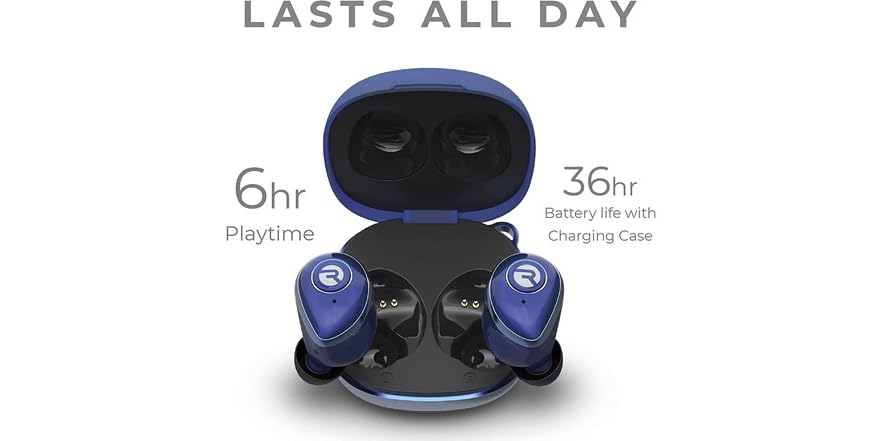
Raycon Earbuds Setup: Key Takeaways
- Charge the case and earbuds before pairing.
- Turn on Bluetooth on the iPhone, Android phone, Windows PC, or Mac.
- Remove the earbuds from the case to enter pairing mode.
- Select the Raycon name in the Bluetooth list.
- Choose the earbuds as the audio output if sound comes from another speaker.
- Use the manual for model-specific controls and reset steps.
- Forget the old Bluetooth connection before resetting.
- Keep the charging contacts clean and dry.
Frequently Asked Questions
Do Raycon earbuds work with an iPhone?
Yes. Raycon earbuds can connect to an iPhone through Settings > Bluetooth. They do not need to use the same brand as the phone.
Do Raycon earbuds work with Android phones?
Yes. Turn on Bluetooth, put the earbuds into pairing mode, and select them under available devices. Android menu names can vary by phone brand.
Why are my Raycon earbuds connected but silent?
Your device may be sending sound to its built-in speaker. Open the audio output menu and select the Raycon earbuds. Also check the volume in the device and the app.
Can I use Raycon earbuds without the app?
Basic Bluetooth audio usually works without a companion app. An app may be needed for model-specific features, firmware updates, battery details, or custom controls.
How do I stop Raycon earbuds from connecting to another device?
Turn off Bluetooth on the other device, or remove the Raycon earbuds from that device’s saved Bluetooth list. Then pair them with the device you want to use.
What should I do if one Raycon earbud is quieter?
Clean the quieter earbud’s speaker mesh with a dry, soft brush. Check the left-right audio balance in your device’s accessibility settings. If the problem remains after charging and resetting, contact Raycon support.
Conclusion
Using Raycon earbuds is usually straightforward: charge them, pair them through Bluetooth, choose them as the audio output, and learn the controls for your model. When something goes wrong, check power, Bluetooth selection, nearby devices, and charging contacts before attempting a reset.
Your next step is to find the exact model name on the case, box, or purchase record. Use that name with Raycon’s official support materials for the correct control layout, battery information, reset method, and water-resistance limits.