How To Connect JBL Earbuds To Laptop: Easy Guide
To connect JBL earbuds to a laptop, turn on Bluetooth, select your earbuds, and confirm pairing.
Learning how to connect JBL earbuds to laptop devices is simple once you know the correct pairing steps. Whether you use Windows 11, Windows 10, or macOS, this guide explains the process, fixes common connection problems, and shares practical tips for better sound.
Before You Connect JBL Earbuds to a Laptop
Before learning how to connect JBL earbuds to laptop computers, check a few basic points. Your earbuds should have enough battery, and your laptop must support Bluetooth. Most modern laptops include Bluetooth, but some older desktop computers need a USB Bluetooth adapter.
Keep the earbuds close to the laptop during setup. A distance of one to three feet works best. Also, pause music on nearby phones or tablets because your JBL earbuds may try to reconnect to the last device they used.


Check these items first:
• Charge the JBL earbuds and charging case.
• Turn on Bluetooth on the laptop.
• Keep the earbuds inside the Bluetooth range.
• Disconnect the earbuds from your phone if they connect there first.
• Install pending Windows or macOS updates if Bluetooth behaves oddly.
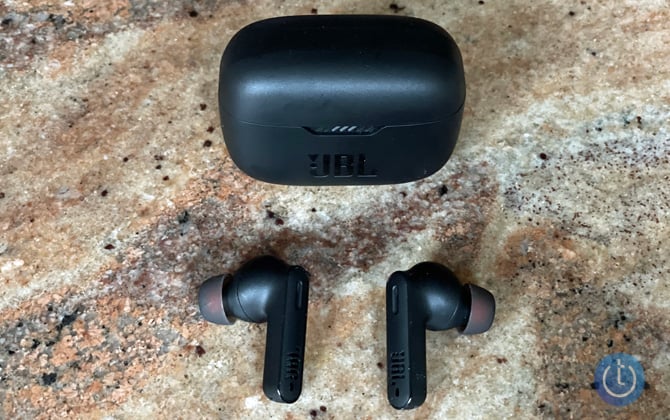
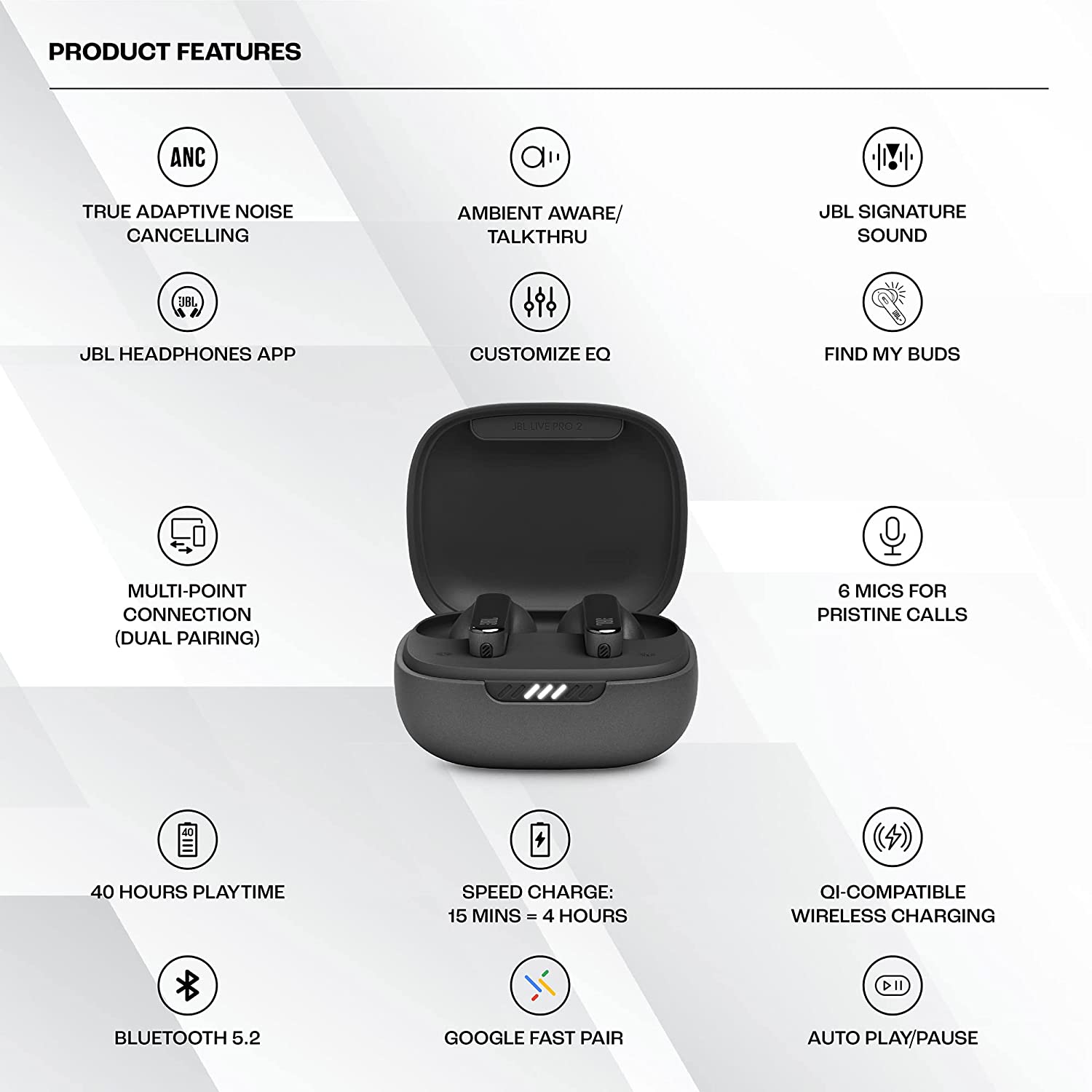
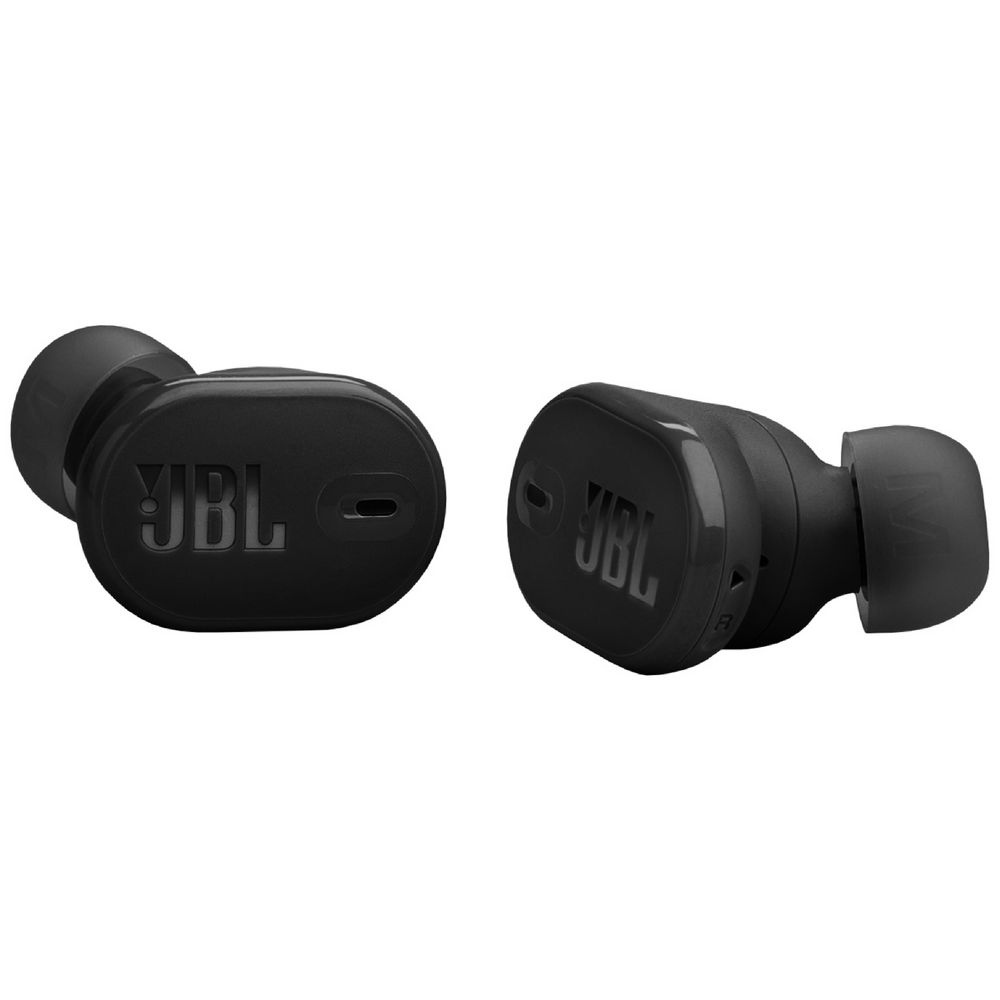
JBL makes many models, including the JBL Tune, Live, Wave, Club, and Endurance lines. The button layout may differ, but the pairing idea is nearly the same. Always check the model guide if your earbuds do not enter pairing mode.

How to Connect JBL Earbuds to a Windows Laptop
Windows 11 and Windows 10 use similar Bluetooth steps. The names may look slightly different, but both systems let you add wireless earbuds through Bluetooth settings.
Put Your JBL Earbuds in Pairing Mode
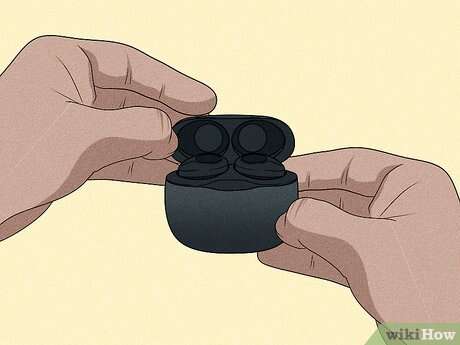
First, remove both earbuds from the charging case. Many JBL earbuds enter pairing mode automatically the first time you use them. A flashing blue or white light usually means they are ready to connect.
If the earbuds do not flash, press and hold the touch area or button on one earbud for a few seconds. On some JBL models, you must press and hold both earbuds at the same time. The exact action depends on the model.
For the most reliable setup:
-
Place both earbuds in the case.
-
Open the case lid.
-
Remove the earbuds.
-
Press and hold the buttons or touch controls until the indicator flashes.
-
Keep the earbuds close to the laptop.
Pairing mode is like making your earbuds visible in a crowded room. Until they become visible, your laptop cannot find them.


Add JBL Earbuds in Windows 11
Follow these steps for Windows 11:
-
Select the Start menu.
-
Open Settings.
-
Select Bluetooth & devices.
-
Turn on Bluetooth.
-
Select Add device.
-
Choose Bluetooth.
-
Select your JBL earbuds from the list.
-
Wait for Windows to show that the device is connected.
The name may appear as “JBL Tune,” “JBL Live,” or a similar model name. Avoid selecting a device labeled only as “LE” unless your model guide specifically tells you to use it. The regular JBL name is usually the correct audio connection.
Add JBL Earbuds in Windows 10
For Windows 10, use this process:
-
Open the Start menu.
-
Select Settings.
-
Choose Devices.
-
Select Bluetooth & other devices.
-
Turn on Bluetooth.
-
Select Add Bluetooth or other device.
-
Choose Bluetooth.
-
Click your JBL earbuds when they appear.
-
Select Done after Windows confirms the connection.
This is the standard answer for how to connect JBL earbuds to laptop computers running Windows 10. Once paired, Windows should reconnect to the earbuds when Bluetooth is active and the earbuds are turned on.
How to Connect JBL Earbuds to a MacBook
The steps for how to connect JBL earbuds to laptop computers from Apple are also quick. This includes MacBook Air and MacBook Pro models with Bluetooth.
Start by putting the earbuds into pairing mode. Remove them from the case and look for a flashing light. If they connect to another device, turn Bluetooth off on that device for a moment.
Then follow these steps:
-
Open the Apple menu.
-
Select System Settings.
-
Click Bluetooth.
-
Turn Bluetooth on.
-
Find your JBL earbuds under Nearby Devices.
-
Click Connect.
-
Wait for the status to change to Connected.
Older macOS versions may show System Preferences instead of System Settings. In that case, open System Preferences, select Bluetooth, and click Connect beside the JBL earbuds.
After connecting, click the Control Center icon in the top right of the screen. Select Sound, then choose your JBL earbuds as the output device. This step matters because a Mac can remain connected to earbuds while still sending sound through its built-in speakers.

How to Make JBL Earbuds the Default Audio Device
Knowing how to connect JBL earbuds to laptop systems is only part of the process. Your laptop also needs to send sound to the earbuds instead of its built-in speakers.
On Windows 11:
-
Select the speaker icon on the taskbar.
-
Click the sound output selector.
-
Choose your JBL earbuds.
-
Open Sound settings if you want to set them as the default device.
On Windows 10:
-
Right-click the speaker icon.
-
Select Open Sound settings.
-
Open the Output menu.
-
Select your JBL earbuds.
On a Mac:
-
Open Control Center.
-
Select Sound.
-
Choose your JBL earbuds.


You may see two JBL options on Windows. One may say Stereo, while another may say Hands-Free or Headset. Stereo mode normally provides better music quality. Hands-Free mode activates the microphone but may reduce sound quality during calls.
This change happens because Bluetooth uses different audio profiles. The Advanced Audio Distribution Profile supports better stereo playback, while the Hands-Free Profile supports two-way voice communication.

How to Connect JBL Earbuds to Laptop for Video Calls
JBL earbuds can work well for Zoom, Microsoft Teams, Google Meet, Skype, and other call apps. After pairing, open the app’s audio settings and select the JBL earbuds for both speaker and microphone use.
Test the microphone before joining an important meeting. Speak for a few seconds and check whether the app receives your voice. If the earbuds sound good but the microphone does not work, select the JBL headset option instead of the Stereo option.
For better call performance:
• Use the earbuds within a few feet of the laptop.
• Close apps that may already use the microphone.
• Select the JBL microphone inside the meeting app.
• Keep the laptop’s Bluetooth drivers updated.
• Avoid placing the laptop behind thick walls or metal objects.
In my own Bluetooth testing, the most common mistake was assuming that a successful pairing automatically selected the earbuds for calls. It did not. Choosing the JBL device separately inside the meeting app solved the issue.

How to Connect JBL Earbuds to Laptop When They Do Not Appear
If your JBL earbuds do not appear in the Bluetooth list, start with the simple fixes. Put both earbuds back in the charging case, close the lid, wait a few seconds, and try again. Then remove them and activate pairing mode once more.
Use these troubleshooting steps:
-
Turn Bluetooth off and on again on the laptop.
-
Restart the laptop.
-
Charge the earbuds and case.
-
Move your phone away or disable Bluetooth on it.
-
Remove old JBL entries from the laptop.
-
Put the earbuds into pairing mode again.
-
Search for new Bluetooth devices.
Many JBL earbuds remember previous connections. If they are still linked to your phone, tablet, or smart TV, they may not appear as available to the laptop. Disconnecting those devices often fixes the problem immediately.
If the earbuds still do not appear, open Device Manager in Windows. Expand Bluetooth, right-click the Bluetooth adapter, and choose Update driver. You can also uninstall the adapter and restart Windows so the system can reinstall it, but create a restore point first if you are unfamiliar with driver changes.

How to Reset JBL Earbuds Before Pairing
A reset can help when how to connect JBL earbuds to laptop steps fail after several attempts. It removes saved connections and returns the earbuds to a fresh setup state. The reset method varies by model.


Common reset methods include:
• Pressing and holding both earbuds for several seconds.
• Tapping one earbud several times, then holding it.
• Using the JBL Headphones app to select Factory Reset.
• Holding a case button while the earbuds are inside.
Do not guess if your model uses a unique reset method. Check the user guide for your exact JBL model. A reset may also remove custom settings, equalizer choices, and saved device information.
After resetting, place the earbuds into pairing mode and repeat how to connect JBL earbuds to laptop instructions from the beginning. Keep other Bluetooth devices turned off during this step.
How to Improve JBL Earbud Sound on a Laptop
Once you know how to connect JBL earbuds to laptop devices, you can improve the listening experience with a few settings. First, make sure the earbuds have a strong connection and a good charge. Low battery can cause dropouts, although it does not always cause poor sound.
On Windows, open Sound settings and select the JBL earbuds. Set the format to a standard stereo option if Windows provides several choices. Also check that left and right balance are centered and that volume is not reduced in the app itself.
On a Mac, open System Settings, choose Sound, and select the JBL earbuds under Output. Check the balance slider and volume level. If you use the JBL Headphones app on a supported phone, you can adjust equalizer settings there, but those settings may not transfer to every laptop connection.
Bluetooth sound can be affected by distance, crowded wireless networks, and physical barriers. Keeping the laptop nearby usually gives better results than changing many advanced settings.

Common Mistakes to Avoid
People often search how to connect JBL earbuds to laptop after trying the wrong Bluetooth process. The most common mistake is opening the laptop settings before putting the earbuds into pairing mode. Without pairing mode, the laptop may not find them.
Other mistakes include:
• Selecting the wrong JBL device from the Bluetooth list.
• Leaving the earbuds connected to a phone.
• Forgetting to choose the earbuds as the sound output.
• Pairing only one earbud when both are needed.


• Using earbuds with a nearly empty battery.
• Expecting the microphone to work without selecting the headset profile.
• Resetting the earbuds without checking the model instructions.
I have also seen laptops show an old JBL entry that looks connected but no longer works. Removing that old entry and pairing the earbuds again is usually faster than repeatedly clicking Connect.
Bluetooth Limitations and Compatibility Tips
Bluetooth is convenient, but it is not perfect. A laptop may support an older Bluetooth version than the earbuds, or its driver may not fully support advanced features. Basic audio usually works across versions, but features such as multipoint connection, low latency, or app controls may vary.
Some work laptops also restrict Bluetooth settings through company policies. If you cannot turn Bluetooth on, contact the system administrator instead of installing random drivers. For an older desktop computer without Bluetooth, use a trusted USB Bluetooth adapter that supports audio devices.
JBL earbuds may connect to several devices, but they do not always switch between them smoothly. When automatic switching fails, disconnect the earbuds from the current device and select them manually on the laptop.
These limits are normal Bluetooth behavior rather than proof that the earbuds are defective. Testing the earbuds with another laptop or phone can help identify whether the problem belongs to the earbuds or the computer.
Frequently Asked Questions About How to Connect JBL Earbuds to Laptop
Why are my JBL earbuds not showing on my laptop?
Your earbuds may not be in pairing mode, or they may still be connected to another device. Charge them, disable Bluetooth on nearby devices, and activate pairing mode before searching again.
Can I connect JBL earbuds to a laptop without Bluetooth?
Yes, but you need a USB Bluetooth adapter if the laptop does not have built-in Bluetooth. Install the adapter’s driver if required, then follow the normal pairing steps.
How do I connect JBL earbuds to a Windows 11 laptop?
Open Settings, select Bluetooth & devices, choose Add device, and select Bluetooth. Put the JBL earbuds into pairing mode, then choose their name from the list.
How do I connect JBL earbuds to a MacBook?
Put the earbuds into pairing mode, open Apple menu, select System Settings, and choose Bluetooth. Click Connect beside the JBL earbuds, then select them under Sound if needed.
Why do my JBL earbuds connect but have no sound?
Your laptop may still use its built-in speakers as the output device. Open the sound controls and select the JBL earbuds manually.
Can JBL earbuds connect to a laptop and phone at the same time?
Some JBL models support multipoint connections, while others do not. Check your model specifications, and remember that automatic switching may still require manual selection.
How do I disconnect JBL earbuds from my laptop?
Open Bluetooth settings, select the JBL earbuds, and choose Disconnect or Remove device. You can also place the earbuds in their case to stop the active connection.


Conclusion
Learning how to connect JBL earbuds to laptop devices usually takes only a few minutes. Put the earbuds in pairing mode, turn on Bluetooth, select the correct JBL name, and choose the earbuds as your audio output.
If the connection fails, charge the earbuds, disconnect nearby devices, remove old Bluetooth entries, and try again. Use the steps above for Windows or Mac, then test music and microphone audio before an important call. Try the process now, and share your experience or model-specific tip in the comments.