

Connect Bose earbuds to an iPhone by turning on Bluetooth, selecting the earbuds, and confirming the pairing request.
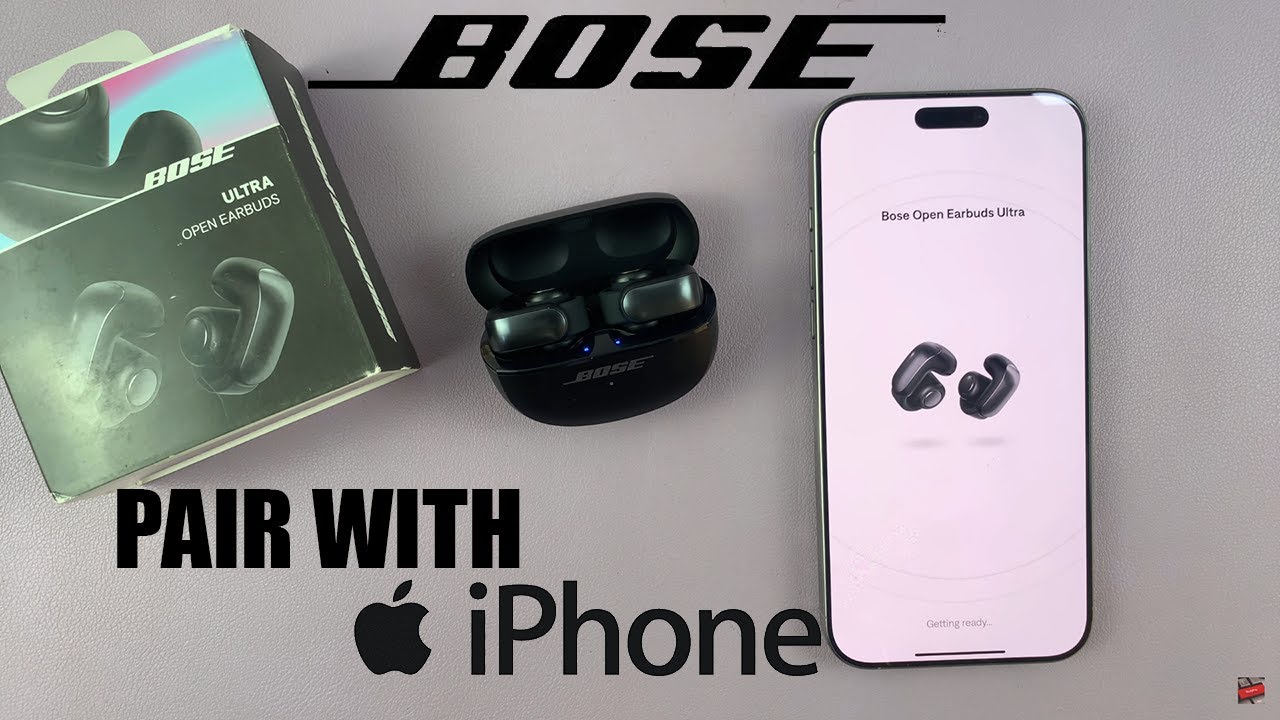
Learning how to connect Bose earbuds to iPhone is simple once you know where pairing mode is located. Whether you use Bose QuietComfort Earbuds, Sport Earbuds, or another compatible model, this guide covers the full setup, common connection problems, useful controls, and tips for keeping the connection stable.
What you need before connecting Bose earbuds to iPhone
Before you connect Bose earbuds to iPhone, take a moment to check a few basics. Most pairing problems happen because the earbuds are not in pairing mode, the battery is low, or they are still linked to another device.
Make sure you have:
- An iPhone with Bluetooth enabled
- Bose earbuds with some battery power
- The charging case, if your model uses one
- The latest version of iOS available for your iPhone
- The Bose app, if you want extra controls and updates
Bose earbuds work with iPhones through Bluetooth. You do not need a cable, special adapter, or Apple-only accessory. However, some advanced features, such as firmware updates, equalizer settings, and personalized controls, may require the Bose app.
If your earbuds were connected to a different phone, tablet, or laptop, turn Bluetooth off on that device for a moment. Otherwise, the earbuds may reconnect to the old device before your iPhone can find them.
:max_bytes(150000):strip_icc()/001-how-to-connect-bose-headphones-to-iphone-4767807-01d0cf9dea7b4e2a9c9cef4a8619a322.jpg)
How to connect Bose earbuds to iPhone for the first time
The standard pairing process takes only a few minutes. Keep the earbuds close to the iPhone, and do not leave the Bluetooth settings screen while pairing.
Follow these steps:
- Place both Bose earbuds in the charging case.
- Open the case lid.
- Remove the earbuds, or leave them in the case if your model supports pairing that way.
- Press and hold the Bluetooth or pairing button on the case.
- Release the button when the status light begins to blink blue.
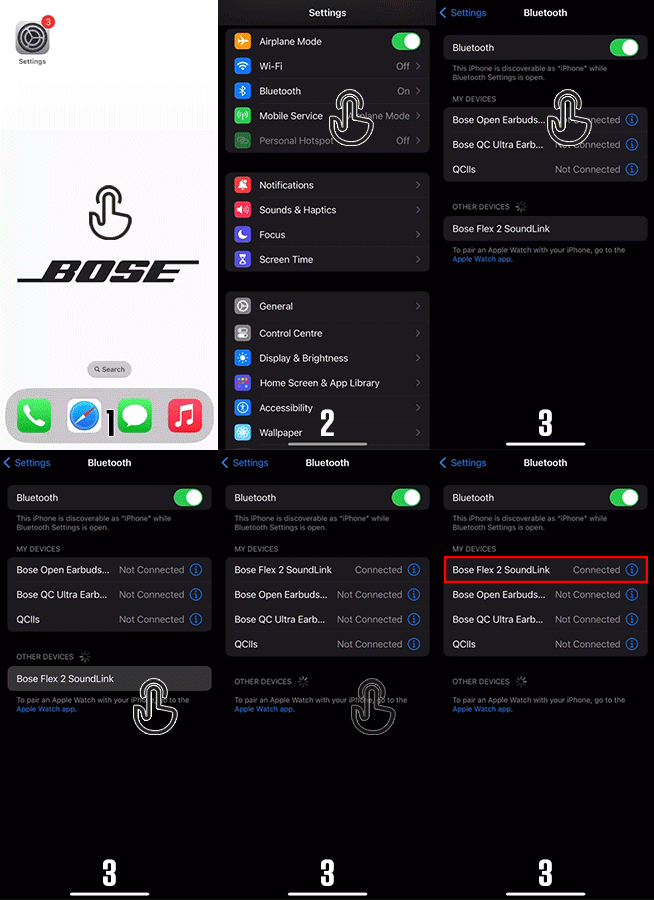
- Open Settings on your iPhone.
- Tap Bluetooth.
- Turn Bluetooth on if it is not already enabled.
- Look under Other Devices.
- Tap the name of your Bose earbuds.
- Wait for the status to change to Connected.
You have now completed the basic steps to connect Bose earbuds to iPhone. Play a song or video to check the sound. If the audio comes from the iPhone speaker, open the audio output menu and select your Bose earbuds.
Some Bose models use touch controls instead of a physical case button. In that case, open the Bose app or check the quick-start guide for the correct pairing command. The exact button location can differ between QuietComfort Earbuds, Sport Earbuds, and older Bose wireless models.
How to use the Bose app with your iPhone
The Bose app is not always required to connect Bose earbuds to iPhone. Bluetooth can handle the basic connection by itself. Still, the app can make setup easier and give you access to more features.
After downloading the official Bose app from the App Store:
- Open the app on your iPhone.
- Allow Bluetooth access when asked.
- Sign in or continue without an account, if that option appears.
- Select your Bose earbuds from the product list.
- Follow the on-screen pairing instructions.
- Install a firmware update if one is offered.
- Review the available sound and control settings.
The app may let you adjust noise cancellation, change touch controls, set an equalizer, rename the earbuds, or manage automatic connections. Menu names can change after app updates, so your screen may look slightly different.
In my experience helping people set up wireless audio, the app is most useful after the first connection. It acts like a control panel, while the iPhone Bluetooth menu acts like the main doorway.

How to reconnect Bose earbuds to iPhone
After the first successful setup, your Bose earbuds should reconnect automatically. Take them out of the case, and keep Bluetooth turned on. Your iPhone should recognize them within a few seconds.
If the earbuds do not reconnect, try this:
- Open Settings on your iPhone.
- Tap Bluetooth.
- Find your Bose earbuds under My Devices.
- Tap the device name.
- Wait for the Connected label.
You can also open the Bose app and select the earbuds from the product screen. Keep in mind that earbuds may connect to only one active audio source at a time, even when a model supports multipoint connections.
If you recently used the earbuds with a Mac, Android phone, smart TV, or tablet, that device may take priority. Turn Bluetooth off on the other device or place it farther away while reconnecting.
A useful habit is to put the earbuds back in the case after use. This helps end the current connection and protects the battery. It also makes the next connection more predictable.
How to connect Bose earbuds to a new iPhone
When moving from an old iPhone to a new one, you may need to pair the earbuds again. The earbuds often remember the old phone, but they do not always switch smoothly to a new device.
To connect Bose earbuds to iPhone after upgrading:
- Turn off Bluetooth on the old iPhone.
- Place both earbuds in the charging case.
- Open the case.
- Press and hold the pairing button until the light blinks blue.
- On the new iPhone, open Settings.
- Tap Bluetooth.
- Select the Bose earbuds under Other Devices.
- Confirm that the device shows Connected.
If the old iPhone is no longer available, reset the earbuds’ Bluetooth memory. The reset method depends on the model, so use the instructions for your exact Bose earbuds. A reset removes saved device connections and lets you start fresh.
Do not reset the earbuds as your first step if the issue is minor. Forgetting the device on the iPhone and pairing again is often enough.

What to do if Bose earbuds do not appear on iPhone
If your Bose earbuds are missing from the Bluetooth list, do not panic. Bluetooth discovery can fail for simple reasons, such as a closed case, low battery, or an incomplete pairing mode.
Try these solutions in order:
- Confirm that the earbuds have battery power.
- Put both earbuds in the case, close the lid, wait 10 seconds, and open it again.
- Hold the pairing button until the light flashes blue.
- Keep the earbuds within a few feet of the iPhone.
- Turn iPhone Bluetooth off and on again.
- Restart the iPhone.
- Turn off Bluetooth on nearby devices.
- Update iOS and the Bose app.
- Reset the earbuds only if the earlier steps fail.
The blinking light matters. A solid light may show power or an existing connection, while a blue blinking light often indicates pairing mode. Because light patterns differ by product, check the instructions for your model if the indicator is unclear.
One mistake I often see is tapping the Bose device name before the earbuds enter pairing mode. The iPhone cannot connect to a device that is not advertising its Bluetooth signal. Pairing mode is the bridge between the two devices.
How to fix Bose earbuds connected but with no sound
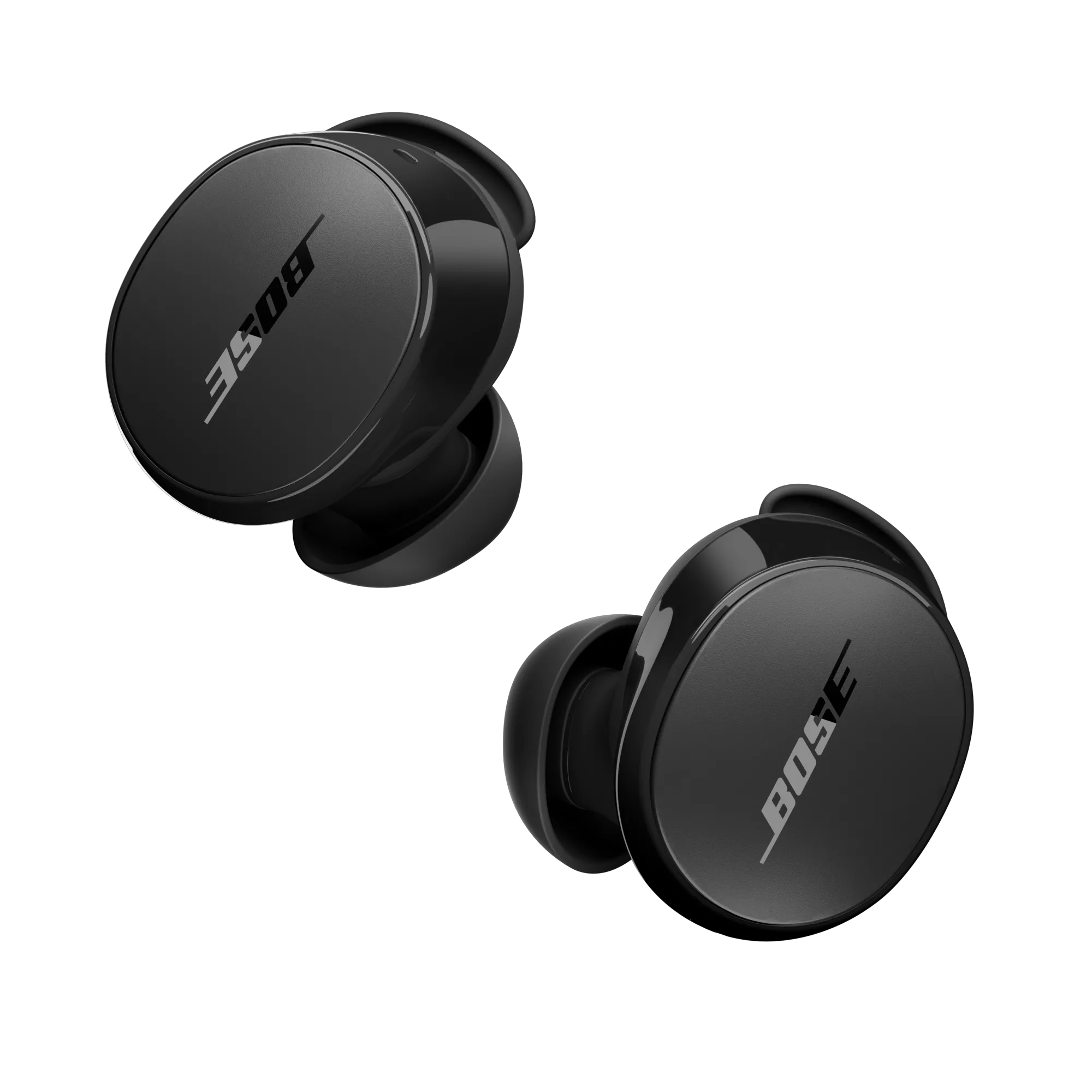
Sometimes you can connect Bose earbuds to iPhone, but the sound still comes from the phone. This usually means the iPhone selected a different audio output.
Check the audio route with these steps:
- Start playing music or a video.
- Open Control Center by swiping down from the top right of the screen.
- Tap the audio output icon in the media panel.
- Select your Bose earbuds.
You can also open Settings, tap Bluetooth, and confirm that the earbuds show Connected. If only one earbud produces sound, place both earbuds in the case, close the lid, and try again.
Check the volume on both devices. Bose earbuds may have touch or swipe controls, while the iPhone has its own volume level. Also make sure the app you are using has not paused playback or selected another speaker.
If the issue continues, forget the earbuds:
- Open Settings.
- Tap Bluetooth.
- Tap the information icon next to the Bose earbuds.
- Tap Forget This Device.
- Put the earbuds back into pairing mode.
- Pair them again.
This fresh connection often clears a confused audio route.
How to reset Bose earbuds and pair them again
A reset can solve repeated dropouts, failed pairing, and strange control behavior. It should be a later step, because it removes saved connections and may erase some settings.
The reset process varies by model. In general, you may need to:
- Remove the earbuds from the Bluetooth list on the iPhone.
- Place the earbuds in the charging case.
- Connect the case to power if the instructions require it.
- Press and hold the case button for the stated amount of time.
- Wait for the status light to show the reset pattern.
- Return to iPhone Bluetooth settings.
- Pair the earbuds again.
Do not guess the reset button sequence. Bose has released several earbud designs, and the correct process is not identical across all of them. Use the official guide for your model to avoid repeating the process incorrectly.
After the reset, connect Bose earbuds to iPhone as if they were new. Keep other Bluetooth devices away during setup. This gives the earbuds a clean path to the iPhone.
How to keep Bose earbuds connected to iPhone
A strong Bluetooth connection depends on more than distance. Your surroundings, device settings, battery level, and software can all affect performance.
Use these habits for a more stable connection:
- Keep the iPhone within about 30 feet when possible.
- Avoid placing the iPhone deep inside a bag or pocket.
- Keep the earbuds and case charged.
- Install trusted firmware updates through the Bose app.
- Keep iOS updated.
- Avoid using the earbuds near heavy wireless interference.
- Clean the charging contacts with a dry, soft cloth.
- Store the earbuds in the case when not in use.
Bluetooth signals can weaken around crowded wireless areas, metal objects, and physical barriers. A short distance usually gives the best result, especially in busy places such as airports, gyms, and large offices.
If the connection drops only in one location, the earbuds may not be the problem. Test them in another room or outside. This simple check helps separate a device issue from local interference.
Bose earbuds and iPhone features to know
Once you connect Bose earbuds to iPhone, you can use them for music, calls, podcasts, videos, and voice commands. The experience may vary by model and iOS version.
Common features include:
- Stereo audio through both earbuds
- Hands-free phone calls
- Microphone access for calls and voice apps
- Noise cancellation on supported models
- Transparency or aware modes on supported models
- Touch controls for playback
- Automatic reconnection
- Battery status through the Bose app or iPhone widgets
Bose earbuds are not AirPods, so some Apple-only features may not be available. For example, automatic switching, Siri behavior, and battery displays may work differently. This is a normal limitation of using a third-party Bluetooth product with an iPhone.
The core audio connection remains reliable when the software is current and the earbuds are paired correctly. If you need deep integration with Apple devices, compare the feature list before buying. If sound quality, comfort, or noise cancellation matters most, Bose earbuds can still be a strong choice.
Mistakes to avoid when pairing Bose earbuds
Small setup errors can make a simple process feel difficult. Avoid these common mistakes when you connect Bose earbuds to iPhone:
- Searching for the earbuds before turning on pairing mode
- Leaving the earbuds connected to another device
- Pairing only one earbud when both are required
- Ignoring low battery warnings
- Using an outdated Bose app
- Resetting the earbuds too soon
- Selecting the iPhone speaker instead of the Bose audio output
- Keeping the earbuds too far from the iPhone
Another common mistake is assuming that a device listed under My Devices is always connected. The list may show remembered devices, not active connections. Look for the Connected label before testing audio.
If you are setting up earbuds for someone else, explain the pairing light and the Bluetooth menu. Once people understand those two points, they can usually solve future connection issues on their own.
How to connect Bose earbuds to iPhone: quick troubleshooting checklist
When you need a fast fix, use this checklist from top to bottom:
- Charge the earbuds and case.
- Turn off Bluetooth on nearby phones and computers.
- Put the earbuds into pairing mode.
- Open iPhone Settings and tap Bluetooth.
- Select the Bose earbuds under Other Devices.
- Choose the earbuds as the audio output.
- Restart the iPhone if pairing fails.
- Forget the earbuds and pair them again.
- Update the Bose app and iOS.
- Reset the earbuds using the correct model instructions.
This process solves most everyday connection problems without professional help. If the earbuds still fail to appear on several phones, the issue may involve the earbuds, charging case, or hardware.
Bose support can help with model-specific resets and warranty questions. Apple support can help if the iPhone has wider Bluetooth problems with multiple accessories.
Frequently asked questions about how to connect Bose earbuds to iPhone
Why are my Bose earbuds not showing up on my iPhone?
Put the earbuds into pairing mode and look under Other Devices in iPhone Bluetooth settings. If they still do not appear, charge them, turn off Bluetooth on nearby devices, and restart the iPhone.
Do I need the Bose app to connect Bose earbuds to iPhone?
No. You can pair most Bose earbuds directly through Settings and Bluetooth. The Bose app is useful for firmware updates, sound controls, device management, and model-specific setup.
How do I put Bose earbuds in pairing mode?
Place the earbuds in the case, open the lid, and press the pairing button until the status light blinks blue. The exact method can vary, so check the guide for your specific Bose model.
Why do my Bose earbuds connect but have no sound?
The iPhone may still be using its built-in speaker or another Bluetooth device. Play audio, open the output menu in Control Center, and choose your Bose earbuds.
Can I connect Bose earbuds to more than one iPhone?
Some Bose models support multipoint connections, while others connect with one device at a time. Check your model’s specifications and disconnect the first iPhone if the second one will not pair.
How do I make my Bose earbuds connect automatically?
Pair them once, keep Bluetooth enabled, and store the earbuds in their case after use. They should reconnect when removed, unless another saved device takes priority.
Will resetting Bose earbuds delete the connection?
Yes. A reset usually clears saved Bluetooth connections and returns the earbuds to a fresh setup state. You will need to pair them with your iPhone again.
Conclusion
Connecting Bose earbuds to an iPhone usually takes only a few steps: charge the earbuds, activate pairing mode, open Bluetooth settings, and select the Bose device. If the connection fails, check the audio output, disconnect other devices, forget the old pairing, or reset the earbuds as a final step.
The best way to avoid future problems is to keep the Bose app and iOS updated, store the earbuds in their case, and pair them close to the iPhone. Try the steps above now, and share this guide with anyone who needs help connecting Bose earbuds to iPhone.
