

To connect Sony earbuds to an iPhone, turn on Bluetooth, enter pairing mode, and select the earbuds in Settings.
Learning how to connect Sony earbuds to iPhone is simple once you know where pairing mode is found. This guide covers first-time setup, Sony Headphones Connect, common connection problems, sound fixes, and tips for keeping your earbuds connected.
What You Need Before Pairing Sony Earbuds With an iPhone
Before you connect Sony earbuds to an iPhone, check a few basic details. These small steps prevent most pairing errors and save time.
Make sure your iPhone runs a recent version of iOS. Sony earbuds work with iPhones through Bluetooth, so you do not need a special cable or adapter.
Check these items first:
• Charge both earbuds and the charging case.
• Keep the earbuds close to your iPhone, ideally within 3 feet.
• Turn off Bluetooth on nearby phones, tablets, or computers.
• Remove the earbuds from your ears if the model uses touch controls.
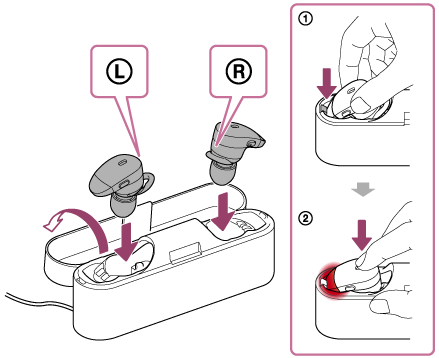
• Keep the earbuds inside the case until you are ready to pair them.
Most Sony earbuds enter pairing mode during the first setup. If they have connected to another device before, you may need to start pairing mode manually.
How to Connect Sony Earbuds to iPhone
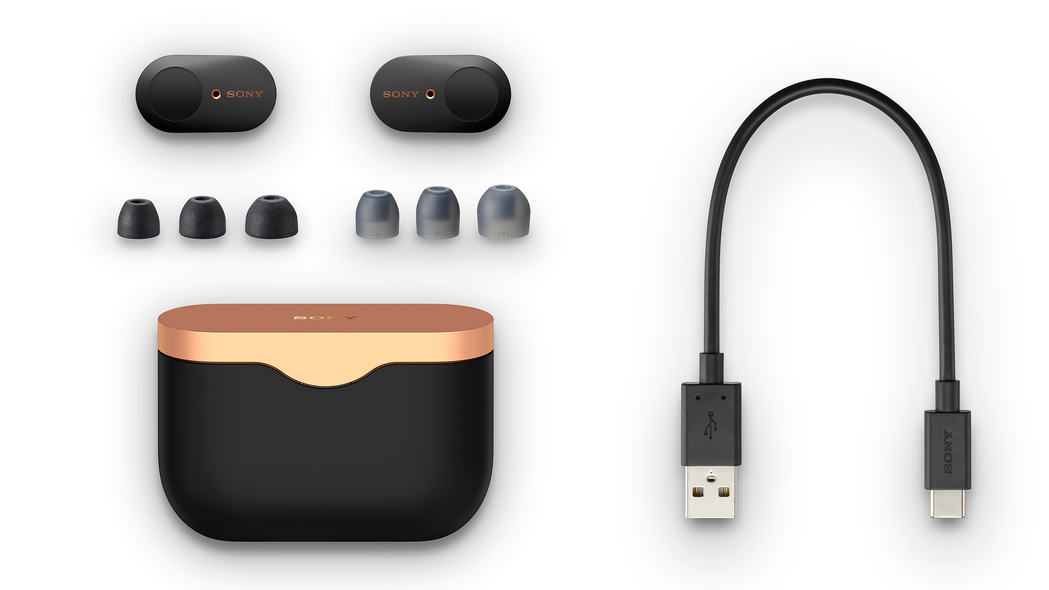
The standard Bluetooth method works with most Sony models, including the WF-1000XM series, LinkBuds, WF-C500, and many older models.
Follow these steps to connect Sony earbuds to an iPhone:
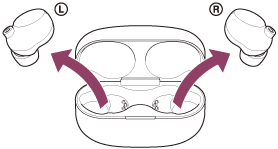
- Open the charging case with both earbuds inside.
- Remove the earbuds from the case.
- Press and hold the touch sensors or pairing button for about 5 to 7 seconds.
- Wait for a voice prompt or flashing blue light.
- Open Settings on your iPhone.
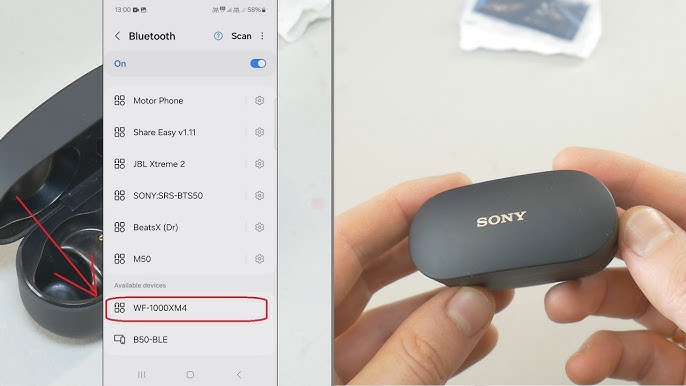
- Tap Bluetooth.
- Turn on Bluetooth if it is off.
- Look under Other Devices.
- Tap the name of your Sony earbuds.
- Wait for the status to change to Connected.
Your Sony earbuds should now play music, calls, videos, and other audio from the iPhone.
Some Sony models enter pairing mode by holding both touch panels. Others use a small button on the charging case. If you do not see your model listed, check the quick-start guide or Sony’s official support instructions for the exact control method.

How to Put Different Sony Earbuds in Pairing Mode
The pairing process can vary by model. Knowing the correct method is useful when you connect Sony earbuds to an iPhone that has already been paired with another device.
Sony WF-1000XM5 and WF-1000XM4
Place both earbuds in the charging case and leave the lid open. Press and hold the pairing button on the back of the case until the indicator flashes blue.
Then open iPhone Settings, choose Bluetooth, and tap the Sony earbuds when they appear.
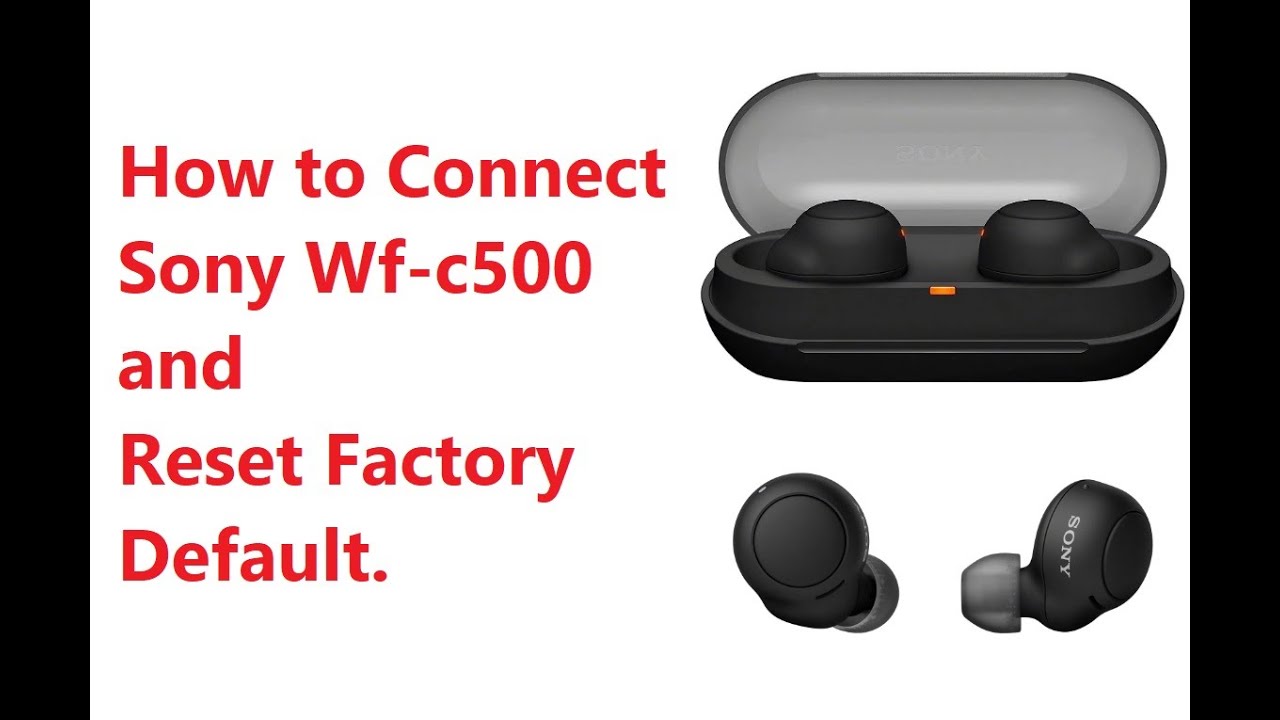
Sony WF-C500
Remove both earbuds from the case. Touch and hold the buttons on both earbuds for several seconds until the indicator lights flash blue.
If the earbuds do not enter pairing mode, place them back in the case, close the lid, open it again, and repeat the process.
Sony LinkBuds
Take the earbuds out of the case and press and hold the touch areas as directed by the model instructions. A flashing light or voice prompt usually confirms pairing mode.
LinkBuds may appear under a name that starts with “LinkBuds” or “WF.” Tap the matching name on your iPhone.
Sony Sport and Older Models
Older Sony earbuds may use physical buttons instead of touch controls. Hold the power or pairing button until the indicator flashes blue and red, or until you hear “Bluetooth pairing.”
The general rule is simple: flashing lights and a pairing voice prompt mean the earbuds are ready to connect.
How to Use the Sony | Sound Connect App
You can connect Sony earbuds to an iPhone without an app. However, the Sony | Sound Connect app can add useful controls and settings.
After you complete the Bluetooth connection, install the app from the App Store. Open it and follow the instructions to register or add your earbuds.
The app may let you:
• Install firmware updates.
• Adjust the equalizer.
• Control noise canceling and ambient sound.
• Change touch-control functions.
• Check battery levels.
• Enable adaptive sound features.
• Find support instructions for your exact model.
Connect the earbuds in iPhone Bluetooth settings first if the app cannot find them. The app manages settings, but the iPhone Bluetooth menu creates the main audio connection.
Firmware updates can improve stability and fix known bugs. Keep the earbuds in their case during an update, and make sure the battery level is high enough.
How to Reconnect Sony Earbuds to an iPhone
After the first setup, reconnecting Sony earbuds to an iPhone should happen automatically. Open the case, remove the earbuds, and keep Bluetooth enabled on the iPhone.
If they do not reconnect, open Settings, tap Bluetooth, and select the Sony earbuds under My Devices. A connection can fail when the earbuds are still linked to a laptop, tablet, or another phone.
A quick fix is to turn Bluetooth off on nearby devices. You can also place the earbuds back in the case for a few seconds, then remove them again.
For faster access, open Control Center by swiping down from the top-right corner of the iPhone screen. Press and hold the Bluetooth control, then tap the Bluetooth connection menu and select the Sony earbuds.
How to Switch Sony Earbuds Between Devices
Many Sony earbuds remember several previously connected devices. Still, most models do not connect to multiple devices at the same time unless they support multipoint Bluetooth.
To switch from a computer to an iPhone:
- Disconnect the earbuds from the computer.
- Open Bluetooth settings on the iPhone.
- Tap the Sony earbuds under My Devices.
- Wait for the Connected label.
Some newer Sony models support multipoint connections. This feature lets the earbuds remain connected to two devices, such as an iPhone and a laptop.
If multipoint is enabled, calls and media may move between devices based on activity. If the switch seems unreliable, disconnect one device and connect the earbuds manually to the other.
What to Do When Sony Earbuds Do Not Connect to iPhone
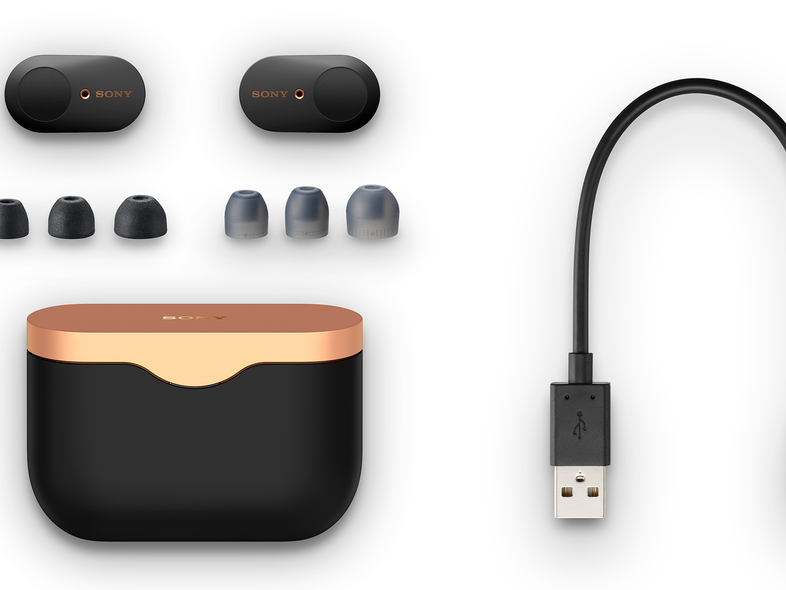
A failed connection does not always mean the earbuds are defective. Bluetooth pairing depends on saved device data, distance, battery power, and software settings.
Try these fixes in order:
• Confirm Bluetooth is enabled in Settings, not only in Control Center.
• Move the earbuds close to the iPhone.
• Charge the earbuds and case.
• Turn Bluetooth off, wait 10 seconds, and turn it on again.
• Restart the iPhone.
• Close and reopen the charging case.
• Disconnect the earbuds from nearby devices.
• Update iOS and the Sony app.
• Forget the earbuds and pair them again.
To forget the device, open Settings, tap Bluetooth, tap the information button beside the Sony earbuds, and choose Forget This Device. Confirm the action, then place the earbuds back into pairing mode.
This removes the old Bluetooth profile. It is often the best fix when the iPhone shows the earbuds as connected but no sound comes through.
How to Reset Sony Earbuds
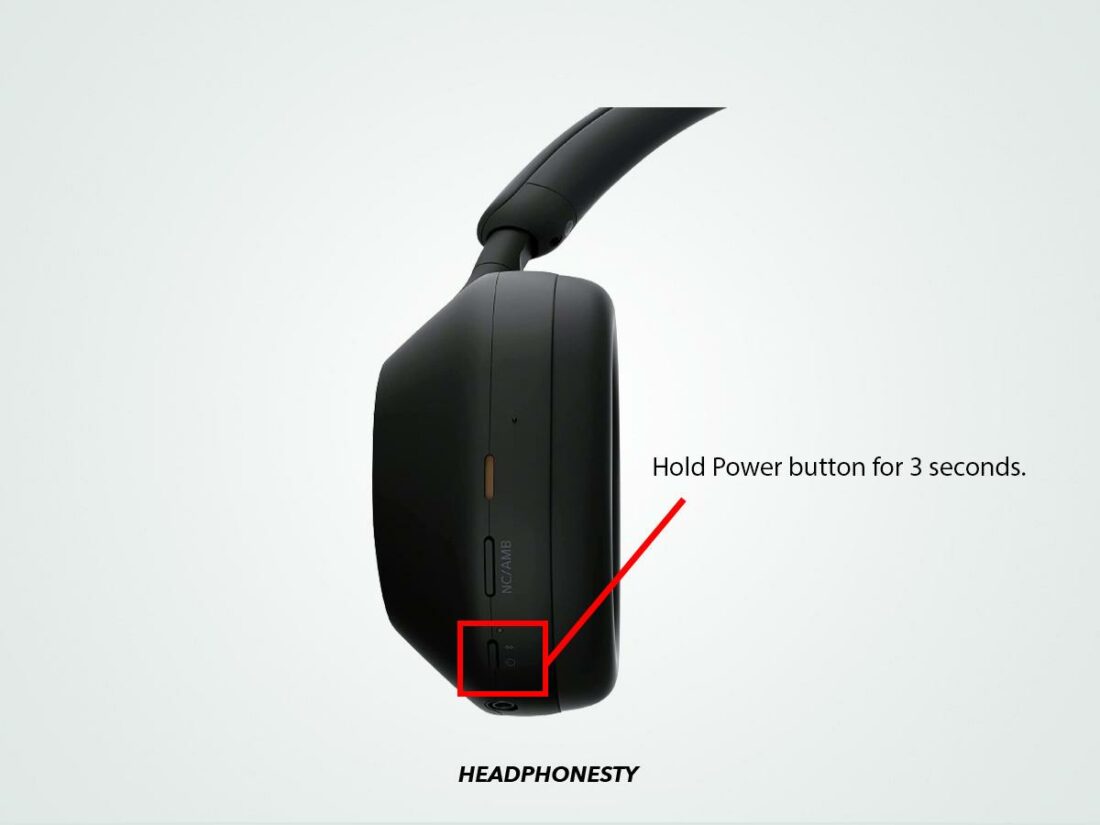
Resetting Sony earbuds can solve repeated pairing failures, one-sided audio, or a device name that refuses to appear. The reset method differs by model, so follow the instructions for your specific earbuds.
Many Sony true wireless earbuds reset through the charging case. A common process is to place both earbuds inside, keep the lid open, and hold the case button until the indicator flashes in a particular pattern.
Some models reset through the touch controls. The earbuds may need to be charged first, and the reset may erase saved Bluetooth connections.
After resetting:
- Forget the earbuds on the iPhone.
- Turn Bluetooth off and back on.
- Put the Sony earbuds into pairing mode.
- Select them under Other Devices.
Do not interrupt a reset. If the light pattern is unclear, use the model-specific Sony instructions rather than guessing.
How to Fix Sound Problems After Connecting
Sometimes the iPhone says the Sony earbuds are connected, but audio still comes from the phone speaker. This usually happens because the wrong audio output is selected.
Open Control Center while audio is playing. Tap the AirPlay icon in the media panel and select your Sony earbuds.
You can also check the volume buttons and the volume slider. Make sure the earbuds are not muted and that the left and right earbuds are seated correctly.
For one-sided sound, try these steps:
• Place both earbuds in the case and remove them again.
• Clean the speaker mesh with a soft, dry brush.
• Check the iPhone’s balance setting under Settings, Accessibility, and Audio & Visual.
• Turn off mono audio if you do not need it.
• Reset and reconnect the earbuds.
Avoid using water, sharp tools, or strong air pressure near the speaker mesh. Moisture and debris can affect sound, but aggressive cleaning can cause permanent damage.

How to Improve the Bluetooth Connection
A stable Bluetooth connection depends on more than the earbuds. Your body, walls, crowded wireless areas, and other active devices can affect the signal.
For better performance:
• Keep the iPhone on the same side of your body as the main earbud.
• Avoid placing the iPhone inside a bag surrounded by metal objects.
• Stay within the normal Bluetooth range.
• Keep the earbuds away from strong wireless interference.
• Install available firmware updates.
• Use the Sony app to check sound and connection settings.
Bluetooth audio may briefly pause in busy locations such as airports, gyms, or subway stations. This does not always indicate a hardware problem.
If the connection drops only with one iPhone, test the earbuds with another device. If they work normally elsewhere, the issue may involve iPhone settings or saved Bluetooth data.
How to Check Sony Earbud Battery Levels on iPhone
Your iPhone may show the battery level of connected Sony earbuds in the Batteries widget. To add it, touch and hold an empty area on the Home Screen, tap the plus sign, search for Batteries, and choose a widget style.
Battery readings can differ between the left earbud, right earbud, and charging case. Some Sony models report more detailed levels through the Sony | Sound Connect app.
Low battery can cause pairing failures, audio cuts, or automatic shutdowns. Charge the case and earbuds before troubleshooting a connection that keeps dropping.
Keep the charging contacts clean and dry. A soft cotton swab can remove light dust, but do not scrape the contacts with metal.
Mistakes to Avoid When Pairing Sony Earbuds
The most common mistake is tapping the wrong device name. Nearby Bluetooth products can appear in the list, especially in public places.
Another mistake is trying to pair the earbuds while they are still connected to a laptop. Bluetooth earbuds often reconnect to the last device they used, which prevents the iPhone from completing setup.
Avoid these errors:
• Do not pair through the Sony app before enabling Bluetooth.
• Do not keep pressing random buttons during pairing.
• Do not ignore a low battery.
• Do not reset the earbuds before trying simple Bluetooth fixes.
• Do not use the same earbuds name when several Sony devices are nearby.
When I help troubleshoot this setup, the fastest solution is often simple: turn off Bluetooth on the old device, place both earbuds in the case, and start pairing again. It is less dramatic than a full reset and often works on the first try.
Sony Earbuds and iPhone Compatibility
Sony earbuds use Bluetooth, so they generally work with modern iPhone models. Basic features such as music playback, calls, and volume control are widely supported.
Advanced features may vary. Noise canceling, equalizer controls, firmware updates, gesture customization, and battery details may require the Sony | Sound Connect app.
Some features designed for Android phones may not be available on iPhone. For example, certain fast-pairing tools and system integrations are platform-specific.
This is not a fault with the earbuds. It is a limitation caused by differences between Apple and Android software. Review the specifications for your exact Sony model if a particular feature is important to you.
Frequently Asked Questions About How to Connect Sony Earbuds to iPhone
Why are my Sony earbuds not showing up on my iPhone?
The earbuds may not be in pairing mode, or they may still be connected to another device. Turn off Bluetooth on nearby devices, reset pairing mode, and check Settings, Bluetooth, and Other Devices again.
Can I connect Sony earbuds to an iPhone without the Sony app?
Yes. You can connect Sony earbuds to an iPhone through the normal Bluetooth settings. The Sony app is optional and provides extra controls, updates, and sound settings.
How do I put Sony earbuds in pairing mode?
The method depends on the model. Many earbuds require you to hold the case button or both touch sensors until a blue light flashes or a voice prompt says “Bluetooth pairing.”
Why do my Sony earbuds connect but have no sound?
Open Control Center while audio is playing, tap the AirPlay icon, and choose your Sony earbuds. Also check the iPhone volume, earbud volume, and Bluetooth connection status.
How do I disconnect Sony earbuds from my iPhone?
Open Settings, tap Bluetooth, tap the information button beside the earbuds, and choose Disconnect. To remove them completely, select Forget This Device.
Can Sony earbuds connect to an iPhone and a laptop at the same time?
They can if the model supports multipoint Bluetooth. If it does not, disconnect the earbuds from one device before connecting them to the other.
How do I reset Sony earbuds before pairing them again?
The reset steps vary by model and may erase all saved connections. Use the instructions for your exact Sony earbuds, then forget the old Bluetooth profile on the iPhone before pairing again.
Conclusion
To connect Sony earbuds to an iPhone, enable Bluetooth, put the earbuds in pairing mode, and select them from the iPhone’s Bluetooth menu. If the connection fails, charge the earbuds, disconnect nearby devices, forget the old pairing, and try again.
The Sony | Sound Connect app can add firmware updates, sound controls, and battery details, but it is not required for basic listening. Start with the simple steps, and use a reset only when normal troubleshooting does not work.
Try the setup now, then explore your Sony earbuds’ sound and noise-control features. If this guide helped, share it with someone who is pairing Sony earbuds with an iPhone for the first time.
