How To Connect Bose QuietComfort Headphones To Mac: Steps
If you use a Mac in the United States, you can connect most Bose QuietComfort headphones through macOS Bluetooth in a few minutes. Put the headphones in pairing mode, open System Settings > Bluetooth, select the Bose headphones, and wait for the status to change to Connected.
The steps work with many models, including the Bose QuietComfort, QuietComfort 45, QuietComfort Ultra, Noise Cancelling Headphones 700, and similar Bluetooth models. Button names may differ slightly by model.
What you need before connecting Bose headphones to a Mac
You need three things:
- A Mac with Bluetooth turned on
- Bose QuietComfort headphones with some battery charge
- The headphones within a few feet of the Mac during setup


You do not need the Bose app to connect the headphones to a Mac. The Bose app, such as Bose Music, can help with firmware updates, settings, and device management, but macOS can pair with the headphones on its own.
Before you start, pause audio on nearby phones, tablets, or computers. Bose headphones may try to reconnect to a device they already know.
How to connect Bose QuietComfort headphones to a Mac
Follow these steps to pair your Bose headphones with macOS.
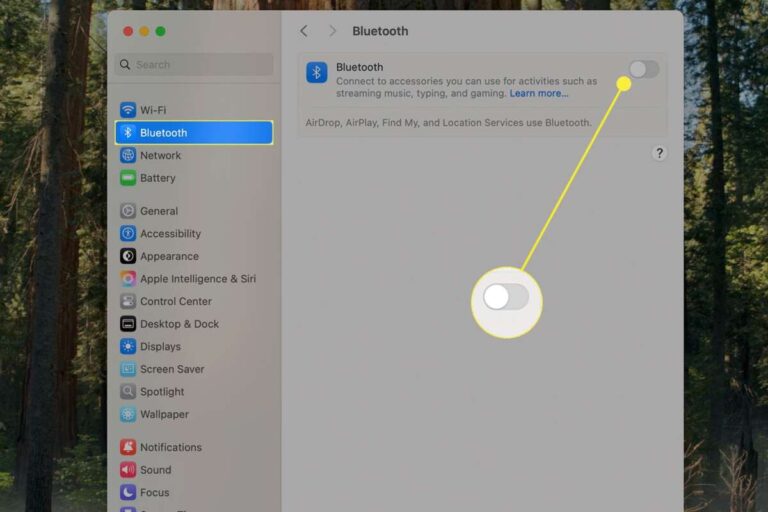
1. Turn on Bluetooth on your Mac
On newer versions of macOS:
- Click the Apple menu in the upper-left corner.
- Open System Settings.
- Select Bluetooth in the left sidebar.
- Turn Bluetooth on if it is off.
On older versions of macOS, open System Preferences, choose Bluetooth, and enable Bluetooth there.
2. Put the Bose headphones in pairing mode
The method depends on the Bose model.
For many QuietComfort models:
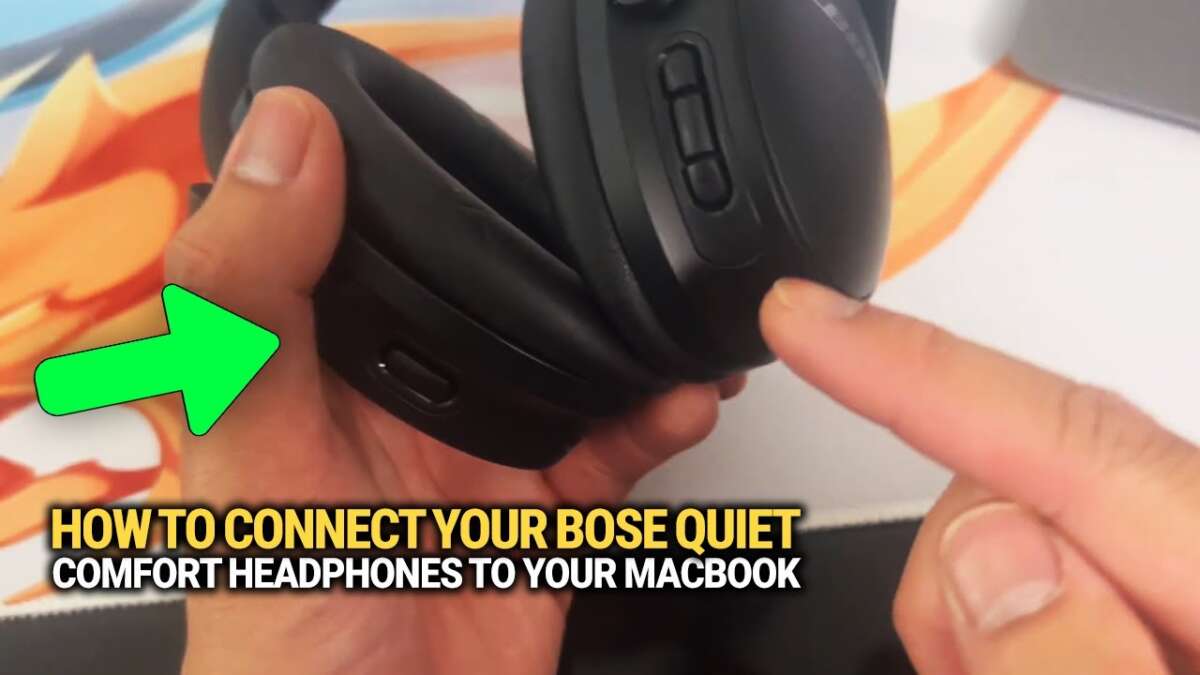
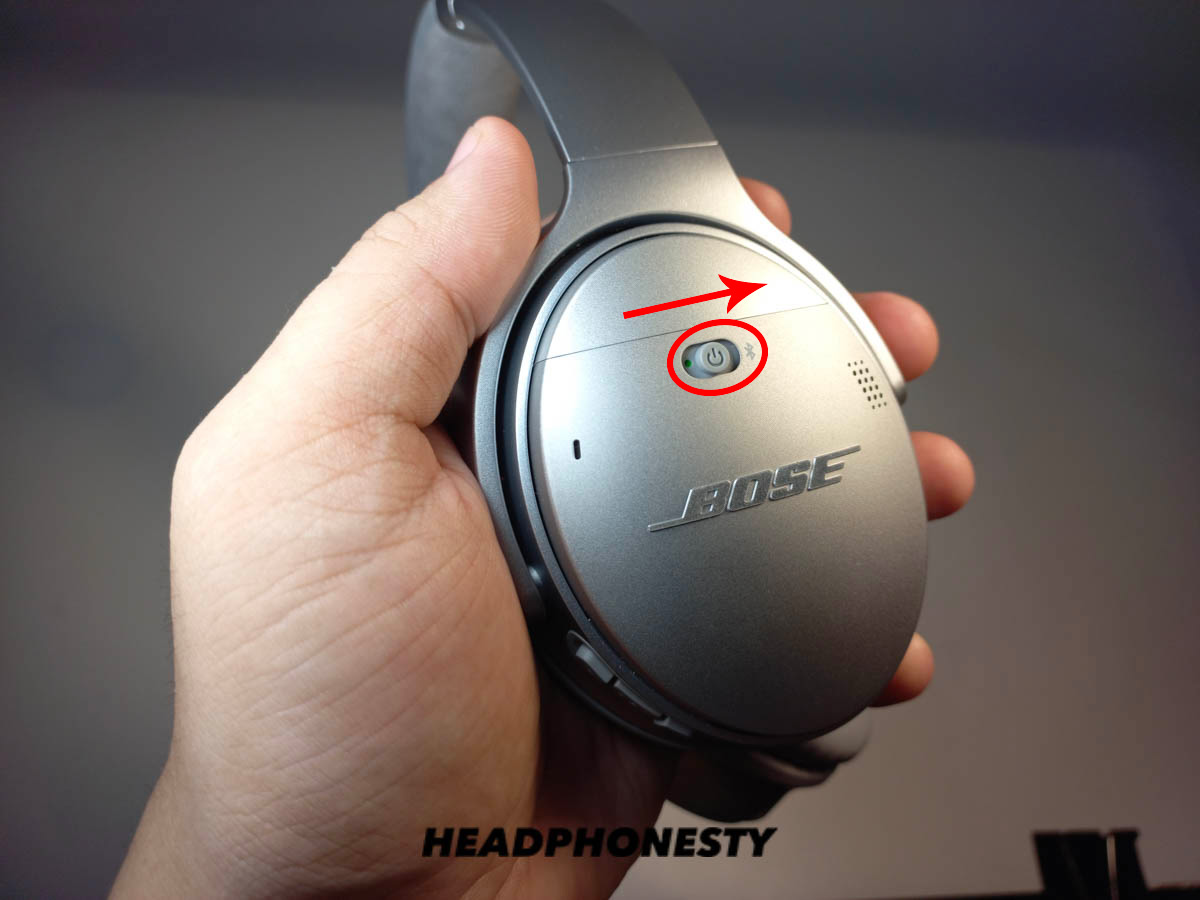
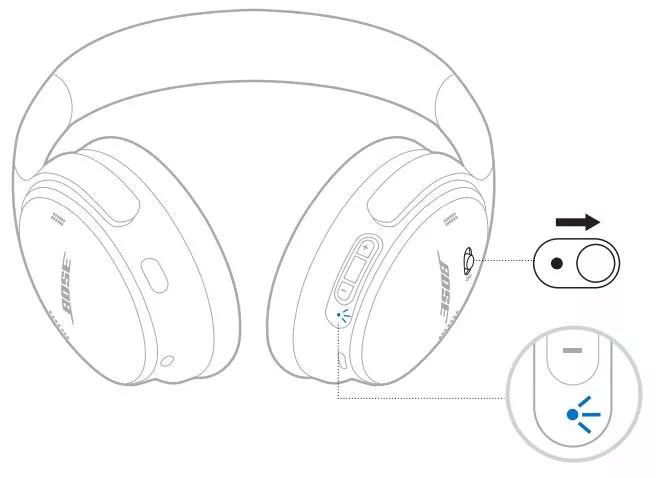
- Turn on the headphones.
- Move the Power/Bluetooth switch toward the Bluetooth symbol.
- Hold it in that position for several seconds.
- Release the switch when you hear “Ready to connect” or see the Bluetooth light blink blue.
For Bose headphones with a dedicated Bluetooth button, press and hold that button until the headphones announce that they are ready to connect.
If the headphones connect to another device instead, turn Bluetooth off on that device for a moment. Then repeat the pairing step.
3. Select the headphones on your Mac
In your Mac’s Bluetooth settings:


- Find the Bose headphones under Nearby Devices.
- Click Connect next to the correct model name.
- Wait for the status to show Connected.
The name may appear as something like:
- Bose QuietComfort
- Bose QuietComfort 45
- Bose QuietComfort Ultra
- Bose NC 700 Headphones
Do not choose a device labeled only as LE-Bose or a similar low-energy entry if the regular headphone name is also listed. The standard Bose entry is normally the one used for audio.
4. Choose Bose headphones as the sound output
After pairing, macOS may select the Bose headphones automatically. If sound still comes from the Mac speakers:
- Open System Settings.
- Select Sound.
- Under Output, choose your Bose headphones.
You can also click the Control Center icon in the Mac menu bar, choose Sound, and select the Bose headphones.
5. Test the connection
Play a song, video, or system sound. You should hear audio through the Bose headphones.
If the connection works but the sound is quiet, use the Mac’s volume controls and the headphone volume buttons. Also check the volume inside the app that is playing audio.

How to connect Bose headphones with the Bose app
The Bose app is optional, but it can make setup easier for some models.
- Download the official Bose app from the Mac App Store, iPhone App Store, or Google Play, depending on the device you use.
- Open the app and follow its setup instructions.
- Turn on the Bose headphones.
- Put them into pairing mode if the app asks you to do so.
- Add the headphones when the app finds them.
The app and Mac Bluetooth settings serve different purposes. The app manages supported Bose features, while macOS Bluetooth creates the wireless audio connection to your Mac.
If you use the Bose app on an iPhone but want audio from your Mac, you still need to select the headphones in the Mac’s Bluetooth menu.
How to make your Mac use Bose headphones for calls
Bose headphones can usually work as both headphones and a microphone on a Mac.
To select them for a call:
- Open System Settings.
- Select Sound.
- Choose the Bose headphones under Input.
- Choose the Bose headphones under Output.


You can also select them inside apps such as Zoom, Microsoft Teams, Google Meet, Slack, or FaceTime.
When a Mac uses a Bluetooth headset microphone, audio quality may drop compared with normal music playback. This happens because Bluetooth must handle both incoming sound and microphone audio. For the clearest music, select the Bose headphones only as the output device and use the Mac’s built-in microphone for calls when practical.
How to reconnect Bose QuietComfort headphones to a Mac
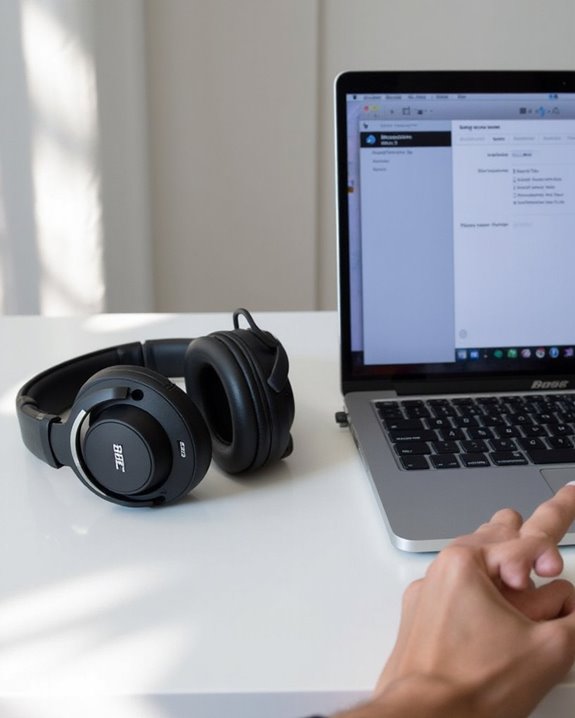
Once paired, Bose headphones should reconnect automatically when:
- Bluetooth is on
- The headphones are powered on
- The Mac is nearby
- The headphones are not actively connected to another device
If they do not reconnect, open System Settings > Bluetooth and click Connect beside the Bose headphones.
Some Bose models can stay connected to two devices through multipoint Bluetooth. This feature can make switching easier, but it can also cause confusion if a phone, tablet, or another computer takes control of the connection. Turn off Bluetooth on nearby devices if the Mac keeps losing the headphones.
What to do if your Bose headphones do not appear
If your Mac cannot find the headphones, check the connection in this order.
Confirm pairing mode
The headphones must be discoverable. Turning them on is not always enough. Hold the Bluetooth or Power/Bluetooth control until you hear the pairing prompt or see the blue Bluetooth light.
Move the headphones closer
Keep the headphones close to the Mac during setup. Remove large objects and other Bluetooth devices from the area if the connection list does not update.
Charge the headphones
A low battery can prevent pairing or cause repeated disconnections. Charge the headphones for a short time, then try again.
Turn Bluetooth off and on
On the Mac:
- Open System Settings > Bluetooth.
- Turn Bluetooth off.
- Wait a few seconds.
- Turn it back on.
- Put the Bose headphones back into pairing mode.
Disconnect other devices
Turn off Bluetooth on a nearby phone or tablet. If the headphones connect to that device first, they may not appear as available to the Mac.
Clear the Bose Bluetooth device list
Many Bose models let you erase stored Bluetooth connections by holding the Power/Bluetooth control for about 10 seconds. The headphones may announce that the device list was cleared.
The exact command can vary by model. Check the official Bose support page or the manual for your specific QuietComfort model before using it.


How to remove and pair the Bose headphones again
Removing the old Bluetooth record often fixes failed connections after a macOS update or device change.
- Open System Settings on your Mac.
- Select Bluetooth.
- Find the Bose headphones under My Devices.
- Click the information button or details control beside them.
- Choose Forget This Device or Remove.
- Confirm the action.
- Put the Bose headphones into pairing mode.
- Select them under Nearby Devices.
On older macOS versions, Control-click the Bose device in Bluetooth settings and choose Remove.
This process does not usually erase the headphones’ saved settings. It removes the Mac’s Bluetooth pairing record so the two devices can create a new connection.
Bose headphones show as connected but have no sound
A Bluetooth connection does not always mean that macOS is using the headphones for audio output.
Try these checks:
- Open System Settings > Sound.
- Select Output.
- Choose the Bose headphones.
- Raise the Mac volume.
- Check the volume in the audio app.
- Pause and restart the media.
If the Bose headphones appear under Bluetooth but not under Sound, disconnect them, restart the Mac, and pair them again.
Also check whether the sound is being sent to an external monitor, dock, USB audio device, or another Bluetooth product. macOS may keep a different output selected.
Bose headphones keep disconnecting from a Mac
Frequent disconnections can have several causes:
- The headphones are too far from the Mac.
- The battery is low.
- Another device is taking the Bluetooth connection.
- The Mac has an old or damaged pairing record.
- The headphones or Mac need a software update.
- Wireless interference is affecting the connection.
Start by keeping the headphones close to the Mac and disconnecting nearby devices. Then remove the Bose headphones from macOS Bluetooth and pair them again.
If the problem continues, restart both devices. Check the Bose app for a firmware update and check System Settings > General > Software Update for macOS updates. Do not interrupt a firmware update or turn off the headphones while it is installing.
Bose headphones connect but microphone quality is poor
This is often a Bluetooth profile issue, not a damaged headset.
When macOS uses the Bose microphone, Bluetooth may switch to a two-way call mode. That mode gives the computer microphone access but can reduce music quality.
For better audio:
- Use the Bose headphones as the output device.
- Use the Mac’s built-in microphone as the input device.
- Select the Bose microphone only when you need it.
- Close apps that may be using the microphone in the background.


If the microphone is not detected at all, open System Settings > Privacy & Security > Microphone and allow the relevant call app to access it.
How to connect Bose QuietComfort headphones with a cable
If Bluetooth is unavailable or unreliable, some Bose QuietComfort models can connect to a Mac with a 3.5-millimeter audio cable.
You may need a USB-C or other audio adapter if your Mac does not have a compatible headphone jack. A wired connection can carry sound without Bluetooth pairing, but features such as wireless controls, app settings, and active noise cancellation may work differently depending on the Bose model and whether the headphones are powered on.
Use the correct cable for your model. A charging cable is not automatically an audio cable.
Bose QuietComfort connection methods compared
The best method depends on what you need from the headphones.
| Connection method | Best for | Main limitation |
|---|---|---|
| Mac Bluetooth | Wireless music, videos, and calls | Can be affected by pairing conflicts |
| Bose app plus Mac Bluetooth | Firmware and headphone settings | The app does not replace Mac audio pairing |
| 3.5 mm audio cable | Backup audio or devices without Bluetooth | Requires a compatible port and cable |
| Mac built-in microphone plus Bose output | Better music quality during calls | The Bose microphone is not used |
Bluetooth is the simplest option for most Mac users. A cable is a useful backup when wireless pairing fails or when you want to avoid Bluetooth for a particular task.
Common mistakes when pairing Bose headphones to a Mac
Selecting the wrong Bose entry
If several Bose entries appear, select the regular headphone name. A low-energy entry may not provide the normal audio connection.
Pairing without entering discovery mode
The headphones may be powered on but hidden from new devices. Hold the Bluetooth control until the pairing announcement or blue light appears.
Leaving a phone connected
A phone in the same room may reconnect first. Temporarily turn off Bluetooth on that phone during Mac setup.
Confusing charging with audio
A USB charging connection does not guarantee that the Mac can send audio through that cable. Use Bluetooth or a supported audio cable.
Changing settings in the Bose app only
The Bose app can control supported headphone features, but macOS still needs the headphones selected as the sound output.
Frequently asked questions
Can I connect Bose QuietComfort headphones to a MacBook?
Yes. A MacBook with Bluetooth can pair with Bose QuietComfort headphones through System Settings > Bluetooth. The steps are the same as for an iMac or Mac mini.
Do I need the Bose app to connect to a Mac?
No. The Bose app is optional. You can pair the headphones directly through the Mac’s Bluetooth settings. The app may still be useful for firmware updates and model-specific controls.
Why does my Mac ask for a PIN when pairing Bose headphones?
Most current Bose Bluetooth headphones do not require a PIN. If macOS asks for one, cancel the request, remove the old pairing record, clear the headphones’ stored Bluetooth list if supported, and try pairing again.
Can Bose headphones connect to a Mac and an iPhone at the same time?
Some Bose models support multipoint connections, which can allow two devices to remain connected. The exact behavior depends on the model and firmware. If switching causes problems, disconnect the headphones from the second device before using the Mac.


Will Bose noise cancellation work when connected to a Mac?
Noise cancellation generally works over Bluetooth and, on supported models, through a wired audio connection. Available controls can vary by model, connection type, battery level, and firmware.
Key takeaways
- Turn on Bluetooth in System Settings > Bluetooth.
- Hold the Bose Bluetooth control until the headphones enter pairing mode.
- Select the regular Bose headphone name on the Mac.
- Choose the headphones under System Settings > Sound > Output.
- If pairing fails, remove the old device record and pair again.
- Disconnect nearby phones and tablets if they keep taking the connection.
- Use the Mac’s built-in microphone when Bluetooth call mode reduces music quality.
Conclusion
To connect Bose QuietComfort headphones to a Mac, place the headphones in Bluetooth pairing mode and select them in the Mac’s Bluetooth settings. Then choose them as the sound output under System Settings > Sound.
If the headphones do not appear, focus on pairing mode, battery level, nearby devices, and the old Bluetooth record. Those checks solve most connection problems without needing extra software.
For model-specific button instructions, firmware details, and reset steps, use the official Bose support site and Apple’s Bluetooth connection guidance.