How To Use Headphones As Mic On PC: Easy Setup Guide
Plug your headphones into the correct PC jack, then select their microphone as the Windows input device.
Most wired headphones can work as a microphone on a PC when they have a built-in mic and a compatible 3.5 mm plug. The setup may take only a minute, but the details matter: some computers need a headset splitter, Bluetooth headphones use a different input mode, and Windows may select the wrong microphone. This guide explains how to use headphones as mic on PC, fix common problems, and improve sound quality for calls, gaming, and recording.
Can headphones work as a microphone on a PC?
Yes, headphones can often work as a microphone on a PC. Headsets made for phones, gaming, and video calls usually include a small microphone near the cable, earcup, or wireless control panel.
Some regular headphones without a built-in mic may also pick up sound through their speaker drivers. However, this is an emergency solution. The sound is usually quiet, thin, and less clear than a real microphone.


Your setup depends on three main factors:
• The type of headphone connection
• The ports available on your computer
• Whether Windows detects the headphone microphone
A headset with one 3.5 mm TRRS plug carries both audio and microphone signals. A PC with separate headphone and microphone ports needs a headset splitter. USB and Bluetooth headphones usually handle both signals through one connection.

Check your headphone connection
Before changing Windows settings, inspect the headphone plug and the ports on your PC. This simple step prevents many setup problems.
One 3.5 mm headset plug
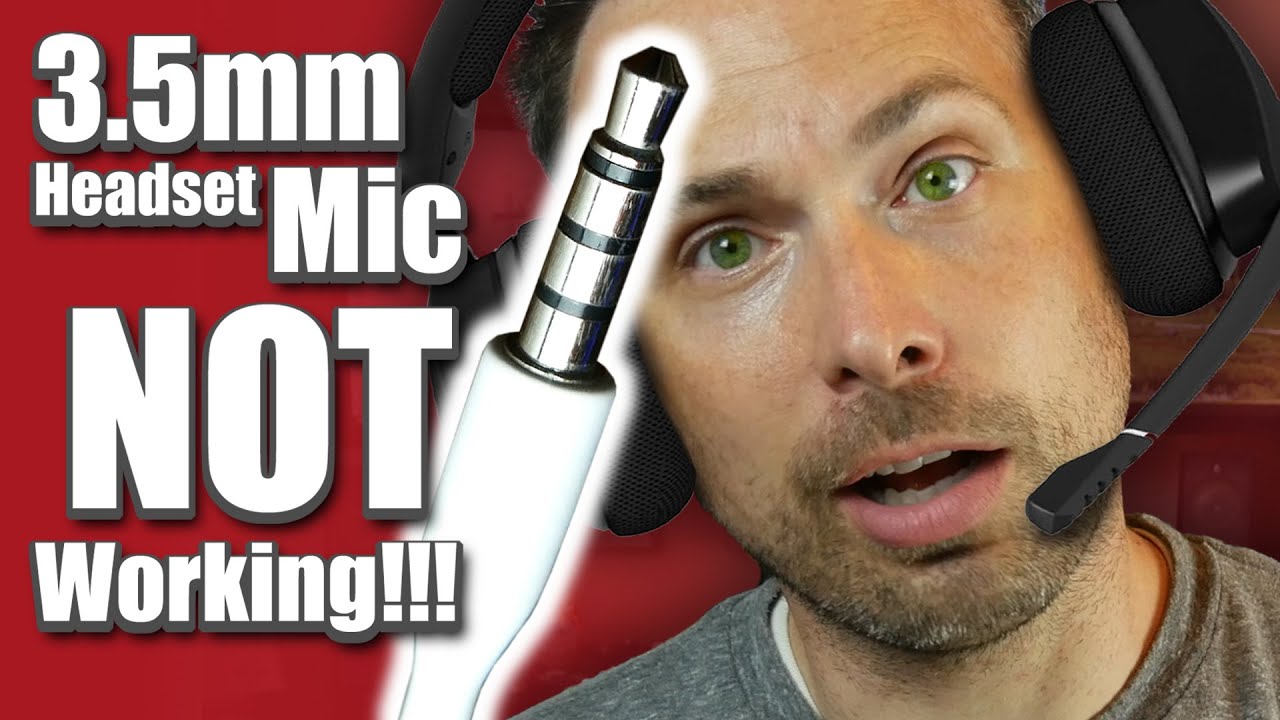
A single plug with three black rings is usually a TRRS connector. TRRS stands for Tip, Ring, Ring, Sleeve. It can carry stereo sound and microphone input through one plug.
Many laptops have one combined headset port. Plug your headphones into that port, and Windows should detect the microphone automatically.
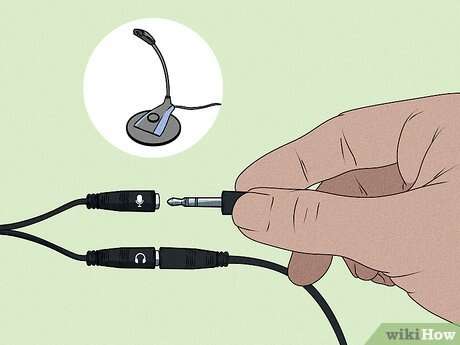
Desktop computers often have separate ports. One port may have a headphone icon, while another has a microphone icon. In this case, a single-plug headset may need a TRRS-to-dual-TRS splitter.
Two separate plugs
Some computer headsets have two plugs:
• The green plug carries headphone audio.


• The pink plug carries microphone input.
Connect each plug to the matching port. Desktop PCs often use this design, especially older models and gaming computers.
USB headphones
USB headphones include their own audio hardware. Connect them directly to a USB port instead of a headphone jack.
Windows normally lists the headset as a separate microphone, such as USB Headset or the manufacturer’s product name. USB models can avoid some analog jack problems, such as static, loose connections, and incorrect port wiring.
Bluetooth headphones
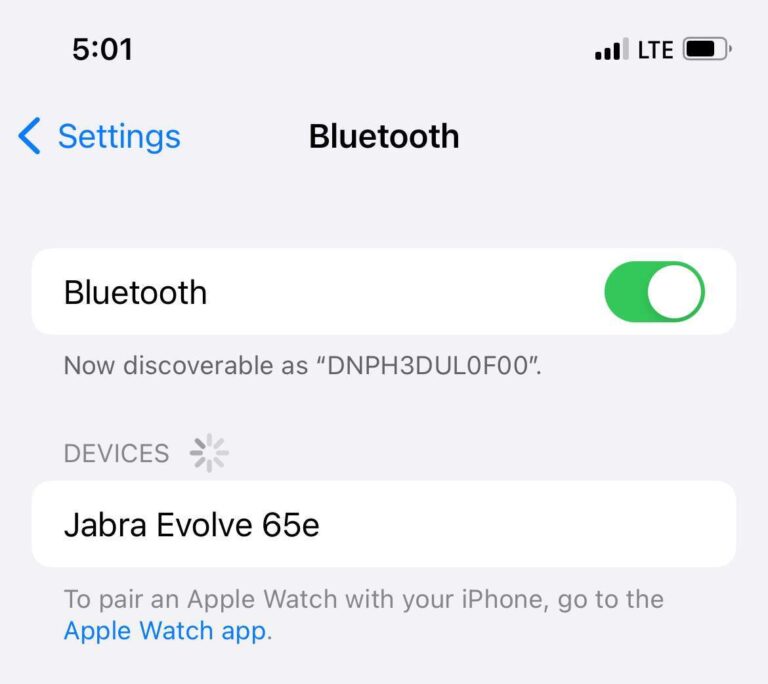
Bluetooth headphones do not use a physical audio jack. Pair them with your PC through Bluetooth settings, then select the headset microphone in Windows.
Bluetooth headsets may switch to a lower-quality hands-free mode when the microphone is active. This is a normal Bluetooth limitation, not always a fault with your headphones.

How to use headphones as mic on PC with Windows
Once your headphones are connected, choose them as the input device. These steps work on most Windows 10 and Windows 11 computers.
-
Connect or pair your headphones with the PC.
-
Open Settings from the Start menu.
-
Select System.
-
Choose Sound.
-
Find the Input section.
-
Open the device list under Choose a device for speaking or recording.
-
Select your headphones or headset microphone.
-
Speak into the microphone and watch the input level meter.
If the meter moves when you speak, Windows is receiving your voice. You can now use the headphones as mic on PC for calls, games, voice chat, and recording apps.
Windows may show several input devices, including a laptop microphone, webcam microphone, and headset microphone. Select the device that matches your headphones. A name such as Headset Microphone, Headphones, USB Audio Device, or Bluetooth Hands-Free Audio may appear.
Set the input volume
In the same Sound settings area, open the selected microphone properties. Adjust the input volume until your voice sounds clear without clipping.
A level between 70 and 90 is a useful starting point. Test your voice at a normal speaking distance. If your voice sounds harsh or distorted, lower the level. If it sounds distant, raise it slightly and move the microphone closer to your mouth.
Test the microphone
Windows includes a built-in microphone test. Speak for a few seconds, then review the test result or input meter.
You can also use the Sound Recorder app. Record a short sample and listen for:
• Clear speech
• Low background noise


• No crackling
• No echo
• No sudden volume changes
Testing before joining a meeting is much easier than troubleshooting while everyone waits.

How to use headphones as mic on PC for gaming
Most games let you choose an input device inside their audio settings. Even if Windows uses your headphone microphone, the game may still use another microphone.
Open the game’s settings and find Audio, Voice Chat, or Communications. Set the input device to your headset microphone. If the game has an automatic option, test it first, then choose the headset manually if needed.
Check these settings as well:
• Turn voice chat on.
• Select Push to Talk or Open Mic.
• Set the microphone threshold low enough to detect your voice.
• Adjust voice chat volume separately from game volume.
• Disable microphone enhancements if they cause a robotic sound.
For Discord, open User Settings, choose Voice & Video, and select your headset microphone under Input Device. Use the microphone test feature before entering a voice channel.
I have seen many gaming audio issues caused by one small mistake: the player selects headphones for output but leaves the laptop microphone selected for input. The game then captures keyboard noise or room sound instead of the person wearing the headset.

How to use headphones as mic on PC for Zoom and Teams
Video meeting apps often have their own audio settings. Selecting the microphone in Windows may not be enough.
In Zoom, open Settings, select Audio, and choose your headset under Microphone. Speak and watch the input bar. You can also run the built-in test to check the microphone and speaker.
In Microsoft Teams, open Settings, choose Devices, and select the headphones under Microphone. Make a test call when possible.
In a web browser, the meeting site may ask for microphone permission. Select Allow. If permission was denied earlier, open the browser’s privacy settings and permit microphone access for the meeting website.


A good meeting setup uses the same device for input and output. This reduces echo because your voice enters through the headset microphone while meeting audio stays in the headphones.

How to use headphones as mic on PC without a splitter
You may be able to use headphones as mic on PC without a splitter if your computer has a combined headset jack. This is common on laptops and some newer desktop cases.
Look for a port marked with a headset icon. Plug in the single headset connector and wait for Windows to detect it.
If your desktop has separate headphone and microphone ports, you have three practical choices:
• Use a TRRS headset splitter.
• Connect the headset to a USB audio adapter with a combined port.
• Use a USB or Bluetooth headset.
A splitter must support microphone input. Some inexpensive adapters only split stereo audio and do not carry the microphone signal. Check the product description for terms such as headset splitter, CTIA standard, or microphone support.
The CTIA wiring layout is common on modern headsets, but older accessories may use a different wiring standard. If the headphones work for listening but the microphone does not, incompatible wiring is one possible cause.

How to fix a headphone microphone that is not working
If Windows does not detect your headphone microphone, work through these checks in order.
Confirm the physical connection
Push the plug fully into the port. A partly inserted connector may send sound to one ear or disable the microphone.
Try another port if your PC has one. Avoid forcing the plug, since damaged ports can create intermittent audio problems.
Choose the correct input device
Return to Settings, System, and Sound. Select the headset microphone instead of the built-in laptop or webcam microphone.
If the device does not appear, unplug it, restart the PC, and connect it again.
Check microphone privacy settings
Windows can block microphone access for apps. Open Privacy & security, choose Microphone, and turn on:
• Microphone access
• Allow apps to access your microphone


• Allow desktop apps to access your microphone
Without these permissions, the headset may appear correctly but remain silent inside a calling or recording app.
Check the mute switch
Many headsets have a mute button on the cable or earcup. Some microphones also mute when the boom is raised.
Look for a red indicator or mute icon. Test the control several times if you are unsure of its position.
Update or reinstall audio drivers
Open Device Manager and expand Audio inputs and outputs. Right-click the microphone device and check for driver updates.
You can also remove the device and restart Windows. The operating system may reinstall a suitable driver automatically. For branded USB headsets, use the manufacturer’s official support software when required.
Test for a hardware fault
Try the headphones on another computer or phone. If the microphone fails everywhere, the cable, plug, or microphone may be damaged.
If it works on another device, the issue is more likely related to the PC port, driver, permissions, or audio settings.
How to improve headphone microphone quality
A headphone microphone will not usually sound like a studio microphone, but you can make it much better.
Keep the microphone close to your mouth, but not directly in front of your lips. A position near the corner of your mouth reduces breathing noise and harsh bursts of air.
Use a quiet room when possible. Fans, air conditioners, mechanical keyboards, and loud phone speakers can overwhelm a small headset microphone.
Try these improvements:
• Lower the microphone input level if your voice clips.
• Raise the level if your voice is too quiet.
• Turn on noise suppression in your meeting or chat app.
• Disable aggressive automatic gain control if your volume pumps up and down.


• Use a windscreen or foam cover if the microphone sounds breathy.
• Keep the cable still to reduce rubbing noise.
• Use wired headphones when stable, low-latency audio matters.
Software noise reduction can help, but it may make speech sound metallic when set too high. Test your voice with and without the feature before choosing a setting.
For important recordings, a dedicated USB microphone will usually provide better clarity, lower noise, and more control. Headphones as mic on PC are excellent for quick calls and casual gaming, but they have physical limits.

Wired versus Bluetooth headphones as a PC microphone
Both connection types can work, but they suit different needs.
Wired headphones
Wired headphones usually offer:
• Lower delay
• No battery concerns
• Simple connection
• Stable voice chat
• Better compatibility with older apps
Their main drawbacks are cable clutter and the possible need for a splitter.
Bluetooth headphones
Bluetooth headphones offer freedom of movement and a clean desk. They are useful for calls and general computer use.
However, many Bluetooth devices reduce speaker sound quality when the microphone turns on. This happens because Bluetooth must use a hands-free communication profile with limited bandwidth.
If music quality matters while you speak, consider using the Bluetooth headphones only for output and a separate USB microphone for input. This lets the headphones stay in a higher-quality stereo mode.
Common mistakes to avoid
The most common errors are simple, but they can waste a lot of time.
• Plugging a single headset into the headphone-only port on a desktop PC
• Using an audio splitter that does not support microphones
• Selecting the wrong input device in Windows
• Forgetting to allow microphone access
• Leaving the headset muted
• Placing the microphone too far from your mouth
• Assuming an ordinary headphone has a working microphone
• Using Bluetooth stereo mode while expecting the headset mic to work
• Testing only inside one app
When I troubleshoot how to use headphones as mic on PC, I start with the physical connection, then Windows input settings, then app permissions. This order is quick and avoids changing several settings at once.
Privacy and safety tips
A connected microphone can capture sound whenever an app has permission to use it. Review microphone permissions regularly, especially after installing chat, gaming, or recording software.
Use the microphone mute button when you are not speaking. For extra privacy, unplug wired headphones or power off wireless headphones when they are not needed.
Avoid downloading unknown audio drivers or “microphone booster” tools. Official Windows updates and the headphone manufacturer’s support page are safer choices.
Also remember that voice chat platforms may record or store audio under their own policies. Read the privacy settings of the apps you use, particularly for work calls, school meetings, and public livestreams.
Frequently Asked Questions About How to Use Headphones as Mic on PC
Can I use regular headphones as a microphone on a PC?
Regular headphones may produce a weak microphone signal when connected to a compatible microphone port, but results vary. Headphones with a built-in microphone are a much better choice for clear voice chat.
Why does my PC detect my headphones but not the microphone?
Your PC may have separate audio and microphone ports, or the headset may need a compatible splitter. It may also be muted, blocked by privacy settings, or wired for a different connector standard.
Do I need a splitter to use headphones as mic on PC?
You need a splitter when your headset has one combined plug but your desktop has separate headphone and microphone ports. You do not usually need one with a laptop’s combined headset jack or a USB headset.
Can I use Bluetooth headphones as a microphone on Windows?
Yes, pair the headphones with Windows and select their hands-free microphone as the input device. Be aware that Bluetooth may lower speaker audio quality while the microphone is active.
How do I test my headphone microphone?
Open Windows Settings, choose System, Sound, and select the microphone under Input. Speak while watching the input meter, or make a short recording with the Sound Recorder app.
Why is my headphone microphone so quiet?
The input volume may be too low, or the microphone may be too far from your mouth. Increase the input level slightly, position the microphone near the corner of your mouth, and test again.
[CodeImg? no, FAQ no placeholder]
Conclusion
Using headphones as mic on PC is usually simple once you match the connector to the correct port and select the right input device in Windows. A combined headset jack needs one plug, while a desktop with separate ports may need a microphone splitter. USB and Bluetooth headsets follow their own connection steps.
Test the microphone before a call or game, check app permissions, and keep the microphone close to your mouth for clearer speech. Try these steps now, then explore your app’s audio settings or share your setup and results in the comments.