

Open Bluetooth settings on your iPhone, put the JBL earbuds in pairing mode, then select them from the device list.
Learning how to connect JBL earbuds to iPhone is simple once you know where pairing mode is located. This guide covers the exact steps, common connection problems, setup tips, and ways to keep your JBL earbuds working smoothly with your iPhone.
How to Connect JBL Earbuds to iPhone
Most JBL earbuds use Bluetooth, so you do not need a special cable or adapter. Your iPhone can connect to JBL Tune, Live, Wave, Endurance, and many other JBL wireless earbud models.
Before you begin, check these points:
• Charge the JBL earbuds and their charging case.
• Keep the earbuds within a few feet of your iPhone.
• Turn off Bluetooth on nearby phones, tablets, or laptops that may connect first.
• Remove any protective film from the charging contacts if the earbuds are new.
Follow these steps to connect JBL earbuds to iPhone:
Open the Settings app on your iPhone.
Tap Bluetooth.
Turn on Bluetooth if it is not already active. The switch should appear green.
Place both JBL earbuds in the charging case.
Open the case, or remove the earbuds, depending on the model.
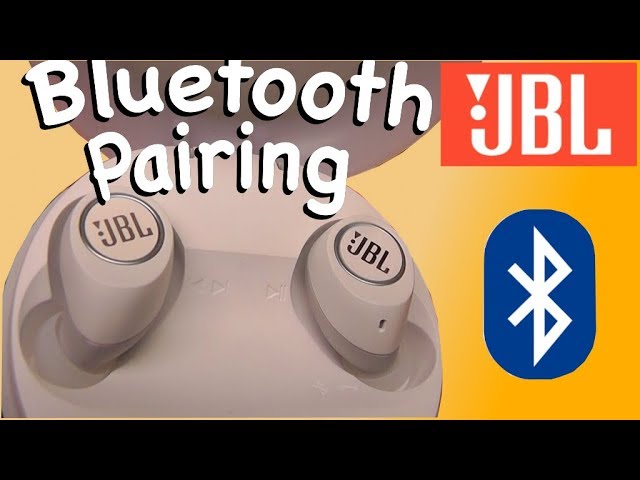
Put the earbuds into pairing mode.
Look under Other Devices on your iPhone.
Tap the name of your JBL earbuds.
Wait until the device appears under My Devices with a Connected label.
Some JBL models enter pairing mode automatically the first time you remove them from the case. If your earbuds do not appear, press and hold the touch area or power button for several seconds. The exact control varies by model, so check the JBL user guide if needed.
Once connected, play a song or video to test the sound. You can adjust the volume with the iPhone buttons, Control Center, or the touch controls on the earbuds.

How to Put JBL Earbuds in Pairing Mode
Pairing mode allows your iPhone to find the earbuds. Think of it as turning on a small Bluetooth beacon. Without this step, the earbuds may be powered on but invisible to the phone.
The process differs slightly between JBL models:
JBL earbuds with a charging case
Put both earbuds in the case.
Open the lid.
Remove the earbuds.
Look for a flashing white or blue light.
Open iPhone Bluetooth settings and select the JBL device.
If the earbuds were connected to another phone, they may reconnect to that device instead. Turn Bluetooth off on the other phone before trying again.
JBL earbuds with a power button
Turn off the earbuds.
Press and hold the power button.
Continue holding it until the indicator light flashes.
Release the button and select the earbuds on your iPhone.
JBL earbuds with touch controls
Touch controls may require you to press and hold one earbud for a few seconds. On some models, holding both earbuds can reset the connection or activate pairing mode.
A flashing light often signals pairing mode, but the color can vary. JBL product manuals are the best source for model-specific light patterns and button controls.

How to Connect JBL Earbuds to iPhone After the First Setup
After the first successful setup, JBL earbuds should connect to the same iPhone automatically. Place the earbuds in the case, open the lid, and remove them. Keep Bluetooth enabled on the iPhone.
If automatic connection does not work, open Settings, tap Bluetooth, and select the JBL earbuds under My Devices. You can also open Control Center, press and hold the Bluetooth control, and choose the earbuds from the list.
Automatic connection may fail when:
• The earbuds are out of battery.
• The iPhone is connected to another audio device.
• The earbuds are still linked to a different phone.
• The earbuds were reset.
• Bluetooth is temporarily stuck.
When I troubleshoot JBL earbuds, I first check the simple things: battery level, distance, and nearby devices. These three checks solve many connection issues before a reset is needed.

How to Connect JBL Earbuds to iPhone Without the JBL App
You do not need the JBL Headphones app to connect JBL earbuds to iPhone. The normal Bluetooth menu is enough for basic listening, calls, and media control.
The JBL app can add useful features for supported models, such as:
• Firmware updates.
• Equalizer controls.
• Noise control settings.
• Ambient sound options.
• Battery information.
• Find My Buds features on compatible products.
To connect without the app, use Settings, Bluetooth, and the JBL device name. The app is optional, but installing it may improve control over supported JBL headphones and earbuds.
Keep in mind that app features depend on the model. Older JBL earbuds may not support every feature shown in the app.
How to Fix JBL Earbuds Not Showing on iPhone
If your JBL earbuds do not appear in the Bluetooth list, do not repeatedly tap the screen. Start with a clean pairing attempt.
Try these steps in order:
Put the JBL earbuds back in the charging case.
Close the case for about 10 seconds.
Turn Bluetooth off on nearby devices.
Restart Bluetooth on the iPhone.
Remove the earbuds from the case.
Press and hold the pairing control.
Open Settings and tap Bluetooth.
Wait for the JBL name to appear under Other Devices.
If that fails, restart the iPhone. A restart clears many short-term Bluetooth errors without changing your personal data.
Also check whether the earbuds are already listed under My Devices. If they are, tap the information button next to the name and choose Forget This Device. Then place the earbuds in pairing mode and connect them again.
This process is called re-pairing. It gives the iPhone and earbuds a fresh connection record, much like starting a new conversation after a message gets lost.

How to Reset JBL Earbuds Before Pairing
A reset can help when the earbuds keep connecting to the wrong phone, connect on only one side, or refuse to enter pairing mode. Reset instructions differ across JBL models, so avoid guessing if the controls are unclear.
Common reset methods include:
• Placing both earbuds in the case and holding a touch control.
• Holding the left and right earbud controls at the same time.
• Pressing a case button for several seconds.
• Using the JBL Headphones app when the model supports it.
A reset usually removes saved Bluetooth connections and returns the earbuds to their original setup state. It does not normally damage the earbuds, but it may remove custom settings and require you to pair them again.
After resetting the earbuds, open the iPhone Bluetooth menu and select the JBL device. If the earbuds still do not appear, charge them for at least 15 to 30 minutes and try again.

How to Forget and Reconnect JBL Earbuds on iPhone
Forgetting the device is useful when your JBL earbuds show as connected but produce no sound. It can also fix repeated disconnects and failed automatic pairing.
Follow these steps:
Open Settings on your iPhone.
Tap Bluetooth.
Find the JBL earbuds under My Devices.
Tap the information button beside the device name.
Tap Forget This Device.
Confirm the choice.
Put the JBL earbuds in pairing mode.
Tap the JBL name under Other Devices.
Your iPhone will create a new Bluetooth connection. This often fixes problems caused by an old or damaged pairing record.
Do not forget the device unless you know the password or pairing process for other accessories you use. Forgetting the JBL earbuds affects that device only, but you will need to set it up again.
JBL Earbuds Connected but No Sound on iPhone
Sometimes the iPhone says the JBL earbuds are connected, but sound comes from the phone speaker. This usually means the audio output is set to the wrong device.
To change the audio output:
Start playing music or a video.
Open Control Center by swiping down from the upper-right corner.
Tap the AirPlay audio icon in the media panel.
Select your JBL earbuds.
You can also check the volume level on both the iPhone and the earbuds. Some JBL models have independent touch controls, so raising the iPhone volume alone may not solve the problem.
For phone calls, tap the audio button during the call and select the JBL earbuds. If the earbuds work for music but not calls, check that the JBL device is connected for call audio and microphone access.
Clean the earbud speaker grilles carefully if the sound is quiet or uneven. Use a dry, soft brush. Avoid water, sharp tools, and compressed air directed into the speaker.

How to Improve JBL Earbuds Connection Quality
Bluetooth works best when the signal has a clear path. Your body, walls, crowded wireless areas, and other Bluetooth devices can affect performance.
Use these practical tips:
• Keep the iPhone within about 30 feet when possible.
• Keep the phone on the same side of your body as the main earbud.
• Avoid placing the iPhone inside a crowded bag or behind thick objects.
• Keep the earbuds and iPhone updated.
• Charge both earbuds evenly.
• Close unused Bluetooth connections.
• Avoid pairing the earbuds with many devices at the same time.
Bluetooth range depends on the model, surroundings, and obstacles. The advertised range is measured in ideal conditions, so real-world results can be shorter.
During testing, one common mistake is leaving the iPhone in a back pocket while walking. The body can block the signal, especially when the earbuds use one side as the primary connection. Moving the phone to a front pocket often makes the connection more stable.

How to Check JBL Earbud Battery on iPhone
Many JBL earbuds show battery levels on the iPhone after they connect. You may see the battery percentage in the Batteries widget or near the Bluetooth device information.
To add the Batteries widget:
Touch and hold an empty area on the iPhone Home Screen.
Tap the plus sign.
Search for Batteries.
Choose a widget style.
Tap Add Widget.
The battery display can vary by JBL model. Some earbuds report a combined level, while others show the left earbud, right earbud, and case separately through the JBL app.
If the battery level looks wrong, place both earbuds in the case, charge the case, and reconnect them. Battery readings can take a short time to update after a new connection.
Using JBL Earbuds for iPhone Calls
JBL wireless earbuds can handle phone calls, FaceTime calls, and many other voice apps when the model includes a microphone. After connecting JBL earbuds to iPhone, the phone should route calls through them automatically.
During a call, you can:
• Tap the audio icon and choose the JBL earbuds.
• Adjust call volume with the iPhone buttons.
• Mute the microphone from the call screen.
• Return audio to the iPhone by selecting iPhone.
If the other person cannot hear you, move the earbuds closer to your mouth, clean the microphone openings, and test another app. A weak Bluetooth signal, blocked microphone, or app permission can affect call quality.
For important calls, test the earbuds before joining. This small habit avoids the familiar “Can you hear me now?” moment at the start of a meeting.
JBL Earbuds and iPhone Compatibility
Most modern JBL Bluetooth earbuds work with iPhone models that support Bluetooth audio. Compatibility usually covers music, podcasts, video, and calls.
However, some features may have limits:
• Advanced app controls may require a newer iOS version.
• Spatial audio features may depend on the JBL model and app support.
• High-quality audio settings may change battery life.
• Multipoint connection may work differently across phones and computers.
• Older JBL models may offer fewer touch controls.
Bluetooth earbuds do not need to be made by Apple to work with an iPhone. The main requirement is a supported Bluetooth audio profile. Feature support, however, is not always identical across brands.
Check the JBL model number before buying accessories or looking for reset instructions. “JBL earbuds” covers many product lines, and the correct procedure can differ between them.
Frequently Asked Questions About How to Connect JBL Earbuds to iPhone
Why are my JBL earbuds not showing up on my iPhone?
Put the earbuds into pairing mode and turn off Bluetooth on nearby devices. If they still do not appear, restart the iPhone, charge the earbuds, or reset them before trying again.
Do I need the JBL Headphones app to connect JBL earbuds to iPhone?
No. You can connect them through Settings, Bluetooth, and the JBL device name. The app is optional and provides extra controls for supported models.
How do I reconnect JBL earbuds to my iPhone?
Open the JBL charging case and remove the earbuds while Bluetooth is enabled on the iPhone. If they do not connect automatically, go to Settings, tap Bluetooth, and select the JBL earbuds under My Devices.
Why are my JBL earbuds connected but not playing sound?
Open Control Center, tap the AirPlay audio icon, and select the JBL earbuds as the output device. Also check the volume on both the iPhone and the earbuds.
How do I reset JBL earbuds for a new iPhone?
Reset steps vary by model, but they often involve holding the earbud touch controls or a case button. After the reset, place the earbuds in pairing mode and select them from the iPhone Bluetooth menu.
Can JBL earbuds connect to an iPhone and another device?
Some JBL models support multipoint connections, while others connect to one device at a time. Check your model’s specifications or JBL app to confirm whether multipoint is available.
How far can JBL earbuds be from an iPhone?
Bluetooth range is often around 30 feet in open space, but walls, furniture, your body, and wireless interference can reduce it. Keeping the iPhone nearby usually provides the most stable connection.
Conclusion
Connecting JBL earbuds to iPhone usually takes less than a minute: enable Bluetooth, place the earbuds in pairing mode, and select the JBL name on the iPhone. If the connection fails, charge the earbuds, forget the old pairing, restart Bluetooth, or reset the earbuds.
Once connected, check the audio output, update supported software, and keep the phone close for better performance. Try the steps above with your JBL earbuds today, then explore the JBL app for extra controls and features.
