How To Connect Nothing Earbuds: Easy Pairing Guide
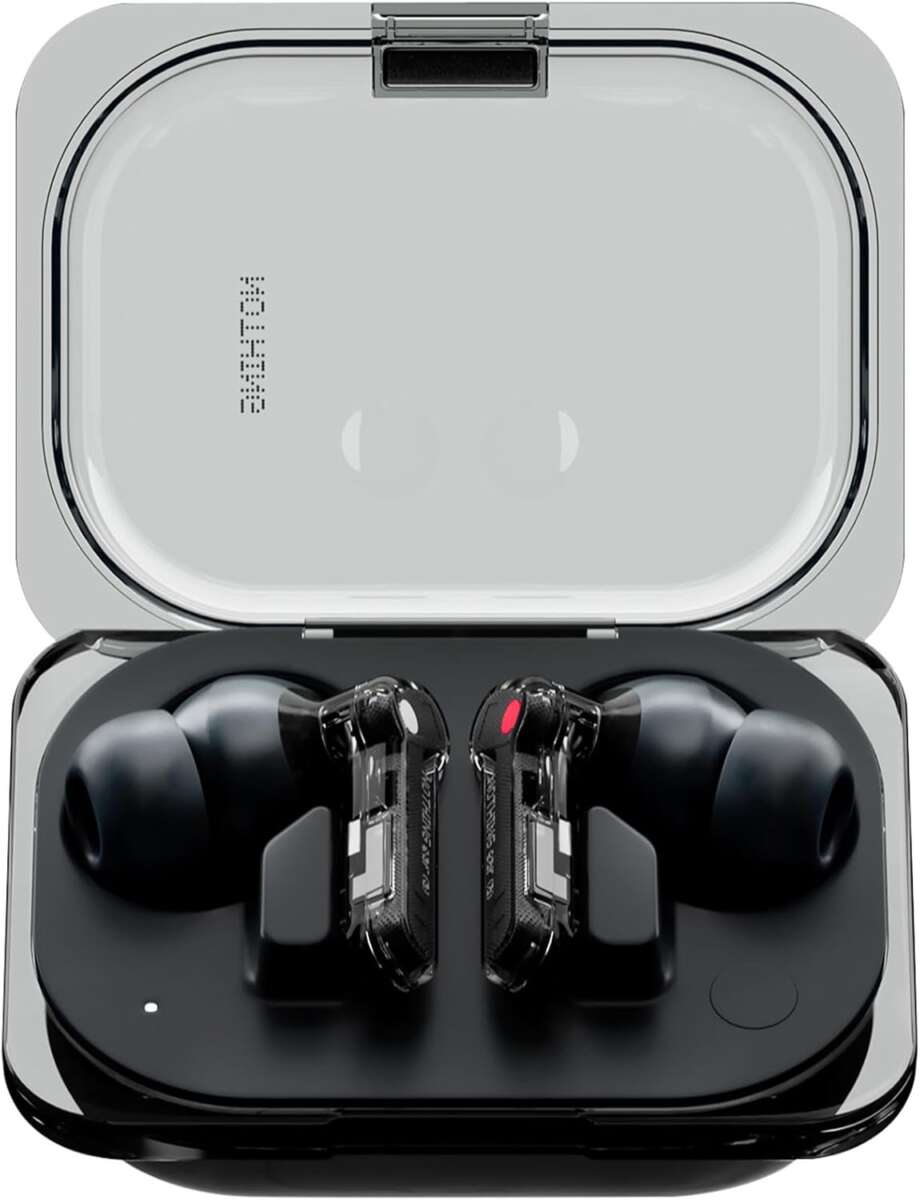
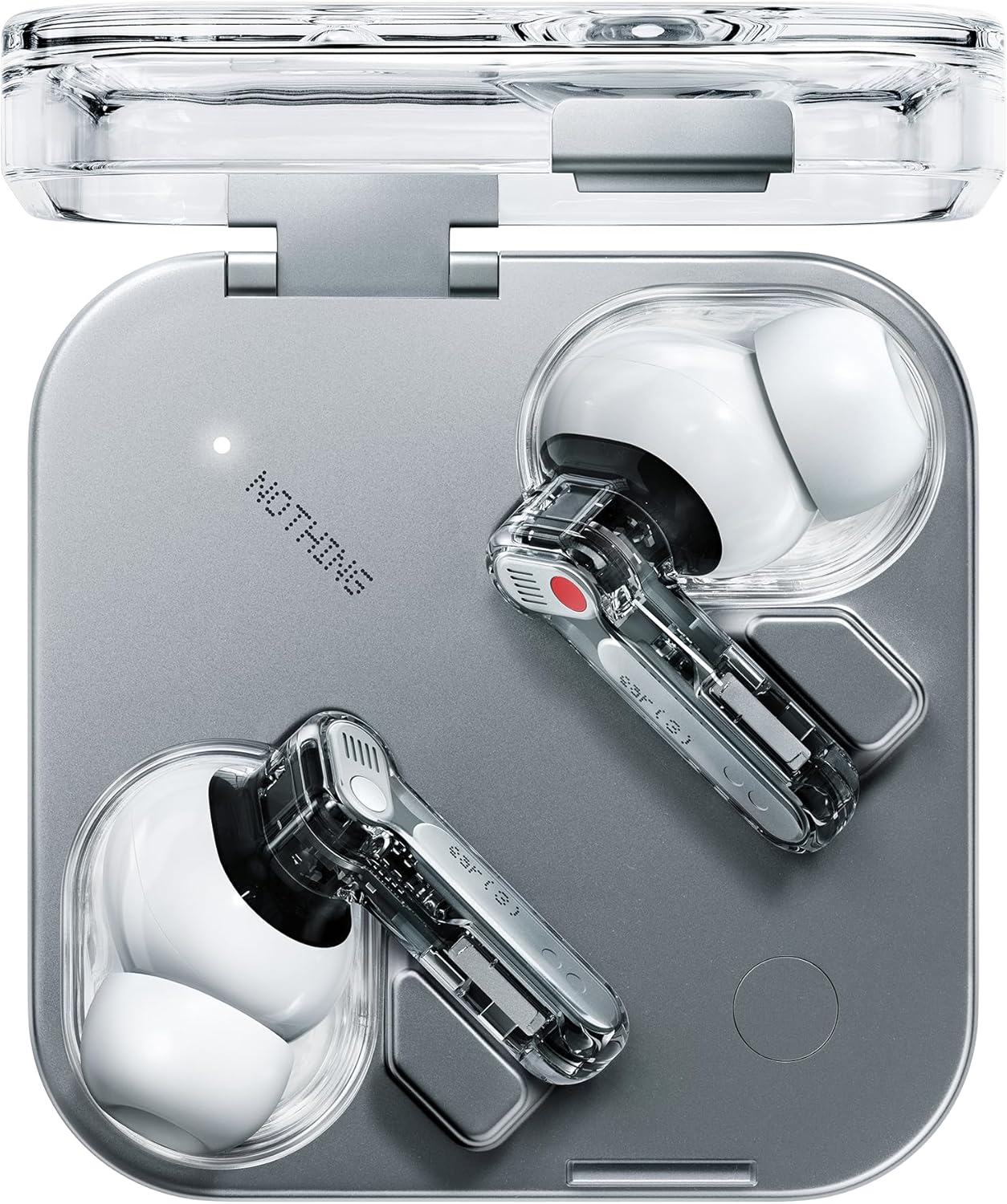
Connecting Nothing earbuds in the United States usually takes less than two minutes. Open the charging case, press and hold the case button until the light flashes, then select the earbuds in your device’s bluetooth settings.
The steps work for most Nothing Ear models, including Nothing Ear, Ear (a), Ear (2), Ear (stick), Ear (1), and CMF by Nothing earbuds. Button names and reset times can vary by model, so use the model-specific instructions if the basic steps do not work.
Before You Start
You need the earbuds, their charging case, and a phone, tablet, computer, or other Bluetooth device.
Before pairing:
- Charge the earbuds and case.
- Keep the earbuds inside the case.
- Turn on Bluetooth on the device you want to connect.
- Move away from other Bluetooth devices if the earbuds keep connecting to the wrong one.
- Install the Nothing X app if you want firmware updates, control changes, or extra settings.


Nothing earbuds can connect through normal Bluetooth without the Nothing X app. The app is helpful, but it is not required for basic listening.
How to Pair Nothing Earbuds With an Android Phone
The fastest method on many Android phones is Google Fast Pair. If Fast Pair does not appear, use the standard Bluetooth menu.
Use Google Fast Pair
- Put both earbuds in the charging case.
- Open the case near your unlocked Android phone.
- Press and hold the pairing button on the case for about two seconds.
- Wait for the case light to flash.
- Tap the pairing notification on your phone.
- Follow the on-screen instructions.
If no notification appears, pair the earbuds through Android’s Bluetooth settings.
Use Android Bluetooth settings
- Open Settings.
- Tap Connected devices, Connections, or Bluetooth. The name depends on the phone maker.
- Turn on Bluetooth.
- Open the Nothing earbuds’ charging case.
- Press and hold the case button until the indicator light flashes.
- Look under Available devices.
- Tap the name of your Nothing earbuds.
- Approve the pairing request, if one appears.
The earbuds should show as Connected. You can now close the case and place the earbuds in your ears.
If the earbuds do not appear
Close the case for a few seconds, open it again, and hold the button once more. Also check that the earbuds are not already connected to a nearby phone, tablet, or laptop.
If the earbuds still do not appear, remove their old Bluetooth record from the phone and reset the earbuds. The reset process is covered below.

How to Connect Nothing Earbuds to an iPhone
Nothing earbuds work with iPhones through standard Bluetooth. Some advanced controls may require the Nothing X app, but the iPhone does not need a special driver.
- Open Settings on your iPhone.
- Tap Bluetooth.
- Turn Bluetooth on.
- Put both earbuds in the charging case.
- Open the lid.
- Press and hold the case pairing button until the light flashes.
- Find the earbuds under Other Devices.
- Tap the earbuds’ name.
- Wait for the status to change to Connected.
You can now play music, make calls, and use the earbuds with supported iPhone features.


If the earbuds were paired with another Apple device, they may connect to that device first. Turn off Bluetooth on the other device for a moment, or select the Nothing earbuds manually from the iPhone’s Bluetooth list.

How to Connect Nothing Earbuds to a Windows PC
Nothing earbuds can connect to Windows 10 and Windows 11 computers through Bluetooth.
Windows 11
- Open Settings.
- Select Bluetooth & devices.
- Turn on Bluetooth.
- Click Add device.
- Select Bluetooth.
- Put the Nothing earbuds in pairing mode.
- Choose the earbuds from the list.
- Click Done.
Windows 10
- Open Settings.
- Select Devices.
- Click Bluetooth & other devices.
- Turn on Bluetooth.
- Choose Add Bluetooth or other device.
- Select Bluetooth.
- Put the earbuds in pairing mode.
- Select the earbuds.
After pairing, click the speaker icon in the Windows taskbar and select the Nothing earbuds as the sound output.
Fix poor sound on Windows
Windows may show two audio options:
- Stereo: Better sound for music and video.
- Hands-Free: Needed for some microphone functions but often lower in quality.
If music sounds muffled, select the stereo output. If the microphone does not work, check the selected input device in Settings > System > Sound.

How to Connect Nothing Earbuds to a Mac
The process is similar on a MacBook, iMac, or Mac mini.
- Open the Apple menu.
- Select System Settings.
- Click Bluetooth.
- Turn Bluetooth on.
- Put the Nothing earbuds in pairing mode.
- Find the earbuds under Nearby Devices.
- Click Connect.
On older versions of macOS, open System Preferences > Bluetooth instead.
If the earbuds connect but sound still comes from the Mac’s speakers, click the Control Center icon in the menu bar, select Sound, and choose the Nothing earbuds.

How to Put Nothing Earbuds in Pairing Mode
Pairing mode makes the earbuds visible to a new device. For most Nothing earbuds, you activate it from the charging case.
- Place both earbuds in the case.
- Leave the case lid open.
- Press and hold the case button.
- Release the button when the case indicator starts flashing.
- Open the Bluetooth menu on your phone or computer.
- Select the Nothing earbuds.
The exact light color and button time may differ between models. A flashing light usually means the earbuds are ready to pair. A steady light may indicate charging or an existing connection.


If your model has no visible physical button, check the printed guide or the Nothing support page for that model. Do not press hard on touch controls or use sharp objects near the case.

How to Connect Nothing Earbuds to a Second Device
Some Nothing earbuds support connection to two devices through multipoint. For example, you may connect the earbuds to a phone and a laptop and switch between them.
The basic process is:
- Pair the earbuds with the first device.
- Open the Nothing X app.
- Select the earbuds.
- Open the connection or device settings.
- Turn on multipoint, if your model supports it.
- Put the earbuds into pairing mode again.
- Pair them with the second device.
Multipoint behavior varies by model and firmware. Some earbuds pause audio on one device when a call starts on the other. Other models may require you to select the earbuds manually.
If the second device cannot find the earbuds, temporarily disconnect them from the first device. Once the second pairing is complete, reconnect both devices and test the switching behavior.

How to Connect Nothing Earbuds to the Nothing X App
The Nothing X app can help manage supported Nothing earbuds. It may provide firmware updates, battery information, equalizer controls, gesture settings, and noise-control options.
- Install Nothing X from the Apple App Store or Google Play Store.
- Turn on Bluetooth.
- Open the app.
- Allow Bluetooth and nearby-device access when requested.
- Put the earbuds near the phone.
- Select the earbuds when they appear.
- Follow the pairing instructions.
Pairing in the app does not always replace Bluetooth pairing. The earbuds must still appear in the phone’s Bluetooth settings for normal audio use.
Keep the app and earbuds updated when possible. Firmware updates can change available features and may improve compatibility, but an update should not be interrupted while the earbuds or case are installing it.

Nothing Earbuds Are Connected but Have No Sound
A Bluetooth connection does not always mean the earbuds are selected as the audio output.
Try these checks in order:
- Start audio playback.
- Raise the device’s media volume.
- Select the Nothing earbuds as the output device.
- Check that neither earbud is muted by an accessibility setting.
- Put both earbuds in the case, close the lid, and try again.
- Disconnect other Bluetooth audio devices.
- Forget and re-pair the earbuds.
On an iPhone, open Control Center, tap the audio output icon, and select the Nothing earbuds.
On Android, open the media panel and choose the earbuds as the output.
On Windows, click the speaker icon and select the earbuds.
On a Mac, open Control Center, choose Sound, and select the earbuds.


If only one earbud produces sound, clean the charging contacts and check whether the silent earbud is charged. Do not use water or metal tools inside the case.

Nothing Earbuds Will Not Connect: Troubleshooting Steps
Follow this order because it starts with simple fixes and ends with a reset.
1. Check battery power
Place both earbuds in the case and confirm that they sit correctly on the charging contacts. Charge the case if its battery is low.
A completely drained earbud may not enter pairing mode.
2. Turn Bluetooth off and on
Turn Bluetooth off on the phone or computer, wait about 10 seconds, and turn it back on. Then open the case and try pairing again.
3. Disconnect the old device
Nothing earbuds may reconnect to the last device they used. Turn off Bluetooth on nearby phones, tablets, TVs, and computers, or disconnect the earbuds from those devices.
4. Forget the old Bluetooth listing
On the device that cannot connect:
- Open Bluetooth settings.
- Tap or click the Nothing earbuds.
- Choose Forget, Remove device, or Unpair.
- Restart Bluetooth.
- Put the earbuds into pairing mode.
- Pair them again as a new device.
This removes the old connection record. It does not usually reset the earbuds themselves.
5. Restart the phone or computer
A restart can clear a stuck Bluetooth service. This is especially useful if other Bluetooth devices also fail to connect.
6. Reset the earbuds
If pairing still fails, reset the earbuds using the instructions for the exact model. A reset normally erases saved Bluetooth connections and returns the earbuds to a new-pairing state.
7. Update software
Check for updates in the Nothing X app. Also install pending operating system updates on the phone or computer.

How to Reset Nothing Earbuds
The reset method depends on the model. On many Nothing earbuds, the process is similar:
- Put both earbuds in the charging case.
- Keep the case lid open.
- Press and hold the case button.
- Continue holding until the indicator flashes in the reset pattern.
- Release the button.
- Close and reopen the case.
- Pair the earbuds again from Bluetooth settings.
Some models use a longer button press than others. Because a wrong reset time may not work, check the official Nothing support guide for your model before repeating the process.


After a successful reset, the previous phone should no longer connect automatically. If it still appears as connected, choose Forget This Device or Remove device on that phone and pair again.
Common Pairing Mistakes
These mistakes cause many failed connections:
- Searching with the case closed: Keep the lid open while entering pairing mode.
- Pairing only one earbud: Place both earbuds in the case before starting.
- Ignoring the old connection: The earbuds may already be connected to another nearby device.
- Using the wrong Bluetooth menu: Look under available devices, not saved devices.
- Skipping a low-battery check: Earbuds may not broadcast a pairing signal when fully drained.
- Resetting too early: Forget the old Bluetooth listing first when a normal re-pair may solve the issue.
- Assuming the app is required: Basic Bluetooth audio works without Nothing X.
- Choosing the wrong computer output: A PC may connect to the earbuds but continue using its built-in speakers.

Compatibility and Connection Limits
Nothing earbuds use Bluetooth audio, so they can work with many phones, tablets, computers, televisions, and other Bluetooth-enabled devices.
Basic audio compatibility does not guarantee every feature. The following may depend on the model, operating system, app version, and firmware:
- Fast Pair
- Multipoint
- Earbud controls
- Noise cancellation
- Firmware updates
- Battery information
- Spatial or advanced audio settings
- Low-latency modes
A device with no Bluetooth support cannot connect directly. A compatible Bluetooth audio adapter may help, but the adapter must support the correct audio profile and controls may be limited.

Frequently Asked Questions
Why are my Nothing earbuds not showing in Bluetooth?
They may not be in pairing mode, may be connected to another device, or may have a low battery. Open the case, hold the pairing button until the light flashes, and turn off Bluetooth on nearby devices. If that fails, forget the old listing and reset the earbuds.
Can I connect Nothing earbuds without the Nothing X app?
Yes. Pair them through the normal Bluetooth settings on your phone or computer. The Nothing X app is mainly for extra controls, updates, and device management.
Can Nothing earbuds connect to an iPhone?
Yes. Nothing earbuds pair with an iPhone through Settings > Bluetooth. Some features may vary by model because Nothing-specific settings are managed through the Nothing X app.
Can I use only one Nothing earbud?
Usually, yes. Take one earbud from the case and connect it after pairing. Exact single-earbud behavior can differ by model, and the first setup is often more reliable with both earbuds in the case.
How do I stop Nothing earbuds from connecting to the wrong device?
Disconnect or turn off Bluetooth on the unwanted device, then connect the earbuds to the device you want. You can also forget the earbuds on the unwanted device if you do not plan to use them there.
Final Answer
To connect Nothing earbuds, open the case, put the earbuds into pairing mode by holding the case button until the light flashes, and select them in your phone or computer’s Bluetooth menu. If they do not appear, disconnect nearby devices, forget the old Bluetooth record, check the battery, and reset the earbuds using the instructions for the exact model.
For the best result, pair the earbuds with both earbuds in the case and keep the Nothing X app available for updates and model-specific settings.