How To Pair Vantree Headphones: Easy Bluetooth Guide
If you are in the United States and your avantree headphones will not connect to a phone, laptop, TV, or Bluetooth transmitter, the fix is usually simple: charge the headphones, place them in pairing mode, then select them from your device’s Bluetooth menu. The exact button may vary by model, but the basic process is much the same.
This guide explains how to pair Avantree headphones, how to connect them to a TV, and what to do when pairing fails. It applies to many Avantree models, including the Audition, Aria, Ensemble, Opera, and transmitter-based headphone systems. Always check your model’s manual for model-specific button commands.
What You Need Before Pairing Avantree Headphones
Before you begin, make sure the headphones have enough battery power and that the device you want to use supports the right type of connection.
You may need:
- Your Avantree headphones
- A phone, tablet, computer, TV, or Bluetooth transmitter
- The headphone charging cable, if the battery is low
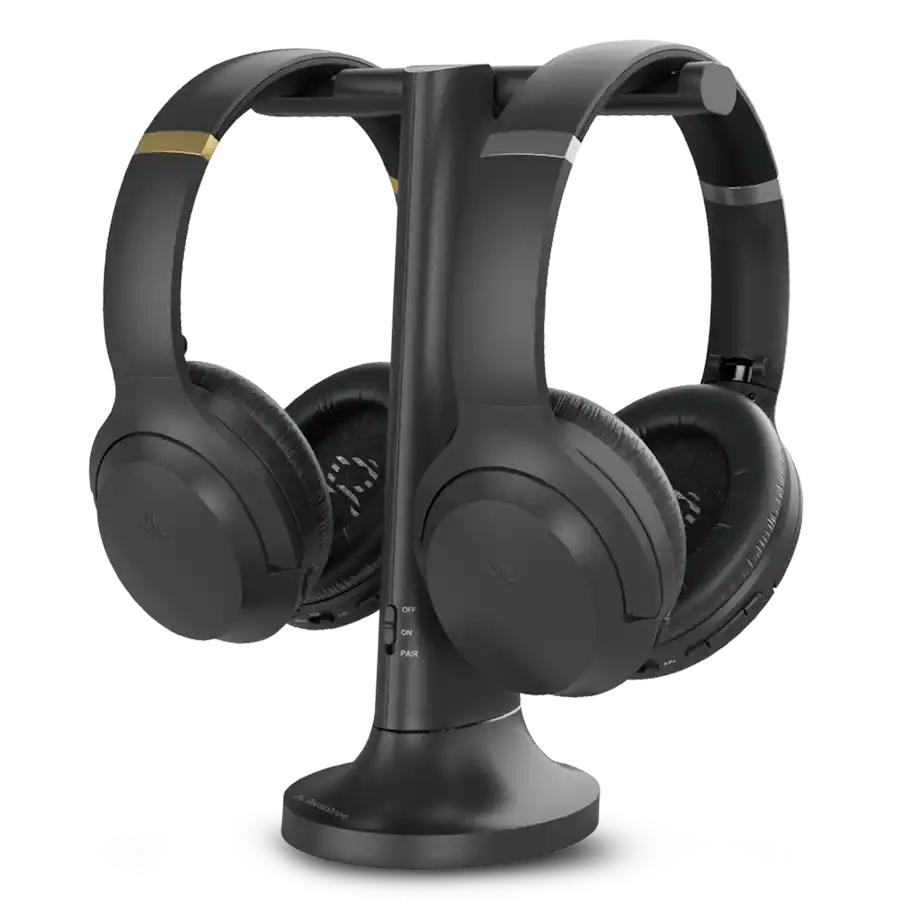
- The Avantree transmitter, if your TV does not support Bluetooth
- The headphone manual for model-specific reset instructions


Most Avantree wireless headphones use Bluetooth. Some Avantree TV headphones work with a dedicated transmitter instead. A transmitter sends audio from a TV or other source to the headphones.
Check the connection type
Avantree products may use one or more of these connection methods:
| Connection method | Common use | What you need |
|---|---|---|
| Bluetooth | Phones, tablets, and computers | A Bluetooth-enabled device |
| Bluetooth transmitter | TVs without built-in Bluetooth | An Avantree transmitter connected to the TV |
| Optical audio | Many modern TVs | An optical cable and compatible transmitter |
| 3.5 mm audio | TVs, computers, and older devices | An AUX cable or compatible transmitter |
| USB audio | Some computers and TVs | A compatible USB connection |
A headphone and transmitter may pair automatically if they are sold as a set. If they do not, you may need to start pairing on both devices.
How to Pair Avantree Headphones With a Phone or Tablet
To pair Avantree headphones with an iPhone, iPad, or Android device, turn on Bluetooth, place the headphones in pairing mode, and select them from the available device list.
Follow these steps
-
Turn off nearby Bluetooth devices.
If the headphones have connected to another phone or tablet, that device may take priority. -
Turn on the Avantree headphones.
Press and hold the power button until the status light turns on. -
Enter pairing mode.
On many Avantree models, pressing and holding the power button for several seconds activates pairing mode. Some models use a separate Bluetooth button. The LED may flash blue and red, flash blue quickly, or announce “pairing.” -
Open the Bluetooth settings on your phone.
- On an iPhone or iPad, open Settings > Bluetooth.
- On an Android phone, open Settings > Connected devices > Pair new device. Menu names may differ by manufacturer.
-
Wait for the Avantree name to appear.
You may see a model name such as “Avantree Audition,” “Avantree Aria,” or a model number. -
Tap the Avantree device name.
-
Accept the pairing request if your phone asks for confirmation.
-
Play audio to test the connection.
Start with a low volume. Confirm that sound comes through the headphones rather than the phone speaker.
Signs that pairing worked
The headphones should show a steady or slower flashing LED, depending on the model. Your phone should list the headphones as Connected. Audio should also route to the headphones.
If the headphones appear in the Bluetooth list but fail to connect, tap the gear or information icon beside the device name and choose Forget, Unpair, or Remove device. Then repeat the pairing steps from the beginning.

How to Pair Avantree Headphones With a Windows PC
To connect Avantree headphones to a Windows computer, first place the headphones in pairing mode. Then add them through the Windows Bluetooth settings.
Windows 11
- Turn on the Avantree headphones.
- Hold the power or Bluetooth button until the headphones enter pairing mode.
- Select Start > Settings > Bluetooth & devices.
- Turn on Bluetooth.
- Select Add device.
- Choose Bluetooth.
- Select your Avantree headphones.
- Wait for Windows to show Connected.
Windows 10
- Open Start > Settings > Devices.
- Select Bluetooth & other devices.
- Turn on Bluetooth.
- Select Add Bluetooth or other device.
- Choose Bluetooth.
- Select the Avantree headphones.
If Windows connects but plays no sound
Windows can connect to headphones but still send audio to the wrong output. To correct this:


- Select the speaker icon on the Windows taskbar.
- Open the list of available audio outputs.
- Choose your Avantree headphones.
- If you see two options, choose the Headphones or Stereo option for normal music.
- Use the Headset option only when you need the microphone.
The headset profile can reduce sound quality during calls because Windows may switch to a two-way audio mode. This is normal for many Bluetooth headsets.

How to Pair Avantree Headphones With a Mac
Pairing Avantree headphones with a Mac follows the standard Bluetooth process.
- Turn on the headphones.
- Place them in pairing mode.
- Select the Apple menu.
- Open System Settings or System Preferences, depending on your macOS version.
- Select Bluetooth.
- Find the Avantree headphones in the device list.
- Select Connect.
After pairing, open System Settings > Sound and select the Avantree headphones under Output. If you want to use the headphone microphone, select it under Input.
If the Mac remembers the headphones but will not connect, select the information button next to the device and choose Forget This Device. Put the headphones back into pairing mode and connect again.

How to Pair Avantree Headphones With a TV
TV pairing depends on whether the TV has built-in Bluetooth. Many televisions support Bluetooth headphones, but some support only Bluetooth remotes, keyboards, or controllers. A TV may also connect to Bluetooth headphones but offer limited volume control or audio format support.
Option 1: Pair directly with a Bluetooth TV
- Turn on the Avantree headphones.
- Place them in pairing mode.
- Open the TV’s Settings menu.
- Look for Sound, Audio Output, Bluetooth Speaker List, or Bluetooth Devices.
- Search for nearby devices.
- Select the Avantree headphones.
- Confirm the connection.
- Play a program to test the sound.
The menu name varies by TV brand. Some U.S. television models use terms such as Bluetooth Audio, Wireless Speaker, or Sound Output.
Option 2: Use an Avantree transmitter
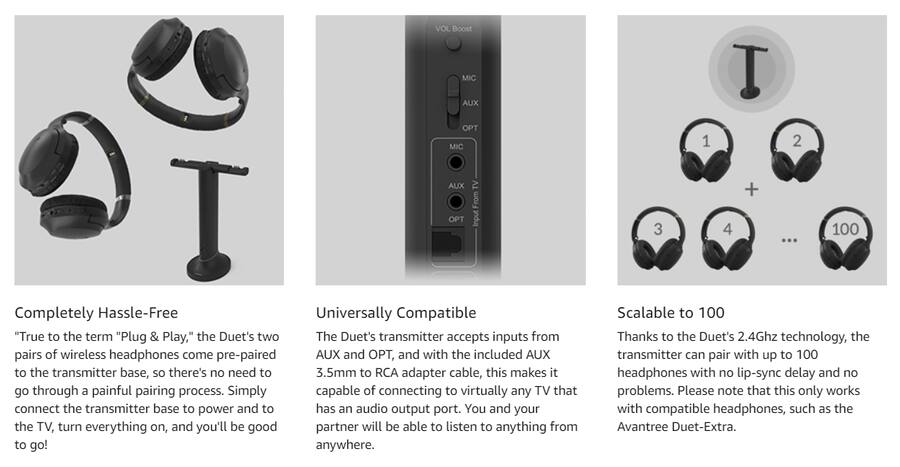
Use a transmitter when the TV does not support Bluetooth audio or when you want a more reliable TV headphone setup.
- Connect the transmitter to the TV.
- Use the audio connection supported by both devices, such as optical, AUX, or USB.
- Set the TV audio output to the correct port.
- Turn on the transmitter.
- Place the Avantree headphones into pairing mode.
- Put the transmitter into pairing mode.
- Wait for the devices to connect.
- Play TV audio and adjust the volume on the headphones.
Some Avantree transmitter systems are designed to pair with matching Avantree headphones. If your headphones and transmitter were purchased separately, check whether both devices use a compatible Bluetooth profile.
Optical connection tips
If you use an optical cable:
- Remove the small protective caps from both cable ends.
- Push the cable fully into the TV and transmitter.
- Set the TV’s digital audio output to PCM if the headphones produce no sound.
- Make sure the TV is sending sound through the optical output.
- Keep the TV speaker setting from muting the transmitter output unless that is your goal.
A digital audio setting such as Dolby Digital may not work with every Bluetooth transmitter. PCM is often the safest setting for basic stereo headphone use.


How to Pair Avantree Headphones With an Avantree Transmitter
If the headphones do not connect automatically to an Avantree transmitter, pair the two devices manually.
- Turn off nearby Bluetooth headphones and speakers.
- Turn on the transmitter.
- Press and hold the transmitter’s pairing button until its LED flashes.
- Turn on the Avantree headphones.
- Hold the headphone power or Bluetooth button until the headphone LED indicates pairing mode.
- Place the headphones close to the transmitter.
- Wait for the LEDs to change to a connected pattern.
- Play audio through the source device.
Keep the headphones within a few feet of the transmitter during the first pairing attempt. After the connection works, move them to your normal listening position.
Some Avantree products support low-latency audio modes. These modes can reduce the delay between video and sound, but they may work only when both the transmitter and headphones support the same feature. A standard Bluetooth connection may have a small delay with video.

What to Do if Avantree Headphones Will Not Pair
Pairing problems usually come from one of five causes: the headphones are not in pairing mode, they are already connected elsewhere, the old pairing record is damaged, the battery is low, or the transmitter is using the wrong mode.
Try these checks in order.
1. Charge the headphones
A low battery can prevent pairing or cause the headphones to shut down during setup. Charge them before troubleshooting further.
2. Move closer to the device
Keep the headphones close to the phone, computer, TV, or transmitter. Remove large metal objects and avoid placing the devices behind a TV cabinet during setup.
3. Disconnect other devices
Turn off Bluetooth on nearby phones, tablets, and computers. If the headphones automatically reconnect to an old device, they may not appear as available on the new device.
4. Delete the old Bluetooth record
On the phone or computer, remove the saved Avantree connection. Then restart Bluetooth and search again.
5. Restart both devices
Turn off the headphones and the source device. Wait a few seconds, then turn them back on. Restart the TV or transmitter if you are using one.
6. Enter pairing mode again
A quick press of the power button may only turn on the headphones. Pairing usually requires a longer press, but the exact timing differs by model. Watch for a flashing LED or a voice prompt.
7. Reset the headphones
If the saved pairing data is corrupted, perform a factory reset. Reset instructions differ between Avantree models. Use the manual for your exact model rather than guessing a button combination.
A reset usually removes stored Bluetooth connections. You will need to pair the headphones again with each device.

Avantree Pairing Problems and Likely Causes
The symptom can help identify the next step.
| Problem | Likely cause | Best first check |
|---|---|---|
| Headphones do not appear | Not in pairing mode or already connected | Turn off nearby Bluetooth devices and re-enter pairing mode |
| Headphones appear but will not connect | Old saved connection or low battery | Forget the device, charge the headphones, and try again |
| Headphones connect but no sound plays | Wrong audio output | Select Avantree as the active sound output |
| TV finds no headphones | TV lacks Bluetooth audio support | Use a compatible transmitter |
| Sound cuts out | Distance, interference, or weak source connection | Move devices closer and test without other Bluetooth devices |
| Video and sound do not match | Bluetooth audio delay | Use a compatible low-latency transmitter and headphones |
| Only one earcup works | Pairing or internal earbud synchronization issue | Power cycle, reset, and follow the model manual |
| Headphones keep reconnecting to another device | Automatic reconnection | Disable Bluetooth on the old device |
Do not assume that every Avantree headphone can pair with every Avantree transmitter. Product families may use different pairing systems, and some packages are designed to work as matched sets.


How to Pair Avantree Headphones With Two Devices
Some Avantree headphones support multipoint Bluetooth. Multipoint allows one pair of headphones to maintain connections with two source devices, such as a phone and a computer.
The exact setup depends on the model, but the usual process is:
- Pair the headphones with the first device.
- Turn off Bluetooth on the first device.
- Put the headphones into pairing mode.
- Pair them with the second device.
- Turn Bluetooth back on for the first device.
- Reconnect the headphones to the first device if needed.
Multipoint does not always mean that both devices can play audio at the same time. Usually, one device plays audio while the other remains ready for calls or notifications.
If calls or music behave unpredictably, disconnect one device and test the headphones with only one source. This helps confirm whether multipoint is causing the issue.
How to Pair Avantree Headphones After a Factory Reset
A factory reset can fix repeated pairing failures, but it should be a later step because it erases saved connections.
After resetting:
- Charge the headphones.
- Turn off Bluetooth on devices that were previously connected.
- Turn on the headphones.
- Put them into pairing mode.
- Open Bluetooth settings on the new source device.
- Select the Avantree headphones.
- Test audio.
- Reconnect any other devices one at a time.
The reset button combination is not universal. Avantree’s manuals and support pages provide the correct process for each model. Look for the model number on the headphones, box, charging case, or product label before searching for instructions.
Common Mistakes to Avoid
The most common mistake is pressing the power button without holding it long enough to activate pairing mode. The headphones may turn on, but they will not be visible to a new device.
Other mistakes include:
- Searching for the headphones while they are still connected to another device
- Pairing with a TV that supports only Bluetooth accessories, not Bluetooth audio
- Selecting the wrong sound output on Windows or macOS
- Using a transmitter that is still paired with another headset
- Forgetting to set a TV’s optical output to PCM
- Expecting a standard Bluetooth connection to have no video delay
- Resetting the headphones without checking the correct model instructions
- Placing the headphones too far from the transmitter during setup
Pairing is easier when you change one thing at a time. First confirm that the headphones enter pairing mode. Then test them with a phone. After that, troubleshoot the TV, computer, or transmitter.
Key Takeaways
- Charge the headphones before pairing.
- Hold the power or Bluetooth button until the LED shows pairing mode.
- Select the headphones from the source device’s Bluetooth menu.
- Remove old pairing records when the connection fails.
- Use a transmitter if the TV does not support Bluetooth audio.
- Set optical TV output to PCM when required.
- Check the exact Avantree manual before using a reset button combination.
- Select Avantree as the active audio output after connecting to a computer.
Frequently Asked Questions
Why are my Avantree headphones not showing up in Bluetooth?
They may not be in pairing mode, or they may already be connected to another device. Turn off Bluetooth on nearby phones and computers, then hold the headphone power or Bluetooth button until the LED flashes in the pairing pattern.
Can I pair Avantree headphones with an iPhone?
Yes. Put the headphones into pairing mode, open Settings > Bluetooth on the iPhone, and select the Avantree model from the list.
Can I connect Avantree headphones to a TV without Bluetooth?
Yes, if you use a compatible Avantree transmitter. Connect the transmitter to the TV with optical, AUX, or another supported audio connection, then pair the transmitter with the headphones.


Why do my Avantree headphones connect but have no sound?
The source device may still be using its built-in speakers. Select the Avantree headphones as the active audio output. On a TV, also check the selected audio output and the transmitter’s cable connection.
How do I reset Avantree headphones?
The reset method depends on the model. Find the exact model number and use its Avantree manual or support instructions. A reset normally removes stored Bluetooth connections.
Can Avantree headphones connect to two devices at once?
Some models support multipoint connections, while others support only one active Bluetooth connection. Check the specifications or manual for your exact model.
Conclusion
To pair Avantree headphones, charge them, place them in pairing mode, and select them from the Bluetooth menu on your phone, computer, or TV. For televisions without Bluetooth audio, connect an Avantree transmitter and pair the headphones with that transmitter instead.
If pairing fails, remove the old Bluetooth record, turn off nearby devices, restart the equipment, and try again at close range. Use a model-specific reset only after the basic checks fail.