

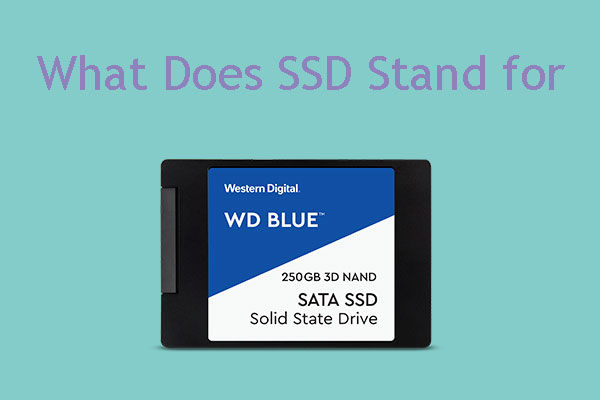
SSD stands for solid-state drive, a fast storage device that uses flash memory instead of spinning disks.
Understanding what does SSD stand for is only the first step. An SSD can make a computer start faster, open apps sooner, and feel more responsive, but different SSD types offer different speeds, sizes, and prices. This guide explains how SSDs work, how they compare with hard disk drives, and how to choose the right one.
What does SSD stand for?
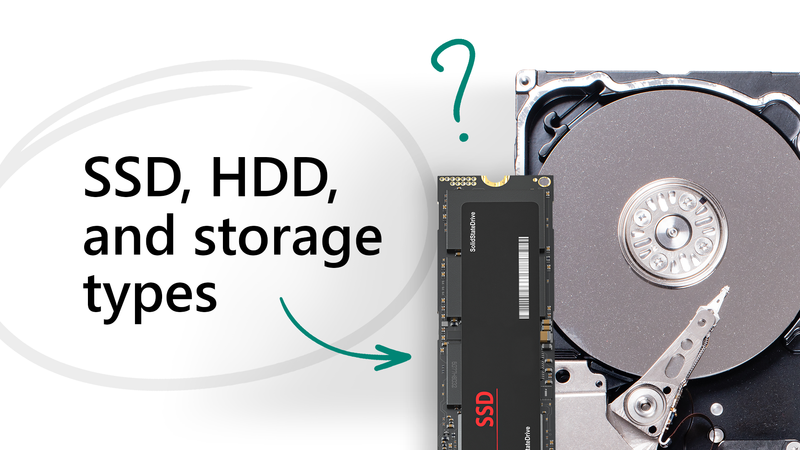
SSD stands for solid-state drive. It is a data storage device that saves files on flash memory chips. Unlike a traditional hard disk drive, an SSD has no spinning platter or moving read/write head.
The phrase “solid state” refers to electronics built from solid materials. In an SSD, data stays on memory chips even when the computer is turned off. You can think of an SSD as a large, fast digital filing cabinet with no mechanical parts inside.
When people ask what does SSD stand for, they often also want to know what makes an SSD different. The main difference is how each device stores and finds data:
• SSDs use NAND flash memory.
• HDDs use spinning magnetic platters.
• SSDs access data electronically.
• HDDs move a mechanical arm to read data.
This design helps SSDs work faster, use less power, and resist many types of physical shock.
How does an SSD work?
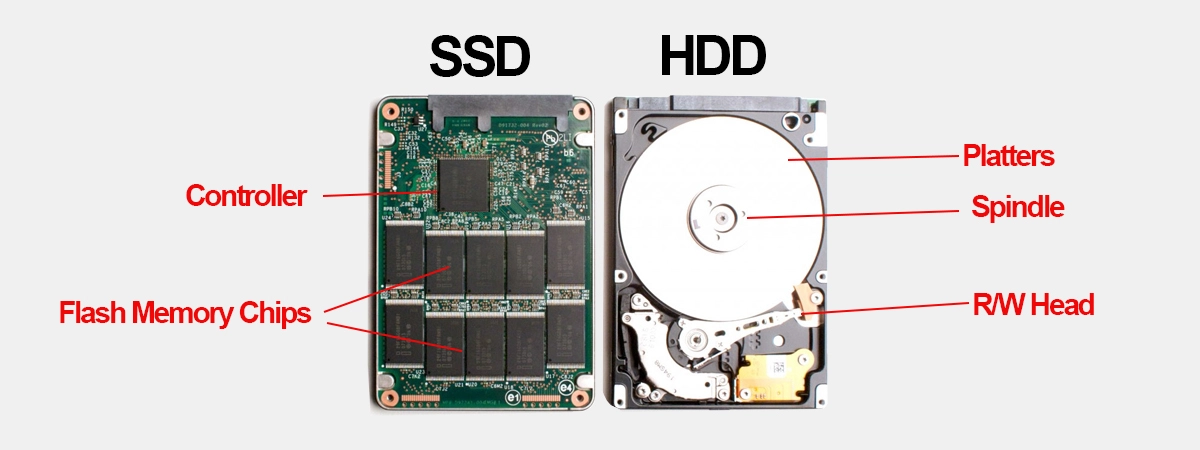
An SSD stores data in memory cells. These cells hold electrical charges that represent binary data, such as zeros and ones. A controller manages the data and decides where each file should be written or read.
The main parts of an SSD include:
• NAND flash memory: This is where your files, programs, and operating system data are stored.
• SSD controller: This small processor manages reading, writing, error correction, and data placement.
• Firmware: This built-in software tells the controller how to manage the drive.
• DRAM cache: Some SSDs use fast temporary memory to map data locations and improve performance.
• Host interface: This connects the SSD to the computer through SATA, PCIe, or another standard.
An SSD does not search through a physical surface like an HDD. Instead, its controller finds the correct memory cells and sends the data to your computer. That electronic process is why an SSD can respond so quickly.
Most modern SSDs use NAND flash types such as single-level cell, multi-level cell, triple-level cell, or quad-level cell. These names describe how many bits each memory cell stores. Generally, cells that store fewer bits can offer greater endurance and speed, while cells that store more bits can provide higher capacity at a lower cost.
SSD vs. HDD: What is the difference?
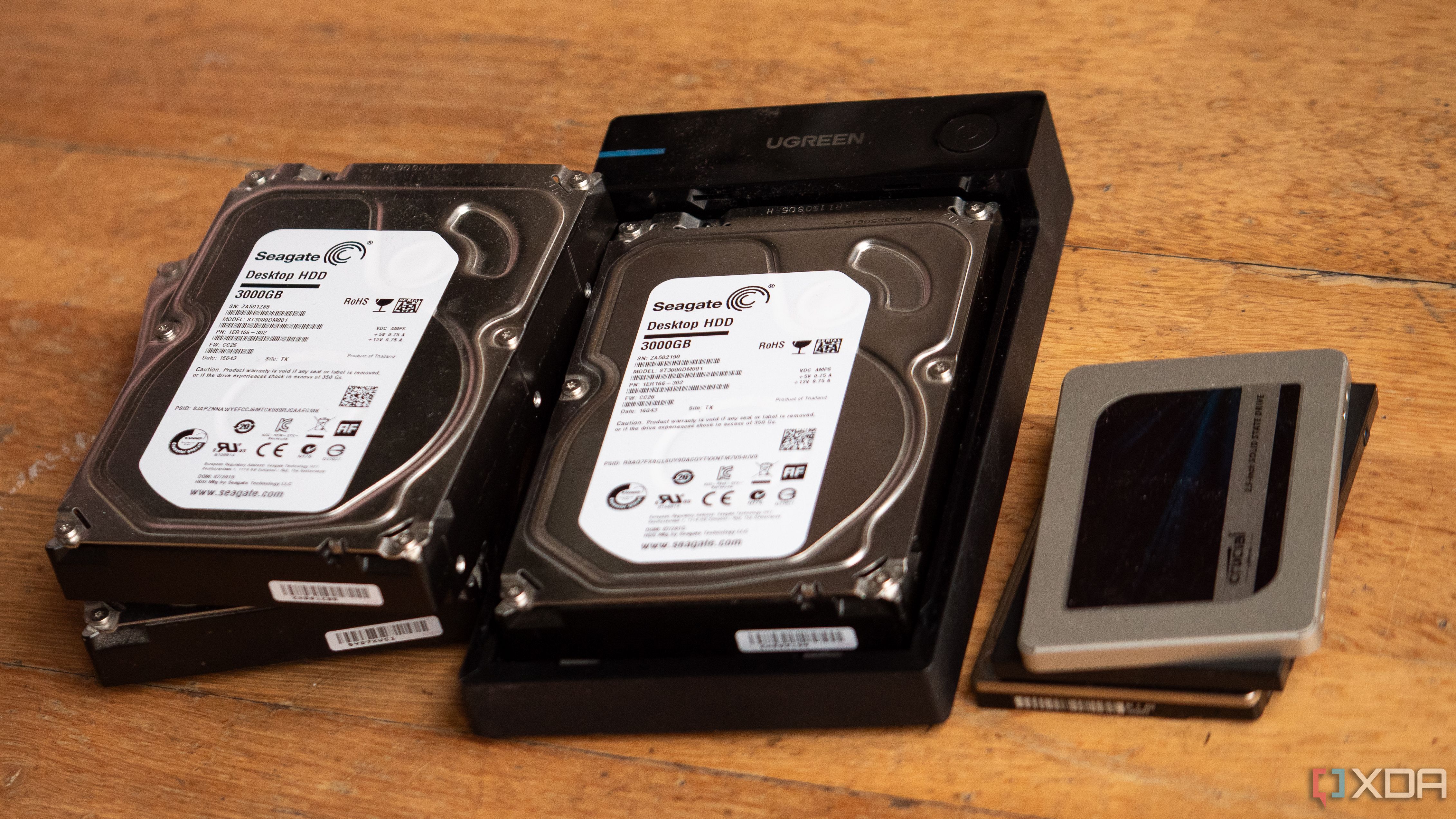
The difference between an SSD and an HDD is easy to explain. An SSD uses flash memory, while an HDD uses magnetic storage and moving parts. This affects speed, noise, power use, durability, and price.
| Feature | SSD | HDD |
|---|---|---|
| Storage method | NAND flash memory | Magnetic platters |
| Moving parts | None | Yes |
| Typical speed | Very fast | Slower |
| Noise | Silent | May produce clicks or hums |
| Power use | Usually lower | Usually higher |
| Shock resistance | Generally better | More sensitive to impact |
| Cost per terabyte | Usually higher | Usually lower |
| Best use | Operating systems, apps, gaming | Large archives and backups |
In daily use, an SSD can shorten startup times and make programs feel more responsive. An HDD may still be useful when you need several terabytes of storage for photos, videos, or backups at a low price.
In my experience helping people upgrade older computers, replacing the system HDD with an SSD often creates the biggest noticeable improvement. Even an older computer can feel much less sluggish after the change, provided it has enough memory and a healthy operating system.
What are the main types of SSDs?
Knowing what does SSD stand for does not tell you which SSD will fit your computer. SSDs come in different shapes and use different connection standards. The most common types are SATA SSDs, M.2 SATA SSDs, and NVMe SSDs.
2.5-inch SATA SSD
A 2.5-inch SATA SSD looks similar to a small laptop hard drive. It uses the Serial ATA interface and often works as an easy replacement for an older HDD.
SATA SSDs are much faster than most HDDs, but their speed is limited by the SATA interface. They are a good choice for older desktops, laptops, and budget upgrades.
M.2 SATA SSD
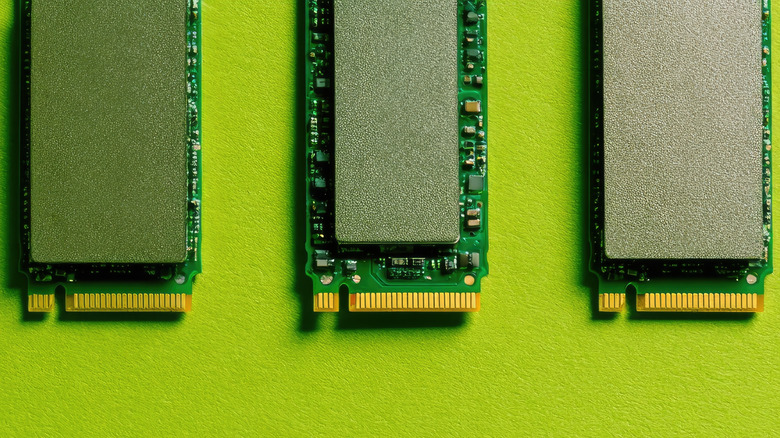
An M.2 SATA SSD is a slim circuit board that fits into an M.2 slot. Although it uses the smaller M.2 shape, it still communicates through SATA, so it is not automatically faster than a 2.5-inch SATA SSD.
This is an important buying detail. The M.2 label describes the shape, not the speed.
M.2 NVMe SSD
NVMe stands for Non-Volatile Memory Express. NVMe SSDs use the PCI Express bus, which gives them much higher bandwidth than SATA drives.
NVMe drives are common in newer laptops, desktops, and gaming systems. They can offer faster file transfers and lower response times, though the real-world difference may be smaller for simple tasks such as web browsing.
PCIe add-in card SSD
Some high-performance SSDs come as expansion cards that plug into a desktop motherboard. These drives may offer strong cooling and high performance, but they are less common in everyday computers.
Before buying any SSD, check the computer manual or motherboard specifications. Confirm the drive size, interface, key type, and supported capacity.
What are the benefits of an SSD?
An SSD can improve many parts of the computing experience. Its benefits come from fast electronic access and the lack of moving mechanical parts.
Faster startup and app loading
An SSD can help a computer boot quickly. Operating systems, browsers, office tools, and creative apps can also open faster because the drive finds small files with very little delay.
Better system responsiveness
Many everyday tasks involve reading thousands of small files. An SSD handles these requests more efficiently than an HDD, so menus, searches, updates, and program launches often feel smoother.
Quiet operation
An SSD has no motor or spinning platter. It runs silently, which is helpful in quiet offices, bedrooms, recording rooms, and home theater computers.
Lower power use
SSDs often use less power than HDDs, especially during normal activity. This may help laptops run longer between charges, although battery life also depends on the processor, display, software, and power settings.
Better resistance to movement
Because an SSD has no moving parts, it is generally less vulnerable to damage from vibration or movement while operating. This makes it a practical choice for laptops and portable drives.
Strong gaming performance
An SSD can reduce game loading times and speed up large game updates. It does not always increase frame rates, because frame rates depend more on the graphics processor, processor, and game settings.
What are the limitations of SSDs?
SSDs are excellent, but they are not perfect. Understanding their limits can help you use one safely and choose the right model.
The first limitation is price. SSDs often cost more per terabyte than HDDs. Prices have fallen over time, but large-capacity SSDs can still be expensive.
The second limitation is write endurance. Flash memory can only handle a certain amount of writing before its cells wear out. Modern SSDs use wear leveling, error correction, and spare memory to extend their useful life. For normal home and office use, a good SSD can last for many years.
The third limitation is heat. Fast NVMe SSDs can become warm during large file transfers or demanding workloads. Some computers use a heatsink to help control temperature.
The fourth limitation is data recovery. Recovering deleted or failed data from an SSD can be difficult because of features such as TRIM and complex controllers. This is why an SSD should never be treated as a backup.
A simple backup plan should include:
• One working copy on the computer.
• One backup on an external drive.
• One additional copy in a separate location or trusted cloud service.

How long does an SSD last?
An SSD does not have one fixed expiration date. Its lifespan depends on the flash type, drive quality, capacity, workload, temperature, and total data written.
Manufacturers often list endurance as TBW, which means terabytes written. For example, a drive with a 600 TBW rating is designed to handle about 600 terabytes of written data under the maker’s testing conditions.
TBW is useful, but it is not a precise countdown. Many users will not reach the rated limit during the normal life of a computer. A larger SSD may also last longer because it has more memory cells available for wear leveling.
You can monitor drive health with software supplied by the SSD maker or with trusted system tools. Watch for warning messages, rising error counts, unusual slowdowns, or sudden read-only behavior.
A practical lesson I have learned is to replace a drive based on health warnings and backup readiness, not fear. Do not wait for a failing SSD to become your only copy of important files.
How to choose the right SSD
The best SSD depends on your computer and your main tasks. More speed is not always the best value.
Use this checklist before you buy:
Check compatibility. Confirm whether your computer supports a 2.5-inch SATA drive, M.2 SATA drive, or M.2 NVMe drive.
Choose enough capacity. A 500 GB drive suits basic work, while 1 TB is a comfortable choice for many users. Gamers and creators may need 2 TB or more.
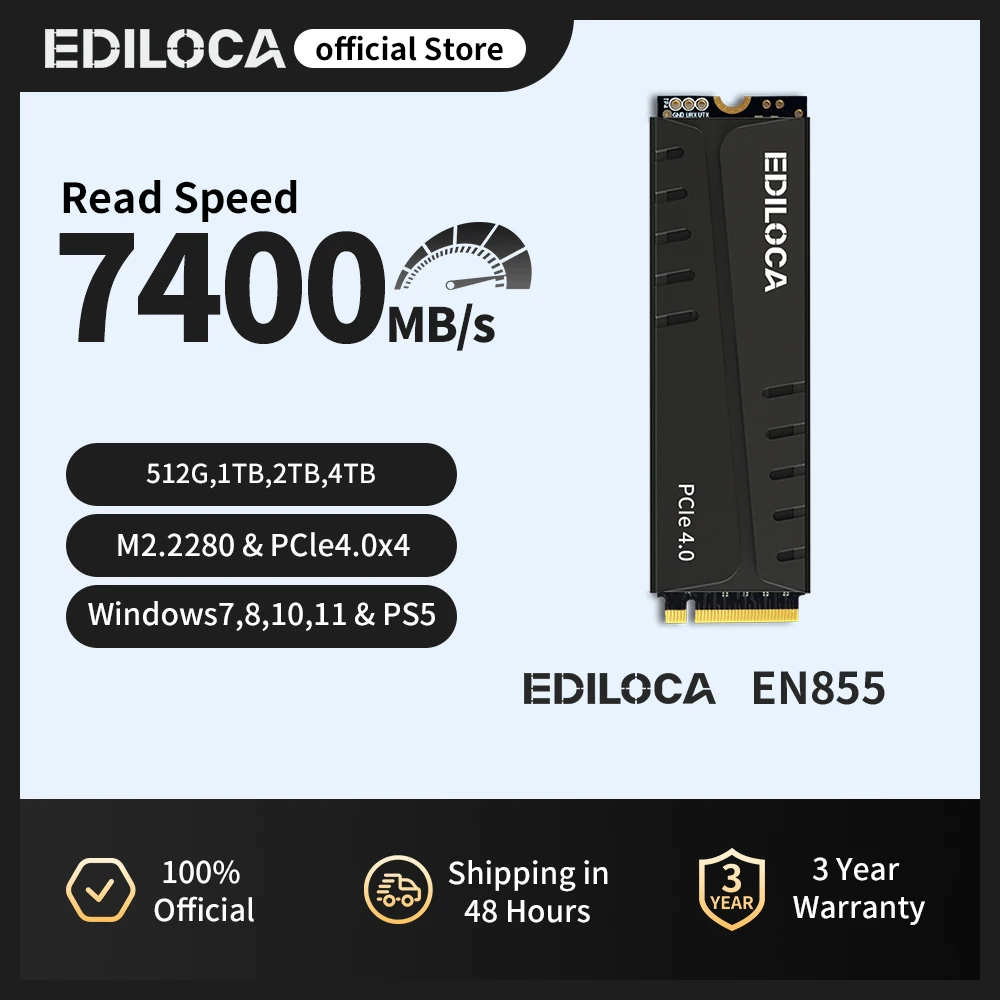
Review the interface. Do not buy a PCIe 4.0 or PCIe 5.0 NVMe drive if your system cannot support it. The drive may work in some cases, but it may run at a lower speed.
Check endurance. Look at the TBW rating if you write large video files, databases, or virtual machines.
Consider the warranty. A longer warranty can show that the manufacturer has confidence in the product.
Check sustained performance. Some drives slow down after their cache fills. Reviews that test long file transfers can reveal this behavior.
Leave free space. Keeping some storage open gives the controller room for background tasks and can help maintain performance.
For most people, a reliable 1 TB NVMe SSD is a strong all-purpose choice if the computer supports it. For an older laptop, a 2.5-inch SATA SSD may offer the simplest and most affordable upgrade.

How to install and care for an SSD
Installing an SSD is often simple, but careful preparation matters. Always back up important files before opening a computer or cloning a drive.
A basic installation process looks like this:
Back up your personal files.
Shut down the computer and unplug it.
Open the case or access panel according to the device manual.
Install the SSD in the correct slot or drive bay.
Connect the data and power cables if it is a SATA model.
Close the computer and start it.
Initialize, format, or clone the drive as needed.
Confirm that the operating system recognizes the SSD.
When upgrading the main system drive, you can perform a clean operating system installation or clone the old drive. A clean installation is often tidier, while cloning saves time and keeps your programs and settings.
Avoid forcing an M.2 drive into its slot. Make sure the notch matches the connector, then secure the drive with the correct screw. For high-speed NVMe models, use the recommended heatsink if your motherboard includes one.

Common SSD terms to know
Storage specifications can seem confusing at first. These terms make product pages easier to understand.
• NAND: The flash memory used to store data.
• NVMe: A storage protocol designed for fast non-volatile memory over PCIe.
• SATA: A common connection standard used by many older SSDs and hard drives.
• PCIe: A high-speed connection pathway used by NVMe SSDs.
• TBW: The estimated total terabytes that can be written to a drive under rated conditions.
• IOPS: Input/output operations per second. This measures how many small data tasks a drive can handle.
• Read speed: How quickly the SSD retrieves data.
• Write speed: How quickly the SSD saves data.
• DRAM-less: An SSD design without dedicated DRAM. Some models use host memory buffer technology instead.
• TRIM: A command that helps an operating system tell an SSD which data blocks are no longer needed.
These terms provide clues, but benchmark numbers do not tell the whole story. Firmware quality, temperature control, workload, and computer compatibility also affect performance.
Frequently Asked Questions About What Does SSD Stand For
What does SSD stand for in a computer?
SSD stands for solid-state drive. It is a storage device that uses flash memory to save data without spinning disks or moving read/write heads.
Is an SSD better than an HDD?
An SSD is usually better for speed, quiet operation, power use, and resistance to movement. An HDD may be better when you need very large storage at the lowest cost.
Does an SSD make a computer faster?
An SSD can make startup, program loading, file searches, and general system response much faster. It will not automatically improve every part of a computer, such as graphics performance or processor speed.
What is the difference between SATA and NVMe SSDs?
SATA SSDs use the SATA interface and offer solid performance for many everyday tasks. NVMe SSDs use PCIe and usually provide higher speeds and lower response times.
Can an SSD fail?
Yes, an SSD can fail because of worn memory, controller problems, firmware issues, physical damage, or electrical faults. Keep more than one backup because no storage device is guaranteed to last forever.
How much SSD storage do I need?
A 500 GB SSD can work for basic computing, while 1 TB suits many users. Choose 2 TB or more if you store large games, video projects, photo libraries, or many virtual machines.
Conclusion
SSD stands for solid-state drive, a storage device that uses fast NAND flash memory instead of moving magnetic parts. Compared with an HDD, an SSD usually offers quicker startup, smoother app loading, silent operation, and better resistance to movement.
The right SSD depends on your computer’s connection, your storage needs, your budget, and your workload. Check compatibility before buying, keep important files backed up, and choose capacity and reliability rather than focusing only on the highest speed rating.
If you are planning an upgrade, compare compatible SSDs, review endurance and warranty details, and share your questions or experience in the comments.
