

BitLocker usually causes little SSD slowdown, but older CPUs, heavy workloads, and first-time encryption can make a difference.
Many Windows users ask, “does BitLocker slow down SSD performance?” The honest answer depends on your processor, SSD, Windows version, and daily workload. BitLocker protects data with transparent encryption, so it works in the background while you open files, install apps, and boot Windows. In most modern PCs, the impact is small enough to go unnoticed.
I have reviewed many storage performance cases where users blamed BitLocker for slow boot times or poor SSD benchmarks. Often, the real cause was low free space, thermal throttling, outdated drivers, or a nearly full drive. This guide explains when BitLocker affects SSD speed, how large the impact can be, and how to test your own system without guessing.

Does BitLocker slow down SSD performance?
Yes, BitLocker can slow down an SSD slightly because the computer must encrypt data as it writes and decrypt it as it reads. However, modern processors often include AES hardware acceleration, which makes this work very fast.
For most users, BitLocker has little effect on normal tasks such as:
• Starting Windows
• Opening documents
• Browsing the web
• Watching videos
• Installing small applications
• Loading most games
The effect becomes easier to see during heavy disk activity. Large file transfers, database work, virtual machines, video editing, and repeated benchmark tests can expose the encryption overhead.
When people ask, “does BitLocker slow down SSD performance,” they often expect one fixed percentage. There is no universal number. The result can range from almost zero to a noticeable reduction, depending on the entire system.
A new NVMe SSD may also be so fast that the CPU becomes the limiting factor. In that case, encryption uses some processor time and can reduce the final storage score. On an older SATA SSD, the drive itself may remain the main bottleneck, so BitLocker may have little practical effect.
How BitLocker affects an SSD
BitLocker is full-volume encryption built into Windows. It protects data by encrypting sectors on a drive and decrypting them when authorized Windows users access the data.
Think of it like a secure translator between Windows and the SSD. Windows sends readable data, BitLocker converts it into protected data, and the SSD stores the encrypted result. When you open a file, BitLocker translates it back before Windows uses it.
This process may affect three main areas.
Read and write speed
BitLocker adds encryption work to normal storage operations. The SSD still reads and writes data, but the processor also handles the encryption step.
With AES hardware acceleration, the extra work is usually small. Without it, large transfers and random access operations may show a larger performance drop.
CPU usage
BitLocker can use CPU resources during file transfers. On a modern Intel or AMD processor, this is often hard to notice. On an older laptop or a low-power computer, the CPU may spend more time handling encryption.
If your processor is already busy with video rendering, compression, gaming, or virtual machines, BitLocker may have a more visible effect.
Initial encryption time
The first encryption process can take minutes or hours. The time depends on drive size, how much data is stored, the encryption mode, and the speed of the SSD.
This first pass is not the same as ongoing performance. After encryption finishes, BitLocker does not need to encrypt the entire drive again every time you save a file. It processes the data involved in each read or write operation.
How much performance can BitLocker reduce?
The exact impact varies, but modern systems commonly show a small change in everyday use. Synthetic benchmarks may show a larger difference because they create constant, demanding storage workloads.
A rough real-world pattern looks like this:
• Modern NVMe SSD with AES acceleration: usually little noticeable impact
• Modern SATA SSD with AES acceleration: usually a small impact
• Older computer without strong AES support: moderate impact is possible
• Heavy random workloads: more likely to show reduced performance
• First-time encryption: temporary heavy disk activity
• Nearly full or thermally limited SSD: BitLocker may appear worse than it is
Some tests may show a larger reduction in random read and write results than in sequential transfers. This happens because random operations involve more individual encryption tasks.
Benchmark results also depend on the test tool. One application may report a small change, while another may show a larger one. Background updates, antivirus scans, drive temperature, and free space can change the result.
So, does BitLocker slow down SSD performance by a major amount? For most current Windows computers, no. It normally creates a modest overhead rather than turning a fast SSD into a slow one.
When BitLocker may slow down an SSD noticeably
BitLocker is not equally invisible on every computer. Certain systems are more likely to show a performance change.
Older processors
Older CPUs may lack AES-NI or similar hardware acceleration. Without that feature, encryption relies more heavily on software instructions.
This can increase CPU usage and reduce storage performance during large file transfers. The difference may be clear on an older dual-core laptop.
Low-power laptops
Small laptops often use low-voltage processors to save battery power. These chips can handle BitLocker well for normal tasks, but sustained encryption may compete with other work.
You may notice this when copying large video files, creating backups, or running a virtual machine.
High-end NVMe SSDs
A premium PCIe 4.0 or PCIe 5.0 SSD can move data faster than some CPUs can encrypt it. In this case, BitLocker may limit the maximum benchmark score.
This does not always mean the computer feels slow. A benchmark may drop from a very high number while apps still open at nearly the same speed.
Heavy professional workloads
BitLocker can matter more for:
• Database servers
• Virtual machine hosts
• Video production systems
• Large software build systems
• Scientific workloads
• File servers with constant traffic
These systems perform many storage operations for long periods. Even a small overhead can add up.
Drives with little free space
An SSD often slows down when it is nearly full. The controller has less room for garbage collection and wear leveling.
If BitLocker and low free space appear together, users may blame encryption for the entire slowdown. Keep at least 10% to 20% of the drive free when possible, especially on a busy system.
Does BitLocker affect SSD lifespan?
BitLocker does not normally cause a meaningful reduction in SSD lifespan during everyday use. The encryption process does create drive activity, but the extra writes are usually small compared with normal operating system activity.
The first encryption may read and write a large amount of data, especially when you choose to encrypt the entire drive. Modern SSDs are designed to handle substantial write workloads.
Still, it is wise to avoid starting encryption while the SSD is already unhealthy. Check the drive’s health data first if you see errors, crashes, or unusually slow performance.
BitLocker can also work with self-encrypting drives, but hardware-based encryption has had security concerns on some devices. Software-based BitLocker encryption is often preferred when strong, well-understood protection matters more than a small performance advantage.
The safest approach is simple:
• Keep Windows and SSD firmware updated
• Maintain regular backups
• Check SSD health before encryption
• Avoid interrupting encryption repeatedly
• Keep free space available
• Use a recovery key and store it safely
Encryption protects data, but it does not replace backups. If the SSD fails, BitLocker cannot recover files that were never backed up.
BitLocker software encryption versus hardware encryption
BitLocker can use software-based encryption or, on supported systems, hardware encryption from the storage device.
Software encryption uses the computer’s processor to protect data. On a modern CPU with AES acceleration, this method is usually fast and reliable.
Hardware encryption uses security features inside the SSD. It can reduce processor work, but the quality of implementation depends on the drive manufacturer and firmware.
For many users, software encryption is the clearer choice because it is easier to understand and manage. Performance differences may be small, while security behavior can vary between SSD models.
Windows may choose encryption behavior based on system configuration, edition, and policy. Business administrators can control these settings through Group Policy or mobile device management.
Before changing encryption methods, confirm that the SSD supports the required features. Do not assume that every “self-encrypting drive” provides the same level of protection.
How to check whether BitLocker is slowing your SSD
You can test the effect without relying on guesswork. The best test compares the same computer and SSD before and after encryption, but that process requires care.
First, back up important files. Then record your current system details:
• SSD model and capacity
• Windows version
• Processor model
• Amount of free space
• SSD temperature
• BitLocker status
• Current firmware and storage drivers
You can check BitLocker status in Windows Terminal or Command Prompt with:
manage-bde -status
This command shows whether protection is active, the encryption method, and the percentage encrypted.
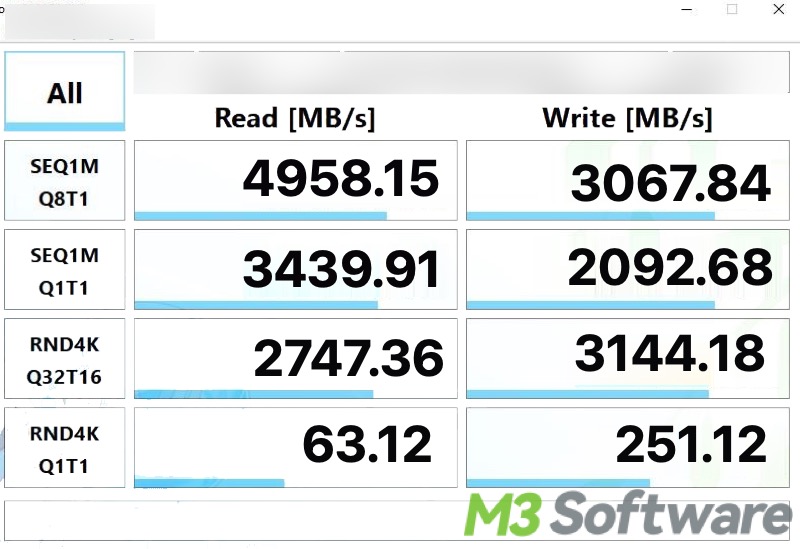
Next, use a trusted storage benchmark. Run the same test two or three times and compare consistent results. Close large applications and let the computer cool between runs.
Do not judge performance from one number. Look at:
• Sequential read speed
• Sequential write speed
• Random read performance
• Random write performance
• Access time
• CPU usage during the test
You can also run a practical test by copying a large folder, opening a project, or creating a virtual machine. Real tasks often matter more than benchmark scores.
Avoid disabling protection on a working computer just to chase a benchmark result. If you need a controlled comparison, use a test machine or a complete backup and recovery plan.
A practical lesson from storage testing is that repeatability matters. A hot SSD can slow itself down through thermal throttling. A nearly full drive can distort the result. Background Windows tasks can do the same.
How to improve SSD performance while using BitLocker
You usually do not need to disable BitLocker. A few maintenance steps can help your system stay fast and secure.
Keep enough free space
Try to leave 10% to 20% of the SSD unused. Free space helps the drive manage deleted data, background cleanup, and write operations.
Update firmware carefully
SSD firmware updates can improve stability and performance. Read the manufacturer’s instructions first because some update tools may require a reboot or carry a data-loss risk.
Turn on TRIM
TRIM helps Windows tell the SSD which blocks are no longer needed. BitLocker does not normally prevent TRIM from working.
You can check TRIM behavior with:
fsutil behavior query DisableDeleteNotify
A result of 0 generally means TRIM commands are enabled.
Avoid unnecessary background load
Cloud sync, antivirus scans, indexing, and backup tools can compete with BitLocker for storage and CPU resources. Schedule large backups when you are not doing demanding work.
Keep the SSD cool
High temperatures can trigger thermal throttling. Improve airflow in desktop systems and keep laptop vents clear.
Use the right encryption policy
Organizations should choose encryption settings based on risk, hardware, and workload. Home users should normally keep protection enabled unless they have a clear reason and a reliable alternative.
Save your recovery key
A recovery key protects access when Windows detects a security change. Store it in a safe place, such as your Microsoft account, a printed copy, or an approved password manager.
Should you disable BitLocker for better SSD speed?
For most people, disabling BitLocker is not worth the security tradeoff. A small benchmark gain does not compensate for losing protection if a laptop is stolen or a drive is removed from the computer.
BitLocker is especially valuable on portable devices. Without full-disk encryption, someone with physical access may be able to read files from the SSD by using another computer or recovery environment.
You might consider a different setup only when:
• A professional workload has measured a serious performance loss
• The computer uses an old processor without AES acceleration
• An application has a verified encryption compatibility issue
• You are managing a specialized test system
• You have another strong security control in place
Measure first. Do not disable encryption because a forum post says it slows every SSD. Your system may show little or no meaningful difference.
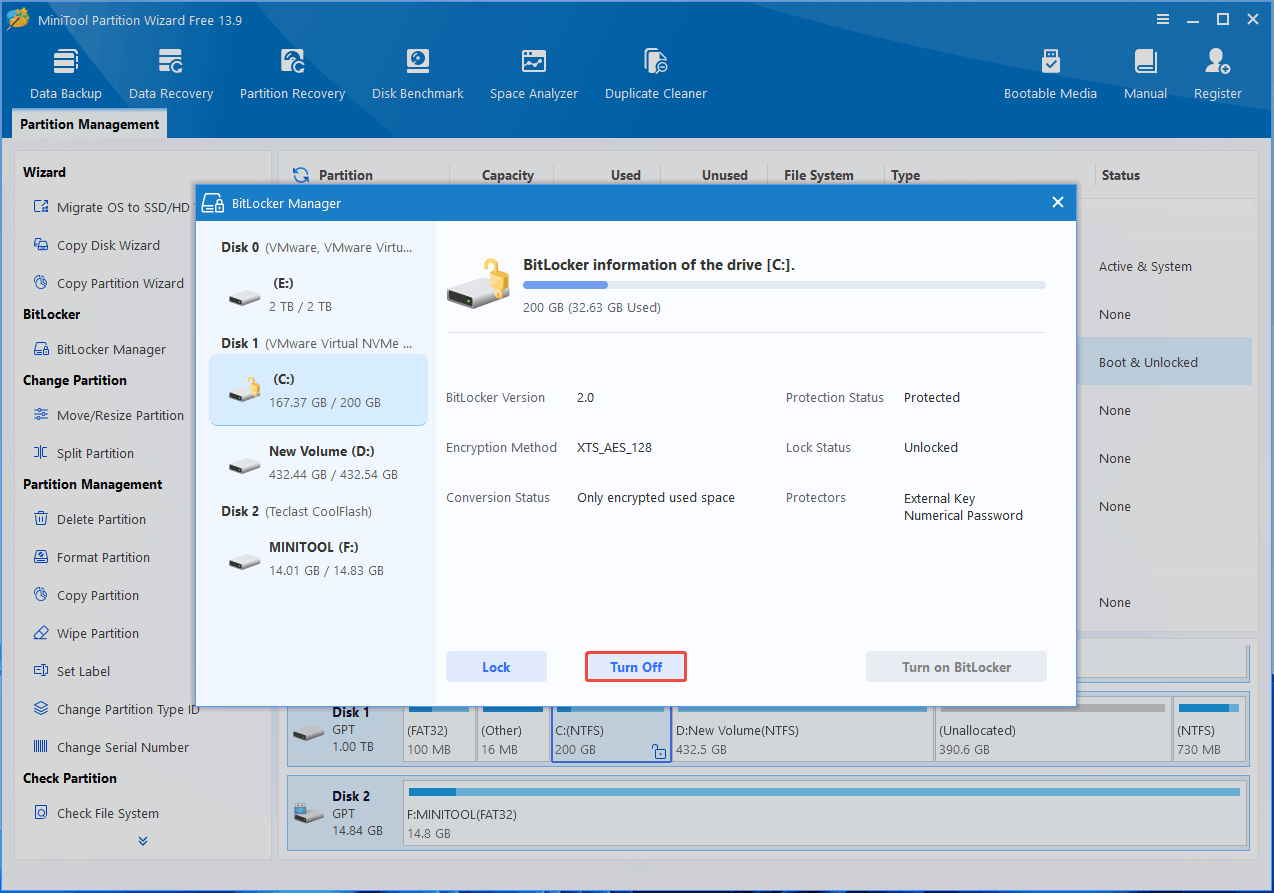
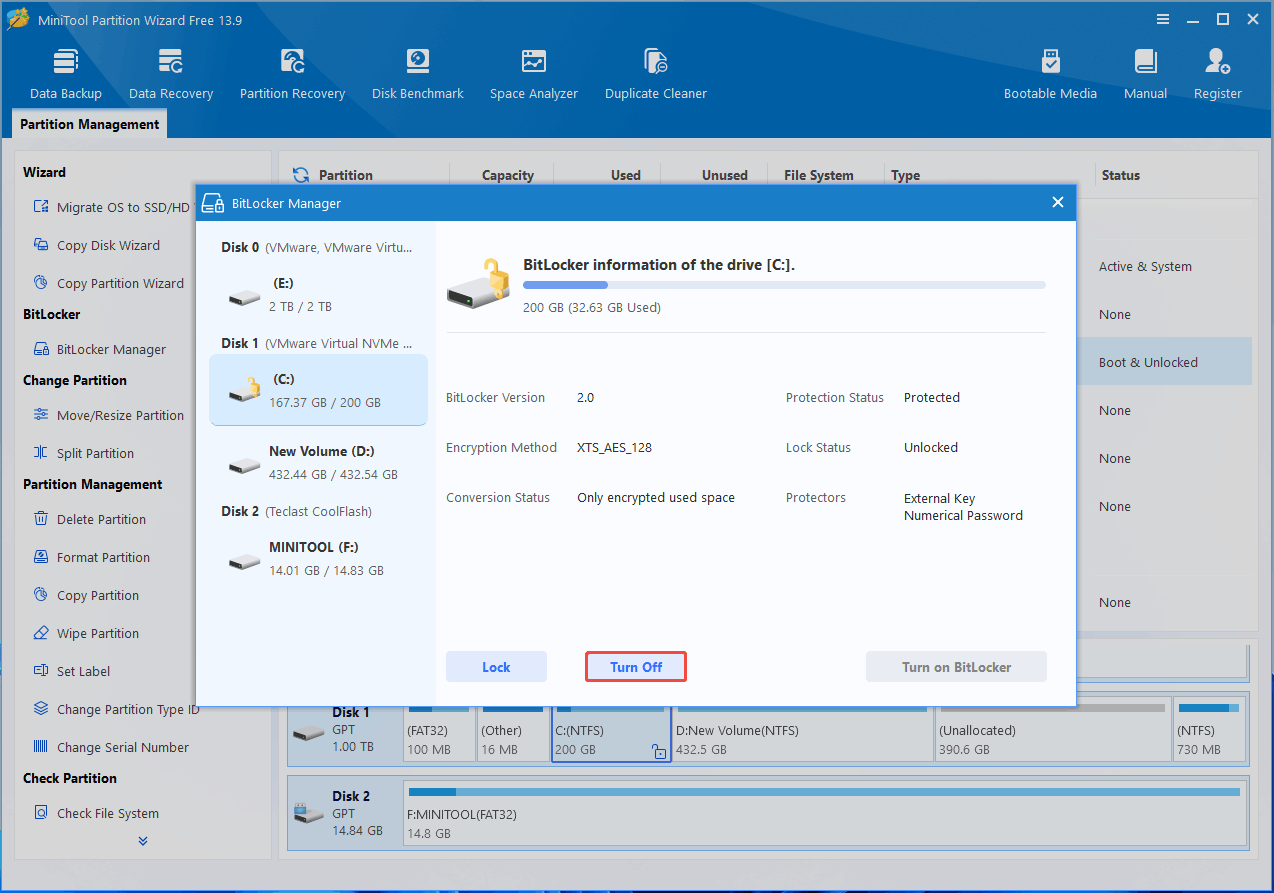
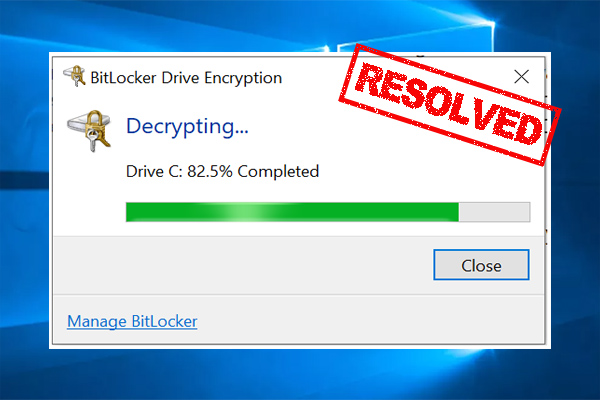
If you do disable BitLocker, decrypt the drive properly through Windows. Do not interrupt the process or delete encryption metadata without understanding the recovery consequences.
Benefits and limitations of BitLocker on SSDs
BitLocker offers strong practical benefits, but it is not perfect.
Main benefits
• Protects data if a laptop or SSD is stolen
• Integrates with Windows security tools
• Works without changing normal file access
• Supports recovery keys
• Helps organizations meet data protection policies
• Usually has a small performance cost on modern hardware
Important limitations
• It does not protect files after you unlock Windows
• Malware can access data during an active session
• A lost recovery key can lock you out
• Initial encryption can take a long time
• Older hardware may show greater overhead
• Encryption does not prevent accidental deletion
• It does not replace cloud or offline backups
BitLocker protects stored data, not every part of your digital life. Use antivirus protection, strong account security, software updates, and backups as part of a complete plan.
Frequently Asked Questions
Does BitLocker slow down SSD boot time?
BitLocker can add a small amount of work during startup, but modern systems usually show little noticeable delay. A long boot time is more often caused by startup apps, driver problems, updates, or a failing drive.
Does BitLocker reduce NVMe SSD speed?
It can reduce peak benchmark results, especially on very fast NVMe drives or computers without AES hardware acceleration. In everyday use, the difference is often small.
Does BitLocker slow down gaming?
BitLocker normally has little effect on gaming. Game loading may show a small change, but graphics performance is usually controlled by the GPU, CPU, memory, and game engine rather than drive encryption.
Does BitLocker increase SSD wear?
BitLocker may create extra activity during the first encryption pass, but it normally does not add enough ongoing writes to cause a meaningful lifespan concern. SSD health, total writes, temperature, and free space matter more.
Should I turn off BitLocker on my SSD?
Most users should leave BitLocker enabled because it protects personal data if the device is lost or stolen. Disable it only after measuring a real problem and confirming that another security plan is ready.
Does BitLocker work with TRIM?
Yes, BitLocker can work with TRIM on supported Windows systems. Keeping TRIM enabled helps the SSD manage unused blocks and maintain performance.
Can I use BitLocker on an external SSD?
Yes, BitLocker To Go can encrypt supported removable drives. Remember that the recovery password or key is essential because losing it may make the external SSD’s files inaccessible.
Conclusion
So, does BitLocker slow down SSD performance? It can add a small encryption overhead, but modern processors and SSDs usually keep the effect low. The biggest changes appear during first-time encryption, heavy storage workloads, older CPU use, or benchmark testing.
Before blaming BitLocker, check free space, drive temperature, firmware, drivers, and background tasks. Test your own system with repeatable measurements, and keep encryption enabled unless you have a proven performance need and a safe replacement.
For most Windows users, the security benefit is worth far more than a minor speed difference. Check your BitLocker status, save your recovery key, back up important files, and share your experience if you have measured a noticeable SSD performance change.
