

To pair Bose wireless earbuds, open the case, enter pairing mode, and select them in your device’s Bluetooth menu.
Learning how to pair Bose wireless earbuds is simple once you know which steps apply to your model. The Bose QuietComfort Earbuds, Bose Sport Earbuds, Bose QuietComfort Ultra Earbuds, and older models use similar Bluetooth steps, but the buttons and app options can differ. This guide explains the full process, fixes common connection problems, and shares practical tips for keeping your earbuds connected.
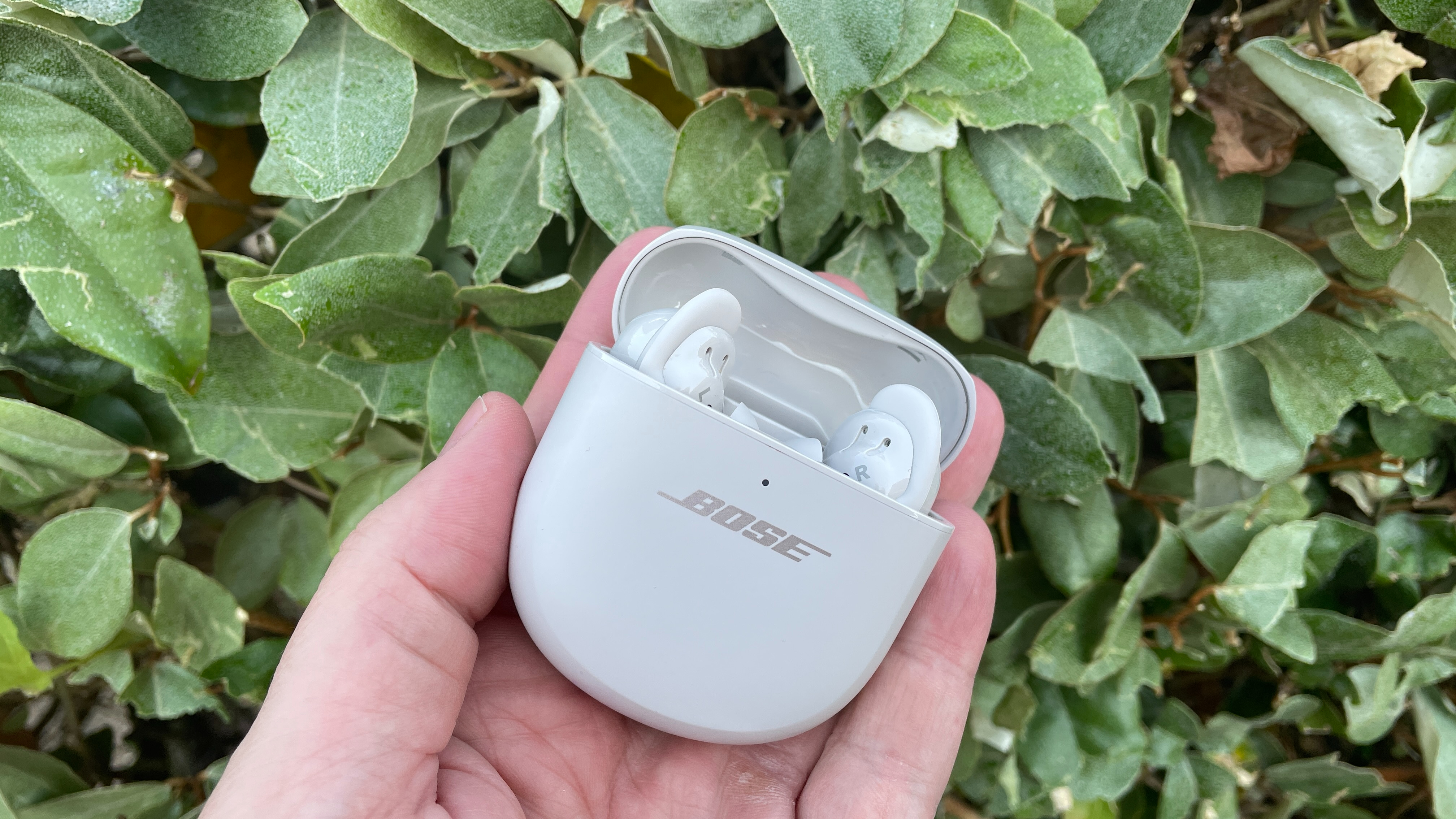
How to pair Bose wireless earbuds for the first time
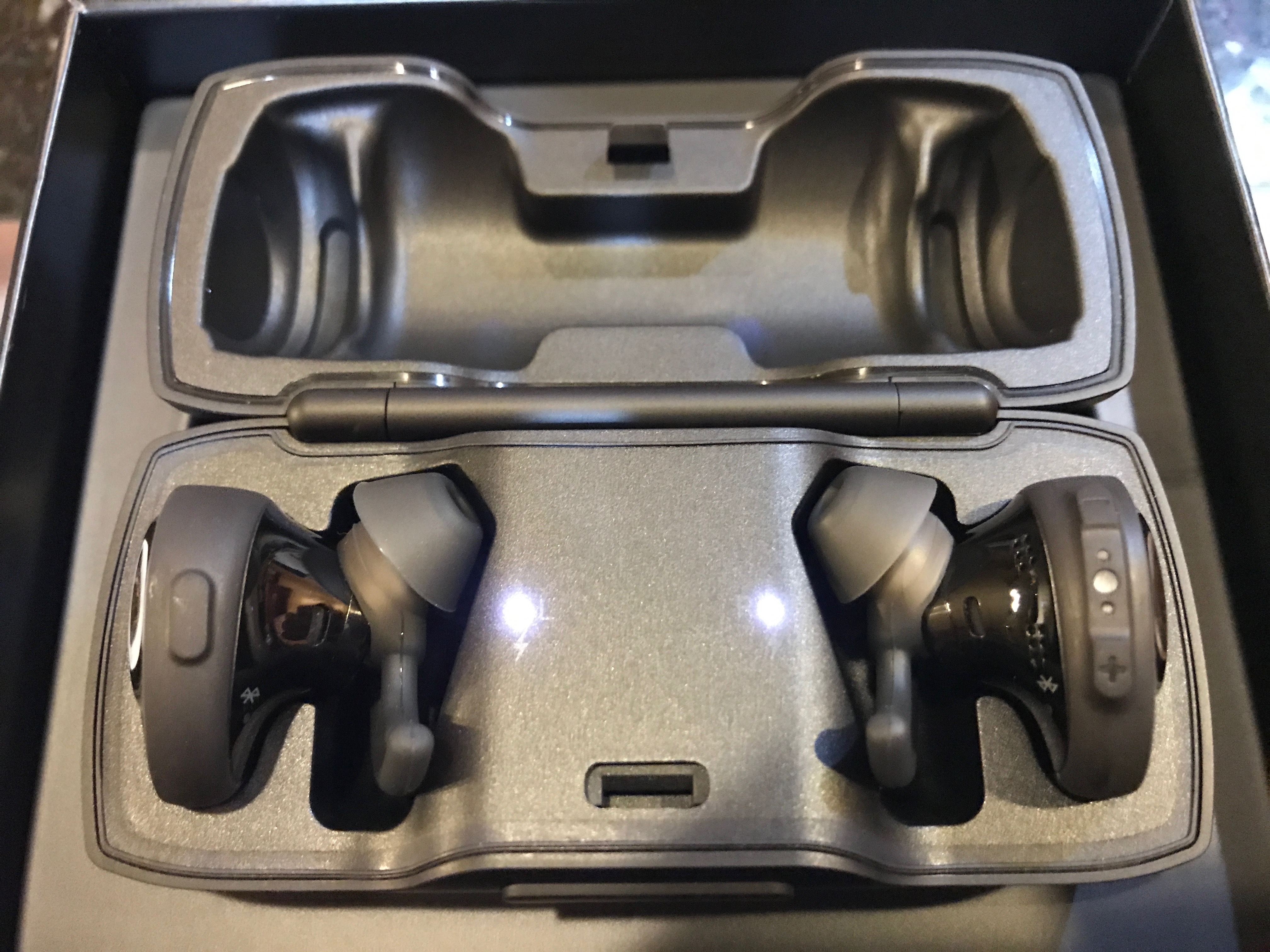
Most Bose earbuds enter pairing mode when you open the charging case. Your phone, tablet, or computer can then find them through Bluetooth.
Follow these steps:
- Charge the earbuds and charging case.
- Place both earbuds in the case.
- Open the case lid.
- Remove the earbuds, or leave them in the case if your model supports pairing from the case.
- Press and hold the Bluetooth or setup button on the case.
- Release the button when the earbuds’ light flashes blue.
- Open Bluetooth settings on your device.
- Select your Bose earbuds from the list.
- Wait for the status to show “Connected.”
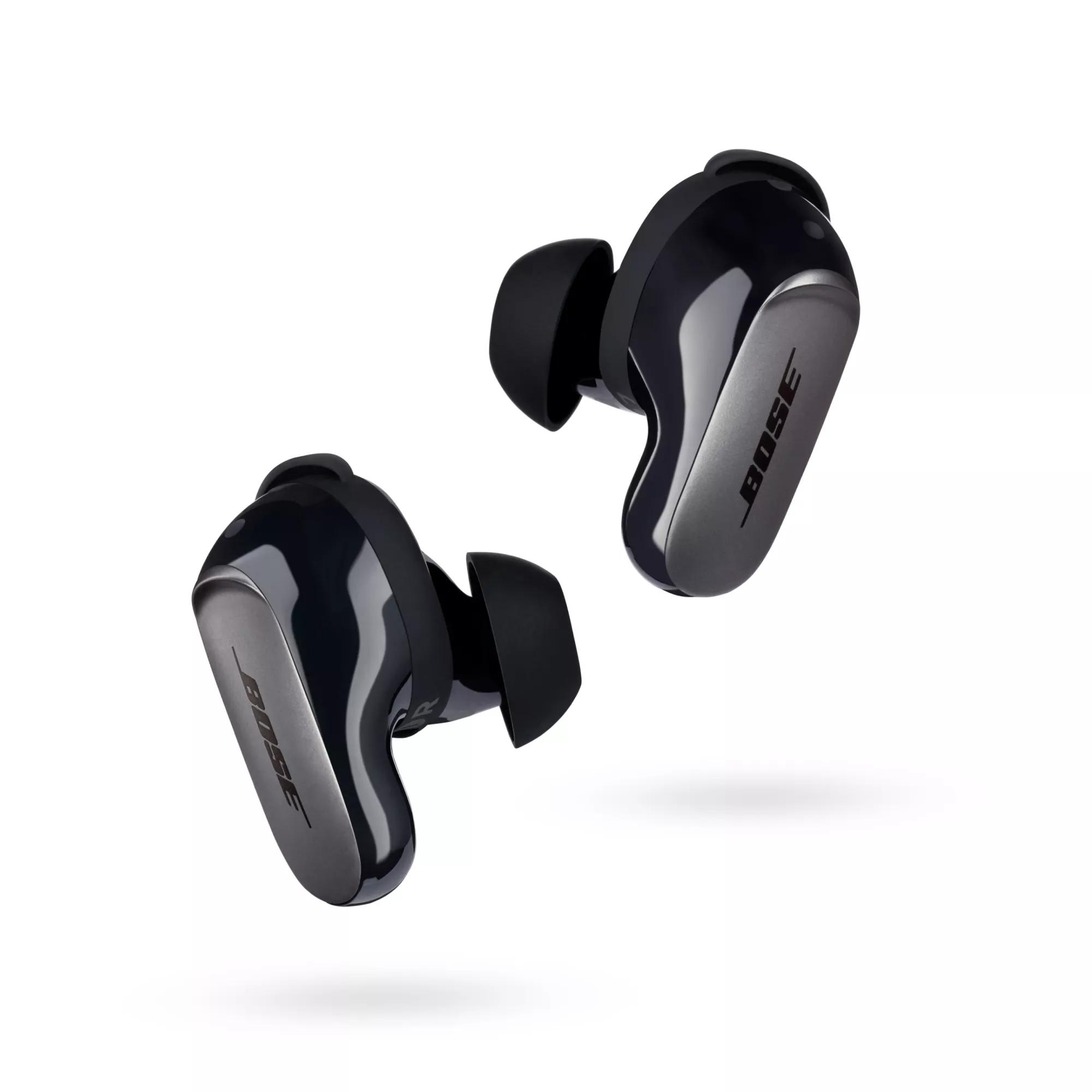
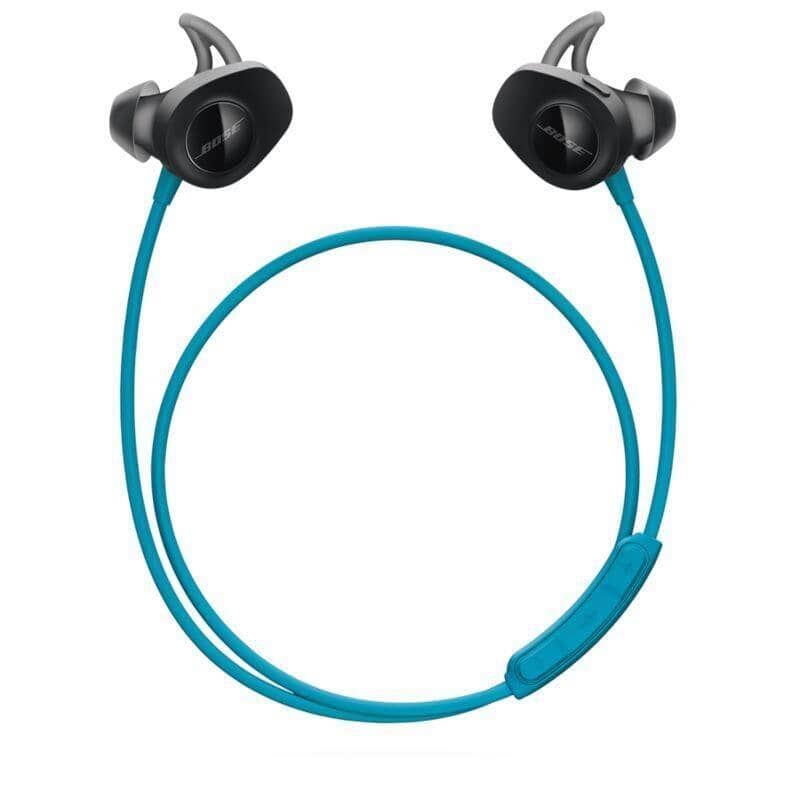
The name may appear as “Bose QuietComfort Earbuds,” “Bose Sport Earbuds,” “Bose QC Ultra Earbuds,” or a similar model name. If you see more than one Bose device, choose the entry that matches your earbuds.
Some Bose models use touch controls instead of a visible case button. In that case, open the Bose app and follow the setup instructions. The app can guide you through pairing and firmware updates.
When learning how to pair Bose wireless earbuds, keep the earbuds close to your device. Bluetooth usually works well across a room, but pairing is more reliable when the devices are within a few feet of each other.
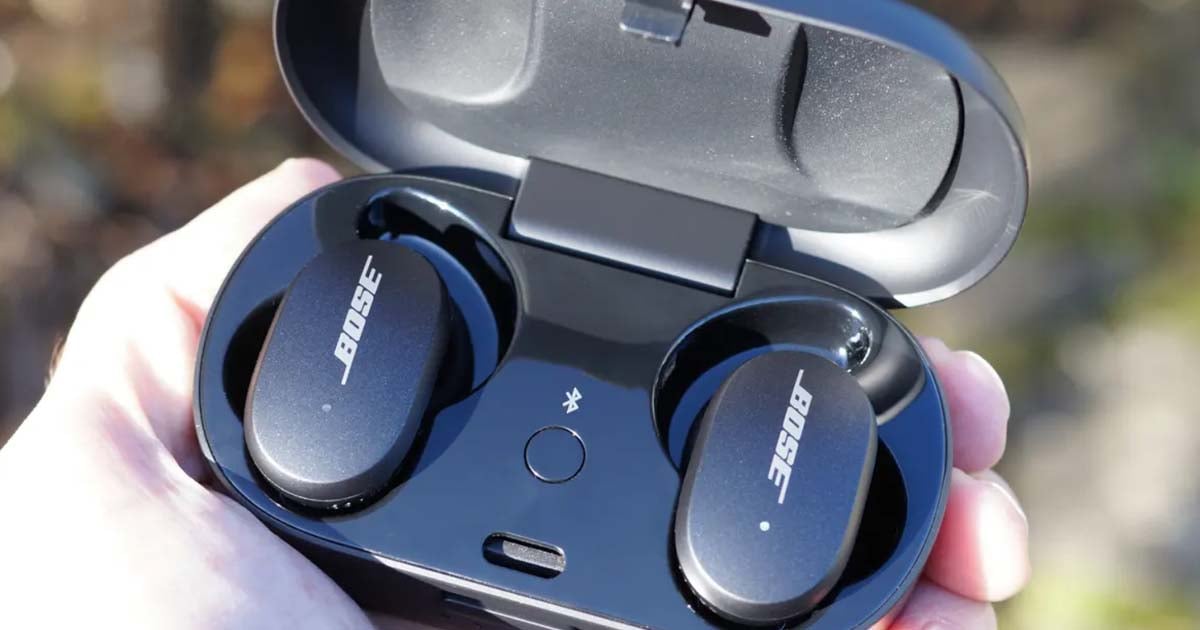
How to pair Bose wireless earbuds with an iPhone
An iPhone can pair with Bose earbuds through the Settings app. You do not need the Bose Music app for basic audio, but the app adds useful controls.
- Open the Settings app on your iPhone.
- Tap Bluetooth.
- Turn Bluetooth on.
- Put the Bose earbuds into pairing mode.
- Look under “Other Devices.”
- Tap the name of your Bose earbuds.
- Wait until they move to “My Devices” and show “Connected.”
You can now play music, make calls, and listen to videos through the earbuds. If the earbuds do not appear, close the case, reopen it, and hold the setup button again.
The Bose Music app can help with setup on supported models. It may let you:
• Rename your earbuds
• Adjust noise cancellation
• Change equalizer settings
• Install firmware updates
• Manage device connections
• Find product support
One common mistake is opening the Bose Music app before completing Bluetooth pairing. The app may still work, but the process can feel stuck. Pairing through iPhone Bluetooth first often provides a cleaner start.
If your iPhone remembers an old Bose connection, tap the information icon beside the device name. Choose “Forget This Device,” then pair the earbuds again. This removes the old Bluetooth record and often solves connection loops.
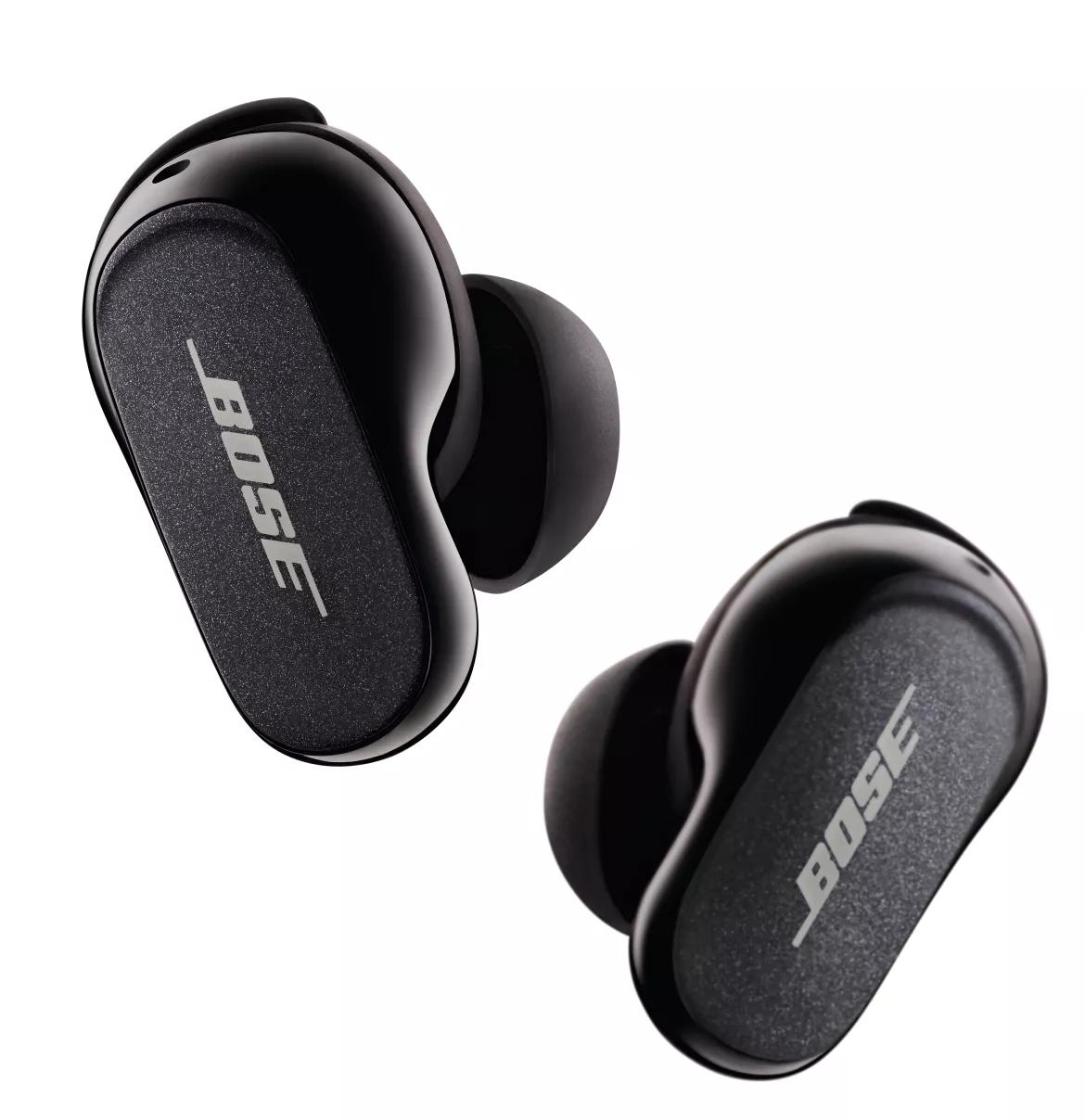
How to pair Bose wireless earbuds with an Android phone
The process for Android phones is much like the iPhone process. The exact menu names may vary by phone brand and Android version.
- Open Settings.
- Tap Connected devices, Connections, or Bluetooth.
- Turn Bluetooth on.
- Put your Bose earbuds into pairing mode.
- Tap “Pair new device” if that option appears.
- Choose your Bose earbuds from the list.
- Confirm the pairing request if your phone asks.
Some Android phones show a fast-pair pop-up when compatible earbuds are nearby. If it appears, follow the on-screen instructions. You may also be asked to install the Bose Music app.
If Android asks for a PIN, try 0000 or 1234. Most newer Bose earbuds do not require a PIN, so a PIN request can signal an old or incomplete Bluetooth record.
For a stable connection, turn off Bluetooth on nearby phones, tablets, or laptops that have used the earbuds before. Bose earbuds may try to reconnect to the last device they used, which can make them seem missing from your Android phone.
This is one of the most useful lessons when learning how to pair Bose wireless earbuds: check nearby devices before blaming the earbuds. Bluetooth can be like a conversation in a crowded room. Too many devices may answer at once.
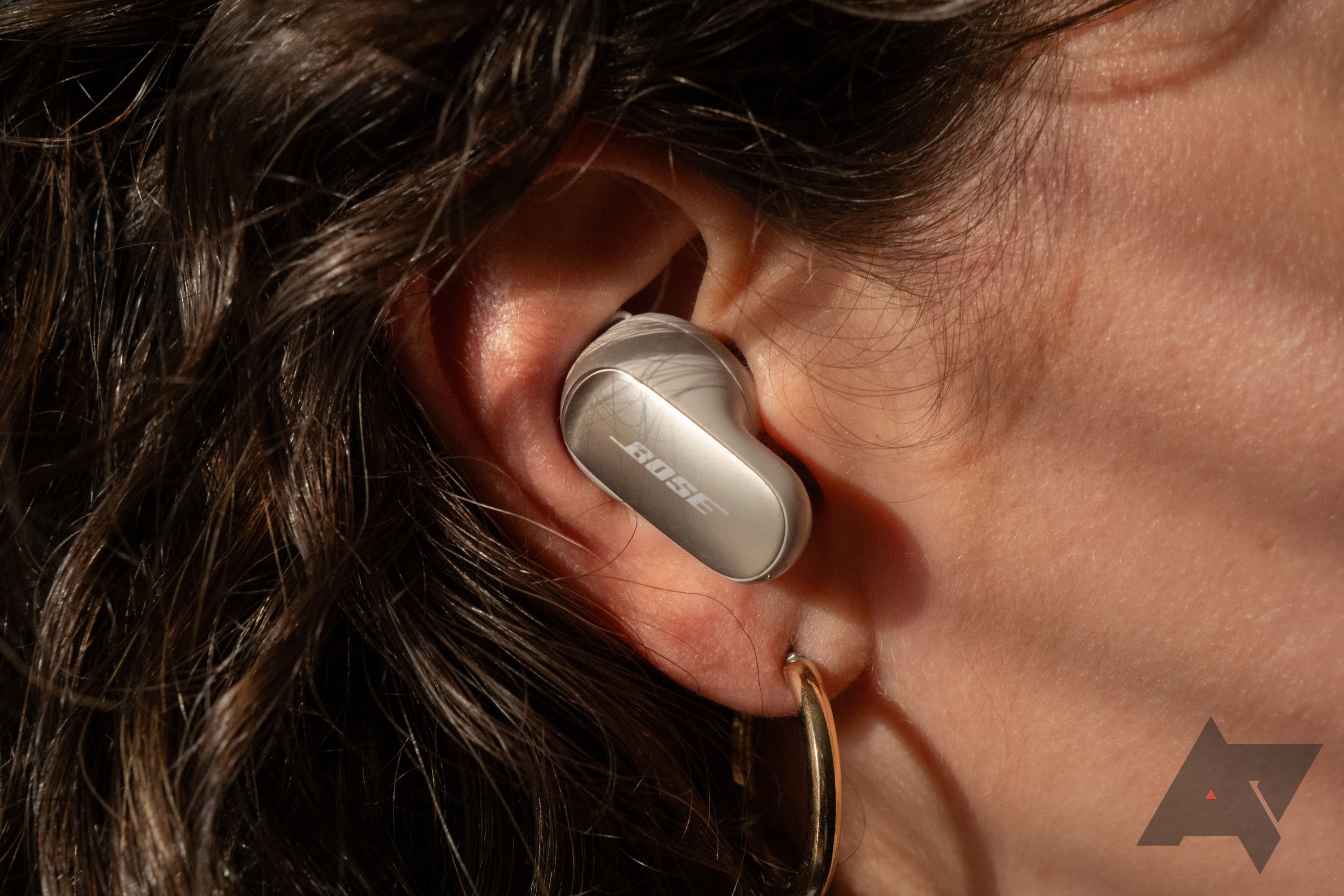
How to pair Bose wireless earbuds with a Windows PC
You can connect Bose earbuds to a Windows laptop or desktop for music, video calls, and games. Windows may show separate audio and headset options after pairing.
- Open the Windows Start menu.
- Select Settings.
- Choose Bluetooth & devices.
- Turn Bluetooth on.
- Click Add device.
- Select Bluetooth.
- Put the Bose earbuds into pairing mode.
- Click the Bose earbuds when they appear.
- Select Done.
Windows should connect the earbuds within a few seconds. You may need to choose them as the sound output device.
To select them manually:
- Click the speaker icon on the Windows taskbar.
- Open the sound output list.
- Select your Bose earbuds.
For calls, Windows may show two profiles. The “Headphones” profile usually gives better sound. The “Headset” profile activates the microphone but may reduce audio quality. This is a normal Bluetooth limitation, not always a fault with your Bose earbuds.
If your Bose earbuds connect but do not play sound, open Windows sound settings. Confirm that the output device is the Bose model and that the volume is not muted. Also check the app’s own audio settings, since programs such as Zoom or Teams can use a different output.
How to pair Bose wireless earbuds with a Mac
Pairing Bose earbuds with a Mac takes only a few steps.
- Click the Apple menu.
- Open System Settings.
- Select Bluetooth.
- Turn Bluetooth on.
- Put the Bose earbuds into pairing mode.
- Find the earbuds under Nearby Devices.
- Click Connect.
On older macOS versions, Bluetooth settings may appear under System Preferences instead of System Settings.
After pairing, click the Control Center icon in the menu bar. Choose Sound, then select your Bose earbuds. This confirms that the Mac is sending audio to the correct device.
For video calls, check the microphone and speaker settings inside the meeting app. The Mac may connect the earbuds for audio but still use its built-in microphone. Selecting the Bose earbuds inside the app can correct this.
If the sound becomes quiet during a call, macOS may switch to a hands-free Bluetooth mode. This reduces audio quality while the microphone is active. It is a normal behavior with many Bluetooth headsets.

How to use the Bose Music app for pairing
The Bose Music app provides a guided way to pair supported earbuds. It is available for iPhone and Android devices.
Start by installing the app from your device’s official app store. Sign in or continue without an account if the app provides that option. Then follow the setup steps to add your earbuds.
The usual process looks like this:
- Turn on Bluetooth.
- Open the charging case.
- Keep the earbuds near your phone.
- Open the Bose Music app.
- Choose Add Product.
- Select your earbud model.
- Follow the on-screen instructions.
- Install any available firmware update.
The app can be helpful when learning how to pair Bose wireless earbuds because it identifies your model. It also shows battery levels and explains controls that may not be obvious.
Do not close the app during a firmware update. Keep the earbuds in the case or follow the app’s instructions. Interrupting an update can create setup problems, although most devices recover through another update attempt.
The app is not required for basic Bluetooth audio on every Bose model. You can often pair directly through the device’s Bluetooth menu. Still, the app is useful for supported features, custom settings, and product support.
How to pair Bose wireless earbuds with a second device
Many Bose earbuds can remember several paired devices. Some newer models also support multipoint connections, which allow two devices to stay connected at the same time.
To add a second device:
- Disconnect the earbuds from the first device, or turn off Bluetooth on it.
- Put the earbuds into pairing mode.
- Open Bluetooth settings on the second device.
- Select the Bose earbuds.
- Confirm the connection.
If your model supports multipoint, reconnect the first device after pairing the second one. You can then switch between a phone and a laptop more easily.
Multipoint behavior depends on the model and firmware. Some Bose earbuds support it, while others remember several devices but connect actively to only one. Check the Bose Music app or the product guide for your exact model.
A useful example is working from home. Your earbuds may connect to your laptop for a video call and your phone for alerts. If the switch does not happen, pause media on the first device before starting audio on the second.
When you pair Bose wireless earbuds with many devices, old connections can become confusing. Remove unused devices from the Bluetooth list or clear the earbuds’ pairing list if connections become unreliable.
How to fix Bose earbuds that will not pair
Pairing problems are usually caused by a low battery, an old Bluetooth record, or another nearby device using the earbuds. Try the simple fixes first.
Check the battery
Place both earbuds in the charging case. Confirm that the case has power and that the earbuds sit correctly on the charging contacts. Clean dust from the contacts with a dry, soft cloth.
Low power can prevent pairing mode from starting. Charge the case for at least 15 minutes before trying again.
Restart Bluetooth
Turn Bluetooth off on your phone or computer. Wait several seconds, then turn it on again. Put the earbuds back into pairing mode and search again.
Remove the old Bluetooth record
On your device, forget or remove the Bose earbuds. Restart the device, then pair again as if the earbuds were new.
This works because your phone stores connection data. If that data becomes damaged or conflicts with a firmware change, the device may say “Connected” without sending sound.
Move away from other devices
Turn off Bluetooth on nearby phones, tablets, and laptops. The earbuds may automatically connect to one of them.
Also move away from crowded wireless areas if possible. Bluetooth uses the 2.4 GHz band, which can experience interference from Wi-Fi routers and other wireless devices.
Restart the earbuds
Place the earbuds in the case, close the lid, wait about 30 seconds, and open it again. Then try pairing mode once more.
The exact restart method varies by model. Use the instructions for your product rather than holding random buttons for a long time.
Update the software
If the earbuds connect but behave oddly, check for firmware updates in the Bose Music app. Updates can improve stability, controls, and compatibility.
When I troubleshoot Bose earbuds, I avoid resetting them as the first step. A reset removes saved connections and takes more time. It is better to check power, Bluetooth records, and nearby devices first.
How to reset Bose wireless earbuds
A reset can help when the earbuds will not enter pairing mode or keep disconnecting. The reset method differs across Bose models, so use the official guide for your exact product.
A common reset process includes these steps:
- Remove the earbuds from your device’s Bluetooth list.
- Put both earbuds in the charging case.
- Connect the case to a power source if required.
- Press and hold the case button for the time listed in the product guide.
- Wait for the status light to show the reset or pairing pattern.
- Restart your phone, tablet, or computer.
- Pair the earbuds again.
Some older Bose earbuds use a different button combination. Do not assume that the reset steps for Bose Sport Earbuds will work for Bose QuietComfort Ultra Earbuds.
A reset does not usually repair physical damage, blocked charging contacts, or a worn battery. If one earbud never lights up or charges, the issue may need service rather than another reset.
Resetting should be the last software step. It is useful, but it is also like clearing a notebook: it removes the useful connection history along with the bad entries.
Bose Bluetooth pairing problems and their causes
Understanding the cause makes troubleshooting faster. The most common problems include:
• Earbuds do not appear: They are not in pairing mode, or another device has connected first.
• Earbuds connect but have no sound: The wrong output device is selected.
• One earbud does not work: It may not be charging or may need to resync.
• Connection keeps dropping: The battery may be low, or there may be wireless interference.
• App cannot find the earbuds: Bluetooth permissions, location permissions, or an old connection may block setup.
• Audio is poor during calls: The device may have switched to a hands-free Bluetooth profile.
• Earbuds connect to the wrong device: A nearby phone, tablet, or laptop is reconnecting automatically.
Android devices may require nearby-device permissions for setup. iPhones may need Bluetooth permission enabled for the Bose app. Windows and macOS may require you to select the earbuds as the active audio output.
Distance also matters. Bluetooth is designed for short-range use. Walls, metal objects, and crowded wireless spaces can reduce stability.
In real use, the most common mistake is leaving Bluetooth enabled on an old laptop. The earbuds then reconnect to the laptop in a bag or another room. Turning off Bluetooth on unused devices often fixes the issue in less than a minute.
Tips for a stronger Bose earbuds connection
Good pairing habits can prevent many problems.
• Keep the earbuds and case charged.
• Install firmware updates through the Bose Music app when available.
• Keep your phone or computer within a reasonable Bluetooth range.
• Avoid covering the earbuds with thick clothing or placing the device near metal.
• Forget old Bluetooth entries that you no longer use.
• Pair in a quiet setting with few wireless devices nearby.
• Keep the charging contacts clean and dry.
• Do not use a damaged charging cable or case.
• Check the audio output after connecting to a computer.
• Use the correct Bose app for your model.
You should also store the earbuds in their case when you are not using them. This helps protect them and reduces accidental connections.
For calls, keep the phone or computer on the same side of your body as the earbud connection is strongest. Your body can block some Bluetooth signals, especially when the device is in a back pocket.
These tips do not make Bluetooth perfect. Wireless performance depends on the device, software, environment, and earbud model. Still, they make everyday use much more reliable.
What to do when only one Bose earbud connects
One earbud may fail to connect if it did not charge, lost its sync with the other earbud, or has an old software state.
Try these steps:
- Put both earbuds in the charging case.
- Check that each earbud shows a charging light or status.
- Clean the charging contacts gently.
- Close the case for about 30 seconds.
- Remove both earbuds together.
- Forget the Bose device from your phone or computer.
- Pair the earbuds again.
If one earbud remains silent, test the balance setting on your device. On an iPhone, check Accessibility and Audio/Visual settings. On Android, search Settings for “audio balance.” On Windows and Mac, check sound balance and output settings.
The Bose Music app may also show whether both earbuds are detected. If the app sees only one earbud, the problem may involve charging, software, or hardware.
Avoid inserting sharp tools into the case. They can damage the charging pins. If the same earbud fails after cleaning, charging, resetting, and updating, contact Bose support or an authorized repair provider.
Frequently Asked Questions About How to Pair Bose Wireless Earbuds
How do I put Bose wireless earbuds in pairing mode?
Open the charging case and press and hold the Bluetooth or setup button until the status light flashes blue. Some models use touch controls or the Bose Music app, so the exact method depends on the model.
Why are my Bose earbuds not showing in Bluetooth?
They may not be in pairing mode, may be connected to another device, or may have a low battery. Charge the earbuds, turn off Bluetooth on nearby devices, and remove the old Bose entry before searching again.
Can I pair Bose wireless earbuds with two devices?
Some Bose models support multipoint connections, while others can remember several devices but actively connect to only one at a time. Check your model’s Bose Music app or product guide to confirm its behavior.
Do I need the Bose Music app to pair my earbuds?
No. Many Bose earbuds can pair through your phone, tablet, Windows PC, or Mac Bluetooth settings. The app is useful for updates, controls, battery information, and supported features.
How do I reset Bose wireless earbuds?
The reset method depends on the model. Usually, you first remove the earbuds from your device’s Bluetooth list, place them in the case, and hold the case button for the time shown in the official product instructions.
Why do my Bose earbuds connect but have no sound?
Your device may be sending audio to its built-in speakers or another Bluetooth product. Open the sound output settings and select your Bose earbuds manually.
How close should my device be when pairing Bose earbuds?
Keep the device within a few feet during the first pairing. After setup, Bluetooth range can be greater, but walls, metal, interference, and other devices may reduce connection quality.
Conclusion
Pairing Bose wireless earbuds usually takes less than a minute: charge them, enter pairing mode, open Bluetooth settings, and select the correct Bose model. If the connection fails, check the battery, remove old Bluetooth records, disable nearby devices, and confirm the right audio output.
The most important tip is to use the instructions for your exact Bose model. Once you pair Bose wireless earbuds successfully, keep the firmware updated and store them in the case between uses. Try these steps today, then explore the Bose Music app for sound controls and additional support.
