

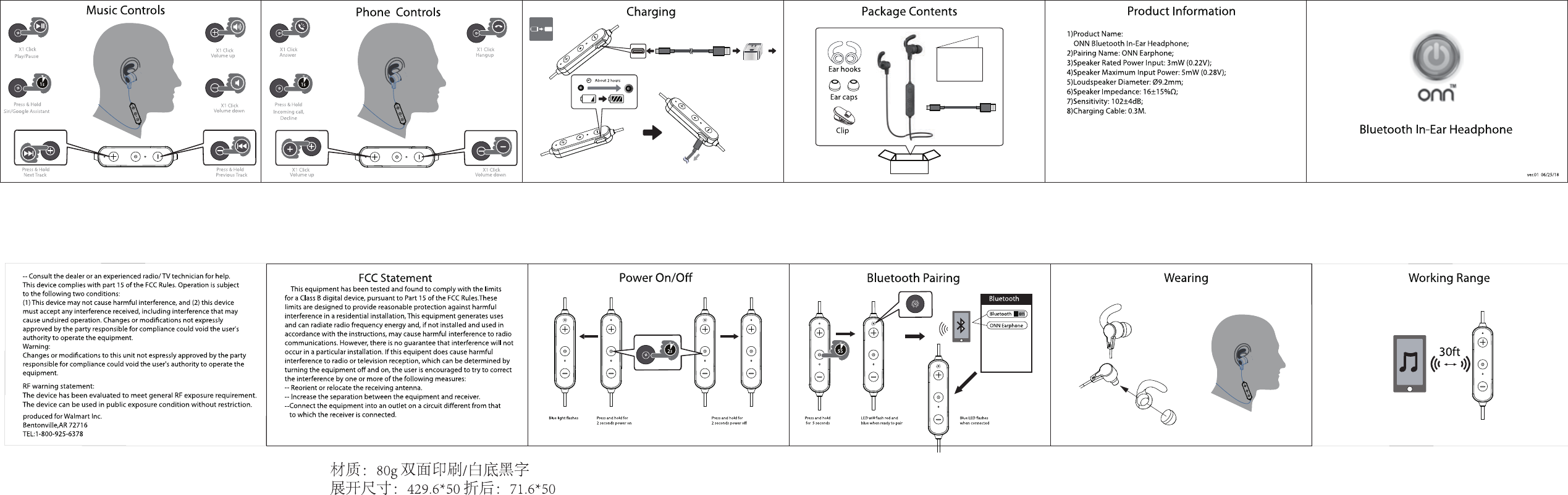
To pair onn earbuds, turn on Bluetooth, open the case, select “onn.” in your device list, and tap Pair.
Learning how to pair onn earbuds is simple once you know the correct order. This guide explains the first-time setup, reconnection steps, reset methods, and fixes for common Bluetooth problems. The steps work for most onn wireless earbuds, though button names may vary by model.

How to Pair onn Earbuds for the First Time
Most onn earbuds use standard Bluetooth pairing. You do not need a special app for basic use. Your phone, tablet, computer, or smart TV should connect through its Bluetooth menu.
Follow these steps to pair onn earbuds with a phone:
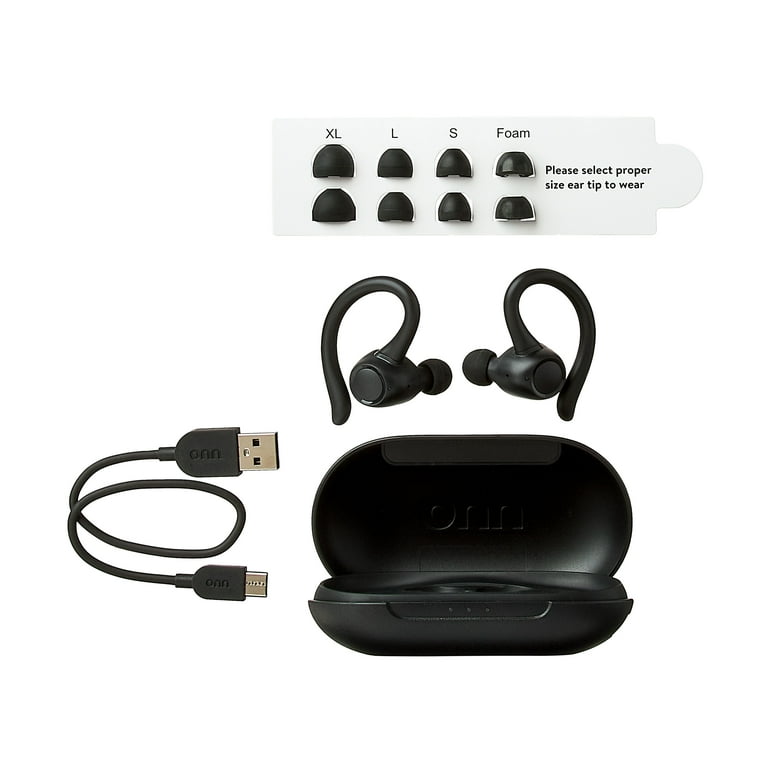
- Place both earbuds inside the charging case.
- Charge the case for a few minutes if the earbuds are new or have been stored for a long time.
- Open the case lid.
- Remove any small plastic film from the charging contacts.
- Take both earbuds out of the case.
- Turn on Bluetooth on your device.
- Open the Bluetooth settings menu.
- Look for a device name such as “onn.,” “onn Wireless Earbuds,” or a similar model name.
- Tap the onn device name.
- Select Pair, Connect, or OK if your device asks for approval.
The earbuds usually flash a light while they search for a device. When pairing is complete, the light may stop flashing, or your device may show “connected.”
When I test Bluetooth earbuds, the most common mistake is opening the Bluetooth menu before the earbuds enter pairing mode. Taking both earbuds out of the case first usually gives them time to wake up and search.

How to Put onn Earbuds in Pairing Mode
Pairing mode allows your earbuds to appear in a Bluetooth device list. Many onn models enter this mode when you remove them from the case for the first time.
If your onn earbuds do not appear, try this method:
- Turn off Bluetooth on nearby phones, tablets, and computers.
- Put both earbuds in the charging case.
- Close the lid for about 10 seconds.
- Open the lid.
- Remove both earbuds at the same time.
- Press and hold the touch area or button for several seconds if the lights do not flash.
- Search for available Bluetooth devices again.
Some models use a single button on the case. If your case has one, press and hold it until the indicator light flashes. The exact light pattern can differ between onn products, so check the model guide if the light does not respond.
Keep the earbuds close to your device during setup. A distance of less than 3 feet is best. Bluetooth pairing can fail when the earbuds are across a room or near many wireless devices.
How to Pair onn Earbuds With an Android Phone
You can pair onn earbuds with most Android phones through the Settings app. Android menus can look different on Samsung, Google Pixel, Motorola, and other phones, but the main steps are alike.
- Open Settings.
- Tap Connected devices, Connections, or Bluetooth.
- Turn Bluetooth on.
- Tap Pair new device if needed.
- Wait for the onn earbuds to appear.
- Tap the earbuds’ name.
- Confirm the pairing request.
After you pair onn earbuds, Android may show options for calls and media audio. Keep both options enabled if you want to use the earbuds for music and phone calls.
If the earbuds show as “Saved” but not “Connected,” tap their name again. You can also turn Bluetooth off and on. This refreshes the device list without deleting your saved connection.
How to Pair onn Earbuds With an iPhone
The iPhone Bluetooth menu makes it easy to pair onn earbuds. You do not need to install a companion app for normal listening.
- Open Settings on your iPhone.
- Tap Bluetooth.
- Turn Bluetooth on.
- Open the onn charging case.
- Remove both earbuds.
- Wait for the earbuds to appear under Other Devices.
- Tap the onn device name.
- Wait until the status changes to Connected.
Once you pair onn earbuds with an iPhone, they should appear under My Devices in the future. Open the case and remove the earbuds to reconnect them.
If your iPhone asks for a PIN, try 0000 or 1234 only if the device manual lists a code. Most modern onn earbuds do not need a PIN. Do not guess many codes, since the earbuds may leave pairing mode.
How to Pair onn Earbuds With a Windows PC
Onn earbuds can connect to a Windows laptop or desktop for music, video, and calls. First, make sure the PC has Bluetooth. Some desktop computers need a separate Bluetooth adapter.
Windows 11
- Open Settings.
- Select Bluetooth & devices.
- Turn Bluetooth on.
- Click Add device.
- Choose Bluetooth.
- Select the onn earbuds from the list.
- Click Done when the connection finishes.
Windows 10
- Open Settings.
- Select Devices.
- Choose Bluetooth & other devices.
- Turn Bluetooth on.
- Click Add Bluetooth or other device.
- Select Bluetooth.
- Choose the onn earbuds.
After you pair onn earbuds, select them as the sound output if Windows still uses the built-in speakers. Click the speaker icon on the taskbar, then choose the onn earbuds from the sound list.
For calls, Windows may show two audio choices. The headset option supports the microphone but may sound less clear. The stereo option often gives better music quality but may not support the earbud microphone in the same way.
How to Pair onn Earbuds With a Mac
Mac computers connect to onn earbuds through System Settings or System Preferences.
- Open the Apple menu.
- Select System Settings on newer macOS versions.
- Click Bluetooth.
- Turn Bluetooth on.
- Remove the earbuds from the case.
- Find the onn earbuds under Nearby Devices.
- Click Connect.
On older Macs, open System Preferences and select Bluetooth instead. The device name may include “onn” or a model number.
If your Mac connects but sends sound through its speakers, open the Control Center. Select Sound, then choose the onn earbuds. You can also open Sound settings and select the earbuds as the output device.
How to Pair onn Earbuds With a Smart TV
Many smart TVs support Bluetooth audio. The menu name depends on the brand, but you will usually find Bluetooth under Sound, Audio, Accessories, or Remotes and Devices.
Try these steps:
- Put the onn earbuds into pairing mode.
- Open your TV’s Settings menu.
- Find Sound or Audio.
- Open Bluetooth Speaker List, Bluetooth Devices, or a similar option.
- Select the onn earbuds.
- Confirm the connection.
Some TVs cannot connect to Bluetooth headphones. Older models may need a Bluetooth transmitter connected to the TV’s audio output.
Audio delay is another possible issue. Video and sound may not match perfectly when Bluetooth is used. If your TV has an audio sync setting, adjust it until voices match the picture.
How to Reconnect onn Earbuds Automatically
After you pair onn earbuds once, they often reconnect to the last device automatically. Keep Bluetooth enabled on that device, then open the charging case and remove the earbuds.
Automatic reconnection may fail when:
• The earbuds are connected to another phone.
• Bluetooth is turned off.
• The earbuds are out of battery.
• The saved pairing was removed.
• The device is too far away.
If another phone is nearby, turn off its Bluetooth for a moment. This prevents the earbuds from connecting to the wrong device. Then turn Bluetooth on for the device you want to use.
In my own setup tests, placing both earbuds in the case before switching between devices works better than trying to force a new connection while one earbud is already active.
How to Pair onn Earbuds With a New Device
Most onn earbuds remember one or more previous devices, but they may reconnect to the first available device. To use them with a new phone, disconnect them from the old device first.
- Open Bluetooth settings on the old device.
- Tap the onn earbuds.
- Choose Disconnect or Forget This Device.
- Turn off Bluetooth on the old device.
- Put the earbuds in pairing mode.
- Open Bluetooth settings on the new device.
- Select the onn earbuds.
You may not need to forget the earbuds on the old device. Disconnecting is often enough. Use Forget or Remove only when the earbuds refuse to connect or keep choosing the wrong device.
Bluetooth does not normally allow one basic earbud set to play audio from two devices at the same time. Some newer products support multipoint Bluetooth, but you should not assume that every onn model has this feature.
How to Reset onn Earbuds
A reset clears old Bluetooth information and can fix repeated pairing failures. The reset process is not identical for every onn model, so use the instructions for your specific earbuds when available.
A common reset method is:
- Forget the onn earbuds from every nearby device.
- Turn off Bluetooth on those devices.
- Put both earbuds in the case.
- Leave the case open.
- Press and hold the touch areas or buttons on both earbuds.
- Continue holding for about 10 to 15 seconds, or until the lights flash.
- Close the case.
- Open it again and remove both earbuds.
- Search for the onn earbuds on your device.
If this method does not work, try holding the case button instead. Some models reset through the case, while others reset through the earbuds.
A reset should be your second choice, not your first. Try charging the earbuds, restarting Bluetooth, and moving away from other devices before erasing the pairing record.
onn Earbuds Not Pairing: Common Fixes
When onn earbuds will not pair, the cause is usually simple. Work through these fixes in order.
• Charge everything: Charge both earbuds and the case. One earbud may have a low battery even when the other one works.
• Clean the contacts: Wipe the metal charging points with a dry, soft cloth. Dirt can stop an earbud from charging or waking up.
• Move closer: Keep the earbuds within a few feet of the phone during setup.
• Turn Bluetooth off and on: This refreshes the wireless connection.
• Restart the device: A phone or computer restart can clear a temporary Bluetooth error.
• Forget the old connection: Remove the onn earbuds from the saved Bluetooth list, then pair them again.
• Stop other connections: Turn off Bluetooth on nearby devices that may connect first.
• Reset the earbuds: Use this step when other fixes fail.
Avoid pairing the earbuds while they are still covered by protective film. I have seen new earbuds appear defective when the film blocked the charging contacts. Removing the film fixed the issue within minutes.
How to Fix Only One onn Earbud Working
One earbud may stop working when the two earbuds lose their connection with each other. It can also happen when one earbud has not charged.
Try these steps:
- Put both earbuds in the case.
- Confirm that both charging lights respond.
- Close the case for 10 seconds.
- Open the case and remove both earbuds together.
- Forget the earbuds from your phone.
- Reset the earbuds if only one still connects.
- Pair onn earbuds again as a new Bluetooth device.
Check the phone’s left and right audio balance as well. On an iPhone, open Accessibility and Audio & Visual. On Android, search Settings for “audio balance.” The slider should sit in the center.
Also check whether the quiet earbud has a blocked speaker grille. Earwax and dust can lower volume. Use a dry, soft brush and avoid pushing liquid into the speaker.
How to Improve onn Earbud Connection Quality
A strong Bluetooth connection depends on more than pairing. Your body, walls, metal objects, and wireless traffic can affect the signal.
Use these habits for a steadier connection:
• Keep your phone nearby.
• Avoid covering the earbuds with a hand or thick clothing.
• Keep the phone away from crowded wireless areas when possible.
• Update your phone’s operating system.
• Keep the earbud contacts clean.
• Store the earbuds in the case when you are not using them.
• Avoid very low battery levels during calls.
Bluetooth earbuds can also use more power when the signal is weak. A short distance between the phone and earbuds often improves both stability and battery life.
No wireless connection is perfect. Small delays or brief drops can occur near busy Wi-Fi networks, airports, gyms, and large public spaces. This does not always mean the earbuds are damaged.
Safety and Privacy Tips for Bluetooth Pairing
Pairing onn earbuds is safe when you use the normal Bluetooth menu on a trusted device. Avoid accepting unknown pairing requests in public places.
Use these simple safety steps:
• Pair in a private place when possible.
• Turn Bluetooth off when you do not need it.
• Remove old devices from your Bluetooth list.
• Do not share your phone’s pairing confirmation with strangers.
• Keep your phone and earbuds updated when updates are available.
Bluetooth uses device authentication, but no wireless system is a reason to ignore basic security. If a device name looks unfamiliar, cancel the request instead of connecting.
For hearing safety, keep the volume at a comfortable level. Long exposure to loud sound can harm hearing, no matter which brand of earbuds you use.
Frequently Asked Questions About How to Pair onn Earbuds
Why are my onn earbuds not showing up on Bluetooth?
Put both earbuds in pairing mode and keep them close to your phone. If they still do not appear, charge them, turn Bluetooth off and on, and reset the earbuds.
How do I put onn earbuds in pairing mode?
Open the case and remove both earbuds together. If the lights do not flash, press and hold the earbud touch controls or the case button until the indicator starts flashing.
Can I pair onn earbuds with an iPhone?
Yes, onn earbuds work with iPhones through the standard Bluetooth menu. Open Settings, tap Bluetooth, and select the onn earbuds under Other Devices.
Can I connect onn earbuds to a laptop?
Yes, you can connect them to most Windows PCs and Mac computers with Bluetooth. Put the earbuds in pairing mode, open the computer’s Bluetooth settings, and select the onn device.
Why does only one onn earbud connect?
The earbuds may have lost their connection with each other, or one earbud may not be charged. Place both earbuds in the case, reset them if needed, and pair onn earbuds again.
How do I reset onn earbuds?
Forget the earbuds from your phone or computer first. Then place both earbuds in the case and hold the earbud controls or case button until the lights flash, based on your model’s instructions.
Do onn earbuds connect automatically after pairing?
Usually, they reconnect to the last device when Bluetooth is on and the earbuds have enough charge. They may connect to another nearby device if that device was paired more recently.
Conclusion
To pair onn earbuds, charge the earbuds, place them in pairing mode, open your device’s Bluetooth settings, and select the onn name. If pairing fails, move closer, stop other Bluetooth connections, forget the old record, and reset the earbuds as a final step.
Once you understand this simple routine, switching between a phone, laptop, and TV becomes much easier. Try the steps above, keep the charging contacts clean, and share your experience or questions in the comments.