

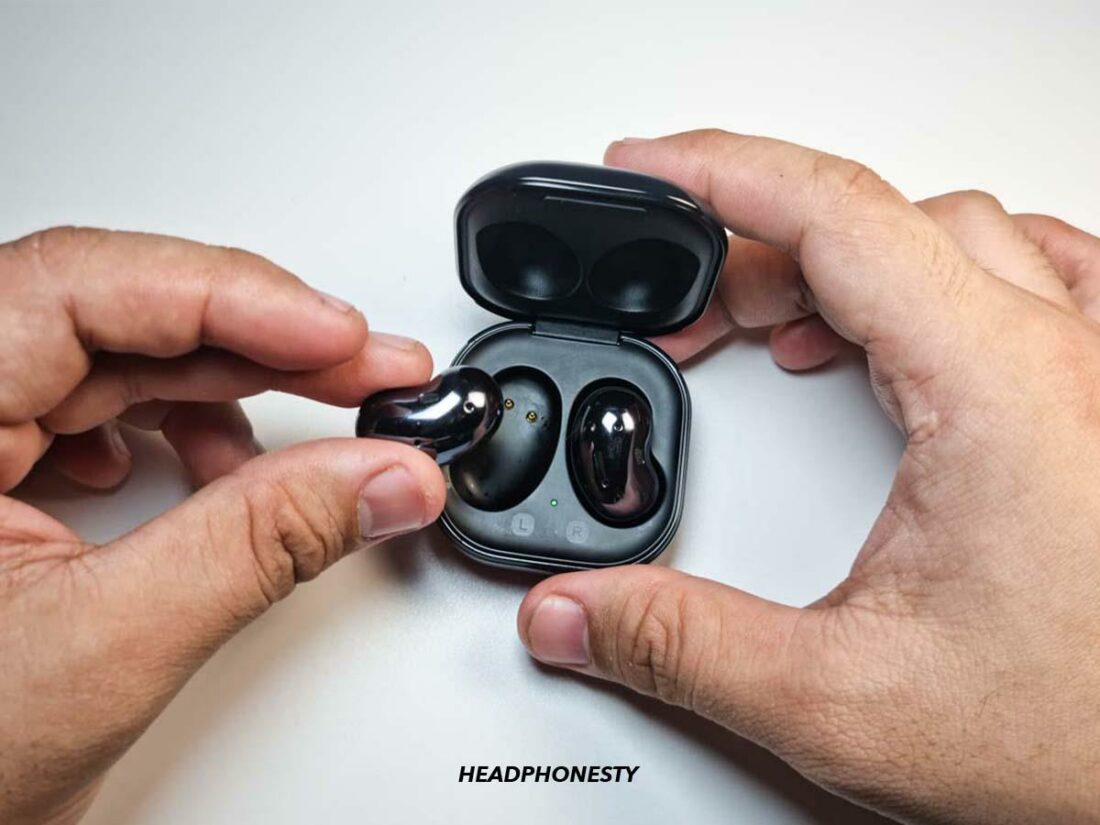
Open the charging case, then touch and hold both earbuds until pairing mode starts.
Knowing how to put Samsung earbuds in pairing mode saves time when you switch phones, connect to a laptop, or fix a lost Bluetooth connection. The exact step can vary by Galaxy Buds model, so this guide explains the right method for Galaxy Buds, Buds+, Buds Live, Buds Pro, Buds2, Buds FE, and Buds3 series.

How to put Samsung earbuds in pairing mode
Most Samsung Galaxy Buds enter pairing mode in one of three ways:
- Place both earbuds in the charging case, then open the lid.
- Touch and hold both earbuds while they are in your ears.
- Press and hold the pairing button on the charging case.
The correct option depends on your model and whether the earbuds have connected to another device before. Pairing mode makes the earbuds visible in your phone’s Bluetooth menu.
Before you start, charge the earbuds and case for a few minutes. Low power can stop the earbuds from entering pairing mode or make them disconnect during setup.
Method 1: Pair new Galaxy Buds
Use these steps for many models, including the original Galaxy Buds, Galaxy Buds+, Galaxy Buds2, Galaxy Buds2 Pro, Galaxy Buds Live, Galaxy Buds Pro, and Galaxy Buds FE:
- Put both earbuds inside the charging case.
- Make sure each earbud sits correctly on its charging contact.
- Close the lid for about five seconds.
- Open the lid.
- Keep the earbuds near your phone.
- Open the phone’s Bluetooth settings.
- Select your Galaxy Buds from the available devices list.
- Tap Pair or Connect.
On a Samsung Galaxy phone, a pop-up may appear as soon as you open the case. Tap Connect and follow the instructions on the screen.
Method 2: Put connected earbuds into pairing mode
If the earbuds have already connected to a phone, tablet, or computer, opening the case may not be enough. In that situation, wear both earbuds and touch and hold both touchpads at the same time.
Hold them for several seconds. You should hear a sound that confirms pairing mode. Now open the Bluetooth settings on the new device and choose the earbuds.
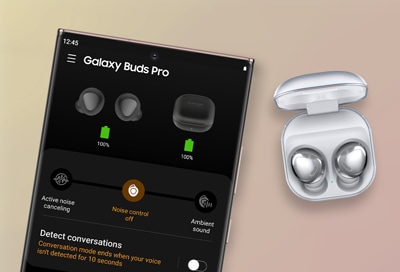
For some models, you may need to use the Galaxy Wearable app:
- Open the Galaxy Wearable app.
- Tap the menu icon.
- Choose Add new device.
- Select your Galaxy Buds.
- Follow the connection steps.
This method is useful when the earbuds keep reconnecting to your old phone.
Model-specific pairing instructions
Samsung has changed the controls across its Galaxy Buds range. The steps below help you avoid using the wrong method.
Galaxy Buds, Buds+, Buds2, Buds2 Pro, Buds Live, and Buds Pro
For most of these models, place the earbuds in your ears and touch and hold both touchpads. Continue holding until you hear a sound or pairing tone.
If that does not work, place both earbuds in the case, close the lid, reopen it, and try again. Make sure the earbuds have enough charge and that the case shows a charging light.
Galaxy Buds FE
Put both Galaxy Buds FE earbuds in your ears. Touch and hold both touch areas until you hear a sound that indicates Bluetooth pairing mode.
The touch controls may not respond if the earbuds are not seated correctly. Adjust them gently and try again. You can also check the touch-control settings in the Galaxy Wearable app.
Galaxy Buds3 and Buds3 Pro
The Galaxy Buds3 series uses a pairing button on the charging case. To put these earbuds in pairing mode:
- Place both earbuds in the case.
- Close the lid, then open it again.
- Press and hold the Connect button on the bottom of the case for at least three seconds.
- Watch for the case light to flash.
- Open Bluetooth settings on your phone or computer.
- Select Galaxy Buds3 or Galaxy Buds3 Pro.
Keep the case open while you search for the earbuds. Closing it too soon can end pairing mode.
Older or imported models
Some older Galaxy Buds versions may show a slightly different light pattern or use different touch controls. Samsung has also released regional versions with different software behavior.
If your earbuds do not respond to the steps above, check the model name in the Galaxy Wearable app or on the case. Then use the support instructions for that exact model.

How to pair Samsung earbuds with an Android phone
The easiest way to connect Galaxy Buds to a Samsung phone is through the Galaxy Wearable app. The app can identify the earbuds, install firmware updates, and show battery levels.
To connect through Android Bluetooth settings:
- Put the Samsung earbuds in pairing mode.
- Open Settings.
- Tap Connections or Connected devices.
- Tap Bluetooth.
- Turn Bluetooth on.
- Find the Galaxy Buds in the list.
- Tap the earbuds’ name.
- Approve the pairing request.
Android menus can differ by phone brand and software version. If you do not see the earbuds, turn Bluetooth off and on again, then repeat the pairing process.
Samsung phones may display a connection card when the case opens. This card is often faster than opening the full Bluetooth menu, but both methods use the same wireless Bluetooth connection.

How to pair Samsung earbuds with an iPhone
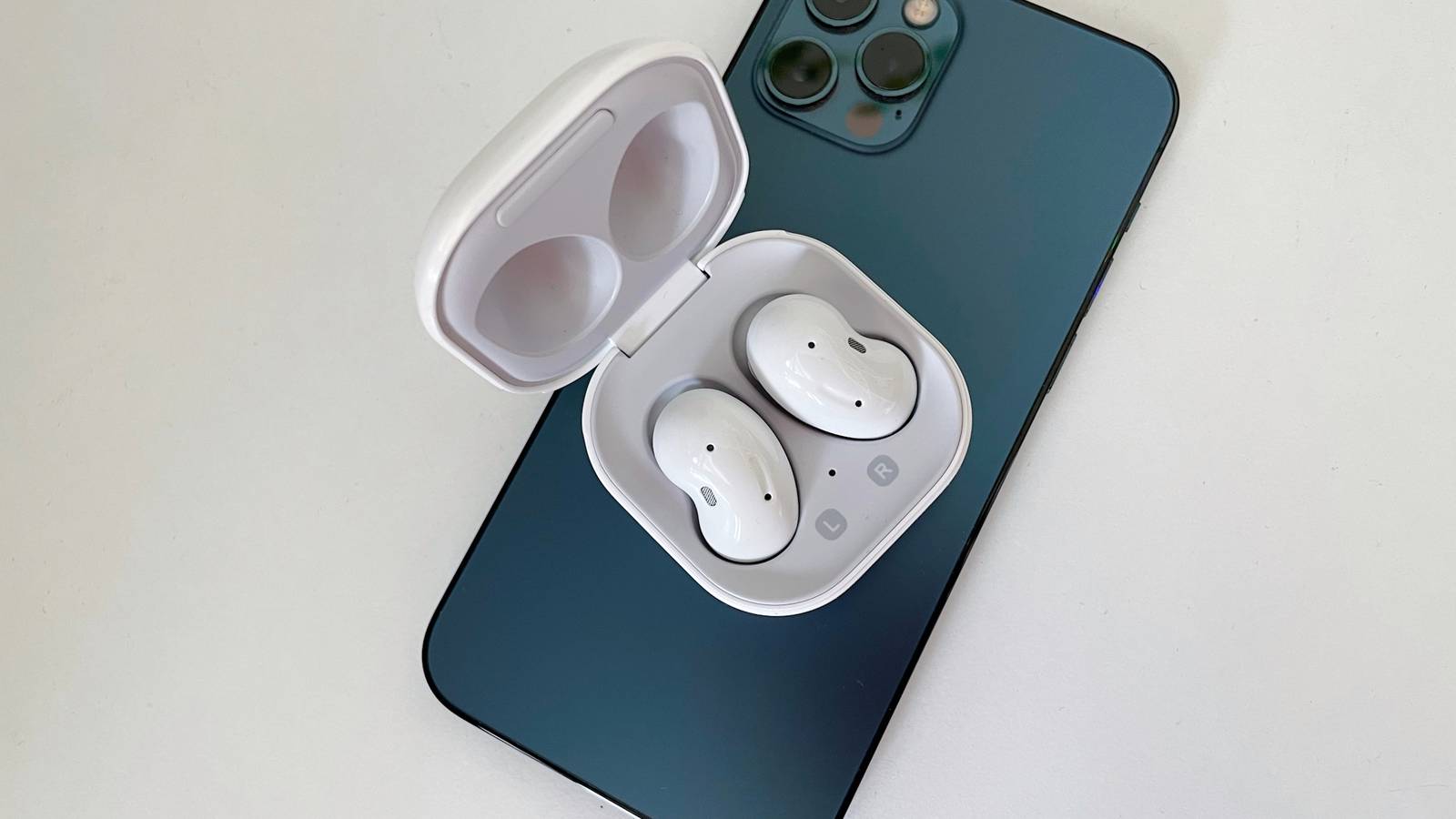
You can connect Samsung earbuds to an iPhone through Bluetooth. Some advanced features may not be available on iOS, but basic audio and call functions usually work.
Follow these steps:
- Put the Galaxy Buds in pairing mode.
- Open Settings on the iPhone.
- Tap Bluetooth.
- Turn Bluetooth on.
- Wait for the earbuds to appear under Other Devices.
- Tap the Galaxy Buds name.
The Galaxy Buds app for iPhone has limited support compared with the Android version. You may need an Android device to change certain settings, update firmware, or manage advanced controls.
If the earbuds appear under My Devices but will not connect, tap the information icon beside their name. Choose Forget This Device, then put the earbuds in pairing mode again.
How to connect Samsung earbuds to a Windows PC or Mac
Samsung earbuds work with most computers that support Bluetooth audio. The computer must be able to detect the earbuds while they are in pairing mode.
Windows
- Put the earbuds into pairing mode.
- Open Settings.
- Select Bluetooth & devices.
- Turn Bluetooth on.
- Click Add device.
- Choose Bluetooth.
- Select your Galaxy Buds.
If Windows lists more than one audio option, choose the earbuds as the sound output device. You can change this from the speaker icon on the taskbar.
Mac
- Put the earbuds into pairing mode.
- Open the Apple menu.
- Select System Settings.
- Click Bluetooth.
- Find the Galaxy Buds.
- Click Connect.
If the sound still comes from the computer speakers, open Sound settings and select the earbuds as the output device.
Samsung earbuds are not showing in Bluetooth
When earbuds do not appear, the issue is usually simple. They may still be connected to another device, may not have enough battery, or may not actually be in pairing mode.
Try these fixes in order:
• Move the earbuds close to the phone or computer.
• Turn off Bluetooth on nearby phones, tablets, watches, and computers.
• Put both earbuds in the case and check that they are charging.
• Close the case for 10 seconds, then open it again.
• Restart Bluetooth on the device.
• Restart the phone, tablet, or computer.
• Remove the old Galaxy Buds entry from Bluetooth settings.
• Put the earbuds into pairing mode again.
• Update the Galaxy Wearable app if you use Android.
A common mistake is holding only one earbud. Most manual pairing methods require both earbuds to detect the touch command together. Another mistake is trying to pair while the earbuds are still connected to a nearby device.

How to reset Galaxy Buds before pairing
A reset can help when the earbuds remain stuck on an old connection or refuse to appear in Bluetooth. Before resetting, understand that a reset may remove saved settings and require you to set up the earbuds again.
For supported models:
- Open the Galaxy Wearable app.
- Tap Earbuds settings.
- Tap Reset.
- Confirm the reset.
- Place the earbuds in the case.
- Open the lid and start pairing again.
The reset option may not appear if the earbuds are not connected to the app. In that case, remove the earbuds from every nearby device, charge them, and try the manual pairing steps again.
If one earbud is missing, dirty charging contacts may prevent the reset or pairing process. Clean the metal contacts with a dry, soft cloth. Do not pour liquid into the case or use sharp tools.
Pairing problems and practical fixes
The earbuds keep connecting to the old phone
Turn off Bluetooth on the old phone for a moment. You can also remove the Galaxy Buds from that phone’s saved Bluetooth devices.
Then place the earbuds into pairing mode and connect them to the new device. After pairing, turn Bluetooth back on for the old phone.
Only one earbud connects
Place both earbuds in the charging case and confirm that both show a charging response. Clean the contacts, close the lid, and wait several seconds before opening it again.
If only one earbud still works, check the battery levels in the Galaxy Wearable app. A large battery difference can prevent proper synchronization.
The touch controls do not work
Touch controls may be disabled, blocked by poor fit, or affected by moisture. Dry your ears and the earbuds, then try again.
If touch controls were changed in the app, review the touch settings. For Galaxy Buds3 models, use the case pairing button instead of the touch controls.
Pairing stops halfway
Keep the earbuds within a few feet of the device. Avoid pairing near many active Bluetooth devices, such as speakers, watches, cars, and headphones.
Also check for a pending phone update. Outdated Bluetooth software can cause connection problems, although the earbuds themselves may be working correctly.
From my troubleshooting experience, the fastest fix is often to disable Bluetooth on the last device used. People commonly assume the earbuds are broken when they are simply reconnecting to a tablet in another room.

Tips for a stable Samsung earbuds connection
Pairing mode is only the first step. Good habits can make the connection more stable.
• Keep the earbuds and case charged.
• Install firmware updates through the Galaxy Wearable app when available.
• Keep your phone’s operating system updated.
• Avoid covering the earbuds with a hand or thick clothing during initial pairing.
• Store both earbuds in the case when not in use.
• Clean the charging contacts from time to time.
• Remove duplicate or unused Bluetooth entries.
• Do not pair the earbuds with several devices at the same time unless your model supports that feature.
Samsung earbuds may support Auto Switch with compatible Galaxy devices. This feature can move the connection between supported Samsung products, but it is not the same as standard Bluetooth multipoint. Compatibility depends on the model, account, software, and device settings.
Bluetooth range also depends on walls, interference, and the connected device. A clear indoor range is usually more reliable than a connection through several rooms.
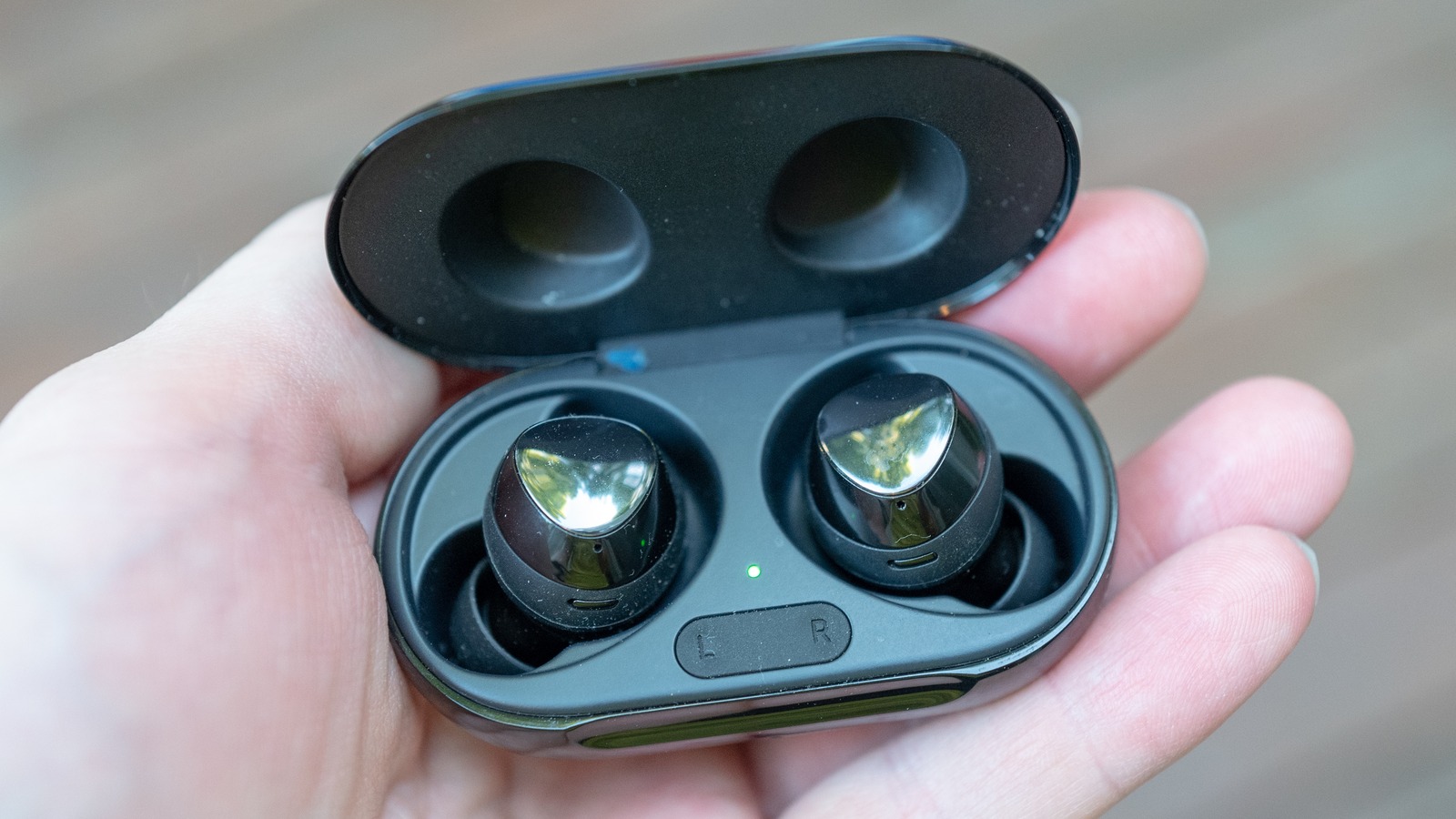
What the indicator lights mean
The charging case light provides useful clues, but colors can vary by model and software version. In general:
• Green usually indicates a high charge level.
• Yellow or amber often indicates a partial charge.
• Red commonly indicates low battery or charging.
• A flashing light may indicate pairing, charging, or a case status alert.
Do not rely on the light alone. The Galaxy Wearable app can provide a clearer view of each earbud’s battery level and connection status.
If the light never turns on, charge the case with a compatible cable or wireless charger, depending on the model. A damaged cable, dirty port, or depleted battery can prevent pairing even when the earbuds are fine.
Frequently asked questions about how to put Samsung earbuds in pairing mode
How do I put Samsung earbuds in pairing mode?
Place both earbuds in the case, close the lid briefly, and open it near your phone. If they do not appear, wear both earbuds and touch and hold both touchpads until you hear the pairing sound.
Why are my Samsung earbuds not showing up on Bluetooth?
They may still be connected to another nearby device, or they may not have entered pairing mode. Turn off Bluetooth on nearby devices, charge the earbuds, and repeat the pairing steps.
How do I put Galaxy Buds3 Pro in pairing mode?
Place both earbuds in the case, open the lid, and press and hold the Connect button on the bottom of the case for at least three seconds. Select Galaxy Buds3 Pro in your device’s Bluetooth menu.
Can I pair Samsung earbuds with an iPhone?
Yes. Put the earbuds in pairing mode, open Settings, tap Bluetooth, and select the Galaxy Buds. Some Galaxy Buds features and settings may be limited on iPhone.
How do I reset Samsung earbuds before pairing?
Use the Galaxy Wearable app and open Earbuds settings, then select Reset. After the reset, place the earbuds in the case, open the lid, and pair them again.
Why do my Samsung earbuds connect to the wrong device?
The earbuds are likely reconnecting to a device they previously used. Turn off Bluetooth on that device or remove the saved earbuds entry before pairing with the new phone or computer.
Do I need the Galaxy Wearable app to pair Samsung earbuds?
No. You can pair them through the normal Bluetooth menu on Android, iPhone, Windows, or Mac. The app is helpful for updates, battery information, controls, and supported reset options.
Conclusion
Learning how to put Samsung earbuds in pairing mode is usually quick once you know your model. Most Galaxy Buds use the charging case or simultaneous touch controls, while Galaxy Buds3 models use the case’s Connect button.
Keep both earbuds charged, disconnect nearby devices, and use the Bluetooth menu on your phone or computer. If pairing still fails, clean the contacts, forget the old Bluetooth connection, and reset the earbuds through the Galaxy Wearable app when available.
Try the steps for your exact model now, and share your model name or pairing issue in the comments for more targeted help.
