

To reset Bose QuietComfort headphones, power them off, connect USB power briefly, disconnect, wait one minute, and restart.
Bose QuietComfort headphones are usually easy to fix, but connection bugs, frozen controls, and charging errors can make them feel broken. I have found that a proper reset solves many of these issues without deleting your music apps or changing your phone. This guide explains how to reset Bose QuietComfort headphones by model, when to use a factory reset, and what to try if the reset does not work.
What a reset does on Bose QuietComfort headphones
A reset restarts the headphone system. It can clear small software errors that affect Bluetooth pairing, noise cancellation, buttons, charging, or audio playback.
A standard reset usually does not erase your saved Bluetooth devices. It is more like restarting a frozen phone than wiping it clean.
You may need to reset your Bose QuietComfort headphones when:
• The headphones will not turn on
• Only one earcup produces sound
• Noise cancellation or Aware Mode acts strangely
• The Bose app cannot find the headphones
• The buttons stop responding
• The headphones keep disconnecting
• Charging appears stuck
A factory reset is different. It removes stored settings and pairing data, so use it only when a normal reset does not solve the problem.
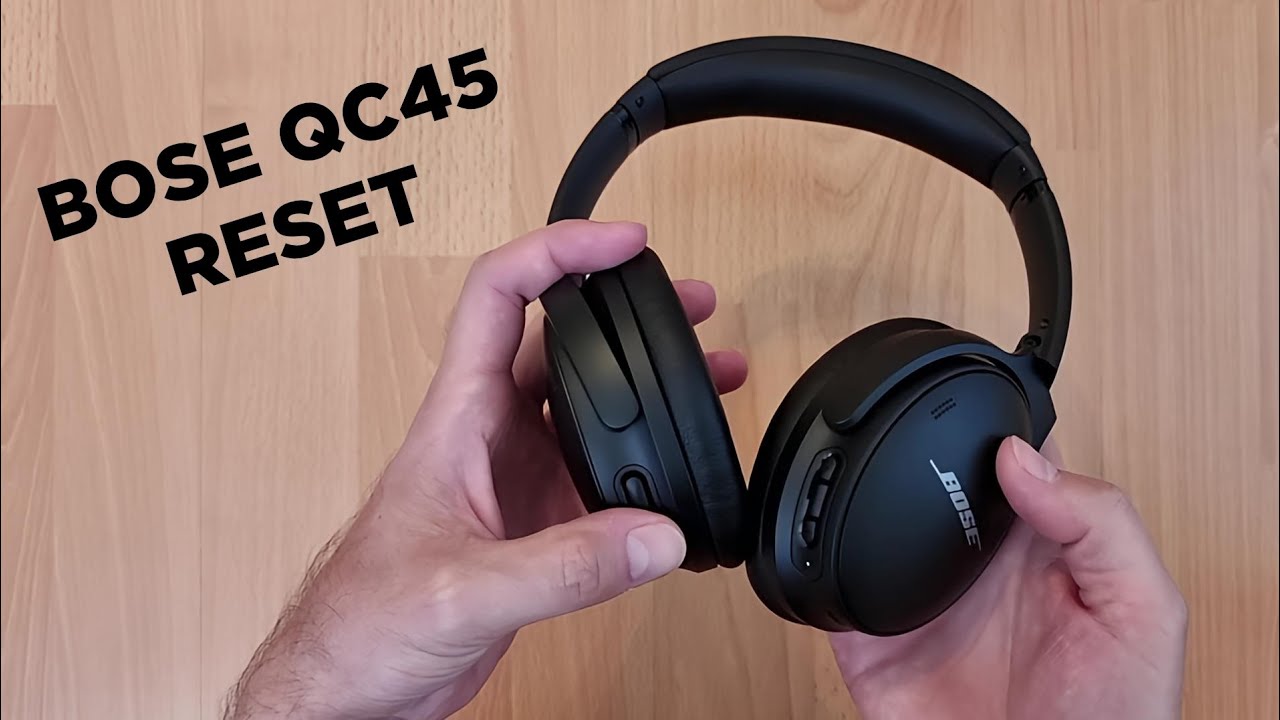
How to reset Bose QuietComfort headphones
This standard method works for many Bose QuietComfort models, including several QuietComfort 35, QuietComfort 45, and newer QuietComfort headphones.
- Turn off the headphones.
- Find the USB charging port on the right earcup.
- Connect the USB charging cable to the headphones.
- Plug the other end into a wall charger or powered USB port.
- Wait about five seconds.
- Disconnect the USB cable from the headphones.
- Wait one full minute.
- Turn the headphones on.
- Test Bluetooth, audio, and noise cancellation.
This process gives the internal system a clean restart. Keep the headphones still during the one-minute wait. Rushing this step is a common mistake, especially when the headphones seem unresponsive.
If the headphones do not respond, repeat the process with another USB cable and a reliable wall charger. A damaged cable may provide too little power to complete the reset.
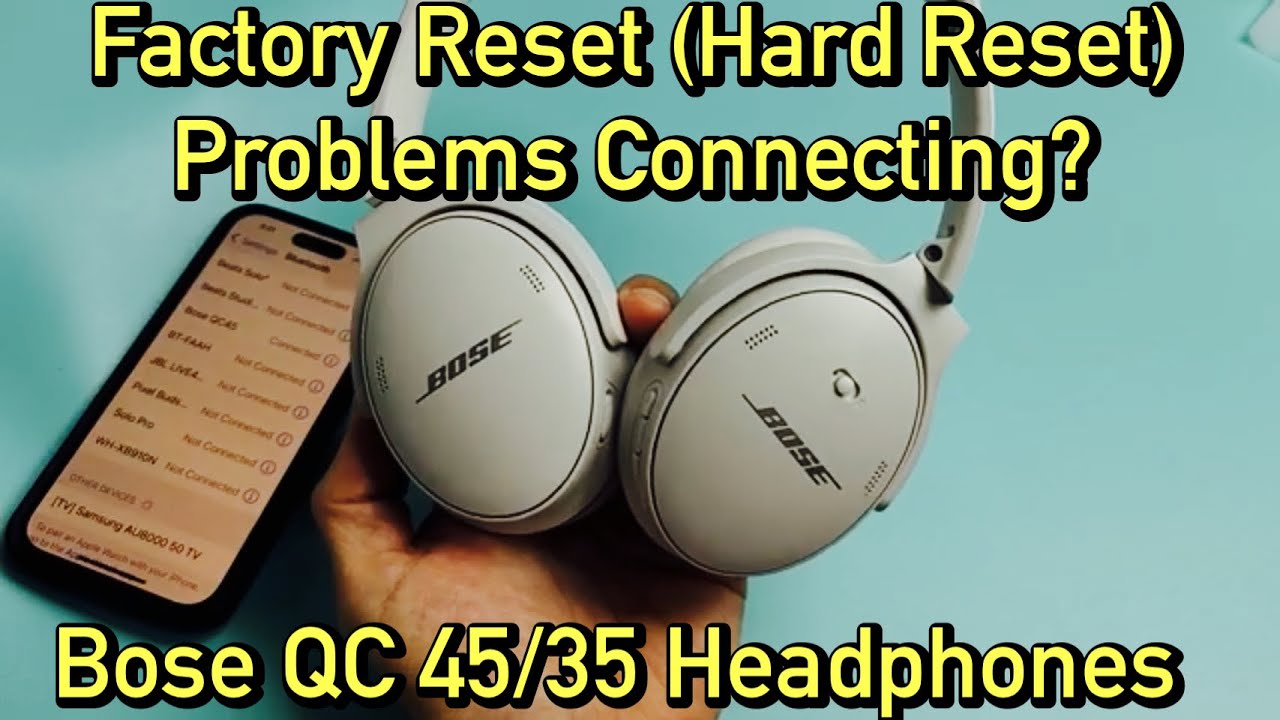
How to reset Bose QuietComfort 35 and QC 35 II
The reset process for Bose QuietComfort 35 and QC 35 II headphones is simple.
- Turn off the headphones.
- Plug the USB charging cable into the right earcup.
- Connect the other end to a USB power source.
- Wait five seconds.
- Unplug the USB cable.
- Wait 60 seconds.
- Turn on the headphones and try pairing again.
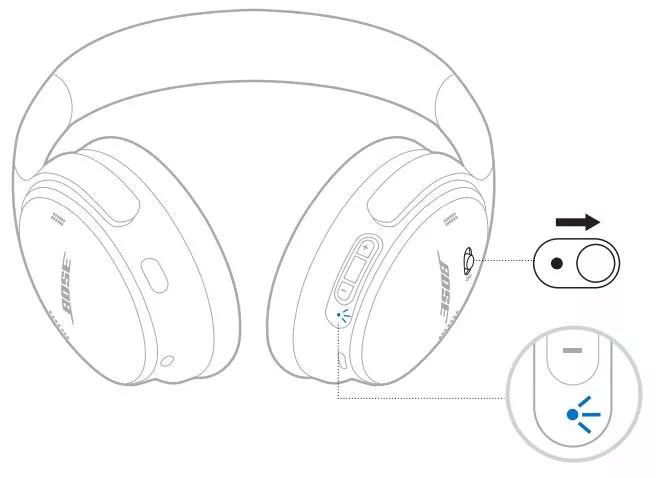
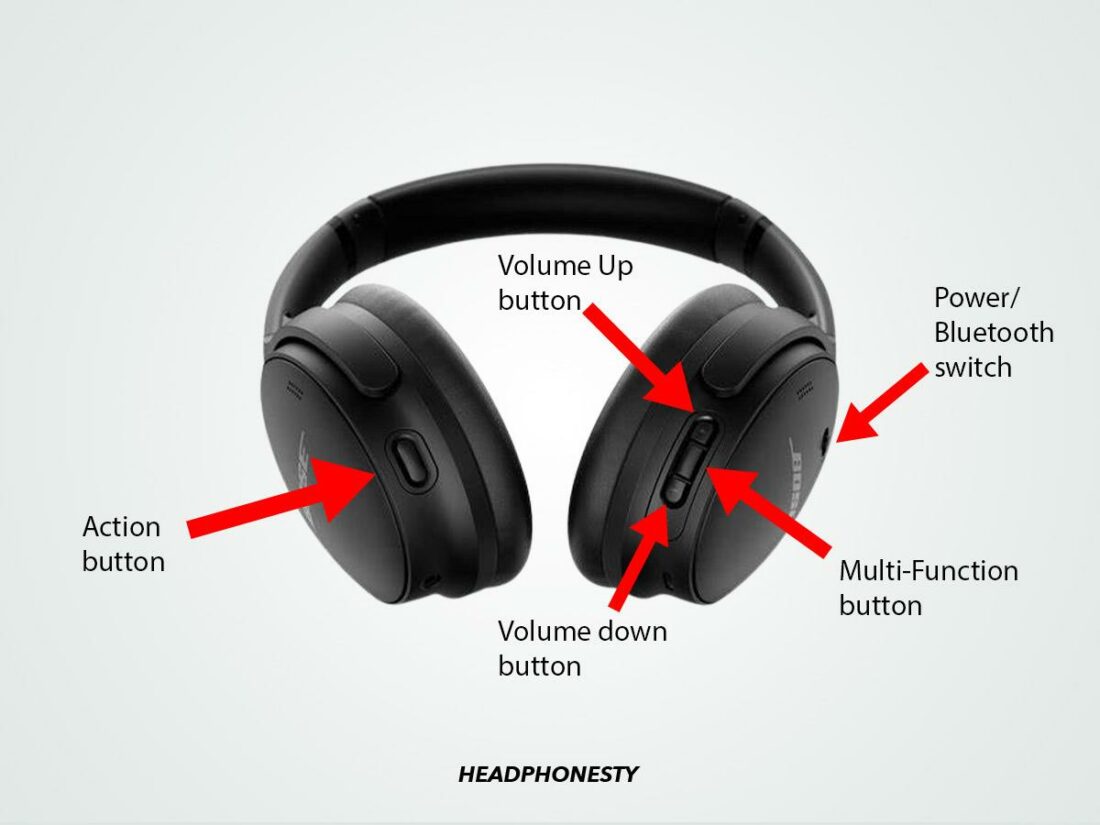
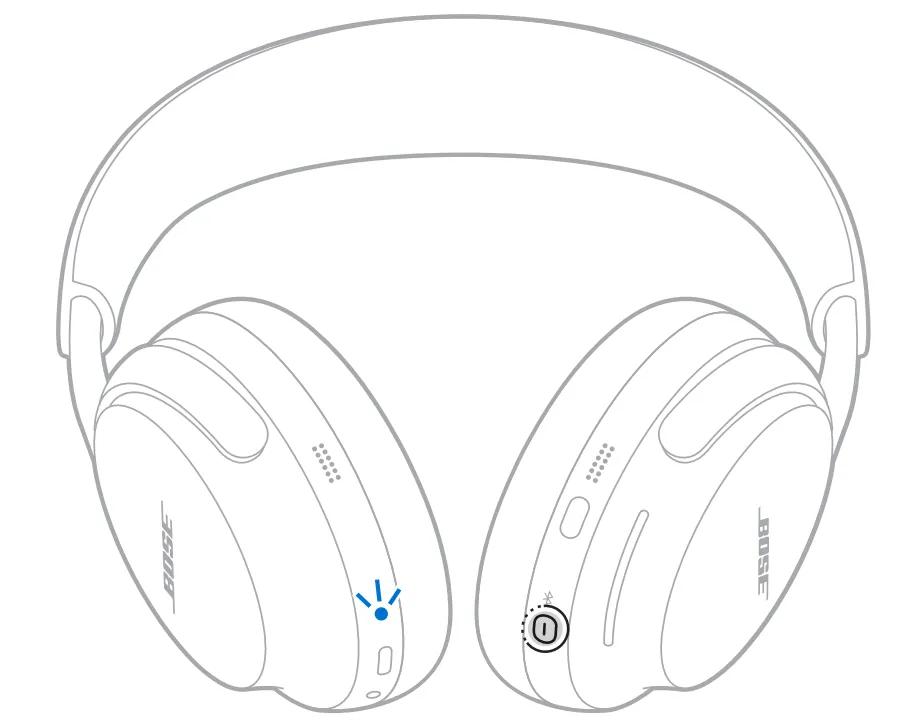
The QC 35 II has a physical Power/Bluetooth switch. Slide the switch to the Bluetooth position and hold it briefly to enter pairing mode after the reset.
If your QC 35 II still will not connect, clear its Bluetooth memory:
- Slide the Power/Bluetooth switch to the Bluetooth symbol.
- Hold the switch in that position for about 10 seconds.
- Listen for a message that the device list was cleared.
- Remove “Bose QC 35” or “Bose QuietComfort 35” from your phone’s Bluetooth settings.
- Pair the headphones again.
Clearing the Bluetooth list is not always part of a normal reset. It is a stronger troubleshooting step, so use it when the headphones connect to the wrong device or refuse to pair.
How to reset Bose QuietComfort 45 headphones
To reset Bose QuietComfort 45 headphones, follow the standard USB reset method.
- Power off the QC45.
- Connect the charging cable to the right earcup.
- Plug the cable into a USB charger.
- Wait five seconds.
- Disconnect the cable.
- Wait one minute.
- Power on the headphones.
Afterward, open the Bose app and check whether the QC45 appears. If it does not, remove the headphones from your phone’s Bluetooth menu and pair them again.
The QC45 may also need a software update. Updates can improve Bluetooth stability, button response, and general performance. Keep the headphones charged and use the Bose app to check for available updates.

How to reset newer Bose QuietComfort headphones
Newer Bose QuietComfort models may use slightly different software and button layouts. The standard power and USB reset is still a useful first step, but the exact factory reset process can vary.
Try these steps first:
- Turn off the headphones.
- Connect the USB charging cable.
- Leave it connected for five to ten seconds.
- Disconnect the cable.
- Wait one minute.
- Turn the headphones on.
- Open the Bose app and install any available update.
For a newer model, avoid guessing which buttons to hold. Bose has changed the controls across QuietComfort, QuietComfort Ultra, and older QC models. Check the model name inside the Bose app or on the product label before using a model-specific factory reset.
In my troubleshooting work, using the wrong button combination is one of the easiest ways to waste time. A soft reset is safe, while a factory reset can remove device data and require a fresh setup.
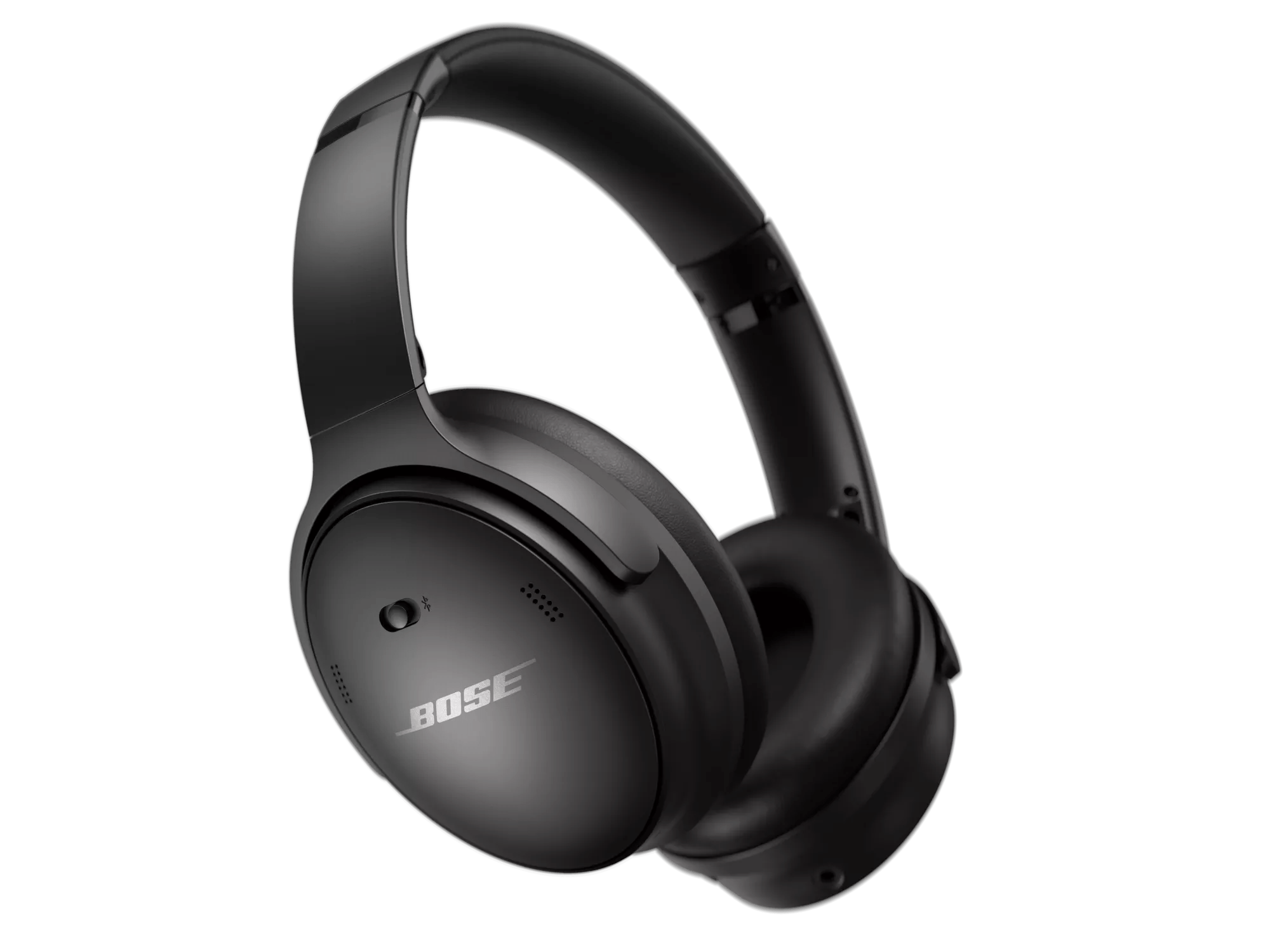
How to factory reset Bose QuietComfort headphones
A factory reset returns the headphones to a setup state. It can erase Bluetooth connections, app settings, and some custom preferences.
Before starting, remove the headphones from nearby devices:
• Open your phone’s Bluetooth settings.
• Tap the Bose QuietComfort headphones.
• Select Forget This Device, Remove Device, or Unpair.
• Repeat this on tablets, computers, and other devices that have used the headphones.
• Close the Bose app.
The factory reset button process depends on the model. Some Bose QuietComfort headphones use a combination of the Power/Bluetooth switch and another control. Others use the Bose app or a model-specific button sequence.
For that reason, identify the exact model first. The model name may appear in the Bose Music app, on the original box, or on the product label. Then follow the official instructions for that model.
After a factory reset:
- Restart your phone.
- Turn on Bluetooth.
- Open the Bose app.
- Add the headphones as a new product.
- Complete the setup.
- Test music, calls, and noise control.
Do not perform a factory reset just because the headphones fail to connect once. Try a normal reset and Bluetooth removal first.
How to reset Bose QuietComfort headphones using the Bose app
The Bose app can help restore a stable connection, but it may not replace a hardware reset. Use the app after restarting the headphones.
- Open the Bose app.
- Select your QuietComfort headphones.
- Check the battery level.
- Look for a firmware update.
- Install the update if one is available.
- Review the Bluetooth connections.
- Remove and add the headphones again if needed.
Keep your phone close to the headphones during an update. Do not turn off Bluetooth or unplug the headphones while the update is running.
If the app does not detect the headphones, close the app completely. Restart your phone, reset the headphones, and open the app again. This simple order often works better than repeatedly tapping the same connection button.
What to do if the reset does not work
If you followed how to reset Bose QuietComfort headphones and the issue remains, check the basic causes first.
Check the battery
Charge the headphones for at least 30 minutes. Try a different USB cable, power adapter, and outlet. A low battery can look like a software fault.
Check Bluetooth settings
Turn Bluetooth off and on again. Remove old Bose entries from your phone, then restart the phone before pairing again.
Move away from interference
Wi-Fi routers, laptops, smart TVs, and crowded public spaces can create wireless interference. Test the headphones in a quiet room with only one nearby Bluetooth device.
Check the audio balance
If sound comes from only one side, check the left and right audio balance in your phone’s accessibility settings. Also test a different app or song.
Update the headphones
Use the Bose app to install available firmware updates. A software update may fix connection or control problems that a reset cannot solve.
Inspect the charging port
Look for dust, lint, or moisture near the USB port. Do not insert sharp metal objects. If the port is wet, let it dry fully before charging.
Contact Bose support
If the headphones remain dead, overheat, smell unusual, or fail to charge with several cables, stop using them and contact Bose support. A reset cannot repair a damaged battery, charging port, speaker, or circuit board.
Common mistakes to avoid when resetting Bose headphones
Knowing how to reset Bose QuietComfort headphones is helpful, but the wrong process can create more confusion.
Avoid these common mistakes:
• Holding random buttons for several minutes
• Resetting the headphones while they are still connected to a charger
• Forgetting to remove an old Bluetooth connection
• Trying to pair with several devices at the same time
• Interrupting a firmware update
• Using a damaged or loose USB cable
• Performing a factory reset before trying a normal reset
• Assuming every QuietComfort model uses the same controls
I once spent far too long troubleshooting a pairing issue that came from a second laptop nearby. The headphones were connecting to the laptop before the phone could find them. Turning off Bluetooth on the extra device solved the problem immediately. Always check nearby devices before assuming the headphones need a factory reset.
Reset versus restart versus factory reset
These terms sound similar, but they are not identical.
• Restart: Turn the headphones off and back on. This is the fastest step.
• Soft reset: Use the USB power method to refresh the headphone system.
• Bluetooth reset: Clear the stored wireless device list and pair again.
• Factory reset: Erase settings and return the headphones to their original setup state.
Start with the least destructive option. A restart takes seconds. A soft reset takes about two minutes. Clearing Bluetooth data takes a little longer. A factory reset should be the final software step.
This approach protects your settings and helps you find the real cause instead of repeatedly wiping the headphones.
How to keep Bose QuietComfort headphones working well
Regular care can reduce the need to reset Bose QuietComfort headphones.
• Keep the firmware current.
• Store the headphones in a dry case.
• Avoid extreme heat and cold.
• Do not charge them with damaged cables.
• Keep the earcups and charging port clean.
• Disconnect unused Bluetooth devices.
• Charge the headphones before long trips.
• Avoid bending the headband or twisting the earcups.
Use a soft, dry cloth to clean the outside. Do not spray liquid directly onto the headphones. Moisture can damage microphones, buttons, and charging parts.
Noise-canceling headphones are small computers with speakers attached. Like any computer, they can occasionally need a restart. Good care simply makes those problems less frequent.
Frequently asked questions about how to reset Bose QuietComfort headphones
Will resetting Bose QuietComfort headphones delete Bluetooth connections?
A standard USB reset usually does not delete saved Bluetooth connections. Clearing the Bluetooth list or performing a factory reset can remove them.
How long does it take to reset Bose QuietComfort headphones?
The standard reset takes about two minutes. This includes five seconds connected to USB power and a one-minute wait after disconnecting the cable.
Why will my Bose QuietComfort headphones not turn on after a reset?
Charge them with another cable and wall adapter for at least 30 minutes. If they still do not turn on, the battery, charging port, or internal hardware may need professional service.
Do I need the Bose app to reset QuietComfort headphones?
No. You can complete the standard USB reset without the app. The Bose app is useful for updates, setup, device removal, and model-specific instructions.
Should I reset my Bose headphones before selling them?
Yes. Remove the headphones from the Bose app, clear Bluetooth connections, and complete the model’s factory reset process. This protects your settings and makes setup easier for the next owner.
Conclusion
Learning how to reset Bose QuietComfort headphones can solve many common problems with pairing, charging, sound, and noise cancellation. Start with a normal power cycle, use the five-second USB reset method, and clear Bluetooth data only when needed.
If the issue continues, check the battery, cable, nearby devices, firmware, and charging port before attempting a factory reset. Identify your exact QuietComfort model before using any special button combination. Try these steps today, and share your experience or explore more Bose troubleshooting guides for help with your next audio problem.
