

To reset Skullcandy earbuds, forget them from Bluetooth, place both in the case, and use the correct model reset steps.
Bluetooth earbuds can act strangely after switching between phones, tablets, or laptops. One earbud may stop playing, pairing may fail, or the earbuds may connect to the wrong device. Learning how to reset Skullcandy earbuds can often fix these problems in a few minutes without an app or repair shop.
Skullcandy makes many earbud models, including Dime, Sesh, Indy, Push, Grind, and Smokin’ Buds. Their reset steps are not always the same, so this guide explains the safest general method and the model-specific differences that matter.
When should you reset Skullcandy earbuds?
A reset removes saved pairing data and returns the earbuds to a fresh setup state. It is useful when the earbuds behave as if they are “stuck” between devices.
Consider a reset if:
• Only one earbud produces sound.
• The earbuds will not enter pairing mode.
• Your phone sees the earbuds but cannot connect.
• The earbuds connect to an old phone automatically.
• Audio cuts out even when the earbuds are fully charged.
• Touch controls stop responding.
• You are giving the earbuds to another person.
A reset is not the same as charging or restarting. Charging fixes low power, while a reset clears connection data. Think of it as cleaning a crowded key ring so your phone can find the right key again.
.png?cache=always)
Before you reset Skullcandy earbuds
A few simple checks can prevent an unnecessary reset. Most connection problems come from low battery, dirty charging contacts, or an old Bluetooth record on the phone.
Before learning how to reset Skullcandy earbuds, follow these steps:
Charge the case and both earbuds for at least 15 minutes.
Clean the metal contacts on the earbuds and inside the case with a dry cotton swab.
Turn off Bluetooth on nearby phones, tablets, and computers.
Keep the earbuds within a few feet of the device you want to use.
Close music, video, and call apps that may still control the earbuds.
Check that both earbuds sit correctly in the charging case.
Avoid using water, alcohol directly on the earbuds, or sharp tools near the charging pins. A blocked contact can make one earbud appear dead even when the reset itself works.

How to reset Skullcandy earbuds: the standard method
This method works for many Skullcandy true wireless models. The exact button or touch action can differ, but the setup order is important.
Step 1: Forget the earbuds from your device
First, remove the old Bluetooth connection.
On an iPhone:
Open Settings.
Tap Bluetooth.
Find your Skullcandy earbuds.
Tap the information icon beside the name.
Choose Forget This Device.
On Android:
Open Settings.
Open Connected Devices or Bluetooth.
Tap the gear icon beside the Skullcandy earbuds.
Select Forget, Unpair, or Remove.
On Windows or macOS, remove the earbuds from the Bluetooth device list. If you skip this step, your phone may keep trying to use the old connection record.
Step 2: Turn off nearby Bluetooth devices
Switch off Bluetooth on other phones, laptops, smart TVs, and tablets nearby. This stops the earbuds from reconnecting to a device you are not using.
Step 3: Put both earbuds in the case
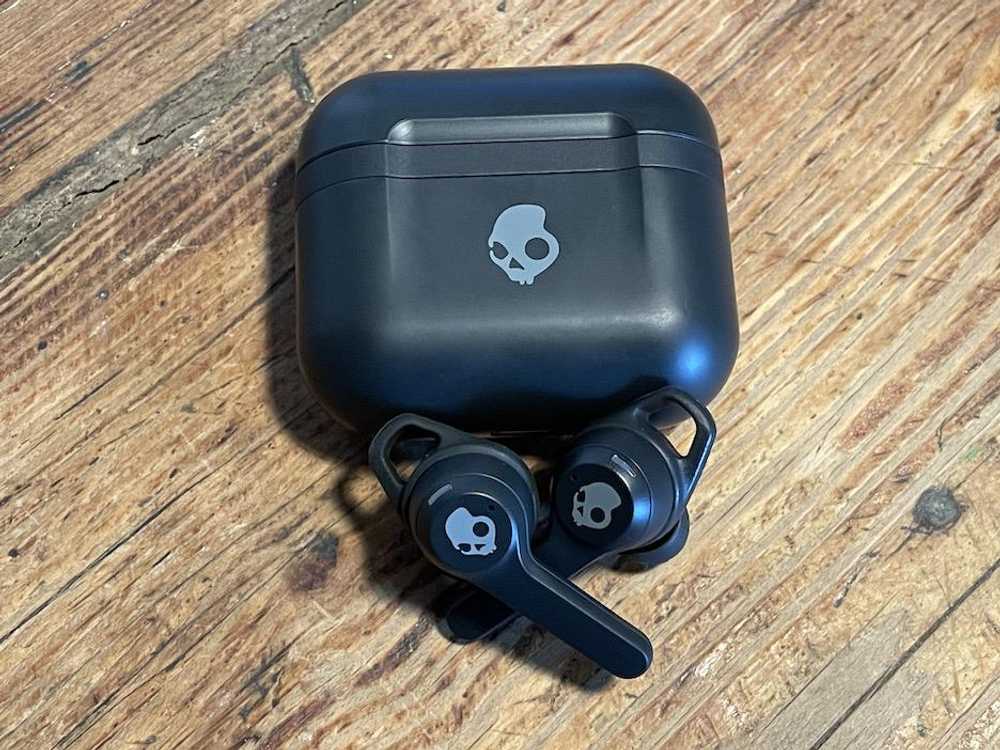
Place the left and right earbuds into the charging case. Confirm that each earbud shows a charging light or sits firmly against the contacts.
Leave the lid open unless your model guide says otherwise.
Step 4: Reset both earbuds
For many models, touch and hold both earbuds while they are in the case or just after removing them. Hold for about 6 seconds, or until the LEDs flash or the earbuds power off.
Some models use repeated taps instead of a long press. If holding both earbuds does nothing, use the model-specific steps below. Do not keep trying random tap patterns, because different Skullcandy models use different controls.
Step 5: Restart the earbuds
Place both earbuds back in the case. Close the lid for about 10 seconds, then open it and remove both earbuds together.
They should enter pairing mode. The LEDs may flash blue, red, or white, depending on the model.
Step 6: Pair again
Turn Bluetooth back on and choose the Skullcandy name from the available device list. Test both earbuds with a short song or podcast.
This standard process is the most dependable answer for how to reset Skullcandy earbuds when you do not know the exact model. Still, the model-specific method is better when the general process fails.

Model-specific Skullcandy earbud reset steps
Skullcandy has changed its controls across product generations. Look inside the case, on the underside, or in your original packaging for the model name before starting.
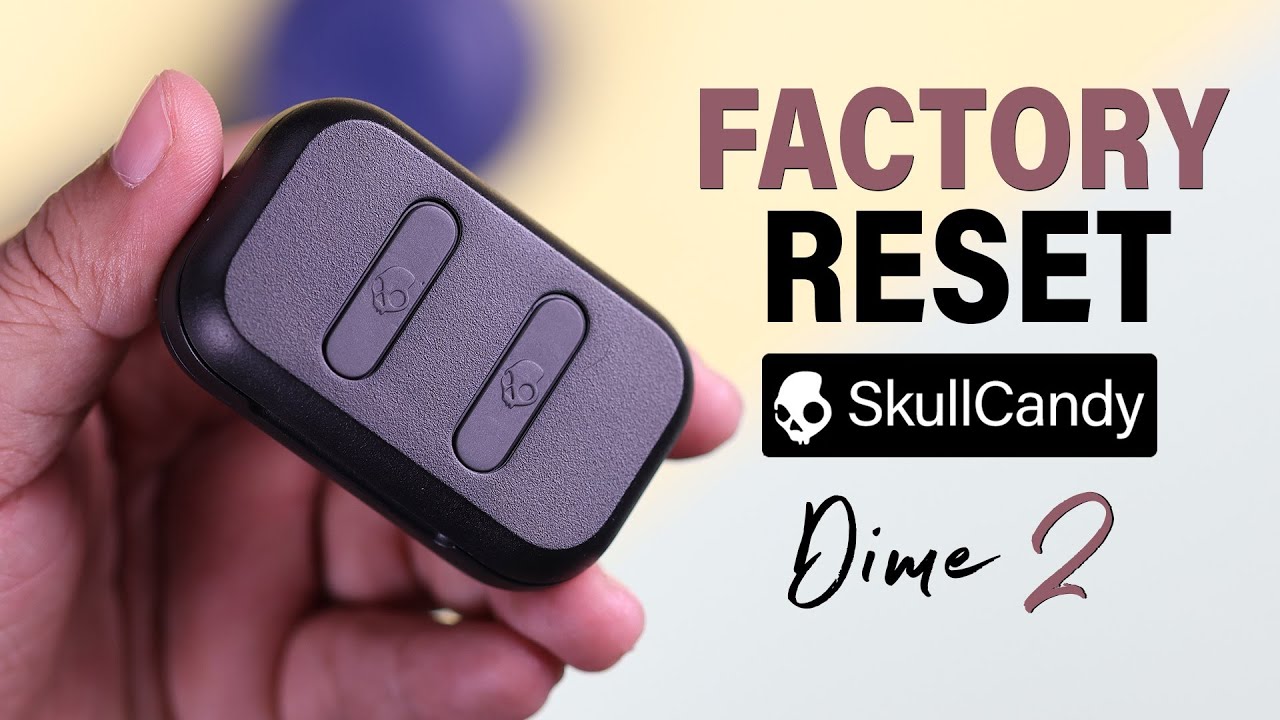
Dime and Dime 2
For many Dime models:
Remove both earbuds from the case.
Turn off Bluetooth on your phone.
Press the button on each earbud twice.
On the second press, press and hold for about 2 seconds.
Put both earbuds back in the case.
Remove them together and pair again.
If your Dime earbuds do not respond, charge them first and repeat the process with the case connected to power. Button behavior can vary between Dime versions, so the model guide remains the final authority.
Sesh and Sesh Evo
A common Sesh reset process is:
Remove both earbuds from the case.
Press and hold both earbud buttons for about 6 seconds.
Wait for the earbuds to power off or show a reset light pattern.
Place them in the case.
Forget the old Bluetooth entry and pair again.
If one earbud is missing from the connection, reset both at the same time. Resetting only the working earbud can leave the pair out of sync.
Indy and Indy Evo
Many Indy models use touch controls rather than physical buttons. A common process is:
Remove both earbuds from the case.
Tap each earbud four times.
Watch for the LED response.
Put both earbuds back into the case.
Remove them together and reconnect.
Some Indy versions use a different sequence. If four taps do not reset the earbuds, check the guide for the exact Indy version instead of repeating the sequence many times.
Push Active and Grind Fuel
These models often use physical buttons or more advanced controls. Start by forgetting the Bluetooth entry, then place both earbuds in the case and hold the earbud buttons until the LEDs show a reset pattern.
Some versions can also be managed through the Skullcandy mobile app. If the app recognizes the earbuds, install any available firmware update before trying repeated resets.
Smokin’ Buds
For Smokin’ Buds models, forget the old Bluetooth connection first. Then use the buttons or touch panels on both earbuds according to the model’s quick-start guide.
A common approach is to remove both earbuds, press the controls several times, and then hold them briefly. Because Smokin’ Buds versions differ, do not assume that the Dime or Sesh method will work.

How to reset Skullcandy earbuds with the Skullcandy app
Some Skullcandy products work with the Skullcandy app. The app may show battery levels, device settings, firmware updates, and control options.
To use it:
Install the official Skullcandy app from your device’s app store.
Forget the earbuds from your phone’s Bluetooth menu if they are partially connected.
Open the app and sign in if required.
Add or select your earbuds.
Check for a firmware update.
Review the support or device settings for reset instructions.
The app may not support every older model. It also cannot repair a broken charging pin, water damage, or a battery that no longer holds power.
An important lesson from real troubleshooting is to update only when the earbuds have enough charge. Losing power during a firmware update can create a larger problem than the original Bluetooth issue.

How to pair Skullcandy earbuds after a reset
After you reset Skullcandy earbuds, pair them as if they were new.
Make sure both earbuds are charged.
Remove both earbuds from the case at the same time.
Wait for the pairing lights.
Open Bluetooth settings on your phone.
Tap the Skullcandy product name.
Accept the pairing request if one appears.
Play audio through both earbuds.
If only one side works, place both earbuds in the case and remove them together again. The earbuds often need a few seconds to establish their left and right connection before the phone connects.
Do not pair the left and right earbuds as separate Bluetooth devices. Most Skullcandy true wireless products should appear as one device.

What to do if the reset does not work
When learning how to reset Skullcandy earbuds, the most common mistake is assuming the reset failed when the real issue is power or contact.
Try these fixes:
• Charge the case with a different USB cable and power adapter.
• Clean the charging contacts with a dry, soft swab.
• Test each earbud alone.
• Restart your phone.
• Remove every old Skullcandy entry from Bluetooth.
• Turn airplane mode on for 30 seconds, then turn it off.
• Try pairing with a different phone.
• Keep the earbuds away from crowded wireless areas during setup.
• Check the official product guide for your exact model.
If one earbud never shows a light, never charges, or becomes hot, stop using it. A damaged lithium-ion battery should not be opened or repaired at home.
Reset versus other troubleshooting methods
A reset is helpful, but it is not a cure for every problem.
Resetting the earbuds
This clears pairing information and restores the normal setup state. It is best for connection errors, pairing loops, and one-earbud sync problems.
Restarting the phone
This clears temporary software issues on the phone. It is worth trying before and after the reset.
Updating firmware
Firmware updates can improve stability and fix known bugs. They require enough battery and a stable connection.
Cleaning the earbuds
Dirty speaker grilles may cause quiet sound. Dirty charging contacts may prevent charging. Cleaning does not erase Bluetooth settings.
Replacing the earbuds
Replacement may be needed if the battery is worn out, the charging case is damaged, or an earbud has suffered liquid damage.
A reset is like rebooting a small computer. It can clear confusion, but it cannot repair broken hardware.

Practical tips to prevent future pairing problems
Once you know how to reset Skullcandy earbuds, a few habits can reduce repeat issues.
• Keep the earbuds and case charged above 20% when possible.
• Store both earbuds in the case after use.
• Keep the charging contacts clean.
• Avoid pairing with many devices at the same time.
• Turn off Bluetooth on unused devices nearby.
• Install official firmware updates when available.
• Do not leave the earbuds connected to a laptop while trying to pair them with a phone.
• Use the correct model guide for button and touch commands.
In my experience helping people with wireless audio, the “one earbud problem” often starts after one side was placed in the case while the other stayed connected. Putting both earbuds away together helps them begin the next session as a matched pair.
Frequently asked questions about how to reset Skullcandy earbuds
How do I reset Skullcandy earbuds when only one side works?
Forget the earbuds from your phone, turn off nearby Bluetooth devices, and reset both earbuds at the same time. Then place them in the case, remove them together, and pair them again.
Will resetting Skullcandy earbuds delete downloaded music?
No. A reset removes the earbuds’ Bluetooth pairing data. It does not delete music, playlists, photos, or other files from your phone.
Why will my Skullcandy earbuds not reset?
Low battery, dirty charging contacts, or an incorrect model procedure can prevent a reset. Charge the case, clean the contacts, and confirm the exact model before trying again.
Do I need the Skullcandy app to reset my earbuds?
No. Many Skullcandy earbuds can be reset with their buttons or touch controls. The app can help with supported models, firmware, and product-specific instructions.
How long does it take to reset Skullcandy earbuds?
The reset itself usually takes less than a minute. The full process, including forgetting the old Bluetooth connection and pairing again, often takes two to five minutes.
Can I reset Skullcandy earbuds without a charging case?
Usually, the case is needed because it controls charging and power states. If the earbuds use physical buttons, some models may allow a reset without the case, but the exact instructions depend on the model.
Conclusion
The best way to reset Skullcandy earbuds is to forget the old Bluetooth connection, charge and clean the earbuds, reset both sides using the correct model steps, and pair them again as a new device. The process can fix many connection, sync, and pairing problems, but it will not repair serious battery or hardware damage.
Start with the standard method, then use the instructions for your exact Skullcandy model. If the earbuds still fail after a full charge and a second device test, contact Skullcandy support or check warranty options. Share your model and results in the comments so other users can find the right fix faster.
