Can You Play PS5 Games On External SSD: What Works
Yes, you can store PS5 games on an external SSD, but you cannot play them directly from it.
If you are asking, “can you play PS5 games on external SSD,” the key difference is between storing and playing. An external SSD can hold PS5 games and move them back to your console quickly, while PS4 games can usually run from the drive. This guide explains the limits, setup steps, speed benefits, mistakes to avoid, and the best storage option for your PS5.
Can You Play PS5 Games on an External SSD?
No, you cannot play PS5 games directly from a standard external SSD connected by USB. The PlayStation 5 lets you store PS5 games on external USB storage, but you must copy them back to the internal console storage or a compatible internal M.2 SSD before launching them.
This rule exists because PS5 games rely on very fast data access. The PS5 internal SSD is built into the system’s design. A USB external SSD is fast for file transfers, but it does not meet the same access and performance requirements for running current-generation games.


You can, however, play PS4 games from an external SSD. The PS5 supports USB extended storage for compatible PS4 titles, which makes an external drive useful for older games and a large game library.
In simple terms:
• PS5 games: Store on an external SSD, then move them back to play.
• PS4 games: Store and play directly from an external SSD.
• PS5 games on an internal M.2 SSD: Store and play directly, if the drive meets Sony’s requirements.

Why Can’t You Play PS5 Games From External USB Storage?
The main reason is speed and system design. A PS5 game can stream large amounts of data as you move through a game world. The console’s internal SSD helps deliver that data with low delay.
An external USB SSD is much faster than a traditional hard disk drive, but the USB connection adds limits. It also does not provide the same direct connection and performance control as the internal storage system.
Think of the internal SSD as a kitchen counter and the external drive as a pantry. The pantry can hold plenty of food, but the cook needs to bring ingredients to the counter before preparing a meal. In the same way, the PS5 can keep a game on the external SSD, but it needs to move the game to supported internal storage before running it.
Sony designed the PS5 this way to protect loading performance and maintain a consistent experience. Games such as Ratchet & Clank: Rift Apart depend on fast asset streaming, so the console does not allow them to launch from ordinary USB extended storage.
This limitation applies even if your external SSD is very fast. A high-end USB 3.2 SSD still does not change the PS5’s storage rules.
What Can You Do With an External SSD on PS5?
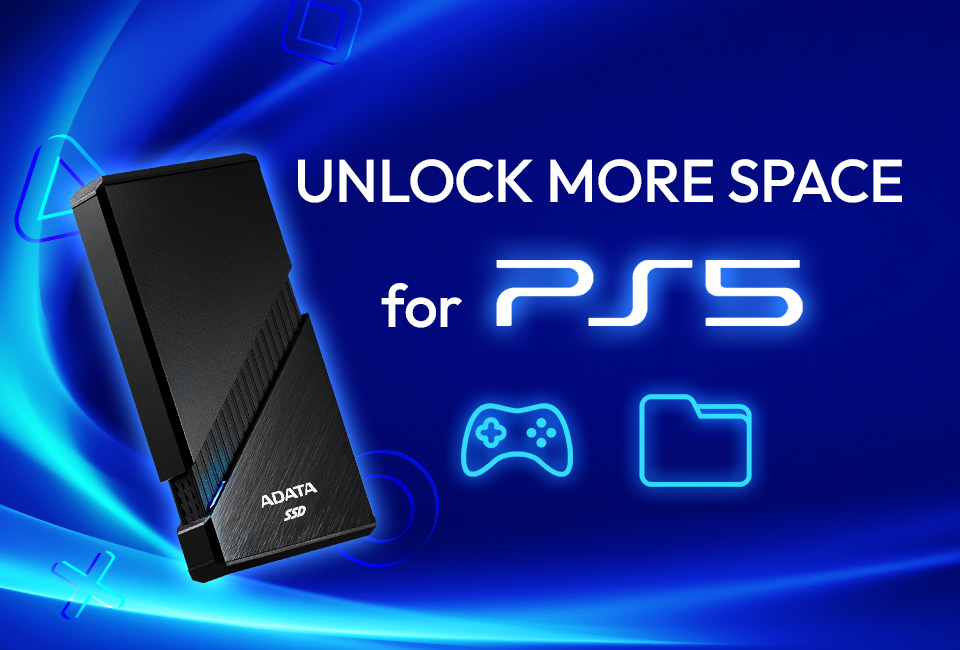
An external SSD is still one of the most useful accessories for a PS5. It gives you more space for games without requiring you to delete and redownload large files.
You can use an external SSD to:
• Store PS5 games when you are not playing them.


• Play compatible PS4 games directly from the drive.
• Move PS5 games back to the console faster than downloading them again.
• Keep older games ready for future use.
• Reduce the amount of free space used on the internal PS5 SSD.
• Carry a game library between compatible PS5 consoles.
Moving a game from an external SSD is often much faster than downloading it. The exact time depends on the drive, USB port, game size, and number of files. A large game may take several minutes to copy, while downloading it again could take much longer on a busy or slow internet connection.
An external SSD works best as a game library. You can keep games there until you want to play them. Then, move the selected PS5 game to internal storage and move it back when you finish.

External SSD vs. Internal M.2 SSD
If you want to play PS5 games without moving them first, an internal M.2 NVMe SSD is the better option. The PS5 includes an expansion bay for a compatible M.2 SSD, and games installed there can run directly.
An internal M.2 SSD must meet Sony’s technical requirements. These normally include:
• PCIe Gen4 x4 NVMe technology.
• A recommended read speed of at least 5,500 MB/s.
• A supported storage size, commonly from 250 GB to 8 TB.
• A suitable physical size for the PS5 expansion bay.
• A heatsink that fits within the console’s size limits.
The exact approved specifications can change, so check the official PlayStation support guidance before buying. A drive that works in a computer may not be suitable for a PS5.
Here is the basic difference:
| Storage option | Play PS5 games directly? | Play PS4 games directly? | Best use |
|---|---|---|---|
| Internal PS5 SSD | Yes | Yes | Main game storage |
| Compatible internal M.2 SSD | Yes | Yes | Extra playable storage |
| External SSD by USB | No | Yes | Storage and fast transfers |
| External hard drive | No | Yes | Low-cost storage |
An internal M.2 SSD costs more and requires installation. An external SSD is simpler to use and often cheaper per terabyte. Your choice depends on whether you want more playable space or only more room for stored games.


How to Choose an External SSD for PS5
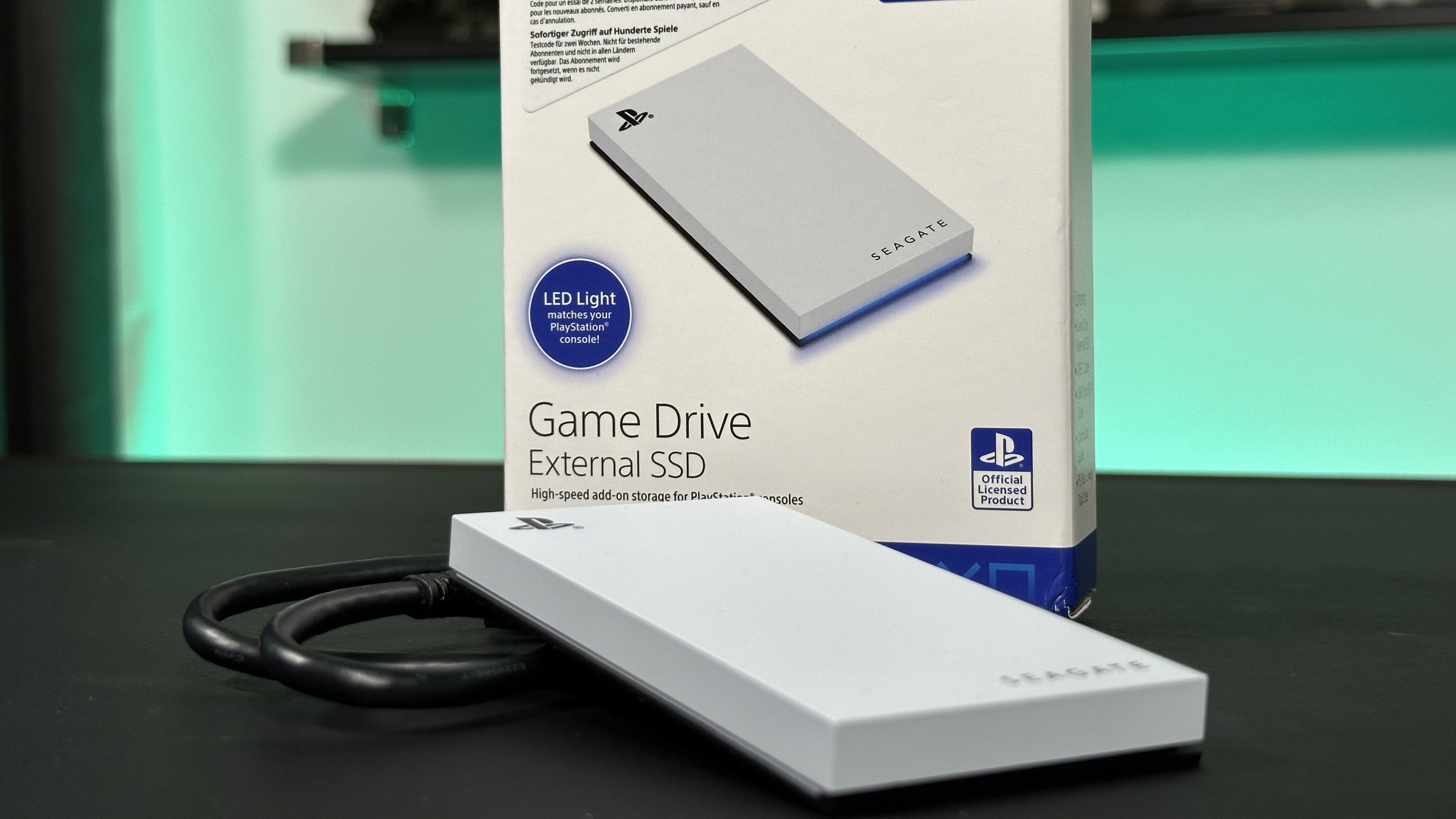
Choosing the right external SSD matters because not every drive offers the same speed, durability, or reliability. The PS5 supports USB extended storage, but the drive must meet basic requirements.
Sony recommends an external USB drive with:
• SuperSpeed USB 5 Gbps or faster.
• A capacity between 250 GB and 8 TB.
• A direct connection to the PS5.
• Compatibility with the console’s USB extended storage format.
A 1 TB or 2 TB external SSD is a practical choice for most players. A 1 TB drive may hold several large PS5 games, while a 2 TB model gives more room for both PS4 games and stored PS5 titles.
Look for these features when shopping:
• USB 3.0, USB 3.1, USB 3.2, or another SuperSpeed USB rating.
• A USB cable that supports the drive’s full speed.
• A strong warranty from a trusted brand.
• Good heat control during long transfers.
• A compact design that does not block nearby ports.
Do not pay extra for a drive just because it advertises extreme internal speeds. The PS5’s USB connection limits the practical transfer rate. A reliable midrange external SSD can offer an excellent experience.
Also, avoid very cheap no-name drives. Some use slow flash memory or make speed claims that do not match real-world performance. Storage failure can force you to download or rebuild your game library.


How to Format an External SSD for PS5
The PS5 must format the external SSD as USB extended storage before you can use it for games. Formatting removes all files from the drive, so copy important photos, documents, or other data elsewhere first.
Follow these steps:
-
Connect the external SSD directly to a compatible USB port on the PS5.
-
Open Settings from the PS5 home screen.
-
Select Storage.
-
Choose USB Extended Storage.
-
Select Format as USB Extended Storage.
-
Confirm the format process.
The console will prepare the drive for game storage. You cannot use the same drive for normal computer files while it remains formatted as PS5 extended storage.
If the PS5 does not detect the drive, try these checks:
• Connect it directly instead of using a USB hub.
• Try another USB port.
• Use the cable supplied with the SSD.
• Confirm that the drive has at least 250 GB of space.
• Disconnect other USB storage devices.
• Restart the PS5 and reconnect the drive.
Never unplug the drive while a game is moving or while the console is saving data. Use the “Stop Using This USB Extended Storage” option before disconnecting it.

How to Move PS5 Games to an External SSD
You can move PS5 games to external storage to free space on the internal SSD. The game remains installed on the external drive, but the PS5 will not launch it until you move it back.
To move a game:
-
Open Settings.
-
Select Storage.
-
Choose Console Storage.
-
Select Games and Apps.
-
Highlight the game you want to move.
-
Press the Options button.
-
Select Move Games and Apps.
-
Choose the external USB drive.
-
Confirm the move.
You can also move several games at once. The transfer time depends on the game size and drive speed. Do not turn off the PS5 during the process.
To play the game later, move it back to Console Storage or a compatible M.2 SSD. The PS5 may also ask you to move the game when you select it from the home screen.
In regular use, this process is simple. I have seen many players treat an external SSD like permanent PS5 storage and then wonder why a game will not launch. The solution is easy: use the external SSD as a shelf, not as the play area, for PS5 titles.


How to Play PS4 Games From an External SSD
The PS5 can run compatible PS4 games directly from an external SSD. This is where external storage provides the biggest convenience.
After formatting the drive, download or move a PS4 game to USB extended storage. When the game is installed there, select it from the PS5 home screen and launch it normally.
You can identify a PS4 version by the small “PS4” label beside the game title. Some games offer both PS4 and PS5 versions, so check which version you are installing. If you want to play the PS4 version from the external SSD, install or move that version instead of the PS5 version.
Playing PS4 games from an external SSD can also free internal space for new PS5 releases. It is a useful setup for players who keep older favorites such as role-playing games, sports titles, and backward-compatible PlayStation classics.
Keep in mind that not every PS4 game is compatible with PS5. Most of the PS4 library works, but a small number of titles may have compatibility limits. Check the game’s listing or PlayStation compatibility information if you are unsure.

External SSD Transfer Speed and Real-World Performance
An external SSD usually transfers games much faster than an external hard drive. A hard drive uses moving parts, while an SSD uses flash memory. This makes the SSD quieter, faster, and more resistant to small bumps.
Still, advertised speed is not the same as real-world speed. Transfer rates can change based on:
• The USB port used.
• The cable quality.
• The size and file structure of the game.
• The drive’s heat level.
• Other tasks running on the PS5.
• The amount of free space on the SSD.
Large games often contain many files, so the transfer may not match the drive’s headline speed. Even so, an external SSD can save a great deal of time compared with reinstalling a game from the internet.
One mistake I often see is using a USB hub to connect the drive. Hubs can cause detection problems or reduce stable performance. A direct connection is the safer choice.
Do not confuse download speed with transfer speed. Your internet plan controls downloads. The SSD and USB connection control local game transfers.
Common Problems With External SSDs on PS5
External SSD problems are usually easy to fix. Most come from the wrong port, an unsuitable cable, poor formatting, or disconnecting the drive without using the safe removal option.


The PS5 does not recognize the SSD
Try a different USB port and connect the drive directly to the console. You should also test the original cable and confirm that the drive meets the minimum capacity and speed requirements.
The game appears but will not start
The game may be a PS5 title stored on external storage. Move it to the internal PS5 SSD or a compatible M.2 SSD before launching it.
The drive disconnects during use
Check the cable, power connection, and drive temperature. A damaged cable or overheating enclosure can interrupt the connection.
The PS5 asks you to format the drive again
This can happen after a connection error or improper removal. If the drive contains important game data, do not format it immediately. Try another cable, port, or console restart first.
Game data seems missing
Check both Console Storage and USB Extended Storage in the Storage menu. Also confirm that you are using the same PlayStation Network account and that the game was not deleted during a failed transfer.
If an SSD repeatedly disconnects, stop using it for important files. A failing drive can become worse without warning. Replacing a suspect cable is inexpensive, but replacing lost data may not be possible.
Important Backup and Safety Tips
An external SSD stores game installation files, but it should not be your only backup. Your saved games are separate from the game itself. Deleting a game does not always delete its save data, but you should still protect important saves.
You can protect your data by:
• Using PlayStation Plus cloud storage if available.
• Backing up compatible PS5 data through the console’s backup tools.
• Keeping important personal files on a separate device.
• Ejecting the SSD safely before unplugging it.
• Avoiding movement of the drive during transfers.
• Leaving some free space on the SSD.
Game licenses are linked to your PlayStation Network account. If you move a game between consoles, you may still need to sign in and confirm ownership before playing it.
Do not use an external SSD as a substitute for cloud saves or full console backups. It is mainly a storage and transfer tool. Good storage habits protect you from a broken drive, accidental deletion, or a console problem.
Is an External SSD Worth Buying for PS5?
An external SSD is worth buying if your PS5 library is growing and you often delete games to make room. It is especially useful if you own many PS4 games or have a slow internet connection.
It may not be the best purchase if you only play one or two PS5 games at a time. In that case, deleting and reinstalling games may be enough. An internal M.2 SSD is a better choice if you want extra space where PS5 games can stay installed and playable.
Choose an external SSD when:
• You want affordable extra storage.
• You play many PS4 games.
• You want to archive PS5 games.
• You want faster transfers than an external hard drive.
• You have limited download bandwidth.
Choose an internal M.2 SSD when:
• You want to play PS5 games directly from added storage.
• You switch between many large PS5 games.
• You want the smoothest storage experience.
• You are comfortable installing hardware.
For many players, the best setup uses both. An internal M.2 SSD holds the PS5 games you play often, while an external SSD stores older games and titles you plan to play later.
Frequently Asked Questions
Can you play PS5 games on external SSD?
You cannot play PS5 games directly from a USB external SSD. You can store them there and move them to the internal PS5 storage or a compatible internal M.2 SSD when you want to play.
Can you play PS4 games from an external SSD on PS5?
Yes, compatible PS4 games can run directly from an external SSD connected to the PS5. This lets you save internal space for PS5 games.
Does an external SSD make PS5 games load faster?
An external SSD can transfer games faster than a hard drive, but it does not run PS5 games directly. When a PS5 game is moved back to internal storage, its loading speed depends mainly on the supported internal drive.
What size external SSD should I buy for PS5?
A 1 TB external SSD is a good starting point for many players, while a 2 TB model offers more flexibility. The PS5 supports compatible USB extended storage from 250 GB up to 8 TB.
Can you move PS5 games to an external SSD?
Yes, you can move PS5 games from console storage to an external SSD for storage. You must move the game back to internal PS5 storage or a compatible M.2 SSD before playing it.
Is an external SSD better than an external hard drive for PS5?
An external SSD is usually faster, quieter, and more durable than an external hard drive. Both can store PS5 games and run compatible PS4 games, but the SSD offers shorter transfer times.
Can you use an external SSD for PS5 save data?
An external SSD used as USB extended storage is mainly for game installations. Use PlayStation Plus cloud storage or the PS5 backup tools to protect saved data.
Conclusion
The answer to “can you play PS5 games on external SSD” is no, not directly through USB. You can store PS5 games on an external SSD and move them back when needed, while compatible PS4 games can run from the drive.
For playable PS5 expansion, choose a compatible internal M.2 NVMe SSD. For affordable storage, fast transfers, and a large PS4 library, an external SSD remains an excellent choice. Select a reliable drive, connect it directly, format it through the PS5, and always eject it safely.
Check your current storage habits, decide whether you need playable space or archive space, and choose the drive that fits your game library. If this guide helped, explore more PlayStation storage tips or share your setup in the comments.