What Is A PCIe SSD: Speed And Benefits Explained
Introduction
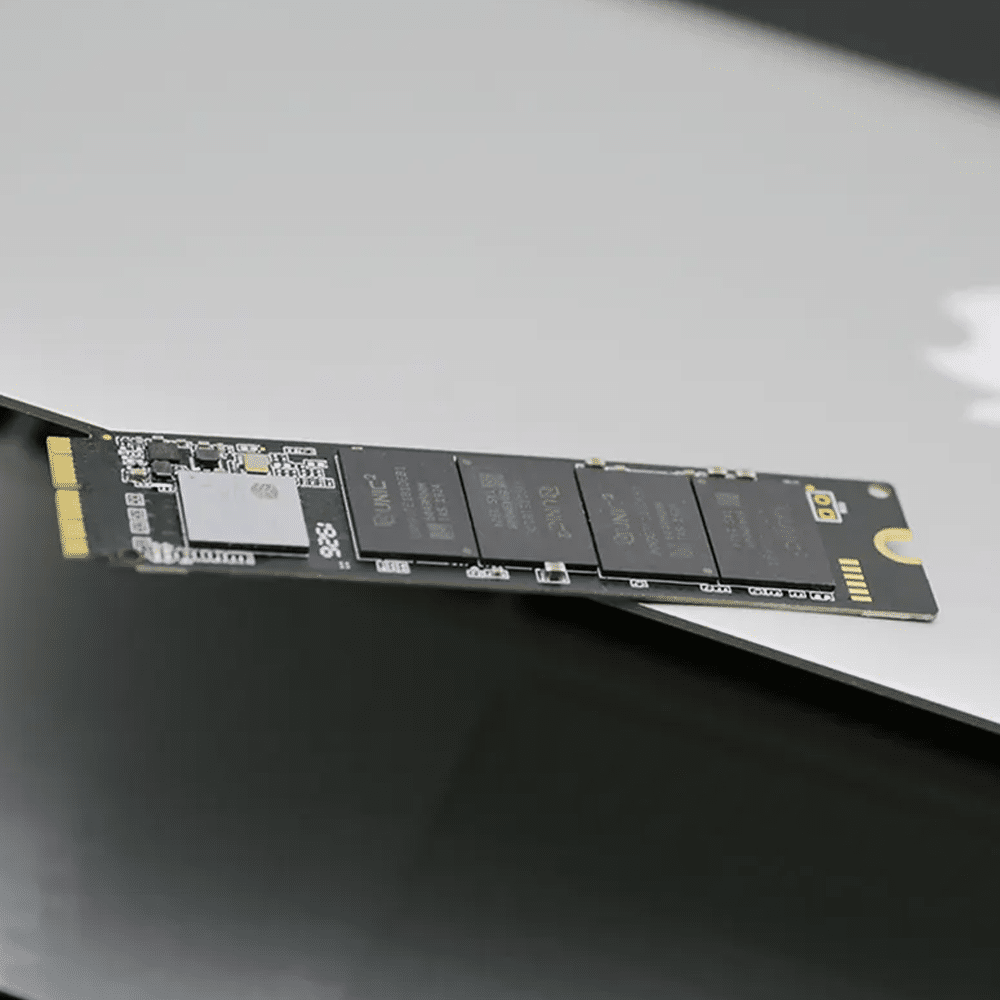
For PC users in the United States, a PCIe SSD is a solid-state drive that connects to a computer through its PCI Express bus. This connection gives the drive a wider and faster path than the older SATA interface. Most modern PCIe SSDs use the NVMe protocol, which was designed for flash storage and can handle many requests at once.
In simple terms, a PCIe SSD can make a Windows PC start faster, load large apps sooner, and move big files more quickly. However, not every PCIe SSD fits every computer. The drive’s form factor, PCIe generation, lane count, key type, cooling, and system support all matter.

What Does PCIe SSD Mean?
PCIe SSD means a solid-state drive that uses PCI Express technology to transfer data. PCIe is the same high-speed connection used by graphics cards and some other expansion devices.
An SSD has three main parts that matter here:


- NAND flash memory: Stores data without power.
- Controller: Manages data between the computer and the flash memory.
- Interface and protocol: Define how the drive connects and communicates with the system.
A PCIe SSD uses PCIe for the connection. Many use NVMe, or Non-Volatile Memory Express, as the communication protocol.
PCIe, NVMe, and M.2 are not the same thing
These terms often appear together, but they describe different parts of the drive:
| Term | What it describes | Example |
|---|---|---|
| PCIe | The data connection or bus | PCIe 4.0 x4 |
| NVMe | The storage communication protocol | NVMe 1.4 |
| M.2 | A small physical form factor | M.2 2280 |
| SATA | An older storage interface and protocol family | SATA III |
| U.2 or U.3 | Enterprise-style drive connectors and form factors | 2.5-inch U.3 SSD |
An M.2 SSD is not automatically a PCIe SSD. Some M.2 drives use SATA. Check the product specifications before buying.
Likewise, an NVMe SSD normally uses PCIe, but “M.2,” “NVMe,” and “PCIe” do not mean the same thing.
How does a PCIe SSD work?
When the computer requests data, the SSD controller finds the requested information in NAND flash memory. It then sends that data through PCIe lanes to the processor or chipset.
A PCIe link can use one or more lanes. A common consumer NVMe SSD uses four lanes, written as x4. More lanes provide a wider data path, although the computer, drive, and workload must support that configuration.
PCIe also works in generations. Each new generation increases the transfer rate per lane. A newer drive can often operate in an older PCIe slot, but it will usually run at the older slot’s speed.
PCIe SSD vs. SATA SSD: What Is the difference?
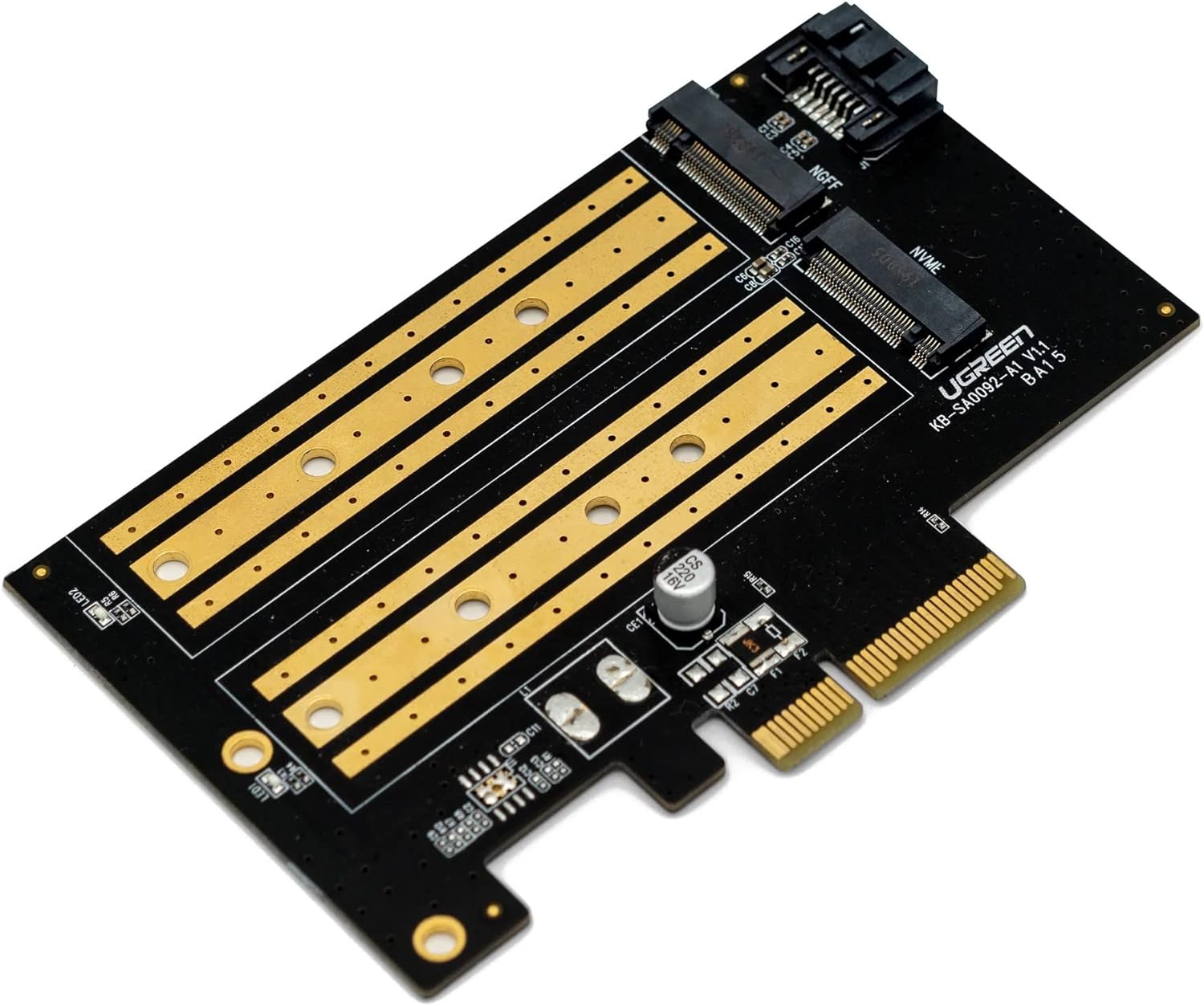
A PCIe SSD usually offers much higher sequential speed and lower command overhead than a SATA SSD. SATA III is limited to about 6 gigabits per second at the link level, while a PCIe 4.0 x4 SSD has a much wider theoretical connection.
The practical difference depends on the task:
- Starting Windows: Both types can feel quick compared with a hard disk drive.
- Opening apps: A PCIe SSD may be faster, but the difference can be modest for everyday software.
- Copying large files: PCIe usually has a clearer advantage.
- Video editing and large project files: A faster PCIe SSD can reduce transfer and load times.
- Gaming: A PCIe SSD may improve game installation and loading times, but it does not directly increase frame rates.
- Web browsing and office work: The benefit may be less noticeable after moving from any hard drive to a decent SSD.


Speed comparison
| Storage type | Connection | Typical consumer class | Main limitation |
|---|---|---|---|
| Hard disk drive | SATA or USB | Much slower random access | Mechanical parts |
| SATA SSD | SATA III | Up to roughly 550 MB/s in many models | SATA link limit |
| PCIe 3.0 x4 SSD | PCIe 3.0 | Up to roughly 3,500 MB/s in some models | Older PCIe generation |
| PCIe 4.0 x4 SSD | PCIe 4.0 | Up to roughly 7,000 MB/s in some models | Heat and system support |
| PCIe 5.0 x4 SSD | PCIe 5.0 | Above 10,000 MB/s in some models | Higher heat, cost, and power |
These are broad specification ranges, not guarantees. Actual speed depends on the exact SSD, controller, NAND type, firmware, thermal state, test method, file size, and remaining free space.
Why does a PCIe SSD feel faster?
PCIe SSDs can handle more concurrent input and output operations than SATA drives. NVMe also uses a storage command system built for flash memory rather than one built around older hard-drive design limits.
That advantage is most visible in demanding workloads. For a basic office PC, the jump from a hard drive to any modern SSD is often more noticeable than the jump from SATA SSD to PCIe SSD.

What PCIe Generations Mean for SSD Speed
PCIe generations describe how quickly each lane can transfer data. A drive’s rated speed is usually based on both its PCIe generation and its lane count.
Approximate one-direction bandwidth is:
| PCIe generation | Approximate bandwidth per lane | Approximate x4 link bandwidth |
|---|---|---|
| PCIe 3.0 | 0.985 GB/s | 3.94 GB/s |
| PCIe 4.0 | 1.969 GB/s | 7.88 GB/s |
| PCIe 5.0 | 3.938 GB/s | 15.75 GB/s |
These figures describe link bandwidth after the main encoding overhead. They are not the same as the speed shown in an SSD benchmark.
A PCIe 4.0 x4 SSD may advertise up to about 7,000 MB/s, but the computer may report lower results. File size, queue depth, drive temperature, and test software all affect the result.
Is a PCIe 4.0 SSD faster in a PCIe 3.0 slot?
It can work, but it will normally operate at PCIe 3.0 speed. The drive does not turn a PCIe 3.0 slot into a PCIe 4.0 slot.
This is called backward compatibility. A newer PCIe device can often connect to an older PCIe system, but both sides use the fastest generation they can negotiate.
The reverse can also work: an older PCIe SSD can run in a newer PCIe slot. It will not gain the full performance of the newer generation.
Do more PCIe lanes always mean more speed?
No. A drive needs a controller and flash memory that can use the available bandwidth. A low-end SSD may not benefit from a wider connection.
The computer must also provide the lanes. Some M.2 slots connect through the processor, while others connect through the chipset. The motherboard manual shows the slot’s supported generation and lane arrangement.

PCIe SSD Form Factors and Connectors
A PCIe SSD can use several physical designs. The connector and size must match the computer.
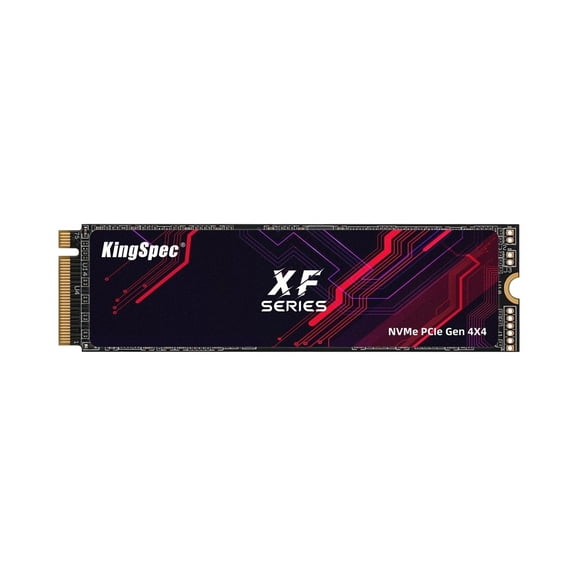
M.2 2280 SSD
M.2 2280 is the most common consumer format. “2280” means the drive is about 22 millimeters wide and 80 millimeters long.
Many desktop motherboards and laptops include an M.2 slot. The slot may support:


- PCIe NVMe SSDs
- SATA M.2 SSDs
- One or both types
- A specific key or lane layout
- Certain drive lengths, such as 2242 or 2280
Do not assume that every M.2 slot supports NVMe. Read the motherboard, laptop, or system manual.
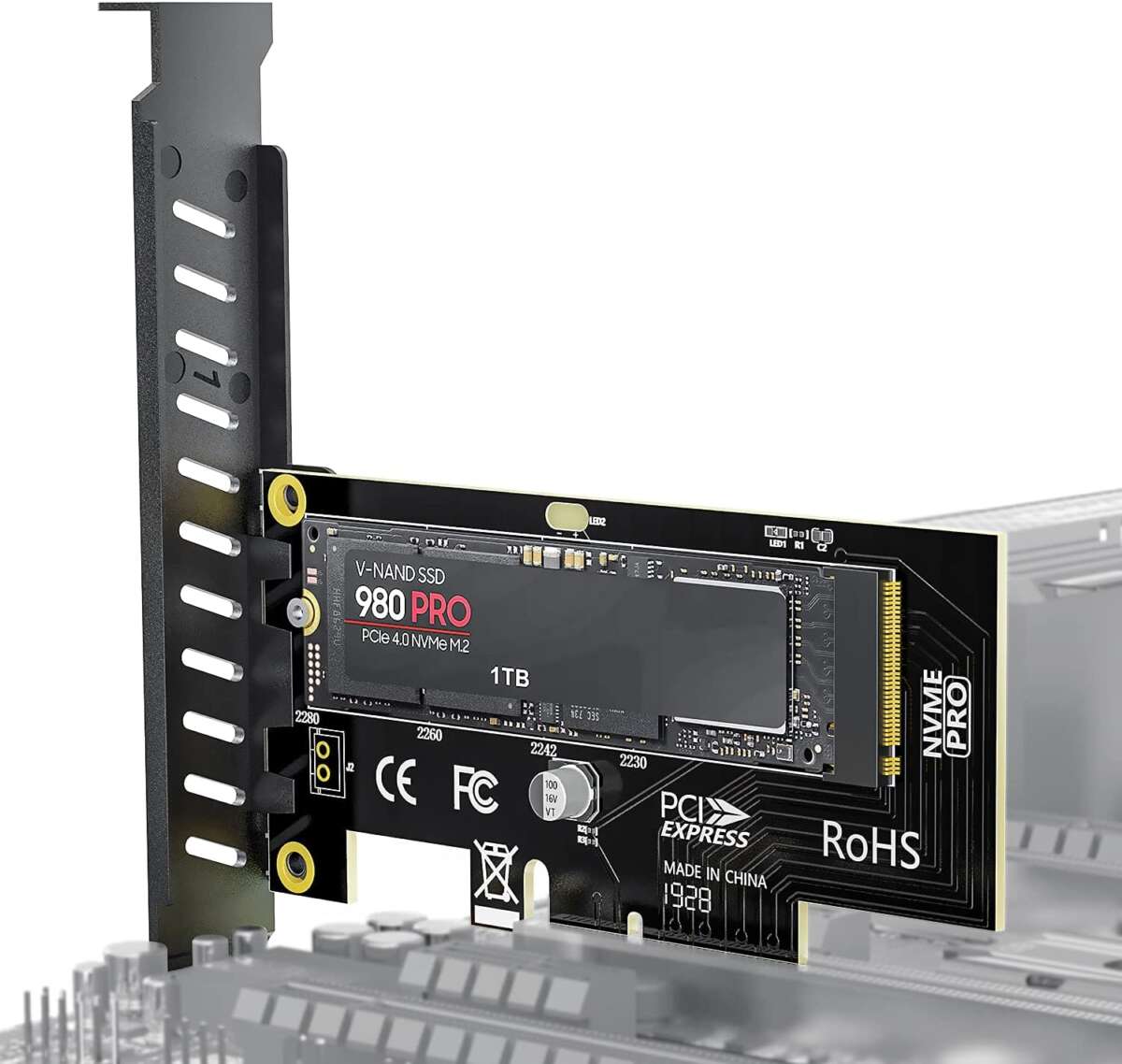
Add-in-card PCIe SSD
An add-in-card SSD looks more like a small expansion card. It fits into a PCIe slot, often an x4, x8, or x16 slot.
This design can offer room for a larger heatsink and may suit workstations. The card may need a compatible boot mode and enough physical clearance inside the case.
U.2, U.3, and enterprise PCIe SSDs
U.2 and U.3 drives are common in servers and workstations. They use cable-based connectors and often provide better service access than an M.2 drive.
These drives are not a simple drop-in replacement for a consumer M.2 SSD. The system needs the correct backplane, cable, power connection, and firmware support.
M-key and B-key details
M.2 slots use key notches to prevent unsupported devices from being inserted. An M-key M.2 NVMe drive is common in consumer systems.
A notch can provide a clue, but it is not enough to confirm compatibility. The manual remains the best source because it identifies the supported protocol, lane type, and drive length.

How to Check if a PCIe SSD Is Compatible
Check compatibility before buying the drive. The most important question is not only “Does the computer have an M.2 slot?” but also “What does that slot support?”
Use this checklist:
- Find the exact computer or motherboard model.
- Open the official manual or specification page.
- Look for M.2 slot support.
- Confirm whether the slot supports PCIe NVMe, SATA, or both.
- Check the supported PCIe generation.
- Check the lane configuration, such as x2 or x4.
- Confirm the physical length, such as 2280.
- Check whether another device disables shared SATA ports or PCIe slots.
- Confirm that the operating system can boot from the drive.
- Check whether the drive needs a motherboard heatsink or separate cooling.
Desktop compatibility
On a desktop PC, an M.2 slot may be located between the CPU socket and the main PCIe expansion slots. Some boards include a metal cover that also acts as a heatsink.
If the primary M.2 slot is occupied, a second slot may use fewer lanes or connect through the chipset. This can affect performance and available ports.
A PCIe adapter card can add an NVMe SSD when the motherboard has no M.2 slot. The adapter must support NVMe, and the computer must have an appropriate PCIe slot.
Laptop compatibility
Laptop upgrades require more care. The system may support only one M.2 length, and some laptops use a single-sided SSD clearance design.
A laptop may also use:
- M.2 SATA instead of M.2 NVMe
- An older PCIe generation
- A proprietary storage connector
- A drive with a specific thickness or thermal limit


Check the laptop service manual before opening the case. Some systems have limited upgrade access, and opening the case may affect service terms depending on the device and repair policy.
PlayStation and other game consoles
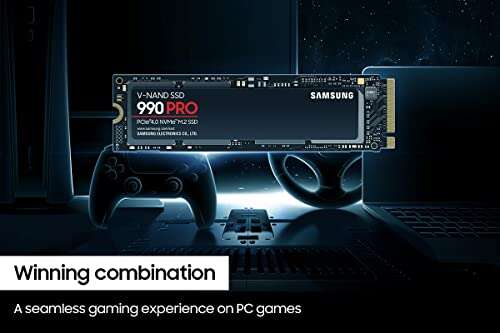
Some consoles support expansion through a specific M.2 NVMe slot, but they impose their own size, speed, and heatsink requirements. A PC-compatible PCIe SSD is not automatically console-compatible.
Use the console maker’s current support page for exact requirements. Do not rely only on a retailer’s “works with console” label.
How to Install a PCIe SSD in a Desktop PC
Install a PCIe SSD only when the computer is shut down and disconnected from power. Follow the system manual if its layout differs from the steps below.
Before installation
You may need:
- The compatible PCIe NVMe SSD
- A small Phillips screwdriver
- The motherboard’s M.2 screw or retention latch
- A motherboard heatsink, if supplied
- A backup of important files
- An operating system installer or disk-cloning tool, if this is the boot drive
Installation steps
- Back up important data. A new drive should not be the only copy of valuable files.
- Shut down the PC.
- Turn off the power supply and unplug the power cable.
- Press the power button for a few seconds to discharge some remaining power.
- Ground yourself before touching the drive or motherboard.
- Remove the case panel.
- Find the correct M.2 slot.
- Remove the M.2 heatsink or retaining screw.
- Insert the SSD at a slight angle.
- Press it down gently and secure it with the screw or latch.
- Replace the heatsink, if the motherboard uses one.
- Close the case and reconnect power.
- Enter the firmware setup if the drive will hold the operating system.
- Initialize and format the drive in Windows if it is a secondary storage drive.
Never force an M.2 drive into the slot. The notch must align with the connector, and the module should slide in with light pressure.
Signs of a successful installation
The drive should appear in at least one of these places:
- The motherboard’s UEFI or firmware storage list
- Windows Disk Management
- The operating system installer
- A storage utility supplied by the drive maker
A new drive may not appear in File Explorer until it has been initialized, partitioned, and formatted.
What to do if the SSD is not detected
Check these items in order:
- Confirm that the drive is fully inserted.
- Confirm that the slot supports PCIe NVMe.
- Check whether the motherboard disables that slot when another port is used.
- Test another compatible M.2 slot, if available.
- Update the motherboard firmware when the maker lists storage compatibility fixes.
- Check the SSD in another compatible system or with a known-good adapter.
- Contact the drive or motherboard manufacturer if the problem remains.
Avoid changing advanced firmware settings at random. Record the original setting before making a change.

PCIe SSD Heat, Performance, and Endurance
A PCIe SSD can run hot during long transfers. PCIe 4.0 and PCIe 5.0 models often produce more heat than slower drives because their controllers move more data and may use more power.
When the drive reaches its thermal limit, it may reduce speed. This is called thermal throttling. It protects the SSD but can make long file transfers slower.


How to manage SSD temperature
- Use the motherboard’s M.2 heatsink when it is compatible.
- Make sure the heatsink’s protective film is removed.
- Keep the drive away from a hot graphics card when possible.
- Maintain good case airflow.
- Avoid placing a high-speed SSD under a graphics card with poor airflow.
- Check temperatures during long workloads, not only after a short benchmark.
A short benchmark may show a high peak speed that does not continue during a large file copy. Sustained performance depends on the SSD’s cache, flash type, temperature, and remaining capacity.
What does SSD endurance mean?
SSD endurance describes how much data the drive is designed to write over its rated life. It is often shown as:
- TBW: Terabytes Written
- DWPD: Drive Writes Per Day, common in enterprise storage
TBW is a manufacturer rating under stated conditions. It is not a promise that the drive will fail immediately after reaching that number.
For most home users, capacity, warranty terms, backup habits, and compatibility may matter more than choosing the highest TBW rating. Heavy workloads such as video capture, scratch-disk use, databases, and frequent virtual machines deserve closer attention to endurance.
Why should an SSD have free space?
An SSD needs free blocks to manage writes and perform background maintenance. A nearly full drive may have less room for its controller to work efficiently.
Keeping some free capacity can help maintain performance, but the exact amount depends on the SSD and workload. A practical approach is to avoid filling the drive completely and monitor available space during heavy use.

Do You Need a PCIe SSD?
A PCIe SSD is a strong fit when you need fast storage for large files, modern games, content creation, software development, or a new desktop or laptop with an NVMe slot.
A SATA SSD may be enough when:
- The computer supports only SATA.
- The workload is basic office work.
- You need inexpensive storage for a large media library.
- The system has poor cooling for a high-power PCIe drive.
- You are upgrading from a hard drive and want the biggest everyday improvement for the budget.
A simple buying decision
| Your situation | Sensible choice |
|---|---|
| Older PC with a hard drive | A compatible SSD; SATA may be the easiest upgrade |
| Desktop with PCIe 3.0 NVMe support | PCIe 3.0 or newer NVMe SSD |
| New desktop with PCIe 4.0 support | PCIe 4.0 x4 NVMe SSD is often a balanced choice |
| Workstation with sustained file transfers | A drive with strong sustained performance and cooling |
| Laptop with a single-sided M.2 limit | A compatible single-sided drive in the supported length |
| Basic home and office use | Do not pay for peak speed you will rarely use |
| Server or enterprise system | Follow the platform’s approved U.2, U.3, EDSFF, or NVMe specifications |
The best PCIe SSD is not always the one with the highest advertised sequential speed. Compatibility, capacity, cooling, warranty, endurance, and sustained performance can matter more.

Common PCIe SSD Mistakes
Mistake 1: Treating every M.2 slot as an NVMe slot
Some M.2 slots support SATA only. An NVMe drive will not work in a SATA-only slot.
Fix: Read the motherboard or laptop manual before buying.
Mistake 2: Buying based only on PCIe generation
A PCIe 5.0 SSD may cost more and produce more heat than a PCIe 4.0 model. The computer must support the newer generation to use its full potential.
Fix: Match the drive to the system and workload.


Mistake 3: Confusing storage speed with gaming frame rate
An SSD can reduce loading and installation times. It does not normally increase the number of frames produced by the graphics card.
Fix: Upgrade the GPU or CPU when frame rate is the main problem.
Mistake 4: Installing the motherboard heatsink incorrectly
A thermal pad may have a protective film. If the film remains in place, heat transfer can be poor.
Fix: Remove the film and ensure the pad contacts the SSD.
Mistake 5: Forgetting a backup
A new SSD can fail, be erased during installation, or receive the wrong cloned partition.
Fix: Keep at least one separate backup of important files before replacing a boot drive.
Mistake 6: Using the wrong cloning method
A cloned operating system may fail to boot if the partition layout, firmware mode, or boot entries do not match the new system.
Fix: Use a reliable cloning tool, confirm the destination drive, and keep the original drive untouched until the new installation starts correctly.
Frequently Asked Questions About PCIe SSDs
Is a PCIe SSD the same as an NVMe SSD?
No. PCIe describes the connection, while NVMe describes the storage protocol. Most consumer NVMe SSDs use PCIe, but the terms identify different parts of the design.
Can I put a PCIe 4.0 SSD in a PCIe 3.0 computer?
Usually, yes, if the physical slot and protocol are compatible. The SSD will normally run at PCIe 3.0 speed. Check the system manual because M.2 slot support varies by motherboard and laptop.
Is an M.2 SSD always faster than a SATA SSD?
No. M.2 describes a physical shape. An M.2 SATA SSD uses the SATA interface and may perform similarly to a 2.5-inch SATA SSD. An M.2 NVMe SSD uses PCIe and can be much faster.
Does a PCIe SSD need a heatsink?
Not always. Basic drives may work without a separate heatsink, especially in light workloads. Faster PCIe 4.0 and PCIe 5.0 drives can benefit from proper cooling, particularly during long transfers.
Can a PCIe SSD replace my laptop’s hard drive?
Only if the laptop supports the drive’s physical size, connector, protocol, and boot method. Check the laptop’s service manual before purchase or installation.
Will a PCIe SSD make my computer start instantly?
No. It can reduce storage-related delays, but startup time also depends on firmware checks, memory initialization, drivers, background programs, and the operating system.
Key Takeaways
- A PCIe SSD uses the PCI Express bus to move data.
- Most modern PCIe SSDs use the NVMe protocol.
- M.2 describes a form factor, not necessarily the interface.
- PCIe 4.0 and PCIe 5.0 can be much faster than SATA, but the computer must support them.
- A newer PCIe SSD usually works in an older compatible slot at the older slot’s speed.
- Check the slot type, PCIe generation, lane count, drive length, cooling, and boot support before buying.
- Capacity, endurance, temperature, and sustained performance can matter more than peak benchmark speed.
Conclusion
A PCIe SSD is a flash storage drive that connects through PCI Express. It is usually faster and more responsive than a SATA SSD, especially for large transfers and demanding workloads. The most common type for US consumer PCs is an M.2 NVMe drive.
Before you buy one, check the exact computer or motherboard manual. Confirm that the slot supports PCIe NVMe, choose a supported drive length, plan for cooling, and back up your data before installation. If your system supports only SATA, a SATA SSD may still be the right upgrade.