What Partition Style For SSD: GPT Or MBR?
For most SSDs used with a modern Windows PC in the United States, GPT is the right partition style. GPT works with UEFI firmware, supports drives larger than 2 TB, and avoids the four-primary-partition limit found with MBR.
Choose MBR only when you need compatibility with an older computer, legacy BIOS mode, or an older operating system. The SSD itself does not require GPT or MBR. Your computer’s firmware, operating system, and boot mode decide which style fits.
This guide explains the difference, shows how to check your current setup, and covers what to do before changing a drive.
GPT vs. MBR: What Is the Difference?
GPT and MBR are partition styles. They tell a computer how a storage drive is divided into partitions and where that partition data is stored.


They are not the same as a file system. For example:
- Partition style: GPT or MBR
- File system: NTFS, exFAT, FAT32, APFS, and others
- Firmware mode: UEFI or legacy BIOS
A Windows SSD may use GPT with NTFS. An external SSD may use GPT with exFAT. These are separate choices.
GPT
GPT means GUID Partition Table. It is the modern partition style used with UEFI-based computers.
GPT can:
- Support drives larger than 2 TB
- Store more partitions than MBR
- Keep backup partition data at the end of the drive
- Work with UEFI boot mode
- Support modern Windows installations
GPT is the normal choice for most computers sold in the United States in recent years.
MBR
MBR means Master Boot Record. It is the older partition style.
MBR can:
- Work with legacy BIOS firmware
- Support older operating systems
- Boot older computers that do not support UEFI
- Create up to four primary partitions without using an extended partition
MBR has more limits. A standard MBR disk supports partitions up to about 2 TB. It also stores key partition data in one main location, so damage to that area can make the disk harder to read.
The U.S. Cybersecurity and Infrastructure Security Agency and Microsoft both distinguish modern UEFI/GPT systems from older BIOS/MBR systems in their technical guidance. Microsoft’s Windows documentation also identifies GPT as the normal choice for UEFI-based installations.
Quick comparison
| Feature | GPT | MBR |
|---|---|---|
| Designed for | Modern UEFI systems | Older BIOS systems |
| Maximum practical disk size | Larger than 2 TB | About 2 TB per disk |
| Primary partitions | Many, depending on the operating system | Four |
| Modern Windows boot | Yes, with UEFI | Yes, with legacy BIOS mode |
| Older computer support | May not work on very old systems | Broad legacy support |
| Recommended for a new PC | Usually | Only when required |


Which Partition Style Is Best for a New SSD?
Use GPT for a new SSD in a modern Windows 10 or Windows 11 computer. This applies whether the SSD is an internal boot drive or a secondary storage drive, as long as the computer supports GPT.
GPT is usually the better choice because it:
- Matches UEFI firmware.
- Supports large drives.
- Avoids MBR’s four-primary-partition limit.
- Fits current Windows installation methods.
- Provides backup partition information for better resilience.
For a new Windows 11 installation, GPT is generally the correct choice because Windows 11 systems are designed around UEFI and Secure Boot. A computer may still contain an MBR disk, but a Windows 11 boot drive normally needs a UEFI-compatible setup.
Use MBR when a specific condition requires it
MBR can still be correct in these cases:
- The computer has legacy BIOS firmware only.
- The motherboard is set to legacy or Compatibility Support Module mode.
- You must boot an older operating system that does not support GPT booting.
- A device, recovery tool, or embedded system requires MBR.
- You need to move the SSD between older computers that lack GPT support.
Do not choose MBR simply because it is familiar. Choose it when you have confirmed a compatibility need.
Internal SSD and external SSD recommendations
For an internal SSD, use GPT unless the computer is old or must boot in legacy BIOS mode.
For an external SSD used with modern Windows and macOS computers, GPT is usually the better long-term choice. Use MBR only if the drive must work with older computers, televisions, game consoles, or other devices that expect MBR.
The file system may matter more than the partition style for an external drive:
- NTFS: Best for Windows-only use
- exFAT: Useful for sharing files between Windows and macOS
- APFS: Best for many Mac-only workflows
- FAT32: Broad compatibility, but individual files cannot exceed 4 GB
Partition style and file system should be chosen separately.
How Do You Check Whether an SSD Uses GPT or MBR?
You can check the partition style in Windows without changing the disk.
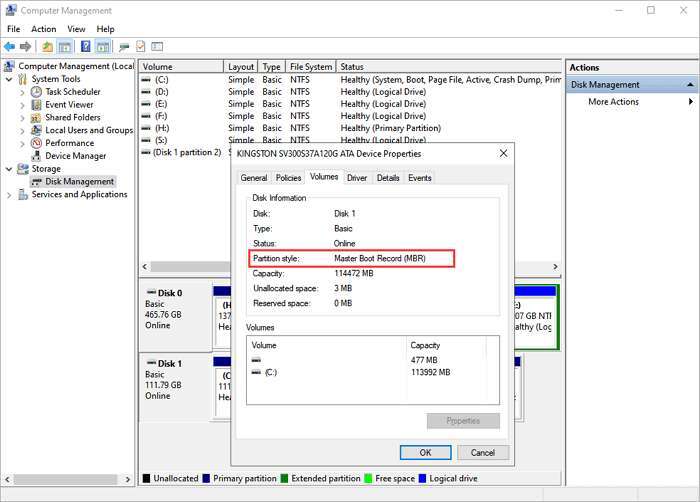
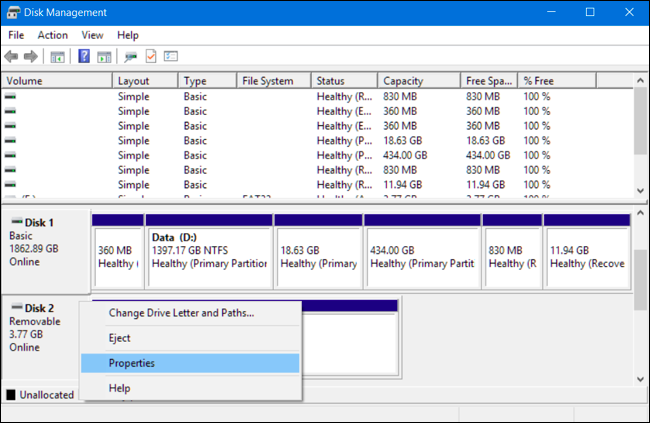
Check in Disk Management
- Press Windows + X.
- Select Disk Management.
- Find the SSD in the lower pane.
- Right-click the box labeled Disk 0, Disk 1, or another disk number.
- Select Properties.
- Open the Volumes tab.
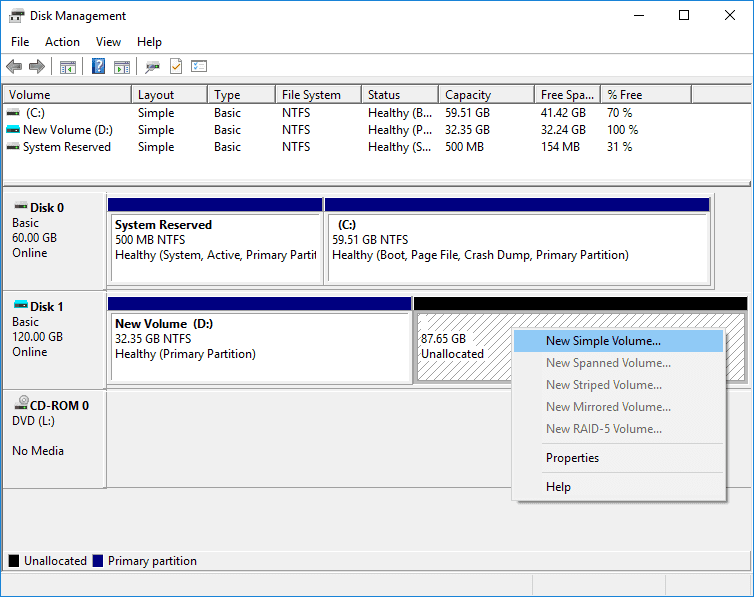
- Look for Partition style.
Windows will show either:
- GUID Partition Table (GPT)
- Master Boot Record (MBR)


Be careful to select the correct physical disk. Disk Management lists disks by number, not always by the name printed on the SSD.
Check with PowerShell
You can also use PowerShell:
- Right-click the Start button.
- Choose Terminal (Admin) or PowerShell (Admin).
- Enter:
Get-Disk
Look at the Partition Style column. It will show GPT, MBR, or sometimes RAW for an uninitialized disk.
Check with DiskPart
Open an administrator Command Prompt or Terminal and enter:
diskpart
list disk
A disk with an asterisk in the GPT column uses GPT.
For example:
Disk ###  Status         Size     Free     Dyn  Gpt
--------  -------------  -------  -------  ---  ---
Disk 0    Online          931 GB   0 B           *
Disk 1    Online          465 GB   0 B
Here, Disk 0 uses GPT. Disk 1 does not show the GPT mark and may use MBR.
Do not run clean, convert gpt, or convert mbr unless you understand the effect. Those commands can remove partition information and make files inaccessible.
How Do You Initialize a New SSD as GPT?
If the SSD is new and contains no files, Windows can initialize it as GPT through Disk Management.
Steps in Windows
- Connect the SSD.
- Open Disk Management.
- Find the disk marked Unknown or Not Initialized.
- Right-click the disk label on the left.
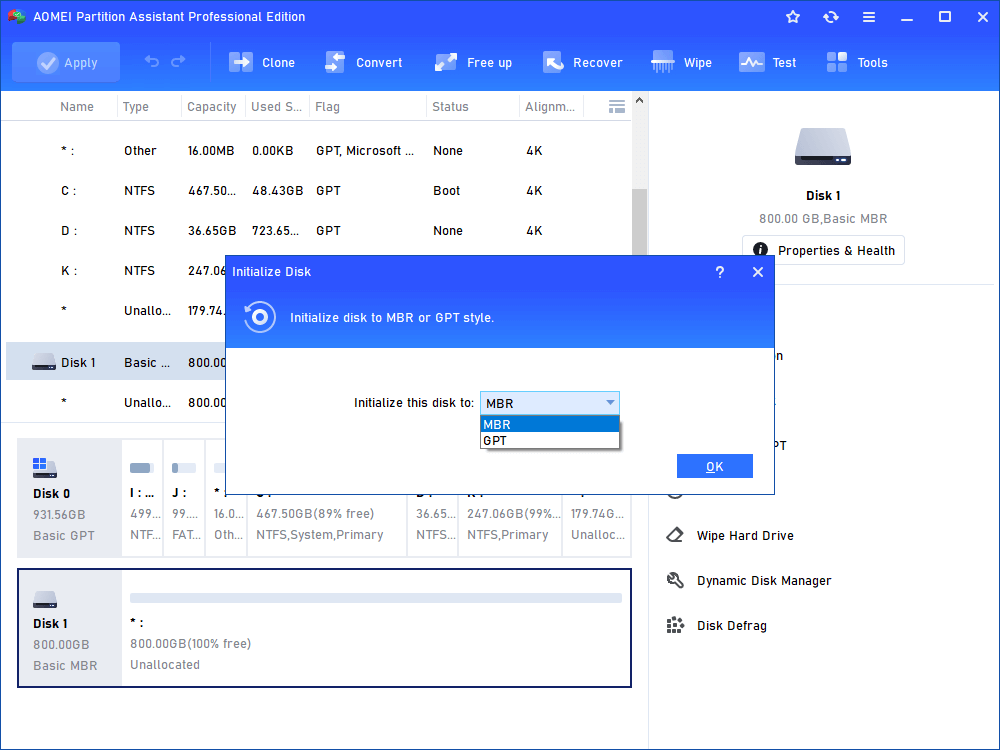
- Select Initialize Disk.
- Choose GPT.
- Click OK.
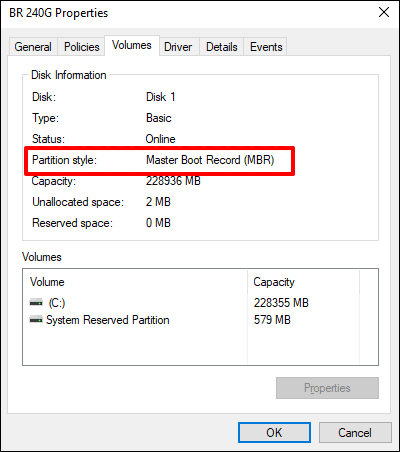
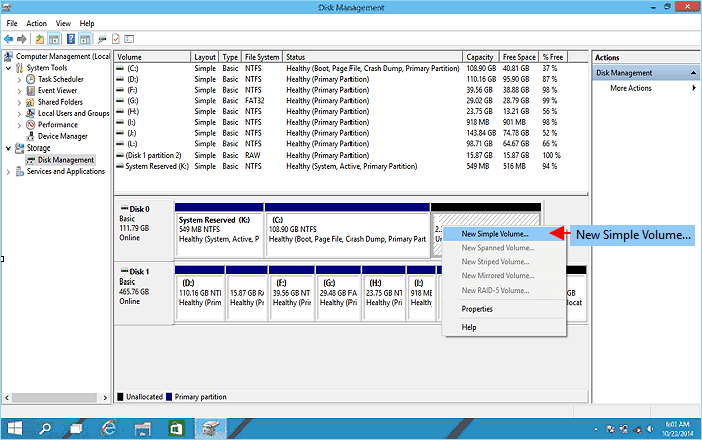
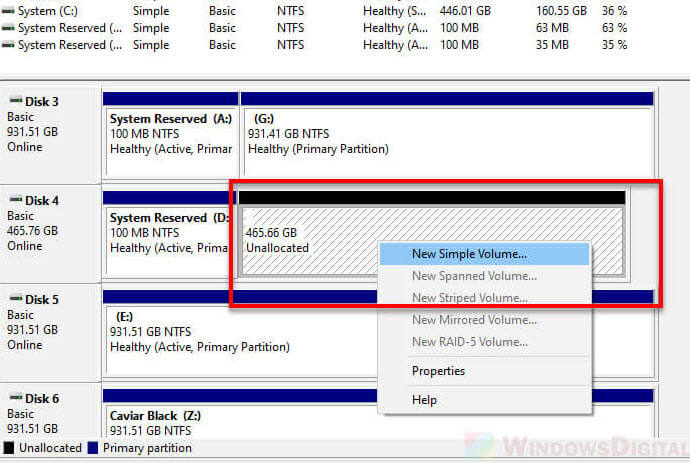
- Right-click the unallocated space.
- Select New Simple Volume.
- Follow the wizard to create and format the volume.
Before selecting a disk, confirm its capacity and connection. An incorrect selection can lead to data loss.
If the SSD already contains files, do not initialize it without checking the data. Initialization can overwrite or replace the partition information that Windows needs to locate those files.
When should you choose NTFS or exFAT?
After selecting GPT, Windows asks you to create a volume and choose a file system.
Choose NTFS when:
- The SSD will mainly work with Windows.
- You need Windows file permissions.
- You plan to install applications or Windows.
- You need features such as file compression or encryption support.
Choose exFAT when:
- You need to move files between Windows and macOS.
- The SSD is used as portable storage.
- You need files larger than 4 GB.
- You do not need NTFS-specific features.


GPT does not replace formatting. A disk can be GPT but still have unallocated space, or it can contain several volumes with different file systems.

Can You Convert an SSD From MBR to GPT?
Yes, but conversion can erase data if you use the wrong method. Back up important files before changing a partition style.
Option 1: Convert during Windows installation
If you are performing a clean Windows installation and do not need the data on the SSD:
- Start the Windows installer.
- At the disk selection screen, identify the correct SSD.
- Delete the existing partitions on that SSD.
- Select the unallocated space.
- Install Windows.
When the installer runs in UEFI mode, Windows normally creates a GPT layout.
This method deletes the existing partitions. Do not use it on a drive that contains files you need.
Option 2: Use Microsoft MBR2GPT
Microsoft provides the MBR2GPT tool for some existing Windows installations. It can convert a system disk without deleting the user’s files, but it has conditions and limits.
Microsoft’s documented requirements include:
- The disk must currently use MBR.
- The disk layout must pass validation.
- The disk must have enough space for required GPT and EFI structures.
- The Windows installation must be supported by the tool.
- Firmware must be changed to UEFI after conversion.
A typical validation command is:
mbr2gpt /validate /disk:0 /allowFullOS
The disk number must match your system disk. Do not copy the number blindly.
If validation succeeds, the conversion command may look like:
mbr2gpt /convert /disk:0 /allowFullOS
After conversion, enter the computer’s firmware settings and change the boot mode from legacy BIOS or CSM to UEFI. The exact menu name depends on the motherboard maker.
Even though MBR2GPT is designed to preserve files, you should still make a full backup. A power failure, disk fault, encryption issue, or incorrect disk selection can prevent Windows from starting.
What Happens If You Pick the Wrong Partition Style?
The result depends on how you plan to use the SSD.
The SSD is not visible during Windows setup
Possible causes include:


- The installer started in the wrong boot mode.
- The storage controller uses a driver Windows does not have.
- The disk has an incompatible partition layout.
- The SSD is not connected correctly.
- The drive has a hardware problem.
If the computer uses UEFI, boot the Windows installer in UEFI mode and use GPT. If the computer uses legacy BIOS, MBR may be required.
Windows shows “Windows cannot be installed to this disk”
This message often means that the installer’s boot mode and the disk’s partition style do not match.
Common combinations are:
- Installer started in UEFI mode → disk should use GPT
- Installer started in legacy BIOS mode → disk should use MBR
You can often fix the mismatch by changing the firmware boot mode or converting the disk. Do not delete partitions until you have backed up the data.
The SSD works for storage but will not boot
A drive may work as a storage disk even when it cannot boot Windows. Booting requires more than a readable partition.
Check:
- Whether the firmware is set to UEFI or legacy mode
- Whether the disk uses GPT or MBR
- Whether the correct disk is first in the boot order
- Whether the required EFI System Partition exists on a GPT boot disk
- Whether Windows Boot Manager appears in the firmware menu
If the SSD was cloned, the cloning process may also have copied the wrong partition layout or boot files.
Common Mistakes to Avoid
The most serious mistake is changing the partition style before protecting the data.
Avoid these errors:
- Formatting the wrong disk: Confirm the model and capacity first.
- Assuming GPT means faster performance: Partition style does not make an SSD faster.
- Confusing partition style with file system: GPT does not mean NTFS.
- Converting without a backup: Even supported tools can fail.
- Leaving firmware in legacy mode after GPT conversion: Windows may stop booting.
- Using MBR on a drive larger than 2 TB: The extra space may be unusable.
- Deleting recovery partitions without a plan: You may lose built-in recovery options.
- Using FAT32 for large files: FAT32 cannot store a single file larger than 4 GB.
- Choosing based only on the SSD brand: Samsung, Crucial, Western Digital, Solidigm, and other SSD brands do not determine the partition style.
If the SSD contains valuable files and Windows no longer sees them, stop writing to the drive. Continued use can make recovery harder. A qualified data-recovery service may be needed when the files are irreplaceable.
Decision Guide: GPT or MBR?
Use this table as a quick choice.
| Your situation | Recommended style |
|---|---|
| New Windows 11 PC | GPT |
| Modern Windows 10 PC with UEFI | GPT |
| New internal boot SSD | GPT |
| SSD larger than 2 TB | GPT |
| Modern external SSD | GPT |
| Computer with legacy BIOS only | MBR |
| Older operating system with no GPT boot support | MBR |
| Old device that specifically requires MBR | MBR |
| Unsure about a modern PC | Check firmware; GPT is usually correct |
The key question is not “Which style is better for SSDs?” It is “Which boot and device environment will use this SSD?”
Frequently Asked Questions
Does an SSD need GPT?
No. An SSD can use GPT or MBR. GPT is usually the best choice for modern computers, while MBR remains useful for legacy systems.


Does GPT improve SSD speed or lifespan?
No. GPT mainly controls how the drive stores partition information. It does not directly improve read speed, write speed, endurance, or battery life.
Should a second SSD use GPT?
Usually, yes. A secondary SSD in a modern Windows computer can use GPT even if it is not the boot drive. GPT is especially useful for drives larger than 2 TB or drives that may later become boot disks.
Can Windows 10 use GPT?
Yes. Windows 10 supports GPT. To boot Windows from a GPT disk, the computer normally needs UEFI firmware and must start Windows in UEFI mode.
Can macOS use GPT?
Modern Macs commonly use GUID Partition Map, Apple’s name for the GPT-style partition map. Disk Utility lets you choose a partition scheme when erasing or partitioning a drive. Check Apple’s current documentation for the macOS version and Mac model involved.
Will changing MBR to GPT delete my files?
It can. Some Microsoft-supported conversion paths are designed to preserve files, but other tools and commands erase the disk. Back up the SSD before conversion and verify the tool’s requirements.
Final Recommendation
For a modern Windows computer in the United States, choose GPT for a new SSD. Use NTFS for a Windows-only internal drive and consider exFAT for an external SSD that must move between Windows and macOS.
Choose MBR only when legacy BIOS, an old operating system, or a specific older device requires it. If the SSD already contains data, check its current partition style and create a backup before making changes.