How To Get Headphones To Work On PC: Easy Fixes
On a Windows PC in the United States, headphones usually work after you choose the correct sound output, connect the headset properly, and check the volume controls. If there is no sound, work through the checks in this order: connection, output device, mute settings, app settings, drivers, and hardware.
The steps below cover wired headphones, USB headsets, Bluetooth headphones, and gaming headsets on Windows 10 and Windows 11.

First, identify how your headphones connect
The right fix depends on the type of headphones you use. A 3.5 mm headset, USB headset, and Bluetooth headset use different Windows settings and hardware.
| Headphone type | How it connects | Main setting to check |
|---|---|---|
| 3.5 mm headphones | Headphone jack on the PC | Correct audio jack and output |
| USB headphones | USB-A or USB-C port | Windows output device and USB connection |
| Bluetooth headphones | Bluetooth wireless connection | Pairing and Bluetooth output |
| Wireless gaming headset | USB receiver, Bluetooth, or both | Receiver, pairing mode, and headset software |
| Headset with microphone | 3.5 mm, USB, or wireless | Separate playback and recording devices |
A desktop PC may have separate headphone and microphone jacks. A laptop often has one combined headset jack. A combined jack supports both sound and a microphone when the plug has the proper four-contact design.


Check the plug before changing software settings. A loose plug, wrong jack, dead battery, or missing USB receiver can look like a Windows problem.
How to connect wired headphones
Connect 3.5 mm headphones to the port marked with a headphone symbol. On a desktop computer, the audio output jack is often on the back or front of the case. It is commonly color-coded green, but symbols are more reliable than color.
If your headset has two 3.5 mm plugs, connect the headphone plug to the audio-out jack and the microphone plug to the microphone-in jack. If your PC has one combined headset port, you may need a compatible splitter for a two-plug headset.
For USB headphones, plug them into the PC instead of a USB hub during setup. Wait a few seconds for Windows to detect the device. Try another USB port if the headset does not appear.
Quick wired-headphone checks
- Push the plug in firmly.
- Remove any protective cap from the plug.
- Try the rear USB or audio port on a desktop.
- Test the headphones on another device.
- Test another pair of headphones on the PC.
- Check the headset’s physical mute switch and volume wheel.
If the headphones work on another device but not on the PC, the problem is likely the selected output, driver, jack, or port. If several headphones fail on the same port, the PC port may be damaged or disabled.

Select your headphones as the Windows output device
Windows may send sound to the monitor, speakers, a docking station, or another connected device. Selecting the headphones manually often fixes the problem.
Windows 11
- Connect the headphones.
- Select the speaker icon on the right side of the taskbar.
- Select the sound output selector beside the volume slider.
- Choose your headphones from the list.
- Raise the volume and play a test sound.
You can also open Settings > System > Sound. Under Output, select the headphones you want to use.
Windows 10
- Connect the headphones.
- Right-click the speaker icon in the taskbar.
- Select Open Sound settings.
- Under Choose your output device, select the headphones.
- Adjust the volume.
If the headphones appear as “Speakers,” “Headset,” “USB Audio Device,” or a model name, select the device that represents the connected headphones. A monitor may appear as an HDMI or DisplayPort audio device, so check that Windows has not selected it by mistake.


Set the headphones as the default device
If Windows keeps switching back to another output:
- Open Settings > System > Sound.
- Select More sound settings in Windows 11, or open the traditional Sound control panel in Windows 10.
- Select the Playback tab.
- Right-click the headphones.
- Choose Set as Default Device.
- Select OK.
The default device handles most system sounds. You can still choose a different device inside some apps.
Check volume, mute, and app settings
A PC can have several separate volume controls. The master volume may be high while the app, headset, or media player is muted.
Check these controls:
- The Windows taskbar volume.
- The physical volume wheel on the headphones.
- The mute button on the headset.
- The volume inside the video, music, or game app.
- The Windows Volume mixer.
- The app’s selected output device.
To open the Windows volume mixer in Windows 11, go to Settings > System > Sound > Volume mixer. In Windows 10, right-click the taskbar speaker icon and select Open Volume mixer.
Make sure the affected app is not muted. Also check whether the app is sending sound to a different device. This can happen with games, video calls, and music apps.
Close and reopen the app after changing its audio device. Some programs detect the output only when they start.
When only one app has no sound
If YouTube works but a game does not, the headphones are probably connected correctly. Check the game’s audio output, master volume, voice settings, and Windows app volume.
If a video call has no sound, open the call app’s audio settings. Choose the headphones for Speaker or Output. Do not choose the headset only as the Microphone device.

Get Bluetooth headphones to work on a PC
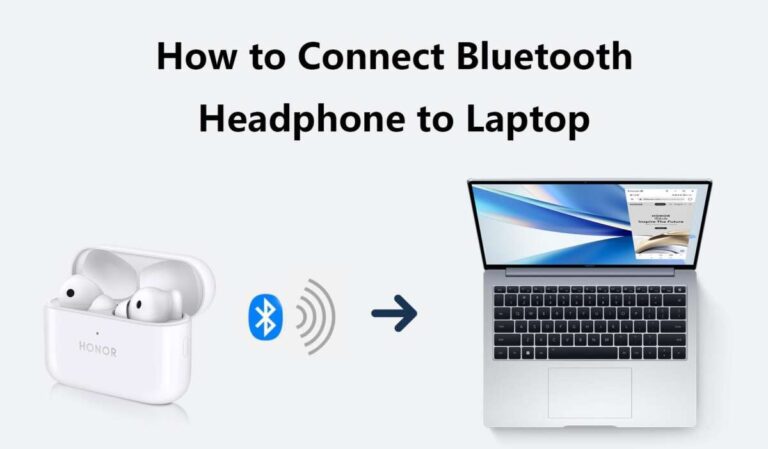
Bluetooth headphones must be charged, placed in pairing mode, paired with Windows, and selected as the sound output.
Pair Bluetooth headphones with Windows 11
- Turn on the headphones.
- Put them in pairing mode. Use the manufacturer’s instructions.
- Open Settings > Bluetooth & devices.
- Turn on Bluetooth.
- Select Add device.
- Choose Bluetooth.
- Select the headphones.
- Return to Settings > System > Sound.
- Select the headphones under Output.
Pair Bluetooth headphones with Windows 10
- Turn on pairing mode on the headphones.
- Open Settings > Devices > Bluetooth & other devices.
- Turn on Bluetooth.
- Select Add Bluetooth or other device.
- Choose Bluetooth.
- Select the headphones.
- Open Settings > System > Sound.
- Choose the headphones as the output device.
If the headphones show as connected but produce no sound, open the output list and select them again. Bluetooth can connect for calls while Windows still sends music to another device.


Fix common Bluetooth problems
Try these checks:
- Charge the headphones.
- Move them closer to the PC.
- Turn Bluetooth off and on.
- Restart both the headphones and the PC.
- Remove the headphones from Windows, then pair them again.
- Disconnect the headphones from a phone or tablet.
- Install Windows updates and approved Bluetooth driver updates.
A Bluetooth headset may show two audio modes. One mode is designed for high-quality playback. Another mode supports two-way microphone use but may reduce playback quality. The names vary by device and Windows version.
Fix a USB headset that is not detected
A USB headset should appear in Windows after you connect it. If it does not, check the connection before changing advanced settings.
- Disconnect the headset.
- Restart the PC.
- Connect the headset directly to a different USB port.
- Avoid a USB hub while testing.
- Look for a physical mute switch or power button.
- Open Settings > System > Sound and check the output list.
- Check Device Manager for warning icons.
To open Device Manager, right-click the Start button and select Device Manager. Expand categories such as Audio inputs and outputs, Sound, video and game controllers, and Universal Serial Bus controllers.
Do not uninstall a device unless you know the correct driver will return through Windows Update or the manufacturer’s approved support tool. If the headset is missing on every USB port and another computer also cannot detect it, the headset or USB cable may have failed.
Some gaming headsets need a USB wireless receiver. The receiver must be connected, and the headset may need to be paired with that receiver. Bluetooth pairing alone may not connect a headset that is designed to use its own wireless adapter.

Run the Windows audio troubleshooter
Windows includes built-in troubleshooting tools that can check common output and driver settings.
In Windows 11:
- Open Settings > System > Troubleshoot > Other troubleshooters.
- Find Audio or Playing Audio.
- Select Run.
- Follow the instructions.
- Test the headphones again.
You can also open Settings > System > Sound and use the troubleshooting option near the output device when it is available.
The troubleshooter may correct a muted device, wrong output, disabled service, or basic driver issue. It cannot repair a broken headphone cable, damaged jack, failed battery, or unsupported adapter.

Update or reinstall the audio driver
A driver lets Windows communicate with the sound hardware. A bad, missing, or incompatible driver can stop headphones from working.
Start with Windows Update:
- Open Settings > Windows Update.
- Select Check for updates.
- Install available updates.
- Restart the PC.
- Test the headphones.
For a laptop or branded desktop, use the computer maker’s support page for audio, chipset, Bluetooth, and USB drivers. Match the driver to the exact PC model and Windows version. For a custom desktop, check the motherboard maker’s support page.


You can also check Device Manager:
- Right-click Start.
- Select Device Manager.
- Expand Sound, video and game controllers.
- Right-click the audio device.
- Select Update driver.
- Choose the automatic search option.
If sound stopped after a driver update, the driver may be incompatible. Windows may offer a Roll Back Driver option in the device’s properties. Use it only when the problem began after that update and the option is available.
Avoid random driver-download sites. They may provide the wrong file or unwanted software. Use Windows Update or the PC, motherboard, or headset manufacturer’s official support page.

Check if the audio device is disabled
A disabled playback device will not produce sound, even when the headphones are connected.
- Open Settings > System > Sound.
- Select More sound settings.
- Open the Playback tab.
- Right-click an empty area.
- Turn on Show Disabled Devices.
- If the headphones appear disabled, right-click them.
- Select Enable.
- Set them as the default device.
Also check the device properties for a volume level and mute setting. In some Windows versions, a device may be hidden under a different name, such as a monitor, USB audio device, or headset manufacturer name.
Do not disable audio devices at random. If you are unsure which device is active, record its name before making changes.

Fix microphone problems separately
Headphone playback and microphone input are separate functions. You can hear sound while the microphone fails, or the microphone can work while playback fails.
For a wired headset:
- Confirm that the microphone plug is in the microphone jack.
- Use a compatible splitter if the headset has separate plugs.
- Check the headset’s mute switch.
- Open Settings > System > Sound > Input.
- Select the headset microphone.
- Speak and watch the input meter.
For a USB or Bluetooth headset, select its microphone under Input. In a call app, choose the same microphone under its audio settings.
Windows privacy settings can also block microphone access. Open Settings > Privacy & security > Microphone in Windows 11, or Settings > Privacy > Microphone in Windows 10. Turn on access for the system and the app that needs it.
Use this symptom-to-cause table
Use the table to skip to the most likely fix.
| Symptom | Likely cause | First action |
|---|---|---|
| No sound from any app | Wrong output, mute, or driver issue | Select headphones in Windows Sound |
| Sound comes from the monitor | HDMI or DisplayPort is selected | Choose the headphones as output |
| Headphones do not appear | Connection, port, pairing, or driver issue | Reconnect and try another port |
| Bluetooth says connected but is silent | Wrong playback device or call mode | Select the Bluetooth headphones under Output |
| One side works | Plug, cable, balance, or headphone damage | Reseat the plug and test another device |
| Only one app is silent | App mixer or app output setting | Check the app’s audio settings |
| Microphone fails but audio works | Input device, privacy, or splitter issue | Select the headset microphone under Input |
| Sound is distorted | Low battery, driver, wireless interference, or bad jack | Charge, reconnect, and test a wired connection |
| Headset works on another PC only | Local Windows or port issue | Update drivers and test a different port |
The most useful test is to change one variable at a time. For example, test the same headphones on another device, then test different headphones on the same PC. This separates a headphone fault from a computer fault.
Common mistakes to avoid
Do not plug headphones into a microphone-only jack. A microphone jack accepts input, not playback.
Do not assume that a headset is connected because its lights are on. USB power can turn on lights without creating a working audio connection.


Do not pair Bluetooth headphones while they remain connected to another device. Many headphones switch back to the phone or tablet that connected first.
Do not install several audio-control programs at once. Manufacturer utilities can change output profiles, but multiple utilities may also create confusing device lists.
Do not raise volume to an unsafe level while troubleshooting. Start low and increase it gradually. Loud sound can harm hearing, and a sudden volume change may be uncomfortable or dangerous.
When the headphones or PC may need repair
Software steps cannot fix physical damage. Consider hardware service when:
- The cable is cut, bent, or loose at the plug.
- The headphone jack feels loose.
- The headphones cut out when the plug moves.
- The USB connector is damaged.
- The Bluetooth headset will not charge or power on.
- Multiple known-good headphones fail on one PC port.
- The headset is not detected on several computers.
If the PC is under warranty, check the manufacturer’s support process before opening the case. For a desktop, a damaged front audio jack may still leave the rear audio jack working. A USB audio adapter can also help confirm whether the built-in audio port is the problem, but it will not repair damaged headphones.
Frequently asked questions
Why are my headphones connected but not working on my PC?
Windows may be connected to the headphones but still use another output device. Open Settings > System > Sound, select the headphones under Output, and check the Windows volume mixer. For Bluetooth headphones, also disconnect them from other nearby devices and pair them again if needed.
Why does my PC not recognize my headphones?
A loose plug, faulty port, missing USB driver, disabled audio device, or incomplete Bluetooth pairing can prevent detection. Reconnect the headphones, try another port, restart Windows, and check Settings > System > Sound and Device Manager.
How do I switch from speakers to headphones on Windows?
Select the speaker icon on the taskbar, open the output-device list, and choose the headphones. You can also go to Settings > System > Sound > Output and select them there.
Why do my headphones work for music but not in Zoom or Microsoft Teams?
The meeting app may use a different speaker or microphone. Open the app’s audio settings and select the headphones as the speaker. Then select the headset microphone as the microphone if you want to use it for calls.
Can I use wireless headphones without Bluetooth on my PC?
Yes, if the headphones include a USB wireless receiver or you use a compatible Bluetooth USB adapter. A Bluetooth-only headset needs Bluetooth hardware in the PC or an appropriate adapter.
Why do I hear sound but the microphone does not work?
The microphone may be muted, blocked by Windows privacy settings, connected to the wrong jack, or missing a compatible splitter. Check Settings > System > Sound > Input, select the headset microphone, and test its input meter.
Final checklist
Use this short sequence whenever headphones stop working:
- Check the plug, battery, mute switch, or USB receiver.
- Select the headphones under Windows Sound > Output.
- Raise the Windows, app, and headset volume.
- Check the app’s own speaker setting.
- Restart the app and the PC.
- Re-pair Bluetooth headphones if needed.
- Try another port and test the headphones on another device.
- Run the Windows audio troubleshooter.
- Update the audio, Bluetooth, or USB driver from an official source.
- Seek hardware service if the problem follows the headphones or stays with one damaged port.
The quickest next action is to open Windows Sound settings and confirm that the headphones are the selected output device. That single check resolves many cases where the hardware is connected but Windows is sending sound somewhere else.