What Is A NVMe SSD: Complete Beginner’s Guide
For PC users in the United States, an NVMe SSD is a fast solid-state drive that uses the NVMe storage protocol over a computer’s PCIe connection. It can load Windows, games, apps, and large files much faster than a traditional hard drive and often faster than a SATA SSD.
NVMe SSDs are common in US desktops, laptops, workstations, and gaming PCs. However, not every M.2 drive is NVMe, and not every computer with an M.2 slot supports NVMe. The key is to match the drive with the computer’s slot, PCIe generation, operating system, and physical space.

What does NVMe SSD mean?
NVMe SSD stands for Non-Volatile Memory Express solid-state drive.
Each part describes a different feature:


- Non-volatile memory: The drive keeps data when the computer is turned off.
- Memory: Most NVMe SSDs use NAND flash memory rather than spinning disks.
- Express: The drive communicates through PCI Express, often called PCIe.
- Solid-state drive: It has no moving parts like the platters and heads in a hard disk drive.
NVMe is mainly a communication protocol. It tells the computer how to send commands to and receive data from flash storage.
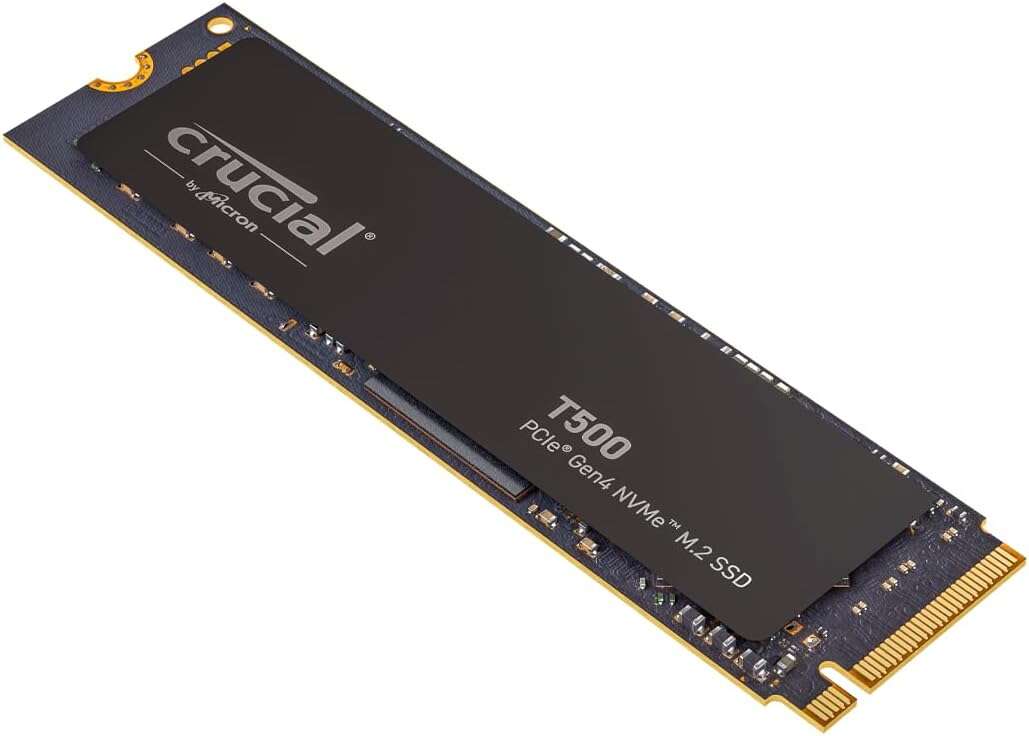
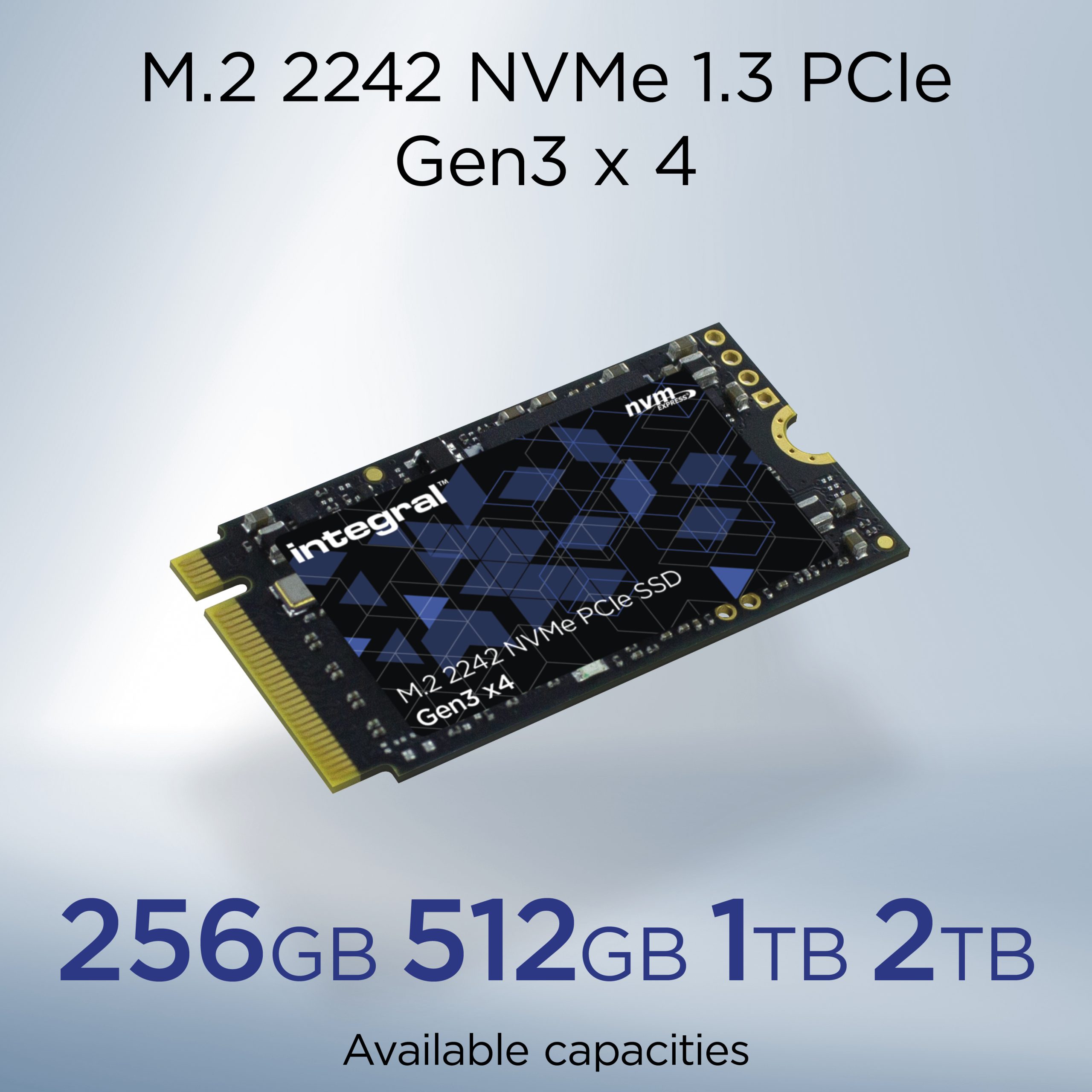
An NVMe SSD is not defined by its shape. Many NVMe drives use the slim M.2 2280 form factor, but NVMe storage can also appear in add-in cards, enterprise drives, and other designs.
NVMe, M.2, and PCIe are not the same thing
These terms are related, but they describe different parts of the device:
| Term | What it describes | Example |
|---|---|---|
| NVMe | The storage communication protocol | NVMe 1.4 |
| PCIe | The connection and data bus | PCIe 4.0 x4 |
| M.2 | The physical card shape and connector | M.2 2280 |
| NAND flash | The memory used to store data | TLC or QLC NAND |
| SSD | The type of storage device | Internal solid-state drive |
A useful way to remember this is:
M.2 describes the shape. PCIe describes the path. NVMe describes the language.
An M.2 drive may use NVMe over PCIe, or it may use the older SATA protocol. The two drives can look almost identical but may not work in the same slot.
How does an NVMe SSD work?
An NVMe SSD stores data in NAND flash cells and uses PCIe lanes to move that data between the drive and the computer’s processor or chipset.
When an application requests a file, the operating system sends a command to the SSD. The NVMe controller receives the request, finds the related flash cells, and returns the data through the PCIe connection.
NVMe was designed for modern flash storage. It supports many command queues and a large number of commands within those queues. This design helps the drive handle several requests at once with less overhead than older storage protocols.
A SATA SSD usually communicates through the AHCI protocol, which was first designed around the needs of hard disk drives. AHCI still works well for basic storage, but NVMe is better suited to flash memory and high-speed PCIe connections.
Why NVMe can be faster than SATA
A SATA III connection is limited to about 6 gigabits per second. After protocol overhead, many SATA SSDs reach roughly 500 to 560 megabytes per second in sequential transfers.


NVMe SSDs use PCIe. Their speed depends on the PCIe generation and the number of lanes:
| Interface | Theoretical bandwidth per lane | Common SSD connection |
|---|---|---|
| PCIe 3.0 | About 985 MB/s | x4, about 3.9 GB/s |
| PCIe 4.0 | About 1.97 GB/s | x4, about 7.9 GB/s |
| PCIe 5.0 | About 3.94 GB/s | x4, about 15.8 GB/s |
These are interface limits, not guaranteed drive speeds. The controller, NAND type, firmware, cooling, workload, and computer platform all affect real performance.
Sequential speed matters when moving large files. Random performance and latency often matter more when launching apps, loading game assets, or handling many small files.
What are the benefits of an NVMe SSD?
The main benefits are speed, low access delay, compact size, and efficient multitasking.
Faster file transfers
NVMe drives can move large files much faster than SATA SSDs when the computer and workload support their rated speed. This can help with:
- Video editing
- Large photo libraries
- Software development
- Virtual machines
- Game installation
- Backups
- Scientific or engineering data
The benefit is most visible when both the source and destination are fast. Copying from a slow USB drive to a fast NVMe SSD will still be limited by the slower device.
Lower access latency
Latency is the delay before a storage device starts returning data. NVMe drives generally offer lower command and access overhead than SATA drives.
This can make a system feel more responsive during heavy storage activity. However, the difference between a SATA SSD and an NVMe SSD may feel modest during simple tasks such as opening a web browser.
Better parallel performance
NVMe can handle many simultaneous requests. This helps when a computer is:
- Running several applications
- Building software
- Hosting virtual machines
- Managing a large database
- Reading and writing many files at once
A typical home user may not use the full parallel performance of a high-end NVMe drive.
Small physical size
Many NVMe SSDs use an M.2 card that fits directly onto the motherboard. This removes the need for separate data and power cables.
A smaller drive can improve cable management and save space in compact desktops. It can also help laptop makers reduce system thickness, although laptop compatibility still depends on the model.

What is the difference between NVMe and SATA SSDs?
Both drives use flash memory and have no moving parts. The main difference is how they connect and communicate with the computer.


| Feature | NVMe SSD | SATA SSD |
|---|---|---|
| Common connection | PCIe | SATA |
| Common protocol | NVMe | AHCI |
| Typical maximum speed | Higher than SATA | About 500–560 MB/s |
| Common shape | M.2, add-in card, 2.5-inch enterprise designs | 2.5-inch or M.2 |
| Cables | Often none for M.2 | Usually data and power cables |
| Best use | High-speed work, gaming, new PCs | Upgrades, older systems, general use |
| Compatibility | Needs suitable PCIe/NVMe support | Works with SATA ports |
An NVMe SSD is not always the best choice. If a computer only has a SATA M.2 slot, a PCIe NVMe drive may not work. If the system has an older processor or a slow workload, a less expensive SATA SSD may provide nearly the same day-to-day experience.
NVMe SSD versus hard drive
An NVMe SSD is much faster, quieter, and more resistant to movement than a hard disk drive.
A hard drive stores data on spinning magnetic platters. It can offer a low cost per terabyte, especially for large archives. An NVMe SSD usually costs more per terabyte but provides much lower access times and far better responsiveness.
For a US desktop user, a common setup is:
- NVMe SSD for Windows, applications, and active projects
- Large SATA SSD or hard drive for media, backups, and archives
The right mix depends on capacity needs, budget, noise tolerance, and backup plans.
Does an NVMe SSD make a computer faster?
An NVMe SSD can make a computer faster, but the size of the improvement depends on what the computer was using before and what tasks it performs.
The upgrade is usually dramatic when replacing a hard drive. Windows starts faster, applications open sooner, and file searches feel more responsive.
The improvement may be smaller when replacing a SATA SSD. Both are flash-based drives with low latency. NVMe can still help with large file transfers and heavy multitasking, but ordinary web browsing and office work may not feel twice as fast.
Workloads that benefit most
NVMe storage is especially useful for:
- 4K and 8K video editing
- Large code builds
- 3D asset work
- Virtual machines
- Large game installs and updates
- Data analysis
- Frequent transfers of files larger than several gigabytes
Workloads that may show a smaller benefit
The difference may be limited for:
- Web browsing
- Streaming video
- Basic word processing
- Light schoolwork
- Computers limited by an old CPU or low memory
Storage is only one part of system performance. A computer with too little RAM, an older processor, or a weak network connection may remain slow after an SSD upgrade.
Are all M.2 SSDs NVMe?
No. M.2 is a physical form factor, not a storage protocol.


An M.2 SSD may use:
- NVMe over PCIe
- SATA
- Less common legacy interfaces
The drive’s product label should state whether it is M.2 NVMe or M.2 SATA. The computer or motherboard manual should also identify which type its M.2 slot supports.
M.2 key types
M.2 connectors use notches called keys. A common NVMe drive uses an M-key connector. Some SATA M.2 drives use a B-key or B+M-key design.
The notch can provide a clue, but it is not a complete compatibility test. Always check the manufacturer’s documentation because slot support varies by motherboard and laptop.
Some M.2 slots also share bandwidth with SATA ports or PCIe slots. Installing a drive may disable one or more other ports. The motherboard manual normally lists these limits.

How do you check if a computer supports an NVMe SSD?
Check the official manual or support page for the exact computer or motherboard model. Look for terms such as:
- M.2 PCIe
- M.2 NVMe
- PCIe x4 storage
- 2280 support
- Bootable NVMe support
Do not rely only on the presence of an M.2 slot.
For a desktop PC
Before buying an NVMe SSD, check:
- Motherboard model: Find the model printed on the board or shown in system information.
- M.2 slot type: Confirm that the slot supports PCIe NVMe.
- Supported sizes: M.2 2280 is common, but some compact boards support only shorter drives.
- PCIe generation: A PCIe 4.0 drive usually works in a PCIe 3.0 slot, but it runs at the older slot’s speed.
- Boot support: Check whether the firmware can boot from an NVMe drive.
- Shared lanes: Confirm whether the slot disables SATA ports or other expansion slots.
- Heatsink clearance: Check whether the motherboard cover fits the drive.
For a laptop
Laptop upgrades require more care. Check the exact model, not just the product family.
Confirm:
- Whether the laptop has an M.2 slot
- Whether the slot supports NVMe or SATA
- The supported drive length
- The maximum supported capacity, if listed
- Whether a single-sided drive is required
- Whether the laptop uses a proprietary mounting part
- Whether opening the case affects warranty terms
A 2.5-inch SATA drive cannot be replaced by an M.2 NVMe SSD unless the laptop has the required M.2 slot and support.
How do you install an NVMe SSD?
Installing an internal NVMe SSD is usually simple, but the exact process varies by computer. Back up important files before opening the system or changing storage.
Before installation
You may need:
- A compatible NVMe SSD
- A small Phillips screwdriver
- The computer or motherboard manual
- A mounting screw or standoff
- A backup of important files
- A USB installer if the drive will hold a new operating system


Turn off the computer, unplug it, and allow it to cool. If the manufacturer provides a service procedure, follow it. Avoid touching the gold contacts on the SSD.
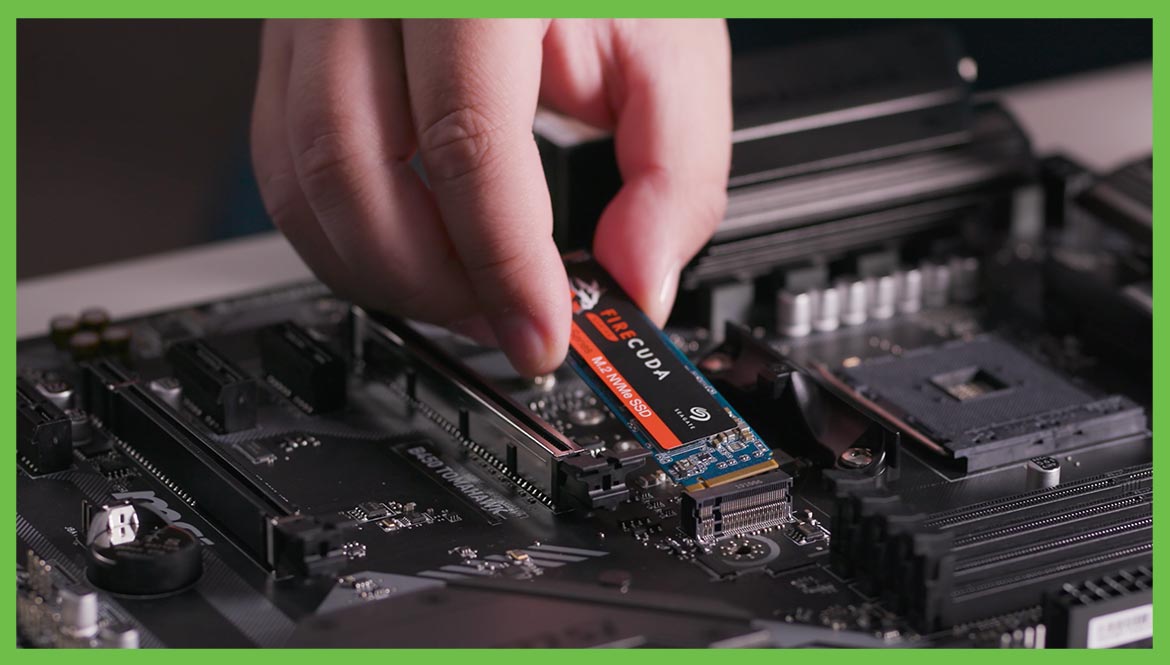
Installation steps
- Shut down and disconnect the computer.
- Open the case or service panel according to the manufacturer’s instructions.
- Find the compatible M.2 slot.
- Remove the M.2 screw or heatsink.
- Insert the SSD at a slight angle.
- Press the drive down gently.
- Secure it with the correct screw.
- Replace the heatsink if the system includes one.
- Close the computer and reconnect power.
- Enter the firmware setup if needed to confirm that the drive is detected.
Do not force the drive into the slot. If the notch does not align, stop and recheck compatibility.
Preparing the drive in Windows
A new drive may not appear in File Explorer right away. In Windows, open Disk Management and look for the uninitialized drive.
You may need to:
- Initialize the disk, normally using GPT on modern systems.
- Create a new volume.
- Assign a drive letter.
- Format the volume with the required file system.
Formatting erases data on the selected volume. Confirm the disk number and capacity before making changes.
If you are moving Windows to the new SSD, you can either perform a clean installation or clone the old drive. A clean installation can reduce old software problems, while cloning preserves the existing setup. In both cases, keep a verified backup.
What speed should you expect from an NVMe SSD?
The advertised speed depends on the drive’s PCIe generation, NAND type, controller, capacity, and workload.
A PCIe 3.0 x4 NVMe drive may advertise sequential read speeds near 3,000–3,500 MB/s. PCIe 4.0 drives may reach around 5,000–7,400 MB/s. Some PCIe 5.0 models advertise more than 10,000 MB/s.
These figures are sequential read results under favorable test conditions. They do not represent every task.
Real performance can drop because of:
- Small file transfers
- Low free space
- Thermal throttling
- A full or nearly full SLC cache
- A slower source drive
- A PCIe slot with fewer lanes
- Background system activity
- Lower-capacity versions of the same product line
Sequential speed and random speed
Sequential speed measures large, continuous transfers. It is useful for video files and large archives.
Random performance measures many small, scattered requests. It is often more relevant to operating system activity and application loading.


A drive with a higher sequential read number is not automatically faster in every real-world task. Look at both sequential and random specifications, but treat manufacturer ratings as controlled measurements rather than a promise for every computer.
What are PCIe generations in NVMe SSDs?
PCIe generations describe the speed of the connection between the drive and the computer.
- PCIe 3.0 is common in older systems.
- PCIe 4.0 is common in many recent desktops and laptops.
- PCIe 5.0 supports higher transfer rates but may use more power and produce more heat.
PCIe versions are generally backward compatible. A PCIe 4.0 NVMe SSD can often work in a PCIe 3.0 slot, but the slot limits its speed.
The reverse can also work: a PCIe 3.0 drive can operate in a newer PCIe 4.0 slot. It will still perform at PCIe 3.0 levels.
The drive and the computer do not need to use the same generation for basic operation. The practical question is which generation the system supports and whether paying for a faster drive will improve the workload.
Do NVMe SSDs need a heatsink?
Some NVMe SSDs work well without a separate heatsink. Others benefit from one, especially during long, heavy transfers.
A drive may reduce its speed through thermal throttling when its controller becomes too hot. This protects the hardware but can lower sustained performance.
A heatsink can help in:
- Gaming desktops with limited airflow
- PCIe 4.0 and PCIe 5.0 drives
- Video editing systems
- Workstations
- Long file transfers
- Systems with the SSD near a graphics card
Many motherboards include an M.2 heatsink. Use the correct thermal pad and remove any protective film before installation.
Do not install a second heatsink over a motherboard heatsink unless the manufacturer allows it. Too much pressure can damage the drive or prevent proper contact.
How much storage capacity should you buy?
Choose capacity based on the files and applications you plan to keep on the drive.
| Capacity | Practical fit |
|---|---|
| 500 GB | Office work, light gaming, and basic system storage |
| 1 TB | A balanced choice for most home PCs |
| 2 TB | Large game libraries, photos, video, and creative work |
| 4 TB or more | Large projects, local media, and workstation use |
The usable space is lower than the advertised capacity because manufacturers use decimal units and the operating system reports capacity differently. The file system and system partitions also use some space.
Keeping some free space can help maintain performance, especially during heavy writes. The exact amount depends on the drive and workload, but avoiding a nearly full SSD is a sensible practice.
Capacity also affects performance in some product families. A larger model may have more NAND channels and a larger cache than a smaller model. Check the specific model’s specifications instead of assuming that all capacities perform the same.

What are TLC, QLC, and DRAM in an NVMe SSD?
NAND type affects cost, endurance, sustained write behavior, and capacity.
TLC NAND
TLC stores three bits per cell. It often offers a practical balance of speed, cost, and endurance for gaming, home use, and many professional workloads.
QLC NAND
QLC stores four bits per cell. It can provide more capacity at a lower cost, but sustained writes may slow after the drive’s cache fills. QLC can work well for read-heavy use and large general-purpose storage.
DRAM and DRAM-less designs
Some SSDs include dedicated DRAM to store mapping information. Others use a DRAM-less design, sometimes with host memory buffer support.
A DRAM-less drive is not automatically poor. It may cost less and use less power. However, sustained workloads, full-drive conditions, and heavy multitasking can expose performance limits.
The best choice depends on the workload:
- General home use: TLC or QLC may work well.
- Gaming: Focus on capacity, reliability, and system compatibility rather than peak benchmark numbers alone.
- Frequent large writes: TLC with strong sustained-write behavior may be a better fit.
- Archive storage: Capacity and backup strategy may matter more than top speed.
How durable are NVMe SSDs?
NVMe SSDs have no moving parts, but flash memory has a limited number of write cycles. Manufacturers often list an endurance rating in TBW, or terabytes written.
TBW estimates how much data the drive can write under the manufacturer’s stated conditions. It is not a guaranteed expiration point, and reaching the rating does not mean the drive will immediately fail.
Endurance depends on:
- NAND type
- Drive capacity
- Write amplification
- Firmware
- Temperature
- Workload
- Overprovisioning
Consumer workloads often write much less data than users expect. Still, an SSD is not a backup. Keep important photos, business files, and personal records in at least one separate backup location.
A useful backup plan can include:
- A local external drive
- A second computer or network device
- A reputable cloud backup service
- Regular restore checks
A second copy connected to the same computer is not a complete defense against theft, malware, or hardware failure.
Are NVMe SSDs good for gaming?
NVMe SSDs are well suited to gaming because they reduce load times and handle large game installations efficiently.
The improvement over a hard drive is usually substantial. The difference between a SATA SSD and an NVMe SSD may be smaller, depending on the game and platform.
Game performance also depends on:
- CPU and GPU
- Game engine
- System memory
- Operating system
- Storage capacity
- Game updates
- Asset streaming design
An NVMe SSD does not increase graphics frame rate by itself. It mainly helps with loading, installation, updates, and some asset-streaming tasks.
For a gaming PC, a 1 TB or 2 TB drive may offer a useful balance between space and cost. Check the motherboard’s M.2 support before buying.
Can you use an NVMe SSD externally?
Yes, but you need a suitable enclosure and connection.
An NVMe enclosure converts the internal PCIe/NVMe interface to USB or Thunderbolt. The enclosure, cable, computer port, and drive all affect performance.
Common limits include:
- USB 3.2 Gen 2: up to about 10 Gb/s
- USB 3.2 Gen 2×2: up to about 20 Gb/s
- USB4 or Thunderbolt: potentially higher, depending on the device and implementation
The external connection often becomes the bottleneck. An internal PCIe 4.0 NVMe drive may run much faster inside a compatible PC than in a USB enclosure.
External NVMe storage can be useful for:
- Portable project files
- Computer backups
- Moving large media libraries
- Bootable recovery tools
- Game storage on compatible systems
Use a quality enclosure with adequate thermal design. An external SSD can become warm during long transfers.
Common NVMe SSD mistakes
Avoid these common errors when choosing or installing an NVMe drive:
Assuming every M.2 slot supports NVMe
Some M.2 slots support only SATA. Check the manual.
Buying based only on the highest read speed
Peak sequential speed may not matter for web browsing or office work. Consider capacity, warranty terms, sustained writes, temperature, and endurance.
Ignoring physical size
M.2 2280 is common, but not universal. A laptop may require a shorter drive or a single-sided design.
Forgetting shared motherboard resources
An M.2 slot may disable SATA ports or reduce available PCIe lanes. Read the board’s storage notes.
Installing without a backup
A hardware upgrade can expose existing disk problems or lead to accidental formatting. Back up important files first.
Leaving the drive nearly full
Very little free space can reduce write performance and make maintenance harder.
Using the wrong heatsink pad
A protective film left on a thermal pad can prevent heat transfer. Too much pressure can harm the SSD.
Expecting an NVMe drive to fix every slowdown
A slow processor, insufficient RAM, overheating, malware, or a failing power supply may be the real cause.
How do you choose the right NVMe SSD?
Use this order:
- Confirm compatibility. Check the computer’s M.2 slot, supported protocol, length, and boot support.
- Choose capacity. Select enough space for the operating system, applications, games, and free room.
- Match the workload. Basic use does not require the fastest model. Heavy writes may justify TLC and stronger sustained performance.
- Check the interface. A PCIe 4.0 or 5.0 drive may be wasted in an older PCIe slot.
- Review heat needs. Confirm whether the motherboard includes an M.2 heatsink.
- Compare endurance and warranty terms. Look at the exact capacity and model.
- Plan backups. No internal SSD should be the only copy of important data.
For most general-purpose US desktops and laptops with a compatible slot, a 1 TB PCIe 4.0 NVMe SSD is often a practical middle ground. That is a decision guideline, not a universal rule. Older systems, low-cost upgrades, and basic office computers may be better served by a SATA SSD.
Frequently asked questions
Is NVMe the same as SSD?
No. SSD describes the storage device. NVMe describes a protocol used by many SSDs. An SSD may use NVMe, SATA, or another interface.
Is an NVMe SSD faster than a SATA SSD?
Usually, yes, especially for large transfers and heavy multitasking. A SATA SSD is limited by the SATA interface, while NVMe uses PCIe. The difference may be less noticeable during light everyday use.
Can an NVMe SSD work in any M.2 slot?
No. An M.2 slot may support NVMe, SATA, or both. Check the exact computer or motherboard manual before buying.
Can a PCIe 4.0 NVMe SSD work in a PCIe 3.0 computer?
Often, yes. It normally runs at the lower PCIe 3.0 speed. Compatibility also depends on the M.2 slot, firmware, physical size, and boot support.
Does an NVMe SSD need a heatsink?
Not always. Basic use may work without one, while sustained workloads and high-speed PCIe 4.0 or PCIe 5.0 drives may benefit from a suitable heatsink.
Is NVMe better than a hard drive?
For system storage, applications, and fast access, NVMe is much better. Hard drives can still provide lower-cost bulk storage, but they are slower and have moving parts.
Should you buy NVMe or SATA?
Buy NVMe if your computer supports it and you want faster transfers or a modern internal drive. Choose SATA when the computer lacks NVMe support, when the upgrade is limited by the system, or when cost is the main concern.
Key takeaways
- An NVMe SSD is a flash-based solid-state drive that uses the NVMe protocol over PCIe.
- NVMe is not the same as M.2. M.2 describes shape; NVMe describes communication.
- NVMe drives are usually faster than SATA SSDs, but the benefit depends on the workload.
- A PCIe 4.0 or PCIe 5.0 drive may run at a lower speed in an older slot.
- Check the exact computer or motherboard manual before buying.
- Capacity, sustained performance, heat, endurance, and backups matter as much as peak speed.
Conclusion
An NVMe SSD is a modern storage drive built for PCIe speed and flash memory. It can provide a large improvement over a hard drive and a measurable advantage over a SATA SSD during demanding file work.
The best NVMe SSD is not simply the one with the largest speed number. Choose a drive that fits the computer, matches the workload, provides enough capacity, and leaves room for reliable backups. Before purchasing, verify the M.2 slot type, drive length, PCIe support, heatsink clearance, and boot compatibility in the official system documentation.