How To Use Sandisk Extreme Portable SSD: Easy Setup Guide
If you bought a SanDisk Extreme Portable SSD in the United States, you can use it with a Windows PC, Mac, iPhone, iPad, Android phone, or some gaming consoles. The basic process is simple: connect the SSD with the correct USB cable, open it on your device, copy your files, and safely eject it when finished.
The exact steps depend on your device, file system, cable, and SanDisk model. This guide explains how to set up and use the SanDisk Extreme Portable SSD safely, move files, format the drive, use it with a phone, and fix common connection problems.
What You Need Before Using the SanDisk Extreme Portable SSD
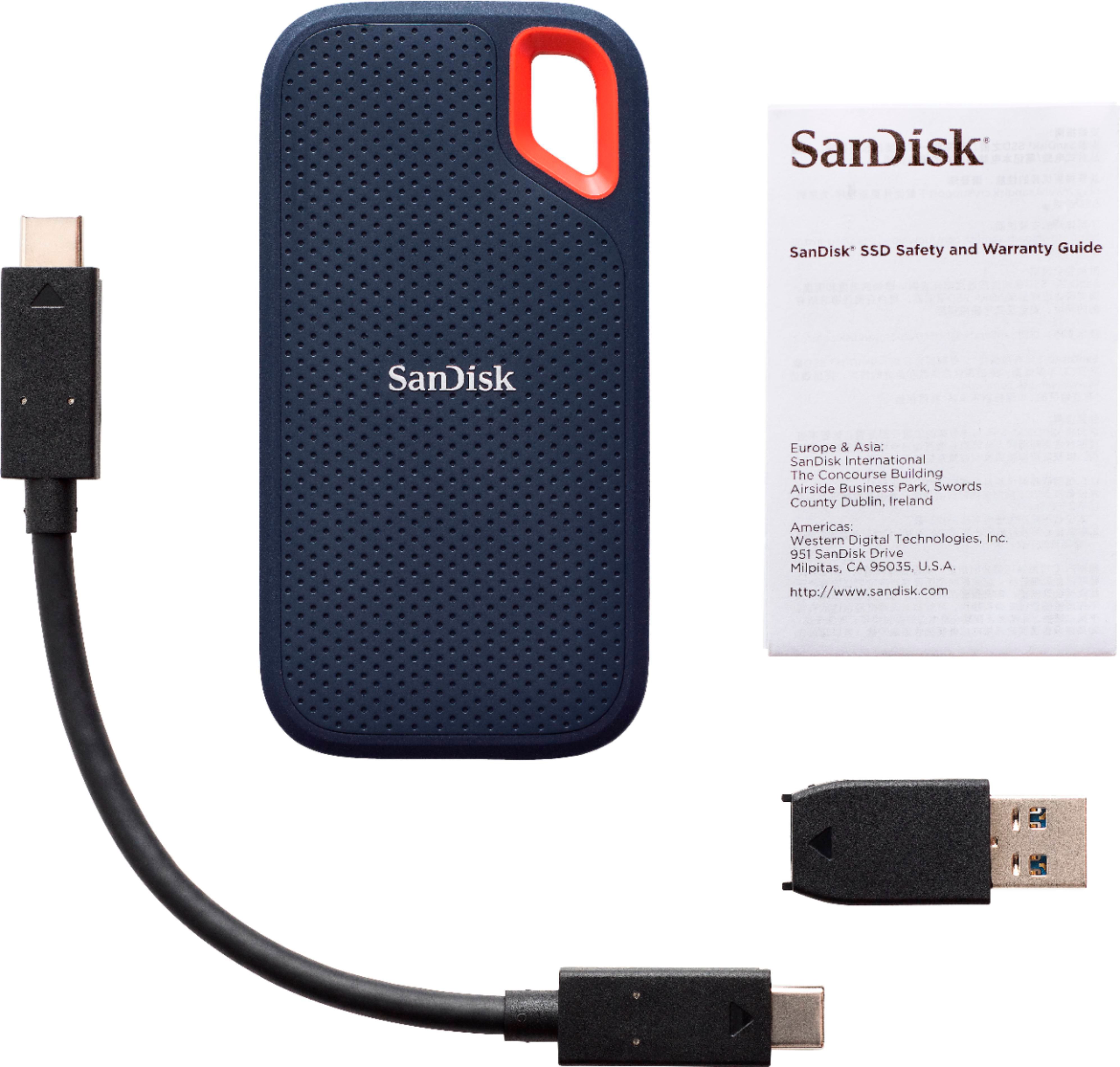
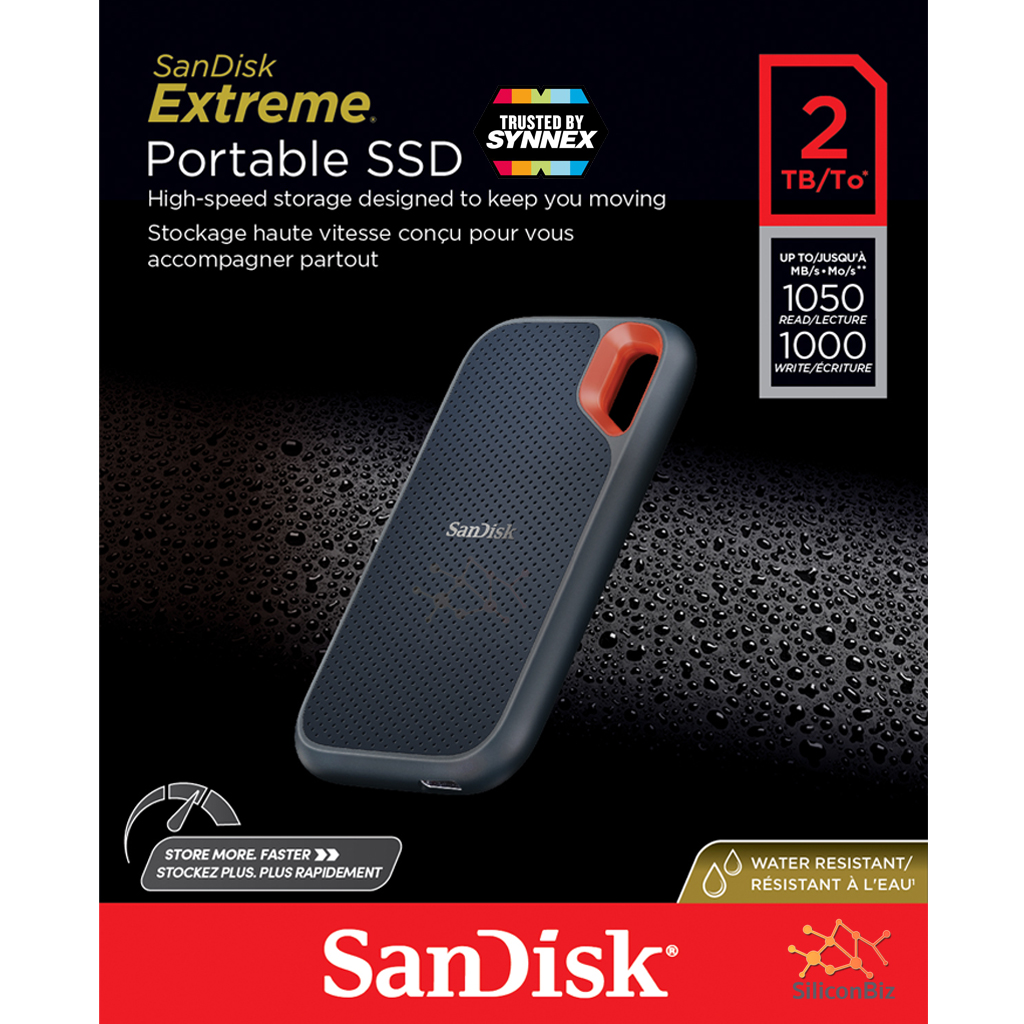
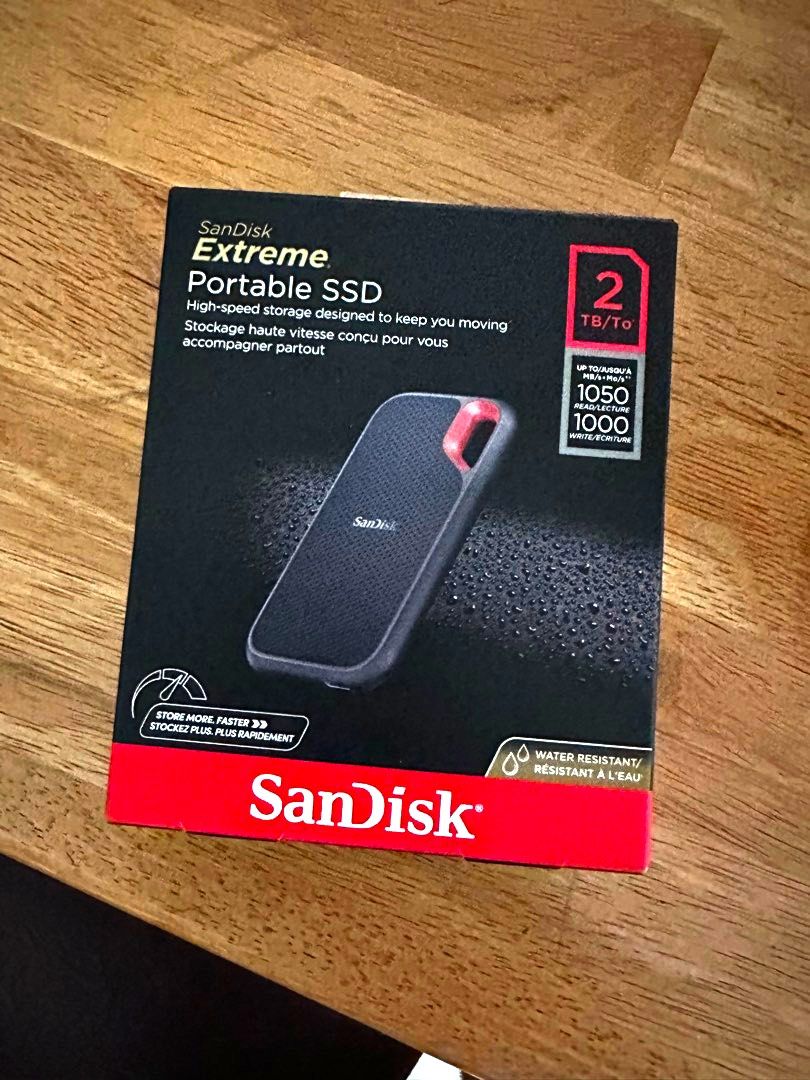
You need the SSD, a compatible USB cable, and a device with a working USB port. Most SanDisk Extreme Portable SSD packages include a USB-C cable and a USB-C-to-USB-A adapter, though package contents can vary by model and sales region.
Before connecting the drive, check these items:


- The SSD model: SanDisk Extreme Portable SSD and SanDisk Extreme PRO Portable SSD models have different speed ratings.
- The device port: USB-C and USB-A ports use different connectors and may support different speeds.
- The operating system: Windows, macOS, iOS, iPadOS, and Android handle external storage in different ways.
- Available power: Phones and tablets may need more power than the device can provide.
- The file system: The drive format affects which devices can read and write to it.
SanDisk Extreme Portable SSDs commonly arrive formatted as exFAT, a file system that works with both Windows and macOS. However, the exact format can differ by product, age, or previous use. Formatting a drive deletes its contents, so check the drive before you erase it.
The SSD is portable storage, not a cloud backup. If a file exists only on the SSD, losing or damaging the drive may also mean losing the file. Keep a second copy of important photos, videos, and documents.

How to Connect a SanDisk Extreme Portable SSD to a Computer
Connecting the SSD to a Windows PC or Mac normally requires only one cable. Use the cable supplied with the drive when possible because some charging cables do not support data transfer.
Connect the drive
- Remove the protective cap from the SSD.
- Plug the USB-C end of the cable into the SSD.
- Connect the other end to your computer.
- Wait several seconds for the computer to detect the drive.
- Open the drive in File Explorer on Windows or Finder on a Mac.
The SSD’s light may turn on when it receives power. A light does not always prove that the computer has mounted the drive, so also check the file browser.
Find the SSD in Windows
On a Windows 10 or Windows 11 computer:
- Open File Explorer.
- Select This PC in the left panel.
- Look under Devices and drives.
- Open the drive with the SanDisk name or its assigned drive letter.
If Windows does not show the drive in File Explorer, open Disk management:
- Right-click the Start button.
- Select Disk Management.
- Look for the external disk in the lower list.
- Check whether it has a drive letter or shows as unallocated.
Do not format the drive from Disk Management if it contains files you need. A missing drive letter may be fixable without erasing data, but an unallocated or uninitialized disk requires more care.


Find the SSD on a Mac
On macOS:
- Open Finder.
- Look in the Finder sidebar under Locations.
- Select the SanDisk drive.
- If the sidebar is hidden, choose View > Show Sidebar.
If Finder does not show the SSD, open Disk Utility:
- Open Applications > Utilities > Disk Utility.
- Select View > Show All Devices.
- Look for the external SanDisk drive.
- Check whether the volume is mounted.
Use Mount only when the drive is visible but not mounted. Do not choose Erase unless you have confirmed that you no longer need the files.

How to Transfer Files to and From the SSD
The easiest way to use a SanDisk Extreme Portable SSD is to treat it like another folder. You can drag files to it, copy files from it, or use it as a destination for a backup program.
Copy files on Windows
- Open File Explorer.
- Open the folder that contains your files.
- Select the files or folders.
- Press Ctrl+C or right-click and choose Copy.
- Open the SanDisk SSD.
- Press Ctrl+V or right-click and choose Paste.
You can also drag files from one folder to the SSD. For large transfers, wait until the copy window closes before disconnecting the drive.
Copy files on a Mac
- Open Finder.
- Locate the files or folders.
- Select them and press Command+C.
- Open the SanDisk SSD in the Finder sidebar.
- Press Command+V.
You can drag files as well. If the Mac shows a progress window, let the transfer finish before ejecting the drive.
Move photos and videos
For large video files, copy them rather than moving them first. After confirming that the files open correctly from the SSD, you can delete the originals if you need to free space.
A safer workflow is:
- Copy the files to the SanDisk SSD.
- Open several files from the SSD.
- Compare the file count and folder size with the original.
- Keep the original copy until you have confirmed the transfer.
- Eject the SSD.
A file can appear in a folder even when a transfer has not completed. The transfer window and file size provide better confirmation than the folder view alone.
Understand storage capacity
Drive makers use decimal capacity measurements. A drive sold as 1 TB contains about 1,000 GB of raw capacity. Windows and macOS may display a lower available number because they use different capacity calculations and because formatting uses some space.
A simple estimate can help:
- One hour of 4K video may use many gigabytes, depending on the camera and recording format.
- A photo library can contain thousands of files but still use less space than a small video archive.
- The amount of free space shown by the computer is the useful figure for planning transfers.
Do not fill the SSD completely. Keeping some free space can make file management easier and may help applications that use temporary files.


How to Safely Eject the SanDisk Extreme Portable SSD
Always eject the SSD before unplugging it. Ejecting tells the operating system to finish pending writes and close the drive properly.
Eject on Windows
- Close files that are open from the SSD.
- Close File Explorer windows using the drive.
- Select the Safely Remove Hardware icon in the taskbar.
- Choose the SanDisk drive.
- Wait for the message that it is safe to remove the device.
- Unplug the cable.
If the device says it is in use, close applications such as photo editors, video editors, backup tools, media players, and antivirus scanners. Try again after a few seconds.
Eject on a Mac
- Close files stored on the SSD.
- In Finder, select the eject icon beside the drive.
- Alternatively, right-click the drive and choose Eject.
- Wait until the drive disappears from Finder.
- Unplug the cable.
Do not unplug the SSD while its activity light is blinking during a file transfer. Sudden removal can interrupt writes and may damage the file system.

How to Use a SanDisk Extreme SSD With an iPhone or iPad
A SanDisk Extreme Portable SSD can work with compatible iPhone and iPad models, but the correct connector and power setup matter. Newer iPhones and iPads may use USB-C, while some older iPhones and iPads use a Lightning connector.
Connect the SSD to a USB-C iPhone or iPad
- Connect the SSD to the device with a USB-C data cable.
- Unlock the iPhone or iPad.
- Open the Files app.
- Tap Browse.
- Look under Locations for the external drive.
- Tap the drive to view its folders.
If the drive does not appear, the phone or tablet may not provide enough power. A powered USB hub or an Apple-compatible adapter with power input may help, depending on the device and setup.
Connect the SSD to a Lightning iPhone or iPad
Lightning devices often need an adapter designed to support external storage and power. A basic charging adapter may not provide enough power for a portable SSD.
A common setup uses:
- A Lightning-to-USB adapter that supports power input.
- The SanDisk SSD.
- A suitable power source.
- A USB data cable.
Compatibility can vary by iOS or iPadOS version, adapter, cable, and drive format. The SSD should appear in the Files app when the connection works.
Copy files with the Files app
To copy a file:
- Open Files.
- Find the file in On My iPhone, iCloud Drive, or another location.
- Touch and hold the file.
- Tap Move or Copy.
- Select the SanDisk drive.
- Choose a folder and confirm.
To copy photos, use the Photos app’s share menu and select Save to Files, then choose the external SSD as the destination.
How to Use a SanDisk Extreme SSD With an Android Phone
Many Android phones can access an external SSD through USB-C, but support depends on the phone, Android version, cable, and available power.


- Connect the SSD to the phone with a USB-C data cable.
- Unlock the phone.
- Open the Files app or the phone’s file manager.
- Look for the external storage device.
- Open the SSD and copy or move files.
Some phones show a notification when USB storage is connected. Tap that notification to open the drive.
If the SSD disconnects, the phone may not provide enough power. A powered USB-C hub can help, but not all hubs work with every phone. Avoid repeatedly reconnecting a drive that becomes hot or unstable.
Before formatting the SSD for Android use, confirm that the phone supports the selected file system. exFAT is widely useful, but support varies by device and operating system version.
How to Format a SanDisk Extreme Portable SSD
Format the SSD only when you have backed up its contents. Formatting removes the files and creates a new file system.
Choose the file system based on how you plan to use the drive:
| File system | Windows | macOS | Best use |
|---|---|---|---|
| exFAT | Read and write | Read and write | Sharing the SSD between Windows and Mac |
| APFS | Read and write | Read and write | Mac-focused use |
| NTFS | Read and write | Usually read-only without extra software | Windows-focused use |
| FAT32 | Read and write | Read and write | Older devices, with a 4 GB single-file limit |
Format on Windows
- Back up the SSD.
- Open File Explorer.
- Right-click the SanDisk drive.
- Select Format.
- Choose exFAT for broad Windows and Mac use.
- Enter a volume label if desired.
- Select Start.
- Confirm that you want to erase the drive.
For more control, use Disk Management, but confirm the correct disk before making changes. Selecting the wrong disk can erase another drive.
Format on a Mac
- Back up the SSD.
- Open Disk Utility.
- Select View > Show All Devices.
- Select the SanDisk drive or its volume.
- Select Erase.
- Choose a format such as exFAT or APFS.
- Select Erase.
- Select Done when the process finishes.
Choose APFS when the drive will stay with Macs. Choose exFAT when you need to exchange files with Windows computers or other devices.
The 4 GB file limit applies to FAT32. That limit can prevent a large video file from copying even when the SSD has plenty of free space.
How to Use the SSD for Backups
The SanDisk Extreme Portable SSD can hold manual backups, photo libraries, video projects, and exported documents. It is not automatically a backup unless a backup program or routine copies files to it.
For a basic manual backup:
- Create a folder named with the backup date.
- Copy important folders to the SSD.
- Wait for the transfer to finish.
- Open several copied files.
- Eject the SSD.
- Store it in a dry, protected location.
Mac users can use Time Machine if the drive is configured for that purpose. Windows users can use File History, Windows Backup, or another backup application. Check the requirements of the backup tool before formatting the drive because some tools work best with a particular file system.
A useful backup plan keeps at least two copies in different places. An SSD stored beside the computer does not protect against theft, fire, or other physical damage affecting both devices.


How to Improve Transfer Speed
The SanDisk Extreme Portable SSD can only reach its rated speed under suitable conditions. Actual performance depends on the SSD model, host device, USB standard, cable, file size, temperature, and workload.
To improve performance:
- Connect directly to the computer instead of using a low-quality hub.
- Use a cable rated for USB data transfer.
- Use a compatible USB 3.x or faster port.
- Keep the SSD away from heat sources.
- Transfer large groups of files instead of thousands of tiny files when practical.
- Close programs that are reading from or writing to the same drive.
- Keep enough free space for normal file operations.
A USB-C connector does not automatically mean high-speed USB. USB-C describes the shape of the connector, while USB 3.x, USB 4, and Thunderbolt describe different connection standards.
The advertised maximum speed is not a promise that every computer will reach it. A computer with a slower USB port can limit the SSD, and a cable or adapter can become the slowest part of the connection.

SanDisk Extreme Portable SSD Troubleshooting
Start with the least risky checks. Do not format the drive or initialize it until you have considered whether it contains important files.
The SSD does not appear
Try these steps:
- Disconnect and reconnect the cable.
- Try another USB port.
- Try the supplied cable or another known data cable.
- Connect the SSD directly to the computer.
- Restart the computer.
- Test the SSD on another compatible computer.
- Check Disk Management on Windows or Disk Utility on macOS.
If the drive works on another computer, the original computer, port, cable, or operating system may be the cause.
The SSD appears but cannot be opened
The drive may have a damaged file system, an unsupported format, or a mounting problem. Check the drive in Disk Management or Disk Utility.
Do not click Erase, Format, or Initialize if you need the existing files. If the data is important, stop using the drive and consider professional data recovery before attempting repair tools.
File copying stops or fails
Possible causes include:
- Not enough free space.
- A damaged source file.
- A damaged destination file system.
- A file system that does not support the file size.
- An unstable cable or USB port.
- The SSD disconnecting because of insufficient power.
- A file name or path that the operating system rejects.
Copy a small test file first. If small files work but one large file fails, check the file system and available space. If the drive disconnects during every transfer, test a different cable, port, and computer.
The SSD is slow
Slow performance may occur when using a USB 2.0 port, a low-speed adapter, many small files, an overloaded computer, or a hot drive. Check the connection standard and test with one large file.
Do not compare a real-world file transfer directly with the manufacturer’s maximum sequential speed. They measure different conditions.


The SSD becomes hot
Portable SSDs can feel warm during sustained transfers. Stop using the drive if it becomes unusually hot, repeatedly disconnects, smells unusual, or shows physical damage.
Let it cool on a hard surface with open airflow. Do not cover it with clothing or place it on bedding during a long transfer. If the problem continues, contact SanDisk support or the seller rather than opening the enclosure.
SanDisk has published support information and firmware guidance for certain Extreme and Extreme PRO Portable SSD models. Check the official support page for your exact model and serial number before applying any firmware update. Do not interrupt a firmware update or disconnect the drive during the process.

SanDisk Extreme Portable SSD Safety and Care
The SanDisk Extreme Portable SSD is designed for portable use, but portable does not mean indestructible. Protect it from crushing force, liquids, extreme heat, and damaged cables.
Follow these habits:
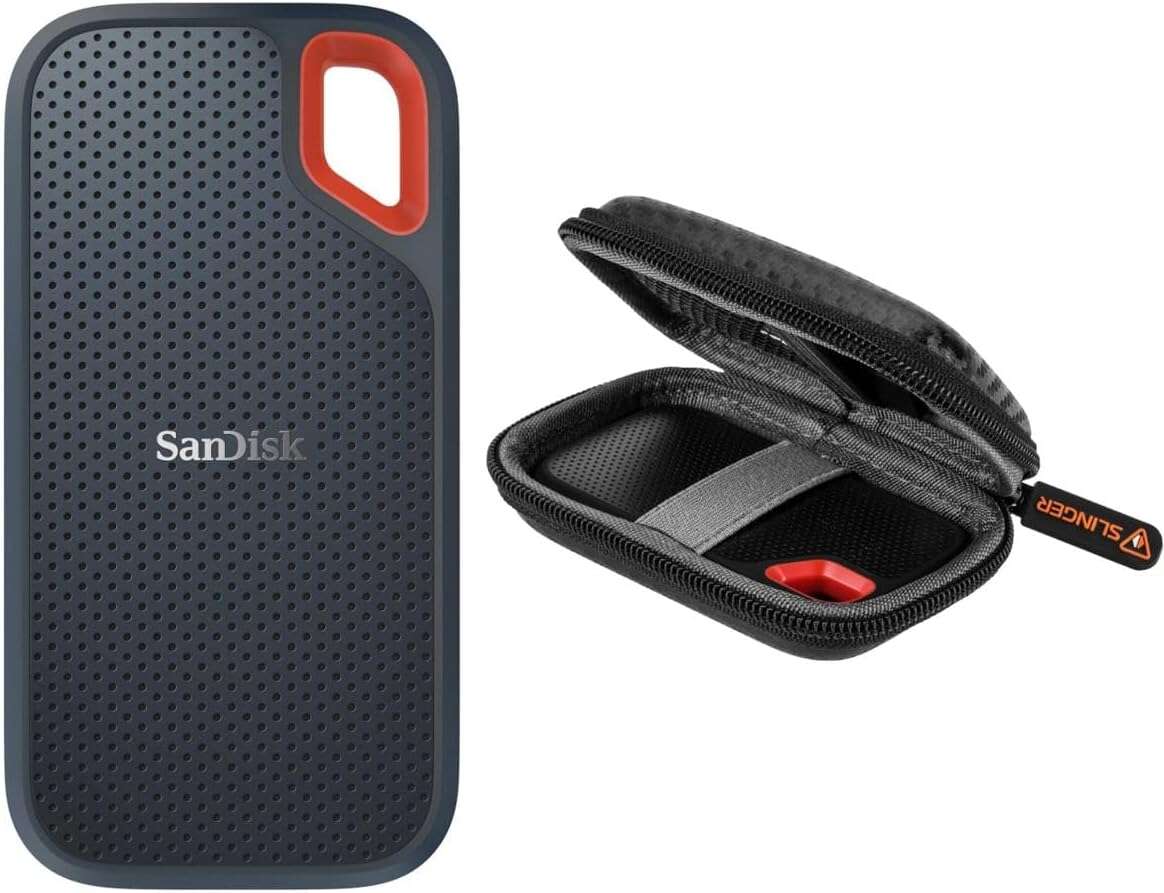
- Keep the SSD in a small case or protected pocket.
- Do not pull the cable from the connector.
- Eject the drive before unplugging it.
- Avoid using it while the cable is bent sharply.
- Keep liquids away from the USB port.
- Maintain a second copy of important data.
- Check the connector for dust before inserting the cable.
- Do not open the enclosure or attempt a home repair.
Water-resistance claims, impact ratings, and warranty terms apply only under the conditions stated by SanDisk for the specific model. They do not guarantee data recovery after every accident.

Frequently Asked Questions
Do I need to install SanDisk software?
No. Basic file transfers work through Windows File Explorer, macOS Finder, or a mobile file manager. SanDisk software may be useful for supported features, firmware, or security tools, but it is not normally required to copy files.
Can I use the SanDisk Extreme Portable SSD with both Windows and Mac?
Yes, if the drive uses a file system that both systems can read and write, such as exFAT. Back up the drive before changing its format.
Can I use the SSD to edit 4K video?
You can use it as a project or media drive when the computer, cable, software, and drive provide enough performance. Editing performance depends on the video codec, number of streams, computer hardware, and project settings.
Why does my phone not recognize the SSD?
The most common causes are insufficient power, an incompatible adapter, a charge-only cable, an unsupported file system, or a phone that does not support external storage. Test the drive with a computer and try a powered adapter if your phone supports one.
Can I leave the SSD plugged in all the time?
You can, but disconnect it when it is not needed. Eject it before removal, keep it ventilated, and use another backup for files that matter.
Final Recommendation
To use a SanDisk Extreme Portable SSD, connect it with a suitable data cable, open it in your device’s file manager, copy files, and safely eject it after each session. Use exFAT when you need Windows and Mac compatibility, and format the drive only after making a backup.
If the SSD fails to appear, test the cable, port, computer, and power setup before changing the format. For valuable files, stop before using destructive repair or formatting options and seek data recovery help when necessary.
For model-specific speed ratings, firmware, warranty terms, and compatibility details, use the official SanDisk support page and search for the exact model printed on your SSD.