Is Crucial A Good SSD Brand: Honest Buying Guide
Yes. Crucial is a good SSD brand for most buyers in the United States. Crucial drives come from Micron, a major U.S.-based memory and storage maker. The brand offers solid SATA and NVMe SSDs for laptops, desktops, gaming PCs, and external storage.
The right Crucial SSD still depends on the model. A higher-end TLC NVMe drive can be a strong choice for gaming and creative work. A low-cost QLC drive may be better for light home use, but it may slow down during very large file writes. Price, capacity, speed, warranty, and your computer’s slot all matter.

Who Makes Crucial SSDs?
Crucial is Micron’s consumer storage brand. Micron designs and makes many of the memory components used in SSDs, including NAND flash and DRAM.


This gives Crucial a useful advantage. It is not only a label placed on parts bought from unknown suppliers. Micron has long worked in memory and storage. Its product pages also publish key details such as interface type, capacity, endurance ratings, and warranty terms.
That does not make every Crucial SSD the best choice. SSDs within the same brand can use different NAND types, controllers, and cache designs. Always check the exact model.
Crucial has also sold memory upgrades, portable SSDs, and internal drives through U.S. retailers such as Amazon, Best Buy, Newegg, and direct channels. Availability and pricing can change, so compare the current model page with the seller’s listing before you buy.

What Makes a Crucial SSD Good?
Crucial SSDs are attractive because they usually offer a balance of price, trusted manufacturing, and broad compatibility.
1. Micron has strong memory expertise
Micron is one of the major global makers of NAND and DRAM memory. Crucial benefits from that connection. The brand can use Micron’s storage technology and support systems rather than relying only on third-party parts.
This does not guarantee a perfect drive. It does provide more confidence than buying a no-name SSD with unclear components or support.
2. Crucial offers several SSD types
The brand has offered drives for different needs:
- SATA SSDs: Useful for older laptops and desktops.
- PCIe NVMe SSDs: Much faster than SATA when the computer supports NVMe.
- TLC SSDs: A balanced choice for speed, endurance, and price.
- QLC SSDs: Often cheaper per gigabyte, but less suited to long, heavy write workloads.
- Portable SSDs: Useful for backups, media files, and moving data between computers.
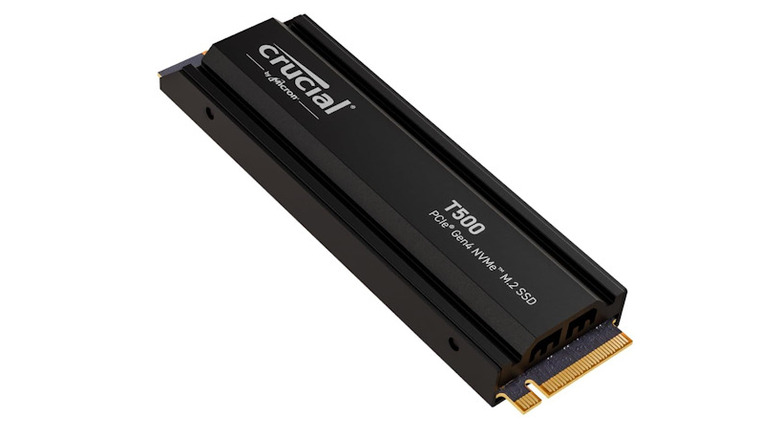
The model name matters more than the logo. For example, the Crucial T500 and the Crucial P3 Plus serve different buyers. One is built for higher performance, while the other focuses more on value and capacity.
3. Crucial provides useful software
Crucial has offered storage tools such as Crucial Storage Executive for supported internal drives. The software can display drive health, update firmware, and provide other management functions.
Software support can make maintenance easier, but check that your exact SSD and operating system are supported.


4. Crucial drives are widely compatible
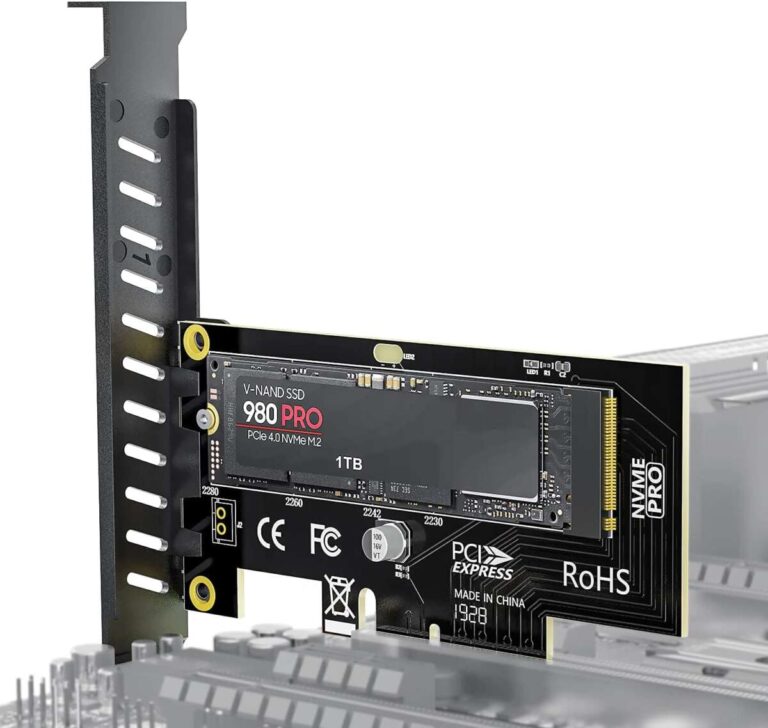
A 2.5-inch SATA SSD can upgrade many older Windows laptops and desktop PCs. An M.2 NVMe drive can work well in newer systems.
Compatibility still requires care. An M.2 slot may support:
- SATA only
- NVMe only
- Both SATA and NVMe
- A specific PCIe generation
- A specific physical length, such as 2280
Check the computer manual or motherboard guide before ordering.
Crucial SSD Model Types Compared
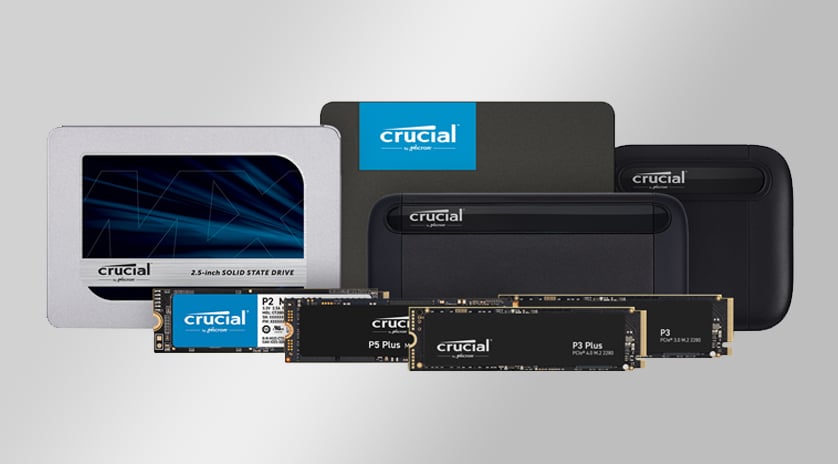
The best Crucial SSD depends on the workload. This table gives a general guide, not a substitute for the exact model specifications.
| Crucial SSD type | Best for | Main strength | Main limit |
|---|---|---|---|
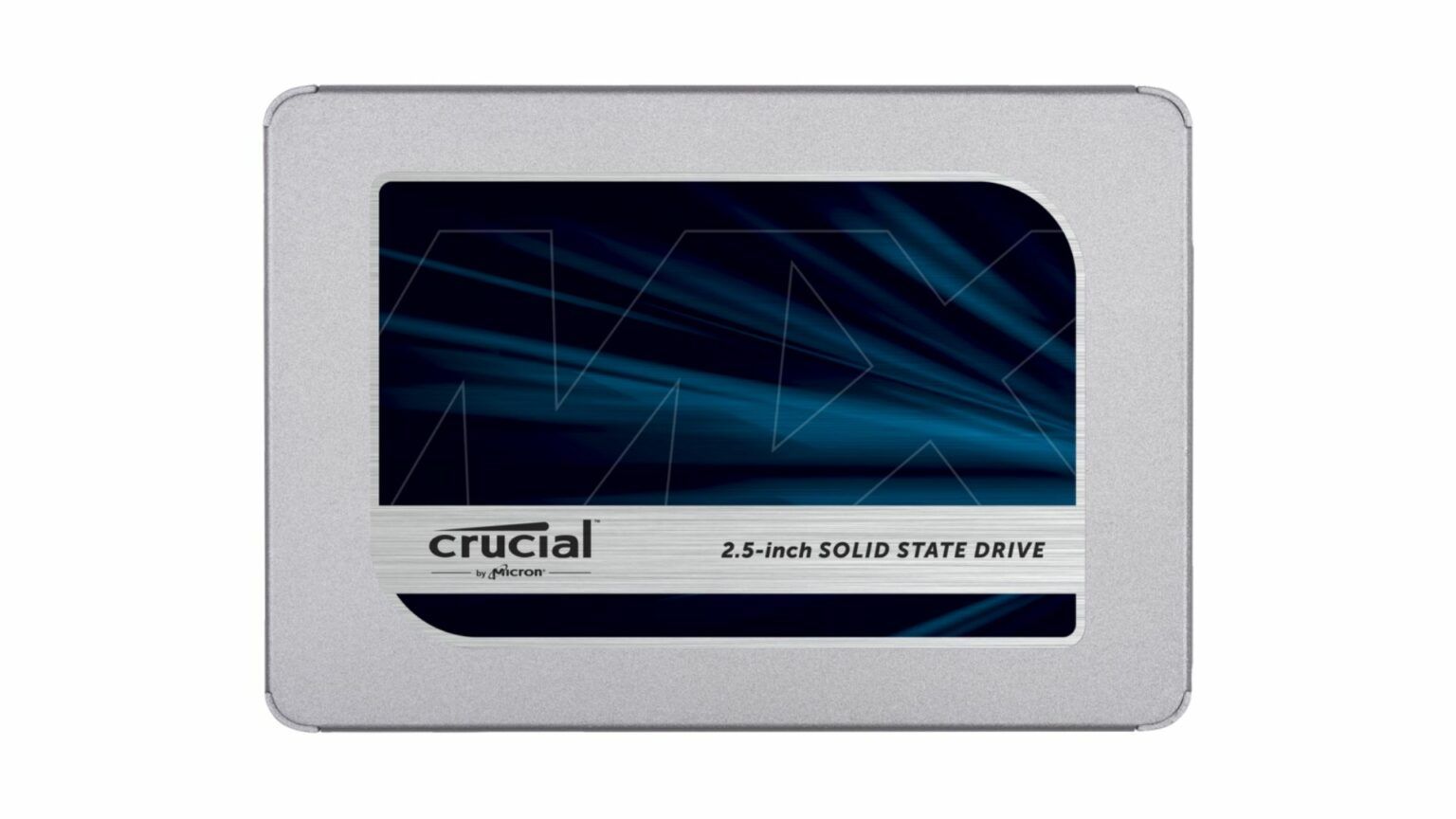
| SATA SSD, such as the MX500 family | Older laptops, office PCs, basic upgrades | Strong improvement over a hard drive | Limited by the SATA interface |
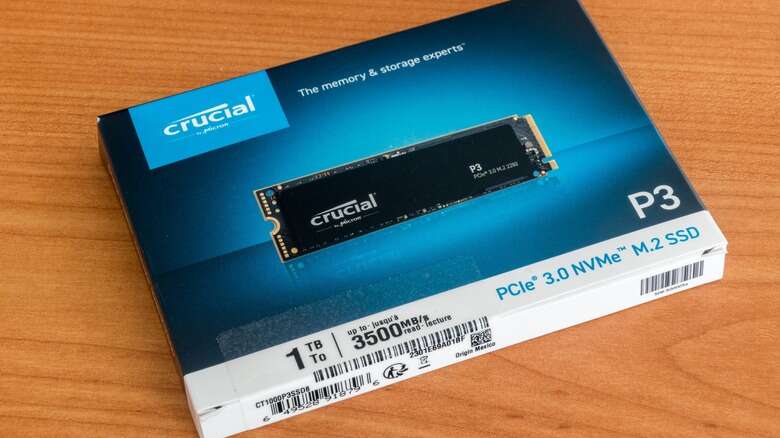
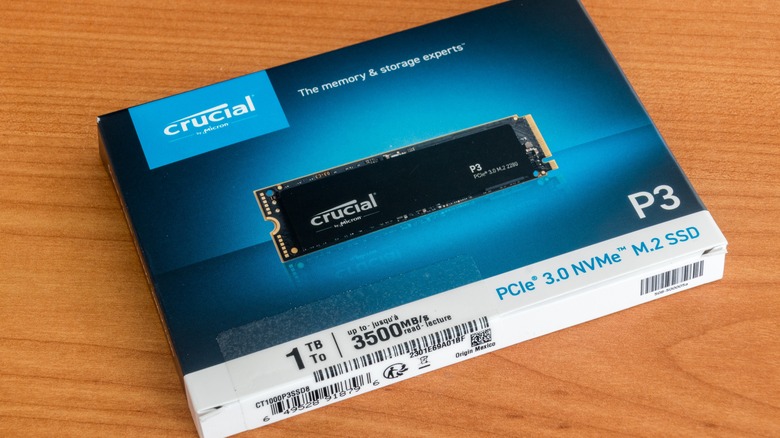
| Budget NVMe, such as the P3 or P3 Plus family | Web use, school, office work, game storage | Low cost and good everyday speed | QLC NAND and cache limits may affect long writes |
| Performance NVMe, such as the T500 family | Gaming, editing, demanding desktop use | High PCIe performance | Needs a compatible PCIe slot and good cooling |
| Portable SSD | Backups, travel, file transfers | Simple external storage | USB speed and cable quality can limit performance |
Crucial MX500: A good SATA choice
The MX500 has been one of Crucial’s best-known SATA SSD families. It is designed for computers with a 2.5-inch SATA bay or compatible SATA connection.
It makes sense when:
- Your computer has no NVMe support.
- You want to replace a hard drive.
- You need a reliable boot drive for basic use.
- You want an affordable upgrade for an older PC.
It is not the right choice when your computer supports PCIe NVMe and you want the highest available storage speed. SATA has a much lower practical ceiling than modern PCIe SSDs.
Crucial P3 and P3 Plus: Good value with limits
The P3 and P3 Plus families target buyers who want inexpensive NVMe storage. These drives commonly use QLC NAND, depending on the specific model and revision.
They can work well for:
- Windows and everyday apps
- School and office work
- Game libraries
- General file storage
- A secondary SSD
QLC stores four bits per memory cell. This helps lower cost and increase capacity. The trade-off is that sustained writes may slow after the drive’s temporary cache fills. Copying a few files may feel fast. Writing hundreds of gigabytes in one session can be a different story.
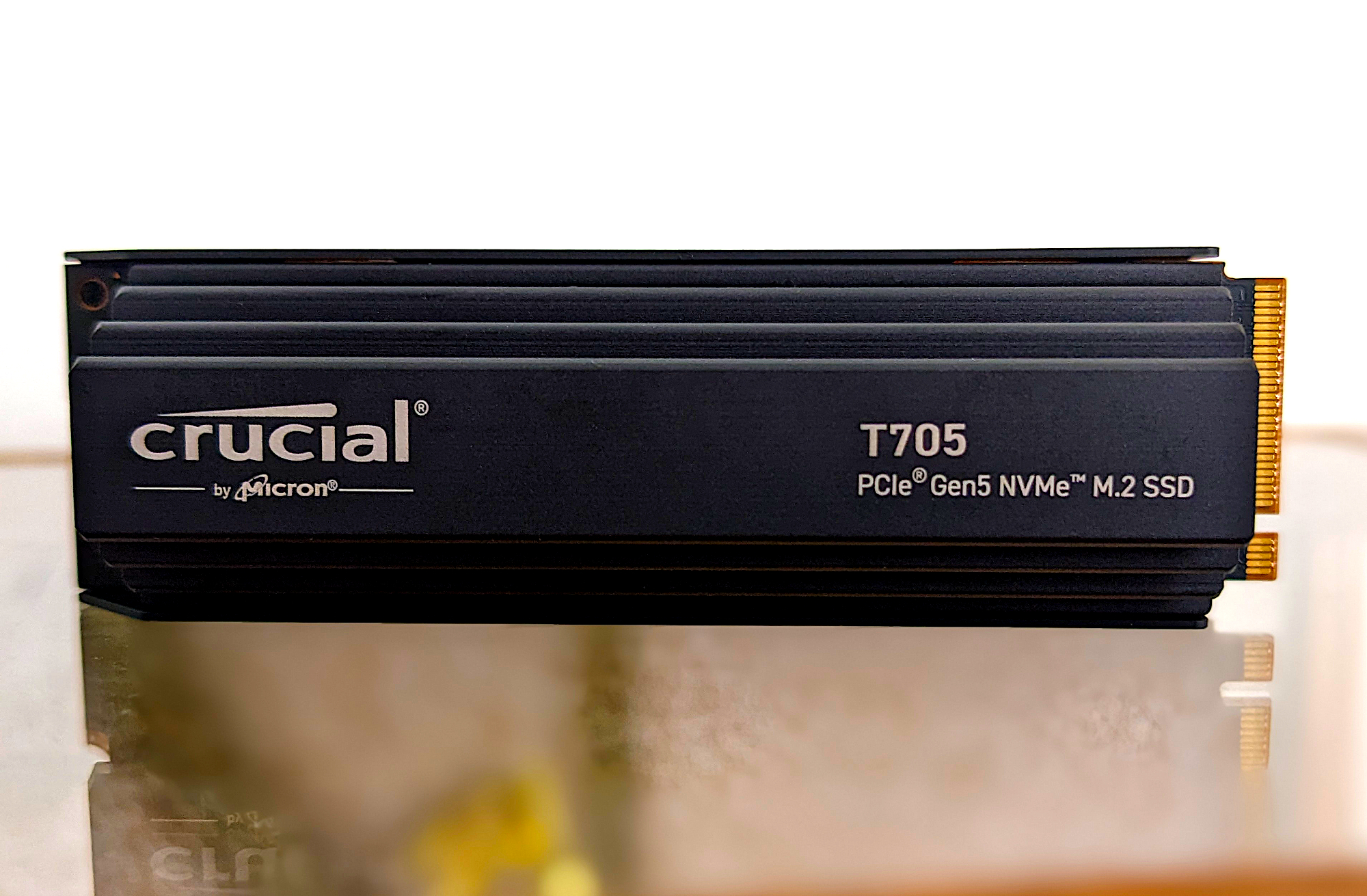
Crucial T500: Better for demanding use
The T500 family is aimed at users who want high PCIe 4.0 NVMe performance. It is more suitable for frequent large transfers, modern games, photo work, video work, and demanding applications.
A fast SSD may reduce load times and improve file transfers. It will not make every task several times faster. Many programs remain limited by the CPU, GPU, network, or software design.
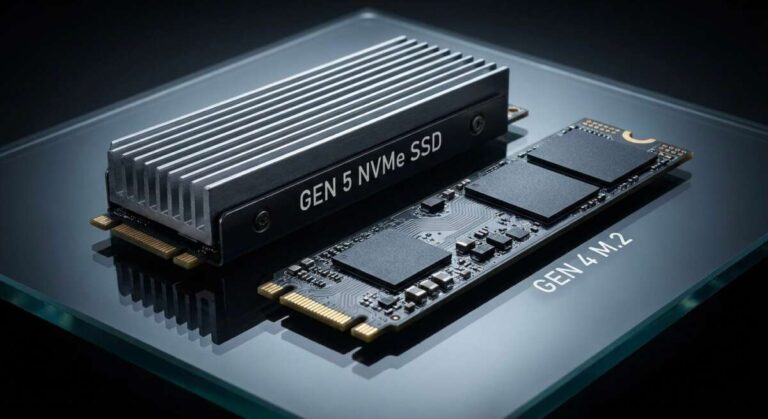
A T500 also needs the right system. Installing a PCIe 4.0 drive in an older PCIe 3.0 slot will not deliver full PCIe 4.0 performance.


Are Crucial SSDs Reliable?
Crucial SSDs can be reliable when used within their design limits, but no SSD brand is immune to failure.
Reliability depends on several factors:
- NAND type
- Controller quality
- Firmware
- Total data written
- Drive temperature
- Power stability
- Available free space
- Manufacturing variation
- Age and use pattern
A drive’s TBW rating, or terabytes written rating, estimates how much data the manufacturer expects the drive to write during its warranty period. It is useful for comparison, but it is not a promise that the drive will fail immediately after reaching that number.
A drive can fail before its TBW rating. Another may continue working long after it. Keep backups regardless of brand.
Does QLC make a Crucial SSD unreliable?
Not necessarily. QLC SSDs can be suitable for normal home and office use. Their main weakness is usually sustained write performance and, in some models, lower endurance compared with TLC designs.
A QLC drive may be a reasonable choice for a game library that is read often but written less often. It is less attractive for a workstation that repeatedly writes large video files, virtual machines, databases, or scratch data.
How long will a Crucial SSD last?
There is no single lifespan for every Crucial SSD. The answer depends on the model and workload.
For light use, an SSD may serve for many years. Heavy write workloads place greater stress on the flash memory. Firmware issues, controller failure, power problems, and other faults can also end a drive’s life without warning.
Treat endurance ratings as planning data, not as a service-life guarantee.
Warranty matters
Crucial warranty terms vary by model, capacity, region, and condition. Some drives use a limited years-based warranty, while others may also have a TBW limit. Review the official warranty document for the exact product before purchase.
The Crucial warranty page is the best place to check current terms for U.S. buyers.
Are Crucial SSDs Good for Gaming?
Yes. A Crucial SSD can be a good gaming drive, especially when it replaces a mechanical hard drive.
An SSD can improve:
- Game launch times
- Level loading
- Windows startup
- Patch installation
- File transfer speed
- System responsiveness
The improvement depends on the game and the rest of the PC. Moving from a hard drive to any decent SSD usually creates a much bigger change than moving from a midrange NVMe SSD to a faster premium NVMe model.


Which Crucial SSD is best for gaming?
Choose based on the computer and budget:
- Older PC or laptop: A Crucial SATA SSD may be enough.
- PCIe 3.0 system: A compatible NVMe model can offer good value.
- Modern PCIe 4.0 gaming PC: A higher-performance model such as the T500 may make sense.
- Large game library on a budget: A higher-capacity P3 Plus may be suitable if long write speed is not a major concern.
The PlayStation 5 has specific requirements for internal M.2 SSDs, including speed, size, and cooling. Do not assume that every Crucial NVMe drive is suitable. Check Sony’s current PS5 storage guidance and the exact drive specifications before installation.

Are Crucial SSDs Good for Video Editing and Other Heavy Work?
Some are. For frequent large writes, choose a TLC-based NVMe SSD with a suitable endurance rating rather than buying only by capacity or advertised peak speed.
Video editing can involve:
- Large source files
- Cache files
- Proxy files
- Temporary renders
- Export files
- Repeated rewrites
A budget QLC SSD may still work as a media library or backup drive. It may be less suitable as the main scratch disk for daily 4K or higher-resolution production.
For heavy workloads, compare:
- NAND type
- TBW rating
- Sustained write tests from trustworthy reviews
- Thermal behavior
- Warranty terms
- Capacity after leaving free space
Peak sequential speed is only one part of the decision. A drive can advertise a very high burst speed but slow during a long transfer.

Crucial SSD vs. Samsung, WD, and Kingston
Crucial is competitive with major SSD brands, but the comparison must use exact models.
| Factor | Crucial | Samsung | Western Digital | Kingston |
|---|---|---|---|---|
| Brand background | Micron memory and storage brand | Major electronics and storage maker | Storage and flash company | Memory and storage brand with several product lines |
| Model range | SATA, NVMe, portable | SATA and NVMe | SATA, NVMe, portable | SATA, NVMe, portable |
| Best comparison method | Compare exact model specs | Compare exact model specs | Compare exact model specs | Compare exact model specs |
| Main buying concern | Model-specific NAND, cache, and warranty | Price and model tier | Model revisions and specifications | Parts and model revision differences |
No brand wins every category. A Samsung 990 Pro, WD Black SN850X, Crucial T500, and Kingston KC3000 may all be good choices, but they have different prices, controllers, firmware, heat output, and endurance ratings.
A fair comparison should check:
- PCIe generation
- TLC or QLC NAND
- DRAM or host memory buffer design
- Random read and write performance
- Sustained write behavior
- TBW rating
- Warranty
- Current U.S. price per terabyte
Avoid choosing from a brand name alone.
How to Choose the Right Crucial SSD
Use this process before you buy.
Step 1: Check the interface
For a 2.5-inch SATA replacement, buy a SATA SSD.
For an M.2 drive, confirm whether your slot supports SATA, NVMe, or both. An M.2 shape does not automatically mean NVMe compatibility.


Step 2: Check the physical size
Most desktop and laptop M.2 SSDs use the 2280 size. Some small laptops use shorter drives, such as 2230 or 2242.
The number describes the approximate dimensions:
- 22 millimeters wide
- 80 millimeters long for a 2280 drive
Confirm the supported length before buying.
Step 3: Match the drive to the workload
Choose a SATA model for basic upgrades in older systems. Choose a budget NVMe model for everyday use and game storage. Choose a higher-end TLC NVMe model for frequent large transfers and demanding applications.
Step 4: Buy enough capacity
A 500GB drive may work for a basic system. A 1TB drive is often more comfortable for Windows, applications, and several large games. A 2TB or larger drive can make sense for media files and large game libraries.
Do not fill an SSD completely. Keeping some free space can help maintain performance and gives the system room for temporary data.
Step 5: Compare the complete specifications
Look beyond the advertised maximum speed. Check:
- NAND type
- Controller
- DRAM or host memory buffer
- TBW
- Warranty length
- Required heatsink
- Operating temperature
- Included cloning software, if any
- Current price
If two drives cost nearly the same, a TLC model with a stronger endurance rating may be the better long-term choice for heavy use.

Common Problems With Crucial SSDs
Most installation problems come from compatibility, setup, or cloning—not from the brand itself.
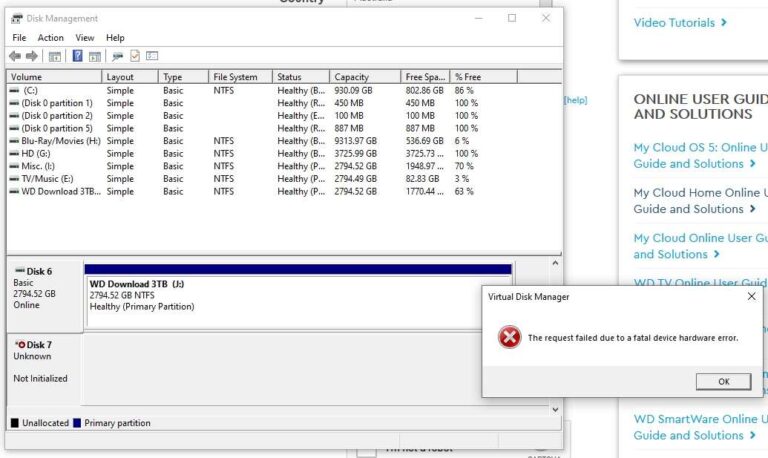
The computer does not detect the SSD
Check these items in order:
- Turn off the computer and reseat the drive.
- Confirm that the slot supports the drive’s interface.
- Check BIOS or UEFI storage settings.
- Open Windows Disk Management to see whether the drive needs initialization.
- Test another slot or cable when possible.
- Update the motherboard firmware only when the manufacturer’s instructions support it.
Do not initialize or format the drive if it contains data you need. Formatting can make recovery harder.
The SSD is detected but Windows will not boot
The cloning process may have copied files without creating a usable boot setup. The source and destination may also use different partition styles, such as MBR and GPT.


Check the cloning software’s instructions and confirm the correct boot mode in UEFI. Keep the original drive untouched until the new drive starts successfully.
The SSD becomes slow
Possible causes include:
- The temporary write cache is full.
- The drive is nearly full.
- The SSD is overheating.
- The workload exceeds the model’s sustained write ability.
- The firmware needs an update.
- The source or destination device is slower than the SSD.
Check drive health and temperature with a trusted tool. Do not repeatedly run large benchmark tests on a drive that already shows errors or unusual behavior.
The SSD shows errors or disappears
Stop writing important data to it. Shut down the computer if the drive repeatedly disconnects, and use a current backup or professional recovery service if the files matter.
Firmware updates can fix some problems, but updating firmware may carry a data-loss risk. Back up first and follow the exact Crucial instructions.
How to Maintain a Crucial SSD
Good habits help any SSD last longer.
- Keep current backups of important files.
- Leave free space on the drive.
- Keep firmware and system software updated when appropriate.
- Use a heatsink when the drive or motherboard calls for one.
- Avoid unnecessary benchmark loops.
- Shut down safely during storms or unstable power.
- Monitor health data, but do not treat it as a complete guarantee.
- Replace a drive that shows repeated errors, even if it is still under warranty.
For important work, use the 3-2-1 backup approach: keep three copies of data, on two types of storage, with one copy stored separately.
Cloud storage can help, but sync is not always a backup. If ransomware or accidental deletion affects the main folder, the change may sync to other devices.
Pros and Cons of Crucial SSDs
Advantages
- Backed by Micron’s memory and storage expertise
- Broad range of SATA and NVMe models
- Good options for budget and midrange systems
- Strong upgrade path for older hard-drive-based computers
- Useful support and drive-management tools
- Widely available in the United States
Limitations
- Model quality and performance vary
- Budget QLC models may slow during long writes
- Peak speed does not show sustained performance
- Some NVMe drives need better cooling
- Warranty terms differ by model
- No SSD should be used without a separate backup

Final Verdict: Is Crucial a Good SSD Brand?
Crucial is a good SSD brand for most U.S. buyers, but the exact model matters more than the brand name.
Choose a Crucial SATA SSD for an older computer that lacks NVMe support. Choose a budget NVMe model for everyday work and affordable game storage. Choose a higher-end TLC NVMe model for heavy writes, editing, and demanding PC use.
Before you order, confirm the interface, physical size, NAND type, endurance rating, warranty, and current price. That short check can prevent most SSD buying mistakes.
FAQs
Is Crucial better than a no-name SSD?
Usually, Crucial is the safer choice because it has an established manufacturer, published specifications, support resources, and warranty channels. Still, compare the exact model and its current warranty terms.
Is Crucial SSD good for a laptop?
Yes, if the SSD matches the laptop’s interface and physical size. Older laptops often need a 2.5-inch SATA drive, while newer models may use a short M.2 NVMe drive.
Is Crucial P3 Plus good for gaming?
It can be a good value option for game storage and normal gaming. Its QLC design may slow during very large, sustained writes, so a TLC model is a better fit for heavy transfers or demanding production work.
Should I buy SATA or NVMe?
Buy SATA when your computer only supports SATA or when the price and capacity matter most. Buy NVMe when your computer supports it and you want faster transfers and lower load times in tasks that can use the extra speed.
Does an SSD need a heatsink?
Not always. Many SATA SSDs do not need one. A fast NVMe drive may benefit from a motherboard heatsink or a suitable aftermarket heatsink, especially in a desktop with poor airflow.
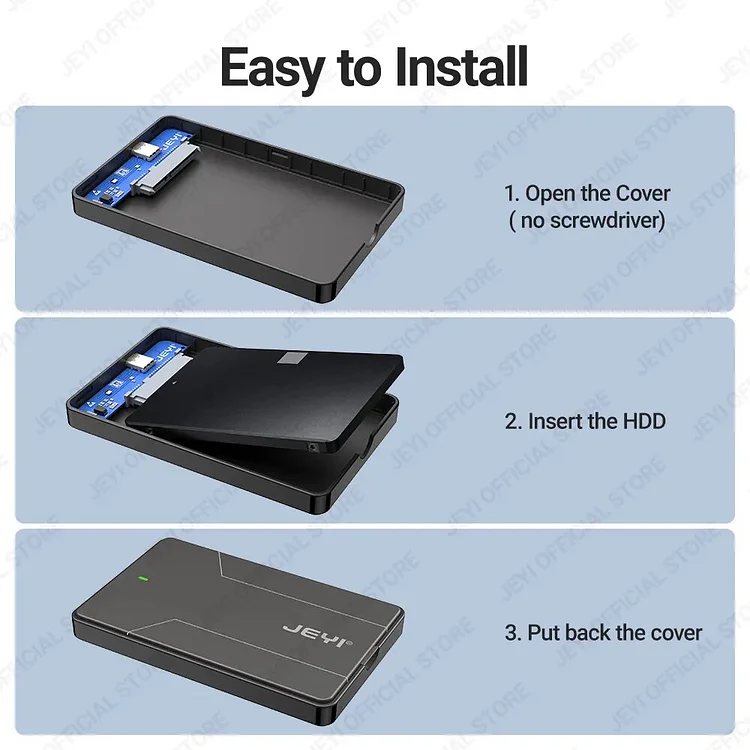
Can I use a Crucial SSD as an external drive?
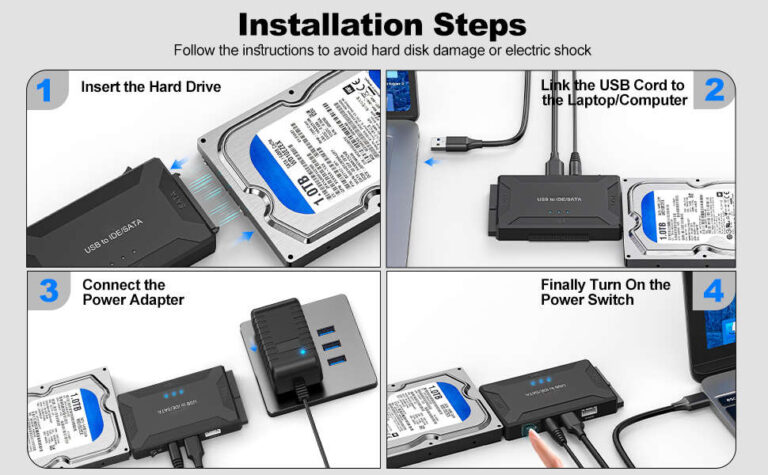
Yes, with a compatible USB enclosure or portable SSD enclosure. Match the enclosure to the drive type, and check the USB standard so the enclosure does not limit performance.
What should I do before replacing my boot drive?
Back up your files, record your software licenses, check the new drive’s compatibility, and keep the old drive unchanged until the replacement boots and your files are confirmed.
Key Takeaways
- Crucial is a reputable SSD brand owned by Micron.
- The best Crucial SSD depends on the model and workload.
- SATA drives suit older PCs and laptops.
- NVMe drives suit newer systems with compatible M.2 slots.
- TLC is generally better for heavy writing than QLC.
- Check TBW, warranty, cooling, and sustained performance.
- Back up important data because every SSD can fail.