How Much Faster Is An SSD Than An HDD: Speed Test
For most everyday tasks in the United States, an SSD feels 2 to 5 times faster than an HDD. It can load Windows, apps, and games much faster because it has almost no seek time.
The exact gain depends on the task:
- Starting Windows: often 2–3 times faster
- Opening apps: commonly 2–5 times faster
- Copying large files: about 2–10 times faster
- Loading game levels: often 2–4 times faster
- Small file work: sometimes more than 10 times faster
- sequential speed: an NVMe SSD can be 10–40 times faster than a hard drive
These are practical ranges, not guarantees. Your computer, drive model, interface, workload, and free space all affect the result.


SSD vs. HDD: What Is the Difference?
An HDD, or hard disk drive, stores data on spinning magnetic platters. A small arm moves across the platters to read and write data.
An SSD, or solid-state drive, stores data in flash memory. It has no spinning disks or moving read arm. That difference gives an SSD much lower access time.
Think of an HDD as a record player that must move to the right track. An SSD is more like a set of electronic shelves. It can find data without waiting for a motor or moving arm.
Both drives can store the same files and run the same operating system. The main difference is how quickly they can find and transfer those files.
How Much Faster Is an SSD in Real Use?
An SSD is usually most helpful when a computer must open many small files. This includes starting Windows, launching apps, loading game assets, and scanning folders.
The table below shows typical ranges for modern consumer drives. Actual results vary by model and test method.
| Task | Typical HDD result | SATA SSD result | NVMe SSD result |
|---|---|---|---|
| Sequential read speed | 80–200 MB/s | 450–550 MB/s | 1,500–7,400+ MB/s |
| Random access time | About 5–15 ms | Often below 0.1 ms | Often below 0.1 ms |
| Windows startup | 30–90 seconds | 15–30 seconds | 10–25 seconds |
| Large file copy | Slowest | About 2–5 times faster | About 3–10 times faster |
| App launch | Slow | Noticeably faster | Usually similar to or slightly faster than SATA |
| Game loading | Slowest | Often 2–4 times faster | Often similar to or faster than SATA |
The startup and loading figures are broad examples. They are not laboratory guarantees. A clean Windows installation on a fast computer may start much faster than a computer filled with startup programs.
Sequential speed
Sequential speed measures how quickly a drive reads or writes a large block of data in order. Copying a large video file is a common example.
A typical 7,200-rpm desktop HDD may reach about 100–200 MB/s under favorable conditions. A SATA SSD can often reach about 500–550 MB/s. That makes a SATA SSD roughly 2.5 to 5 times faster for large sequential reads.
NVMe SSDs use the PCIe interface. Many PCIe 3.0 models reach around 3,000–3,500 MB/s. PCIe 4.0 models may reach about 5,000–7,400 MB/s or more.
That means a high-end NVMe SSD can show a sequential read speed that is 15 to 40 times higher than a hard drive. You may not feel the full difference in normal desktop use because other parts of the computer can become the limit.


Random access speed
Random access is often more important than headline transfer speed. It measures how quickly a drive finds many small pieces of data stored in different locations.
An HDD must move its read arm and wait for the platter to rotate. An SSD can access flash memory electronically. This can make small-file access more than 10 times faster, and sometimes much more in synthetic tests.
This is why an SSD can make an older PC feel new even when the processor and memory stay the same. Windows responds faster, folders open sooner, and programs spend less time waiting for storage.

Why Does an SSD Feel So Much Faster?
An SSD feels faster mainly because it removes mechanical delays. Transfer speed matters, but access time often matters more during everyday work.
When Windows starts, it may read thousands of separate files. An HDD may need to move its arm repeatedly. An SSD can handle these requests with far less delay.
SSD advantages that affect speed
- No moving parts: The drive does not wait for a platter or actuator.
- Low latency: It responds to data requests much sooner.
- Higher input/output operations per second: It can handle many small requests at once.
- Better multitasking: Background tasks are less likely to make the system feel stuck.
- More consistent response: Performance does not depend on where data sits on a platter.
An SSD does not make every part of a computer faster. It does not directly increase CPU speed, graphics performance, or internet bandwidth.
Still, storage affects many tasks. A slow drive can hold up the whole system while the processor waits for data.
SATA SSD vs. NVMe SSD: Which Is Faster?
An NVMe SSD is usually faster than a SATA SSD, but the difference is smaller than the difference between either SSD type and an HDD.
A SATA SSD connects through the SATA interface, which limits real-world sequential speed to roughly 500–550 MB/s. An NVMe SSD connects through PCIe and can transfer several gigabytes per second.
| Drive type | Common interface | Typical sequential read speed | Best use |
|---|---|---|---|
| HDD | SATA | 80–200 MB/s | Low-cost bulk storage |
| SATA SSD | SATA | 450–550 MB/s | Windows, apps, general use |
| PCIe 3.0 NVMe SSD | PCIe 3.0 | 2,000–3,500 MB/s | Fast general computing |
| PCIe 4.0 NVMe SSD | PCIe 4.0 | 5,000–7,400+ MB/s | Large files, demanding work |
| PCIe 5.0 NVMe SSD | PCIe 5.0 | Up to about 10,000–14,000 MB/s on some models | Specialized high-speed work |
For browsing, office work, and most gaming, a SATA SSD and NVMe SSD can feel fairly similar. Both remove the main delay caused by an HDD.
NVMe becomes more useful when you edit large videos, move large project files, work with virtual machines, or use software that can process many storage requests at once.

How Long Does It Take to Copy Files?
The time needed to copy a file depends on its size and the slower device in the transfer.
Use this simple estimate:
Copy time = file size ÷ transfer speed
For a hypothetical 100 GB file:
- At 150 MB/s from an HDD: about 11 minutes
- At 500 MB/s from a SATA SSD: about 3 minutes and 25 seconds
- At 3,000 MB/s from an NVMe SSD: about 34 seconds


These are ideal calculations. Real transfers may take longer because of file-system overhead, thermal limits, drive cache, source-device speed, and many small files.
A transfer between two fast SSDs may approach the speed of the slower SSD. A transfer from an HDD to an NVMe SSD will usually be limited by the HDD.
Why real copy speeds can be lower
Drive specifications often show peak sequential performance. Your result may be lower when:
- The source drive is slow
- The files are small or scattered
- The SSD is nearly full
- The SSD cache is exhausted
- The drive is hot and reduces speed
- The USB enclosure or cable is slow
- The computer uses an older PCIe or SATA connection
- Antivirus software scans every file
- Many programs are using storage at the same time
Large, continuous files usually copy faster than thousands of small files.
How Much Faster Is an SSD for Windows and Apps?
An SSD can cut startup and app-loading time by roughly half or more compared with an HDD, but the result depends on the computer.
A system that takes 60 seconds to reach the desktop with an HDD might take 20–30 seconds with a SATA SSD. A fast NVMe SSD may reduce it further, but the improvement from SATA to NVMe is often modest for basic startup.
App launches can show a similar pattern. Programs such as web browsers, office suites, photo tools, and development environments often load many small files. The lower SSD latency helps them open sooner.
The improvement may be smaller when:
- The app is already cached in memory
- The program depends on an internet connection
- The CPU is too slow
- The computer has limited RAM
- The app performs heavy processing after loading
- Windows has many startup programs
An SSD improves waiting time. It does not replace more RAM or a faster processor when those parts are the real bottleneck.

How Much Faster Is an SSD for Gaming?
An SSD usually reduces game loading times, but it does not automatically increase frame rate.
The biggest benefit appears between levels, when launching a game, or when the game streams data from storage. A game that takes 60 seconds to load from an HDD might take 20–35 seconds from an SSD.
Frame rate is usually controlled by the graphics card and processor. Moving a game from an HDD to an SSD may not increase average frames per second.
Some newer games can use fast storage systems more deeply. Microsoft’s DirectStorage documentation explains how supported games can use high-speed storage to improve asset loading. The game, operating system, drive, and hardware must all support the feature.


For most gamers, the practical advice is simple: install frequently played games on an SSD. Keep an HDD for games that load less often or for large archives.
When Is an HDD Still the Better Choice?
An HDD remains useful when capacity and price matter more than speed.
For example, a large HDD can store backups, family photos, videos, disk images, and other files that do not need frequent access. HDDs also work well as secondary storage in desktop PCs and network storage systems.
An HDD may be the better choice when you need:
- Several terabytes at the lowest purchase cost
- A backup drive for files used occasionally
- Long-term local storage with a separate backup
- A large media library
- A secondary drive for less important data
An HDD is not a backup by itself. A failed drive can lose its data, so important files should exist in more than one place.
The best setup for many U.S. home users is a combination:
- Use an SSD for Windows and applications.
- Use an SSD for games and active projects.
- Use an HDD for large files and archives.
- Keep a second backup in another drive or location.

What Can Limit SSD Performance?
An SSD can be much faster than an HDD and still feel slow if another part of the system is limiting performance.
Check these factors before buying the fastest drive available.
Drive interface
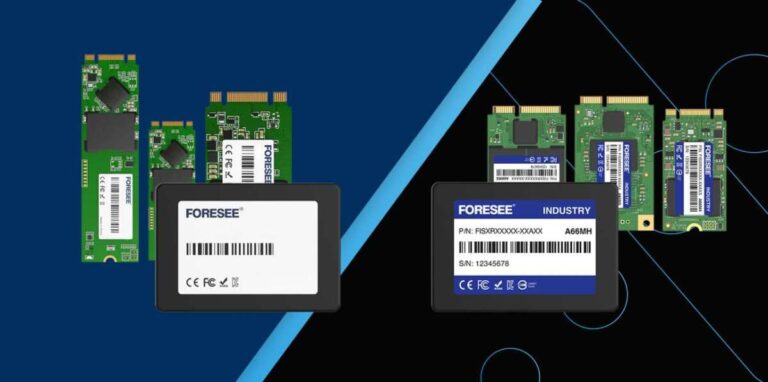
A 2.5-inch SATA SSD cannot reach NVMe speeds. A motherboard must also have a compatible M.2 slot for an NVMe drive.
An M.2 slot describes the physical shape, not always the communication standard. Some M.2 slots support SATA, some support NVMe, and some support both. Check the motherboard or laptop manual before buying.
Available space
SSDs often slow down when they are nearly full. Leave free space for temporary data, background maintenance, and normal operation.
There is no single universal free-space rule for every SSD, but keeping at least 10% to 20% available is a practical target. The exact requirement depends on the drive and workload.
Thermal throttling
Fast NVMe SSDs can produce heat during long transfers. If the drive becomes too hot, its controller may reduce speed to protect the hardware.


A motherboard heatsink or suitable cooling can help, especially in a desktop PC with a PCIe 4.0 or PCIe 5.0 drive. Do not block laptop vents or install hardware without checking the device maker’s instructions.
Drive condition
An aging HDD may be slower than its original rating because of fragmentation, bad sectors, or mechanical wear. An SSD may also slow down because of heavy writes, low free space, or a failing controller.
Back up important files before diagnosing a drive. A speed test cannot repair a failing disk.
Should You Replace an HDD With an SSD?
Replace the HDD first when the computer feels slow during startup, app launches, file browsing, or general response.
An SSD upgrade is especially worthwhile for:
- Windows 10 or Windows 11 computers that still use an HDD
- Older laptops with a replaceable 2.5-inch drive
- Desktop computers with an open SATA port
- Systems that pause while opening folders or programs
- PCs that take several minutes to become responsive
Before buying, check:
- Whether the computer accepts a 2.5-inch SATA drive or an M.2 SSD
- The maximum supported drive size
- Whether the laptop has a removable drive
- Whether you need a drive-cloning adapter
- Whether you have a complete backup
- Whether the operating system supports the new hardware
A clean Windows installation can avoid old software clutter, but cloning is often easier. Follow the SSD maker’s instructions and verify the clone before erasing the original drive.
Common Mistakes When Comparing SSD and HDD Speed
Comparing peak numbers as if they were normal use
A drive’s maximum read speed comes from a controlled test. It may not represent app launches, game loading, or small-file work.
Use sequential numbers for large file transfers. Use latency and random performance to understand system responsiveness.
Assuming NVMe is always worth the extra cost
NVMe is faster on paper, but many everyday tasks do not need its full bandwidth. A good SATA SSD can be a major upgrade from an HDD.
Choose NVMe when the price difference is reasonable or your work involves large files and heavy storage loads.
Ignoring the source drive
Copying from an HDD to an NVMe SSD does not make the copy run at NVMe speed. The HDD may remain the limiting device.
Forgetting backups
Replacing a drive can involve cloning, partition changes, or a fresh installation. Keep a verified backup before starting.
Buying an SSD that does not fit
Check the physical size, interface, keying, mounting space, and system support. An M.2 drive may not work in every M.2 slot.


Key Takeaways
- An SSD is usually 2–5 times faster than an HDD in everyday use.
- A SATA SSD is often about 2.5–5 times faster for large sequential transfers.
- An NVMe SSD can be 10–40 times faster than an HDD in peak sequential tests.
- The largest practical improvement comes from lower access latency.
- SSDs improve startup, app launches, file searches, and game loading.
- An SSD does not directly increase gaming frame rates.
- HDDs still make sense for low-cost bulk storage and backups.
- Check the computer’s interface and drive support before upgrading.
Frequently Asked Questions
Is an SSD 10 times faster than an HDD?
Sometimes, but not for every task. An NVMe SSD can be more than 10 times faster in sequential benchmark results. In normal Windows use, the improvement is more often about 2–5 times faster.
Is a SATA SSD faster than a 7,200-rpm HDD?
Yes. A SATA SSD commonly reaches around 500–550 MB/s, while a 7,200-rpm HDD often reaches about 100–200 MB/s. The SSD also has much lower access latency.
Does an SSD make a computer faster or only start faster?
An SSD can improve the whole feel of a computer. Windows starts sooner, programs open faster, files load more quickly, and multitasking causes fewer storage-related pauses. It does not increase CPU or graphics performance.
Will an SSD improve gaming FPS?
Usually not. An SSD mainly reduces loading times and can improve how quickly a game streams data. The graphics card and processor usually control frame rate.
Is an HDD better for backups?
An HDD can provide low-cost backup capacity, especially for large files. However, one HDD is not enough protection by itself. Keep important files in at least two separate locations.
How much faster is an external SSD than an external HDD?
An external SSD can be several times faster, but the result depends on the USB port, cable, enclosure, and source drive. A USB 3.x connection may limit both drives, while a slower USB port can reduce the advantage.
Conclusion
For most people, moving Windows from an HDD to an SSD is one of the most noticeable upgrades available. A SATA SSD can make a slow computer feel much more responsive, while an NVMe SSD offers higher speeds for demanding file work.
Choose an SSD for the operating system, applications, and active games. Choose an HDD when you need affordable, high-capacity storage. If you are upgrading, confirm the computer’s drive interface, back up your files, and compare real-world needs rather than peak benchmark numbers.