How To Pair iClever Headphones: Easy Bluetooth Guide
Most iClever headphones pair by entering Bluetooth pairing mode, opening the Bluetooth settings on your device, and selecting the headphones from the list. On a phone, tablet, or computer in the United States, the full process usually takes less than two minutes.
The exact button may differ by model. Many iClever headphones use the Power or Bluetooth button to start pairing. Some earbuds enter pairing mode when you open the charging case, while others need a long press on the case or earbud buttons.
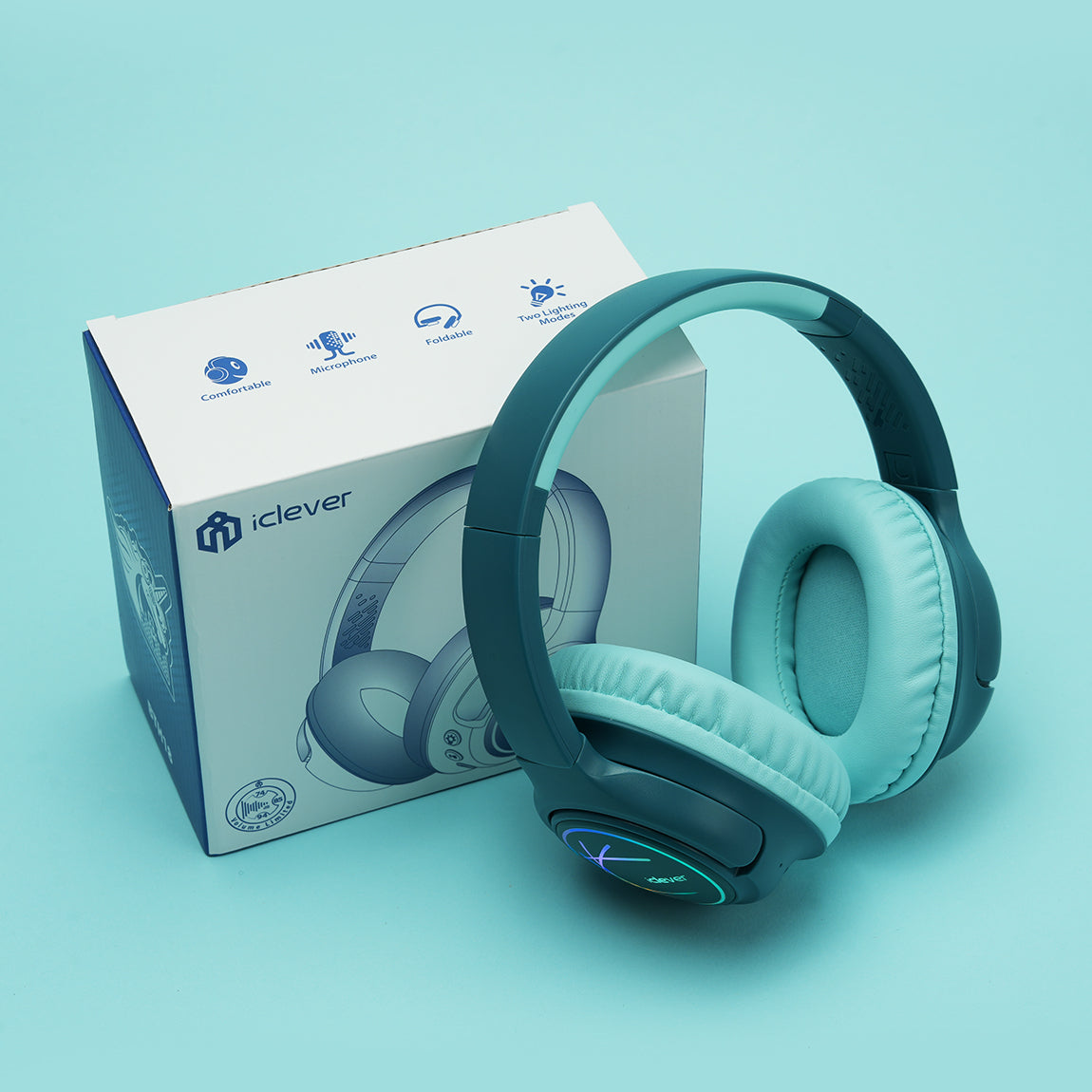
Before You Pair Your iClever Headphones
Check these items first:
- Charge the headphones and case if the battery is low.
- Keep the headphones within a few feet of the device.
- Turn off Bluetooth on devices that may connect to the headphones first.
- Remove any protective film from the charging contacts on new earbuds.
- Know the model name printed on the headphones, case, box, or manual.


Bluetooth pairing creates a wireless link between two devices. The first connection is called pairing. After that, the headphones will often connect automatically when Bluetooth is on and the headphones are powered on.
Some iClever headphones have different modes, such as Bluetooth, wired audio, and sometimes a wireless 2.4 GHz mode. If a model includes a USB transmitter, pairing with the transmitter may work differently from pairing directly with a phone.
The name shown in the Bluetooth menu may include “iClever,” the model number, or a shortened name. Select the entry that matches the label on your headphones.

How to Put iClever Headphones in Pairing Mode
The headphones must be discoverable before your phone or computer can find them.
For iClever Bluetooth headphones
- Turn the headphones off if they are already on.
- Press and hold the Power or Bluetooth button.
- Continue holding until the indicator flashes, often blue and red or blue and white.
- Listen for a voice prompt such as “pairing” or “Bluetooth pairing.”
- Open Bluetooth settings on your device and look for the iClever name.
A quick press may only turn the headphones on. A longer press is usually needed for pairing mode. The timing varies by model, so use the manual for the exact button instruction when the standard method does not work.
For iClever true wireless earbuds
- Put both earbuds in the charging case.
- Open the lid.
- Remove the earbuds, or press the case button if the model has one.
- Wait for the indicator to flash or for a pairing prompt.
- Select the earbuds in your device’s Bluetooth menu.
Some earbuds pair with each other first. If only one earbud works, the earbuds may have lost their left-right connection. In that case, place both earbuds in the case and follow the reset steps in the model’s instructions.
How to tell that pairing mode is active
Your iClever headphones are likely ready to pair when:
- The status light flashes in a repeating pattern.
- A voice prompt says “pairing” or “Bluetooth mode.”
- The headphones appear under available Bluetooth devices.
- The headphones do not connect to an older device automatically.
A steady light often means the headphones are already connected. If they do not appear in the device list, turn them off and start pairing mode again.


Pair iClever Headphones With an iPhone or iPad
The steps below apply to current iPhone and iPad versions, although menu names can vary slightly by software version.
- Put the iClever headphones into pairing mode.
- Open Settings.
- Tap Bluetooth.
- Turn Bluetooth on.
- Wait under Other Devices.
- Tap the iClever headphones.
- Wait until the status changes to Connected.
If the headphones ask for a passcode, try 0000 or 1234 only if the manual lists one. Many newer Bluetooth headphones do not require a code.
If the iPhone shows the headphones but will not connect
Tap the information button beside the headphone name and choose Forget This Device. Then restart pairing mode and select the headphones again.
If the headphones are connected but sound comes from the iPhone speaker, open the Control Center, tap the audio output control, and select the iClever headphones. Also check the volume on both the iPhone and the headphones.
An iPhone can remember several Bluetooth devices, but the headphones may connect to another nearby device first. Temporarily turn off Bluetooth on nearby tablets, laptops, or phones to prevent this conflict.

Pair iClever Headphones With an Android Phone or Tablet
Android menus differ between manufacturers, but the basic process is similar.
- Put the iClever headphones in pairing mode.
- Open Settings.
- Tap Connected devices, Connections, or Bluetooth.
- Select Pair new device if that option appears.
- Tap the iClever headphones under available devices.
- Approve the pairing request.
- Confirm that the status says Connected.
On some Android devices, you may need to tap Scan before the headphones appear.
If the headphones connect for calls but not music, tap the gear or settings icon beside the iClever name. Make sure Media audio is enabled. If your model supports calls, also check that Phone calls is enabled.
Android pairing problems
If the headphones do not appear:
- Turn Bluetooth off, wait a few seconds, and turn it on again.
- Restart the headphones and place them back into pairing mode.
- Move away from other Bluetooth devices.
- Remove the headphones from the list of saved devices.
- Restart the Android device.
Do not repeatedly tap a name that is not clearly your headphones. Nearby devices may appear in the same list.

Pair iClever Headphones With a Windows PC
Windows 11 and Windows 10 use similar Bluetooth steps.
Windows 11
- Put the iClever headphones into pairing mode.
- Select Start and open Settings.
- Choose Bluetooth & devices.
- Turn Bluetooth on.
- Select Add device.
- Choose Bluetooth.
- Select the iClever headphones.
- Wait for Windows to confirm the connection.


Windows 10
- Open Start and select Settings.
- Choose Devices.
- Select Bluetooth & other devices.
- Turn Bluetooth on.
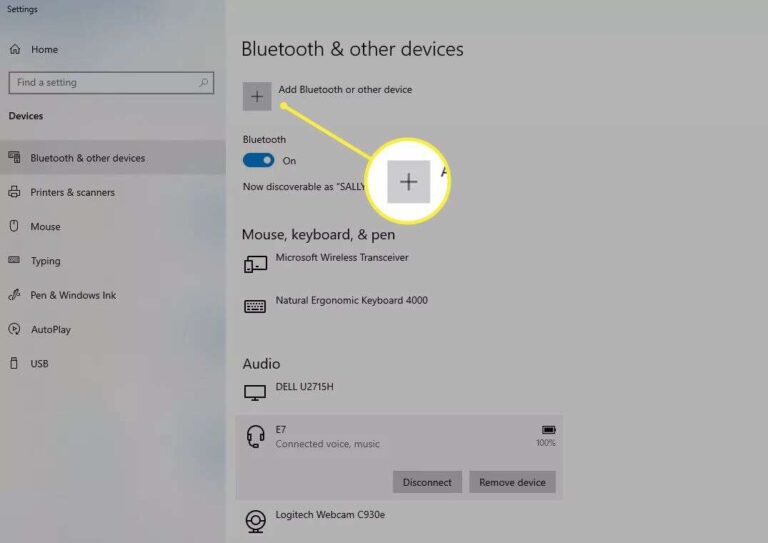
- Click Add Bluetooth or other device.
- Select Bluetooth.
- Choose the iClever headphones.
After pairing, select the speaker icon in the Windows taskbar. Choose the iClever headphones as the sound output device.
For calls, open the sound or meeting app settings and choose the iClever headphones for both the speaker and microphone. Some computers show separate “headphones” and “headset” options. The headset option enables the microphone but may reduce music quality during a call.
If a Windows computer has no Bluetooth
A Bluetooth USB adapter may add Bluetooth to a desktop computer. The adapter needs compatible Windows drivers. A USB charging cable alone usually does not create a Bluetooth connection.
If your iClever package includes a USB transmitter, plug the transmitter into the computer and follow the instructions for that model. A transmitter connection is not always the same as standard Bluetooth pairing.

Pair iClever Headphones With a Mac
- Put the iClever headphones into pairing mode.
- Open the Apple menu.
- Select System Settings.
- Choose Bluetooth.
- Turn Bluetooth on.
- Find the iClever headphones under nearby devices.
- Click Connect.
On older macOS versions, open System Preferences and select Bluetooth instead.
After the connection is complete, select Control Center in the menu bar, choose Sound, and select the iClever headphones. You can also open System Settings > Sound and select them as the output device.
If the headphones connect but the Mac keeps using its built-in speakers, manually select the iClever headphones as the sound output. Video and music apps may also have their own audio output settings.
What to Do When iClever Headphones Will Not Pair
Pairing failures usually come from one of four causes: the headphones are not in pairing mode, they are connected to another device, the saved Bluetooth record is faulty, or the battery is too low.
Use this order because it starts with simple, low-risk checks.
1. Confirm pairing mode
Turn the headphones off. Turn them on again while holding the Power or Bluetooth button until the light flashes or a pairing prompt plays.
If the headphones immediately connect to an old device, disable Bluetooth on that device. Then try pairing again.
2. Charge the headphones
Low power can prevent pairing or cause the connection to drop. Charge the headphones and, for earbuds, charge the case too. Check that the earbuds sit correctly on the charging contacts.
3. Forget the old Bluetooth record
On your phone or computer, open the saved Bluetooth devices list. Select the iClever headphones and choose Forget, Remove device, or Unpair. Then pair them as a new device.


This is often more effective than repeatedly selecting the same failed connection.
4. Restart both devices
Turn the headphones off and restart the phone, tablet, or computer. Restarting clears temporary Bluetooth errors without deleting your other files.
5. Reset the headphones
A reset can erase saved connections and restore the headphones to a fresh pairing state. The method depends on the model. Common designs include:
- Holding the Power button for a longer period.
- Holding two buttons at once.
- Pressing a case button with both earbuds inside.
- Tapping an earbud several times.
Do not guess if the headphones have an unusual control layout. Check the official iClever manual for the exact model because the wrong button sequence may do nothing or change another setting.
6. Test with another device
Try pairing the headphones with a different phone or computer. If they work there, the first device likely has a Bluetooth setting or driver issue. If they fail on several current devices after a reset and full charge, the headphones or case may need support.
iClever Headphones Pair but Have No Sound
A successful Bluetooth connection does not always mean the correct audio output is selected.
Check the following:
- Raise the volume on the source device.
- Raise the headphone volume if the model has separate controls.
- Select the iClever headphones as the audio output.
- Make sure the app is not muted.
- Disconnect other audio devices.
- Check whether the headphones are in call mode.
- Test music in another app.
On Android, open the Bluetooth settings for the headphones and confirm that Media audio is enabled. On Windows and Mac, select the headphones in the system sound settings.
If the sound is weak or distorted, move closer to the source device and reduce interference from walls, crowded wireless areas, or other active Bluetooth devices. Bluetooth range depends on the device, obstacles, radio conditions, and model design, so a distance that works in one room may not work through several walls.
How to Connect iClever Headphones to Two Devices
Some iClever models support multipoint or dual-device connections. Others support only one active Bluetooth connection at a time.
If your model supports multipoint:
- Pair the headphones with the first device.
- Turn Bluetooth off on the first device.
- Pair the headphones with the second device.
- Turn Bluetooth back on for the first device.
- Confirm that both devices show a connection, if the model supports this feature.
The exact process may vary. Read the product manual before assuming that a second saved device means both devices can stay connected at once.
If the headphones connect to the wrong device, turn off Bluetooth on the unwanted device, connect to the preferred device, and then restore Bluetooth on the other device if needed.

Pairing iClever Headphones in Wired or USB Mode
Some iClever headphones can work with a 3.5-millimeter audio cable. Wired mode does not use Bluetooth pairing. Connect one end of the cable to the headphones and the other end to the audio source.


If your model includes a USB transmitter, connect the transmitter to the computer or console and follow the model’s instructions. A transmitter may use a dedicated wireless link rather than the Bluetooth menu.
A USB cable may charge the headphones but may not carry audio. Do not assume that every USB connection supports sound. Check the manual or product specifications for your model.

Common Pairing Mistakes to Avoid
Holding the button for too little time
A short press may only power on the headphones. Hold the button until the indicator changes or the voice prompt confirms pairing.
Pairing while the headphones are connected elsewhere
A nearby phone, tablet, or computer may claim the connection first. Disable Bluetooth on those devices before starting again.
Selecting the wrong device
Look for the iClever name or model number. Do not select an unknown device just because it appears first.
Resetting without checking the model
Reset methods differ. Use the model’s manual instead of trying random button combinations.
Ignoring the charging case
For true wireless earbuds, the case supplies power and may control pairing. Clean, dry charging contacts can help if one earbud will not turn on.
Using a cable and Bluetooth at the same time
Some headphones switch modes when a cable is connected. Unplug the cable before trying Bluetooth pairing unless the manual says both modes can work together.

Pairing Checklist
Use this short checklist when you need the fastest path:
- Charge the headphones.
- Turn off Bluetooth on nearby devices.
- Enter pairing mode.
- Open Bluetooth settings on the phone or computer.
- Select the iClever name.
- Choose the headphones as the audio output.
- Forget and re-pair the device if the connection fails.
- Check the official manual before performing a reset.
Frequently Asked Questions
Why are my iClever headphones not showing up in Bluetooth?
They may not be in pairing mode, may be connected to another device, or may have a low battery. Turn them off, disable Bluetooth on nearby devices, charge them, and start pairing mode again.
What is the usual iClever Bluetooth pairing code?
Many iClever headphones pair without a code. If a device requests one, check the model manual. Do not assume a code unless the instructions for that model provide it.
Can I pair iClever headphones with a smart TV?
Often, yes, if the TV supports Bluetooth audio. Open the TV’s Bluetooth audio settings and place the headphones in pairing mode. Some TVs support Bluetooth keyboards or remotes but not Bluetooth headphones, so check the TV manual.
Why does only one iClever earbud work?
The earbuds may not be synchronized with each other, or one earbud may not be charged. Place both earbuds in the case, confirm both are charging, and use the model-specific reset procedure if needed.
How do I disconnect iClever headphones without deleting them?
Turn off Bluetooth on the source device, choose Disconnect, or turn off the headphones. Use Forget or Remove device only when you want to delete the saved pairing record.


Conclusion
To pair iClever headphones, place them in Bluetooth pairing mode, open Bluetooth settings on your phone or computer, and select the matching iClever device. If pairing fails, charge the headphones, disable Bluetooth on other nearby devices, remove the old pairing record, and try again.
The next step is simple: find the model number on your headphones or case, then follow the matching button instructions in the official iClever manual if the standard pairing process does not work.