How To Make Wired Headphones Wireless: Easy Guide
You can make most wired headphones wireless by plugging them into a small Bluetooth receiver. The receiver connects to your phone, tablet, Windows PC, or other Bluetooth source. Your headphones then receive sound through the receiver instead of through a cable.
For most people in the United States, this is the easiest setup for an iPhone, Android phone, laptop, or Bluetooth-enabled TV. You usually need three things:
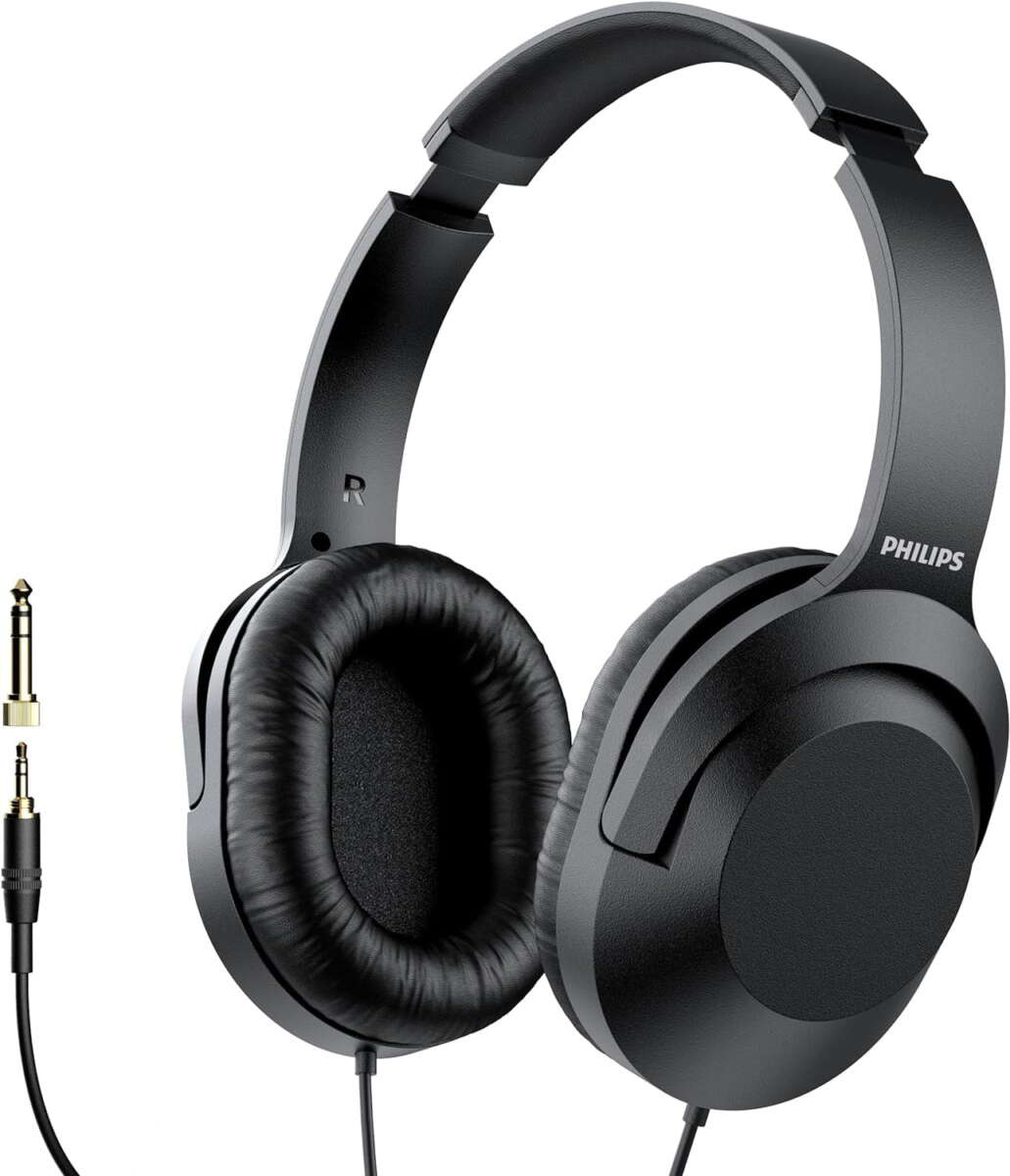
- Wired headphones with a 3.5 mm plug or detachable cable
- A Bluetooth audio receiver with a headphone jack
- A USB cable to charge the receiver
The receiver must support Bluetooth audio reception. A Bluetooth transmitter is different. A transmitter sends sound from a TV or other device to wireless headphones.


What You Need Before You Start
Check the plug on your headphones first. Most wired headphones use one of these connections:
- 3.5 mm plug: Works with most Bluetooth receivers.
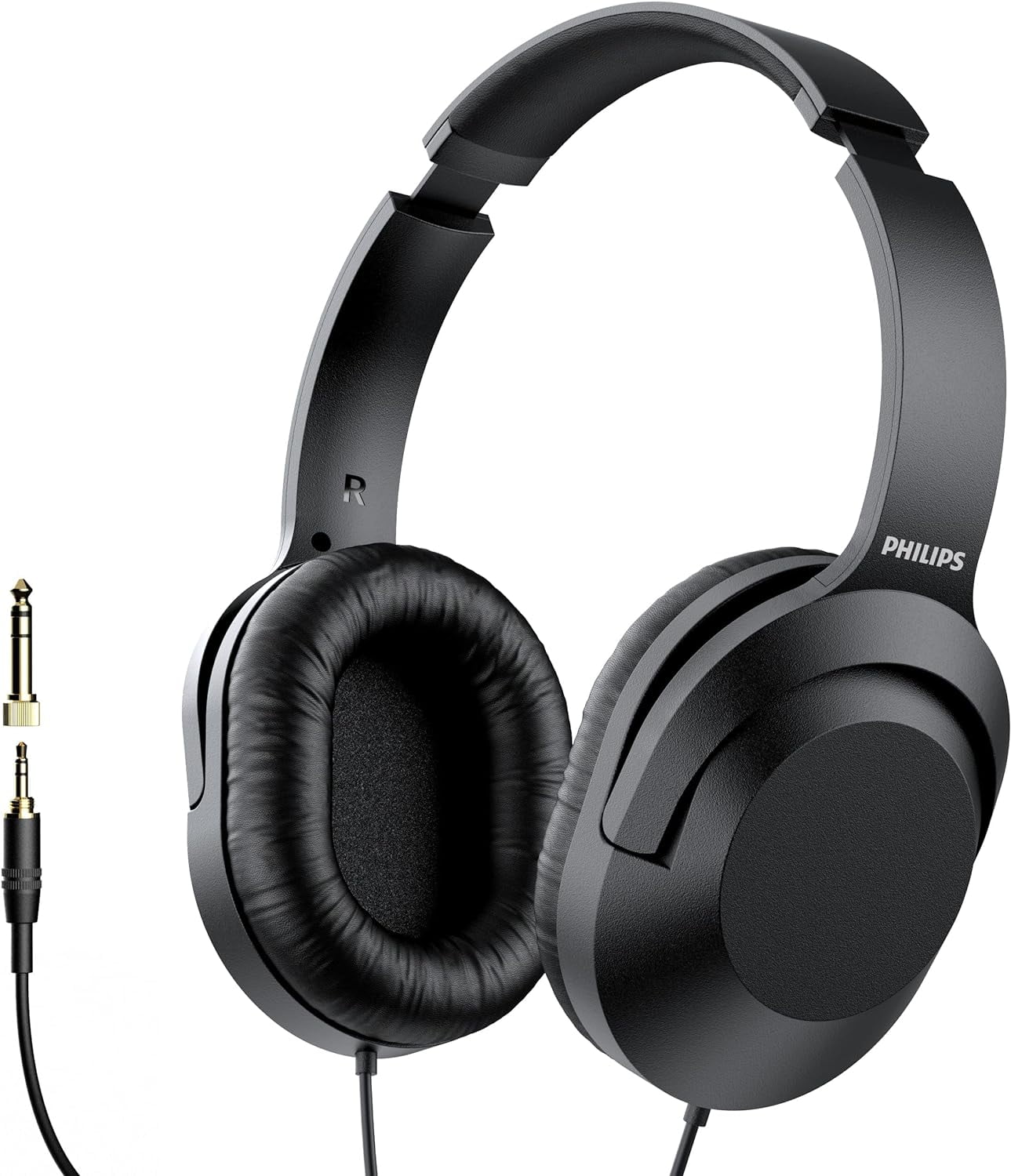
- 6.35 mm plug: Common on home audio gear and some studio headphones. You need a 6.35 mm-to-3.5 mm adapter.
- USB-A or USB-C plug: A basic Bluetooth receiver may not work. These headphones may need a compatible wireless adapter or a USB audio solution.
- Detachable cable: You may be able to replace the cable with a model-specific Bluetooth cable.
A Bluetooth receiver has a 3.5 mm audio output. It takes wireless sound from a phone or computer and sends that sound to your wired headphones.
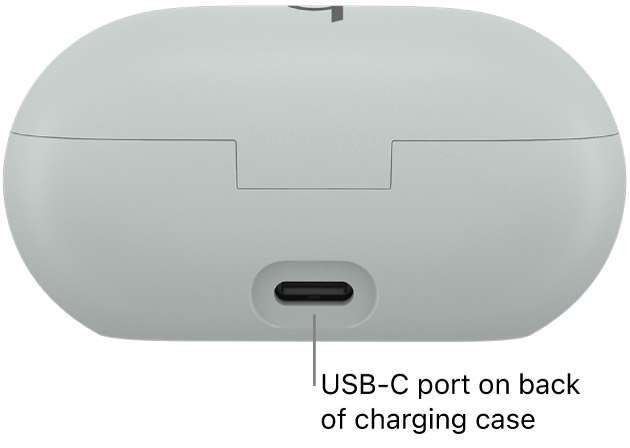
The receiver also needs its own battery. It does not usually draw power from a headphone jack. Charge it with the included USB cable before pairing.
Receiver or transmitter?
This is the most common point of confusion.
| Your goal | Device you need | Typical example |
|---|---|---|
| Use wired headphones with a phone wirelessly | Bluetooth receiver | Phone → receiver → headphones |
| Use wired headphones with a TV that has Bluetooth | Bluetooth receiver | TV → receiver → headphones |
| Add Bluetooth headphones to a TV without Bluetooth | Bluetooth transmitter | TV → transmitter → wireless headphones |
| Send phone audio to an old stereo | Bluetooth receiver | Phone → receiver → stereo |
Some products combine both functions. If you buy one of those, choose the correct mode before pairing.
Method 1: Use a Bluetooth Receiver With Your Headphones
This is the simplest way to make wired headphones wireless.
Step 1: Choose a compatible Bluetooth receiver
Look for these features:
- A 3.5 mm audio output
- Bluetooth receiver mode
- A built-in battery
- Buttons for volume and playback
- A microphone, if you need calls
- Support for the Bluetooth audio profile called A2DP
A2DP is the Bluetooth profile used for standard stereo music. For phone calls, the receiver also needs a hands-free profile, often listed as HFP or HSP.
A receiver with a built-in clip can attach to a shirt or jacket. A small receiver without a clip can sit in a pocket, but the headphone cable may pull on it.


Step 2: Charge the receiver
Use the supplied USB cable or a compatible USB charger. A standard low-power USB charger is normally enough.
Do not use the receiver while it is wet or damaged. Stop using it if the battery swells, becomes unusually hot, or smells odd. Small lithium-ion batteries should not be opened or crushed.
Step 3: Plug in your headphones
Insert the headphone plug into the receiver's audio output.
If your headphones have a 6.35 mm plug, connect a suitable adapter first. If the headphones use a four-contact TRRS plug, audio should often work, but microphone and button functions may not match the receiver.
Step 4: Turn on pairing mode
Turn on the receiver and hold its power or Bluetooth button until its indicator flashes. The exact process varies by model, so use the manual if the light pattern is unclear.
On an iPhone:
- Open Settings.
- Tap Bluetooth.
- Turn Bluetooth on.
- Tap the receiver's name under Other Devices.
On an Android phone:
- Open Settings.
- Open Connected devices or Connections.
- Tap Pair new device.
- Choose the receiver.
On a Windows 11 PC:
- Open Settings.
- Select Bluetooth & devices.
- Turn Bluetooth on.
- Select Add device.
- Choose Bluetooth.
- Select the receiver.
The menu names may differ by phone brand or Windows version.
Step 5: Test the sound
Play music at a low volume first. Confirm that:
- Sound comes from both earcups.
- The connection stays active when the receiver is in your pocket.
- Volume buttons work as expected.
- The microphone works if you plan to take calls.
- There is no strong delay between video and sound.
If the setup works, the headphones are now wireless from the source device. They are not fully cable-free because the short cable still connects the headphones to the receiver.
Method 2: Make Headphones Wireless With a Model-Specific Adapter
Some headphones have removable cables. A model-specific Bluetooth adapter can replace that cable and attach directly to the earcups.
This can be a cleaner option than a separate receiver because:
- There is less cable to manage.
- The adapter may fit the headphone's built-in connector.
- Controls and the microphone may work more reliably.
- The adapter may sit on the earcup instead of in a pocket.


Compatibility matters. Headphone connectors can look similar while using different wiring. A cable made for one model may not fit another model correctly.
Check the headphone maker's support page for an adapter that matches the exact model. Do not force a connector into place. A bad fit can damage the socket or create a poor connection.
This method is common with some studio and gaming headphones, but it is not universal. If the cable is permanently attached, use a separate Bluetooth receiver instead.

Method 3: Use a Bluetooth Transmitter With a TV
A phone usually sends Bluetooth audio. Many TVs do not. This changes the type of adapter you need.
If your TV lacks Bluetooth, connect a Bluetooth transmitter to the TV's audio output. Then pair the transmitter with your wired headphones through a Bluetooth receiver.
The signal path looks like this:
TV audio output → Bluetooth transmitter → Bluetooth receiver → wired headphones
A TV transmitter may connect through:
- 3.5 mm headphone output
- Red-and-white RCA output
- Optical digital output
- USB, on some models
Optical output often needs a setting such as PCM stereo. A transmitter may not understand Dolby Digital or another surround format. Check the transmitter manual and the TV audio menu.
Some transmitters support two headphone connections. However, adding a second Bluetooth device can affect delay, range, or sound quality.
For watching television, choose equipment that supports a low-latency codec if both devices support the same codec. Codec support must match at both ends. A transmitter that supports a codec does not automatically make every receiver use it.
Which Setup Should You Choose?
Use this table to match the setup to your goal.
| Situation | Best option | Main limitation |
|---|---|---|
| Phone, tablet, or laptop | Bluetooth receiver | You still have a short cable |
| Wired headphones with a removable cable | Model-specific Bluetooth adapter | Adapter compatibility varies |
| TV with Bluetooth audio | Bluetooth receiver | TV pairing menus differ |
| TV without Bluetooth | Bluetooth transmitter plus receiver | More equipment and setup |
| Gaming console | Console-compatible wireless adapter | Bluetooth support may be restricted |
| Studio headphones with a 6.35 mm plug | Receiver plus adapter | Adapter adds length and weight |
| Headphones with a USB plug | Model-specific wireless solution | A 3.5 mm receiver may not work |
A basic receiver is usually the least expensive route. A model-specific adapter may be more comfortable, but it can cost more and may only work with certain headphones.
For calls, check microphone support before buying. Some receivers provide good music playback but do not support a headset microphone. Others switch to a lower-quality call mode when the microphone is active. That behavior is normal for many Bluetooth devices.


How to Improve Sound, Battery Life, and Range
Wireless conversion adds another device to the audio path. A few settings can make the result more reliable.
Reduce audio delay
Bluetooth delay is most noticeable with video games, movies, and live broadcasts. Try these steps:
- Use a receiver and transmitter that support the same low-latency codec.
- Use the TV's built-in audio delay setting if available.
- Keep the receiver close to the phone or transmitter.
- Avoid placing the receiver under heavy clothing or inside a metal bag.
- Update the adapter firmware if the maker provides an official update.
Do not assume that “Bluetooth 5” means low delay. Bluetooth version and audio codec are different features.
Extend battery life
Turn the receiver off when you finish listening. Keep it charged, but do not leave a damaged or swollen device connected to power.
Battery life varies by model, volume, codec, call use, and age. Treat the maker's battery estimate as a test result under stated conditions, not a guarantee for every user.
Improve connection range
Keep the source and receiver on the same side of your body when possible. Walls, metal objects, crowded wireless environments, and other Bluetooth devices can reduce the useful range.
If sound cuts out, move the phone closer before changing advanced settings. Then disconnect unused Bluetooth devices and pair the receiver again.
Troubleshooting Wireless Wired Headphones
Start with the simple checks. Most connection problems come from the wrong adapter mode, low battery, or an old pairing record.
The receiver does not appear
Try this order:
- Charge the receiver.
- Turn it fully off and on.
- Hold the Bluetooth button to enter pairing mode.
- Move it close to the phone or computer.
- Remove the receiver from the device's saved Bluetooth list.
- Pair it again.
Make sure another nearby phone is not already connected to the receiver.
There is no sound
Check the active audio output on the source device. On Windows, click the sound icon and select the Bluetooth receiver. On an iPhone or Android phone, open the audio output menu and choose the receiver.
Then check the headphone plug. Push it in firmly, but do not twist or force it. If possible, test the headphones with a different source.
Only one side works
A loose plug, damaged headphone cable, or dirty connector can cause one-sided audio. Try another pair of headphones with the receiver.


If another pair works, the issue is likely in the original headphones or cable. If both pairs fail, reset the receiver and pair it again.
The sound is delayed
The source, transmitter, and receiver may use different codecs. Wired headphones themselves do not add Bluetooth delay; the wireless adapter does.
For games, a wired connection may still provide the best timing. For ordinary music, a small delay usually has little effect.
The microphone does not work
A receiver may support music but not two-way headset audio. Some computer systems also select the wrong input device.
Open the computer's sound settings and choose the receiver as the microphone input. If it does not appear, check the receiver specifications. You may need a receiver with HFP support or a separate microphone.

Common Mistakes to Avoid
Buying a transmitter for a phone
A transmitter sends audio. A phone normally needs to send audio to a receiver. Read the product's operating modes before buying.
Expecting a receiver to power headphones
A Bluetooth receiver sends an audio signal. It may not provide enough power for high-impedance studio headphones.
If the sound is quiet even at maximum volume, the headphones may need a headphone amplifier. A receiver with a stronger built-in amplifier may help, but check its specifications first.
Ignoring the connector
A 3.5 mm plug, 6.35 mm plug, USB plug, and detachable headphone connector are not interchangeable. An adapter can change physical size, but it cannot always fix different wiring or signal types.
Pairing with too many devices
Some receivers remember several devices but connect to only one at a time. Turn off Bluetooth on nearby devices during first-time pairing.
Using an unsafe battery
Do not use a wireless adapter with a cracked case, swollen battery, exposed wire, or severe heat. Replace it through the manufacturer or an electronics recycling program.
Assuming wireless is lossless
Bluetooth audio is compressed in many common setups. The audible result depends on the source, codec, receiver, headphones, and listening environment. If maximum audio fidelity matters, keep using the wired connection or use a digital wireless system designed for that purpose.

Frequently Asked Questions
Can any wired headphones become wireless?
Most headphones with a standard analog plug can work with a Bluetooth receiver. Headphones with USB connections or unusual detachable connectors need a compatible adapter. Permanently damaged headphones cannot be made reliable through a wireless adapter.
Do I need a Bluetooth receiver or transmitter?
Use a receiver when your phone, tablet, or computer sends audio to the headphones. Use a transmitter when a TV or other source sends audio to wireless headphones. If the source lacks Bluetooth and the headphones are wired, you may need both.
Will the headphone buttons and microphone work?
Maybe. Button and microphone support depends on the receiver, the plug wiring, the source device, and the operating system. Music playback is more likely to work than every headset control.


Can I use this setup for gaming?
Yes, but delay may be noticeable. For casual games, it may be acceptable. For competitive games, a wired connection or a wireless system designed for gaming usually gives better timing.
Can I connect wired headphones to an iPhone without a headphone jack?
Yes. Pair a Bluetooth receiver with the iPhone, then plug the headphones into the receiver. This avoids the phone's missing headphone jack, though the receiver needs its own charge.
Final Recommendation
For most people, buy a small Bluetooth receiver with a 3.5 mm output, charge it, plug in the headphones, and pair it with the phone or computer. Choose a model with microphone support if you need calls.
For a TV without Bluetooth, use a Bluetooth transmitter connected to the TV's audio output. If your headphones have a removable cable, check for a model-specific Bluetooth adapter before buying a separate receiver.
The best next step is simple: identify the headphone connector and the device that will send the sound. Those two details determine whether you need a receiver, a transmitter, or both.
Sources and Further Reading
- Bluetooth SIG: Bluetooth technology overview
- Apple Support: Connect a Bluetooth accessory to an iPhone or iPad
- Microsoft Support: Pair a Bluetooth device in Windows
- Federal Communications Commission: Bluetooth and wireless device information
- Bluetooth SIG: Advanced Audio Distribution Profile information