How To Connect Bose QuietComfort Ultra Headphones: Fast
If you are in the United States and want to connect Bose quietcomfort Ultra Headphones to an iPhone, Android phone, Windows PC, or Mac, turn on Bluetooth, put the headphones in pairing mode, and select Bose QuietComfort Ultra Headphones from your device’s Bluetooth menu. The Bose app can make setup easier, but you do not need the app for basic Bluetooth pairing.
This guide covers the original Bose QuietComfort Ultra Headphones. Menu names may vary slightly by device and software version.
Quick answer
- Charge and turn on the headphones.
- Slide and hold the Power/Bluetooth switch toward the Bluetooth symbol until you hear “Ready to connect.”
- Open Bluetooth settings on your phone or computer.
- Select Bose QuietComfort Ultra Headphones.
- Wait for the connected message or tone.

Before you connect the headphones
Check these basics before pairing:


- Charge the headphones enough for setup.
- Keep the headphones within about 30 feet of the device during pairing.
- Turn on Bluetooth on the phone, tablet, or computer.
- Turn off Bluetooth on nearby devices that may connect to the headphones first.
- Remove the headphones from your ears if you need to hear voice prompts clearly.
- Install the Bose app if you want firmware updates, sound controls, Immersive Audio settings, or device management.
The Bose QuietComfort Ultra Headphones use Bluetooth for wireless connections. The first device you connect becomes a saved device. You can later reconnect it without repeating the full setup.
The Bose app is useful, but it is not required. Basic pairing works through the Bluetooth settings on your device.
How to pair Bose QuietComfort Ultra Headphones with a phone
The steps are nearly the same on an iPhone and an Android phone.
Pair with an iPhone
- Open Settings.
- Tap Bluetooth.
- Turn Bluetooth on.
- Turn on the Bose headphones.
- Slide and hold the Power/Bluetooth switch toward the Bluetooth symbol.
- Keep holding until the headphones say, “Ready to connect.”
- Look under Other Devices on the iPhone.
- Tap Bose QuietComfort Ultra Headphones.
- Wait until the device appears under My Devices as Connected.
The headphones may also announce that they are connected. If the name does not appear, keep the headphones in pairing mode and wait a few seconds.
Pair with an Android phone
- Open Settings.
- Tap Connected devices, Connections, or Bluetooth, depending on the phone.
- Turn Bluetooth on.
- Select Pair new device if your phone shows that option.
- Put the Bose headphones into pairing mode.
- Tap Bose QuietComfort Ultra Headphones.
- Confirm the pairing request if Android displays one.
Some Android phones show the headphones in a nearby-device pop-up. You can tap that alert instead of opening the full Bluetooth menu.
Connect with the Bose app
For app-based setup:
- Download the Bose app from the Apple App Store or Google Play Store.
- Open the app and allow Bluetooth access when asked.
- Choose Add Product or the option to set up a new device.
- Select the QuietComfort Ultra Headphones.
- Follow the on-screen instructions.
- Install a firmware update if the app offers one.
Keep the headphones near the phone during an update. Do not turn them off or close the app until the update finishes.


How to connect Bose QuietComfort Ultra Headphones to a Windows PC
Windows can connect to the headphones for music, video, calls, and meetings.
- Turn on the headphones.
- Slide and hold the Power/Bluetooth switch toward the Bluetooth symbol until pairing mode starts.
- On Windows 11, open Start > Settings > Bluetooth & devices.
- Turn Bluetooth on.
- Click Add device.
- Choose Bluetooth.
- Select Bose QuietComfort Ultra Headphones.
- Wait for Windows to show that the device is connected.
On Windows 10, open Settings > Devices > Bluetooth & other devices, choose Add Bluetooth or other device, and select Bluetooth.
Choose the headphones for sound output
Pairing does not always make the Bose headphones the active speaker. If you hear sound from the computer’s built-in speakers:
- Click the sound icon in the Windows taskbar.
- Open the sound output list.
- Select Bose QuietComfort Ultra Headphones.
- For calls, select the Bose headphones as the microphone and speaker in the meeting app.
Video-call apps such as Microsoft Teams, Zoom, and Google Meet may have their own audio settings. Check the app’s speaker and microphone menus if calls still use the computer’s built-in hardware.
Choose the correct Windows Bluetooth profile
Windows may show more than one audio option. A Stereo profile usually gives better music quality. A Hands-Free or headset profile is used when an app needs the headphone microphone.
This change is normal. When a call begins, Windows may switch profiles to enable the microphone. Music quality can sound different during a call because Bluetooth handles two-way voice audio differently from normal stereo playback.

How to connect Bose QuietComfort Ultra Headphones to a Mac
- Turn on the headphones.
- Slide and hold the Power/Bluetooth switch toward the Bluetooth symbol.
- On the Mac, open Apple menu > System Settings > Bluetooth.
- Make sure Bluetooth is on.
- Find Bose QuietComfort Ultra Headphones in the device list.
- Click Connect.
- Open Apple menu > System Settings > Sound if you need to choose the headphones for output or input.
On older versions of macOS, the path may be System Preferences > Bluetooth.
If music plays through the Mac’s speakers, click the Control Center icon in the menu bar, choose Sound, and select the Bose headphones.
For calls, also check the audio settings in FaceTime, Zoom, Microsoft Teams, or another calling app. The Mac may connect the headphones correctly while the app continues using a different microphone or speaker.

How to connect the headphones to a second device
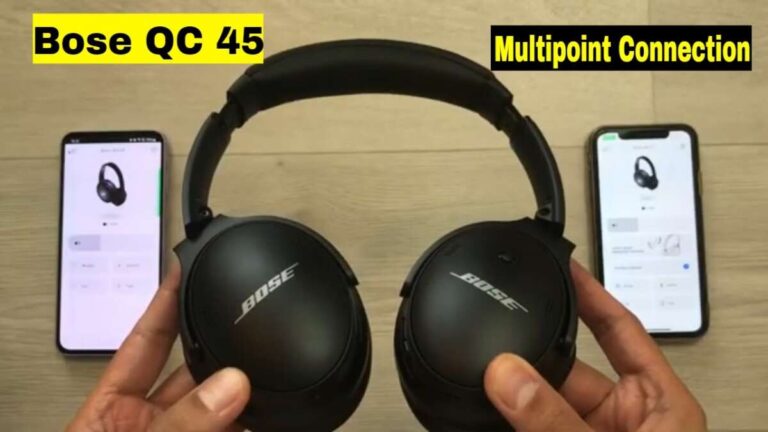
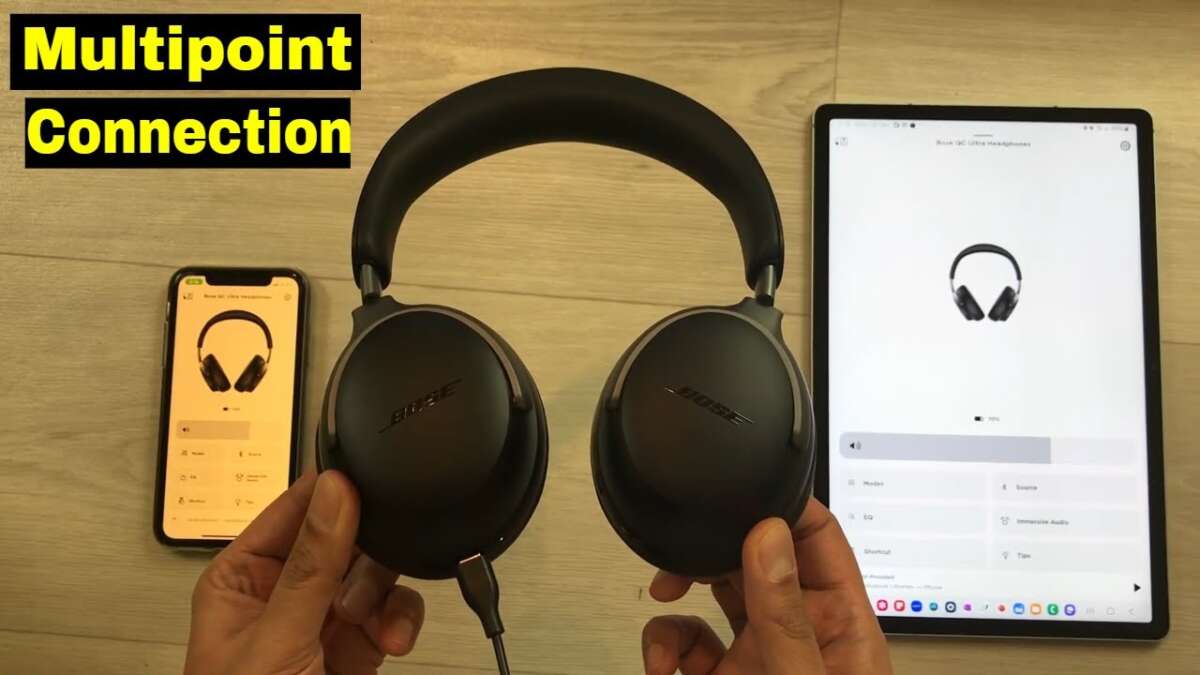
The Bose QuietComfort Ultra Headphones can remember multiple Bluetooth devices. They can also maintain connections with two devices at the same time when multipoint is enabled.
To add another device:
- Pause audio on the first device.
- Put the headphones into pairing mode.
- Open Bluetooth settings on the second phone or computer.
- Select Bose QuietComfort Ultra Headphones.
- Complete the pairing process.
The headphones may switch between two connected devices when audio starts on one of them. For example, they may play a video from a tablet and then switch to an incoming call from a phone.


Automatic switching can be affected by the device, operating system, app, or Bluetooth connection. If you want a fixed connection, disconnect the headphones from one device before using the other.
Enable or disable multipoint
Use the Bose app to manage multipoint if the option is available for your model and app version:
- Open the Bose app.
- Select the headphones.
- Open the product settings.
- Find the Bluetooth or multipoint setting.
- Turn multipoint on or off.
If the app does not show this control, update the app and headphones, then check again. Bose can change app menus through software updates.

How to reconnect Bose QuietComfort Ultra Headphones
After the first pairing, the headphones should reconnect when:
- Bluetooth is on.
- The headphones are powered on.
- The device is within range.
- The device has not been removed from the headphones’ saved list.
- Another device has not taken the active connection.
If they do not reconnect, open the device’s Bluetooth settings and tap Bose QuietComfort Ultra Headphones manually.
You can also use the Bose app to view and manage connected products. If the headphones connect to the wrong device, turn off Bluetooth on that device for a moment or disconnect the headphones from its Bluetooth menu.
What to do if Bose QuietComfort Ultra Headphones will not connect
Use the following checks in order. Start with the simple steps before clearing saved devices.
1. Confirm that pairing mode is active
The headphones must be discoverable. Slide and hold the Power/Bluetooth switch toward the Bluetooth symbol until you hear the pairing prompt.
If the headphones only say they are connected, they may already be linked to another device. Disconnect them from that device or turn Bluetooth off on it temporarily.
2. Move closer to the device
Keep the headphones and source device close together during setup. Nearby wireless signals, walls, and crowded public spaces can make discovery less reliable.
Once connected, Bluetooth range can vary. A clear indoor range is often shorter than an open-space range.
3. Restart both devices
Turn Bluetooth off and back on. Then power off the headphones, wait briefly, and turn them on again. Restart the phone or computer if the headphones still do not appear.
4. Remove the old Bluetooth entry
On the phone or computer, open Bluetooth settings and choose Forget, Remove device, or Unpair for the Bose headphones. Then place the headphones in pairing mode and pair them again.


This helps when the device saved an incomplete or damaged pairing record.
5. Clear the headphones’ Bluetooth list
If the headphones keep connecting to the wrong device, clear their saved Bluetooth list:
- Slide and hold the Power/Bluetooth switch toward the Bluetooth symbol.
- Continue holding for about 15 seconds.
- Release the switch when the headphones announce that the Bluetooth device list has been cleared.
- Remove the Bose headphones from your phone or computer’s Bluetooth list.
- Pair them again as a new device.
Clearing the list removes saved Bluetooth connections. It does not simply disconnect one device.
6. Update the Bose app and headphones
Open the Bose app and check for product updates. An update may resolve connection bugs, improve compatibility, or change available settings.
Use a stable internet connection and keep the headphones charged during the update.
7. Reset only when needed
A reset can remove settings and saved connections. Follow the current reset instructions in the Bose support materials for your exact model and software version. Do not use reset steps for a different Bose product, because Bose headphones use different button combinations.
Common connection problems and fixes
| Problem | Likely cause | Best first fix |
|---|---|---|
| Headphones do not appear | Pairing mode is not active | Hold the Bluetooth switch until the pairing prompt |
| They connect to the wrong device | Another saved device is nearby | Turn off Bluetooth on that device |
| Music comes from the computer speakers | Bose is paired but not selected for output | Choose the headphones in the sound menu |
| Calls sound poor on Windows | The hands-free profile is active | Check the meeting app’s speaker and microphone settings |
| The Bose app cannot find them | Bluetooth permission is blocked | Allow Bluetooth access for the Bose app |
| Connection drops | Range, interference, low charge, or software issue | Move closer, charge, restart, and update |
| Only one side seems to play | Audio balance or connection issue | Check balance settings, then reconnect |
| The headphones are missing after an update | Bluetooth record or app issue | Forget the device and pair it again |
The fastest fix is often to remove the old pairing from both sides and start again. Clear the headphones’ list only after trying a normal unpair and repair.
How to use a wired connection
The Bose QuietComfort Ultra Headphones can also connect with a compatible audio cable. This can help with devices that do not support Bluetooth or in places where wireless connections are restricted.
Connect the cable to the headphones and the source device. Then select the correct audio input on the source device if needed.
A wired connection does not always provide the same functions as Bluetooth. Wireless controls, app settings, active noise cancellation, Immersive Audio, and other features can depend on the headphones being powered on. The included cable and the device’s audio jack also affect compatibility.
The USB-C port is primarily used for charging on models where USB audio is not supported. Do not assume that a USB-C charging cable will carry sound. Use the correct audio cable or adapter for the exact QuietComfort Ultra model.

Settings to check after pairing
Once the headphones connect, make these quick checks:
- Sound output: Confirm that the Bose headphones are selected.
- Microphone: Select the headphone microphone for calls if needed.
- Volume: Set the source device and headphone volume to comfortable levels.
- Noise cancellation: Choose Quiet, Aware, or another available mode in the Bose app or with the headphone controls.
- Immersive Audio: Choose the mode you prefer, or turn it off when you want to conserve battery.
- Automatic pause: Check whether the wearing-detection setting is enabled.
- Firmware: Install updates when convenient and when the headphones have enough charge.
The best settings depend on the task. Quiet mode can reduce outside sound, while Aware mode lets more of the surroundings through. In a busy street, airport, or parking lot, remain alert and do not rely on noise cancellation to hear vehicles or warnings.


Mistakes that can prevent pairing
Avoid these common errors:
- Selecting a similarly named Bose device instead of the exact headphones.
- Trying to pair while the headphones are already connected to another source.
- Expecting the Bose app to work without Bluetooth permission.
- Forgetting to select the headphones as the active sound output.
- Pairing from inside a phone’s general accessory menu instead of Bluetooth settings.
- Clearing the Bluetooth list without realizing that all saved connections will be removed.
- Using a USB-C charging cable and expecting it to transmit audio.
- Leaving the headphones connected to a nearby laptop when trying to pair with a phone.
If a friend’s phone, tablet, or computer has connected to the headphones before, temporarily turn Bluetooth off on that device. This is often the simplest way to stop an unwanted automatic connection.
Frequently asked questions
How do I put Bose QuietComfort Ultra Headphones into pairing mode?
Slide and hold the Power/Bluetooth switch toward the Bluetooth symbol until you hear the pairing prompt, such as “Ready to connect.” Then open Bluetooth settings on the device you want to use.
Why are my Bose QuietComfort Ultra Headphones not showing up on Bluetooth?
They may not be in pairing mode, may already be connected to another device, or may have a stored connection problem. Put them in pairing mode, turn off Bluetooth on nearby devices, and remove the old Bose entry before pairing again.
Can Bose QuietComfort Ultra Headphones connect to two devices?
They can remember several devices and may maintain connections with two devices when multipoint is enabled. Use the Bose app to check the multipoint setting. Switching behavior can vary by device and operating system.
Do I need the Bose app to connect the headphones?
No. You can pair them through the normal Bluetooth settings on an iPhone, Android phone, Windows PC, or Mac. The app adds firmware updates, product settings, and connection management.
How do I connect the headphones after I get a new phone?
Turn on Bluetooth on the new phone, put the headphones in pairing mode, and select Bose QuietComfort Ultra Headphones. If they keep connecting to the old phone, turn off Bluetooth on the old phone or remove the headphones from its saved devices.
Can I connect Bose QuietComfort Ultra Headphones to a TV?
Yes, if the TV supports Bluetooth audio. Open the TV’s Bluetooth or audio-device menu, place the headphones in pairing mode, and select them. Some TVs have delay, limited volume control, or trouble supporting Bluetooth headphones, so check the TV manual if the connection fails.
Key takeaways
- Use the headphone’s Power/Bluetooth switch to enter pairing mode.
- Select Bose QuietComfort Ultra Headphones in the device’s Bluetooth menu.
- The Bose app is optional for basic setup but useful for updates and settings.
- If pairing fails, forget the old connection, restart both devices, and pair again.
- Clear the headphone Bluetooth list only when normal reconnection steps do not work.
- Check the computer’s sound output and microphone settings after pairing.
Conclusion
Connecting Bose QuietComfort Ultra Headphones takes only a few steps: enter pairing mode, open Bluetooth settings, and select the headphones. If the device does not appear, disconnect nearby devices, remove the old pairing, and try again. For ongoing control, firmware updates, and multipoint settings, use the Bose app.