How To Reset Raycon Everyday Earbuds: Easy Guide
Introduction
If your Raycon Everyday Earbuds will not pair, connect to the wrong phone, or play sound in only one ear, a reset can often fix the issue. The process clears the old bluetooth connection and lets the earbuds start a fresh pairing session.
This guide is for people using Raycon Everyday Earbuds in the United States with an iPhone, iPad, Android phone, Windows PC, or Mac. The exact button or touch response can vary by Everyday Earbuds generation, so use the steps below and check your model’s Raycon guide if the light pattern differs.

Quick Answer: How to Reset Raycon Everyday Earbuds
To reset most Raycon Everyday Earbuds:
- Remove both earbuds from the charging case.
- Open Bluetooth settings on your phone or computer.
- Select the Raycon earbuds and choose Forget This Device, Unpair, or Remove Device.
- Turn off Bluetooth on the device.
- Press and hold both earbuds for about 30 seconds.
- Put both earbuds back in the charging case.
- Remove them again and wait for pairing mode.
- Turn Bluetooth back on and pair with the earbuds as if they were new.


The reset is complete when the old Raycon connection no longer appears as an active saved device and the earbuds enter pairing mode again.
Before You Reset Your Raycon Earbuds
A reset works best when the earbuds have enough power and both earbuds can communicate with the case.
Check these items first:
- Charge the case and earbuds for at least 15 minutes.
- Remove any protective film that may still cover the charging contacts.
- Make sure both earbuds sit firmly in the case.
- Keep the earbuds close to the phone or computer.
- Turn off Bluetooth on nearby devices that may connect automatically.
- Know which Raycon device name you normally see in Bluetooth settings.
A reset will not repair a broken charging contact, damaged battery, or water-damaged earbud. It also will not improve sound quality caused by blocked speaker mesh or a poor fit.
Check the Charging Contacts
Look at the small metal contacts on the earbuds and inside the case. If they have dirt or skin oil on them, wipe them with a dry, soft cloth or a clean cotton swab.
Do not pour liquid into the case. Do not use a metal tool to scrape the contacts. If the case does not recognize one earbud, cleaning and reseating it may solve the problem before a reset is needed.

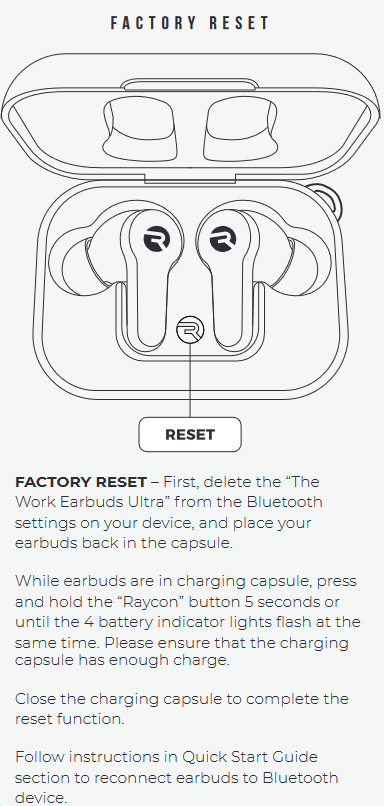
How to Factory Reset Raycon Everyday Earbuds
Follow this sequence for a full reset and fresh Bluetooth setup.
1. Remove the old Bluetooth connection
On an iPhone or iPad:
- Open Settings.
- Tap Bluetooth.
- Tap the information button next to your Raycon earbuds.
- Choose Forget This Device.
- Confirm the choice.
On Android:
- Open Settings.
- Open Connected devices, Connections, or Bluetooth.
- Find your Raycon earbuds.
- Tap the gear or settings icon.
- Choose Forget, Unpair, or Remove.
On Windows:
- Open Settings.
- Select Bluetooth & devices.
- Find the Raycon earbuds.
- Select the three-dot menu.
- Choose Remove device.


On a Mac:
- Open System Settings.
- Select Bluetooth.
- Find the Raycon earbuds.
- Select the information button.
- Choose Forget This Device or Remove.
This step matters because a phone may keep trying to use an old Bluetooth profile. Resetting the earbuds without removing that saved profile may leave the same problem in place.
2. Turn Bluetooth off
Turn Bluetooth off on the device that previously used the earbuds. If another nearby phone, tablet, or laptop has connected to the Raycons before, turn Bluetooth off there too.
This prevents an automatic connection while you perform the reset.
3. Remove both earbuds from the case
Take out the left and right earbuds together. Keep them near each other on a clean, dry surface.
If one earbud does not turn on, place both earbuds back in the case. Press them down gently so they touch the charging pins. Wait a few minutes, then remove them again.
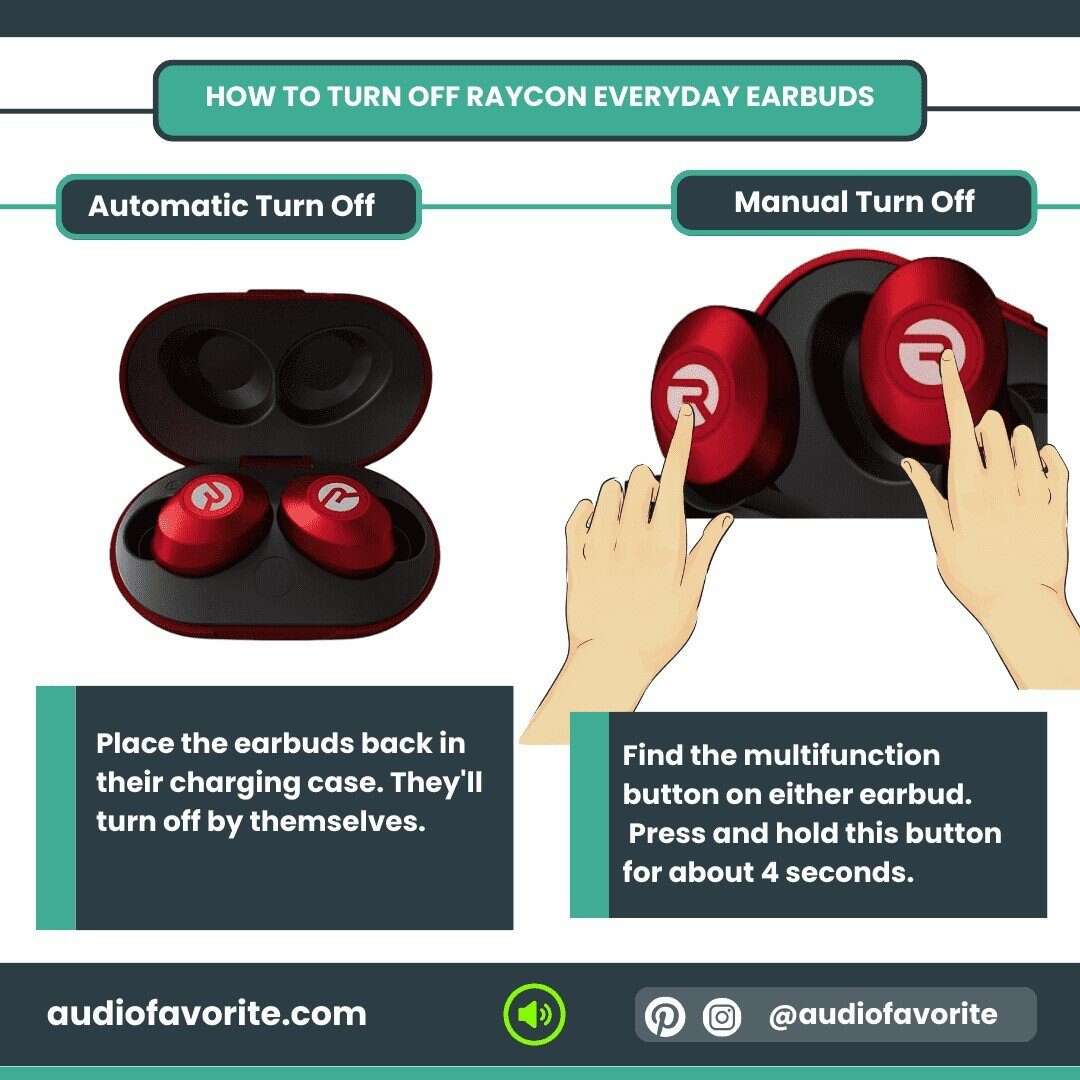
4. Press and hold both earbuds
Press and hold the control area on both earbuds at the same time for about 30 seconds.
Depending on the Raycon Everyday model, the controls may be physical buttons or touch controls. Keep holding even if the lights change before 30 seconds. The light pattern may include flashes or a power-cycle signal.
Do not press only one earbud. Resetting one side alone can leave the earbuds out of sync.
5. Return the earbuds to the case
Place both earbuds into the charging case. Close the lid for about 10 seconds, then open it.
This gives the earbuds time to power down and restart together. If the case has a power button, use it only as described in the guide for your model.
6. Put the earbuds into pairing mode
Remove both earbuds from the case. Wait for the LEDs to indicate that they are ready to connect.
The exact light color and flash pattern can differ between Raycon versions. If the earbuds do not enter pairing mode, place them back in the case and repeat the hold step.
7. Pair them again
Turn Bluetooth back on. Open the list of available devices and select the Raycon entry.
The name may appear as The Everyday Earbuds, Raycon Everyday Earbuds, or a similar model name. Do not select a duplicate or old entry if your phone still shows one. If an old entry remains, remove it and scan again.


How to Know the Reset Worked
A successful reset usually produces these signs:
- The old Raycon connection is forgotten on your device.
- Both earbuds power on together.
- The earbuds appear as a new Bluetooth device.
- The left and right earbuds play sound together.
- Music, calls, and pause controls work normally.
- The earbuds do not reconnect to an old device without permission.
Test both earbuds with a short audio clip. Then make a brief phone call to check the microphones.
A reset is not successful if only one earbud appears, one side has no sound, or the earbuds reconnect to a different device. Those signs point to pairing, charging, or device-selection problems.

What to Do If Your Raycon Earbuds Still Will Not Reset
If the reset does not work, troubleshoot in this order.
Charge everything
Charge the case with a known-good USB cable and power source. Leave the earbuds in the case while it charges.
A weak battery can cause flashing lights, random shutdowns, or a failure to enter pairing mode. If the case shows no charging response at all, try another cable and charger.
Reset the Bluetooth connection again
Remove the Raycon entry from every nearby device that has used the earbuds. Then turn Bluetooth off on those devices.
A laptop or tablet may connect first and make the earbuds appear unavailable on your phone.
Clean and reseat the earbuds
Clean the charging contacts with a dry cloth. Check that each earbud sits evenly in its slot.
If one earbud has no light or does not charge, the issue may be with the case contact, the earbud battery, or the charging circuit. A reset cannot fix a hardware fault.
Restart the phone or computer
Restart the device you want to use. Then turn Bluetooth back on and scan for the earbuds.
This can clear a temporary Bluetooth service problem without changing other wireless settings.
Try a second device
Pair the earbuds with another phone or computer. This helps identify the source:
| Result | Most likely cause |
|---|---|
| They work on another device | Bluetooth settings or software issue on the first device |
| They fail on every device | Earbud, case, battery, or reset issue |
| Only one earbud works | Earbud sync, charging, or hardware issue |
| They connect but have no sound | Wrong audio output selected |
| They disconnect often | Low power, interference, distance, or hardware trouble |
This test does not prove the exact fault, but it helps separate a device problem from an earbud problem.


Use the model-specific Raycon instructions
Raycon has released more than one version of its Everyday Earbuds. Button actions, LED patterns, and reset methods may differ.
If the 30-second method does not match your model, use the official Raycon support page or the printed guide that came with the earbuds. Search by the exact model name shown on the box, receipt, or product label.

Fix Common Raycon Everyday Earbud Problems After a Reset
Only one earbud connects
Place both earbuds in the case. Confirm that both are charging, then remove them together.
If the problem continues, forget the Bluetooth device again and repeat the full reset. Both earbuds must be reset as a pair.
The earbuds connect but produce no sound
Check the audio output setting on your phone or computer. The device may still send sound to its speaker, a car system, or another Bluetooth product.
On a phone, start playing audio and open the media output menu. Select the Raycon earbuds manually.
The earbuds connect, then disconnect
Keep the phone within a few feet of the earbuds during setup. Turn off Bluetooth on nearby devices and charge the case.
If disconnections continue with several devices, the problem may involve the battery or internal hardware rather than Bluetooth settings.
The earbuds do not appear in Bluetooth settings
Make sure both earbuds are on and out of the case. If the LEDs remain off, charge them first.
If the LEDs work but the earbuds still do not appear, repeat the reset and restart the phone. Also check that airplane mode is off.
The Raycon name appears twice
Two entries can appear when an old saved profile remains or when a device lists separate left and right connections.
Forget every Raycon entry, turn Bluetooth off, reset both earbuds together, and scan again. Choose the single combined Raycon device when it appears.

Resetting Raycon Earbuds Without Deleting Other Bluetooth Devices
You can reset the earbuds without clearing every Bluetooth connection on your phone. Remove only the Raycon entry from the saved device list.
Avoid using Reset Network Settings unless ordinary Bluetooth steps fail. On an iPhone, that option also removes saved Wi-Fi networks. On Android, the exact result depends on the phone maker and software version.
A full network reset is rarely needed for one pair of earbuds. Use it only when several Bluetooth devices fail to connect and you are comfortable adding your Wi-Fi networks again.


How to Prevent Pairing Problems Later
Use these habits after the reset:
- Put both earbuds in the case when you are done.
- Keep the case charged.
- Do not store wet earbuds in the case.
- Clean the charging contacts from time to time.
- Turn off Bluetooth on devices you no longer use with the earbuds.
- Avoid pairing the earbuds with many devices at the same time.
- Keep the Raycon software and your phone software updated when updates are offered.
- Use the correct left and right earbud in the matching case slots.
Do not use sharp tools, heavy pressure, or household cleaners on the earbuds. If an earbud becomes hot, smells unusual, swells, or shows signs of battery damage, stop using it and contact Raycon support.

Frequently Asked Questions
Does resetting Raycon Everyday Earbuds delete music or phone data?
No. Resetting the earbuds removes their Bluetooth pairing information. It does not delete music, contacts, photos, apps, or other data from your phone.
Do I need the Raycon app to reset the earbuds?
Usually, no. The reset and pairing process generally uses the earbuds, charging case, and Bluetooth settings. If your model has app features, the app may help with setup, but it is not normally required for a basic Bluetooth reset.
Why do my Raycon earbuds keep pairing with someone else’s phone?
That phone may still have Bluetooth enabled and a saved Raycon connection. Turn Bluetooth off on the other device or remove the Raycon entry from its saved devices. Then reset and pair the earbuds with your phone.
Can I reset only the left or right Raycon earbud?
You can try, but a full reset should normally include both earbuds. Resetting only one side may leave the pair out of sync.
When should I contact Raycon support?
Contact Raycon if the earbuds will not charge, one side stays dark after charging, the case does not respond, or the earbuds fail on several different devices after the reset. Have the model name and purchase details ready.
Conclusion
The most reliable way to reset Raycon Everyday Earbuds is to forget the old Bluetooth connection, turn Bluetooth off, hold both earbuds for about 30 seconds, return them to the case, and pair them again.
If that process fails, check charging, clean the contacts, remove saved connections from nearby devices, and test the earbuds with another phone or computer. If one earbud remains unresponsive on every device, the issue may require Raycon support rather than another reset.