How To Connect Headphones To PS3: Easy Setup Guide
For PS3 players in the United States, the best way to connect headphones depends on the sound equipment you already own. The PS3 does not have a headphone jack on its controller, so you usually need to connect headphones to your TV, an optical audio adapter, the PS3 USB port, or a compatible Bluetooth device.
Quick answer: Connect headphones to your TV if the PS3 uses HDMI. For direct PS3 audio, use an optical cable with a headphone DAC or amplifier. A USB or Bluetooth headset may work for voice chat, but many models do not receive game audio.

Choose the Right PS3 Headphone Method
The connection method controls whether you hear game sound, chat, or both. Use this table to choose the best option before changing settings.
| Method | Game audio | Voice chat | What you need |
|---|---|---|---|
| TV headphone jack | Yes | Usually, if chat plays through the TV | TV with a 3.5 mm jack |
| Optical audio | Yes | Usually separate | Optical cable and DAC or headphone amp |
| RCA audio | Yes | Usually separate | PS3 AV cable and RCA-to-3.5 mm adapter |
| USB headset | Depends on the headset | Often yes | PS3-compatible USB headset |
| Bluetooth headset | Usually no game audio | Yes, in many cases | Compatible Bluetooth headset |
| HDMI audio extractor | Yes | Depends on the device | Extractor and headphones |
The simplest setup is usually the TV headphone jack. The most reliable direct connection is normally optical audio with a DAC or headphone amplifier.


Sony’s PS3 settings separate audio output from chat device settings. This is why a Bluetooth headset may work for online voice chat but remain silent during the game.
Method 1: Connect Headphones to Your TV
Connecting headphones to the TV is the easiest option when your PS3 sends sound through HDMI.
What you need
- A PS3 connected to the TV with HDMI
- Headphones with a 3.5 mm plug
- A TV with a headphone jack, or a compatible audio output
Steps
- Turn off the PS3 or leave it at the main menu.
- Plug the headphones into the TV’s headphone jack.
- Turn on the TV and PS3.
- Set the TV to the HDMI input used by the PS3.
- Start a game or play a menu sound.
- Adjust the headphone volume with the TV remote or the headphone controls.
If you hear the game, the setup is complete. You do not need to change the PS3 audio settings when the TV already receives sound through HDMI.
Some newer TVs do not include a 3.5 mm jack. In that case, check for a digital optical output, USB audio support, or a TV-compatible Bluetooth audio option. A TV’s optical output may require a separate DAC because most headphones cannot connect directly to an optical port.
If the TV speakers still play sound
Some TVs keep their speakers active when headphones are connected. Look in the TV sound menu for settings such as:
- Headphone output
- Audio output
- Speaker selection
- Headphone volume
- internal speaker disable
The exact menu name varies by TV brand and model. If the TV has a fixed digital output, you may need an external audio device to control headphone volume.

Method 2: Use Optical Audio for Direct PS3 Sound
Optical audio is a good choice when you want game sound without routing it through the TV. The PS3 has an optical digital output on many models, including the original, Slim, and Super Slim versions.


What you need
- A TOSLINK optical cable
- A DAC, headphone amplifier, or gaming audio adapter with optical input
- Headphones with a 3.5 mm or 6.35 mm plug
- A TV or monitor connection for video
Headphones cannot plug directly into the PS3 optical port. Optical sends digital light signals, not an analog headphone signal. The DAC converts that signal into sound your headphones can use.
Steps
- Connect one end of the optical cable to the PS3’s Digital Out (Optical) port.
- Connect the other end to the optical input on the DAC or headphone amplifier.
- Plug your headphones into the DAC or amplifier.
- On the PS3, open Settings.
- Select Sound Settings.
- Choose Audio Output Settings.
- Select Optical Digital.
- Choose the supported audio formats shown by your audio device.
- Confirm the settings.
- Start a game and adjust the volume on the DAC or amplifier.
If the PS3 asks which formats the optical device supports, select only formats listed by the DAC or amplifier. Many headphone DACs support two-channel PCM but do not decode Dolby Digital or DTS.
Optical audio limitations
Optical audio can carry game sound, but it normally does not send microphone input back to the PS3. If you want voice chat, use a separate USB or Bluetooth microphone that the PS3 recognizes.
Optical also does not provide the same plug-and-play control as HDMI. You may need to change the audio output setting again if you move the PS3 back to a TV-only setup.

Method 3: Connect Headphones Through the PS3 AV Output
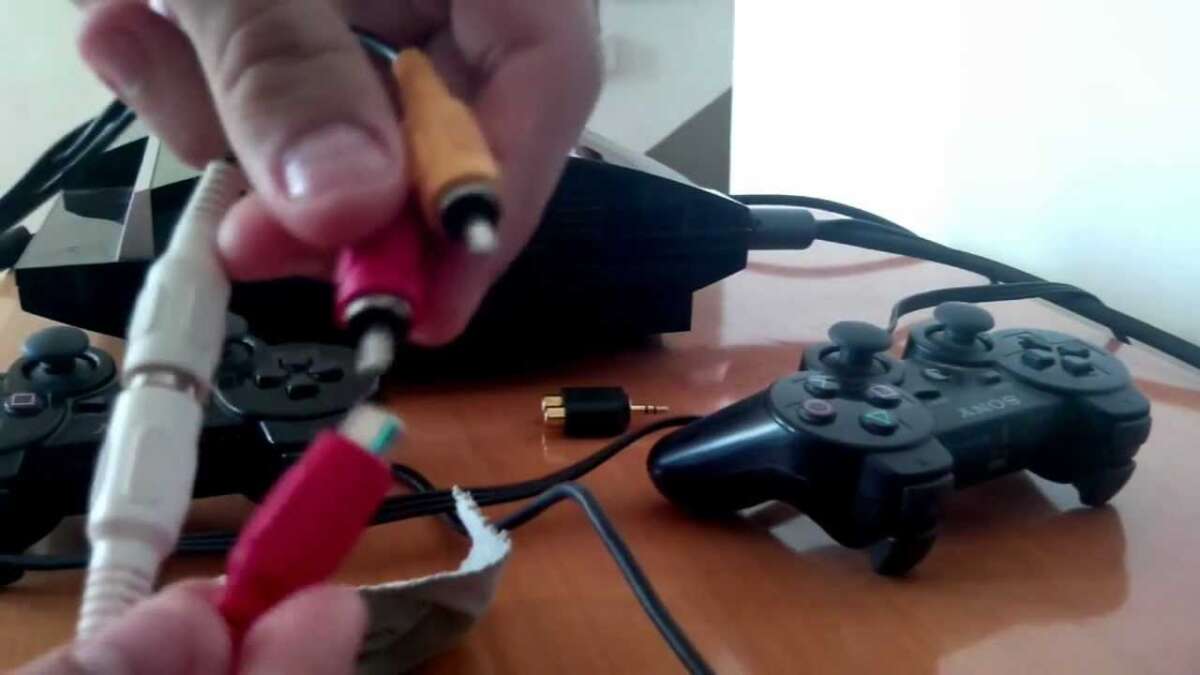
You can use the PS3’s analog AV output to send sound to headphones. This method works well if you have the original PS3 composite cable or another compatible AV multi-out cable.
What you need
- A PS3 AV multi-out cable with red and white audio plugs
- An RCA-to-3.5 mm adapter
- Wired headphones
The red plug carries the right audio channel. The white plug carries the left audio channel. The yellow plug carries standard-definition video and is not needed when HDMI handles the picture.
Steps
- Connect the AV multi-out cable to the PS3.
- Connect the red and white audio plugs to an RCA-to-3.5 mm adapter.
- Plug your headphones into the adapter.
- Open Settings > Sound Settings > Audio Output Settings.
- Select the output used by your AV cable, usually Audio Input Connector / SCART / AV MULTI.
- Confirm the audio format choices.
- Play a game and adjust volume with the headphones or a small headphone amplifier.
You can keep HDMI connected for video while using the AV cable for analog sound. To do this, look for Audio Multi-Output under the PS3 sound settings and turn it on if your system software provides that option.
Audio Multi-Output can reduce the available audio format options. For headphones, two-channel stereo is usually the correct choice.
Why you may need a headphone amplifier
The PS3’s analog output may not provide enough power for high-impedance headphones. Low-volume sound does not always mean the PS3 is faulty. A small headphone amplifier can increase volume, but it cannot improve a signal that is incorrectly configured.
Do not force plugs into the AV adapter. If the adapter feels loose or produces sound in only one ear, check the plug type and the red-and-white connections.


Method 4: Use a USB Headset
A USB headset may work with the PS3, but compatibility varies. The PS3 can recognize some USB audio devices, while others may work only as microphones or may not work at all.
Steps for a USB headset
- Turn on the PS3.
- Plug the USB headset into a PS3 USB port.
- Open Settings.
- Select Accessory Settings.
- Choose Audio Device Settings.
- Set the headset as the Input Device if you want to use its microphone.
- Set it as the Output Device for voice chat when the PS3 lists it.
- Test the microphone and adjust the microphone level.
- Check the PS3 game audio output separately.
The Input Device controls the microphone. The Output Device controls chat audio in supported applications. These settings do not always move game sound to the USB headset.
Some USB headsets include their own USB sound adapter and may receive both game audio and chat. Others are designed only for chat on older consoles. Check the headset manual for PS3 support rather than assuming that any USB headset will work.
Signs that the USB headset is working
- The headset appears in Audio Device Settings.
- The microphone level meter responds when you speak.
- You hear voice chat through the headset.
- The game sound plays through the headset if the model supports that function.
If the headset appears but you hear no game audio, leave it selected for chat and use the TV, optical, or analog method for game sound.

Method 5: Pair a Bluetooth Headset With the PS3
The PS3 supports Bluetooth device pairing through its accessory settings. A Bluetooth headset may work for voice chat, but standard Bluetooth pairing does not guarantee wireless game audio.
Pairing steps
- Put the Bluetooth headset into pairing mode.
- On the PS3, open Settings.
- Select Accessory Settings.
- Choose Manage Bluetooth Devices.
- Select Register New Device.
- Choose Scan for Bluetooth Devices.
- Select your headset from the list.
- Enter the passkey if the PS3 asks for one. Common passkeys include
0000, but use the code in the headset manual. - Return to Audio Device Settings.
- Select the headset as the input or output device for voice chat.
The PS3 may show the headset as registered but still fail to use it for game audio. This is a limitation of the headset profile and the PS3 audio path, not necessarily a pairing error.
For wireless game sound, a headset made specifically for PS3 or a wireless headset with a USB transmitter is often more suitable than a normal Bluetooth phone headset.

How to Get Both Game Audio and Voice Chat
The PS3 may use different devices for game audio and voice chat. This lets you combine methods.
Example setup
- Game audio: TV headphone jack
- Microphone: Bluetooth headset
- Chat output: Bluetooth headset
To try this setup:
- Connect the PS3 to the TV with HDMI.
- Plug headphones into the TV.
- Pair the Bluetooth headset with the PS3.
- Open Settings > Accessory Settings > Audio Device Settings.
- Choose the Bluetooth headset for input and chat output.
- Test the game and a voice-chat session.
The result depends on the game and headset. Some games send chat through the selected device, while others handle chat in a different way.
A second option is a PS3-compatible wireless headset with a USB receiver. These systems are designed to combine game sound and chat, but compatibility still depends on the exact model and its drivers.


PS3 Headphone Setup Problems and Fixes
Most problems come from choosing the wrong output, using an unsupported headset, or expecting a chat-only device to carry game sound.
You hear no sound
Check these items in order:
- Confirm that the headphones work with another device.
- Check the headphone volume and mute switch.
- Confirm that the cable is fully inserted.
- Open Sound Settings > Audio Output Settings.
- Select the output method you are using.
- Check that the DAC, TV, or amplifier is set to the correct input.
- Restart the PS3 after changing the audio output.
You hear chat but not game audio
This usually means the headset is selected as the chat output only. Use HDMI-to-TV audio, optical audio, analog AV audio, or a headset designed for full game sound.
You hear game sound but no voice chat
Check the game’s own voice-chat settings. Then open Accessory Settings > Audio Device Settings and select the correct microphone and output device.
Raise the microphone input level one step at a time. Avoid setting it too high, since that can cause echo or distortion.
Sound comes from one side only
A one-sided signal usually points to:
- A loose RCA plug
- A damaged adapter
- A mono-to-stereo mismatch
- A partially inserted 3.5 mm plug
- A bad headphone cable
With analog AV audio, confirm that the red plug connects to right audio and the white plug connects to left audio.
There is an echo
Echo can occur when the TV speakers and headphones play at the same time. Mute the TV speakers or change the TV audio output mode. Also check whether the microphone is picking up sound from the TV.
Bluetooth pairing fails
Try these steps:
- Charge the headset.
- Remove old Bluetooth devices from the PS3.
- Put the headset back into pairing mode.
- Keep the headset close to the PS3.
- Use the passkey listed in the headset manual.
- Confirm that the headset supports the Bluetooth profile used by the PS3.
A successful pairing message does not prove that the headset supports game audio.

Which PS3 Headphone Method Should You Use?
Use the method that matches your equipment and your main goal.
| Your goal | Best starting method |
|---|---|
| The easiest wired setup | TV headphone jack |
| Direct game sound from the PS3 | Optical cable and DAC |
| Use older wired headphones | AV cable and RCA adapter |
| Use voice chat | USB or Bluetooth headset |
| Get wireless game sound | PS3-compatible wireless headset with USB receiver |
| Keep HDMI video while using analog audio | AV multi-out with Audio Multi-Output |
A TV connection has the fewest setup steps. Optical audio gives you a cleaner direct path but requires extra hardware. Bluetooth is convenient for chat, but it is the least reliable choice for full game audio.


Common Mistakes to Avoid
- Plugging headphones into the controller: Standard PS3 controllers do not have a built-in headphone jack.
- Connecting headphones to the optical port: Headphones need a DAC or amplifier between the optical port and the headphone plug.
- Assuming every Bluetooth headset carries game sound: Many Bluetooth headsets support chat only.
- Changing chat settings instead of audio output settings: Accessory settings may affect voice chat, not game sound.
- Selecting unsupported optical formats: Choose formats your DAC or amplifier lists as compatible.
- Using a phone-only USB headset: Console support is not guaranteed just because the headset uses USB.
- Forgetting the TV input: If the TV is on the wrong HDMI input, the audio test will not be useful.
Frequently Asked Questions
Can I connect headphones directly to a PS3 controller?
No. Standard PS3 controllers do not include a headphone jack. Use the TV, optical output, AV output, USB, Bluetooth, or an HDMI audio extractor instead.
Can any Bluetooth headphones work with a PS3?
No. The PS3 may pair with some Bluetooth headphones, but compatibility and audio functions vary. Many Bluetooth models work for voice chat but not for game audio.
How do I hear PS3 game audio through a USB headset?
First, confirm that the USB headset supports PS3 game audio. Then connect it and check Settings > Accessory Settings > Audio Device Settings. If the headset appears only as a chat device, game audio must use another output.
Can I use HDMI for video and optical audio for headphones?
Yes. Connect HDMI to the TV for video and optical audio to a DAC or headphone amplifier. Then select optical output in the PS3 audio settings.
Why is my PS3 headset volume too low?
The source may not provide enough power for the headphones, or the volume may be controlled by the TV, DAC, or headset. Try a low-impedance headset, raise the output volume, or use a compatible headphone amplifier.
Final Recommendation
Start with the TV headphone jack if your PS3 already connects through HDMI. If you want a direct and dependable game-audio connection, use the PS3 optical output with a compatible DAC or headphone amplifier. Choose USB or Bluetooth mainly for voice chat unless the headset specifically states that it supports PS3 game audio.
After connecting the headphones, test a game, open the PS3 audio settings, and confirm both the game sound and microphone behavior before starting an online session.