What Does 256GB SSD Mean: Storage Explained
A 256GB SSD is a solid-state drive with about 256 gigabytes of storage for files, apps, and your operating system.
Understanding what does 256GB SSD mean helps you judge whether a laptop, desktop, or external drive has enough room for your needs. The number describes storage capacity, while “SSD” describes the faster flash-based technology used to save your data. In this guide, you’ll learn how much space you really get, what a 256GB SSD can hold, and when upgrading to 512GB or more makes sense.
What Does 256GB SSD Mean?
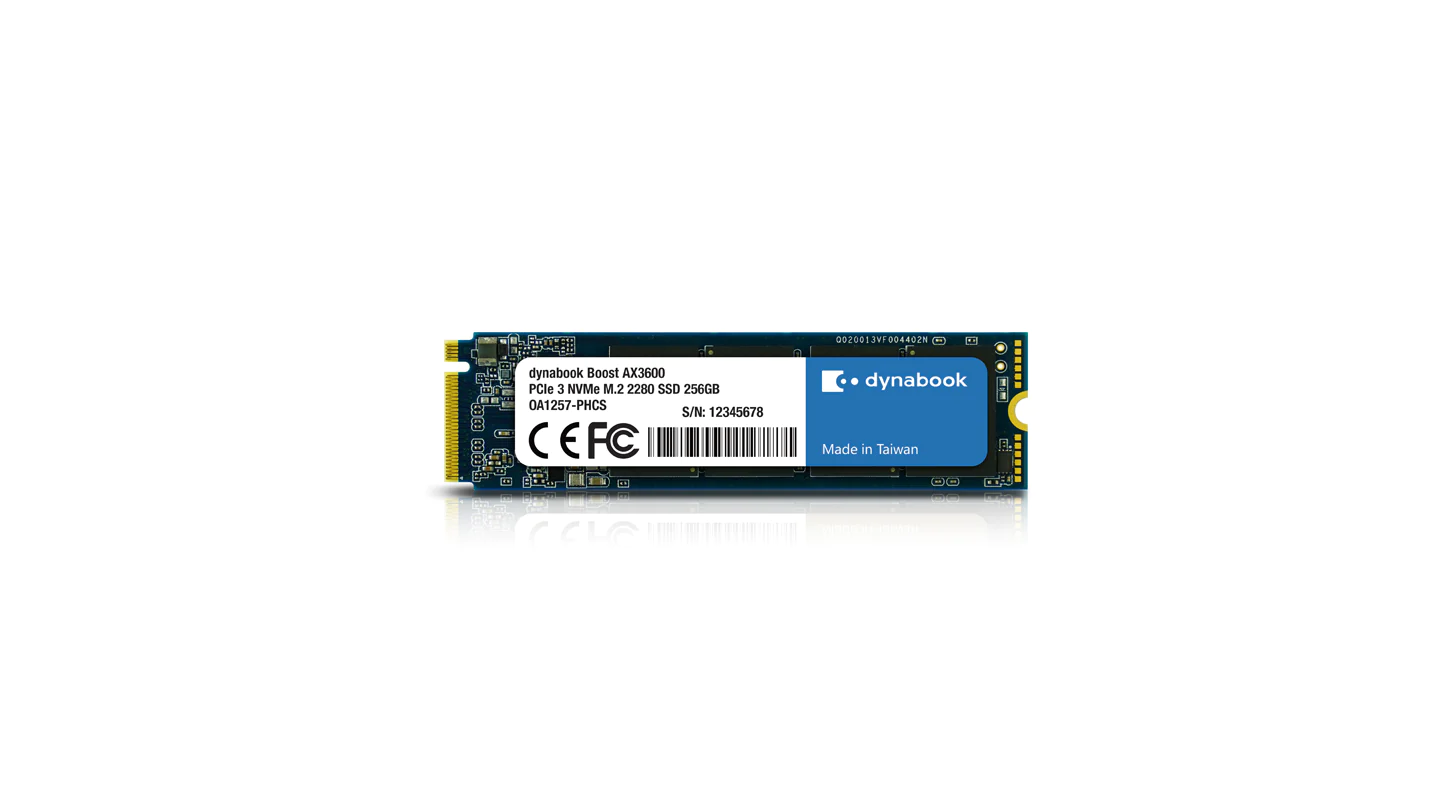
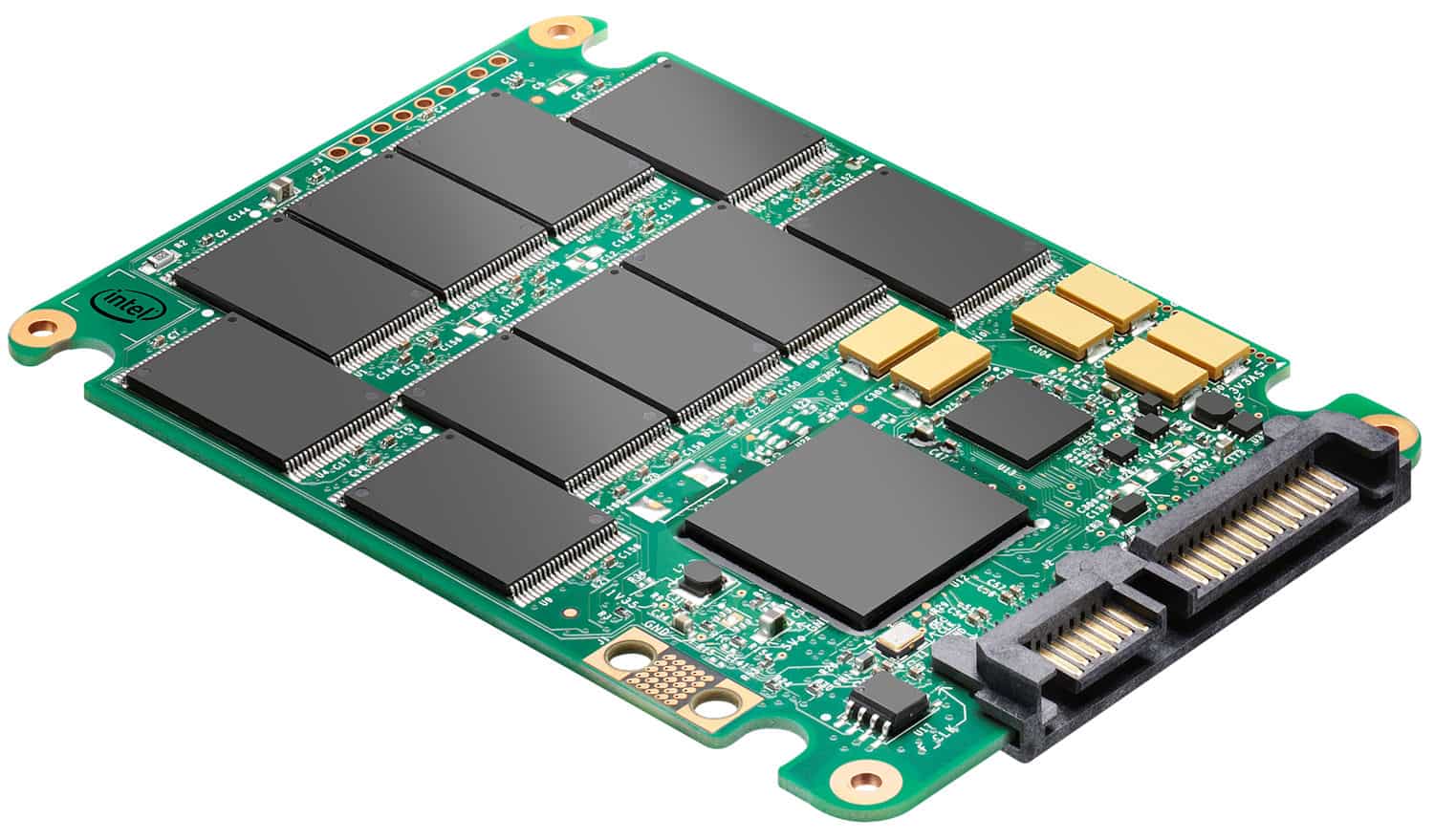
A 256GB SSD is a storage device that can hold around 256 gigabytes of digital data. SSD stands for solid-state drive. Unlike an older hard disk drive, or HDD, an SSD has no spinning disks or moving read heads.
The “256GB” part tells you the drive’s advertised capacity. The “SSD” part tells you how the drive stores and accesses data. Together, the term means a solid-state storage drive with a rated capacity of 256 gigabytes.


Think of it like a small, fast filing cabinet. The 256GB describes how much it can hold, while the SSD design determines how quickly you can open and save files.
A 256GB SSD can store:
• The operating system, such as Windows 11, macOS, or Linux
• Office apps, web browsers, and other programs
• Thousands of photos and documents
• Several large games, depending on their file size
• Music, videos, and school or work files
However, the full advertised capacity is not available for personal files. The operating system, recovery tools, formatting, and drive management space use part of it.

How Much Usable Space Does a 256GB SSD Have?
A new 256GB SSD usually shows less than 256GB of free space. This is normal and does not mean the drive is defective.
Storage companies use decimal measurements. In that system, 1GB equals 1,000,000,000 bytes. Operating systems may display storage using a different calculation based on powers of 1,024. This difference makes a 256GB drive appear closer to 238GB before system files are installed.
After installing Windows, macOS, or another operating system, the available space may drop further. A typical laptop may show roughly 220GB to 240GB available at first, depending on the operating system, recovery partition, updates, and bundled software.


The exact usable space varies because of:
• Operating system files
• Hidden recovery partitions
• Preinstalled applications
• File system formatting
• Temporary files and update packages
• SSD maintenance space
SSDs also benefit from free space. Many experts recommend keeping some capacity unused so the drive can manage data efficiently. Filling an SSD to nearly 100% can make file management harder and may reduce performance in some workloads.
What Can a 256GB SSD Store?
The answer depends on the type and size of your files. Text documents take very little space, while modern games and high-resolution videos can use tens or hundreds of gigabytes.
Here is a simple example of how a 256GB SSD might be used:
• Operating system: 25GB to 40GB
• Common apps: 10GB to 30GB
• Documents and spreadsheets: Less than 10GB for many users
• Photos: 10GB to 50GB, depending on image quality and quantity
• Music: 5GB to 30GB
• Games: 50GB to 150GB or more
A typical office user may find 256GB comfortable. A student who stores notes in the cloud may also have enough room. A photographer, video editor, or serious gamer may run out of space quickly.
For example, a modern game can occupy 80GB or more after updates and downloadable content. Four large games could use most of the usable space on a 256GB SSD. By contrast, thousands of word-processing files may use only a small portion of the drive.

Is a 256GB SSD Enough for a Laptop?
A 256GB SSD can be enough for a basic laptop, but it is not ideal for every user. Your habits matter more than the number alone.
A 256GB SSD usually works well if you:


• Browse the web
• Use Microsoft Office or Google Workspace
• Attend online classes
• Stream music and video
• Store photos in cloud services
• Download only a few apps
It may feel too small if you:
• Install many large games
• Edit 4K video
• Store raw camera files
• Keep a large movie collection offline
• Use virtual machines
• Work with large design or engineering files
For many people, a 256GB SSD is best viewed as an entry-level capacity. It can provide a fast and responsive system, but it leaves less room for growth. If you plan to keep the same computer for several years, 512GB often provides a more comfortable balance.
When helping people choose laptop storage, one common mistake stands out: they focus only on speed and ignore capacity. A fast drive does not help much when constant “low storage” warnings interrupt updates and file downloads.
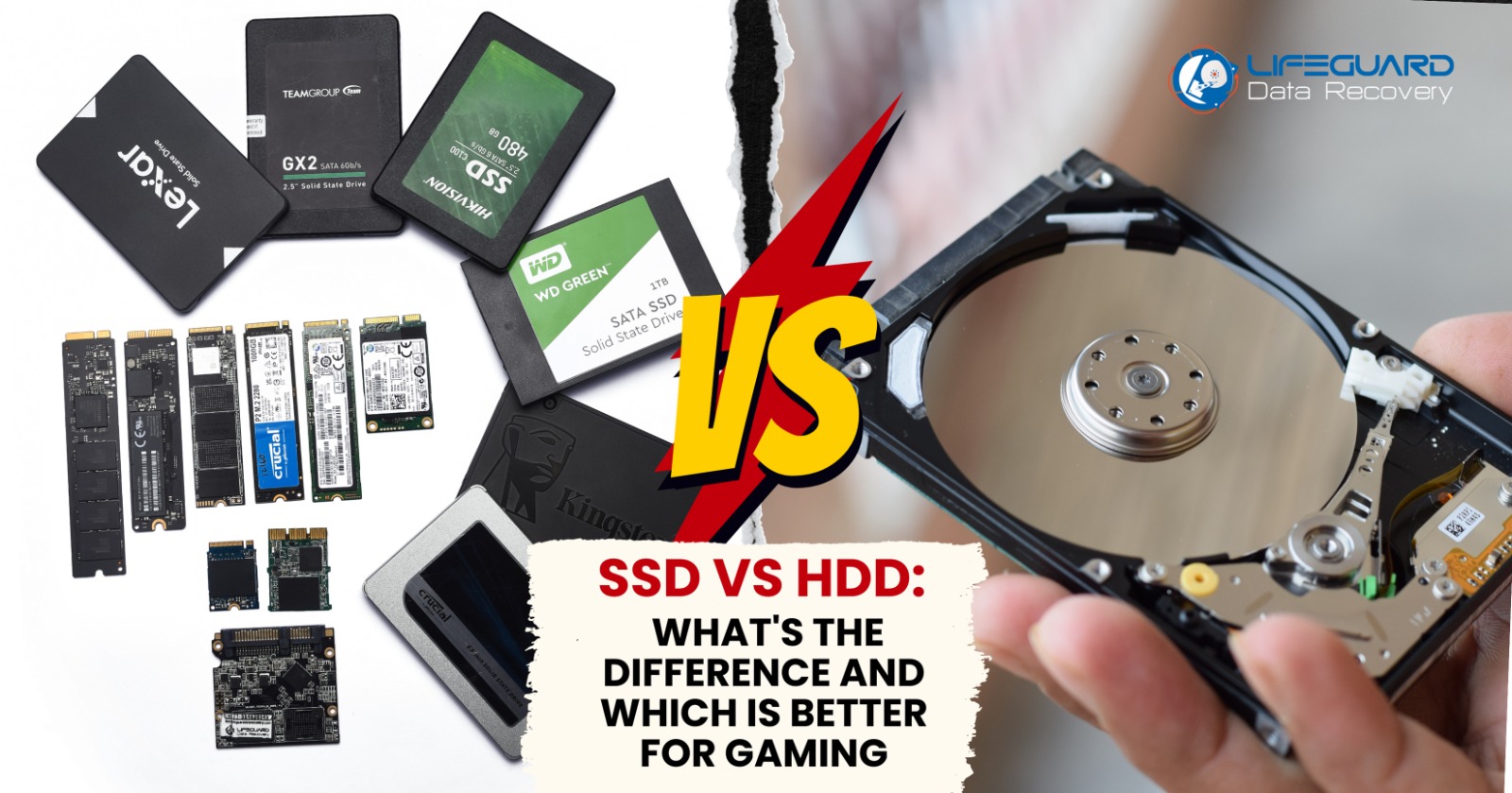
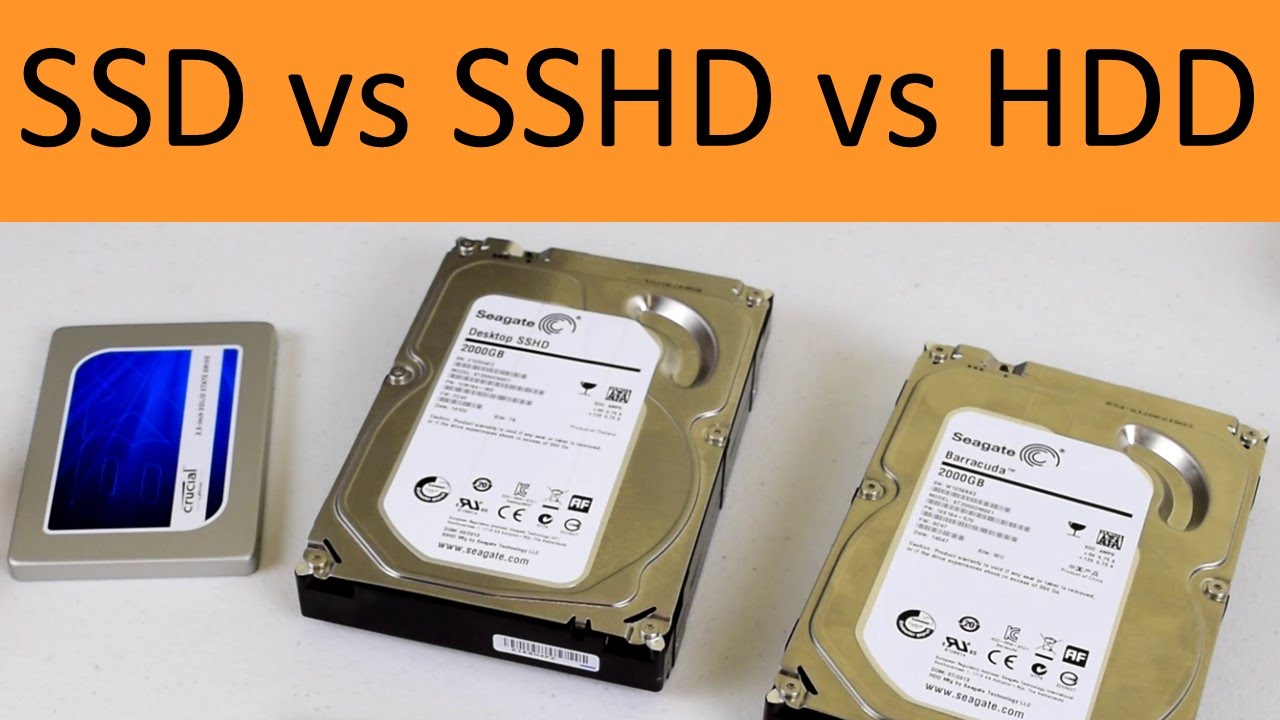
256GB SSD vs. 256GB HDD
Both drives may have the same advertised capacity, but they work in very different ways. An SSD uses NAND flash memory. An HDD uses magnetic platters that spin while a mechanical head reads and writes data.
A 256GB SSD is usually:
• Faster when starting the computer
• Quicker when opening programs
• More resistant to movement and vibration
• Quieter because it has no moving parts
• More energy-efficient in many laptop situations
A 256GB HDD is often:
• Less expensive per gigabyte


• Slower during startup and file access
• More sensitive to physical shocks
• Louder because of its moving parts
• Less common in thin modern laptops
The SSD does not make the internet faster, and it does not automatically improve every task. It mainly reduces storage-related delays. Your processor, memory, graphics hardware, and internet connection still affect overall performance.
For everyday computing, moving from an HDD to an SSD often feels like replacing a slow hallway with an express elevator. The computer becomes more responsive even if the processor stays the same.
256GB SSD vs. 512GB SSD
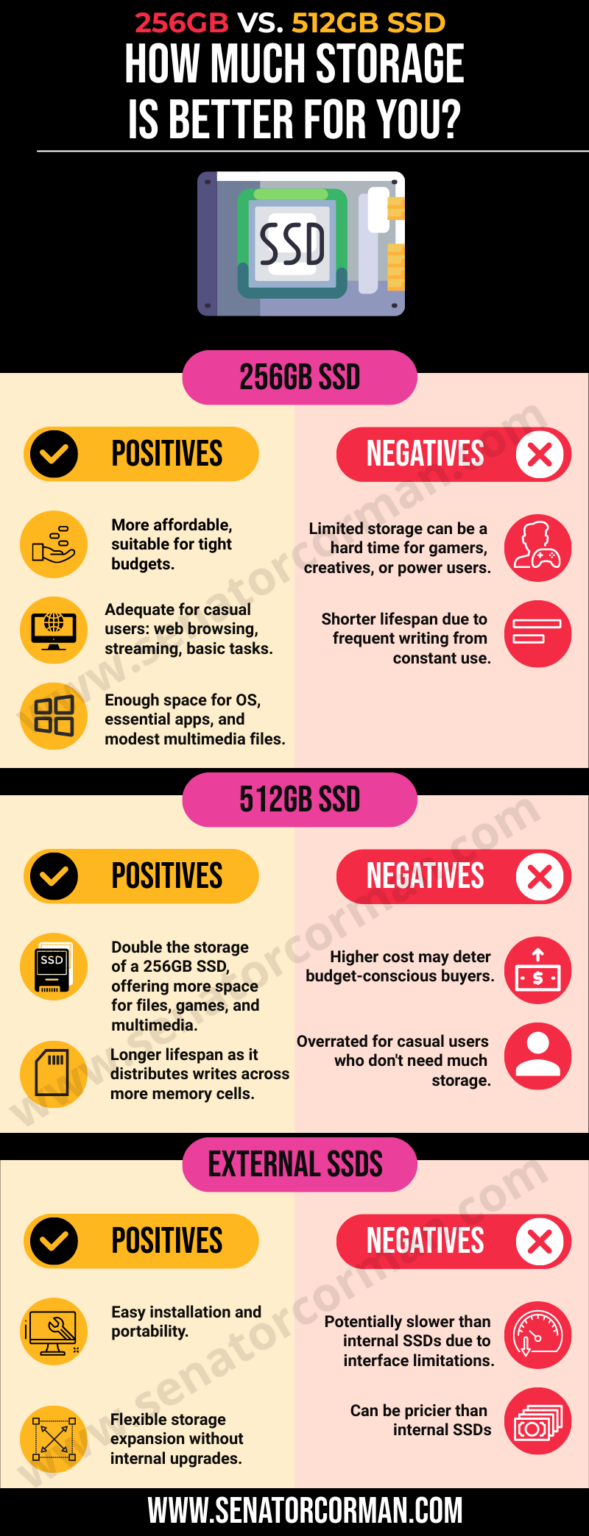
The main difference between a 256GB SSD and a 512GB SSD is storage space. A 512GB model offers roughly twice the advertised capacity, although usable space is always lower than the label.
A 256GB SSD may be enough for light use. A 512GB SSD gives you more room for:
• Large software packages
• Multiple games
• Photos and videos
• Offline media
• Future operating system updates
• Work and personal files on the same device
The larger drive may also offer higher performance in some product lines. However, capacity alone does not guarantee speed. Check the specific drive’s interface, controller, NAND type, and manufacturer specifications.
If the price difference is small, 512GB is often the better long-term choice. If you use cloud storage and mainly work online, 256GB can still offer good value.
Is a 256GB SSD Good for Gaming?
A 256GB SSD can run games well, but storage capacity is the main limitation. It may hold the operating system and a few smaller games, but large modern titles can fill it quickly.


Game performance depends on several parts:
• The graphics processing unit
• The central processing unit
• System memory
• The SSD’s read and write speed
• The game’s design and loading system
An SSD can shorten loading times compared with an HDD. It does not necessarily increase frame rates. Frame rates usually depend more on the graphics card, processor, game settings, and resolution.
For casual gaming, 256GB may be acceptable. For a large game library, 1TB is a more practical starting point. You can also keep a smaller SSD for the operating system and add another internal or external drive for games.
Before buying, check whether your computer supports another M.2 drive, a 2.5-inch SATA drive, or external USB storage. Compatibility matters more than simply choosing the largest drive.
Is a 256GB SSD Good for Video Editing?
A 256GB SSD can handle basic video editing, but it can become cramped very fast. Video projects often include original clips, preview files, cache data, project files, and exported versions.
A short 1080p project may fit comfortably. A 4K project with several hours of footage may require hundreds of gigabytes or more. Video editing software can also create temporary files that are easy to overlook.
For editing, consider this setup:
-
Use the SSD for the operating system and editing software.
-
Store active project files on a larger, fast internal drive.
-
Keep original footage on a separate drive or reliable storage system.
-
Move completed projects to an archive or backup drive.
-
Clear cache files only through the software’s approved settings.
Do not treat an SSD as a backup. SSDs can fail, just like HDDs. Important footage should exist in more than one location, with at least one copy separated from the computer.
Benefits and Limitations of a 256GB SSD
A 256GB SSD offers several strong benefits, especially for affordable laptops and basic desktop systems.
Main benefits
• Faster boot and application loading
• Silent operation
• Better resistance to everyday movement


• Lower power use in many portable systems
• Improved system responsiveness
• Enough space for basic computing
Main limitations
• Limited room for large games and video files
• Less suitable for heavy creative work
• Some usable space is lost to formatting and system files
• Performance may vary by model
• Storage upgrades may be difficult in thin laptops
SSD endurance also differs from model to model. Manufacturers often list a TBW rating, meaning terabytes written. This estimates how much data the drive is designed to write under warranty conditions. Normal home and office use typically does not write enough data to reach this limit quickly, but heavy workloads deserve closer attention.
The best drive is not always the drive with the highest speed rating. A reliable model with enough capacity, good warranty support, and a compatible interface is often the wiser choice.
How to Check How Much Space Your SSD Has
You can check your available storage through your computer’s system settings.
In Windows
-
Open Settings.
-
Select System.
-
Choose Storage.
-
Review the drive’s used and available space.
You can also open File Explorer and select This PC. The storage bar will show how much room remains.
On macOS
-
Open the Apple menu.
-
Select System Settings.
-
Choose General.
-
Select Storage.
macOS will group files into categories such as applications, documents, photos, and system data.
On Linux
Most desktop Linux distributions show storage details in the file manager or system settings. You can also use disk tools to view partitions, file systems, and available space.
Check storage before downloading a large update or installing a new game. Keeping at least 10% to 20% free is a practical habit, although the ideal amount depends on the SSD and workload.
Tips for Managing a 256GB SSD
Good storage habits can make a 256GB SSD feel much larger.
• Uninstall apps you no longer use.
• Remove old downloads and duplicate files.
• Store photos and videos on an external drive or cloud service.
• Move large game libraries to another drive.
• Use built-in storage cleanup tools.
• Avoid filling the drive completely.
• Keep important files backed up.
• Review large files once a month.
Windows Storage Sense and macOS storage recommendations can help find files that use the most space. Be careful when deleting system files. If you are unsure about a folder, research it first or leave it alone.
One lesson worth remembering is that cleanup is not a backup. Deleting files creates space, but it does not protect files from hardware failure, theft, malware, or accidental deletion.
How to Choose a 256GB SSD
If you are buying a 256GB SSD, capacity is only one factor. Start by checking the connection type supported by your computer.
Common choices include:
• M.2 NVMe: A small drive that often uses the PCIe interface and offers high speed.
• M.2 SATA: A compact drive that uses the SATA interface.
• 2.5-inch SATA: A common size for older laptops and desktops.
• External USB SSD: A portable option for backups and extra storage.
An M.2 drive is not automatically an NVMe drive. M.2 describes the shape and connector, while NVMe describes a storage protocol. Always check your computer’s manual or manufacturer specifications before purchasing.
Also review:
• Sequential read and write speeds
• Random read and write performance
• Warranty length
• TBW endurance rating
• Software for monitoring drive health
• Seller reputation
• Return and replacement policy
Do not pay extra for extreme benchmark speeds if your computer cannot use them. For everyday work, reliability and enough free space often matter more than maximum laboratory performance.
Should You Upgrade From a 256GB SSD?
Upgrade if you regularly see low-storage warnings, cannot install needed software, or keep moving files to make room. An upgrade can also help if you want to store games, photos, or videos locally.
Before upgrading, check:
-
Whether the drive is replaceable.
-
Which interface and physical size your computer supports.
-
Whether the new drive has enough capacity.
-
Whether you need a USB enclosure for cloning.
-
Whether your data is backed up.
You can clone the old drive to the new one in many cases. However, cloning requires care. The new drive must have enough space for the used data, and the computer may need changes to its boot settings.
Some modern laptops have storage soldered to the motherboard. In those systems, you may need external storage or professional repair rather than an internal upgrade.

Frequently Asked Questions About What Does 256GB SSD Mean
Does a 256GB SSD have exactly 256GB of usable space?
No. Manufacturers advertise 256GB using decimal measurements, and the operating system uses some space for formatting, system files, recovery tools, and updates. You may see roughly 220GB to 240GB available on a new drive.
Is a 256GB SSD enough for Windows?
Yes, a 256GB SSD can be enough for Windows, common apps, documents, and light media use. You will need to manage space carefully if you install many games or store large videos.
Is a 256GB SSD better than a 1TB HDD?
A 256GB SSD is usually much faster, quieter, and more resistant to movement than a 1TB HDD. A 1TB HDD offers far more capacity, so the better choice depends on whether speed or storage space matters most.
Can I use a 256GB SSD for gaming?
Yes, you can use a 256GB SSD for gaming, but the number of installed games will be limited. Many modern games are large, so a 512GB or 1TB SSD is more convenient for a growing library.
Does an SSD make a computer faster?
An SSD can make startup, program loading, and file access much faster than an HDD. It does not guarantee higher gaming frame rates or faster internet because those tasks also depend on other hardware and network conditions.
How long does a 256GB SSD last?
The lifespan depends on the drive’s NAND type, controller, workload, temperature, and write endurance rating. A quality SSD can last for many years under normal home or office use, but important data should always have a separate backup.
Conclusion
A 256GB SSD means you have a solid-state drive with an advertised capacity of 256 gigabytes. It offers fast startup, quick app loading, quiet operation, and enough room for basic work, school, browsing, and light entertainment.
The real usable space will be lower, and large games, video projects, and photo libraries can fill the drive quickly. Choose 256GB for simple needs and lower cost, or consider 512GB or 1TB if you want more room to grow.
Check your computer’s drive type, keep free space available, and maintain a reliable backup. Use this guide to compare your storage habits with the drive’s capacity, then make the upgrade or purchase that best fits your daily work.