How To Pair Jabra Earbuds: Easy Setup Guide
Pair Jabra earbuds by activating pairing mode, opening Bluetooth settings, and selecting your Jabra model from the device list.
Knowing how to pair Jabra earbuds makes setup quick on phones, tablets, computers, and smart TVs. The exact button press can vary by model, but the basic Bluetooth process is nearly the same across the Jabra Elite range. This guide explains each step, solves common connection problems, and shares practical tips for a stable connection.
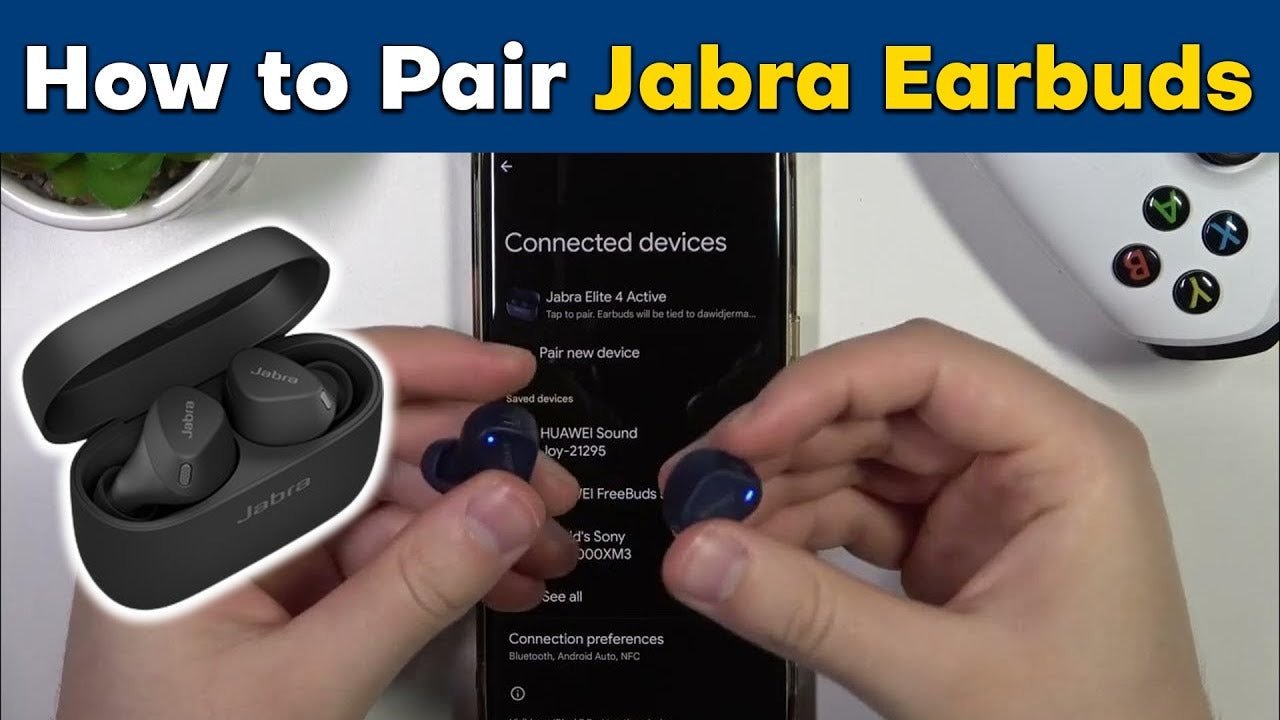
How to Pair Jabra Earbuds for the First Time
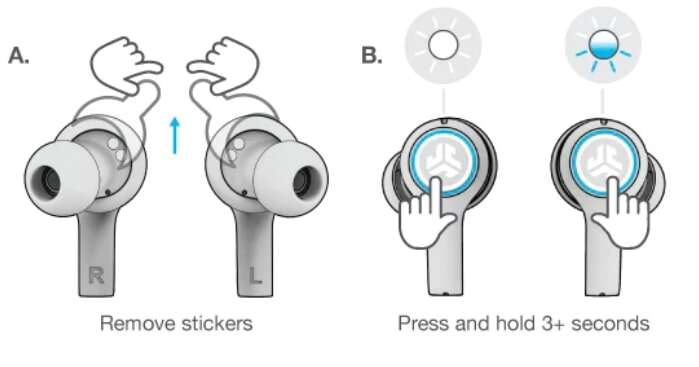
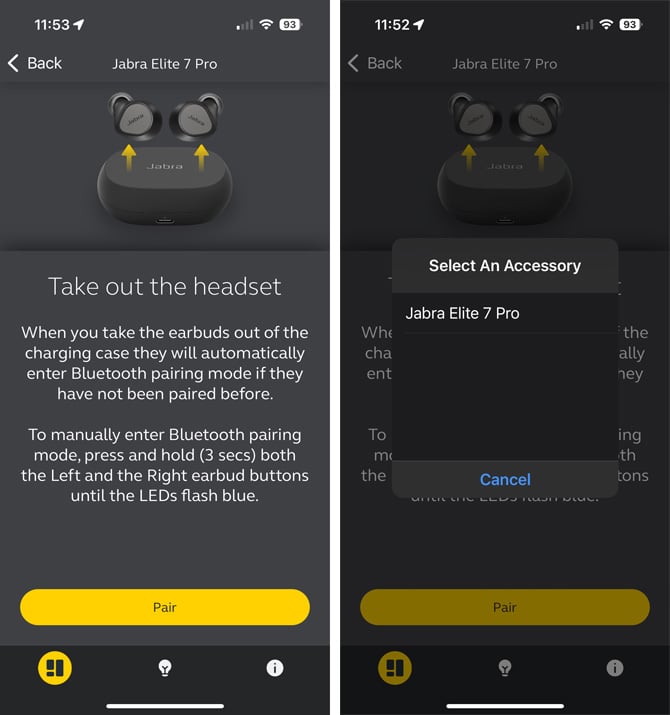
Most Jabra earbuds enter pairing mode automatically when you remove them from the charging case for the first time. If they do not, you can usually activate pairing mode by pressing and holding the buttons on the earbuds for about three seconds.
Follow these steps:
- Remove both Jabra earbuds from the charging case.
- Put the earbuds in your ears, or keep them close to your phone.
- Press and hold the buttons on both earbuds for about three seconds.
- Release the buttons when you hear a pairing message or see a flashing blue light.
- Open the Bluetooth settings on your phone.
- Turn Bluetooth on.
- Select your Jabra earbuds from the list of available devices.
- Accept the pairing request if your phone displays one.


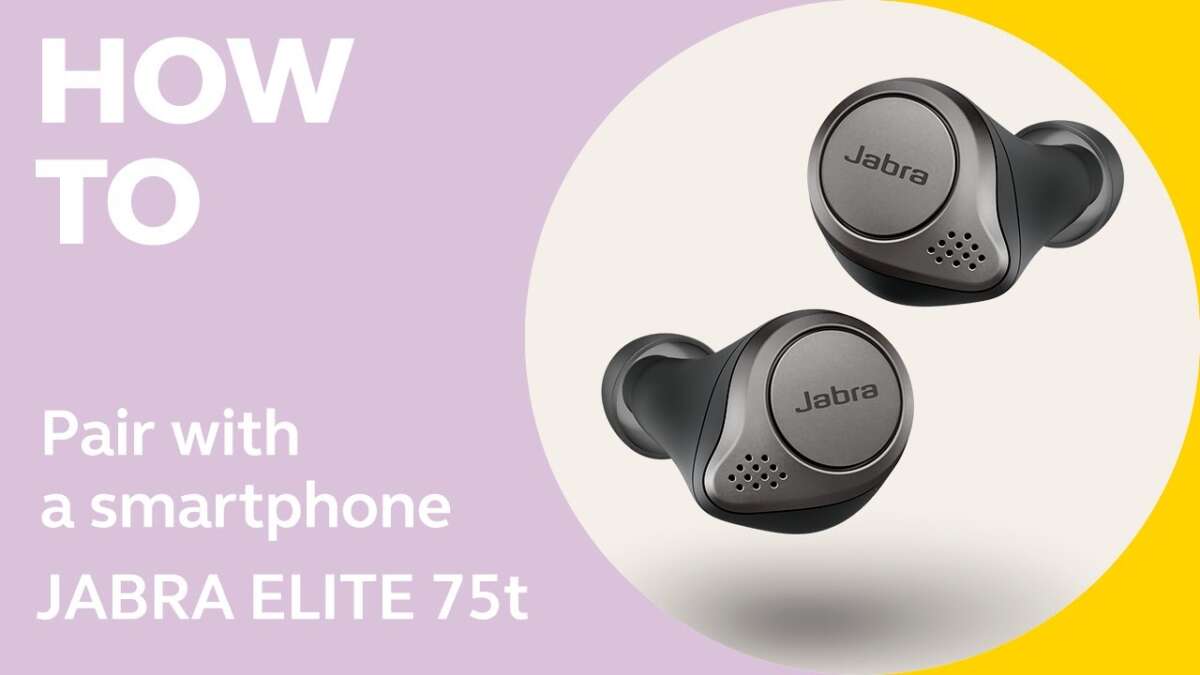
The name may appear as “Jabra Elite 75t,” “Jabra Elite 8 Active,” “Jabra Elite 4,” or another model name. Once connected, your phone should show the earbuds as connected rather than merely saved.
The first pairing can feel like finding the right key for a lock. After the connection is saved, the earbuds should reconnect automatically whenever Bluetooth is active and the earbuds are removed from the case.

How to Pair Jabra Earbuds With an iPhone
Pairing Jabra earbuds with an iPhone takes only a few moments. Apple devices use standard Bluetooth settings, so you do not need the Jabra Sound+ app for the first connection.
- Open the charging case and remove the earbuds.
- Press and hold the earbud buttons until the indicator lights flash blue.
- On your iPhone, open Settings.
- Tap Bluetooth.
- Make sure Bluetooth is switched on.
- Look under Other Devices.
- Tap the name of your Jabra earbuds.
- Wait for the status to change to Connected.
If the earbuds were paired with another phone before, they may connect to that device instead. Turn Bluetooth off on the old device or place it farther away during setup.
The Jabra Sound+ app can help with firmware updates, battery checks, sound settings, and device management. However, the app does not replace the iPhone Bluetooth menu. You still need to complete the normal Bluetooth pairing process.

How to Pair Jabra Earbuds With Android
Android phones may use slightly different menu names, but the Bluetooth process remains simple. The steps below work on many Samsung Galaxy, Google Pixel, Motorola, and other Android phones.
- Take the Jabra earbuds out of the case.
- Press and hold both earbud buttons for about three seconds.
- Open Settings on your Android phone.
- Tap Connected devices, Connections, or Bluetooth.
- Choose Pair new device if needed.
- Select your Jabra earbuds.
- Tap Pair or Connect when prompted.
Some Android phones ask for permission to access nearby devices. Allowing this permission can help the phone find Bluetooth accessories.
If you use the Jabra Sound+ app, install it only from the official app store. Open the app after pairing and follow its setup instructions. The app may offer an equalizer, sleep mode, voice assistant controls, and firmware updates, depending on your Jabra model.

How to Pair Jabra Earbuds With a Windows PC
Jabra earbuds can work well for music, video calls, and online meetings on a Windows computer. Before pairing, place the earbuds near the computer and make sure they have enough battery.


On Windows 11:
- Open the Start menu.
- Select Settings.
- Choose Bluetooth & devices.
- Turn Bluetooth on.
- Click Add device.
- Select Bluetooth.
- Choose your Jabra earbuds from the list.
- Click Done after the connection finishes.
On Windows 10, open Settings, select Devices, choose Bluetooth & other devices, and click Add Bluetooth or other device. Select Bluetooth, then choose your Jabra model.
For calls, Windows may show two audio options. The Stereo option usually provides better music quality. The Hands-Free option activates the microphone but may reduce sound quality. This change is normal for many Bluetooth headsets and is linked to Bluetooth call profiles.
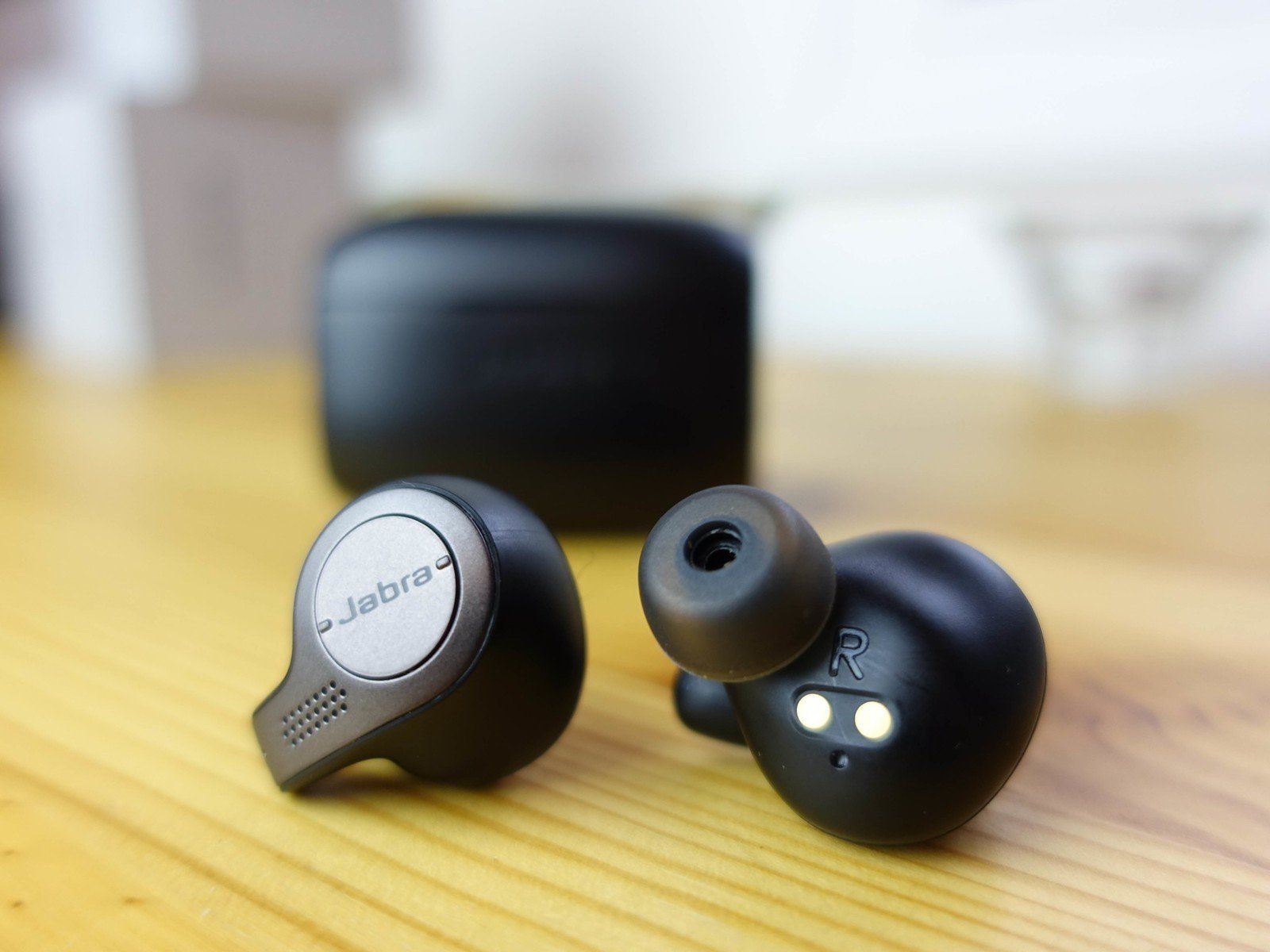
How to Pair Jabra Earbuds With a Mac
The process on a Mac is similar to pairing any other Bluetooth accessory.
- Open the charging case.
- Press and hold the earbud buttons for about three seconds.
- On your Mac, click the Apple menu.
- Open System Settings.
- Select Bluetooth.
- Find your Jabra earbuds under Nearby Devices.
- Click Connect.
Older versions of macOS may place Bluetooth under System Preferences. If the earbuds do not appear, switch Bluetooth off and back on, then repeat the pairing process.
After connecting, open System Settings and select Sound to confirm that your Jabra earbuds are selected for audio output. For video calls, also check the microphone setting in the meeting app.
How to Pair Jabra Earbuds With a Smart TV
Many modern smart TVs support Bluetooth audio. The menu differs by brand, but the general process is easy.
- Put the Jabra earbuds into pairing mode.
- Open your TV’s Settings menu.
- Find Sound, Audio, or Accessories.
- Open Bluetooth Speaker List or Bluetooth Devices.
- Select your Jabra earbuds.
- Confirm the connection.
Some TVs support only certain Bluetooth audio profiles. If your TV cannot find the earbuds, check the TV manual for Bluetooth headphone support. A Bluetooth transmitter may be needed for older TVs.
TV audio can also have a slight delay. This is caused by wireless audio processing rather than a fault with the Jabra earbuds. A transmitter with low-latency support may reduce the delay, but compatibility is not guaranteed.
How to Pair Jabra Earbuds With a Second Device
Many Jabra models support multipoint Bluetooth. This feature lets the earbuds stay connected to two devices at the same time, such as a laptop and a phone. Support varies by model, so check your model’s specifications before expecting this feature.
To add a second device:
- Disconnect the earbuds from the first device if necessary.
- Put the earbuds into pairing mode.
- Open Bluetooth settings on the second device.
- Select the Jabra earbuds.
- Confirm the connection.
- Reconnect the first device if it does not reconnect automatically.
With multipoint enabled, audio usually switches to the device receiving a call or playing media. Some models may pause music on one device when another device becomes active.
A common mistake is assuming every Jabra earbud supports multipoint in the same way. Some models need a firmware update, while others support connection to only one device at a time.


How to Pair One Jabra Earbud
Some Jabra earbuds support mono use, which means you can use one earbud while the other remains in the case. This is useful when you need to hear traffic, talk with someone, or extend listening time.
Try these steps:
- Place the unused earbud in the charging case.
- Remove the earbud you want to use.
- Open Bluetooth settings on your phone.
- Select the already saved Jabra connection.
- Play audio to test the connection.
On some models, the right earbud acts as the main connection earbud. Older Jabra designs may not allow the left earbud to work alone. If one earbud does not work independently, check the model instructions rather than assuming it is defective.
If the single earbud does not connect, place both earbuds in the case, close the lid, wait a few seconds, and try again. This often helps the earbuds resynchronize.
How to Pair Jabra Earbuds Again After Disconnecting
After the first setup, Jabra earbuds should reconnect automatically to the last device. Keep Bluetooth turned on, open the case, and remove the earbuds. In most cases, the connection will return within a few seconds.
If automatic reconnection does not happen, open your phone’s Bluetooth menu and tap the saved Jabra device. You may also need to put the earbuds back in the case before trying again.
Check these items:
- The earbuds have battery power.
- The charging case has enough charge.
- Bluetooth is active on the phone.
- The earbuds are within a few feet of the device.
- Another nearby device is not connecting to them first.
- Airplane mode is turned off.
In everyday testing, the most common cause of failed reconnection is another device taking control first. For example, the earbuds may reconnect to a work laptop while you are trying to use them with your phone.
How to Fix Jabra Earbuds That Will Not Pair
When Jabra earbuds will not pair, start with simple fixes before resetting them. Bluetooth problems often come from an old saved connection, low battery, or pairing mode not being active.
Try this checklist:
- Turn Bluetooth off and back on.
- Restart the phone, tablet, or computer.
- Charge the earbuds and case.
- Move away from other active Bluetooth devices.
- Place both earbuds in the case for at least ten seconds.
- Remove them and activate pairing mode again.
- Forget the old Jabra connection.
- Search for the earbuds as a new device.
To forget the connection on an iPhone, open Settings, tap Bluetooth, select the information icon beside the Jabra name, and choose Forget This Device. On Android, tap the gear icon beside the saved device and choose Forget or Unpair.
On Windows and macOS, remove the earbuds from the Bluetooth device list before trying to pair them again. A clean pairing often solves problems caused by outdated connection data.
How to Reset Jabra Earbuds
A reset removes stored pairing information and returns the earbuds to a fresh setup state. Use this step when normal troubleshooting does not work or when the earbuds keep connecting to the wrong device.
The exact reset method varies by model, but many Jabra Elite earbuds use a process similar to this:
- Remove both earbuds from the case.
- Press and hold the left and right earbud buttons at the same time.
- Continue holding for about ten seconds.
- Release the buttons when the LED indicators flash purple or when you hear a reset tone.
- Place the earbuds in the case.
- Close the lid for several seconds.
- Remove the earbuds and pair them again.


Do not rely on the color alone because LED behavior differs across models. If the reset does not start, charge the case and earbuds, then consult the instructions for your exact model.
After a reset, remove the old Jabra entry from every phone or computer you used before. Then pair the earbuds as if they were new.
Common Jabra Pairing Problems and Solutions
Small details can affect Bluetooth pairing. The table below covers problems that users often face.
| Problem | Likely cause | What to do |
|---|---|---|
| Jabra earbuds do not appear | Pairing mode is inactive | Press and hold the earbud buttons for about three seconds |
| Only one earbud works | The earbuds lost synchronization | Place both earbuds in the case, then remove them together |
| Earbuds connect to the wrong device | Another saved device is nearby | Turn Bluetooth off on the unwanted device |
| Connection keeps dropping | Low battery or interference | Charge the earbuds and move away from Wi-Fi equipment |
| Audio comes from the phone speaker | Jabra is not selected for output | Choose the earbuds in the phone’s audio controls |
| Microphone does not work | Wrong input device selected | Choose Jabra as the microphone in the call app |
| Earbuds cannot be reset | Battery is too low | Charge the case and earbuds before resetting |
Bluetooth uses short-range radio signals. Walls, crowded wireless areas, and multiple connected devices can affect performance. Most Bluetooth problems are not permanent hardware failures.
Tips for a More Stable Jabra Bluetooth Connection
Pairing is only the first step. Good habits can improve sound, call quality, and battery life.
- Keep your phone within about 30 feet when possible, especially indoors.
- Update the earbuds through the Jabra Sound+ app when an update is available.
- Clean the charging contacts with a dry, soft cloth.
- Keep the earbuds and case charged.
- Avoid storing the case in extreme heat or cold.
- Turn off Bluetooth on devices you no longer use.
- Keep the earbuds close to the phone during the first pairing.
- Use the correct audio output and microphone settings during calls.
Firmware updates can improve stability and add features, but they cannot fix every hardware limitation. Also, software menus may change after an iOS, Android, Windows, or macOS update. If a menu looks different, search for Bluetooth in the device settings.
One practical lesson is to avoid pairing in a crowded room full of phones and laptops. A quiet setup at home is often faster because fewer devices compete for attention.
What the Jabra Indicator Lights Mean
Jabra earbuds use LED colors and voice prompts to show their status. The exact meaning can vary by model, but these signals are common:
- Blue flashing light: The earbuds are usually in pairing mode.
- Green light: The earbuds or case may have a high charge.
- Yellow or amber light: The battery may be partly charged.
- Red light: The battery may be low or charging may be needed.
- Purple flashing light: A reset or firmware-related process may be active.
Treat the light as a helpful clue rather than a universal code. Always confirm the meaning in the guide for your specific Jabra model.
If the lights do not turn on, place the earbuds in the case and check whether the charging contacts are clean. A poor contact can make an earbud appear dead when it simply is not charging.
Frequently Asked Questions About How to Pair Jabra Earbuds
How do I put Jabra earbuds into pairing mode?
Remove both earbuds from the case and press and hold their buttons for about three seconds. Release them when the lights flash blue or you hear a pairing prompt.
Why are my Jabra earbuds not showing in Bluetooth?
They may not be in pairing mode, or they may still be connected to another device. Turn off Bluetooth on nearby devices, reset the earbuds if needed, and search again.
Can I pair Jabra earbuds with an iPhone?
Yes, Jabra earbuds work with iPhones through the standard Bluetooth menu. Open Settings, tap Bluetooth, and select the Jabra model when it appears.


Can I connect Jabra earbuds to two devices?
Some Jabra models support multipoint connections, while others support only one active connection. Check your model’s specifications and install any required firmware update.
How do I reset Jabra earbuds before pairing them again?
Many models reset when you press and hold both earbud buttons for about ten seconds. The exact process varies, so use the instructions for your specific model if this method does not work.
Why does only one Jabra earbud connect?
The earbuds may have lost synchronization, or your model may limit single-earbud use. Place both earbuds in the case, remove them together, and pair them again.
Do I need the Jabra Sound+ app to pair my earbuds?
No. You can pair Jabra earbuds through your phone, tablet, or computer’s Bluetooth settings. The app is useful for updates, controls, sound settings, and battery information.
Conclusion
Learning how to pair Jabra earbuds is usually a simple process: activate pairing mode, open Bluetooth settings, and select the correct Jabra model. If the earbuds fail to connect, check the battery, remove old Bluetooth records, prevent other devices from connecting, and reset the earbuds as a last step.
Once your earbuds are connected, keep the firmware updated and use the Jabra Sound+ app for added control. Try the steps above with your model, then explore more device guides or share your pairing experience in the comments.