How To Connect JLab Earbuds: Easy Pairing Guide
To connect JLab earbuds, turn on Bluetooth, open the case, and select your earbuds from the device list.
Learning how to connect JLab earbuds is simple once you understand pairing mode, Bluetooth settings, and the small differences between JLab models. This guide explains the full process for phones, tablets, computers, and smart TVs, plus clear fixes for pairing problems, reset steps, and tips learned from using true wireless earbuds in everyday settings.
How to connect JLab earbuds for the first time
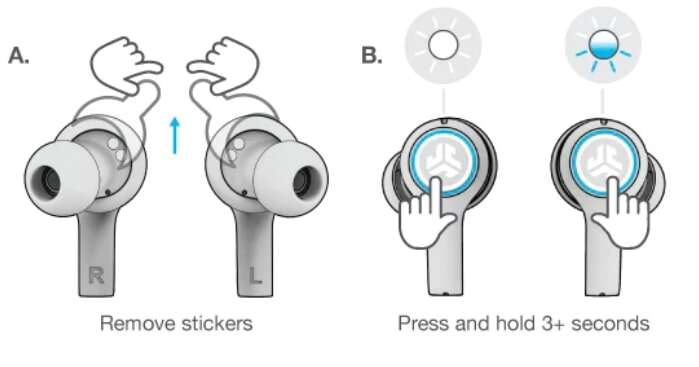
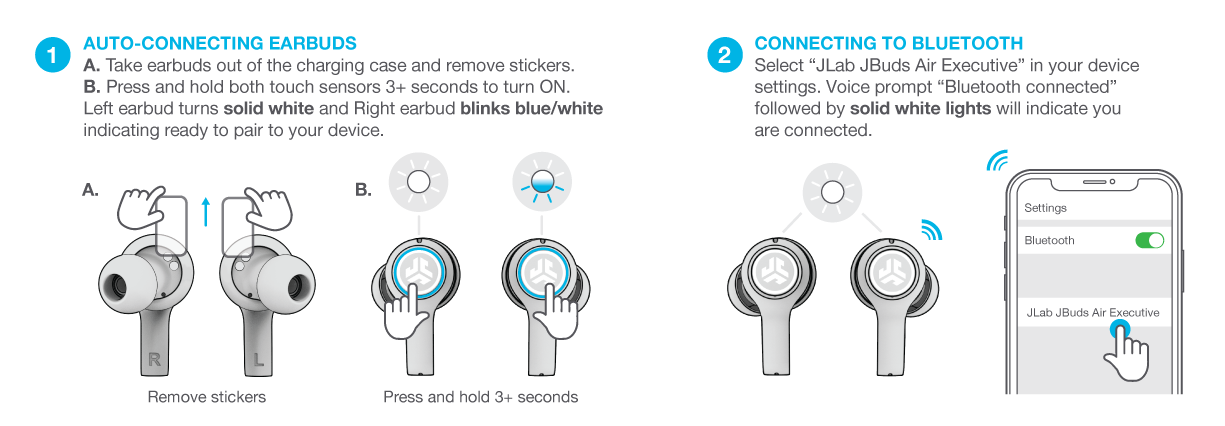
Most JLab earbuds pair automatically the first time you remove them from the charging case. The earbuds usually enter pairing mode when the case is opened or when the earbuds are powered on.
Before you begin, keep your earbuds and the device close together. Bluetooth works best within about 30 feet, though walls, metal objects, and wireless interference can reduce that range.


Follow these steps:
- Charge the earbuds and charging case for a few minutes.
- Remove both earbuds from the case.
- Turn on Bluetooth on your phone, tablet, or computer.
- Look for a name such as “JLab GO Air Pop,” “JLab JBuds Mini,” or “JLab JBuds Air.”
- Tap the JLab name to connect.
- Wait for the message that says “Connected” or “Paired.”
- Play music to test both earbuds.
Some JLab models use touch controls, while others use physical buttons. Avoid pressing the earbuds too many times during setup because a tap may pause music, change tracks, or turn an earbud off.
If the JLab name does not appear, place both earbuds back in the case. Close the lid, wait a few seconds, and open it again. This often restarts the pairing process without requiring a full reset.

How to connect JLab earbuds to an iPhone
Connecting JLab earbuds to an iPhone takes less than a minute in most cases. The key is to open the Bluetooth menu before choosing the earbuds.
- Open the Settings app on your iPhone.
- Tap Bluetooth.
- Turn Bluetooth on.
- Open the JLab charging case.
- Remove the earbuds.
- Wait for the JLab model name to appear under Other Devices.
- Tap the name.
- Wait until it moves to My Devices and shows Connected.
If your JLab earbuds were connected to another phone, they may connect to that device first. Turn off Bluetooth on the old phone or remove the JLab earbuds from its Bluetooth list. Then try the setup again on your iPhone.
On some models, you may need to tap or press an earbud to enter pairing mode. The exact control can differ by model, so check the quick-start guide that came with your earbuds if automatic pairing does not work.
Once connected, your iPhone normally remembers the earbuds. The next time you open the case, the earbuds should reconnect if Bluetooth is on and the previous device is nearby.

How to connect JLab earbuds to an Android phone
The Android pairing process is similar, but menu names can vary between Samsung Galaxy, Google Pixel, Motorola, and other phones.
- Open Settings.
- Tap Connected devices, Connections, or Bluetooth.
- Choose Pair new device if needed.
- Open the JLab charging case.
- Remove the earbuds.
- Select your JLab earbuds from the list.
- Tap Pair or Connect.


Some Android phones show a pop-up pairing card. If it appears, tap Connect and follow the instructions on screen.
Android may ask for permission to access nearby devices. Allowing this permission helps the phone find Bluetooth accessories. You do not usually need to enter a PIN for modern JLab earbuds.
If only one earbud works, the two earbuds may have lost their connection with each other. This is different from a phone pairing problem. Place both earbuds in the case, remove them together, and allow them a few seconds to sync before playing audio.

How to connect JLab earbuds to a Windows PC
JLab earbuds can connect to a Windows laptop or desktop for music, meetings, and video calls. Your computer must have Bluetooth built in or use a compatible Bluetooth adapter.
On Windows 11:
- Open Settings.
- Select Bluetooth & devices.
- Turn Bluetooth on.
- Click Add device.
- Choose Bluetooth.
- Open the JLab case and remove the earbuds.
- Select your JLab earbuds.
- Click Done after pairing.
On Windows 10, open Settings, choose Devices, select Bluetooth & other devices, and click Add Bluetooth or other device.
After pairing, click the speaker icon in the taskbar. Select the JLab earbuds as the sound output. For calls, also check the microphone setting in the meeting app because Windows may choose the laptop microphone by default.
A common mistake is selecting the hands-free audio profile when you want the best music quality. Hands-free mode is useful for calls, but it may reduce sound quality because the microphone is active.
How to connect JLab earbuds to a Mac
The steps for connecting JLab earbuds to a Mac are quick and consistent across recent macOS versions.
- Open the Apple menu.
- Select System Settings.
- Click Bluetooth.
- Turn Bluetooth on.
- Open the JLab case and remove the earbuds.
- Find the JLab model in the list.
- Click Connect.
On older Macs, Bluetooth appears in System Preferences instead of System Settings.
After pairing, click the Control Center icon in the menu bar. Choose Sound, then select your JLab earbuds. If the earbuds connect but sound comes from the Mac speakers, changing the sound output manually usually fixes the issue.
For video calls, select the JLab earbuds in the app’s audio settings. Some apps remember the Mac’s last audio choice, so check the microphone and speaker options before joining an important meeting.

How to connect JLab earbuds to a smart TV
Many smart TVs support Bluetooth headphones, but the exact menu depends on the brand. Samsung, LG, Roku TV, and Google TV may use different names for the same feature.
Start by putting the JLab earbuds in pairing mode. Then open the TV’s Bluetooth or audio device settings.


Typical steps include:
- Open TV Settings.
- Choose Sound or Remotes and Accessories.
- Select Bluetooth devices.
- Choose Add device or Pair new device.
- Select your JLab earbuds.
- Confirm the connection.
Some TVs do not support Bluetooth audio. Others support only certain Bluetooth profiles, which can cause sound delay or connection limits. If your TV cannot find the earbuds, check its manual or use a Bluetooth transmitter connected to the TV’s audio output.
When testing JLab earbuds with a TV, keep the charging case nearby. If the earbuds disconnect, you can place them back in the case and try pairing again without searching through every menu.

How to put JLab earbuds into pairing mode
Pairing mode makes the earbuds visible to a phone or computer. Without it, the device may not show the JLab name.
For many JLab true wireless models:
- Put both earbuds in the charging case.
- Leave the case open.
- Remove both earbuds.
- Wait for the LED lights to flash.
- Open the Bluetooth menu on your device.
- Select the JLab model.
If the earbuds do not enter pairing mode, turn off Bluetooth on nearby devices. A previously paired phone may capture the connection before your new device can find it.
Some models require you to press and hold the touch sensor or button for a few seconds. The control pattern is not identical across the JLab range. The product manual is the best source for model-specific button actions.
Avoid pairing each earbud separately unless the instructions for your model say to do so. Most true wireless JLab earbuds are designed to work as a pair.
How to connect JLab earbuds after changing devices
JLab earbuds can remember previous devices, but most models do not connect to several devices at the same time. To move from your phone to a laptop, disconnect the earbuds from the phone first.
Use this method:
- Open Bluetooth settings on the old device.
- Tap the JLab earbuds.
- Choose Disconnect or Forget This Device.
- Turn Bluetooth off on the old device.
- Put the earbuds in pairing mode.
- Open Bluetooth on the new device.
- Select the JLab earbuds.
Some newer JLab models support multipoint Bluetooth. This feature lets compatible earbuds maintain connections with two devices, such as a phone and a laptop. Multipoint behavior varies by model, so do not assume every JLab product supports it.
In daily use, I have found that turning Bluetooth off on the old device is faster than repeatedly tapping Connect on the new one. It prevents the earbuds from jumping back to the device you used earlier.

How to fix JLab earbuds that will not connect
Pairing problems usually come from an old Bluetooth record, low battery, or earbuds that are not in pairing mode. Work through the simple fixes before performing a reset.


Try these steps:
• Charge the earbuds and case for at least 15 minutes.
• Keep the earbuds within a few feet of the device.
• Turn Bluetooth off, wait five seconds, and turn it on again.
• Restart the phone, tablet, computer, or TV.
• Remove the JLab earbuds from the saved Bluetooth list.
• Turn off Bluetooth on nearby devices.
• Put both earbuds in the case, close the lid, and try again.
• Check that both earbuds are powered on.
If the device shows “Connected” but there is no sound, check the selected audio output. The earbuds may be connected for calls but not chosen as the media speaker.
If one earbud stays silent, clean the charging contacts and speaker grille with a dry, soft cloth. Earwax or dust can block sound, while dirty charging contacts can prevent one earbud from charging and turning on.

How to reset JLab earbuds
A reset removes old pairing information and returns the earbuds to a fresh setup state. It is useful when the earbuds connect to the wrong device, appear twice in Bluetooth settings, or refuse to pair.
The reset method differs by JLab model. A common process is:
- Forget the JLab earbuds in your phone or computer’s Bluetooth settings.
- Turn Bluetooth off on nearby devices.
- Place both earbuds in the charging case.
- Remove one or both earbuds.
- Tap or press the control several times as described in the model’s manual.
- Watch for the LED signal that confirms a reset.
- Place the earbuds back in the case.
- Remove them and pair again.
Do not rely on a reset pattern from a different JLab model. Touch controls and LED signals can vary, and an incorrect sequence may only change the volume or track.
A factory reset does not repair physical damage, a failed battery, or a blocked speaker. If the earbuds still fail after a correct reset and full charge, contact JLab support or check the warranty.


Tips for a stable JLab Bluetooth connection
A good connection depends on more than the first pairing. Small habits can reduce dropouts and improve battery life.
• Keep your phone on the same side of your body as the main earbud when possible.
• Avoid placing the phone inside a bag surrounded by metal objects.
• Keep the earbuds and charging contacts clean.
• Install phone and computer updates when available.
• Charge the case before long trips or work calls.
• Store both earbuds in the case when not in use.
• Avoid pairing with many unfamiliar devices in busy public areas.
Bluetooth uses the 2.4 GHz radio band, which is also used by Wi-Fi routers and other wireless products. Heavy interference can cause brief skips, especially in crowded places. Moving closer to the phone often helps more than changing a setting.
I have also seen connection issues caused by a case that looked closed but did not charge one earbud. Check the LED indicator and battery level before assuming the Bluetooth system is broken.
JLab earbuds connection and sound problems
Sometimes the earbuds connect correctly but still sound quiet, uneven, or delayed. These issues may relate to the device, app, fit, or earbud settings rather than Bluetooth pairing.
Check the following:
• Raise the media volume on the phone or computer.
• Confirm that left and right audio balance is centered.
• Try another app or song.
• Remove any thick ear tip or debris blocking the speaker.
• Check whether an equalizer or hearing-accessibility setting changed the sound.


• Test the earbuds with another device.
A secure ear tip seal makes a major difference in bass and outside noise. If one earbud sounds weak, try a different tip size before resetting it. A poor fit can make a working earbud seem faulty.
Audio delay is more common when watching video on older TVs, computers, or low-cost Bluetooth transmitters. Newer devices often manage delay better, but no Bluetooth connection is guaranteed to be perfectly synchronized.
How to use the JLab app after pairing
Some JLab earbuds work with the JLab app. The app may offer firmware updates, equalizer controls, custom touch actions, and battery information, depending on the model.
To use it:
- Pair the earbuds with your phone through Bluetooth.
- Install the official JLab app from your device’s app store.
- Open the app.
- Allow Bluetooth or nearby-device access if requested.
- Select your connected earbuds.
- Check for firmware updates and available controls.
Keep the earbuds near the phone during an update. Do not close the app or place the earbuds in the case unless the app tells you to do so.
App support is not universal. If the app cannot find your earbuds, confirm that your exact model is supported and that the earbuds are connected in the phone’s main Bluetooth menu.
Frequently Asked Questions About How to Connect JLab Earbuds
Why are my JLab earbuds not showing up in Bluetooth?
The earbuds may not be in pairing mode, or they may still be connected to another device. Turn off Bluetooth on nearby devices, place both earbuds in the case, remove them again, and search for the JLab name.
How do I connect JLab earbuds to a new phone?
Forget the earbuds on the old phone or turn off its Bluetooth. Then open the JLab case, remove both earbuds, enable Bluetooth on the new phone, and select the JLab model.
Can I connect JLab earbuds to two devices?
Only some JLab models support multipoint connections. If your model does not support multipoint, disconnect it from the first device before pairing it with another.
Why is only one JLab earbud working?
One earbud may not be charged, may have dirty charging contacts, or may have lost its link with the other earbud. Charge both earbuds, clean the contacts, and reset them using the instructions for your exact model.
How do I reset JLab earbuds?
First forget the earbuds in your device’s Bluetooth settings. Then use the reset button or touch-control sequence listed in your model’s manual, because reset steps differ between JLab products.
Can I connect JLab earbuds to a laptop?
Yes. Open the laptop’s Bluetooth settings, place the earbuds in pairing mode, and select the JLab model. After pairing, choose the earbuds as the laptop’s sound output.
Conclusion
Learning how to connect JLab earbuds comes down to three steps: charge them, place them in pairing mode, and select them in your device’s Bluetooth menu. If the connection fails, forget the old pairing, stop nearby devices from taking over, and reset the earbuds only when simpler fixes do not work.
Once connected, keep the earbuds clean, update supported models through the JLab app, and store them in the case between uses. Try these steps with your own JLab model, and share your experience or model-specific tips in the comments.