How To Connect Tozo Earbuds To Laptop: Easy Setup Guide
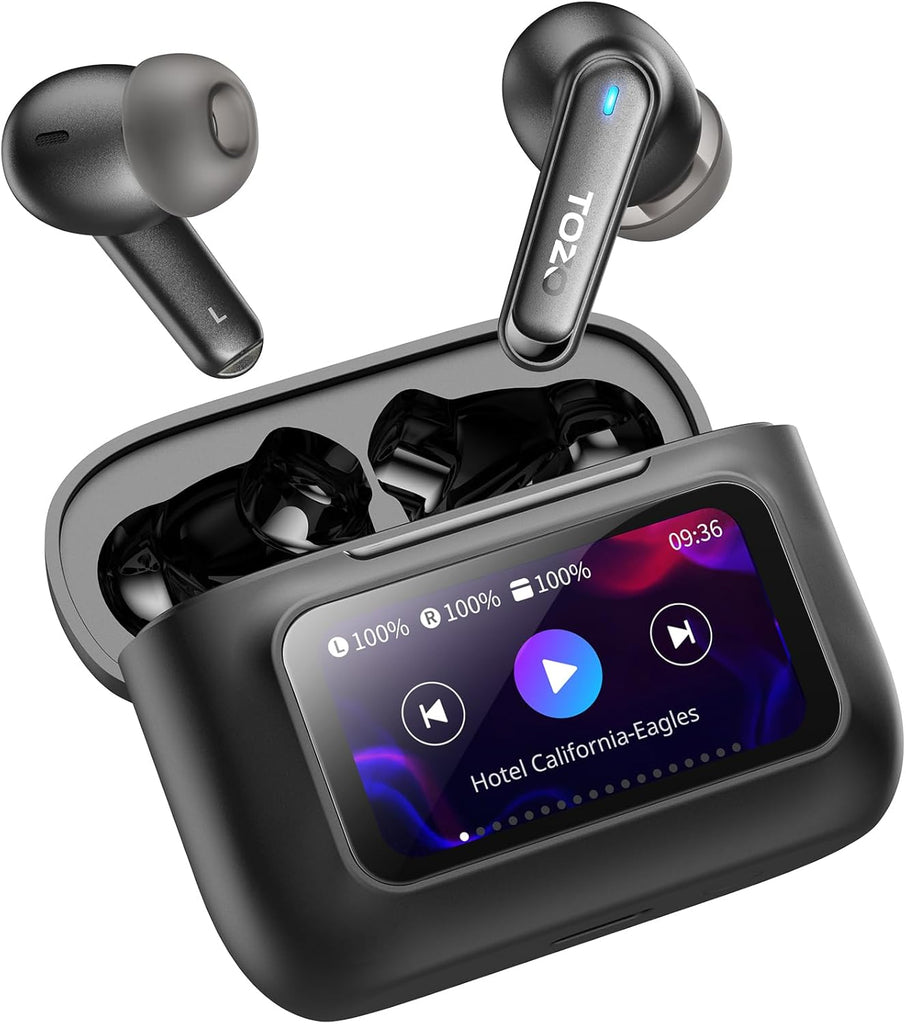
To connect TOZO earbuds to a laptop, turn on Bluetooth, put the earbuds in pairing mode, and select them.
Learning how to connect TOZO earbuds to a laptop is simple once you understand Bluetooth pairing. Whether you use Windows 11, Windows 10, or macOS, this guide explains the full process, fixes common connection problems, and shares practical tips for better sound and fewer dropouts.

What you need before connecting TOZO earbuds to a laptop
Before you connect TOZO earbuds to a laptop, check a few basic things. These small steps prevent most pairing problems.
• Charge both earbuds and the charging case. Low power can stop pairing or cause repeated disconnections.


• Keep the earbuds close to the laptop. Stay within 3 feet during the first connection.
• Turn off Bluetooth on nearby phones and tablets. Your TOZO earbuds may connect to the last device they used.
• Confirm that your laptop supports Bluetooth. Most modern laptops do, but some desktop computers need a USB Bluetooth adapter.
• Remove thick walls or large metal objects between the earbuds and laptop. Bluetooth works best with a clear path.
TOZO models may use slightly different lights and touch controls. The general process remains the same, but your model’s manual may show a different reset method.

How to connect TOZO earbuds to a Windows laptop
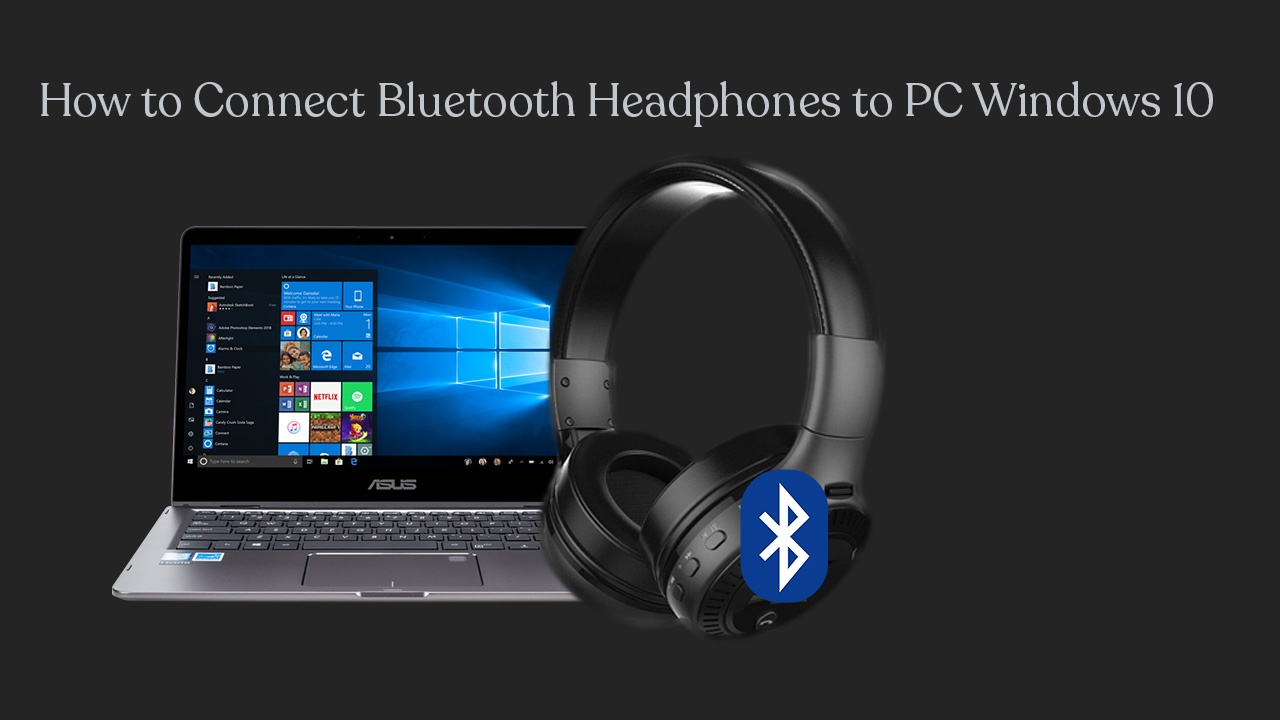
Windows 10 and Windows 11 use similar Bluetooth menus. The labels may look a little different, but the steps are nearly the same.
Step 1: Put the TOZO earbuds in pairing mode
First, place both earbuds inside the charging case. Close the lid for a few seconds, then open it.
Take the earbuds out of the case. Many TOZO models enter pairing mode automatically. Their indicator lights may flash white, blue, or red and blue.
If the earbuds do not flash, touch and hold the control area on each earbud. The exact time varies by model, so hold it for several seconds until the lights begin to blink.
Step 2: Open Bluetooth settings in Windows
On Windows 11:
- Select Start.
- Open Settings.
- Choose Bluetooth & devices.
- Turn on Bluetooth.
- Select Add device.
- Choose Bluetooth.


On Windows 10:
- Select Start.
- Open Settings.
- Choose Devices.
- Select Bluetooth & other devices.
- Turn on Bluetooth.
- Select Add Bluetooth or other device.
- Choose Bluetooth.
Windows will scan for nearby devices. Wait for your TOZO model name to appear, such as TOZO T6, TOZO NC9, or TOZO A1.
Step 3: Select your TOZO earbuds
Select the TOZO earbuds in the device list. Windows should show a message that the device is connected.
You may see the status “Connected voice, music” or a similar message. This means the laptop can use the earbuds for sound and microphone input.
If Windows asks for a PIN, try 0000 or 1234. Most modern TOZO earbuds do not require a PIN, so this prompt is uncommon.
Step 4: Choose TOZO as the sound output
Sometimes Windows pairs the earbuds but continues using the laptop speakers. To change the output:
- Select the speaker icon on the taskbar.
- Open the sound output menu.
- Choose your TOZO earbuds.
- Play music or a video to test them.
You can also go to Settings, System, and Sound. Under Output, select the connected TOZO earbuds.
This is the complete process for how to connect TOZO earbuds to a laptop running Windows. Once paired, the earbuds should connect automatically when they are removed from the case.
How to connect TOZO earbuds to a MacBook
The process for how to connect TOZO earbuds to a laptop is also easy on macOS. MacBooks use the Bluetooth menu in System Settings.
Step 1: Prepare the earbuds
Place the earbuds in pairing mode. Keep them close to your MacBook and make sure they are not actively connected to your phone.
If the earbuds connect to your phone first, open the phone’s Bluetooth settings and disconnect them. You may also turn off Bluetooth on the phone for a moment.
Step 2: Open Bluetooth on your MacBook
On newer versions of macOS:
- Select the Apple menu.
- Open System Settings.
- Select Bluetooth.
- Turn Bluetooth on.
- Find your TOZO earbuds under Nearby Devices.
- Select Connect.
On older macOS versions, open System Preferences, select Bluetooth, and choose Connect beside the TOZO device.


Step 3: Set TOZO as the audio device
After connection, open Control Center from the menu bar. Select Sound, then choose your TOZO earbuds.
You can also open System Settings, select Sound, and choose the earbuds under Output. To use the TOZO microphone, select the earbuds under Input.
MacBooks may switch to a lower-quality Bluetooth audio mode during calls. This happens because Bluetooth must handle both playback and microphone data at the same time. It is normal, though the sound may improve when you use the MacBook’s built-in microphone instead.
This method explains how to connect TOZO earbuds to a laptop made by Apple without installing extra software.

How to put TOZO earbuds into pairing mode
Pairing mode allows a laptop to discover the earbuds. Without it, the laptop may not show the TOZO device.
Try these steps:
- Put both earbuds into the charging case.
- Make sure the case has power.
- Open the lid.
- Remove both earbuds.
- Wait for the indicator lights to flash.
- Search for the earbuds in your laptop’s Bluetooth settings.
Some TOZO models enter pairing mode when removed from the case. Other models require you to touch and hold the earbuds.
If your earbuds were previously paired with another device, they may reconnect to that device instead. Disconnect them from the old device before searching on your laptop.
A useful tip from testing different Bluetooth earbuds is to pair both earbuds at the same time. Pairing only one earbud can create a one-sided connection or cause the second earbud to remain inactive.
How to connect TOZO earbuds to a laptop when they do not appear
If your TOZO earbuds do not appear in the Bluetooth list, do not panic. Most cases involve pairing mode, battery power, or an old saved connection.
Try the following fixes:
• Turn Bluetooth off and on again on the laptop.
• Put the earbuds back into the case, close the lid, wait 10 seconds, and try again.
• Charge the case and earbuds for at least 15 minutes.
• Move your phone and other Bluetooth devices away from the laptop.
• Restart the laptop.
• Search for the earbuds again after placing them in pairing mode.


• Remove old TOZO entries from the laptop’s Bluetooth list.
To remove an old device in Windows, open Bluetooth settings, select the TOZO device, and choose Remove device. On a MacBook, open Bluetooth settings, select the information button beside the earbuds, and choose Forget This Device.
Then repeat the normal pairing process. Removing the old record is often the fastest fix when the laptop says “Couldn’t connect.”

How to reset TOZO earbuds before pairing
A reset clears old Bluetooth connections and returns the earbuds to a fresh pairing state. It is useful when the earbuds connect to one side only, keep disconnecting, or refuse to appear.
The reset method differs among TOZO models. A common method is:
- Forget the TOZO earbuds from your laptop and phone.
- Place both earbuds in the charging case.
- Keep the lid open.
- Touch and hold both earbuds for several seconds.
- Watch for the indicator lights to flash.
- Close and reopen the case.
- Try pairing again.
Some models use the charging case button instead. Check the manual for your exact model before holding any button for a long time.
Resetting should be one of the later steps, not the first. It removes stored connections, so you will need to pair the earbuds with your phone and laptop again.
Fixes for common TOZO laptop connection problems
TOZO earbuds connect but have no sound
Your laptop may still use its built-in speakers. Open the sound settings and select TOZO as the output device.
On Windows, select the speaker icon on the taskbar. On macOS, open Control Center and choose the TOZO earbuds under Sound.
Only one TOZO earbud works
Place both earbuds in the case. Forget the TOZO device on your laptop, reset the earbuds, and pair them again as a set.
This problem often happens when one earbud connects directly to the laptop while the other loses its link to the first earbud.
The sound keeps cutting out
Keep the laptop and earbuds close together. Also move away from crowded wireless areas, such as a busy office, airport, or coffee shop.
Update your laptop’s Bluetooth driver if you use Windows. Bluetooth performance depends on the laptop adapter, driver, operating system, and nearby wireless signals.
The microphone sounds poor during calls
Bluetooth headsets often reduce playback quality when their microphone is active. This is a limitation of many Bluetooth audio profiles, not always a TOZO defect.


For clearer music during a call, use the laptop’s built-in microphone and select TOZO only as the output device.
TOZO earbuds keep reconnecting to a phone
Turn off Bluetooth on the phone or select “Forget This Device.” Then place the earbuds in pairing mode and connect them to the laptop.
Some TOZO models support connections with more than one device, but multipoint behavior varies by model. Do not assume every TOZO earbud supports seamless switching.
The laptop has no Bluetooth option
Your laptop may have a disabled Bluetooth adapter or an outdated driver. On Windows, check Device Manager and look for Bluetooth hardware.
If the computer has no Bluetooth adapter, use a compatible USB Bluetooth adapter. Install its driver if required, then restart the computer.
How to improve TOZO earbud performance on a laptop
After you connect TOZO earbuds to a laptop, a few habits can improve reliability.
• Keep the earbuds and case charged. Battery level affects connection stability.
• Install operating system updates. Windows and macOS updates often include Bluetooth and audio improvements.
• Update Windows Bluetooth drivers through your laptop manufacturer when available.
• Keep the laptop within a reasonable range. Bluetooth may work across a room, but distance and walls can reduce quality.
• Avoid covering the earbuds with your hands or clothing during use.
• Clean the charging contacts. Dust can prevent one earbud from charging or entering pairing mode.
• Use the correct sound profile. Choose the music or stereo profile when listening, and the headset profile when using the microphone.
• Forget unused Bluetooth devices if your laptop has a long list of saved connections.
In everyday use, I have found that charging contacts cause more trouble than people expect. A small amount of dust can make one earbud appear dead when it simply has not charged.


Bluetooth limitations you should know
Bluetooth is convenient, but it is not perfect. Understanding its limits makes troubleshooting easier.
TOZO earbuds may have a slight audio delay with videos or games. Many video apps correct this delay, but fast games may still show a small timing gap.
Wireless range also depends on the laptop’s Bluetooth hardware. Two laptops in the same room may provide different results because they use different antennas and Bluetooth chipsets.
Battery life can change with volume, calls, noise cancellation, and model type. Active noise cancellation may use more power than standard listening.
Microphone quality may also drop during video calls. This happens because Bluetooth must send audio to the earbuds and receive microphone audio at the same time.
These limits do not mean the earbuds are faulty. They are common parts of Bluetooth audio technology and may affect many brands.
How to reconnect TOZO earbuds automatically
Once you connect TOZO earbuds to a laptop, automatic reconnection usually happens when Bluetooth is on and the earbuds are available.
Follow these habits:
- Turn on Bluetooth before removing the earbuds from the case.
- Keep the earbuds charged.
- Make sure they are not connected to another nearby device.
- Select TOZO manually if the laptop does not reconnect.
- Keep the laptop’s operating system updated.
If the earbuds connect to your phone first, temporarily disable Bluetooth on the phone. After the laptop connects, you can turn the phone’s Bluetooth back on.
Automatic reconnection is not guaranteed after a reset, a major operating system update, or pairing with a new device. In those cases, repeat the pairing steps.
Frequently asked questions about how to connect TOZO earbuds to a laptop
How do I connect TOZO earbuds to a laptop?
Turn on Bluetooth on the laptop, place the TOZO earbuds in pairing mode, and select them from the available device list. After pairing, choose TOZO as the laptop’s sound output.
Why are my TOZO earbuds not showing on my laptop?
They may not be in pairing mode, may have low battery, or may already be connected to another device. Charge them, disconnect nearby devices, reset the earbuds if needed, and search again.
Can I connect TOZO earbuds to a Windows laptop?
Yes. Open Bluetooth settings in Windows, choose Add device, select Bluetooth, and pick your TOZO earbuds. The steps work on most Windows 10 and Windows 11 laptops.
Can I connect TOZO earbuds to a MacBook?
Yes. Open System Settings, choose Bluetooth, and select Connect beside the TOZO earbuds. Then choose TOZO under Sound if your MacBook does not switch audio automatically.
Why does only one TOZO earbud connect to my laptop?
One earbud may have lost its connection to the other, or the laptop may have saved an incomplete pairing. Forget the TOZO device, reset both earbuds, and pair them together again.
Do TOZO earbuds work with laptops without Bluetooth?
Not directly. A laptop without Bluetooth needs a USB Bluetooth adapter before it can connect to wireless earbuds.
Can TOZO earbuds connect to a laptop and phone at the same time?
Some TOZO models support multipoint connections, but not all do. Check your exact model’s specifications, because many earbuds must disconnect from one device before pairing with another.
Conclusion
Learning how to connect TOZO earbuds to a laptop takes only a few steps: charge the earbuds, enter pairing mode, open Bluetooth settings, and select the TOZO device. If the connection fails, forgetting the old pairing, restarting Bluetooth, and resetting the earbuds usually solves the problem.
Use the steps for Windows or macOS that match your computer. Then keep the earbuds charged, update your laptop, and limit nearby Bluetooth connections for a smoother experience. Try the process now, and share your TOZO model or troubleshooting result in the comments.